Manual Of How To Crop A Picture Into A Circle In PowerPoint

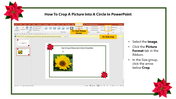
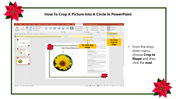
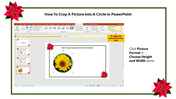
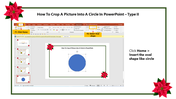
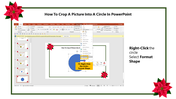
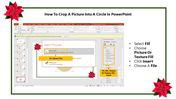
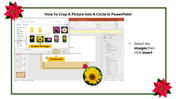

How To Crop A Picture Into A Circle Presentation Slides
Have you ever inserted an image in your document or project, only to realize it's facing the wrong way? No worries, flipping an image is quick and easy. Here's how to do it:
- First, select the image you want to flip.
- Look for the ""Format"" tab on the top of your screen.
- Click on the ""Rotate"" option on the right side.
- You will see the option to flip your image horizontally or vertically. Choose the direction you want your image to face.
- Voila! Your image is now flipped.
It's important to note that flipping an image doesn't just change its direction, but it also flips the text within the image, so it becomes mirrored. This can come in handy for creating unique designs and graphics.
Flipping an image is a simple tool that can make a big difference in your project. With these steps, you can easily flip an image in no time!


You May Also Like These PowerPoint Templates
























Showing36 of69,218 templates