How To Make A Hierarchy Chart Easily In PowerPoint



How To Make A Hierarchy Chart Easily In PowerPoint
One of the most important parts of a business presentation is the hierarchical chart structure. A hierarchy chart can be created to present the company's strategy, the position of an employee, and the divisional structure.
Let's see the steps to create a hierarchy chart
Follow the below steps and create the best hierarchy chart to create a hierarchical structure. If you're confused and don't have any time to create a chart on your own? Don't worry; SlideEgg has come with a huge collection of pre-designed hierarchy chart PowerPoint templates. You can use one from our website and create a stunning presentation.
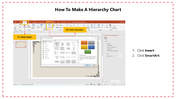
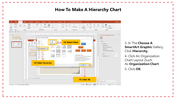
Step 1: First Click Insert
Step2: Click SmartArt.
Step3: In the choose, A SmartArt Gallery, click Hierarchy.
Step4: Click an Organization Chart layout such as ( An organization Chart)
Step5: Click Ok.
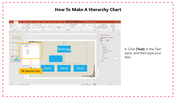
Step6: Click[Text] in the text panel and type your text.
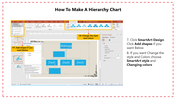
Step7: Click SmartArt Design and click Click Add Shapes if you want below.
Step8:If you want to change the Color and Style, choose SmartArt Style and Change the colors.
Just follow the steps to create a beautiful hierarchy chart in a minute. Visit SlideEgg for more useful PowerPoint hacks and tutorials.


You May Also Like These PowerPoint Templates