Free - Learn How To Remove Background In PowerPoint Slides
Free
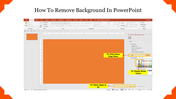


How to Remove Background Presentation Slides
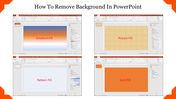
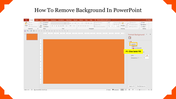
Removing the background of an image can make your presentations look more professional and visually appealing. Our PowerPoint Template Bundle includes five pre-designed slides to help you quickly and easily remove the background from your images. With step-by-step instructions, you'll learn how to use PowerPoint's built-in tools to achieve a clean and polished look. Make your presentations look more professional and visually appealing with this must-have template bundle.
Steps for removing the solid fill background
Step 1: Select the slide in which you are trying to clear the background.
Step 2: Click on the Design tab from the menu bar.
Step 3: Select the Format Background option to get the Format Background options.
Step 4: Click the Solid Fill option.
Step 5: Click the color drop-down option and choose white color.
Step 6: Select Apply to All button to remove the background for the entire presentation.
Now, you can see the clear white background in your slides. I hope you have learned the tips to remove the background. Stay tuned with SlideEgg to explore more PowerPoint tips and tricks.
We also provide an exclusive collection of mind-blowing background slides to make your presentations visually stunning and aesthetically pleasing. To fine-tune your slides, use our eye-catching slides.
You May Also Like These PowerPoint Templates

Add to Wishlist
Download
AI Customize

Free
Add to Wishlist
Download
AI Customize

Add to Wishlist
Download
AI Customize


Add to Wishlist
Download
AI Customize


Free
Add to Wishlist
Download
AI Customize

Free
Add to Wishlist
Download
AI Customize

Add to Wishlist
Download
AI Customize

Add to Wishlist
Download
AI Customize


Free
Add to Wishlist
Download
AI Customize


Add to Wishlist
Download
AI Customize


Add to Wishlist
Download
AI Customize

Free
Add to Wishlist
Download
AI Customize

Free
Add to Wishlist
Download
AI Customize

Add to Wishlist
Download
AI Customize


Add to Wishlist
Download
AI Customize
Add to Wishlist
Download
AI Customize
Add to Wishlist
Download
AI Customize

Add to Wishlist
Download
AI Customize
Add to Wishlist
Download
AI Customize
Add to Wishlist
Download
AI Customize
Add to Wishlist
Download
AI Customize
Add to Wishlist
Download
AI Customize
Add to Wishlist
Download
AI Customize
Add to Wishlist
Download
AI Customize
Add to Wishlist
Download
AI Customize

Add to Wishlist
Download
AI Customize