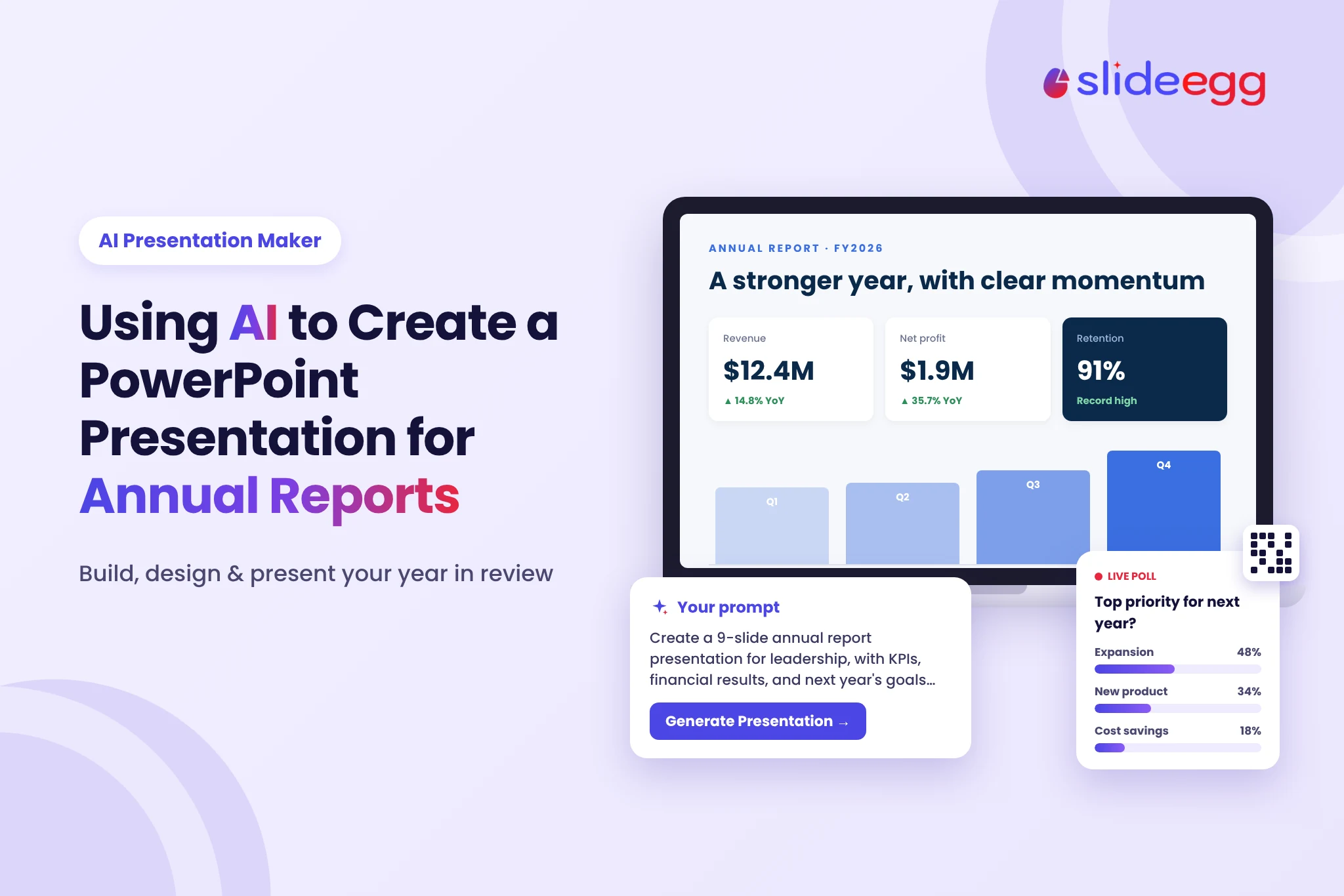
Build, design & present your annual report with SlideEgg
AI tools are almost everyone’s work pal today. Like junior trainees, once trained with the right prompts, AI tools can become reliable partners in task completion. For annual reports, using AI to create PowerPoint presentations has two prerequisites: insightful prompts and an AI presentation generator that delivers exactly what’s needed.
Key Takeaways
- A strong annual report presentation depends on two things: a detailed, insightful prompt and an AI presentation maker built on a large library of professionally designed slides.
- With SlideEgg, you can pick an annual report, QBR, or year-in-review template, or generate a fresh deck with an AI presentation generator. Then add interactive slides like Live Polls, Word Cloud, and Live Q&A to engage stakeholders.
- AI gives you a first draft in minutes, but cross-check your data and add confidential figures yourself in the editor.
01What goes into preparing an annual report presentation?
Working from the initial draft to the final presentation is a hectic process of several crossovers between Excel sheets, mail exchanges, collaboration tools, reporting and analytics tools, and handwritten notes that read like a doctor’s prescription. It starts with planning the content, collecting the data, designing layouts, graphs, and charts, formatting, and going through multiple reviews that keep going until the last minute.
Preparing annual reports shouldn’t be rushed, despite the time constraints and intricacies involved. This isn’t like any other presentation where a flashy design and writing flair impress the audience. Only a strong report that summarizes what happened in the past twelve months, organized around key metrics, financial results, and future plans, builds credibility even with the most demanding audience.
Any AI presentation generator that reduces the load during this arduous annual report preparation is a time-saver, without cutting corners.
02How do you make your annual report presentation stand out?
For teams and businesses that are, at the moment, on a quest to prepare a detailed annual report, creating presentations from scratch, slide by slide, or relying on vague, generic AI-made decks may not deliver the presentation they’re planning for. The Q4 wrap-ups and QBRs, business annual reviews, and brag decks for year-end reviews can perform well with stakeholders, investors, and leaders at all-hands meetings and interest them if they are planned and executed as interactive presentations.
There are many AI presentation generators to help get the job done. But with SlideEgg, professionals can build and design decks and also deliver interactive presentations that stand out.
Check out all that you can do with the SlideEgg presentation platform:
- SlideEgg ready-to-present templates: From the template library of 100,000+ templates across 575+ categories, you can pick an annual report, QBR, or year-in-review template that fits your business, and use the AI Slide Customizer to modify the slides with your data and story through prompting.
- SlideEgg AI Presentation Maker: With the AI presentation generator, create a fresh annual report presentation and generate slides with AI built around a comprehensive prompt detailing your report contents.
- SlideEgg interactive presentation tools: Add interactive slides to your annual report like any other slide. Pick the mode your report needs (Live Polls, Word Cloud, Live Q&A, or Quizzes), share the QR code while presenting from SlideEgg, and let stakeholders join from their phones, with no app or login. Use it to vote on next year’s priorities, then export the responses for your follow-up plans and better audience engagement.
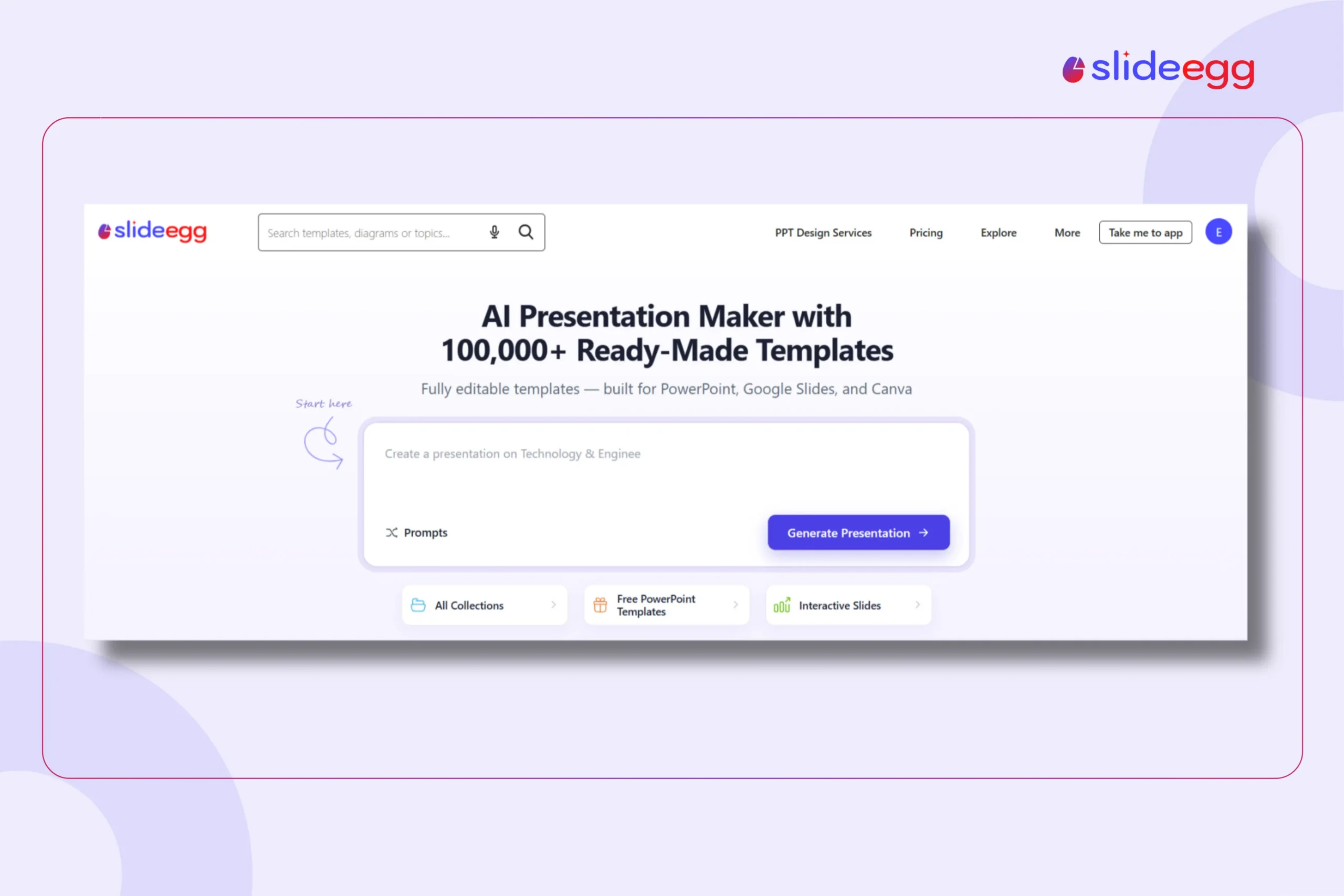
The importance of the annual report presentation is in its professionalism and the business story it defines, and SlideEgg helps presenters exhibit it effectively.
03How do you write the right AI prompt when using AI to create a PPT?
The deal is in the details. It’s only a small puddle to cross once enough attention is given to the report content. That one prompt to get you started should be insightful, like the design expectations you explain to your designer, along with the content.
Quickly open a Word doc and write your presentation brief for your AI prompt:
- Audience: Name who it’s for, whether that’s leadership, investors, clients, or your own team. This sets the structure and level of detail of the presentation.
- Scope & timeline: Mention the year or quarter, the teams or business units, and what you’re comparing against, such as last year’s performance or budget.
- Stats & data: Bring in your KPIs, financial results, and operational highlights, and instruct the AI to stick only to the given data and not add any made-up figures.
- Slide flow: Describe the slides you want in order and be specific with each slide’s contents, for example, agenda, executive summary, results, challenges, wins, and next year’s goals.
- Design instructions: Add your design instructions for AI to create your graphs, charts, and diagrams, as well as bullet point styles, layouts, and your preferred style or brand color.
These points should help you frame a prompt to create an annual report using AI. If you’re still unclear on how to get started, take the brief structure above and the copy-and-paste AI prompt below, along with your report contents, and give them to your AI chatbot, like ChatGPT, Gemini, or any other you prefer, and ask it to formulate your prompt. Then paste the final prompt into SlideEgg’s AI Presentation Maker.
Note
Annual reports often include confidential information. You don’t need to share every detail with an AI tool. Use placeholder values in your prompt and then add real figures yourself in the SlideEgg editor, or after downloading the deck to PowerPoint, Google Slides, or Canva.
Tips for better AI presentation results
Don’t expect any AI PPT generator to deliver a finished draft from the very first prompt. It takes a few solid rounds of refinement before rendering the final output.
- Cross-check your data: Make sure numbers, units, and currencies match across your spreadsheets, reports, and the AI presentation draft.
- Review the outline and content: Check the slide flow, content, and layout.
- Refine with follow-up prompts: Suggest modifications to the brand color, graphs, charts, diagrams, and designs by prompting until you achieve the desired output.
04How to use AI to create a PowerPoint presentation with SlideEgg
Now, it’s time to go to slideegg.com and start using AI to create a PowerPoint presentation for your annual report.
Here’s the output of an annual report presentation created with SlideEgg’s AI Presentation Maker using the content brief structure above and the copy-and-paste AI prompt adapted to my report’s content.
The annual report in the image took me less than five minutes to generate as a first draft.
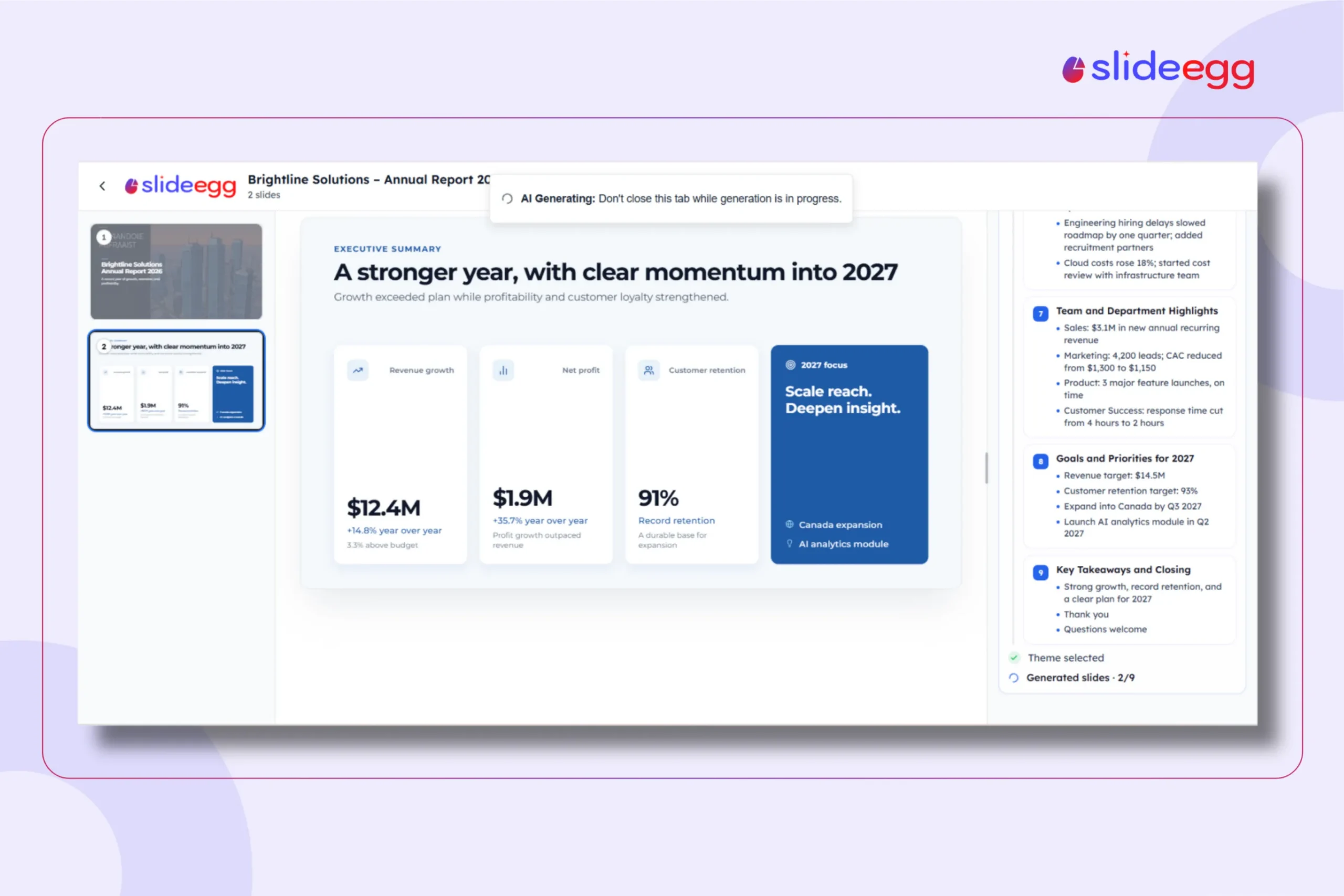
Now, SlideEgg’s AI is done creating the annual report presentation. From here, you can preview your presentation. If it’s good to go, you can either download it or keep editing to further work on it.
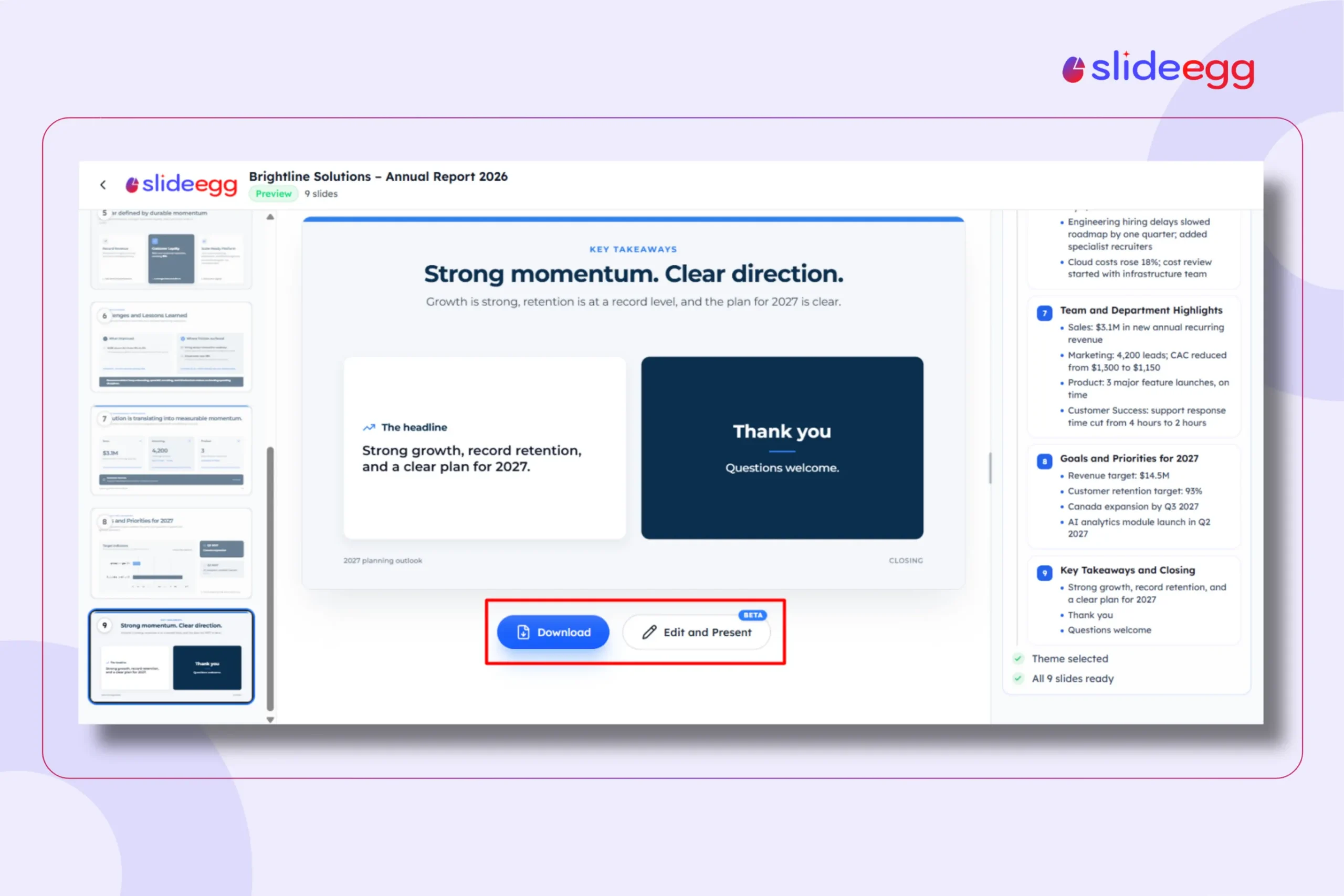
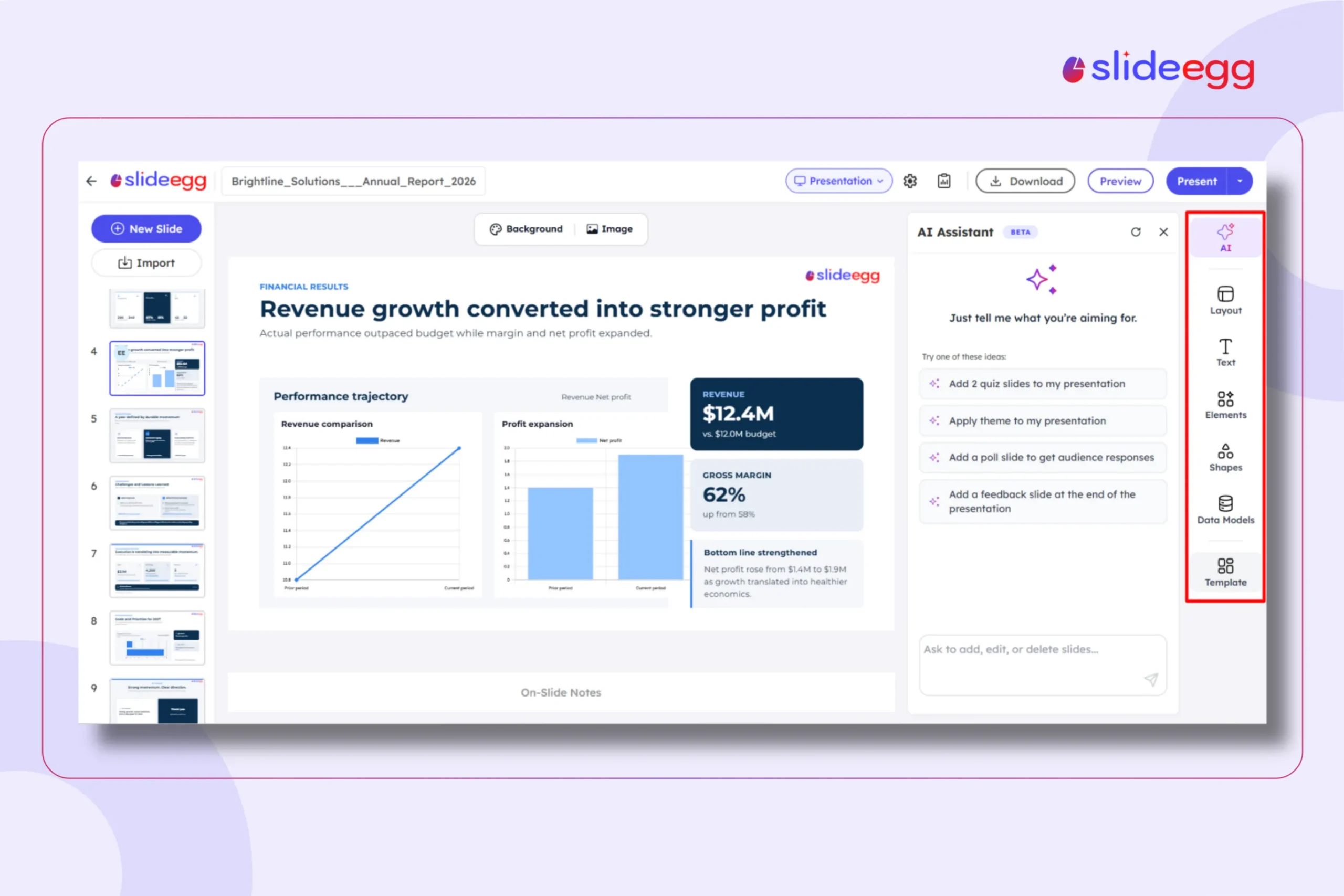
When you click Edit and Present, you’ll be taken to SlideEgg’s presentation editor, where you have a lot of options to work with. You can refine the presentation with AI prompts, directly edit the slides, or even browse SlideEgg’s template library to add more slides.
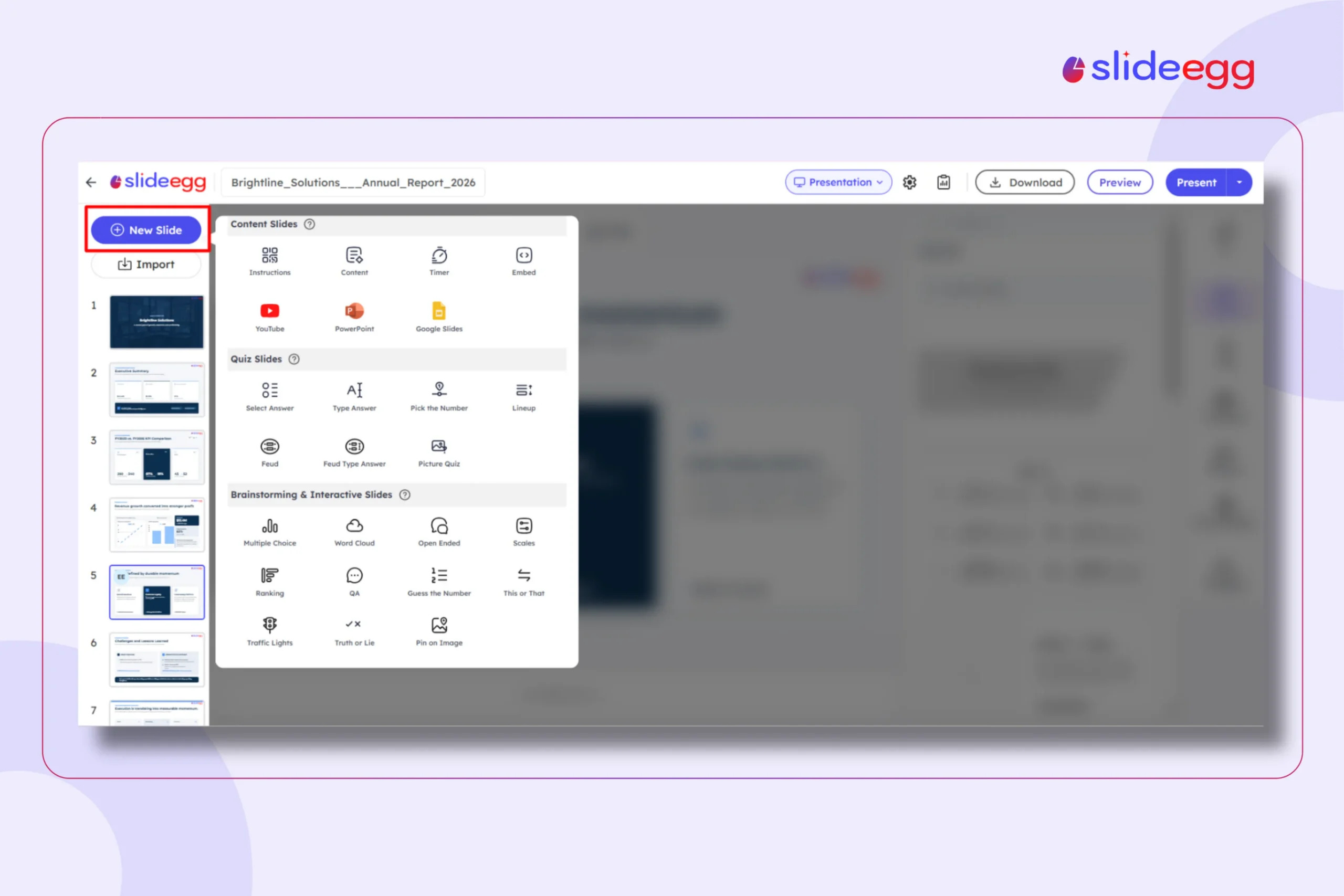
Now, as a final touch, add interactive elements such as Live Polls, Word Cloud, or Live Q&A to your presentation by clicking the New Slide button in the top-left corner, choosing the one that best suits your annual report presentation, and setting it up.
Note
Adding interactive slides might be new to you, but every option comes with a clear video tutorial to give you a walkthrough. Interactive slides work only when you present from the SlideEgg editor online. If you download the deck to PowerPoint or Google Slides, the interactive slides won’t be live, so use Present in SlideEgg when you want your audience to join.
Preparing an annual report is a project in itself where you report the whole year as a deck. When you’re already tiptoeing on the edge of tight deadlines since figures change until year’s end, the AI tool you subscribed to is a pal only when you take the time to help it understand you. When using AI to create a PowerPoint presentation, all it takes is a clear, detailed prompt and, of course, an AI presentation maker like SlideEgg.
Ready to build your annual report presentation?
Start with an annual report template or generate a fresh deck with SlideEgg’s AI Presentation Maker.