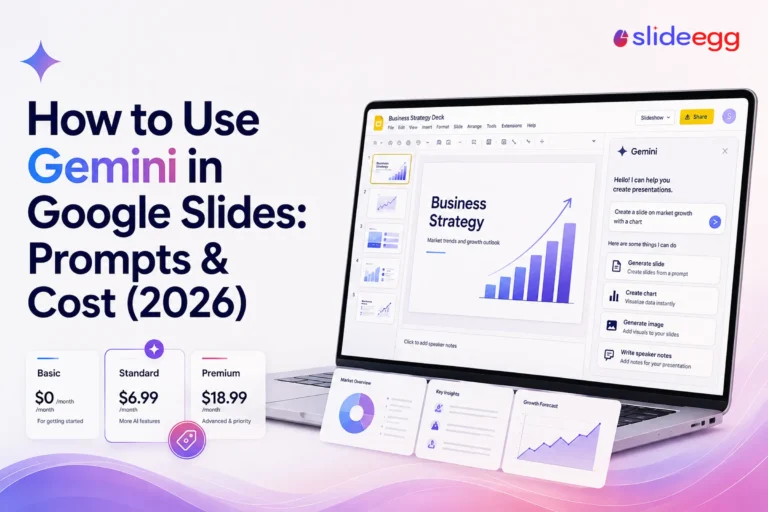
Gemini puts Google’s AI right inside the Slides editor, so you can draft, design, and polish a presentation without leaving the page. This guide walks through exactly how to use it in 2026—from your first slide to a full deck—along with the prompts, plans, and pitfalls that make the biggest difference.
To use Gemini in Google Slides, open your presentation and click Ask Gemini at the top right. In the side panel, type a prompt to draft a slide, generate an image, summarize your deck, or rewrite text. To build a full deck, use Canvas in the Gemini app and export it to Slides.
Gemini is fastest as a first-draft partner. It handles layout and rough copy in seconds, but still needs a human pass on facts and tone. Below you’ll learn how to turn it on (and what it costs), the prompts that actually work, how to generate a full deck with Canvas, how to add speaker notes and charts, and the mistakes that waste the most time.
How to Use Gemini in Google Slides (Quick Steps)
- Open a presentation and click Ask Gemini at the top right.
- Type a prompt to draft a slide, then click Insert or Replace.
- Generate images, charts, summaries, or rewrites from the same side panel.
- For a full deck, build it in Canvas in the Gemini app, then Export to Slides.
- Review every slide for accuracy and design before you present.
What Is Gemini in Google Slides?
Gemini in Google Slides is an AI assistant built into the Slides side panel and opened with the Ask Gemini button. You give it a prompt, and it helps you draft and edit slides, add visuals, and rewrite text—turning rough ideas into a working deck faster.
It can also work from your own material, like a Drive file or a Gmail email, to ground what it creates. The sections below show exactly what it can do and how to use it step by step.
What Can Gemini Do in Google Slides?
Gemini covers a few core jobs. The table below maps each feature to a real task so you can see where it saves time.
| Gemini feature | What you can do with it |
|---|---|
| Generate a slide | Create one editable slide from a prompt, matched to your deck’s theme. |
| Edit a slide | Redesign layout or content, like “convert to two columns” or “make this more minimal.” |
| Generate images | Create images from a prompt or based on the slide’s content, then insert them. |
| Create charts & graphs | Turn data or a slide’s content into a visual chart you can insert and edit. |
| Refine text | Shorten, rephrase, or change the tone of text already on a slide. |
| Write speaker notes | Draft talking points for a slide so you’re ready to present. |
| Summarize a deck | Get a short summary of a presentation in the side panel. |
| Reference your files | Pull details from Drive files or Gmail to draft slides and text. |
| Write or rewrite | Draft speaker text, simplify wording, or change the tone. |
| Build a full deck (Canvas) | Generate an entire presentation in the Gemini app, then export it to Slides. |
Is Gemini in Google Slides Free? Plans and Pricing
The Gemini side panel inside Slides is not part of the standard free tier. You need an eligible Google Workspace plan or a paid Google AI plan. Some 2026 features first reached Google AI Pro and Ultra subscribers.
Here is a simple view of the consumer plans as of mid-2026. Prices and limits change often, so confirm on Google’s pricing page before you commit.
| Plan | Approx. price (mid-2026) | Good for |
|---|---|---|
| Free tier | $0 | Basic Gemini app use; limited access to newer Slides features. |
| Google AI Plus | ~$4.99/month | Light users who want higher limits at a low entry price. |
| Google AI Pro | ~$19.99/month | Most individuals; access to the Gemini 3.1 Pro model and Workspace AI features. |
| Google AI Ultra | from ~$99.99/month | Heavy users who need the highest limits. |
If you use Google Workspace through work or school, your organization may already include Gemini. Check with your admin before buying a personal plan.
How to Use Gemini in Google Slides Step by Step
Here is a simple workflow you can follow for most decks.
1. Draft a new slide
Click Ask Gemini, then describe the slide you want. For example: “Create a title slide for a Q3 marketing review with a clean, professional layout.”
To keep your design consistent, use Match a presentation style and add a deck from Drive. Gemini builds one slide at a time, so review the preview and click Insert or Replace.
2. Generate and insert images
In the side panel, type a prompt like “Generate an image of a sunrise over a city skyline.” You can also ask Gemini to “suggest images for this slide” so it works from your content.
Hover over an image and click Insert to add it. Keep in mind that Google says these images are meant for use only within Google Slides. If you also build slides elsewhere, our guide on how to create and insert AI images in Google Slides is a useful companion read.
3. Redesign a slide that isn’t working
Select a slide, open Gemini, and describe the change. Try “simplify this slide with less text and add an image” or “convert to two columns.”
Gemini shows a preview before it applies anything. If you don’t like it, close the preview and refine your prompt.
4. Summarize and pull from your own files
When you open a deck with text, the side panel shows a summary. You can also prompt “summarize this presentation in 3 sentences.”
To use your own material, reference a file with the @ symbol, such as “Create a slide outlining next steps from @team sync notes.” Click Sources to confirm which files Gemini used.
5. Add facts from the web
Gemini only checks the web when you ask it to. Include a phrase like “using Google Search” in your prompt, for example: “Add three recent stats about remote work using Google Search.”
Always confirm any numbers before you present them.
How to Create a Full Presentation with Gemini (Canvas)
The Slides side panel builds slides one at a time. To generate a complete deck from a single prompt, use Canvas in the Gemini app. This Canvas-to-Slides workflow rolled out broadly in April 2026.
Generate the deck in Canvas
Open the Gemini app in your browser. Click Tools below the chat box, then choose Canvas.
Type a prompt such as “Build a 10-slide presentation on our 2026 onboarding plan.” You can also upload a source file, like a PDF or a Google Doc, and ask Gemini to turn it into slides. Gemini usually drafts around 8 to 15 slides with a theme and images.
Export Canvas to Google Slides
When the preview looks right, click Export to Slides at the top right of the deck. Gemini saves it as a Google Slides file in your Drive, where you can polish and share it.
When to use Canvas vs. slide-by-slide
Use Canvas when you need a full first draft fast. Use the in-Slides side panel when you already have a deck and want to add, edit, or fix single slides.
How to Write Speaker Notes and Refine Text with Gemini
Two features make a deck presentation-ready: speaker notes that prepare you to talk, and quick text edits that tighten what’s already on a slide. Gemini handles both from the same side panel.
Generate speaker notes for a slide
Select the slide you want notes for, click Ask Gemini, and prompt something like “Write speaker notes for this slide” or “Give me 3 talking points to present this slide.” Gemini drafts notes from the slide’s content, which you can paste into the speaker-notes area below the slide and edit.
This is useful when you’re handing a deck to someone else, rehearsing on a deadline, or turning bullet points into something you can actually say out loud. Keep the notes in your own voice and check any facts before you present.
Refine text that’s already on a slide
When the wording is close but not right, use Refine instead of a full rewrite. Select the text, then choose the Refine option and pick a rewrite—Shorten, Rephrase, More formal, or Bulletize—or type your own instruction in the “Refine with a prompt” box.
Refine works on the text you’ve selected, so it’s faster and safer than regenerating the whole slide. It’s the quickest way to fix tone, length, or clarity without losing your layout.
How to Create Charts and Graphs from Your Content
Gemini in Slides can turn information into a chart or graph so a data-heavy slide is easier to read. It uses the content on your slide—or data you provide—to suggest a visual you can insert and then edit like any native Slides chart.
To try it, open Ask Gemini on a slide that contains numbers and prompt something like “Create a bar chart from the figures on this slide” or “Visualize this quarterly revenue data as a line graph.” Review the preview, click Insert, and adjust labels or colors to match your deck.
Always verify the numbers. AI-generated charts can mislabel values or round inconsistently, so check every figure against your source before you present. A clean chart with a wrong number does more damage than no chart at all.
Which Prompts Work Best in Gemini for Slides?
Clear, specific prompts give better results than short ones. Tell Gemini the goal, the audience, and the format.
| Goal | Example prompt |
|---|---|
| Draft a title slide | “Create a title slide for a Q3 marketing review, clean and professional.” |
| Summarize a deck | “Summarize this presentation in 3 sentences.” |
| Redesign a slide | “Simplify this slide with less text and convert it to two columns.” |
| Create an image | “Generate an image of a team meeting in a bright office, wide layout.” |
| Create a chart | “Create a bar chart from the quarterly revenue figures on this slide.” |
| Write speaker notes | “Write speaker notes for this slide as 3 short talking points.” |
| Refine text | “Make this paragraph shorter and more formal.” |
| Use your files | “Draft a next-steps slide from @project plan and @kickoff notes.” |
| Build a full deck (Canvas) | “Build a 10-slide deck on our 2026 onboarding plan, then export to Slides.” |
What Are the Common Mistakes to Avoid?
Most problems come from how people prompt Gemini, not the tool itself. Here are the issues that slow people down and how to fix each one.
| Mistake | Fix |
|---|---|
| Vague prompts | State the audience, tone, and length. Specific prompts give cleaner drafts. |
| Expecting one slide to become a full deck | Use Canvas for whole decks; use the side panel for single slides. |
| Trusting AI text without checking | Fact-check stats, names, and claims before you present. |
| Not checking numbers in charts | Verify every value in an AI-generated chart against your source data. |
| Pasting confidential data into prompts | Keep personal or sensitive details out of your prompts. |
| Inconsistent design | Use “Match a presentation style” or start from a consistent template. |
| Losing your draft history | Insert content you want to keep. History clears when you refresh or close the file. |
How to Get More From Gemini: A Practical Workflow
Gemini is fastest when you give it a clear structure to work inside. Decide your slide order first, then let Gemini draft each section. A simple loop works well: Draft → Refine → Fact-check → Brand.
A consistent visual base also helps. Gemini handles the content, but your layout still needs to look the same across slides. If you want a ready-made starting point, you can browse ready-made presentation templates and let Gemini fill in the content while the design stays consistent.
It also helps to know the basics of the editor. If you are newer to the tool, our walkthrough on how to create a good presentation on Google Slides pairs well with these AI steps. You can also browse more Google Slides tutorials for related how-tos.
Finally, treat Gemini as a first-draft partner. Review the wording, check the facts, and adjust the design so the final deck sounds like you.
Frequently Asked Questions
Is Gemini in Google Slides free?
The Gemini side panel inside Google Slides needs an eligible Google Workspace plan or a paid Google AI plan; it is not in the standard free tier. As of mid-2026, Google AI Plus is about $4.99/month, Google AI Pro is about $19.99/month, and Google AI Ultra starts at about $99.99/month. Availability and limits depend on your account and region.
Can Gemini create a full presentation in Google Slides?
Yes. Inside Slides, the side panel builds one slide at a time. To create a full deck, use Canvas in the Gemini app: prompt it to build a presentation, then click Export to Slides. This Canvas-to-Slides workflow rolled out broadly in April 2026 and usually drafts around 8 to 15 slides.
Can Gemini write speaker notes in Google Slides?
Yes. Select a slide, open Ask Gemini, and prompt something like “Write speaker notes for this slide.” Gemini drafts notes you can paste into the speaker-notes area, then edit. Review them for accuracy and tone before you present.
How do I open Gemini in Google Slides?
Open a presentation, then click the Ask Gemini button at the top right to open the side panel. From there you can pick a suggested prompt or type your own to draft slides, generate images, summarize the deck, or pull details from your Drive files and Gmail.
Are Gemini-generated images safe to use outside Google Slides?
According to Google, images generated with Gemini in Slides are intended for use only within Google Slides. Treat them as presentation assets rather than stock images for other projects, and always review them for accuracy before you present.
Does Gemini in Google Slides make mistakes?
Yes. Google notes that AI features can suggest inaccurate or unsafe information. Gemini speeds up drafting, but you should fact-check any statistics, names, or claims it adds—including numbers in charts. Treat the output as a first draft and review it before you share or present.
Can Gemini pull content from my own files?
Yes. You can reference Drive files in a prompt using the @ symbol, such as “@team sync notes.” Gemini uses those files to generate slides or text and shows a Sources link so you can confirm what it used. Avoid adding personal or confidential details to prompts.
Conclusion
Gemini in Google Slides removes the slow parts of building a deck. The side panel drafts and edits single slides, adds charts and speaker notes, and refines your text, while Canvas in the Gemini app builds a full deck you can export to Slides.
Start small: draft one slide, refine it, then scale up to a full deck when you need one. Keep your prompts specific, check the facts and chart numbers, and use a consistent template so every slide looks like it belongs together.