
Most people use only a fraction of what Google Slides can do. That’s where the wasted time hides. These 10 Google Slides tips are quick to learn and easy to use. Each one saves a few minutes now, and those minutes add up to hours over a week.
You don’t need to be a designer. You just need to know where the time-savers are. Let’s start.
The 10 tips at a glance:
- Learn the shortcuts that matter
- Edit the theme once, not every slide
- Copy any look with the paint tool
- Import slides instead of rebuilding them
- Line up objects in one click
- Insert ready-made diagrams
- Voice type your speaker notes
- Add a clickable table of contents
- Use version history, not “Copy of Copy”
- Start from a template
1. Learn the Shortcuts That Matter
A few keyboard shortcuts save the most time. Learn these first:
- Ctrl + M — add a new slide.
- Ctrl + D — duplicate the selected slide.
- Ctrl + Shift + V — paste text without its old formatting.
- Ctrl + / — see the full list of shortcuts.
On a Mac, swap Ctrl for Cmd. Just three or four of these will change how fast you build a deck. If you move content around a lot, our guide on how to copy and paste in Google Slides covers the shortcuts and how to avoid messy formatting.
2. Edit the Theme Once, Not Every Slide
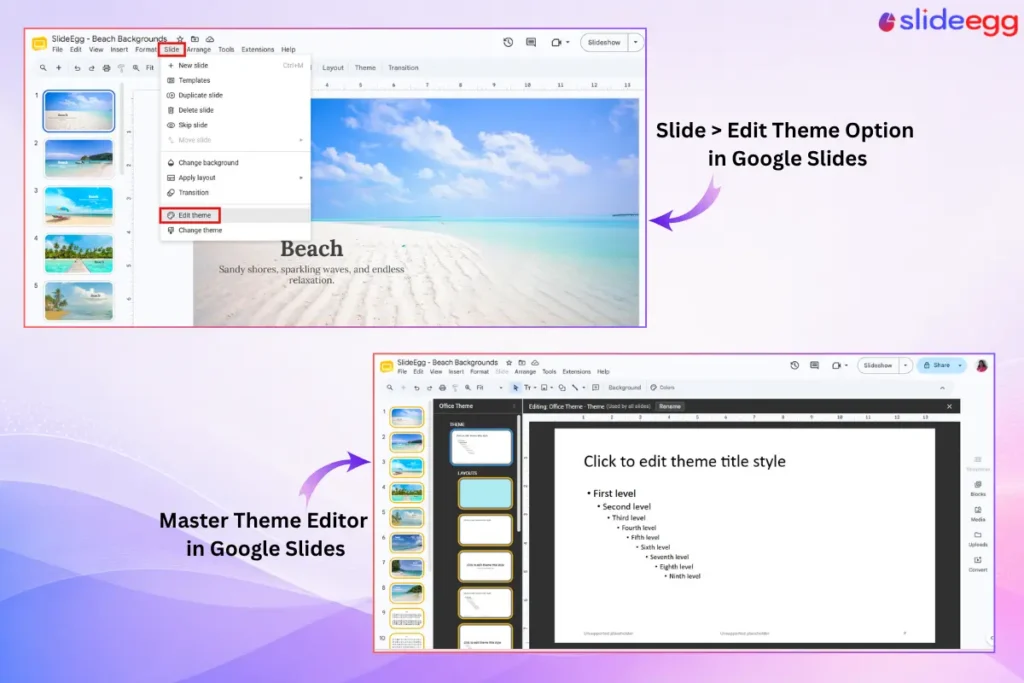
Changing the font or color on every slide is slow. Change it once instead. Go to Slide > Edit theme. Here you edit the master layouts. Update the font, color, or logo, and every slide follows. It’s the single biggest time-saver in this list.
3. Copy Any Look With the Paint Tool
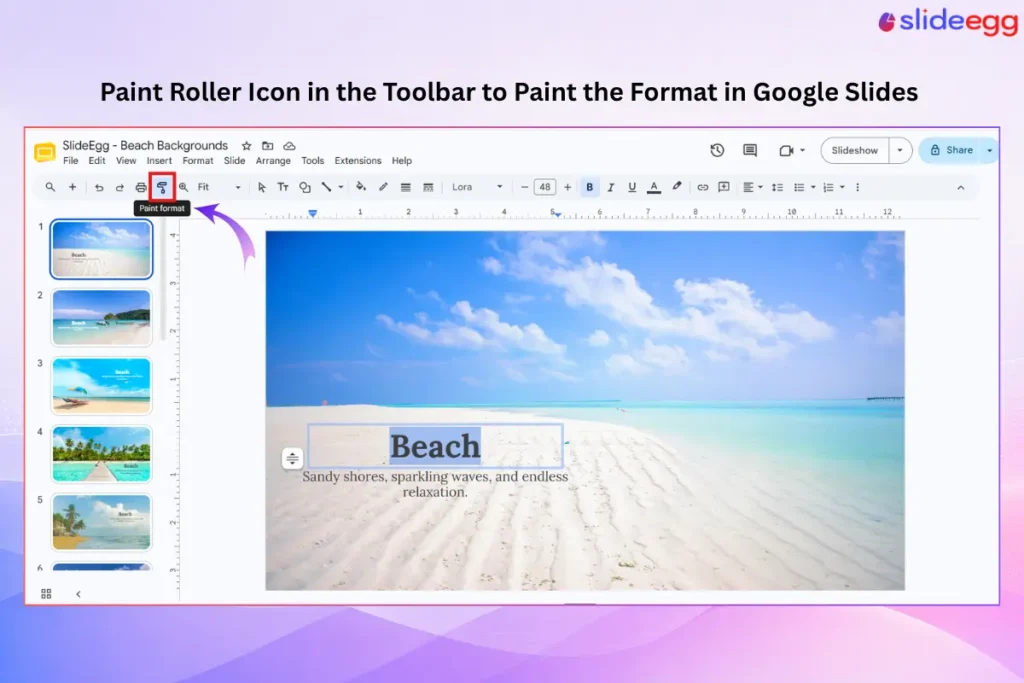
Built a text box or shape you like? Reuse its style. Click the object first. Then click the paint roller icon in the toolbar. Now click the object you want to match. The color, font, and size copy over at once. To copy the same style to many objects, double-click the paint roller to lock it on.
4. Import Slides Instead of Rebuilding Them
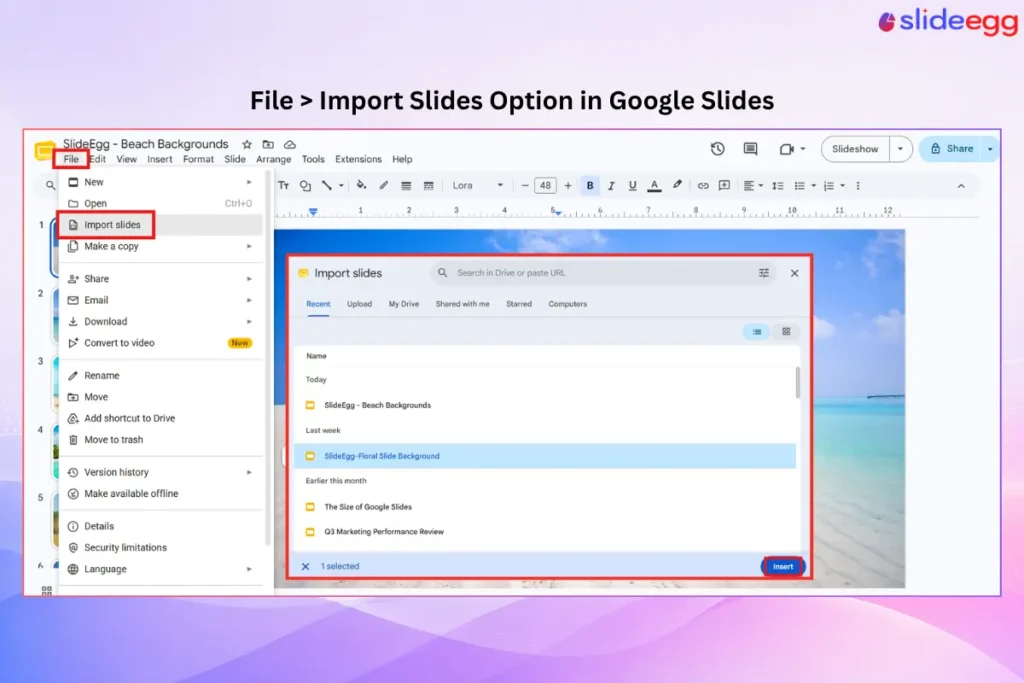
Need a slide you already made in another deck? Don’t rebuild it. Go to File > Import slides. Pick the old presentation, then choose the slides you want. You can keep their theme or match your current one. This alone can save a full afternoon.
5. Line Up Objects in One Click
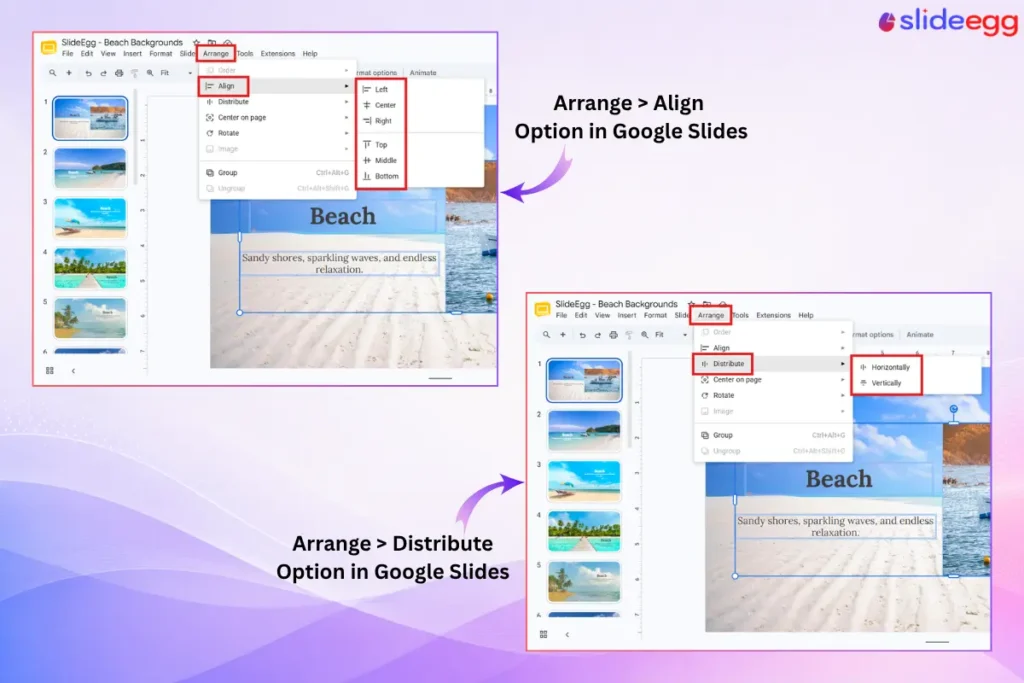
Crooked boxes make a slide look messy. Fix them fast. Select the objects, then go to Arrange > Align or Arrange > Distribute. Slides lines them up and spaces them evenly for you. To move one object a tiny bit, click it and tap the arrow keys.
6. Insert Ready-Made Diagrams
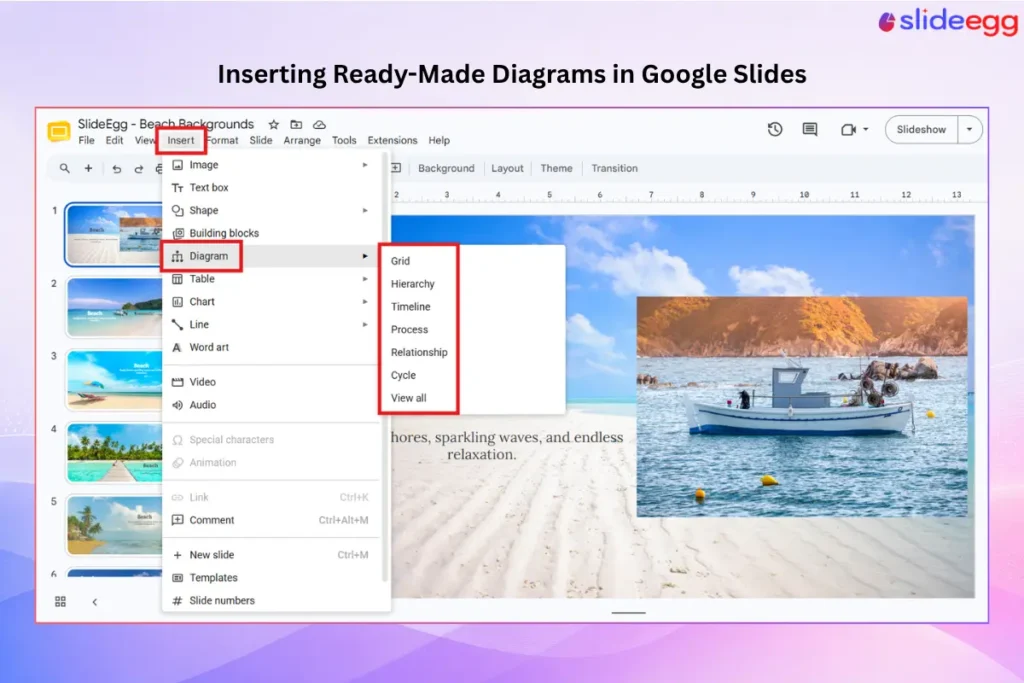
You don’t have to draw a diagram by hand. Go to Insert > Diagram. Slides offers ready-made hierarchies, timelines, cycles, and process charts. Pick one, set the number of steps and the color, and edit the text. It’s the fastest way to add a clean visual. Building a team chart? Our guide on how to make an org chart in Google Slides walks through it step by step.
7. Voice Type Your Speaker Notes
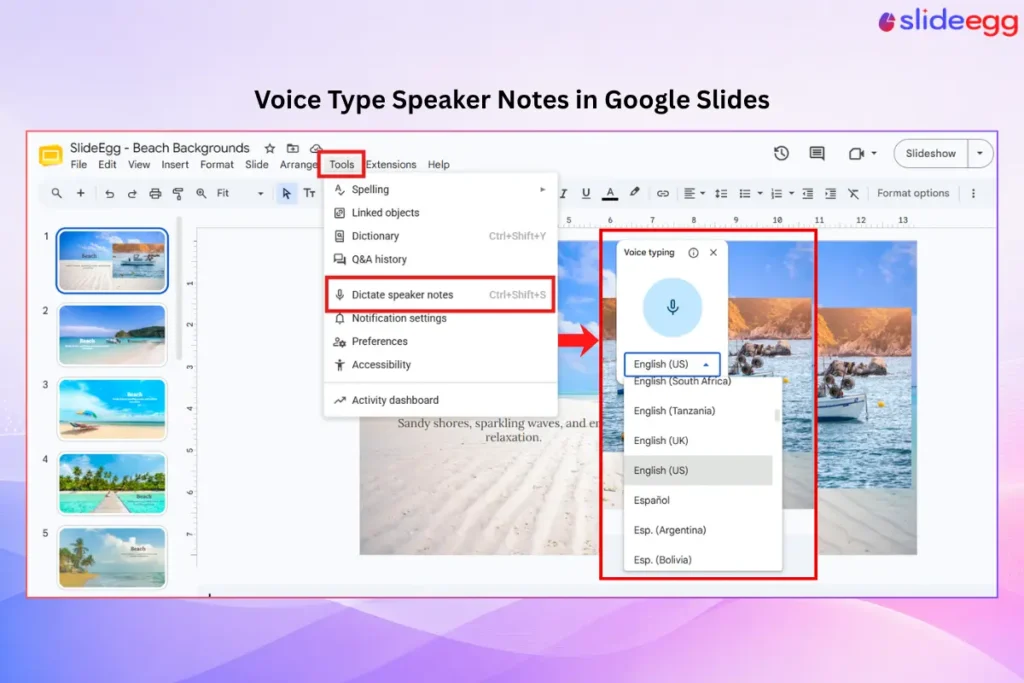
Typing notes takes time. Speak them instead. Open the speaker notes area at the bottom. Then go to Tools > Voice type speaker notes (this works in Chrome). Click the microphone and talk. Your words appear as text. It’s a quick way to draft what you’ll say.
8. Add a Clickable Table of Contents
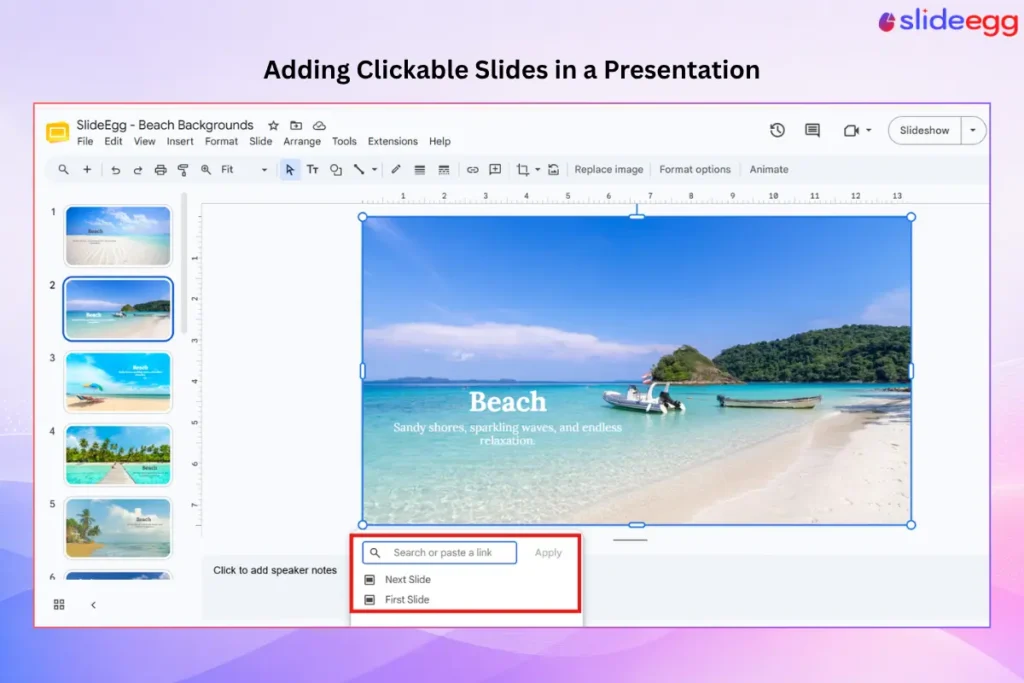
Long decks are hard to move around in. A menu slide fixes that. Type your section names on one slide. Select a name, then press Ctrl + K. Choose Slides in this presentation and pick the slide to link to. Now you can jump to any section in one click while you present. For a fuller walkthrough, see how to build a dynamic table of contents in Google Slides.
9. Use Version History, Not “Copy of Copy”
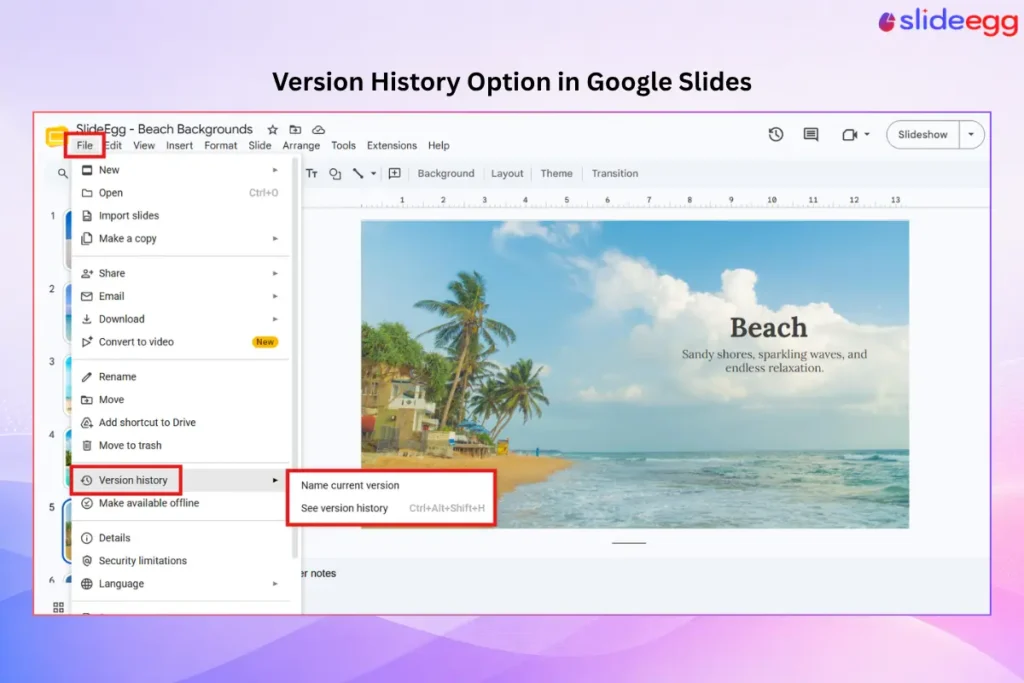
Saving “Final_v2” and “Final_v3” files is a mess. Google Slides tracks changes for you. Go to File > Version history > See version history. You’ll see every past version by date. Open an old one to view it, or restore it with one click. No more duplicate files clogging your Drive.
10. Start From a Template
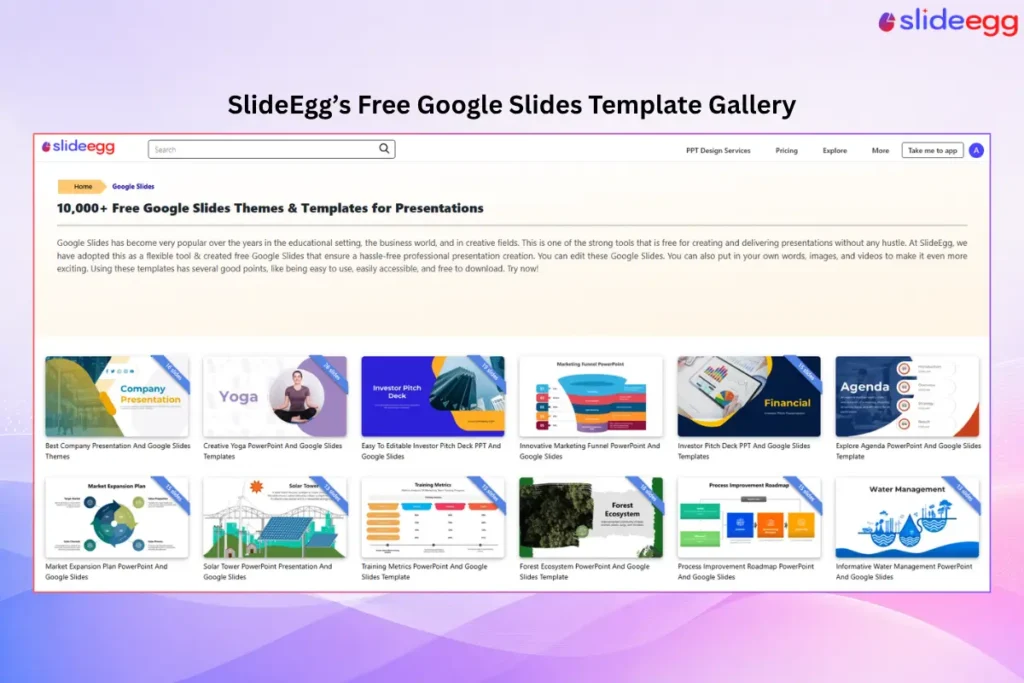
A blank slide is the slowest place to start. A Google Slides template gives you the layout, fonts, and colors up front. You just add your content. Pick one that fits your topic, then swap in your text and images. Pairing a template with the tips above is the quickest route to a finished deck.
Frequently Asked Questions
What is the most useful Google Slides shortcut?
Press Ctrl + / (or Cmd + / on Mac) to see every shortcut. Day to day, the most useful are Ctrl + M to add a slide and Ctrl + D to duplicate one.
How do I change the font on all slides at once?
Go to Slide > Edit theme. Change the font on the master layout there. Every slide that uses that layout updates at the same time, so you don’t have to edit each one.
Can I copy a slide from another Google Slides file?
Yes. Go to File > Import slides, choose the other presentation, and select the slides you want. You can keep their original theme or match your current deck.
How do I get my old version of a presentation back?
Open File > Version history > See version history. Pick a version by its date and time. You can view it, or click restore to bring it back.
Does voice typing for speaker notes work in any browser?
It works best in Google Chrome. Open the speaker notes, then choose Tools > Voice type speaker notes and click the microphone to start.
Conclusion
None of these tips are hard. That’s the point. Learn a few shortcuts, edit the theme once, import instead of rebuild, and let Slides handle the layout. Try two or three this week. You’ll feel the time you save right away—and your slides will look better too.