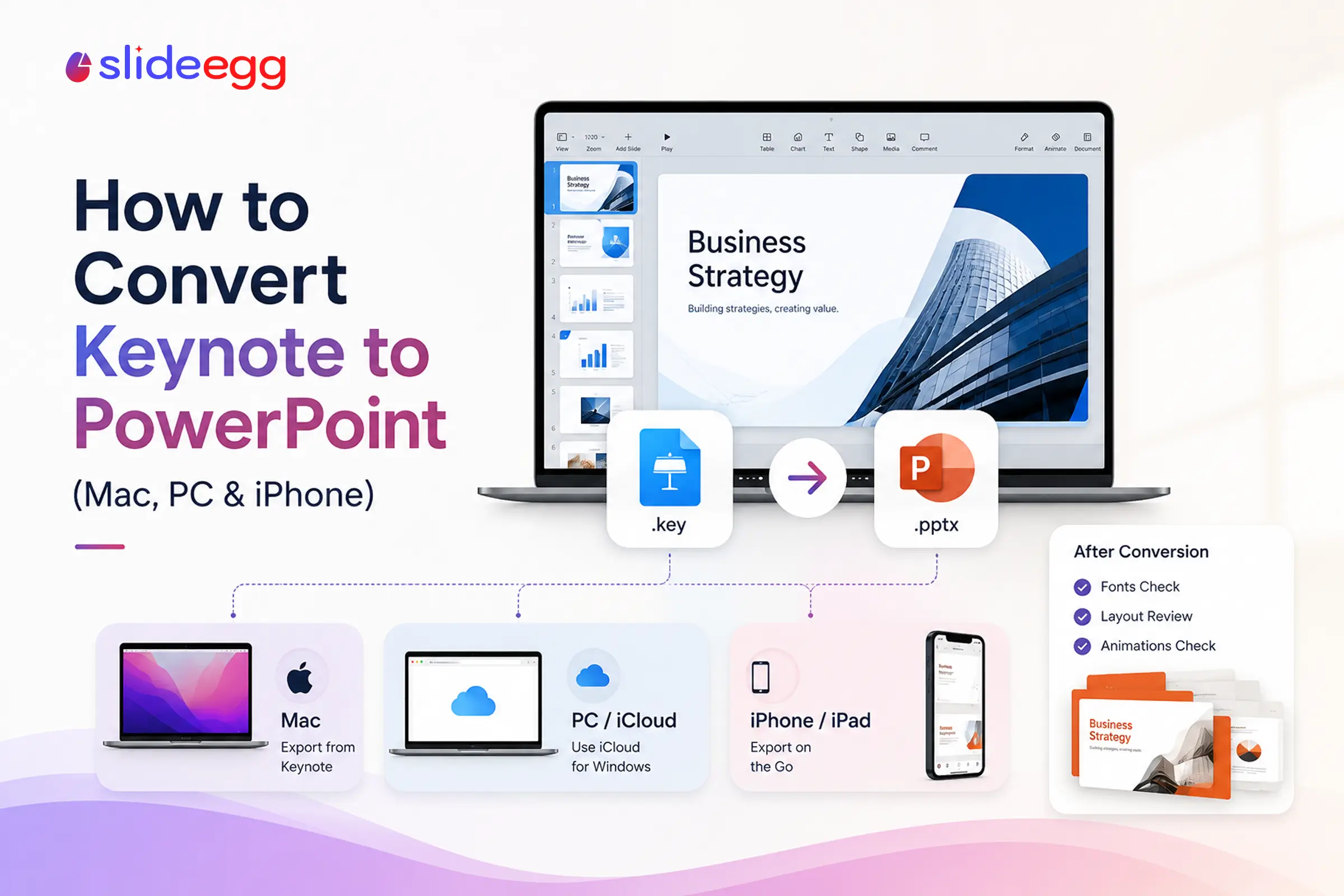
Keynote and PowerPoint don’t share a file type—a .key file won’t open in PowerPoint—so moving a deck across means exporting a .pptx copy. Keynote does this for free, natively on a Mac, iPhone, or iPad, and through iCloud.com in any browser, so you never need a Mac or paid software to end up with a PowerPoint file.
The export takes seconds; the real work is what happens afterward. Because PowerPoint can’t reproduce every Keynote feature, fonts and animations are where converted decks usually break. This guide walks through the exact steps for each device, explains what changes in the conversion, and shows how to make the result look as polished as the original.
How to Convert Keynote to PowerPoint (Quick Steps)
- Open your presentation in the Keynote app on a Mac.
- Choose File > Export To > PowerPoint from the menu bar.
- Adjust any settings, then click Next.
- Name the file, choose a location, and click Export.
- Open the new .pptx in PowerPoint and check fonts, layout, and animations.
Which Method Should You Use?
The right method depends on the device you’re on. All three produce a standard .pptx file.
| You’re on | Use this | What you need |
|---|---|---|
| A Mac | The Keynote app (File > Export To) | Keynote installed (free on Mac) |
| Windows or Chromebook | Keynote at iCloud.com in a browser | An Apple ID and internet |
| iPhone or iPad | The Keynote app (Export) | The free Keynote app |
How to Convert Keynote to PowerPoint on a Mac
This is the most common route and gives you the most export settings.
Step 1: Open the file and choose Export To
Open your presentation in Keynote. In the menu bar at the top of the screen, choose File > Export To > PowerPoint.
Step 2: Set a password (optional) and continue
A window opens with export options. If you want the file protected, tick Require password to open; otherwise leave it clear. Click Next.
Step 3: Name the file and export
Type a name (leave off the extension—Keynote adds .pptx for you), choose where to save it with the Where menu, and click Export. Your original Keynote file stays exactly as it was.
How to Convert Keynote to PowerPoint on Windows (iCloud)
No Mac? You can convert in any browser using Keynote for iCloud. It’s free and works on Windows or a Chromebook.
Step 1: Open Keynote at iCloud.com
Go to iCloud.com and sign in with your Apple ID. Open Keynote. If your file isn’t there yet, drag your .key file into the browser window to upload it.
Step 2: Download a copy as PowerPoint
Select the presentation, click the More button (the three dots), and choose Download a Copy. Pick PowerPoint. iCloud converts the file and downloads a .pptx to your computer.
How to Convert Keynote to PowerPoint on iPhone or iPad
You can also export straight from the Keynote app on iOS or iPadOS.
Open the presentation, tap the More button (the three dots), tap Export, then tap PowerPoint. Choose how to save or send it—for example, save to Files, or attach it to an email. The result is a standard .pptx you can open anywhere.
What Changes When You Convert Keynote to PowerPoint?
Most of your deck transfers cleanly, but PowerPoint can’t reproduce every Keynote feature. Knowing what shifts helps you check the right things.
Fonts that aren’t installed on the other computer get swapped for a substitute, which can change spacing. Keynote-only transitions like Magic Move, plus some builds and animations, may look different or drop. Text, images, tables, and layout usually come across well.
So after you export, open the file in PowerPoint and scan every slide—fix any swapped fonts, tidy spacing, and re-add effects that didn’t survive.
What Are the Common Mistakes to Avoid?
Most problems show up after the export, not during it. Here’s what to watch for.
| Mistake | Fix |
|---|---|
| Sending the .key file directly | PowerPoint can’t open .key. Always export to .pptx first. |
| Not checking fonts | Use common fonts, or embed/replace fonts so the deck looks right on other machines. |
| Expecting every animation to survive | Re-create Keynote-only transitions and builds in PowerPoint after exporting. |
| Skipping a final review | Open the .pptx and check each slide before you send or present it. |
| Trusting random online converters | Use Apple’s own export or iCloud; avoid uploading confidential decks to unknown sites. |
| Losing the original | Keep the Keynote file. The export is a copy, so edit the .key if you need changes. |
How to Fix the Look After Converting
If the exported deck feels off—shifted fonts, uneven spacing, plain slides—the fastest fix is to rebuild it on a consistent design rather than patch each slide by hand.
Move your text and images onto a clean, matching base and the whole deck lines up again. You can drop the content into professionally designed PowerPoint templates so the formatting stays consistent from the first slide to the last.
Converting the other direction or to another app? See our guides on how to convert PowerPoint to Keynote and how to convert Keynote to Google Slides. You can also browse more PowerPoint tutorials for related how-tos.
Frequently Asked Questions
How do I convert Keynote to PowerPoint on a Mac?
Open the presentation in Keynote, then choose File > Export To > PowerPoint from the menu bar. Adjust any settings, click Next, name the file, pick a location, and click Export. Keynote saves a .pptx copy that opens in Microsoft PowerPoint, and your original Keynote file stays unchanged.
Can I convert Keynote to PowerPoint on Windows?
Yes, using iCloud in a browser. Sign in at iCloud.com with your Apple ID, open Keynote, and upload your .key file if needed. Select it, click the More (three dots) button, choose Download a Copy, then pick PowerPoint. iCloud converts it and downloads a .pptx file—no Mac required.
Is converting Keynote to PowerPoint free?
Yes. Exporting from the Keynote app on a Mac, iPhone, or iPad is free, and converting through iCloud.com in a browser is also free—you only need an Apple ID. There is no need to buy extra software or use a paid online converter for a standard export.
Why does my presentation look different after converting?
PowerPoint doesn’t support every Keynote feature. Fonts that aren’t installed on the other computer get substituted, and some Keynote-only transitions or animations may change or drop. Text and layout usually transfer well—review each slide and fix fonts, spacing, and effects after you open the .pptx.
How do I convert Keynote to PowerPoint on iPhone or iPad?
Open the presentation in Keynote, tap the More (three dots) button, tap Export, then tap PowerPoint. Choose how to save or send the file—for example, save it to Files or email it. The exported .pptx opens in PowerPoint on any device.
What file format does Keynote export for PowerPoint?
Keynote exports to .pptx, the modern PowerPoint format that Microsoft PowerPoint opens and edits directly. Your Keynote file uses the .key extension, which PowerPoint can’t open on its own—so exporting to .pptx is what makes the file work in PowerPoint.
Conclusion
Converting Keynote to PowerPoint is a quick export, whichever device you’re on—the Keynote app on Mac, iPhone, or iPad, or iCloud.com on Windows. Each one gives you a standard .pptx file and leaves your original safe.
The export is the easy part. Once it’s done, open the deck in PowerPoint, check fonts and animations, and apply a clean template so the final result looks as polished as the original.