The most reliable way to convert a Word document to PowerPoint is to import it as an outline—PowerPoint reads the headings in your Word file and turns each one into a slide. It’s free and takes seconds. If you’d rather start from a finished design, Copilot can draft a deck for you, and copy and paste works for a few slides.
There’s one catch: importing moves text only, so the layout still needs work. Below are all three methods step by step, how to prep your Word file so the slides come out clean, and the mistakes that create the most rework.
How to Convert Word to PowerPoint (Quick Steps)
- In Word, apply Heading 1 to slide titles and Heading 2 to bullet points.
- Save and close the Word document.
- In PowerPoint, choose Home > New Slide > Slides from Outline.
- Select your Word file and click Insert.
- Apply a template, then add visuals and fix the layout on each slide.
Which Method Should You Use?
There are three practical ways to do this. The right one depends on the tools you have and how much control you want.
| Method | Best for | What you need |
|---|---|---|
| Import a Word outline | Full control and keeping your structure; free | Word and PowerPoint (desktop) |
| Copilot in PowerPoint | A fast first draft with a design and images | A Microsoft 365 Copilot license |
| Copy and paste | A few slides, or a document with no headings | Any version of Word and PowerPoint |
How to Convert a Word Document to PowerPoint Using an Outline
This is the method most people want. It uses your Word headings to build the slide structure, so a tidy document becomes a tidy deck. Note that Slides from Outline is a desktop PowerPoint feature—if you work in the browser, use Copilot or copy and paste instead.
Step 1: Add heading styles in Word
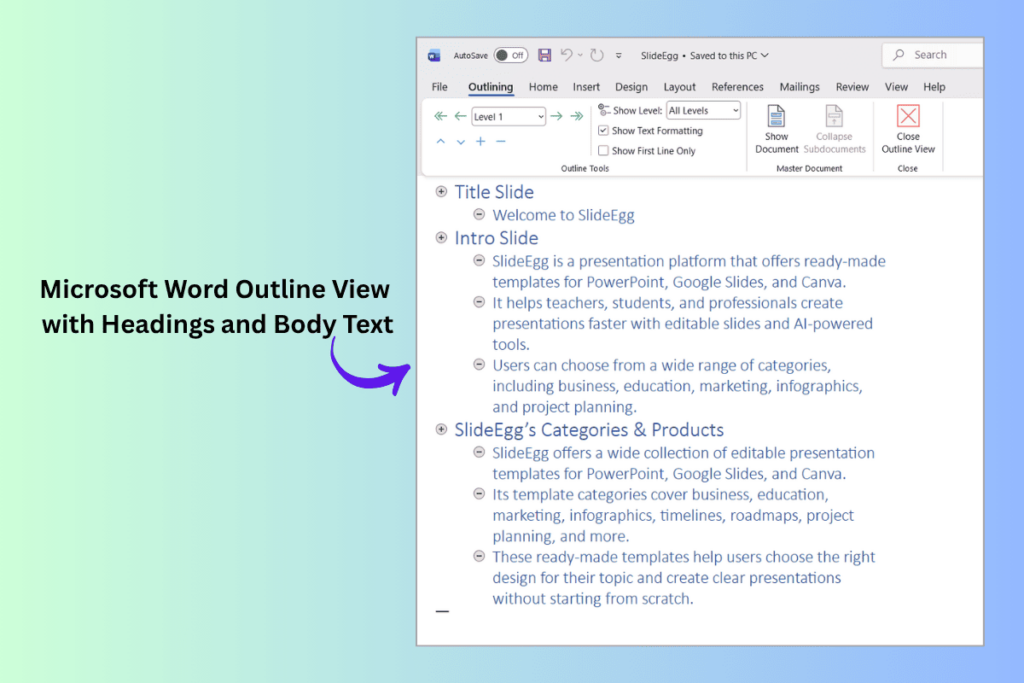
PowerPoint reads your headings to decide what goes where. In Word, select View > Outline, then set each line’s level: Level 1 for slide titles and Level 2 for bullet points on that slide.
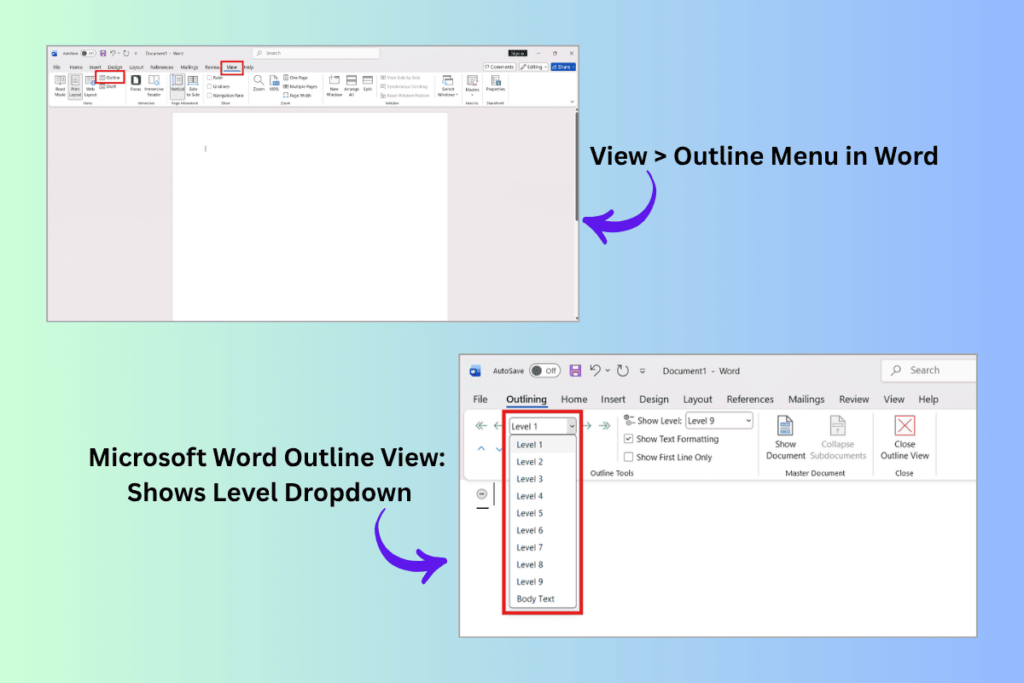
You can also apply the Heading 1 and Heading 2 styles from the Home tab. Any text left in the Normal style won’t move to PowerPoint, so make sure every line you want has a heading level.
Step 2: Save and close the document
Save your file as a .docx (PowerPoint also accepts .rtf and .txt). Then close the document—PowerPoint can’t import a Word file that’s still open.
Step 3: Import the outline into PowerPoint
Open PowerPoint and select Home > New Slide > Slides from Outline. In the Insert Outline box, find your Word file and click Insert.
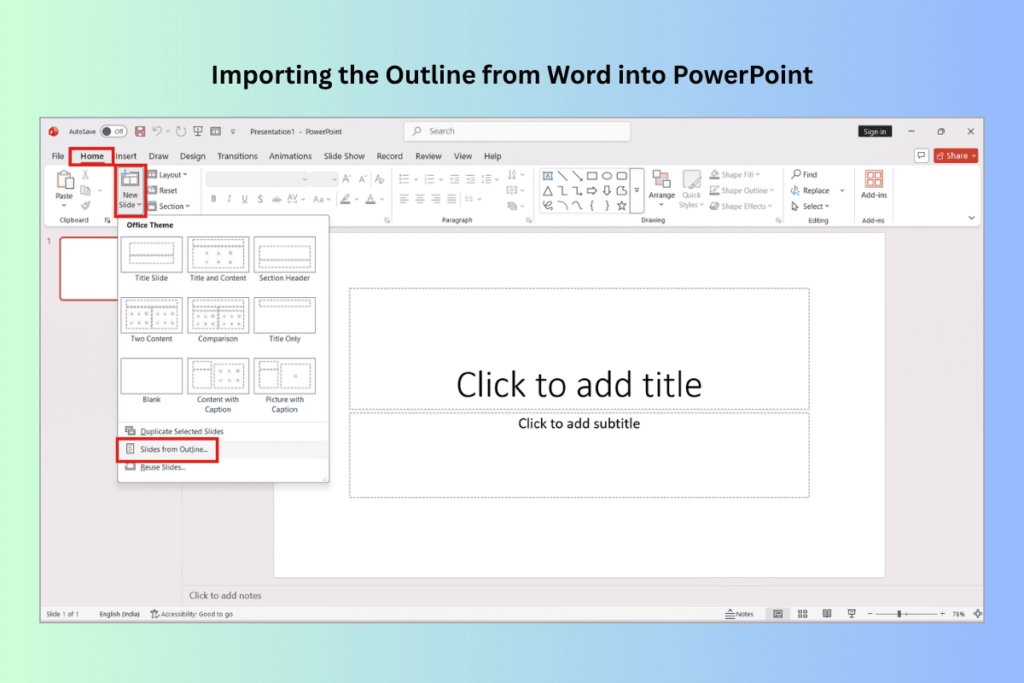
PowerPoint creates a new slide for each Heading 1 and adds the Heading 2 lines as bullets.
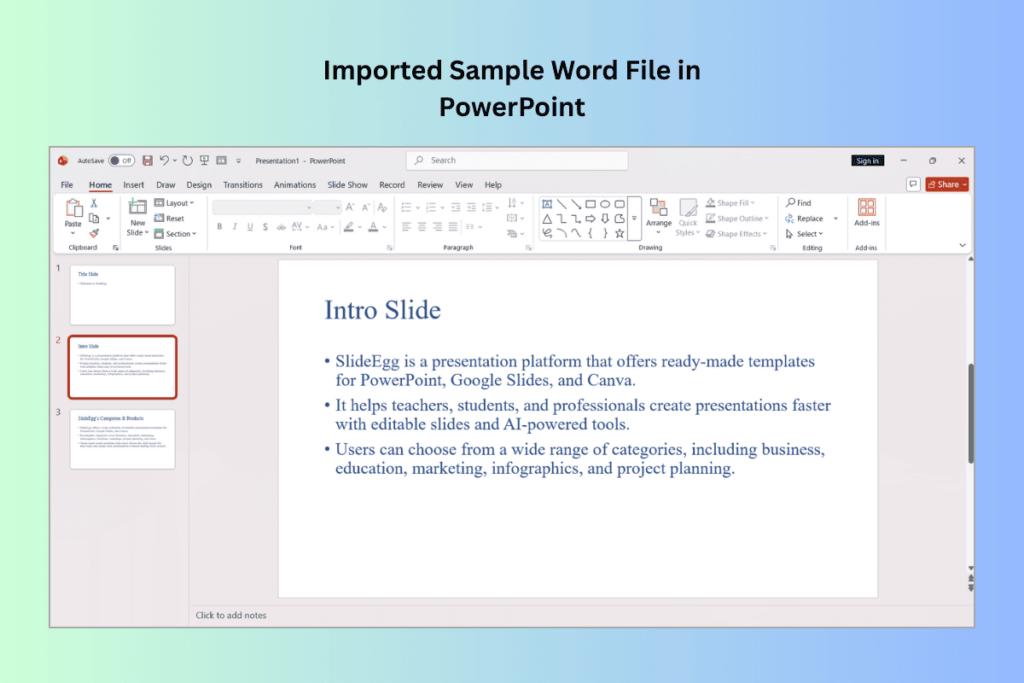
If nothing splits into slides, your document is missing heading styles—go back to Step 1.
How to Convert Word to PowerPoint with Copilot
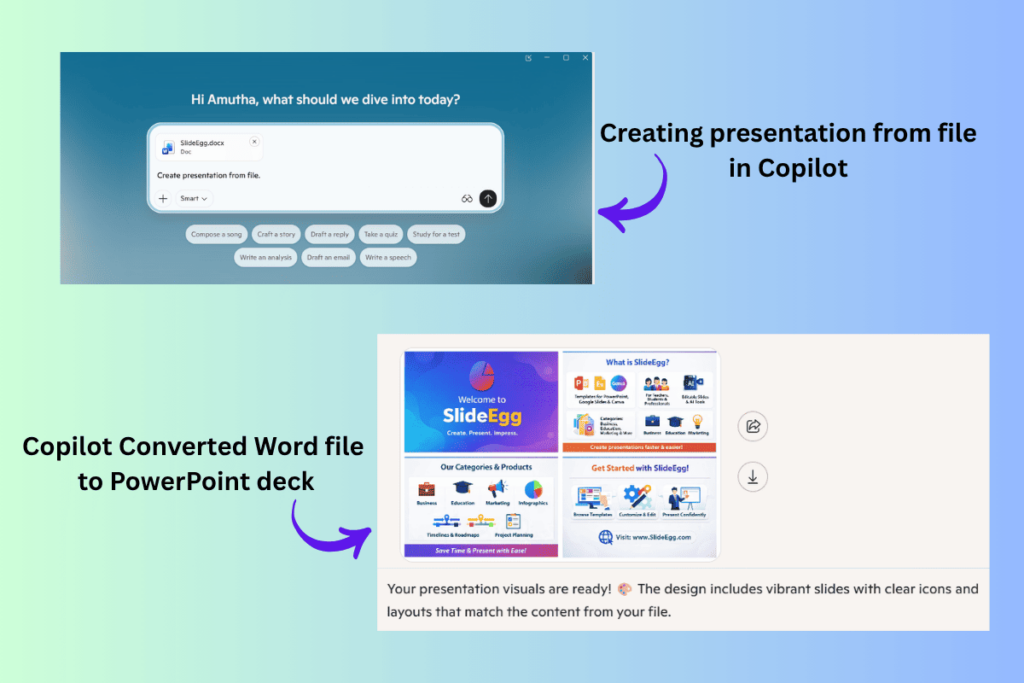
If you have a Microsoft 365 Copilot license, Copilot can build a first-draft deck from your Word file, complete with a design, images, and speaker notes.
Open a new presentation, open Copilot, and type “Create presentation from file.” Pick your Word document from the list (or start typing its name), and Copilot drafts the slides for you.
Copilot is fast, but treats the result as a draft. Review every slide, check that it kept the right context, and fix anything it misread before you present it.
How to Convert Word to PowerPoint by Copy and Paste
When you only have a few slides, or your document has no heading styles, copy and paste is the simplest option. It works in any version of Word and PowerPoint.
Copy the text you want, then in PowerPoint use Paste and pick Keep Text Only so you don’t drag in messy formatting. Put one idea per slide, and add a title to each.
This gives you the most control slide by slide, but it’s slower for long documents. For anything more than a handful of slides, the outline method is quicker.
How to Prepare Your Word Document for a Clean Conversion
The quality of your slides depends on how your Word file is set up. A few minutes of prep saves a lot of cleanup later.
Use heading styles consistently. Heading 1 for every slide title, Heading 2 for bullets. This is the single biggest factor in a clean import.
Keep each point short. Long paragraphs become cramped slides. Trim each line to one clear idea before you convert.
Remove what you don’t need. Cover pages, footnotes, and long intros rarely belong on slides. Cut them in Word first so you’re not deleting them later.
What Are the Common Mistakes to Avoid?
Most conversion problems trace back to the Word file, not PowerPoint. Here are the ones that cause the most rework.
| Mistake | Fix |
|---|---|
| No heading styles in Word | Apply Heading 1 to titles and Heading 2 to bullets before importing. |
| Leaving the Word file open | Save and close the document first, or PowerPoint can’t import it. |
| Expecting images to carry over | Outline import moves text only. Add visuals in PowerPoint afterward. |
| Pasting large blocks of text | Split content so each slide holds one idea, not a full paragraph. |
| Looking for the “Export to PowerPoint” button | That Word-for-the-web feature has been removed. Use the outline method or Copilot. |
| Treating Copilot’s draft as final | Review every slide; Copilot can misplace or miss context. |
How to Make the Converted Slides Look Professional
Importing gives you the words, not the design. The text usually lands on plain slides with no theme, so the next step is making it look finished.
Apply a consistent template or theme first, then work slide by slide: trim text, add visuals, and fix spacing. Starting from a ready-made design is the fastest way to get there—you can drop your imported text into professionally designed PowerPoint templates and keep the whole deck consistent.
If your source file is a PDF instead of Word, our guide on how to convert a PDF document to a PowerPoint template covers that route. You can also browse more PowerPoint tutorials for related how-tos.
Frequently Asked Questions
Can I convert a Word document to PowerPoint for free?
Yes. The outline import method works in any version of PowerPoint at no extra cost—you turn your Word headings into slides using New Slide > Slides from Outline. The Copilot method is different: it needs a paid Microsoft 365 Copilot license, so it is not free for most users.
Why did my Word document import as one slide per paragraph?
That happens when the document has no Heading 1 or Heading 2 styles. PowerPoint reads headings to decide slide titles and bullets, so without them it makes a slide for each paragraph. Add heading styles in Word first, then import the outline again.
Does converting Word to PowerPoint keep my images and formatting?
The outline import method brings text only, not images or formatting. Copy and paste or Copilot can carry visuals across, but results vary. The cleanest approach is to import the text, then apply a template and add images inside PowerPoint.
Can I convert Word to PowerPoint online?
Yes, though the method matters. Slides from Outline is a desktop PowerPoint feature, so on the web the reliable options are Copilot (which works in the web apps) or copy and paste. Be careful with third-party online converters—avoid uploading confidential documents, since you are sending your content to an outside service.
What happened to Word’s Export to PowerPoint button?
Microsoft has retired the Export to PowerPoint presentation feature in Word for the web, so it is no longer available for most users. Use the outline import method or Copilot instead—both are reliable ways to turn a Word document into slides.
How do I make the converted slides look professional?
Importing brings the text, not the design. Apply a consistent template or theme, then adjust each slide—trim text, add visuals, and fix spacing. Starting from a ready-made template is the fastest way to get a polished, consistent look.
Conclusion
Converting a Word document to PowerPoint is quick once your file is set up right. Add heading styles, import the outline, and you have a structured deck in seconds. Copilot speeds up a first draft if you have it, and copy and paste covers short jobs.
Whichever method you use, the text is only step one. Apply a clean template, tighten each slide, and add visuals so the final deck looks as good as it reads.