
An organizational chart turns a tangle of who-reports-to-whom into a picture anyone can read in seconds. This is useful for onboarding a new hire, planning a reorg, or simply showing a client how your team is put together. Canva has become a popular way to build one because it pairs a friendly drag-and-drop editor with a library of ready-made layouts, so you can produce a clean, on-brand chart without opening specialist diagramming software or fighting with alignment by hand.
There are two ways to do it in Canva: customize a ready-made org chart template, or build your own from shapes and connector lines. The template route is faster; building from scratch gives you full control over an unusual structure. This guide walks through both, shows how to brand and export your chart, and shares the design tips that keep it readable as your team grows.
New to org charts? A two-minute read on what an organizational chart is and how it works covers the basics, and if you’re not sure how the diagram differs from your reporting model, organizational structure vs. the organizational chart spells out the difference.
Quick Steps: Org Chart in Canva
- Log in to Canva and search the org chart in the search bar.
- Pick a template that fits your team’s structure and open it.
- Click each box to replace the placeholder name and role.
- Add or remove boxes by copying a shape and connecting it with a line.
- Recolor fonts and boxes to your brand, and add photos if you want.
- Use Align and Tidy up to even out spacing.
- Click Share > Download and choose your format.
Method 1: Start From a Canva Template (Fastest)
Templates are the quickest route because the layout, spacing, and connector lines are already in place.
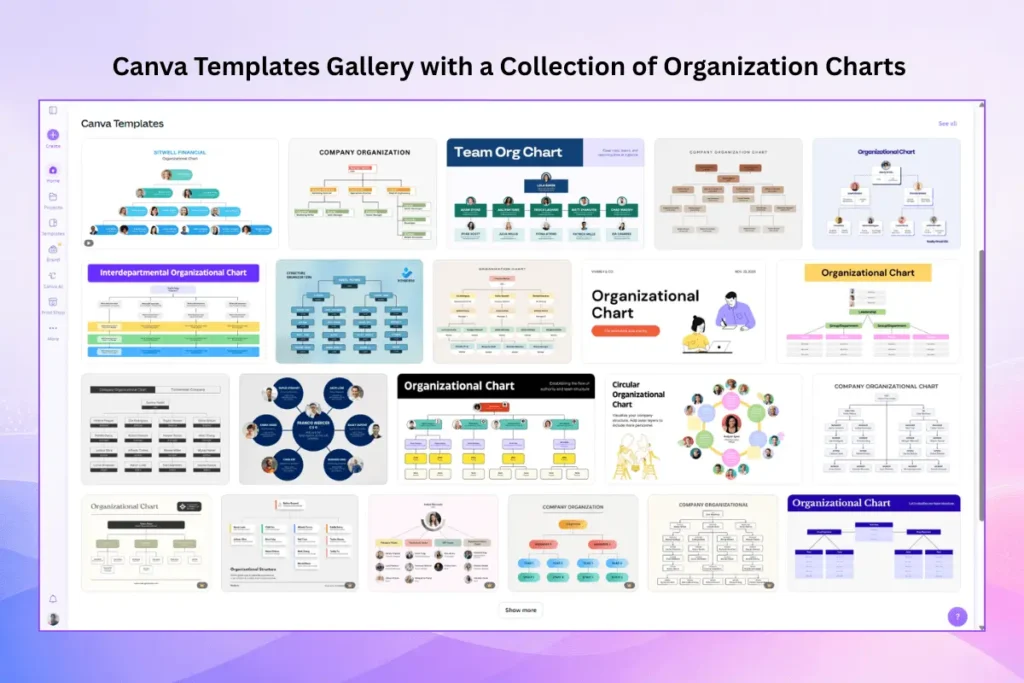
Step 1: Find a template
Type org chart or organizational chart into Canva’s search bar. You’ll see everything from simple three-box charts to detailed multi-level structures. Pick one whose shape is close to your team’s—it’s easier to delete a couple of boxes than to rebuild a layout.
Step 2: Replace the placeholder content
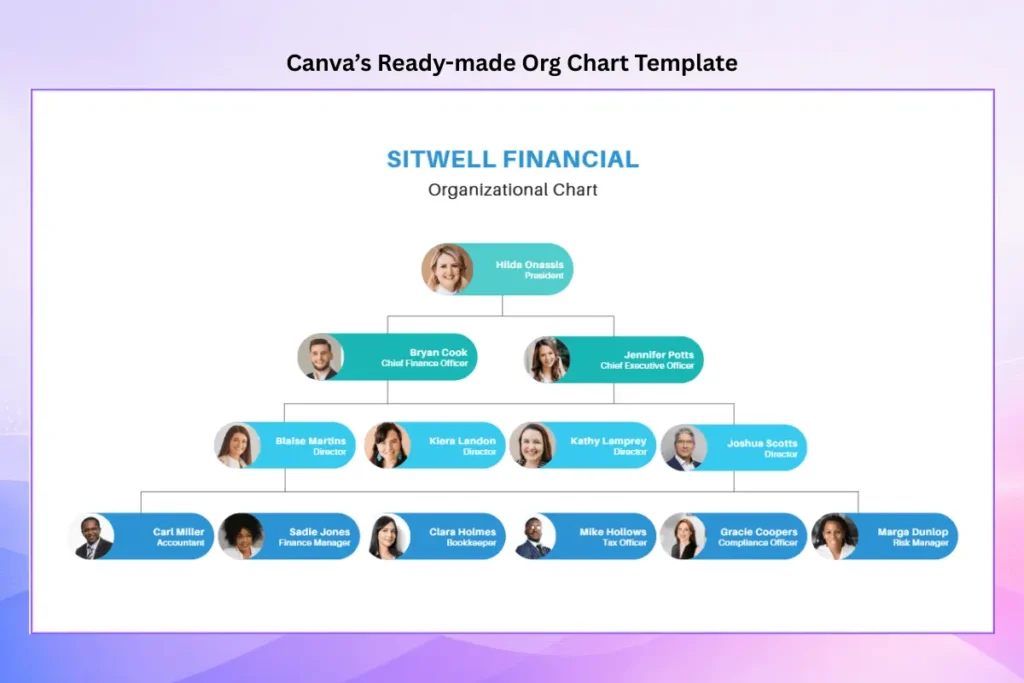
Click any box and type over the placeholder name and title. Double-click a text label to edit it directly. Work top-down—leader first, then each reporting level—so the structure stays clear as you go.
Step 3: Add or remove roles
To add a team member, copy an existing box (it keeps the styling), drop it where you need it, and draw a connector line from the manager’s box to the new one. To remove a role, delete the box and its connecting line. Drag boxes to restructure as your reporting lines change.
Step 4: Brand and tidy it
Change the colors and fonts to match your brand, and add headshots or icons if you want a photo org chart. Then select the boxes and use Align and Tidy up to reset even spacing—this is the fastest way to make a hand-edited chart look deliberate.
Method 2: Build an Org Chart From Scratch
If no template fits or you want a specific custom layout, build it yourself with shapes and connector lines.
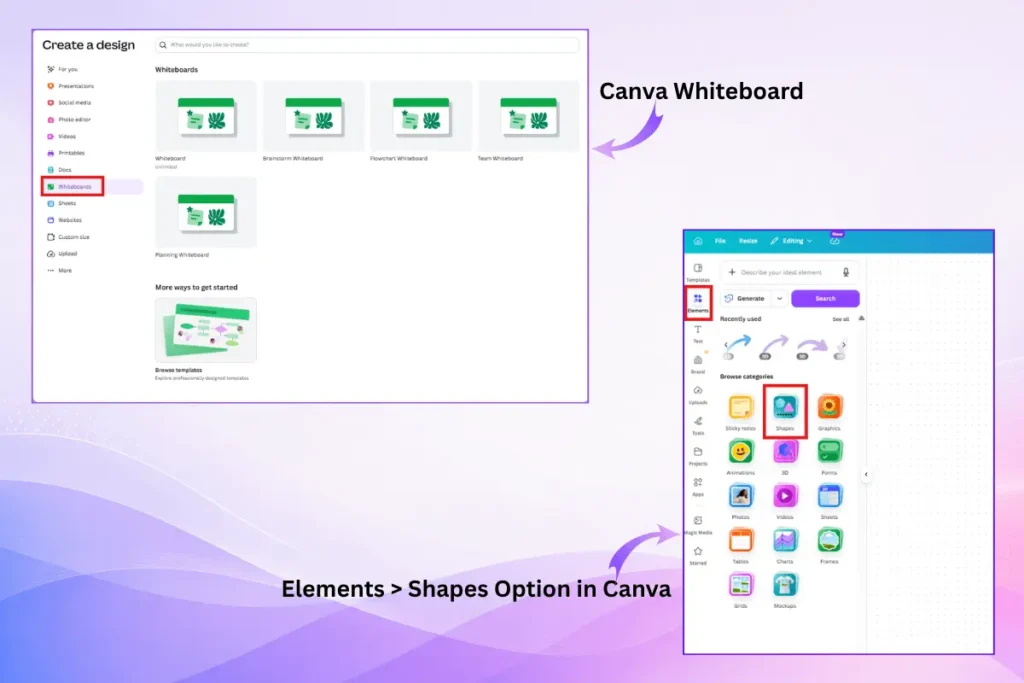
- Open a blank design or a Canva Whiteboard (handy for larger charts, since the canvas is unlimited).
- Add a rectangle from Elements > Shapes for each role, and double-click to type the name and title.
- Add a line, then drag its endpoint to a box edge—when it snaps to the border, the two are connected and stay connected as you move the box.
- Use elbow connectors (rather than curved) for clean, right-angled reporting lines.
- Select everything and use Align and Tidy up to even out the spacing.
Shortcut: If you just need a polished chart fast, a ready-made organizational chart template gives you the design in one step and because SlideEgg’s templates open directly in Canva, PowerPoint, and Google Slides, you can keep editing wherever you already work. Prefer to build in a slide tool? See our guides for PowerPoint and Google Slides.
Working from a document or a spreadsheet instead of a design tool? The same idea carries over to Microsoft Word and Excel from an employee list.
How to Download and Share Your Chart
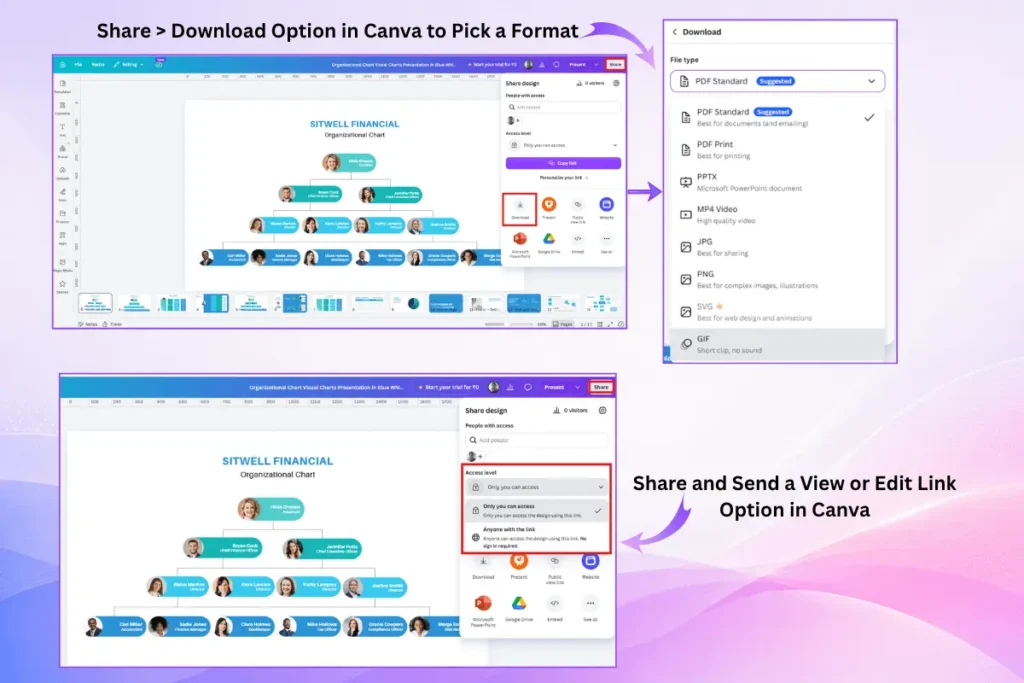
Click Share > Download and pick a format for how you’ll use the chart:
- PNG or JPG — to drop into a document, email, or slide.
- PDF — for printing or sharing a clean, fixed copy.
- PPTX — to keep editing it in PowerPoint.
- SVG — (on paid plans) for a crisp chart at any size.
You can also click Share and send a view or edit link so teammates can review or update it directly.
Design Tips for a Readable Org Chart
- One level of hierarchy per row. Keep peers on the same horizontal line so the structure reads at a glance.
- Two or three colors, no more. Use position to show rank, not a rainbow of box colors.
- Consistent box size. Equal boxes look intentional; mismatched ones look accidental.
- Elbow connectors, not curves. Right-angled lines make reporting structure easier to follow.
- Don’t overcrowd one page. Chart a single department or level, and link out to sub-charts for the rest.
Common Mistakes to Avoid
A few small habits are what usually make a chart hard to read. They’re the same ones behind these common org chart mistakes in business presentations, so it’s worth a quick check before you export.
| Mistake | Fix |
|---|---|
| Lines that don’t move with the boxes | Drag each line endpoint to a box edge until it snaps, so it stays connected. |
| Uneven spacing after manual edits | Select the boxes and use Align and Tidy up. |
| Too many colors and fonts | Stick to your brand’s two or three colors and one or two fonts. |
| Cramming the whole company on one page | Chart one team at a time; link to the rest. |
| Rebuilding a layout from zero | Start from the closest template and delete what you don’t need. |
Frequently Asked Questions
Is Canva free for making an org chart?
Yes. Canva’s free plan includes org chart templates, shapes, and connector lines—enough to build and download a complete chart. Some premium templates, elements, and the SVG export format require a paid plan.
Does Canva have org chart templates?
Yes. Search “org chart” or “organizational chart” in the editor and you’ll find a range of layouts, from simple three-box charts to detailed multi-level structures you can customize.
How do I connect boxes in a Canva org chart?
Add a line, then drag its endpoint to the edge of a box until it snaps to the border. Once snapped, the line stays attached to the box when you move it. Use elbow connectors for clean, right-angled reporting lines.
Can I add employee photos to a Canva org chart?
Yes. Upload headshots under the Uploads tab, then drag each photo into a box, or use a photo-based org chart template that already includes image frames.
What format should I download my org chart in?
Use PNG or JPG to place it in a document or slide, PDF for printing, and PPTX if you want to keep editing it in PowerPoint. SVG (paid plans) keeps it crisp at any size.
Can I turn a Canva org chart into a PowerPoint slide?
Yes. Download the design as a PPTX file, or export it as a PNG and insert it onto a slide. If you’ll mainly present in PowerPoint, building the chart there from the start can be simpler.
Conclusion
Canva makes an org chart quick either way: customize a template for speed, or build from shapes and snapping connector lines for full control. Keep peers on one row, hold to two or three colors, and run Align and Tidy up before you export. Download it as a PNG, PDF, or PPTX depending on where it’s headed—and if you want a presentation-ready design without the manual work. Either way, you’ll have a clean, on-brand chart in minutes.