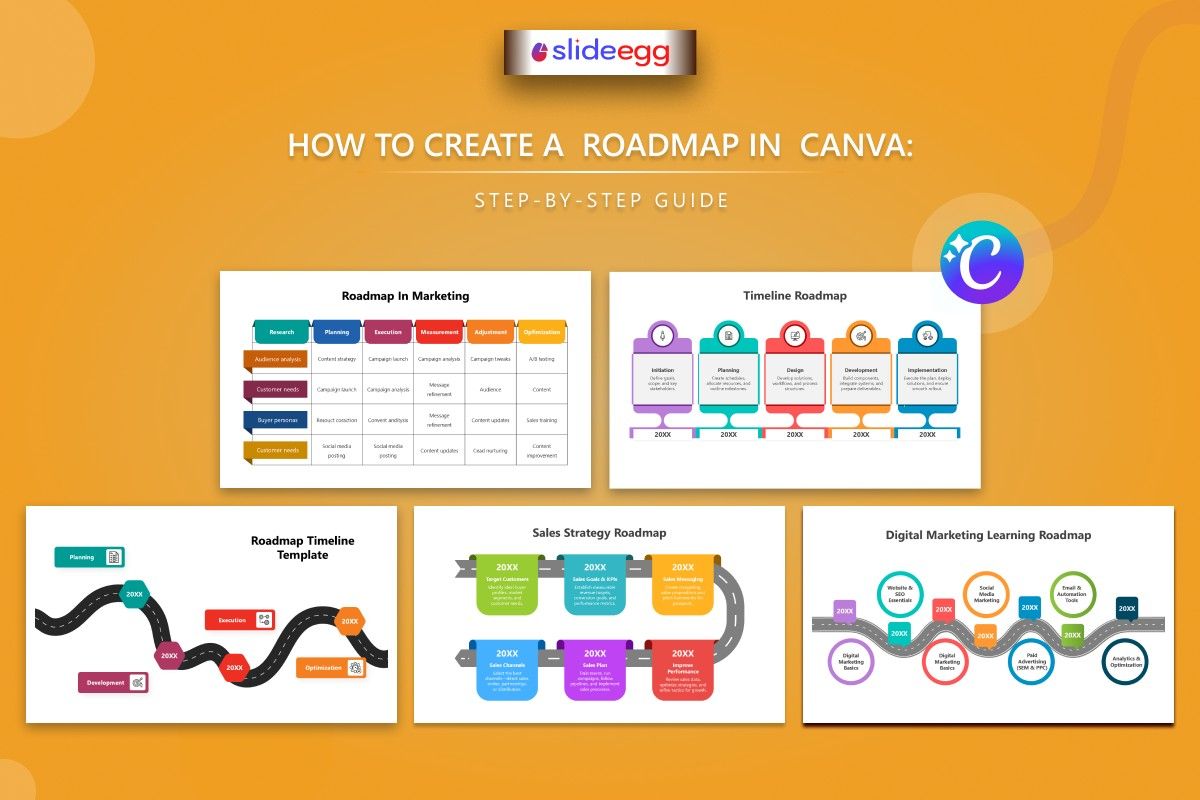
Canva has become one of the most popular design tools for non-designers — and creating a roadmap in Canva is faster and easier than most people think. Whether you’re a marketer, project manager, or startup founder, this guide shows you exactly how to build a professional roadmap in Canva from scratch, plus where to find free, ready-made templates that save you even more time.
While PowerPoint and Google Slides dominate the presentation world, Canva offers a visual-first design environment that makes roadmap creation especially intuitive. Drag-and-drop shapes, ready-made timeline elements, and a large free asset library mean you can go from blank canvas to polished roadmap in under 30 minutes. And with free roadmap templates that are compatible with Canva, you don’t even need to start from zero.
What Is a Canva Roadmap?
A Canva roadmap is a visual presentation slide — or a standalone graphic — that shows the strategic direction of a project, product, or business plan. Built inside Canva’s online editor, it uses the platform’s drag-and-drop tools, pre-designed elements, and color themes to create a clear, professional-looking roadmap without requiring graphic design skills.
Canva roadmaps are especially popular with marketing teams, startup founders, and non-profits because they are easy to brand, share, and export to multiple formats — including PDF, PNG, and PowerPoint.
Why Use Canva for Your Roadmap?
- Browser-based: No software to install. Work from any device with internet access.
- Easy branding: Set your brand colours and fonts once, then apply them across every slide automatically.
- Real-time collaboration: Share a live Canva link so your team can edit and comment simultaneously.
- Multiple export formats: Export as PDF, PNG, MP4, or .pptx — giving you flexibility for any presentation scenario.
- Free plan available: Canva’s free tier includes hundreds of templates and design elements, making it accessible for any budget.
Canva’s “Present and Record” feature lets you record a voiceover directly in your browser while presenting your roadmap. It is ideal for sharing async updates with remote teams without scheduling a meeting.
How to Create a Roadmap in Canva — Step by Step
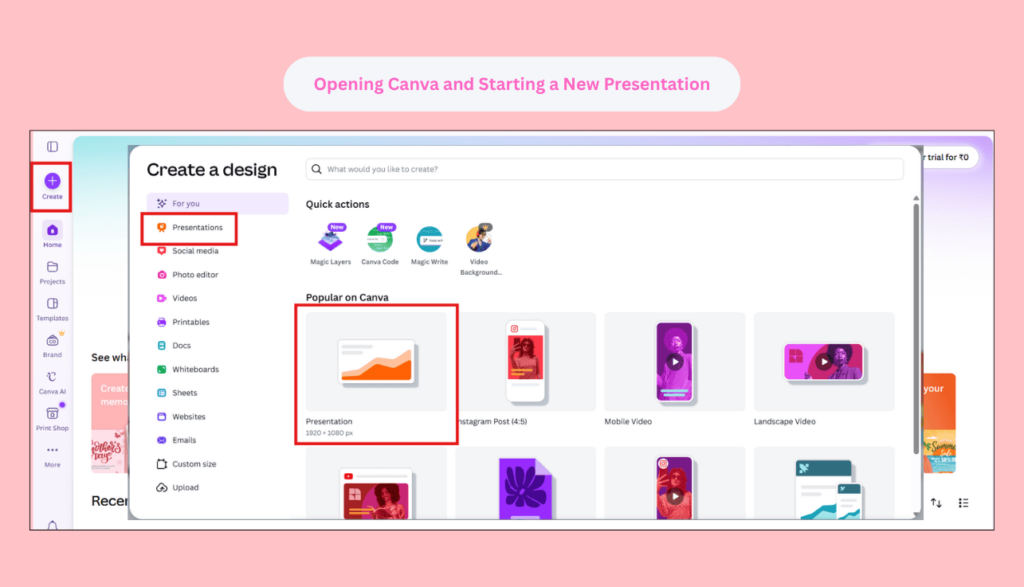
1. Open Canva and Start a New Presentation
Go to canva.com and click “Create a design.” Select “Presentation (16:9)” for a standard slide format. This gives you a 1920×1080px canvas — the ideal size for roadmap slides on any screen or projector.
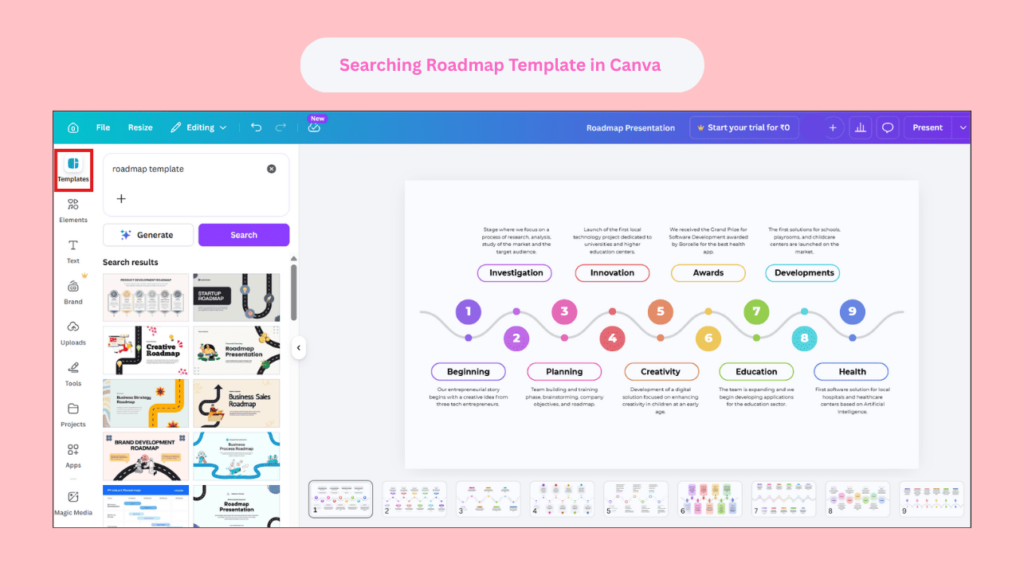
2. Search for a Roadmap Template
In the left sidebar, click “Templates” and search for “roadmap” or “timeline.” Canva has several built-in roadmap layouts. Alternatively, use a free SlideEgg roadmap template — download it as a .pptx and then import it into Canva via “Upload” → “Upload files” to get a more professional starting point.
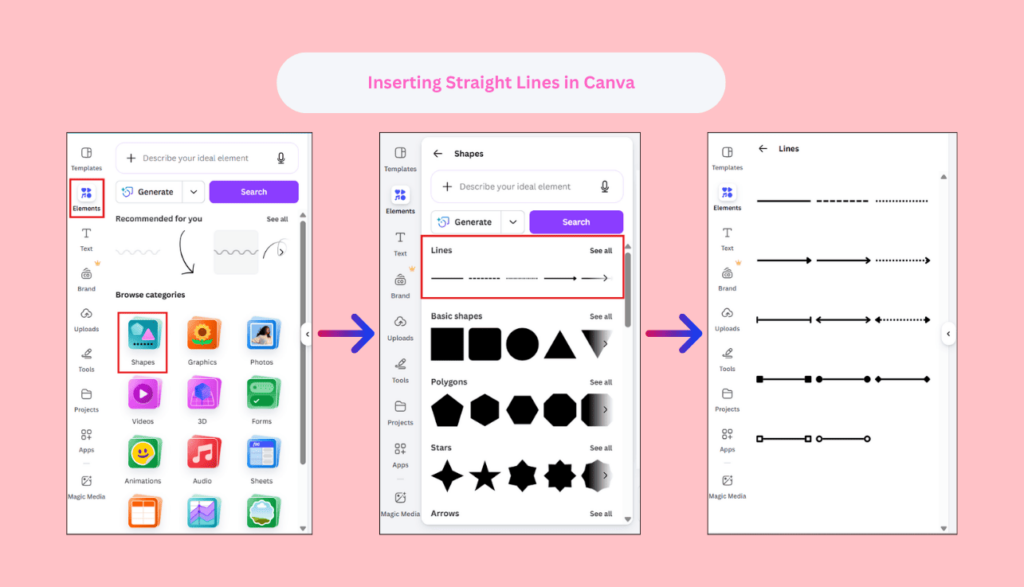
3. Set Up Your Timeline Structure
Add a horizontal line across the centre of your canvas (Elements → Lines → select a straight line). This is the backbone of your roadmap. Use the Canva “Position” panel (keyboard shortcut: P) to centre it precisely on the slide. Extend it to span 80–90% of the slide width.
4. Add Milestone Markers and Labels
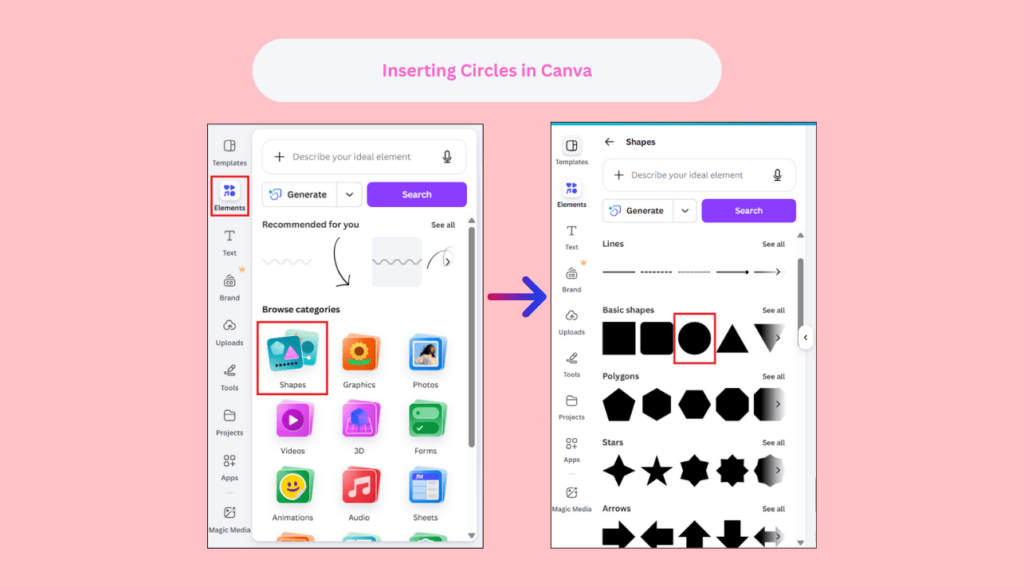
Use Elements → Shapes → Circles to place milestone dots along the timeline. Add text boxes above and below each circle, alternating placement to avoid overlaps. Keep milestone labels to 3–5 words. Use consistent font sizing (16–18px for headings, 12–14px for descriptions).
5. Apply Color Coding by Phase or Status
Assign a distinct colour to each phase (e.g., blue = planning, orange = in progress, green = complete). Click any shape and select a colour from the top toolbar. Use Canva’s “Colour Palette” feature to lock in your brand colours so every element stays consistent.
6. Add Phase Labels, Dates, and Icons
Add quarter or month labels below the timeline (Q1, Q2, H1, H2 — or specific months). Insert relevant icons from Canva’s Elements library to represent each phase visually. Icons dramatically increase scannability. Keep the overall slide clean — no more than 5–7 milestones per slide.
7. Export or Share Your Canva Roadmap
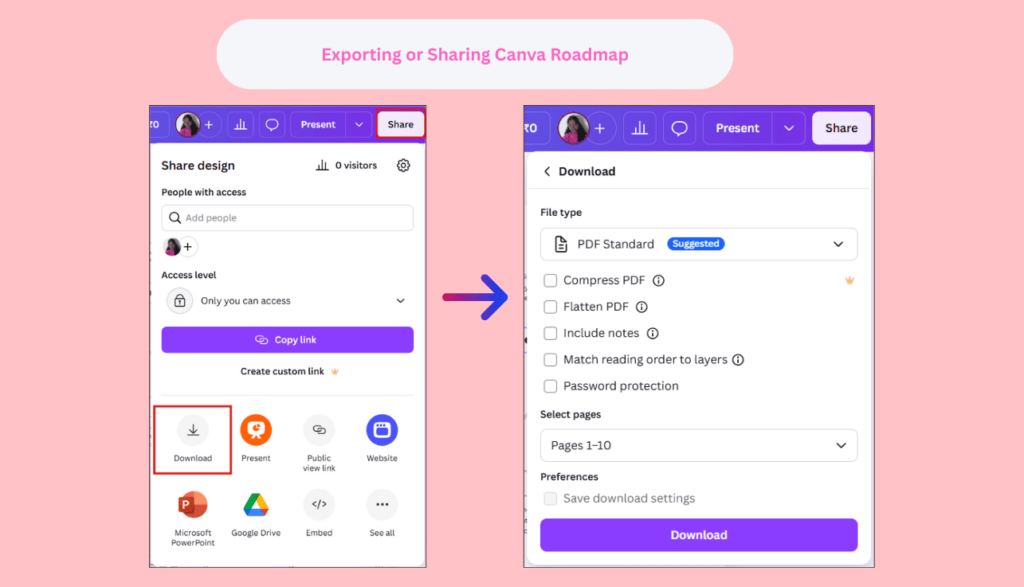
Click “Share” → “Download” and choose your format: PDF (for printing), PNG (for embedding in documents), or .pptx (to open in PowerPoint for further editing). To share a live version, click “Share” → “Copy link” — anyone with the link can view or comment directly in Canva.
Using SlideEgg Roadmap Templates in Canva
SlideEgg’s free roadmap templates are designed for PowerPoint and Google Slides, but they can be imported into Canva in a few simple steps. Download any template as a .pptx file, then upload it to Canva. Canva will convert each slide automatically, preserving layout, colors, and text — ready for you to customize.
This is a faster route than building a roadmap from scratch in Canva because the template already has a professional layout, consistent typography, and phased colour coding in place. You simply swap the text and colours to match your plan.
Canva-Compatible Strategic Planning Roadmap
14 slides, fully editable. Ideal for business strategy and long-term goal mapping. Works in Canva after .pptx import.
Canva-Compatible Project Roadmap Templates
14 slides with timeline bars and milestone markers. Perfect for project planning in Canva. Free download.
Canva-Compatible Business Strategy Roadmap
16 slides with curved path design, milestones, and strategic goal sections. Canva-ready via .pptx import.
Canva-Compatible Product Roadmap Strategy
Quarterly-structured product roadmap with feature tracking columns. Compatible with Canva, PPT, and Google Slides.
Canva vs PowerPoint for Roadmaps — Quick Comparison
| Feature | Canva | PowerPoint |
| Design interface | Drag-and-drop, visual-first | Ribbon-based, more precise |
| Collaboration | Real-time, browser-based | Requires SharePoint or file sharing |
| Templates | Hundreds built-in + importable | Thousands available via SlideEgg |
| Animation | Limited animation options | Full animation and transition control |
| Export formats | PDF, PNG, MP4, .pptx | .pptx, PDF, PNG, video |
| Offline access | No (browser only) | Yes (desktop app) |
| Best for | Quick visual roadmaps, brand-heavy decks | Detailed roadmaps, complex animations |
Common Mistakes to Avoid When Building a Canva Roadmap
- Too many elements on one slide: Canva’s rich element library makes it tempting to over-decorate. Keep the roadmap clean — shapes, labels, and a clear timeline are enough.
- Inconsistent fonts: Mixing too many fonts makes a roadmap look unprofessional. Stick to one heading font and one body font throughout.
- No whitespace: Roadmaps need breathing room. Leave adequate space between milestones so the eye can move along the timeline naturally.
- Exporting in the wrong format: For presentations, export as .pptx or PDF. For sharing on social or Slack, use PNG. For recorded walkthroughs, use Canva’s built-in video export.
Skip the blank canvas. Browse 100+ free roadmap templates fully compatible with Canva, PowerPoint, and Google Slides — download and customize in minutes.
Frequently Asked Questions
Can I create a roadmap in Canva for free?
Yes. Canva’s free plan includes all the basic tools you need to create a roadmap — shapes, lines, text boxes, and a selection of free templates. You can also download free .pptx templates from SlideEgg and import them into Canva at no cost.
How do I import a PowerPoint roadmap template into Canva?
Download the template as a .pptx file from SlideEgg, then in Canva click “Create a design” → “Import file” and upload the .pptx. Canva converts each slide automatically. You can then edit text, colours, and shapes directly in Canva.
Is Canva better than PowerPoint for roadmaps?
It depends on your needs. Canva is faster for visually polished, brand-consistent roadmaps and real-time collaboration. PowerPoint offers more animation control, precise alignment tools, and better offline access. Many teams use both — designing in Canva and presenting from PowerPoint.
Can I share a Canva roadmap without downloading it?
Yes. Click “Share” in the top right corner and copy the link. You can set permissions to “Anyone with the link can view” or “Anyone with the link can edit.” This is ideal for sharing roadmap updates with stakeholders in real time without attaching files.
What types of roadmaps can I make in Canva?
You can create any roadmap type in Canva — product roadmaps, project roadmaps, strategic roadmaps, marketing roadmaps, IT roadmaps, and agile roadmaps. The tool is format-agnostic; the layout and content structure determine the roadmap type, not the platform.