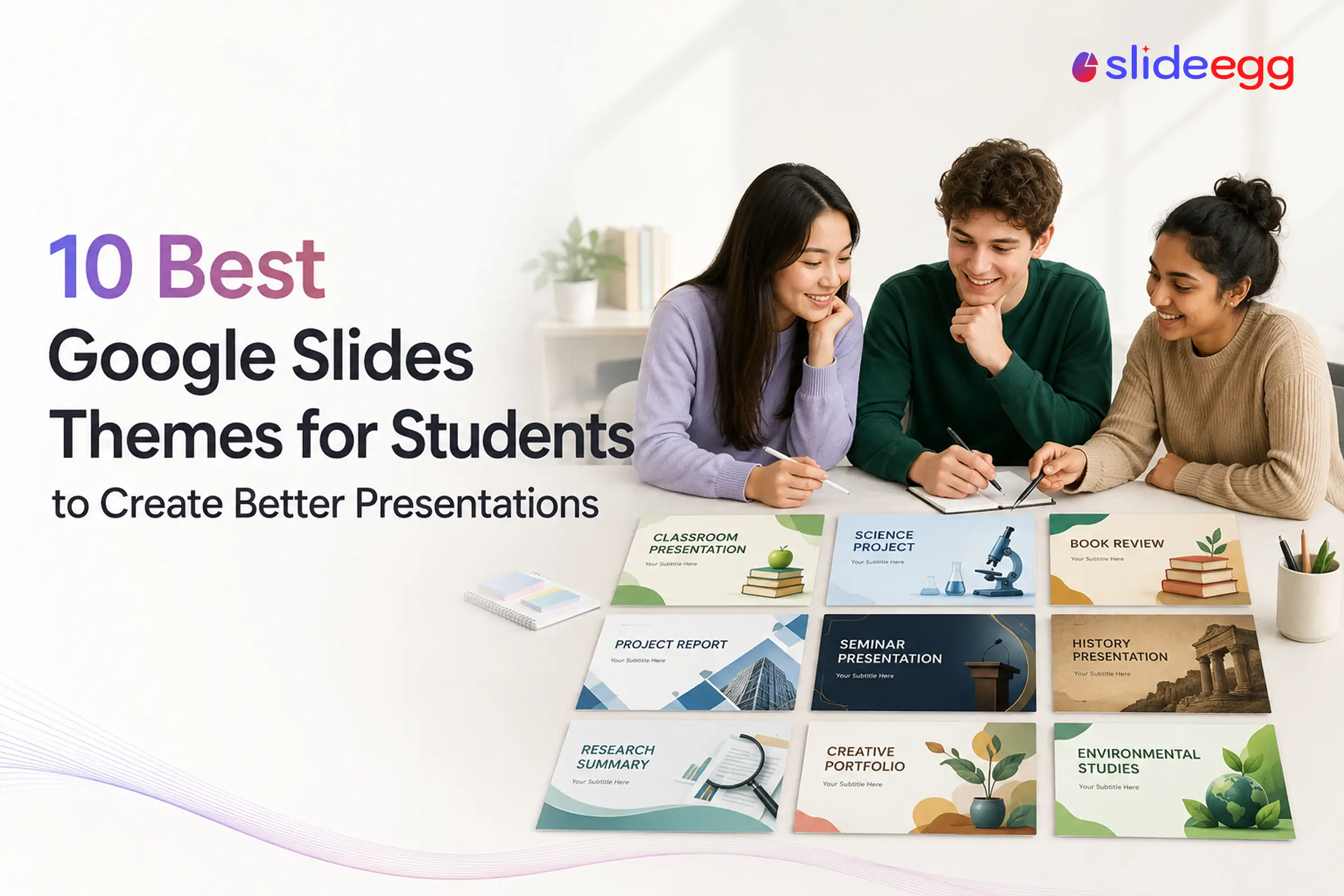
A good presentation is not only about what you say. It is also about how clearly you show your ideas.
Many students struggle with presentations because their slides look crowded, uneven, or hard to read. Some use too much text. Some choose bright colors that distract the audience. Some use random images that do not match the topic. Others spend more time struggling with layouts than improving their research. If you are new to building presentations online, you can learn the fundamentals in our comprehensive guide on how to create Google Slides for beginners.
This is where the right Google Slides theme helps. A good theme gives your presentation a clear structure. It helps you arrange your title, points, images, charts, examples, and conclusion in a better way. It also saves time because you do not have to design every slide from scratch.
But not every theme works for every student. A science project needs a different layout from a book report. A college research presentation needs a different tone from a middle school classroom activity. A group project needs slides that are easy for many students to edit together.
This guide will help you choose the best Google Slides themes for students based on subject, grade level, assignment type, style, and presentation length.
How We Selected These Google Slides Themes
The themes in this list were selected based on real student presentation needs. The goal is not to pick the most decorative designs. The goal is to help students choose themes that make their content easier to understand.
This list is based on how well each SlideEgg template fits common student presentation needs. It is not based on a classroom trial or a comparison of competing template providers.
We looked at these factors:
- Student use case: The theme should work for real school, college, or university assignments.
- Readability: Text should be easy to read on a laptop, classroom screen, or projector.
- Slide structure: Includes essential slides such as title, agenda, content dividers, and summary layouts. To learn how to frame your deck from the start, check out our tutorial on how to use a presentation agenda for school projects.
- Subject fit: The theme should match the topic, such as science, math, history, research, or literature.
- Ease of editing: Students should be able to change text, colors, images, and layouts without breaking the design.
- Group use: Some themes should work well when many students edit the same deck.
- Presentation length: The theme should fit short class talks as well as longer academic presentations.
- Audience fit: The design should match classmates, teachers, professors, or academic reviewers.
- Low distraction: The theme should support the message, not compete with it.
Before You Choose a Google Slides Theme
Before downloading a theme, stop and check what your assignment actually requires. If you want to make sure your slides stay professional, look over these expert tips to make a great Google Slides presentation for students.
Ask yourself these questions:
| Question | Why It Matters |
| What is my subject? | Science, history, math, and English need different slide layouts. |
| Who will see this presentation? | A teacher, classmate, professor, or review panel may expect a different tone. |
| How many slides do I need? | A 5-slide talk needs a simpler theme than a 25-slide research deck. |
| Is this a solo or group project? | Group projects need clear section slides and a shared structure. |
| Do I need charts or data? | Research and infographic themes work better for numbers and results. |
| Is the topic formal or creative? | A thesis theme may be too serious for a classroom activity. |
| Will I present live or submit online? | Live presentations need larger text and stronger visual contrast. |
A theme should make your work easier. If you have to fight the layout on every slide, it is the wrong theme.
10 Google Slides Themes Students Can Use for Any Subject
1. Education Infographics Google Slides Theme for Students

Download the Education Infographics Google Slides Theme
This Education Infographics Google Slides theme helps students explain concepts, comparisons, processes, and classroom data in a more visual way. It works well when the topic includes facts, steps, survey findings, or short explanations that would look too heavy in plain text.
Best For: Students creating school reports, classroom presentations, concept explanations, survey summaries, lesson recaps, and academic infographic slides.
Why students should use it: This theme is useful when a topic feels too text-heavy. It helps turn long notes into clear visual points that are easier for classmates and teachers to follow.
Best subjects: Science, social studies, geography, health, business basics, and general classroom topics.
Best grade level: Middle school, high school, college, and university students.
Customization tip: Do not use every infographic style in one deck. Pick only the layouts that support your topic and keep the design consistent.
2. Global Warming Google Slides Theme for Students
Download the Global Warming Google Slides Theme
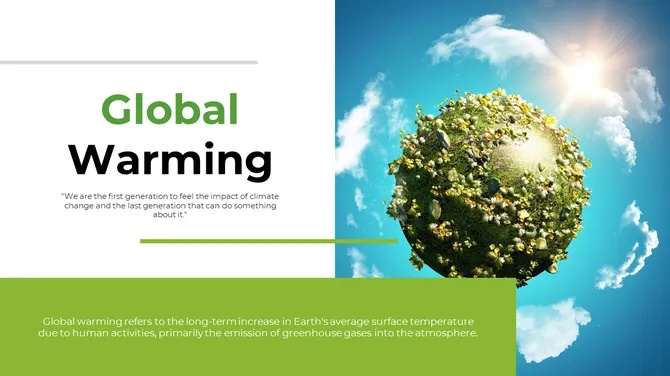
This Global Warming Google Slides theme helps students explain climate change, greenhouse gases, renewable energy, deforestation, and environmental impacts in a clear visual format.
Best For: Environmental projects, climate change assignments, science presentations, and sustainability reports.
Why students should use it: The focused layouts make complex environmental topics easier to explain with clear sections and supporting visuals.
Best subjects: Science, environmental studies, geography, biology, and sustainability.
Best grade level: Middle school, high school, college, and university students.
Customization tip: Focus on one environmental issue per slide and use relevant visuals to support your explanation.
3. Green Minimalist Google Slides Theme for Clean Student Presentations
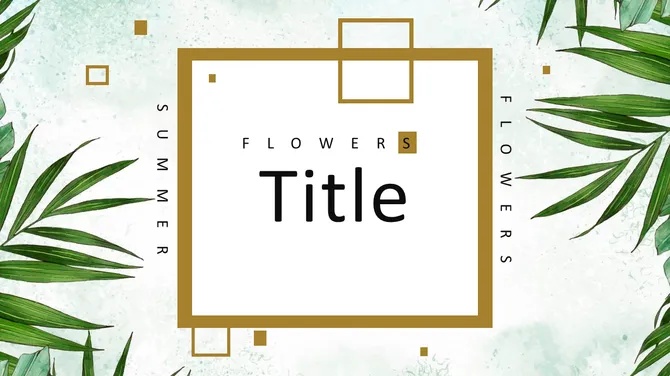
Download the Green Minimalist Google Slides Theme
This Green Minimalist Google Slides theme is useful for students who want a clean, calm, and simple presentation style. The soft green design works well for environmental science, sustainability, biology, ecology, health education, and nature-based classroom topics.
It is a good choice when the presentation needs to look fresh but not childish. Students can use it for short reports, awareness topics, classroom lessons, and clean academic presentations.
Best For: Environmental science projects, sustainability reports, ecology assignments, health education, nature topics, classroom lessons, student assignments, and clean academic presentations.
Why students should use it: The minimal style keeps attention on the topic. It avoids heavy decoration and makes the slides easier to read.
Best subjects: Environmental science, biology, health, geography, sustainability, and general education.
Best grade level: High school, college, and university students.
Customization tip: Keep the green color as the main accent. Avoid adding many extra colors because it will break the clean look.
4. Neuroscience Research Google Slides Theme for Science Students

Download the Neuroscience Research Google Slides Theme
This neuroscience research Google Slides theme is designed for student presentations about the brain, neurons, cognitive processes, brain disorders, medical research, and neuroscience methods. It is not a general science theme. It works best when the presentation focuses on brain structure, neuron communication, diagnostic methods, or neuroscience findings.
Best For: Neuroscience assignments, psychology presentations, biology research talks, medical science reports, brain-study projects, and academic seminars.
Why students should use it: Science presentations become easier to follow when diagrams and terminology are organized clearly. This theme helps students explain technical brain-related topics without making the deck feel overwhelming.
Best subjects: Neuroscience, biology, psychology, healthcare, medical science, and life science research.
Best grade level: High school, college, and university students.
Customization tip: Use labeled diagrams and short evidence points. Keep each slide focused on one concept, such as brain structure, research method, or key finding.
5. Cute Math Google Slides Theme for Student Presentations
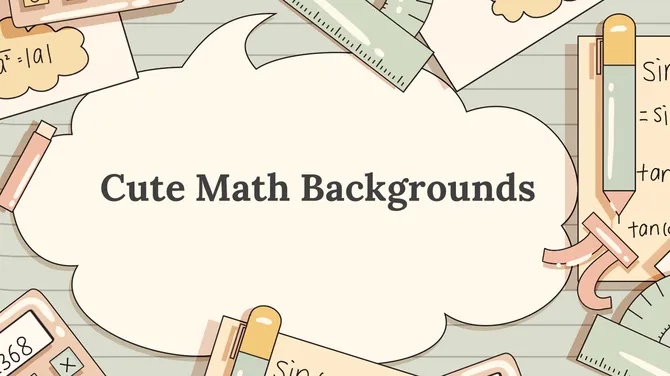
Download the Cute Math Google Slides Theme
This Cute Math Google Slides theme adds a fun and friendly style to math presentations. It works well for younger students, classroom activities, number lessons, equation explanations, and simple problem-solving topics.
Students can use it to explain fractions, shapes, counting, multiplication, basic algebra, number patterns, and classroom math games. The playful look makes math feel less dry while still keeping the lesson clear.
Best For: Elementary and middle school math projects, number activities, equation explanations, homework presentations, fractions, basic algebra, geometry lessons, problem-solving tasks, and classroom math assignments.
Why students should use it: Math can be difficult to follow when every slide is only numbers. This theme makes the topic more approachable, especially for younger students.
Best subjects: Math, arithmetic, geometry basics, fractions, algebra basics, and number activities.
Best grade level: Elementary and middle school students.
Customization tip: Use one problem per slide. Show the steps clearly instead of placing the full solution in one crowded layout.
6. Ancient History Google Slides Theme for Student History Projects
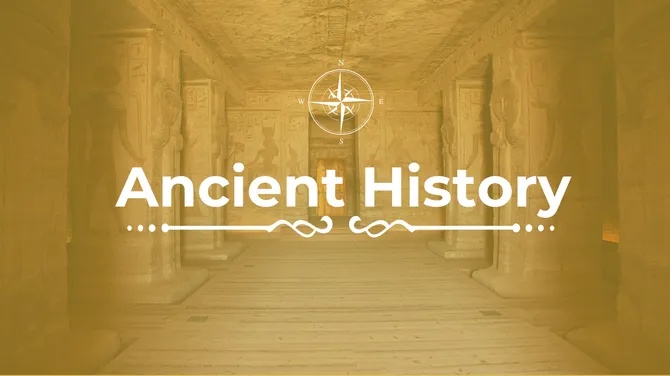
Download the Ancient History Google Slides Theme
This Ancient History Google Slides theme helps students present ancient civilizations, culture, architecture, beliefs, achievements, and historical impact in a clear format. It works well for history projects that need images, timelines, maps, and short explanations.
Students can use this theme for topics such as Ancient Egypt, Ancient Greece, Ancient Rome, Mesopotamia, Indus Valley civilization, and world history unit projects.
Best For: Student history projects, ancient civilization presentations, world history assignments, cultural studies, historical timelines, archaeology topics, museum-style projects, and academic history reports.
Why students should use it: History presentations need order. This theme helps students explain what happened, when it happened, why it mattered, and how it changed society.
Best subjects: History, world civilization, social studies, geography, culture, and archaeology.
Best grade level: Middle school, high school, and college students.
Customization tip: Use timelines and maps wherever possible. Do not fill slides with textbook paragraphs.
7. Project Steps Google Slides Theme for Student Projects
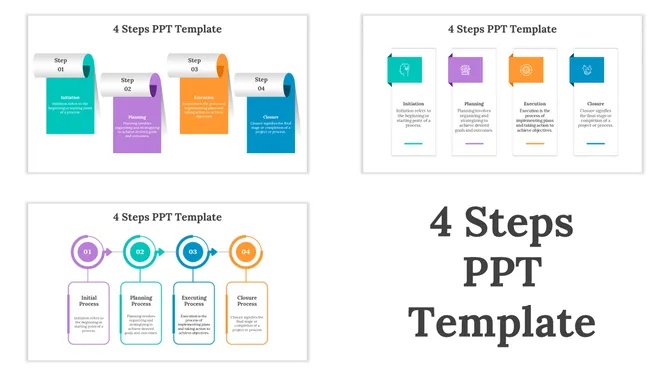
Download the Project Steps Google Slides Theme
This Project Steps Google Slides theme helps students explain a process, method, workflow, or project stage in a simple step-by-step format. It is useful when the audience needs to understand how something moves from one stage to the next.
Students can use it for project planning, experiment methods, design processes, event plans, research workflows, and group task breakdowns.
Best For: Student project plans, process explanations, experiment methods, design workflows, research stages, event planning, and classroom step-by-step presentations.
Why students should use it: Not every presentation is about facts or history. Some assignments are about explaining how something works. This theme makes steps easier to follow and reduces confusion.
Best subjects: Science, business studies, computer science, design, engineering, project-based learning, and general classroom assignments.
Best grade level: Middle school, high school, college, and university students.
Customization tip: Keep each step short and action-oriented. Use one sentence or phrase per stage instead of full paragraphs.
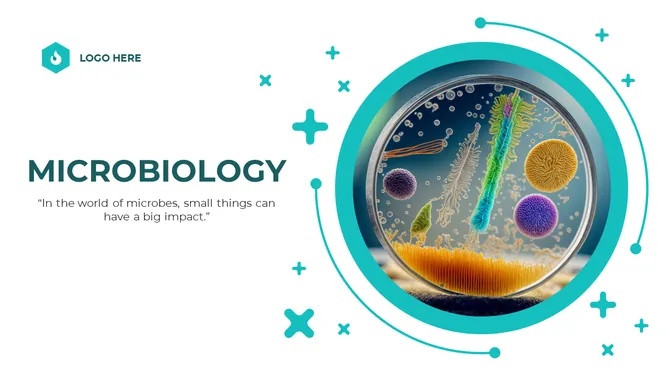
8. Microbiology Google Slides Theme for Science Students
Download the Microbiology Google Slides Theme
This Microbiology Google Slides theme is useful for students presenting microorganisms, infections, immunity, microbial genetics, lab results, and antimicrobial resistance. It is more specific than a general science theme, so it works best for biology and life science topics.
Students can use it for microbiology lab reports, cell biology projects, infection studies, immunity lessons, healthcare topics, and academic research presentations.
Best For: Microbiology projects, biology assignments, infection studies, immunity presentations, laboratory reports, microorganism research, healthcare science projects, cell biology topics, and academic research presentations.
Why students should use it: Microbiology topics can be hard to explain with plain text. This theme helps students show organisms, processes, lab findings, and scientific terms in a more visual way.
Best subjects: Biology, microbiology, life science, healthcare, medical science, and lab research.
Best grade level: High school, college, and university students.
Customization tip: Use diagrams, labels, and short explanations. Avoid adding too many scientific terms on one slide.
9. Data Analysis Google Slides Theme for Students

Download the Data Analysis Google Slides Theme
This Data Analysis Google Slides theme helps students present data, charts, statistics, and research findings in a clear and structured way. It works well for assignments that involve data collection, analysis, visualization, and key insights.
Best For: Data analysis projects, research presentations, statistics assignments, science projects, and survey reports.
Why students should use it: It makes complex data easier to organize and explain using structured layouts, tables, and visual elements.
Best subjects: Mathematics, statistics, science, business, economics, and research.
Best grade level: High school, college, and university students.
Customization tip: Use only the charts, tables, and data points that directly support your main finding.
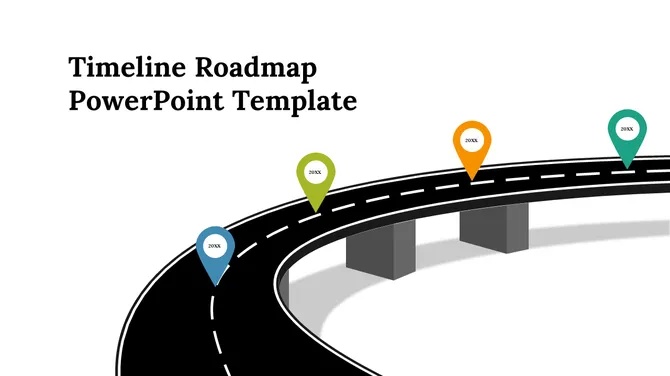
10. Timeline Roadmap Google Slides Theme for Student Presentations
Download the Timeline Roadmap Google Slides Theme
This Timeline Roadmap Google Slides theme helps students present events, milestones, project plans, progress updates, and step-by-step processes. It is useful when the topic has a clear order from beginning to end.
Students can use this theme for history timelines, science process explanations, biography presentations, project planning, research roadmaps, and classroom progress reports.
Best For: Project roadmaps, academic timelines, history projects, science processes, biography presentations, progress reports, team planning, student assignments, and academic project timelines.
Why students should use it: Timeline slides make the sequence easy to understand. They help the audience follow what happened first, what changed, and what came next.
Best subjects: History, science, literature, project management, biography, technology, and research planning.
Best grade level: Middle school, high school, college, and university students.
Customization tip: Do not add too many dates. Use only the key events or project stages that help the audience understand the topic.
How to Choose the Right Google Slides Theme
The best Google Slides theme for students depends on the assignment. Do not choose a theme only because it looks attractive. Choose one that fits your content.
Use this simple guide:
- Choose an Education Infographics Theme for general school projects, concept explanations, and classroom summaries.
- Choose a Book or Literature Theme for book reviews, reading summaries, author studies, and literature presentations.
- Choose a Minimal Theme for formal class presentations and clean academic work.
- Choose a Science or Research Theme for experiments, diagrams, lab topics, and STEM subjects.
- Choose a Math Theme for formulas, graphs, and step-by-step explanations.
- Choose a History Theme for events, people, places, and civilization topics.
- Choose a Project Steps Theme for process explanations, project plans, and method-based presentations.
- Choose a Subject-Specific Science Theme for advanced topics such as microbiology or neuroscience.
- Choose a Portfolio Theme for project showcases, skill presentations, and academic profiles.
- Choose a Timeline Theme for events, processes, milestones, and progress updates.
If you are still unsure, choose a minimal or educational theme. These two styles work for most student presentations.
Common Mistakes Students Make When Choosing Google Slides Themes
A theme can help your presentation, but it cannot fix weak content. Students often make these mistakes:
Choosing the most colorful theme
A bright theme may look exciting at first, but it can distract from the content. If the design is louder than the message, the presentation becomes harder to follow.
Using too much text
Slides should support what you say, not replace it. Long paragraphs make students read from the screen instead of explaining the topic clearly.
Ignoring font size
A theme may look fine on a laptop but fail on a classroom screen. If the text is too small, the audience will miss important points.
Mixing too many fonts
Using several fonts makes slides look messy. Stick to the font system already built into the theme.
Keeping random stock images
A theme is only useful if the visuals match the topic. Replace generic placeholder images with relevant diagrams, photos, or charts.
Using low contrast
Light text on a light background or dark text on a dark background reduces readability. Good contrast matters, especially in live presentations.
Adding too many animations
Too much motion distracts the audience. Use transitions and animations only when they help explain the order of information.
Forgetting citations
Student presentations often include facts, quotes, images, or data from other sources. If you use them, cite them properly.
Letting every group member change the design
Group projects become inconsistent when everyone edits fonts, colors, and layouts differently. Decide on one style and keep it consistent.
Not testing in present mode
Always check the slides in presentation mode before class. This helps you catch formatting, spacing, image, and readability problems early.
Tips for Making Any Google Slides Theme Look Better
You do not need advanced design skills to improve your slides. Small changes can make a big difference.
Use one main idea per slide
Each slide should focus on one point. If a slide tries to explain too much, the audience will lose the message.
Keep headings short
A heading should tell the audience what the slide is about in a few words. Long headings reduce impact.
Use readable font sizes
Your audience should be able to read the slide without effort. Use larger font sizes for titles and keep body text clear.
Use consistent colors
Pick one main color and one accent color. Do not change the style on every slide.
Replace generic images
Swap out placeholder visuals for images, diagrams, charts, or icons that actually support the topic.
Align everything
Misaligned text boxes, icons, and images make slides look unprofessional. Use the alignment tools inside Google Slides.
Use charts only when needed
Do not add a chart just to fill space. Use one only when it helps explain numbers or comparisons more clearly than text.
Add speaker notes
Speaker notes help you remember what to say without overcrowding the slide.
Check sharing permissions
If the presentation is a group project, make sure everyone has the right access and that the file permissions are correct before submission.
Add a references slide
End with a references or sources slide if your presentation includes research, statistics, quotations, or borrowed visuals.
Frequently Asked Questions
1. What is the best Google Slides theme for students?
The best Google Slides theme for most students is a clean education or minimal theme. These styles are easy to edit, simple to read, and suitable for many subjects.
2. Which Google Slides theme is best for school projects?
Education, book report, timeline, minimal, and project-step themes work well for school projects. They are easy to adapt for different subjects, assignment types, and classroom presentations.
They are simple, classroom-friendly, and easy for students to customize.
3. Which theme is best for college presentations?
Minimal, infographic, portfolio, timeline, and subject-specific research themes are usually better for college presentations. They look more formal and give students enough structure for detailed academic content.
4. Are free Google Slides themes good enough for students?
Yes. Free Google Slides themes are enough for most student assignments if they are readable, editable, and well organized.
5. What should students check before using a Google Slides theme?
Students should check readability, slide layout, subject fit, image space, chart options, and whether the design matches the assignment tone.
6. Which Google Slides theme is best for science projects?
Science students usually need themes that support diagrams, labels, charts, and short explanations. Microbiology, neuroscience, and clean infographic themes work well for this purpose.
7. Which Google Slides theme is best for history presentations?
History presentations usually work best with timeline, ancient history, or infographic themes because they help organize events, dates, people, and cause-and-effect relationships clearly.
8. Should students use dark themes in Google Slides?
Students can use dark themes if the contrast is strong and the text stays easy to read. For most classroom presentations, lighter themes are usually safer and easier to present.
9. How many slides should a student presentation have?
That depends on the assignment, but most student presentations work well with 5 to 15 slides. A short class talk may need only a few slides, while a research presentation may need more.
10. Can students use one Google Slides theme for group projects?
Yes. A shared theme is actually helpful for group projects because it keeps the design consistent. The group should agree on fonts, colors, headings, and layout rules before everyone starts editing.