Yes — you can import a PowerPoint file into Canva. The process takes less than a minute, and it works on the desktop browser and the Canva mobile app.
Note: This guide covers Canva (canva.com), the graphic design platform. If you’re looking to upload slides to Canvas LMS (used by universities), see your institution’s Canvas help documentation instead.
Not everything transfers perfectly when you import. Fonts, animations, SmartArt, and some charts may look different after the import. This guide shows you the import steps, what to expect when your file opens, and how to fix the most common issues that come up.
Quick Answer
Go to canva.com → drag and drop your .pptx file onto the homepage → Canva converts each slide into an editable page. Most files take under 30 seconds. The import is free on all Canva plans.
In This Guide
- Why import PowerPoint into Canva?
- Before you start: file requirements
- How to import on desktop (step-by-step)
- How to import on mobile (step-by-step)
- What transfers — and what doesn’t
- How to minimize formatting loss
- How to fix common formatting issues
- Tips for a smoother import
- How to export back to PowerPoint from Canva
- Frequently asked questions
Why Import PowerPoint into Canva?
People move slides from PowerPoint to Canva for different reasons. Here are the most common ones:
Good reasons to import
- Access Canva’s design elements, photo library, and brand kit
- Collaborate with teammates who work in Canva
- Use Canva’s drag-and-drop editor on an existing deck
- Export to formats PowerPoint doesn’t support natively (MP4 video, animated GIF)
- Apply a Canva template style to existing slide content
Limitations to know upfront
- Custom fonts are replaced by Canva’s closest match
- Animations and transitions don’t transfer
- SmartArt graphics may not render correctly
- Embedded videos are not carried over
- Complex charts may look different or flatten to static images
Best fit: If you built a deck in PowerPoint and want to polish it in Canva, importing is the right path. If your slides have complex animations you need to keep, staying in PowerPoint is the better choice.
Before You Start: File Requirements
Make sure your file meets Canva’s import requirements before uploading:
| Requirement | Limit | Note |
|---|---|---|
| File format | .pptx or .ppt | .pptx gives better import quality — always prefer it |
| File size (.pptx) | Up to 300 MB | Compress images in PowerPoint if your file is large |
| File size (.ppt) | Up to 100 MB | Convert to .pptx first for the higher size limit |
| Pages per file | Up to 300 slides | Files over 300 slides will not import |
| Elements per file | Up to 1,400 elements | Complex slides with many shapes may hit this cap |
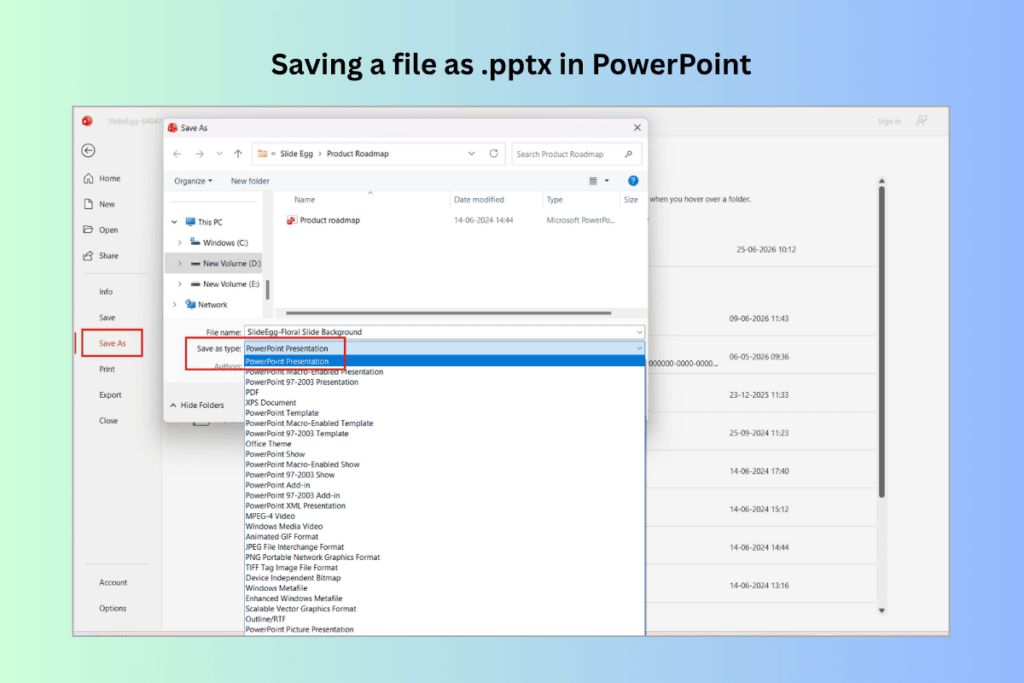
To save your file as .pptx in PowerPoint: go to File → Save As → PowerPoint Presentation (.pptx).
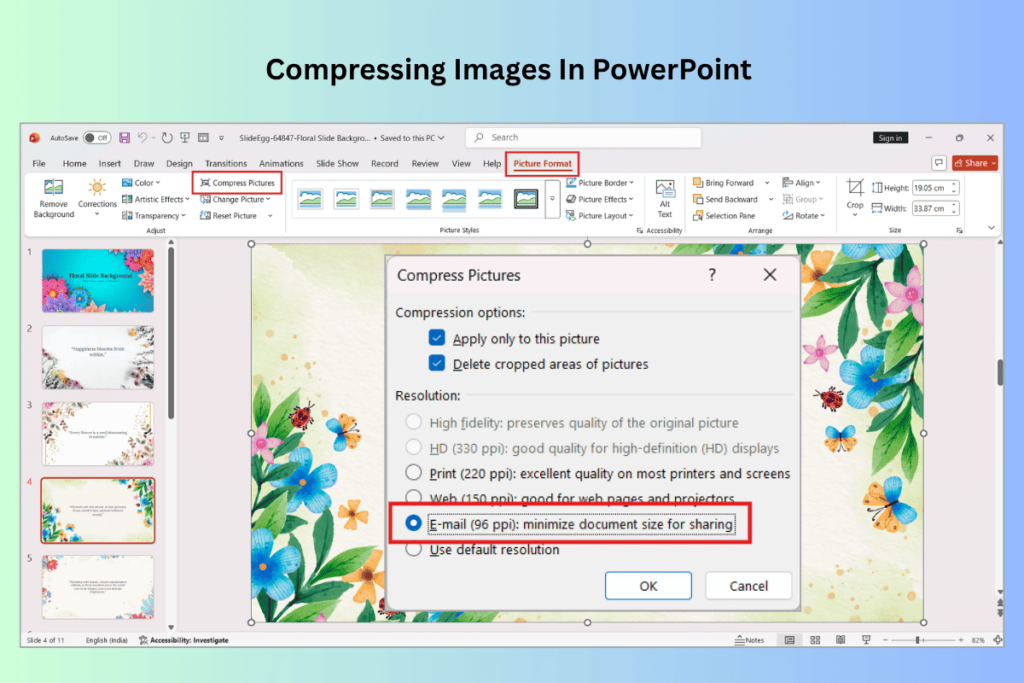
If your file is close to 300MB, compress your images before uploading. In PowerPoint: Picture Format → Compress Pictures → Email (96 ppi). This cuts file size significantly without visible quality loss on screen. See our full walkthrough: How to Compress Pictures in PowerPoint.
How to Import PowerPoint into Canva on Desktop
This works in any browser — Chrome, Edge, Firefox, or Safari. No installation needed.
01. Sign in to Canva at canva.com
Go to canva.com and sign in. If you don’t have an account, create one for free — the PowerPoint import feature is available on all Canva plans.
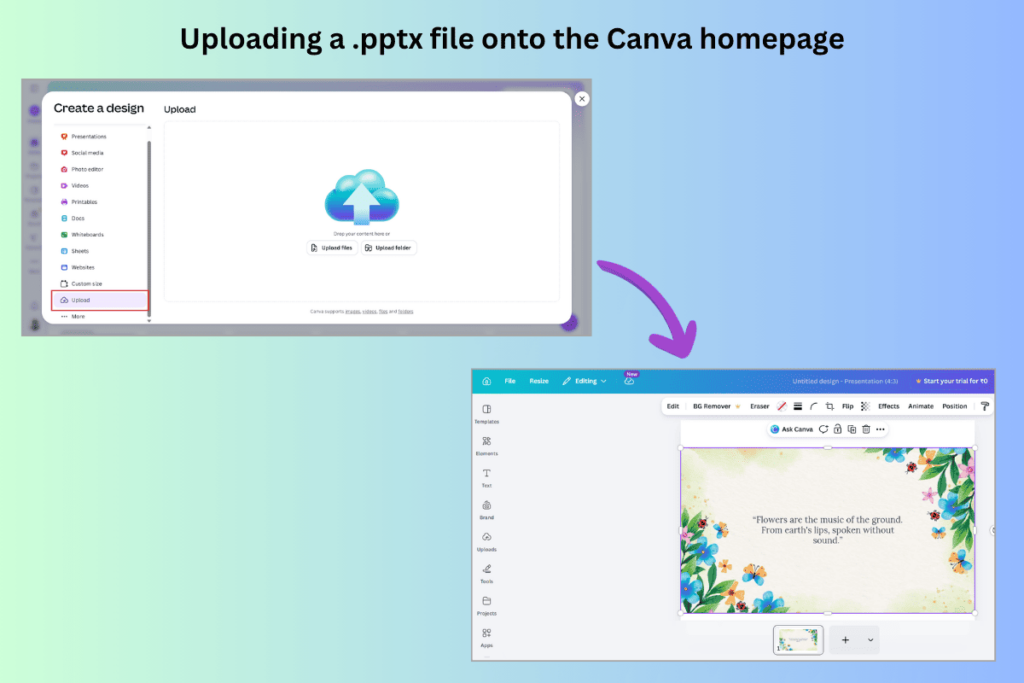
02. Drag your .pptx file onto the Canva homepage
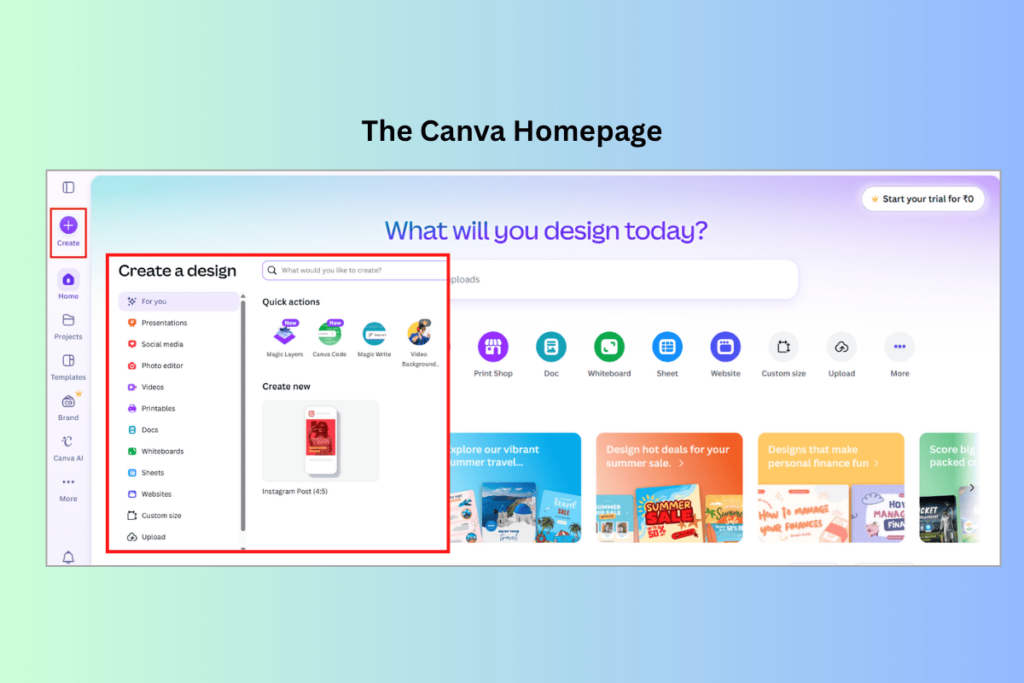
Drag your .pptx file from your computer and drop it directly onto the Canva homepage. A blue border appears around the screen to confirm Canva has detected the file.
Alternative method: If drag and drop doesn’t work, click “Create a design” on the homepage, then look for “Upload” at the bottom of the panel. Select your .pptx file from there.
03. Wait for Canva to convert the file
Canva processes and converts each slide into an editable Canva page. A progress bar shows the upload and conversion status.
Most files convert in 10 to 30 seconds. A large deck close to 300MB may take up to 2 minutes.
Don’t close the browser tab during conversion. If you do, you’ll need to start the upload again from the beginning.
04. Review the imported slides in the Canva editor
Once the conversion is done, Canva opens the presentation in the editor. All your slides appear as pages in the left-hand or bottom panel.
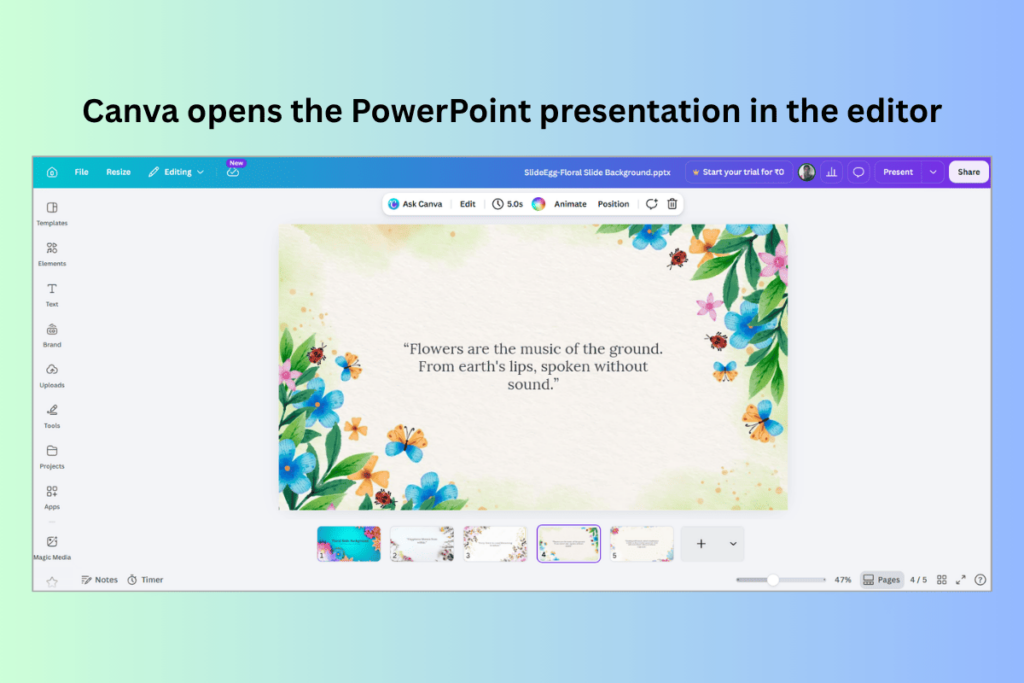
Click through each page and check for:
- Font changes — text that looks different from your original file
- Layout shifts — elements that have moved or resized
- Missing images — images that didn’t carry over
- Broken graphics — SmartArt or charts that look incorrect
05. Fix any formatting issues and start editing
Address any formatting issues you spotted in step 4. See the common fixes section below for specific solutions. Once everything looks right, you can use Canva’s full design toolkit to edit your slides.
Good practice: Keep your original .pptx file saved on your computer before making major changes in Canva. Once you save changes in Canva, the original PowerPoint layout is not preserved within the Canva editor.
Prefer to start fresh in Canva? SlideEgg’s PowerPoint templates use standard fonts and simple layouts — they import into Canva with far fewer formatting problems than custom-built decks.
How to Import PowerPoint into Canva on Mobile
The Canva mobile app supports PowerPoint imports on iOS and Android. The steps are slightly different from the desktop version.
01. Open the Canva app and tap the “+” button
Open the Canva app on your phone or tablet. On the home screen, tap the “+” (plus) button to start a new project or import a file.
02. Tap “Import file”
In the new project panel, scroll down and tap “Import file”. This opens your phone’s file browser.
Don’t see “Import file”? Update the Canva app to the latest version. Older versions may not show this option.
03. Select your .pptx file
Browse to your PowerPoint file — it may be in Downloads, iCloud Drive, Google Drive, or another connected cloud storage app. Tap the .pptx file to begin the upload.
04. Wait for conversion and review the slides
Canva converts the file and opens it in the mobile editor. Scroll through the slides and check for the same issues as the desktop version — fonts, layouts, and missing images.
Mobile is useful for quick reviews and minor changes. For thorough formatting fixes after an import, use the desktop browser editor — it gives you more precision and control.
What Transfers — and What Doesn’t
Canva converts most common PowerPoint elements, but some things are lost or changed. Here’s exactly what to expect:
| PowerPoint Element | Transfers? | What to Expect |
|---|---|---|
| Text content | Yes | All text transfers. Font style may change if not in Canva’s library. |
| Slide layout and structure | Partial | Most layouts transfer. Complex multi-column layouts may shift slightly. |
| Background colors | Yes | Solid and gradient backgrounds transfer accurately. |
| Inserted images (JPG, PNG) | Yes | Embedded images transfer. Externally linked images may not. |
| Standard fonts (Arial, Calibri, Georgia) | Yes | Common system fonts transfer — Canva has them in its library. |
| Custom or purchased fonts | No | Replaced by Canva’s closest match. Replace manually after import. |
| Basic shapes and lines | Partial | Simple shapes transfer. Complex 3D or grouped shapes may not render correctly. |
| SmartArt graphics | Partial | Often flattened to a static image. Not editable as individual elements in Canva. |
| Charts (bar, line, pie) | Partial | May appear as static images. Not editable as live Canva charts. |
| Animations | No | All PowerPoint animations are removed. Recreate with Canva’s Animate tool. |
| Slide transitions | No | Transitions don’t transfer. Apply Canva transitions manually after import. |
| Embedded videos | No | Videos don’t carry over. Re-upload video files directly in Canva. |
| Speaker notes | No | Notes are not imported. Copy them manually into Canva’s notes panel if needed. |
| Hyperlinks | Partial | Some links transfer. Check each linked element after import to confirm. |
💡 How to Minimize Formatting Loss
Converting PowerPoint to Canva without losing formatting
A few steps before you import can save a lot of fixing time after. Here’s what makes the biggest difference:
- Use standard system fonts — Arial, Calibri, Georgia, and Times New Roman are all in Canva’s library. If you design with these, the font substitution problem disappears entirely.
- Keep images embedded, not linked — Go to File → Info → Edit Links to Files and break any external image links before saving.
- Convert SmartArt to shapes — Right-click any SmartArt → Convert to Shapes. This turns it into basic grouped shapes, which import far better than SmartArt.
- Avoid complex charts if you need to edit them in Canva — Screenshot complex charts as images, or plan to rebuild them with Canva’s chart tool after import.
- Remove embedded videos before uploading — Take a screenshot of a key frame and use it as a placeholder. Upload the video file directly in Canva after import.
How to Fix Common Formatting Issues
These are the issues that come up most often after an import. Here’s how to fix each one.
Problem: Fonts look different
Canva replaced your custom font with a different one that doesn’t match your brand or design.
Fix: Click the text element → select all text → open the font menu → choose the correct font from Canva’s library. Use Edit → Select All to change the same font across all slides at once. If you used a custom font in PowerPoint that isn’t in Canva’s library, see our guide on how to download and install fonts for PowerPoint — many of those fonts are also available to upload to Canva Pro.
Problem: Elements have shifted position
Text boxes or shapes have moved from their original position on the slide.
Fix: Click the element and drag it back into place. Use Position in the top toolbar to enter exact X and Y coordinates for pixel-precise placement.
Problem: SmartArt isn’t editable
Your SmartArt diagram came in as a flat image. You can’t click into individual parts to edit them.
Fix: Delete the image. Rebuild the diagram using Canva’s shapes, lines, and text elements. The Elements panel has diagram components you can combine to recreate the layout.
Problem: Images are missing or broken
Some images didn’t transfer, or they appear as empty placeholders.
Fix: Go to Uploads in the left panel → click Upload files → select the missing images from your computer → drag them onto the slide to replace the broken placeholder.
Problem: Charts look wrong or are static
Your PowerPoint chart came in as a flat image and can’t be updated with new data.
Fix: Delete the imported chart. Use Canva’s built-in chart tool: Elements → Charts → choose your chart type → enter your data directly in Canva’s chart editor.
Problem: Animations and transitions are gone
All slide entrance effects and transitions were removed during the import process.
Fix: Click any element → click Animate in the top toolbar → pick an entrance animation. For slide transitions, click the slide thumbnail in the panel → Add transition. If you need the same animations back in PowerPoint later, see our guide on how to add animations and transitions in PowerPoint.
Example: What Happens to Fonts After Import
In PowerPoint (before import)
- Heading: Montserrat Bold, 36pt, brand color #2B4590
- Body: Montserrat Regular, 20pt
- Background: custom gradient
In Canva (after import)
- Heading: Canva substituted “Nunito Bold” as closest match
- Body: “Nunito” — font size preserved
- Background: solid color preserved, gradient approximated
Fix: select all text on affected slides and replace “Nunito” with the correct font from Canva’s font picker.
Tips for a Smoother Import
Use standard system fonts
Arial, Calibri, Georgia, and Times New Roman are in Canva’s library. Build your deck with these and font substitution won’t be an issue.
Keep images embedded
When you insert images in PowerPoint, embed them in the file rather than linking to external files. Linked images won’t carry over to Canva.
Convert SmartArt to shapes first
Right-click your SmartArt → Convert to Shapes. This makes the import much cleaner — basic shapes transfer far better than SmartArt.
Remove videos before importing
Videos won’t transfer. Take a screenshot of a key frame and use it as a placeholder. Then re-upload the video file directly in Canva after importing.
Watch your file size
.pptx files can be up to 300MB. .ppt files are capped at 100MB. Files over 300 slides or 1,400 elements won’t import. Compress images in PowerPoint first if your file is large.
Upload custom fonts to Canva Pro first
Canva Pro lets you upload your own fonts to the Brand Kit. If you use custom brand fonts, upload them to Canva before importing — this makes post-import font replacement much faster.
How to Export Back to PowerPoint from Canva
After editing in Canva, you can export the slides back as a .pptx file for colleagues who use Microsoft PowerPoint.
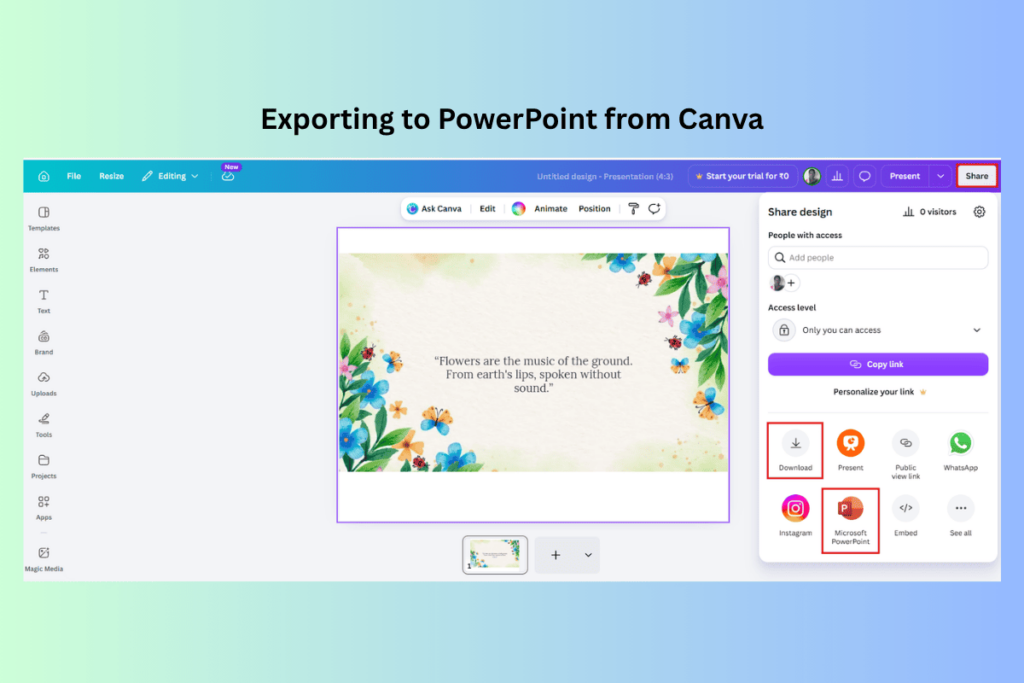
1. Click “Share” in the top right corner
In the Canva editor, click the Share button. A dropdown panel opens with export and sharing options.
2. Select “Download”
In the Share panel, click Download. This opens the file format options.
3. Choose “Microsoft PowerPoint (.pptx)”
From the file type dropdown, select Microsoft PowerPoint (.pptx). Choose to download all pages or select specific ones.
Check the export: Canva-specific elements — like Canva animations and some embedded graphics — may look different when the file opens in PowerPoint. Always review the exported file in PowerPoint before sharing.
4. Click “Download” and save the file
Click Download. The .pptx file saves to your computer and opens directly in Microsoft PowerPoint for further editing or presenting.
Want a deck that moves cleanly between both tools? SlideEgg’s templates are built with standard fonts and simple layouts — fewer formatting issues whether you’re working in PowerPoint or Canva.
Browse Professional PowerPoint Templates →
Next step after Canva: If you plan to share your edited slides with colleagues who use Google Slides, you can take your Canva design there directly — no PowerPoint round-trip needed. See: How to Convert Canva to Google Slides Without Losing Formatting.
Frequently Asked Questions
Can you import a PowerPoint file into Canva?
Yes. Canva accepts .pptx (up to 300MB) and .ppt (up to 100MB) files. Drag and drop your file onto the Canva homepage, or use the “Import file” option. Each slide is converted into an editable Canva page. The import feature is free on all Canva plans.
Is importing PowerPoint into Canva free?
Yes. The PowerPoint import feature is available on Canva’s free plan. You don’t need a Canva Pro subscription. Some features available after import — like uploading custom brand fonts to the Brand Kit — do require Canva Pro.
What file types does Canva accept for import?
For presentations, Canva accepts .pptx (up to 300MB) and .ppt (up to 100MB). Files can have up to 300 pages and 1,400 elements. Always use .pptx for the best import results — it supports a larger file size and converts more accurately.
Do animations transfer from PowerPoint to Canva?
No. PowerPoint animations and transitions are not carried over during import. You’ll need to recreate them using Canva’s Animate tool. Click any element in the Canva editor → click Animate in the toolbar to add entrance and exit effects.
Why do fonts look different after importing into Canva?
If you used a custom or purchased font that isn’t in Canva’s library, Canva replaces it with the closest available match. To fix this, select the affected text and replace the font using Canva’s font selector. Canva Pro users can upload custom fonts to their Brand Kit to avoid this issue in future imports.
Can I edit charts after importing from PowerPoint?
Usually not. PowerPoint charts typically import as static images in Canva. To make them editable, delete the imported chart and rebuild it using Canva’s chart tool: Elements → Charts. You can then update the data directly in Canva.
Can I export back to PowerPoint after editing in Canva?
Yes. Go to Share → Download → Microsoft PowerPoint (.pptx). Canva converts your design back to a .pptx file. Always open the file in PowerPoint to check formatting before sharing it.
Why can’t I download my PPT on Canva?
The most common reasons are:
1. Premium elements on a free account — If any element on your slides is a Canva Pro asset and you’re on the free plan, Canva will prompt you to upgrade before downloading. Delete or replace the Pro elements to download for free.
2. File size too large — The exported .pptx must be within Canva’s export limits. Remove large images or reduce the number of pages if you’re hitting this issue.
3. Too many pages — Designs over 300 pages may not export cleanly as .pptx. Split the design into two separate files and download each one.
How do I add PowerPoint slides to another PowerPoint in Canva?
Import both PowerPoint files separately into Canva — each becomes its own Canva design. Then open the first design, select the pages you want to move (click a page thumbnail → hold Shift and click others to select multiple), copy them, open the second design, and paste. Canva adds the copied pages to the existing design.
This is the fastest way to merge two imported PowerPoint files within Canva without leaving the browser.
Why did my PowerPoint import fail?
The most common reasons are a file that exceeds Canva’s limits (.pptx over 300MB, .ppt over 100MB, more than 300 slides, or more than 1,400 elements), an unsupported file format (.key or .odp won’t work), or a corrupted .pptx file. Try compressing images in PowerPoint first, then re-save as .pptx and upload again. If the problem continues, check Canva’s official import help page.
Related Guides From SlideEgg
Design Guide: How to Design a PowerPoint Presentation: A Beginner’s Guide
Presentation Tips: How Many Slides Should a Presentation Have? (By Use Case)
Templates: Free & Premium PowerPoint Templates for Every Presentation Type
Wrapping Up
Importing a PowerPoint file into Canva takes less than a minute. Drag your .pptx onto the Canva homepage, wait for the conversion, and your slides open as editable pages.
The main things to fix after import are fonts, shifted layouts, and SmartArt or charts that came in as flat images. To avoid most of these issues before they happen, use standard system fonts, keep images embedded, and convert SmartArt to shapes before uploading.
If you want a deck that moves between PowerPoint and Canva cleanly, start with a well-structured template. SlideEgg’s PowerPoint templates use standard fonts and clean layouts — which means far fewer formatting problems on import, and less time fixing things in the editor.