
Posts by Arockia Mary Amutha
 Presentation Tips
In 2026, the value of a business plan is measured by its density, not its length. High-growth environments now demand a “Validation Engine”—a document that...
 Presentation Tips
A credible business plan presentation helps an audience make a decision. It does not copy a written plan into slides or use polished design to...
 Industry Information
In the 2026 hospitality landscape, traditional “vibe-based” business plans are a primary cause of insolvency. Rising labor floors and volatile commodity pricing require a shift...
 Presentation Collections
The transition from your final word to the first question in a Q&A is the “make-or-break” moment for professional authority. While the introduction captures attention,...
 Presentation Tips
A business thank you slide is the final visual anchor of your presentation; it quietly determines what the audience remembers about your professionalism. In corporate...
 Presentation Tips
In a business environment, the final slide is not a “goodbye”; it is a Passive Sales Agent. During executive Q&A sessions, this slide often stays...
 Presentation Tips
A presentation does not end when the speaker stops talking. In client meetings and webinars, the final slide sits on the screen for 15 minutes...
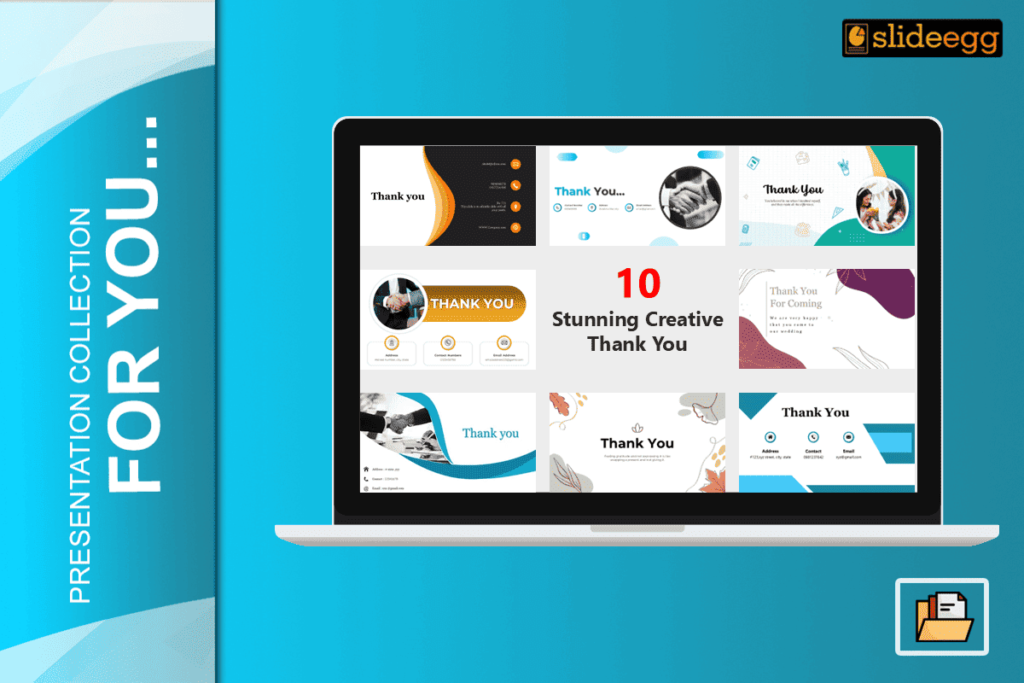 Presentation Collections
“A great talk needs a great finish. Turn your goodbye into a new deal today.” Your final slide is your most important asset for networking....
 Presentation Tips
For years, the “Thank You” slide has been treated as a formality, something added at the last minute with a blurry stock photo of a...
 Presentation Tips
Most presenters treat the “Thank You” slide as an afterthought. They drop in a generic stock image, type “Questions?”, and call it a day. This...
Recent Blogs
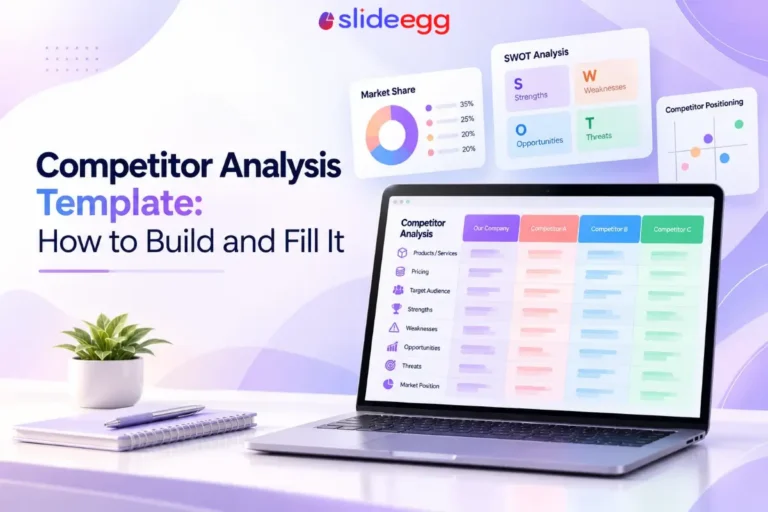
Have you ever tried to compare three competitors in a single, disorganized spreadsheet? By the time you get...

Gemini puts Google’s AI right inside the Slides editor, so you can draft, design, and polish a presentation...

Quick Take: SlideEgg’s Christmas collection holds 474+ templates across PowerPoint, Google Slides, and select Canva formats, Santa-and-nativity scenes...