1280+ Free Maps Presentation Templates | Page 6
Browse 1,280+ Map Presentation Templates for PowerPoint, Google Slides, and Canva. Choose from world maps, country maps, US state maps, continent maps, and regional infographic slides. Every template is fully editable. Change colors, highlight regions, add location markers, and insert your own labels directly in your preferred presentation tool.
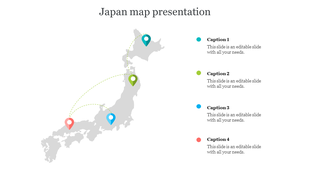
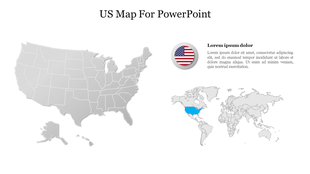
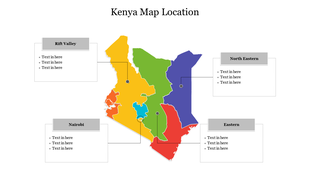
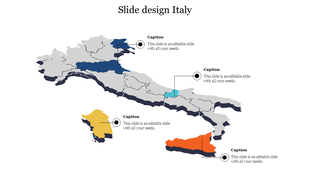
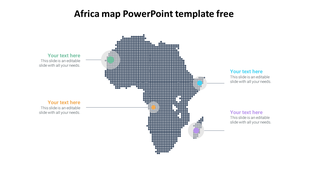
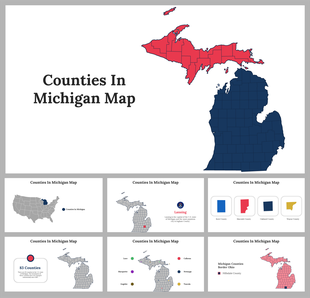
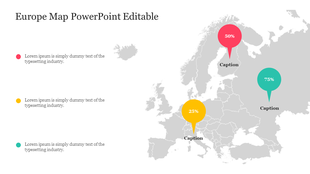
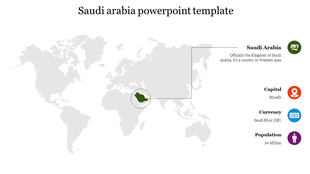
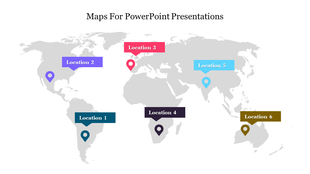
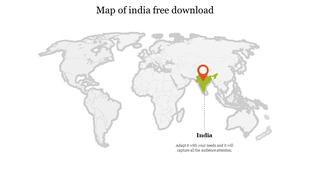
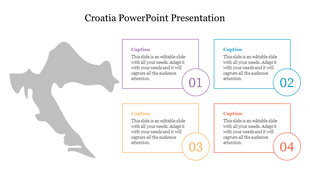
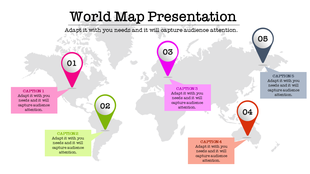
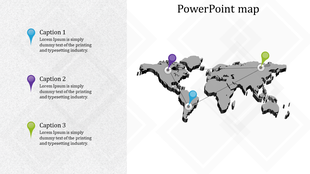
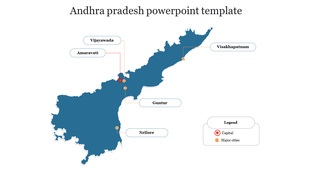
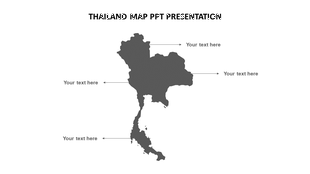
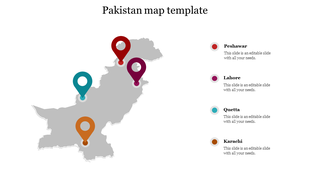
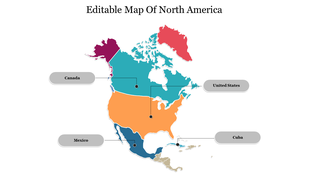
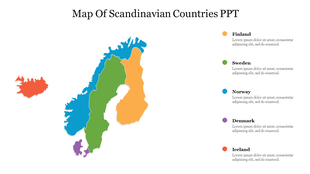
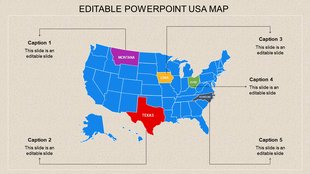
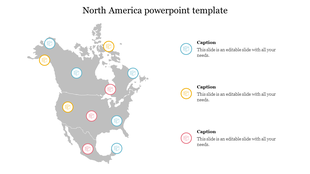
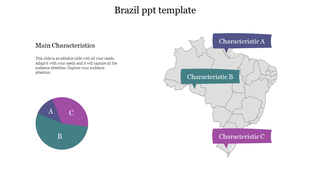
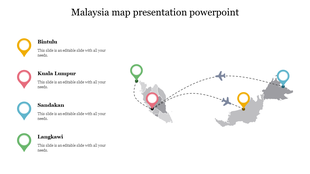
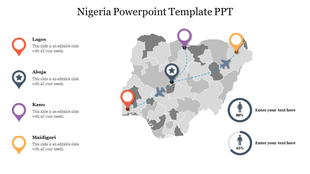
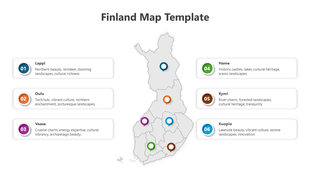
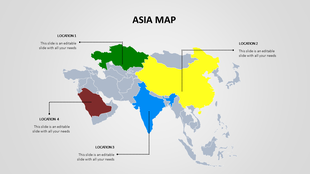
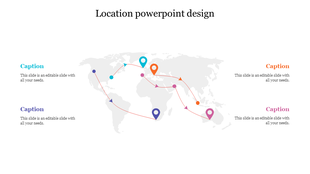
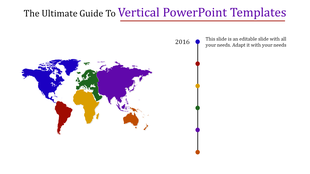
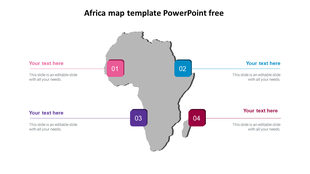
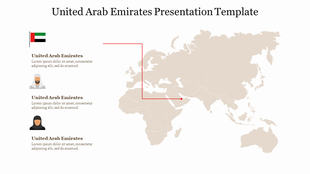
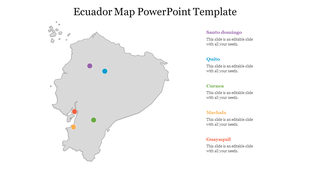
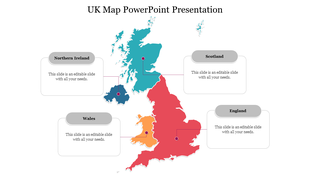
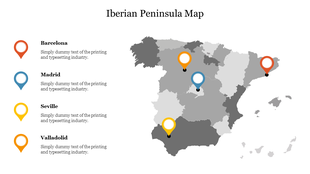
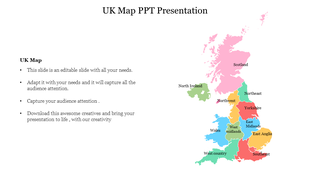
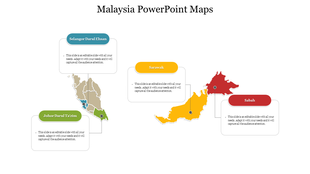
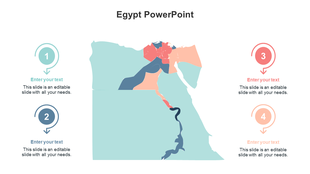
Showing288 of1,287


Editable Map Templates for Every Geography Presentation
Most presentation tools come with a basic world map — one flat image, no editable regions, no way to highlight a specific country without rebuilding the slide from scratch. That single limitation is why map templates exist as a separate category. Whether you need to color-code US states by sales rep, shade countries by revenue performance, or mark distribution hubs on a logistics slide, you need a map where each region is a clickable, recolorable shape — not a locked image.
The templates in this collection are built that way. Every country, state, and region is an individual vector shape you can select, recolor, label, or hide independently. Here is how they are organized and what they are designed for.
What Types of Map Templates Are Available?
This collection covers every geography and presentation format you are likely to need. World maps come with individually editable country shapes — each country is a separate object you can recolor, label, or hide. Country-specific map templates cover the most requested regions: the United States with all 50 states, India with all states and union territories, the United Kingdom, Canada, Germany, France, Australia, Brazil, China, Japan, and more than 150 additional countries.
Continent map templates cover Africa, Asia, Europe, North America, South America, and Oceania, with each nation or region as an independent editable element. Regional map templates go one level deeper — covering APAC, Latin America, Western Europe, South Asia, and the Middle East. City maps and data-overlay infographic slide templates are also available for teams that need to add statistics, population figures, or route paths on top of a geographic base.
Who Uses Map Presentation Templates?
Map templates in this category are used across a wide range of roles and industries. Business analysts and sales teams download US state maps and world maps to present revenue by region, sales territory assignments, and market coverage in quarterly reviews. Marketing teams use color-coded country and continent maps to show campaign reach, audience distribution, and regional targeting in strategy decks.
Geography and social studies teachers use labeled map slides to make classroom lessons more visual and easier to follow for students. Event planners use city and regional maps to show venue locations and logistics routes. NGOs and research organizations use data-layered map slides to present demographic studies, health statistics, and development reports. Travel and tourism professionals use destination maps to illustrate tour packages and route options.
Common Use Cases for Map Slides
A map slide communicates geographic information faster than a written description. Here are the most common ways these templates are used in real presentations:
- Sales territory planning: Color-code US states or global regions by account owner, performance tier, or revenue quota. Each state or country is a separate editable shape — assign a color to a zone in a few clicks, then duplicate the slide and update assignments each quarter without rebuilding the map.
- Market expansion and entry slides: Highlight target markets on a world or continent map using a single accent color. Add location pins to mark planned offices, distribution hubs, or key accounts. Use the same map across multiple slides — one showing the current footprint, one showing the planned expansion — to tell a before-and-after story.
- Regional performance reporting: Shade countries or states by value using a light-to-dark color scale — darker for higher revenue, lighter for lower — to create a heat map your audience reads without needing to study a legend. This format works in quarterly business reviews, board presentations, and investor updates, wherever geographic performance comparison is the point.
- EMEA and APAC territory management: Organize multi-region territory maps by grouping countries into color zones — one color per regional director or team — and using intensity variations within each color to show sub-territory assignments. The full Europe and Asia continent templates support this structure out of the box.
- Competitive and market coverage analysis: Use a world or continent map to show where your business operates versus where competitors are active. Color-code your active markets in one color, whitespace opportunity markets in another, and competitor-heavy markets in a third — turning a complex competitive landscape into a single legible slide.
- Geography lessons and educational use: Label state capitals, mark historical boundaries, highlight climate zones, or show migration routes on country and continent map slides. The same editable shape format used in business presentations lets teachers build quiz slides, animated reveals, and printable handout maps from a single template file.
- Logistics and supply chain presentations: Place distribution network nodes, shipping routes, and warehouse locations on country or world map templates. Layer location markers on top of the base map and connect them with line shapes to show route paths — useful for operations decks, vendor presentations, and internal supply chain reviews.
- Event and conference materials: Use city maps with marked venue locations, transport links, and nearby amenities for event signage, conference programs, and attendee orientation slides.
What Each Map Template Pack Includes
Map template packs on SlideEgg come with multiple slide layouts, not just a single map view. A typical pack includes an overview slide with the full map, individual region-highlight slides where one country or state is emphasized, a data-layer slide with placeholder areas for statistics or annotations, a legend placeholder slide, and, in many packs, an icon library slide with editable symbols relevant to the geography.
Templates are available in both 16:9 widescreen and 4:3 standard formats. Most templates include portrait and landscape layout options. Free templates are clearly labeled and include all core slides. Pro templates include additional slide variations, extended icon sets, and commercial-use rights — details are listed on each individual template page.
Each template download also includes usage instructions inside the file so you know exactly which elements are editable and how to modify them.
How to Choose the Right Map Template
Start with geography: choose a template that matches the specific region your presentation covers — world, continent, country, or city. If you are presenting US state-level data, a world map template is the wrong choice; go directly to US state map templates.
Next, consider your editing need: if you need to highlight individual countries or regions, confirm the template uses vector shapes (not a flat image). All SlideEgg map templates use vector graphics, so this is not a concern, but it is worth checking the preview slides to see how the regions are structured.
Finally, check the slide count and the variety of layouts in each pack. A presentation covering multiple geographic regions benefits from a pack with more slide layouts — overview, individual highlight, and data-overlay slides — so you do not have to rebuild the structure from scratch.
Can't Find the Exact Map You Need? Generate One with AI
If the pre-built templates don't match your specific region or presentation purpose, the Craft with AI option lets you describe what you need and generate a custom map presentation from scratch.
Enter your region and purpose in the prompt field — for example, "Southeast Asia market expansion, 10 slides" or "US West Coast sales territory overview" — select your preferred slide count, and click Generate. The AI builds a presentation structure tailored to your input, including map slides, data placeholder layouts, and supporting content slides.
This option is useful when your geography or use case sits outside the standard template library — regional subsets, niche industry contexts, or multi-map decks that combine several geographies in one presentation.
Find the Right Map Template for Your Next Slide
Explore 1,280+ editable map templates covering every region. Whether you're mapping sales territories, market reach, or geography lessons — there's a template here for it. Explore the collection now!
Africa
67 Templates
America
107 Templates
Asia
42 Templates
Australia
29 Templates
Netherlands
27 Templates
Oceania
12 Templates
Continents
72 Templates
North america map
20 Templates
South america map
15 Templates
Europe
66 Templates
World map
252 Templates
Italy Map
30 Templates
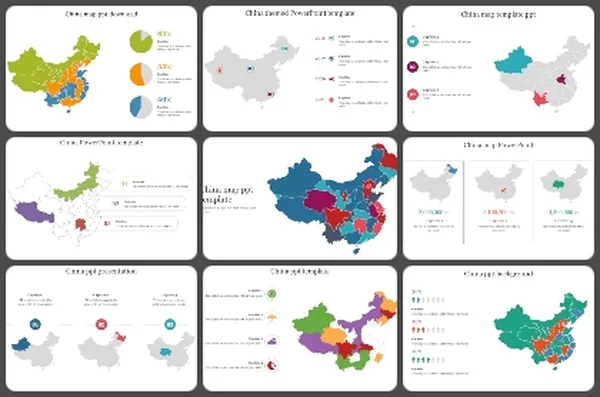
China Map
29 Templates
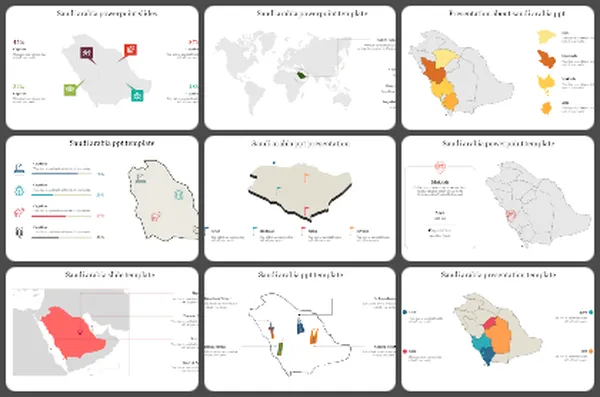
Saudi Arabia
32 Templates
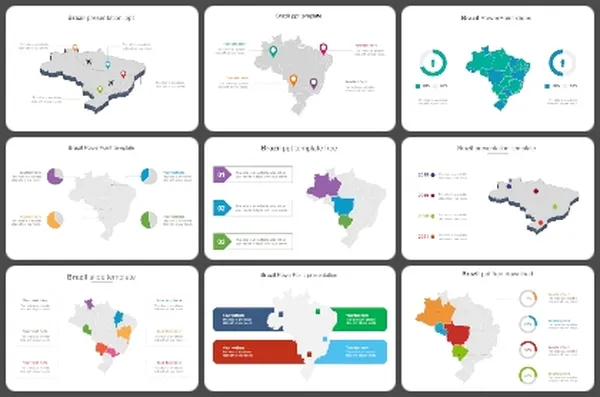
Brazil map
37 Templates
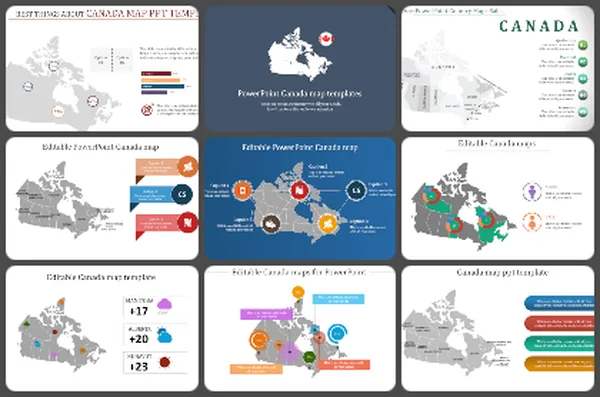
Canada map
33 Templates
Ireland Map
19 Templates
Hong Kong Map
18 Templates

Spain Map
14 Templates
Turkey map
34 Templates
Explore Similar Collections
Frequently Asked Questions
Are the map templates on SlideEgg free?
SlideEgg offers free and premium map templates. Free templates are labeled with a Free badge on each template card and include the core slide layouts for that map. Premium templates, available with a Pro subscription, include additional slide variations, extended icon sets, and commercial-use rights. Check the label on any template card to confirm its availability before selecting it.
Do these map templates work with Google Slides?
Yes. All map templates download as .pptx files, which are compatible with Google Slides. Upload the downloaded file to Google Drive, open it with Google Slides, and the map shapes, layouts, and text boxes will convert and remain fully editable. You can also open directly in Google Slides from the template page. You can then share and collaborate on the file in real time.
Can I use these map templates in Canva?
Yes. Import the downloaded .pptx file into Canva by selecting Create a Design and then Import File. Or you can open directly in Canva from the product page. Canva will render the slides and let you edit text, recolor elements, and adjust the layout.
Can I highlight individual countries or states on the map?
Yes. All map templates in this collection use individual vector shape objects for each country, state, or region — not a flat image. Click any region in PowerPoint or Google Slides, change its fill color in the Shape Format panel, and the rest of the map stays unchanged. You can highlight one region or several simultaneously by holding Shift while clicking.
What types of map templates are available in this collection?
This collection includes world maps, continent maps (Africa, Asia, Europe, North America, South America, Oceania), country-specific maps (USA with all 50 states, India, UK, Germany, Brazil, and 150+ more), regional maps (APAC, Latin America, MENA, South Asia), and data-overlay infographic map slides.
How do I edit a map template if I don't have design experience?
Open the downloaded .pptx file in PowerPoint, Google Slides, or Canva. Click on the country, state, or region you want to edit and change its fill color from the Shape Format panel. Click any text box to update a label. All editing uses standard presentation tool controls — no plugins, no design software, and no prior design experience are needed.
How do I customize a map template for my specific locations?
Open the template and identify which regions are relevant to your presentation. Recolor only those regions using the Shape Format fill tool. Add location pins using Insert → Icons or Insert → Shapes. Remove or hide any regions that are not relevant to your message by setting their fill to the background color or deleting the shape. Keep only what directly supports your data or narrative.
My map template has too much detail for what I need — how do I simplify it?
Delete or hide the shapes and text labels that are not relevant to your message. If the template shows all countries in a continent but you only need three, set the unused country shapes to a neutral gray and remove their labels. Templates are starting points — use only the elements that serve your specific slide. Fewer elements usually make a map easier for your audience to read quickly.
How do I keep multiple map slides consistent across one presentation?
Use the same color scheme on every map slide. If you use blue to represent one category on the first map, use blue for the same category on every other map. Match font styles and label sizes across all slides. Downloading all your map slides from the same template pack is the easiest way to ensure consistency — the colors, fonts, and layout conventions are already aligned within each pack.
Can I use these map templates for commercial presentations?
Free templates are licensed for personal and educational use. For presentations used in a commercial context — including client deliverables, business reports, and corporate communications — a SlideEgg Pro subscription includes commercial-use rights across all templates in the library. Each template download also includes a Terms of Use slide that outlines the specific permissions for free and Pro users.