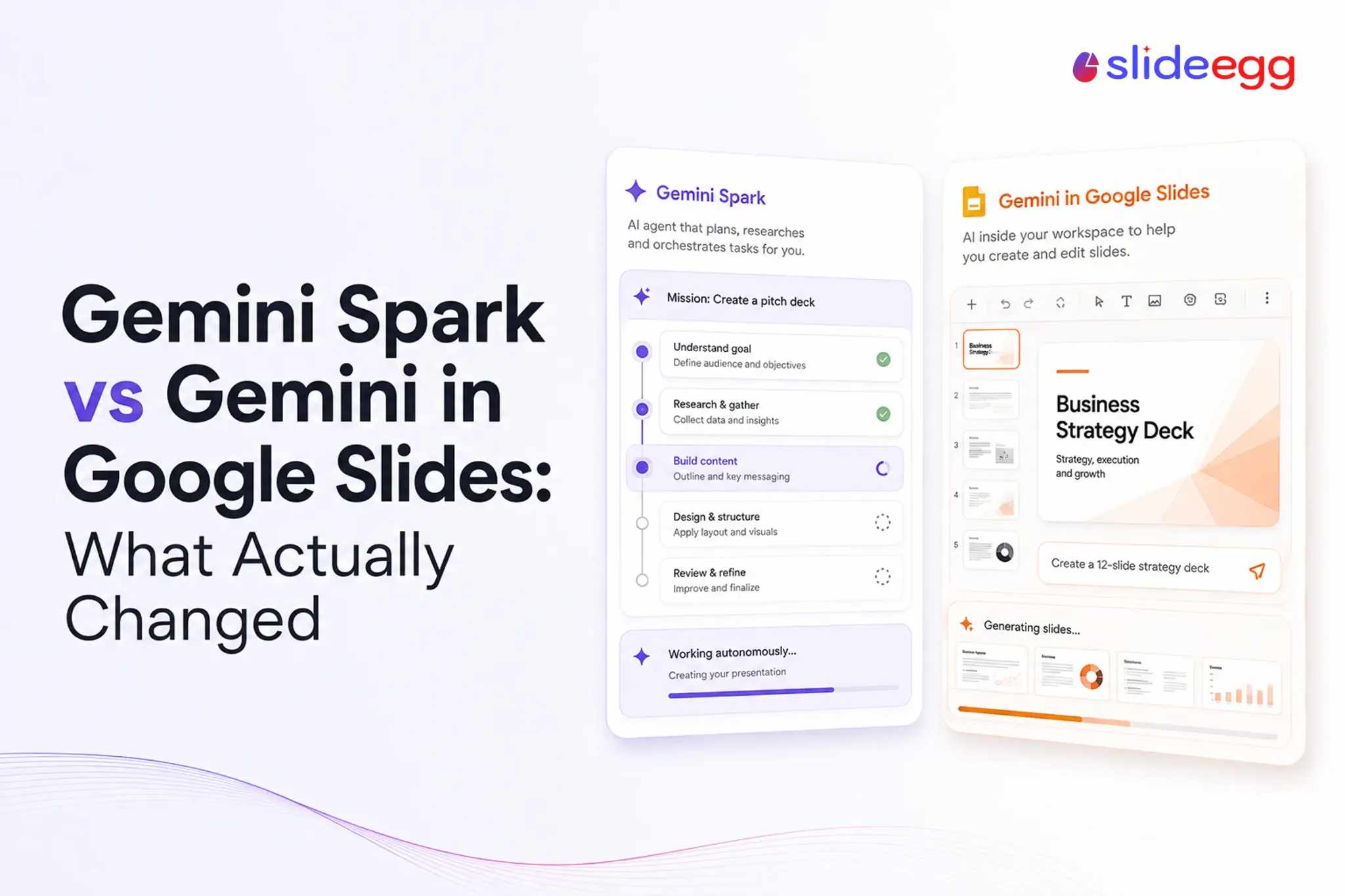
Google now offers two Gemini experiences that can work with presentations but serve very different purposes: Gemini Spark and full-presentation generation in Google Slides.
Gemini in Google Slides can now create a complete multi-slide presentation from a prompt. It can use files from Google Drive, follow the visual style of an existing deck, prepare an outline for approval, and generate slides that remain editable.
Gemini Spark serves a different purpose. It is a personal AI agent designed to manage multi-step tasks and recurring workflows across connected apps. Spark can also create and edit Google Slides presentations through connected Google Workspace actions, but it is separate from the built-in Gemini presentation-generation experience inside Google Slides.
This guide explains the difference, who can access full-presentation generation, how the workflow works, and which parts still require human review.
Quick Answer: What Has Changed for Google Slides Users?
Gemini in Google Slides can now generate a complete editable presentation from a prompt. Users can add Docs, Sheets, PDFs, and previous presentations as sources, use an existing deck as a style reference, answer clarifying questions, review an outline, and then generate the complete deck.
Gemini Spark is different. It is a broader AI agent for multi-step and recurring workflows. Google also allows Spark to generate and edit Google Slides presentations, but presentation creation is one capability within its wider workflow system rather than its primary interface.
In practical terms, use Gemini in Slides when the presentation itself is the task. Use Spark when creating or updating a presentation is one step inside a larger workflow.
Users comparing these workflows can also see how an AI presentation maker handles presentation generation, editing, and delivery within one platform.
What Is Gemini Spark?
Gemini Spark is a personal AI agent designed to complete multi-step tasks under the user’s direction. Unlike a standard chatbot that normally responds to one prompt at a time, Spark can manage longer workflows, respond to triggers, and continue supported work in the background.
Google describes Spark as a “24/7 personal AI agent.” It can continue supported tasks in the background, including some work through its remote browser when the user’s device is no longer open.
However, Spark is not completely autonomous in every situation. Some tasks may pause when user input, supervision, or confirmation is required, and certain actions may require the user to take control before the workflow can continue.
This means Spark can reduce the need for constant manual involvement, but users should not assume that every scheduled or multi-step task will run from start to finish without intervention.
Spark can work with connected Google services when the user enables access. Users remain in control of whether Spark is activated and which apps it can use.
Its workflow includes three main capabilities:
Tasks: Individual jobs the agent completes
Skills: Reusable instructions for repeated work
Schedules: Time-based or condition-based triggers
“Every Friday, review this week’s permitted project updates in Gmail, Drive, and Sheets. Identify completed milestones, delays, major risks, and next steps. Then update the existing weekly project-status presentation in Google Slides and leave it ready for my review.”
In this workflow, the presentation is not the entire task. Spark first gathers information across connected services, processes it, and then creates or updates the Slides deck as one step in the larger workflow. Google currently allows Spark to generate presentations, add or remove slides, and edit existing presentations. For shared presentations, Spark may require the user to review and confirm planned edits.
Google currently documents schedules plus Workspace actions across Gmail, Drive, Sheets and Slides, including generating and editing presentations.
Spark is therefore designed for workflow automation rather than presentation creation alone.
Is Gemini Spark Built Into Google Slides?
Gemini Spark and full-presentation generation inside Google Slides are separate Gemini experiences.
These should also not be confused with presentation generation in the Gemini app through Canvas, which provides another route for creating slides and exporting them to Google Slides.
The built-in Slides feature is designed specifically for presentation creation. A user can describe the deck they need, add Drive sources, allow Gemini to find relevant information, attach another presentation as a style reference, answer follow-up questions, review and edit a presentation plan, and then generate the full editable deck.
Spark is a broader AI agent that works across connected services and ongoing workflows. Google’s Gemini Spark documentation lists Google Slides among the Workspace services Spark can use. Spark can generate a Google Slides presentation from a prompt and edit, add, or remove slides as part of a task.
The difference is therefore not that one can create presentations and the other cannot. Gemini in Google Slides provides a dedicated presentation-generation workflow inside Slides, while Spark can include presentation creation and editing as one step within a larger multi-app or recurring workflow.
Both tools still require human review and supervision.
Spark vs Gemini in Google Slides
| Capability | Gemini Spark | Gemini in Google Slides |
|---|---|---|
| Main purpose | Manage multi-step tasks and workflows across connected apps | Dedicated presentation creation and editing inside Google Slides |
| Where it operates | Gemini mobile app, Gemini web app, and Gemini app for Mac, where supported | Inside Google Slides |
| Continues supported background work | Yes | No; Google says full-presentation generation may take a few minutes. You can switch tabs or windows, but Google Slides and the Gemini side panel must remain open. |
| Creates presentation outlines | No dedicated presentation-plan workflow documented | Yes, users can review and edit a presentation plan before generation |
| Creates editable slides | Yes — Spark can generate presentations and edit, add, or remove slides | Yes, through the dedicated Slides generation workflow |
| Uses Drive content | Yes, when connected and permitted | Yes |
| Suggests relevant files | May locate information through connected apps | Yes |
| Matches an existing deck style | Not its primary advertised function | Yes |
| Supports recurring tasks and triggers | Yes | No |
| Requires human review | Yes | Yes |
| Access | Personal Google Account, age 18+; Google AI Pro or Ultra in the US, or Google AI Ultra in other supported countries; not currently available for work or school accounts | Selected Workspace and Google AI plans |
One important access difference: Google’s current Spark Help documentation says Spark requires a personal Google Account and is not currently available through work or school accounts. Full-presentation generation in Google Slides, however, is available through eligible Google Workspace Business and Enterprise plans as well as selected Google AI and Education plans. This means some Workspace users can access the dedicated Slides generator even when they cannot use Spark.
The practical difference is simple: use Gemini in Slides when you want a dedicated workflow for building and refining a presentation inside Google Slides. Use Spark when presentation creation or editing is one part of a broader multi-step or recurring workflow.
What changed inside Google Slides?
Gemini in Google Slides previously focused on smaller tasks such as generating individual slides, creating images, rewriting text, and summarizing existing presentations.
Google’s full-presentation generation workflow in Google Slides can generate a complete multi-slide presentation from one brief. Users can add reference files from Google Drive, attach an existing presentation as a style reference, answer follow-up questions, and review an outline before the deck is created.
Gemini may also suggest relevant files, emails, and chats. The user decides which sources should be included.
The resulting slides contain editable elements rather than being delivered as flat images. Users can manually change the text, images, layouts, charts, colors, and other slide content after generation.
This reduces the work required to produce a first draft, but it does not remove the need to verify facts, improve the narrative, correct weak visual choices, and adapt the deck for its real audience.
Who Can Use Full-Presentation Generation in Google Slides?
Last updated: August 12, 2026
Google’s current Help Center documentation lists the following eligible plans for full-presentation generation:
| Account type | Eligible plan |
|---|---|
| Google Workspace Business | Business Standard and Business Plus |
| Google Workspace Enterprise | Enterprise Standard and Enterprise Plus |
| Personal Google account | Google AI Pro and Google AI Ultra |
| Education | Google AI Pro for Education |
| Other eligible organizations | AI Expanded Access add-on |
Google began an extended rollout to eligible Workspace domains on June 29, 2026. Google’s current Help Center documentation says full-presentation generation is available on desktop and in English only.
Google is currently providing promotional access to full-presentation generation for eligible Workspace users. According to Google’s current Workspace usage-limit documentation, enforcement of limits for Generate presentations with Gemini in Slides begins on September 1, 2026.
Google has not yet published the final numerical presentation-generation limit in that comparison table. Users with the AI Expanded Access add-on receive higher access to advanced AI capabilities, but exact limits can vary by feature.
Because these limits are still changing, users should check Google’s current Workspace usage-limit documentation and any notices shown inside Google Slides before relying on the feature for high-volume presentation creation.
Gemini Spark has more restricted availability than full-presentation generation in Google Slides. Google’s current Gemini Apps Help documentation says users must be 18 or older, sign in with a personal Google Account, have a Google AI Pro or Google AI Ultra subscription, and keep Gemini activity enabled. Spark is not currently available when signed in with a work or school Google Account.
Spark is currently available in supported Gemini regions except the European Economic Area, Nigeria, Switzerland, and the United Kingdom. It can be accessed through the Gemini mobile app, Gemini web app, and Gemini app for Mac.
How Much Do the Eligible Plans Cost?
Pricing depends on the country, billing term, and organization. In the United States, Google currently lists Business Standard at $14 per user per month and Business Plus at $22 per user per month with a one-year commitment. Enterprise pricing is handled through Google sales.
For personal accounts, Google AI Pro is currently $19.99 per month in the United States, while Google AI Ultra starts at $99.99 per month. Google AI Pro for Education is normally $20 per user per month with a one-year commitment, or $24 per user per month when billed monthly. Eligible Education Plus customers may receive discounted pricing.
Google does not publish one universal price for AI Expanded Access because pricing varies by local currency, billing arrangement, and subscription duration.
These prices can change and may differ by country, so users should check Google’s current pricing page before subscribing.
How to Create a Complete Presentation With Gemini in Google Slides
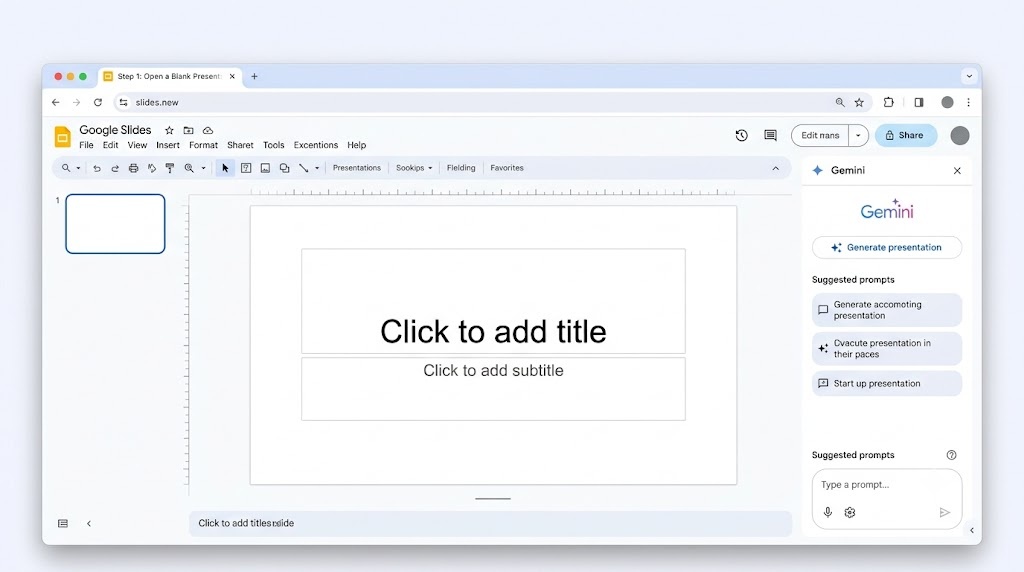
Step 1: Open a Blank Presentation
Open a new Google Slides file.
Google says users can select Generate presentation from slides.new or open Gemini from the side panel of a blank presentation.
Beginners who are unfamiliar with the basic controls should first learn how to create a Google Slides presentation.
Starting from a blank deck helps Gemini understand that you want a complete presentation rather than an edit to one existing slide.
Step 2: Explain the Real Goal
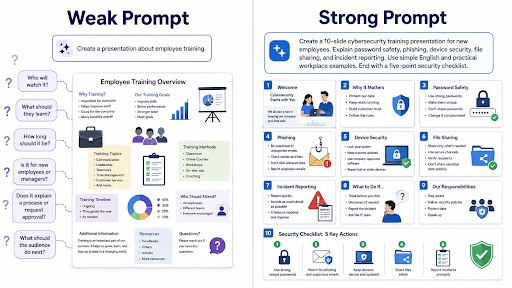
Do not give Gemini only a topic.
A weak prompt looks like this:
Create a presentation about employee training.
That leaves several unanswered questions:
- Who will watch it?
- What should they learn?
- How long should it be?
- Is it for new employees or managers?
- Does it explain a process or request approval?
- What should the audience do after the presentation?
A better prompt is:
Create a 10-slide cybersecurity training presentation for new employees. Explain password safety, phishing, device security, file sharing, and incident reporting. Use simple English and practical workplace examples. End with a five-point security checklist.
The difference is not the number of words. The second prompt gives Gemini a clear audience and outcome.
How many slides can Gemini generate?
Google’s current Help Center does not publish a fixed minimum or maximum number of slides for full-presentation generation. You can request a slide count in your prompt, but the generated presentation should still be checked against the approved outline. For longer presentations, it is safer to review the structure carefully instead of assuming Gemini will handle every requested slide with equal depth.
Step 3: Add Reliable Reference Files
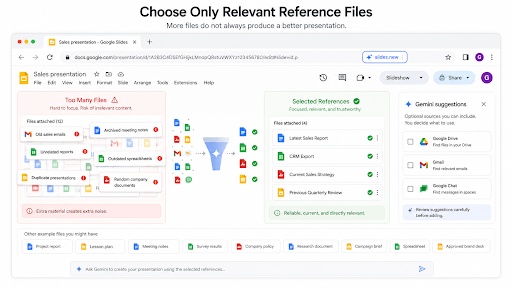
Gemini can use Google Docs, Google Sheets, PDFs and earlier presentations as reference material.
Useful files may include:
- A project report
- A lesson plan
- Meeting notes
- Survey results
- A company policy
- A research document
- A campaign brief
- A spreadsheet
- An approved brand deck
Do not attach every available document.
Extra material can create extra noise. Select the few files that contain the most reliable and relevant information.
A sales presentation might need:
- The latest sales report
- A CRM export
- The current sales strategy
- The previous quarterly review
It probably does not need every sales email from last year.
Google says Gemini can suggest related Drive files, emails and chats. The user decides whether to include them.
Step 4: Add a Style Reference
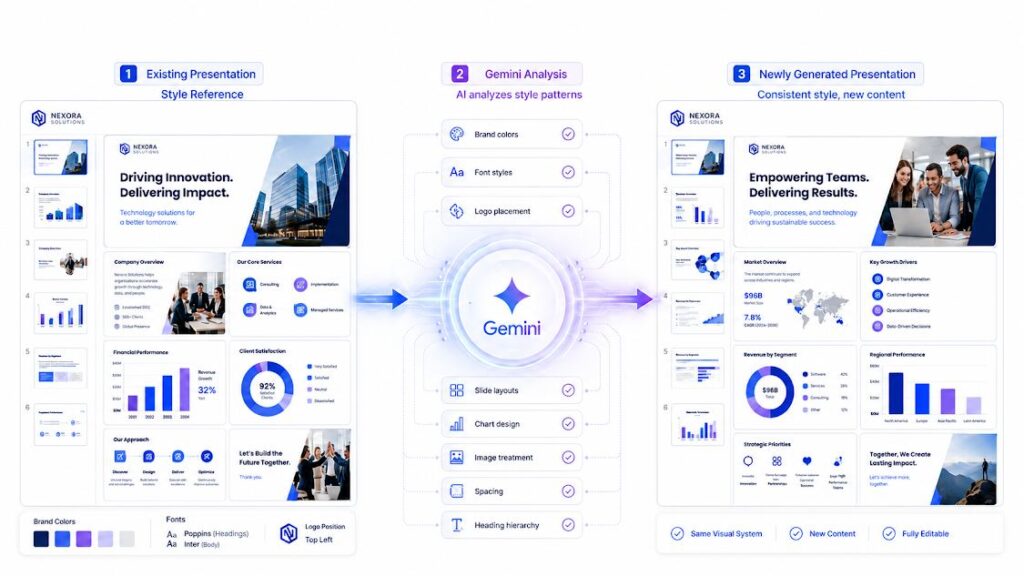
A style reference is an existing presentation that Gemini can use as a visual guide.
It may help Gemini identify:
- Brand colors
- Font styles
- Logo placement
- Slide layouts
- Chart design
- Image treatment
- Spacing
- Heading hierarchy
Choose the reference carefully.
Do not use a deck with five font families, random colors and inconsistent layouts. Gemini may repeat those problems.
A clean Google Slides template can also provide a clear visual starting point when the user does not have an approved company deck.
Do not treat style matching as a brand-compliance guarantee.
Google documents the ability to match the style of an existing presentation, but that does not mean every generated slide will reproduce every brand rule perfectly. After generation, check fonts, color values, logo placement, spacing, image treatment, chart styling, and layout consistency against the original deck.
For strict corporate branding, use the generated deck as a first draft rather than assuming the style reference has replaced a final design review.
Step 5: Answer Gemini’s Follow-Up Questions
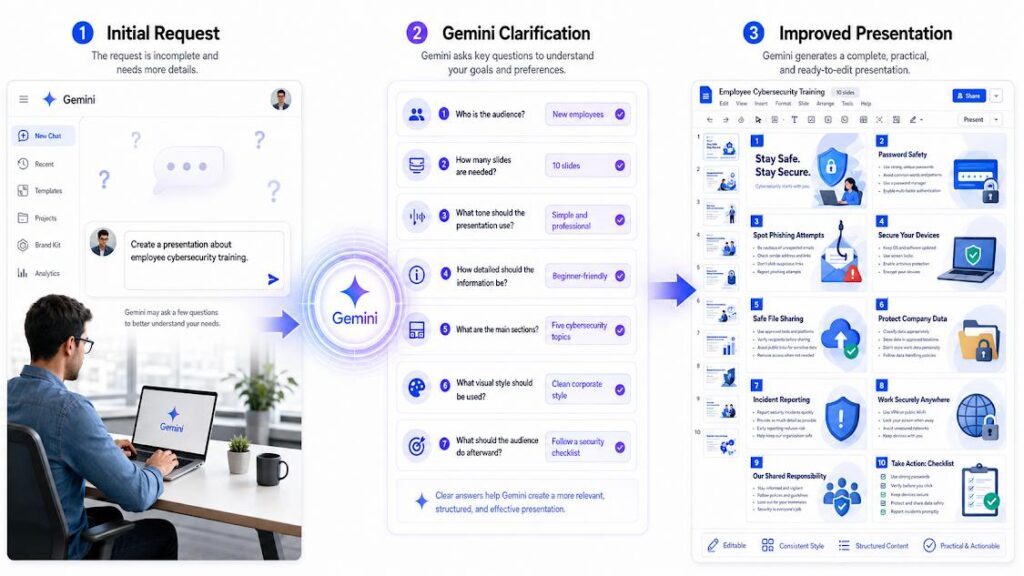
Gemini may ask about:
- The audience
- The number of slides
- The desired tone
- The depth of information
- The main sections
- The visual style
- The action expected from the audience
Answer these questions properly.
A presentation for a senior leadership team should not use the same level of detail as a classroom lesson. A customer proposal should not follow the same structure as an internal performance report.
These questions reduce ambiguity before Gemini creates the deck.
Step 6: Review the Outline
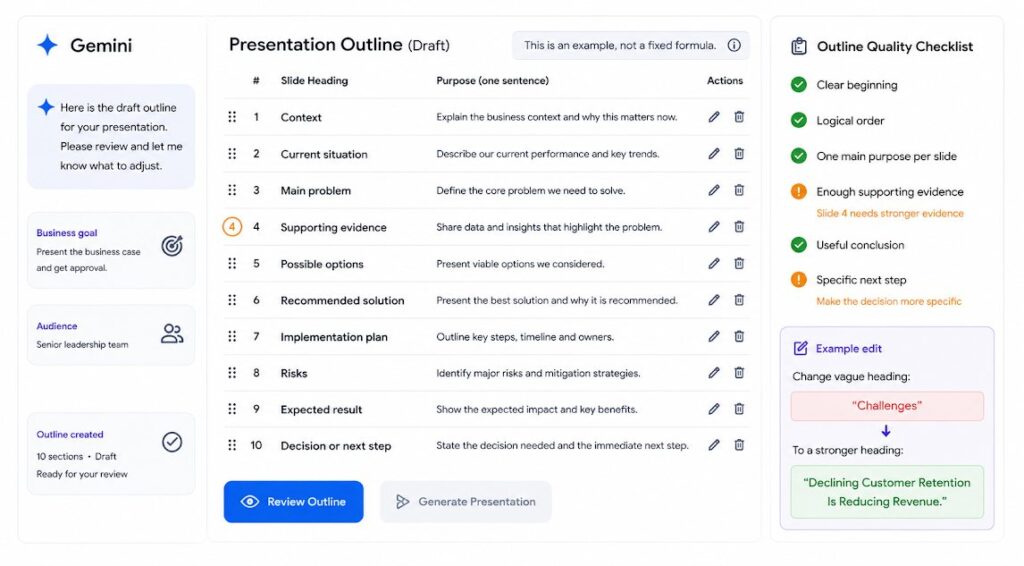
Gemini creates an outline before generating the complete presentation.
Do not approve it immediately.
Check whether the outline has:
- A clear beginning
- A logical order
- One main purpose for each slide
- Enough evidence
- A useful conclusion
- A specific next step
The outline is the cheapest place to fix the presentation.
Changing a heading in the outline takes seconds. Rebuilding several finished slides takes much longer.
A basic business presentation might follow this structure:
- Context
- Current situation
- Main problem
- Supporting evidence
- Possible options
- Recommended solution
- Implementation plan
- Risks
- Expected result
- Decision or next step
The structure should change based on the actual purpose. Do not force every topic into the same ten-slide formula.
Step 7: Generate the Deck
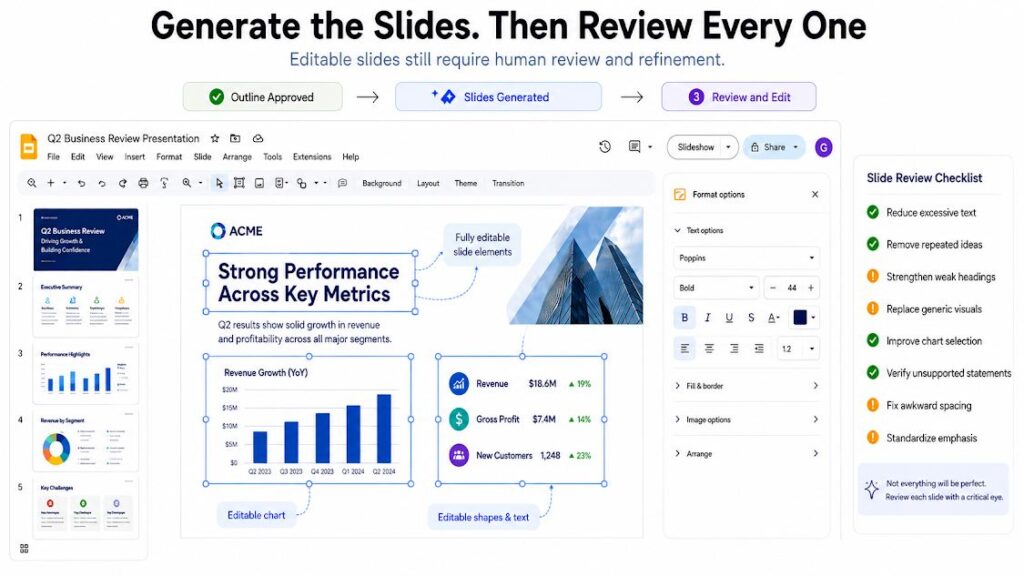
Once the outline is correct, approve it and allow Gemini to create the slides.
Google says generating the complete presentation may take a few minutes. You can switch to another tab or window while it works, but keep Google Slides and the Gemini side panel open until generation is complete.
The resulting presentation contains editable slide elements. Users can change text, layouts, colors, charts, images, and other slide content.
That is better than receiving a set of flat images.
Still, review every slide. The deck may contain:
- Too much text
- Repeated ideas
- Weak headings
- Generic visuals
- Poor chart choices
- Unsupported statements
- Awkward spacing
- Inconsistent emphasis
What Should You Check After Gemini Generates the Presentation?
A generated presentation should be treated as a first draft, not as a finished deck.
Google does not publish a fixed benchmark for how accurately every generated presentation will follow a requested structure, slide count, or visual style. Results can vary depending on the prompt, reference files, source quality, presentation length, and style reference.
Before using the deck, review these five areas:
1. Structure
Compare the generated slides with the outline you approved. Check whether Gemini included every important section, placed information in the right order, and avoided unnecessary repetition.
2. Accuracy
Verify statistics, dates, names, financial figures, quotations, and claims against the original source files. Do not assume a statement is correct simply because it appears confidently on a slide.
3. Content density
Look for slides with long paragraphs, too many bullet points, repeated explanations, or several ideas competing for attention. Each slide should communicate one clear message.
4. Visual consistency
If you supplied a style-reference presentation, compare the generated deck with the original. Check fonts, colors, logo placement, layouts, chart formatting, image treatment, spacing, and heading hierarchy.
A style reference can guide Gemini, but it should not be treated as a guarantee of exact brand compliance.
5. Audience fit
Read the presentation from the audience’s perspective. A technically correct deck can still fail if the language is too complex, the evidence is irrelevant, or the presentation does not lead clearly to the expected decision or action.
A useful final check is to ask:
If the audience remembers only one point from each slide, is it the point we intended?
If the answer is unclear on several slides, improve the presentation before presenting or sharing it.
Once the overall structure is sound, refine individual slides instead of regenerating the entire presentation.
Step 8: Refine One Slide at a Time
Do not use vague instructions such as:
Make this presentation better.
That gives Gemini too much freedom.
Use precise instructions:
- Reduce this slide to one conclusion and three supporting points.
- Keep the chart, but replace the paragraph with two short insights.
- Change this slide to a timeline with four stages.
- Use the same heading style and colors as slide 2.
- Rewrite the content for a non-technical audience.
- Remove repeated information from slides 4 and 5.
Specific edits are easier to judge. They also reduce the risk of changing content that was already correct.
When should you refine instead of starting again?
Refine the existing deck when the overall structure is correct and only individual slides need improvement. Start again from the presentation plan when the audience, purpose, narrative order, or several major sections are wrong. Fixing a weak plan slide by slide usually creates more work than correcting the structure first.
For faster editing, formatting, and content reuse, apply these Google Slides time-saving tips before organizing the final deck.
Step 9: Organize the Final Deck
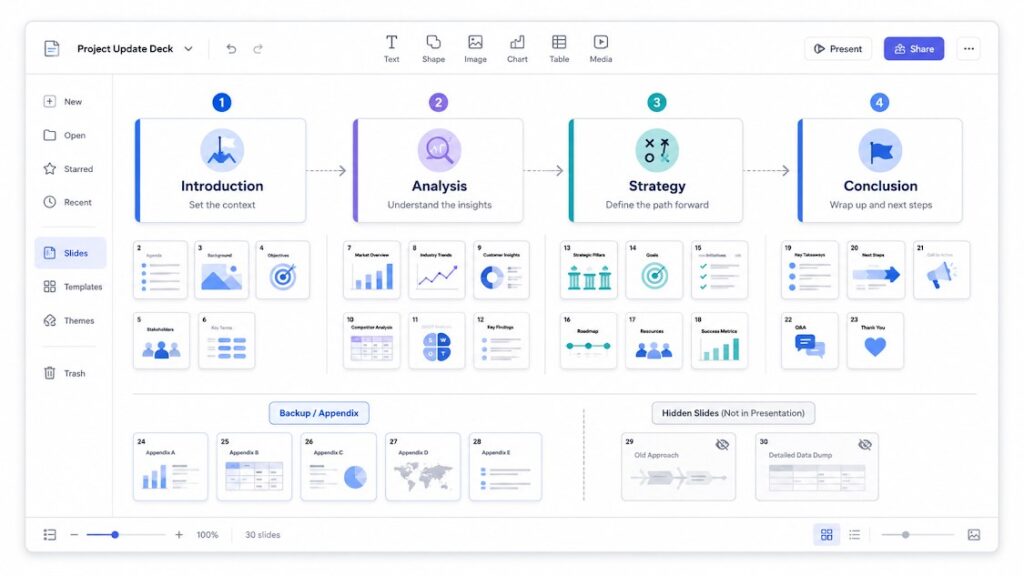
Long presentations can become difficult to manage.
Use clear section dividers and a logical slide order. The guide on organizing Google Slides into sections explains how to manage larger decks.
You can also keep optional or detailed slides at the end as backup material. Unnecessary slides can be hidden without deleting them by using the Skip Slide feature in Google Slides.
Gemini-Generated Presentations vs Google Slides Templates
AI generation and templates solve different problems.
| User need | Better starting point |
|---|---|
| Turn several source files into a first draft | Gemini |
| Explore a new presentation structure | Gemini |
| Use a proven layout immediately | Template |
| Maintain a fixed visual system | Approved template |
| Create a recurring monthly report | Template or hybrid workflow |
| Summarize complex source material | Gemini |
| Build a common classroom activity | Template |
| Match an existing brand presentation | Gemini with a style reference |
| Control every visual detail from the start | Template |
Users who prefer to begin with a structured visual system can explore Google Slides templates before using Gemini to generate or adapt the content.
When the presentation topic is Google Gemini itself, a Google Gemini AI presentation template can provide a ready-made structure for explaining the platform, features, and use cases.
The strongest workflow is often a combination:
- Choose a suitable template or approved brand deck.
- Use it as a visual reference.
- Ask Gemini to build the outline.
- Generate the first draft.
- Check every claim.
- Refine the design manually.
- Rehearse the final presentation.
Frequently Asked Questions
1. Can it use files from Google Drive?
Yes. It can use permitted Drive files as reference material, including Docs, Sheets, PDFs, and previous presentations.
2. Can it match my company’s presentation style?
Yes. You can attach an existing presentation as a style reference. Use a clean, approved deck because the tool may copy the fonts, colors, layouts, and other visual choices it finds.
3. Is full-presentation generation free?
It is not included with every free Google account. Access is available through selected Business, Enterprise, Education, and Google AI plans. Availability and usage limits may vary.
4. Why can’t I see the Generate Presentation option?
Your account may not be eligible, the feature may not be enabled, your language may not be supported, or you may have reached a usage limit. Start with a blank presentation and check your Workspace or Google AI plan.
5. Does full-presentation generation support every language?
No. As of August 12, 2026, Google’s current Help Center documentation says full-presentation generation in Google Slides is available in English only.
6. Can students use the feature in Google Slides?
Students may have access through an eligible personal subscription or a supported education account. Availability depends on the institution’s plan, administrator settings, age requirements, and region.
7. Can it create an investor pitch deck?
It can produce a useful first draft when given a detailed brief and reliable source files. However, founders must still verify market data, traction, financial figures, business claims, and funding information.
8. Is it better than using a Google Slides template?
Not always. AI generation is useful for turning source material into a new outline and draft. A template is usually better when you need a proven structure, consistent branding, or greater control over the visual layout.
9. Does Google use Workspace files to train its AI models?
It depends on the type of account and settings.
For eligible managed Google Workspace accounts, Google says Workspace prompts and content are not reviewed by humans or used to train generative AI models outside the organization without permission.
Personal Gemini accounts work differently. When Keep Activity is enabled, Google may use Gemini activity to improve its services, including training generative AI models, and some data may be reviewed by trained human reviewers. Users can turn off Keep Activity to prevent future chats from being used to improve Google’s AI models, except when feedback is submitted or processing is required for safety and service operation.
This distinction is especially important for Spark because Spark currently requires a personal Google Account and Keep Activity to be enabled. Avoid placing confidential or sensitive information into Spark tasks unless you understand the applicable Gemini privacy settings and connected-app permissions.
10. Can I download the generated presentation as a PowerPoint file?
Yes. You can convert Google Slides to PowerPoint by using Google Slides’ standard download option. Check the exported deck because some fonts, spacing, animations or layouts may change.
11. Can a team collaborate on a presentation created with Gemini?
Yes. Once the presentation exists as a Google Slides file, normal Google Drive and Slides sharing controls apply. The file can be shared with other people as a Viewer, Commenter, or Editor, subject to the account’s organization and sharing policies.
Editors can work on the presentation after Gemini generates it, so teams can review facts, rewrite content, adjust visuals, add comments, and prepare the final deck together. For managed Workspace accounts, administrators may restrict external sharing or other file permissions.