
Posts by Arockia Mary Amutha
 Google Slides Tutorials
Adding Google Slides to Google Classroom – Simple Steps at a Glance: 📌 Open your Google Slide – Go to Google Drive and open the...
 Google Slides Tutorials
Step-by-Step Way to Insert Google Sheets into Google Slides ✅ Open your Google Slides presentation.✅ Click the slide where you want the Sheet to appear.✅...
 Google Slides Tutorials
Simple Tricks to Add 3D Models in Google Slides 📌Google Slides doesn’t support 3D files directly.📌You can insert 3D models as GIFs or videos.📌Convert your...
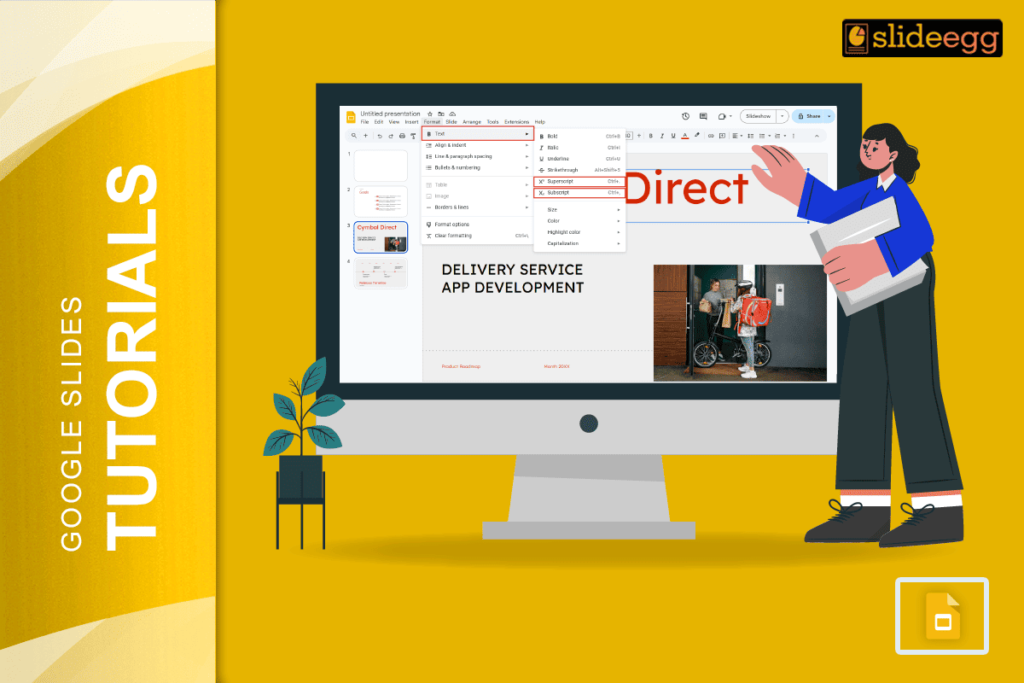 Google Slides Tutorials
Quick Tips: How to Type an Exponent in Google Slides ⚡Click on the text box where you want to write the exponent⚡Type your number or...
 Google Slides Tutorials
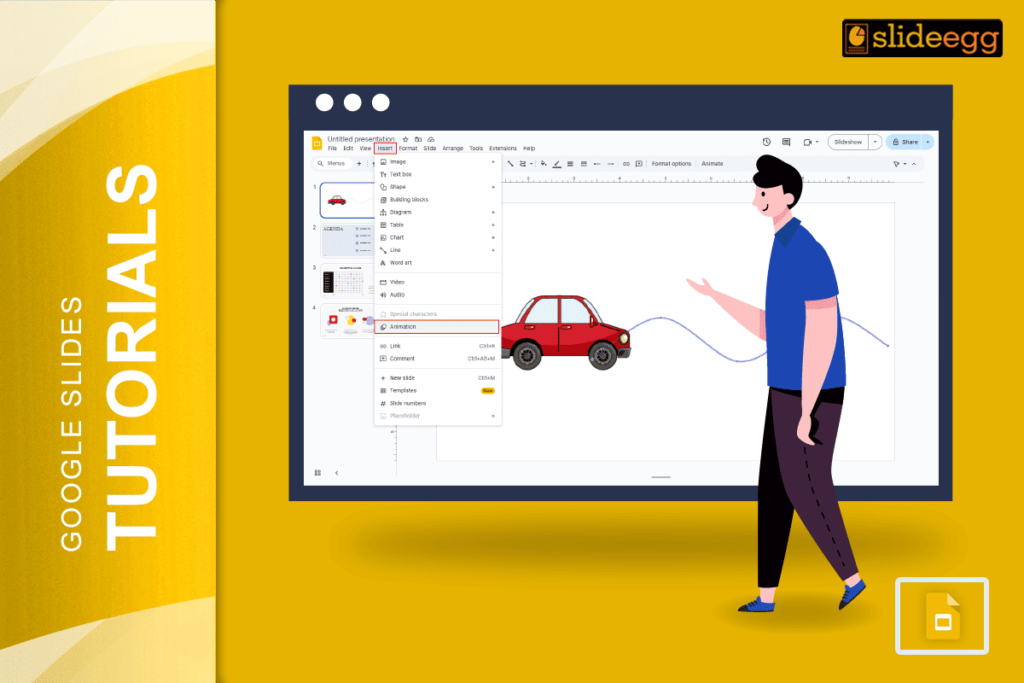
Quick Tips: How to Add Motion Path in Google Slides 🌀Open your Google Slides presentation🌀Click on the object (text, shape, image, etc.)🌀Go to Insert >...
 Google Slides Tutorials
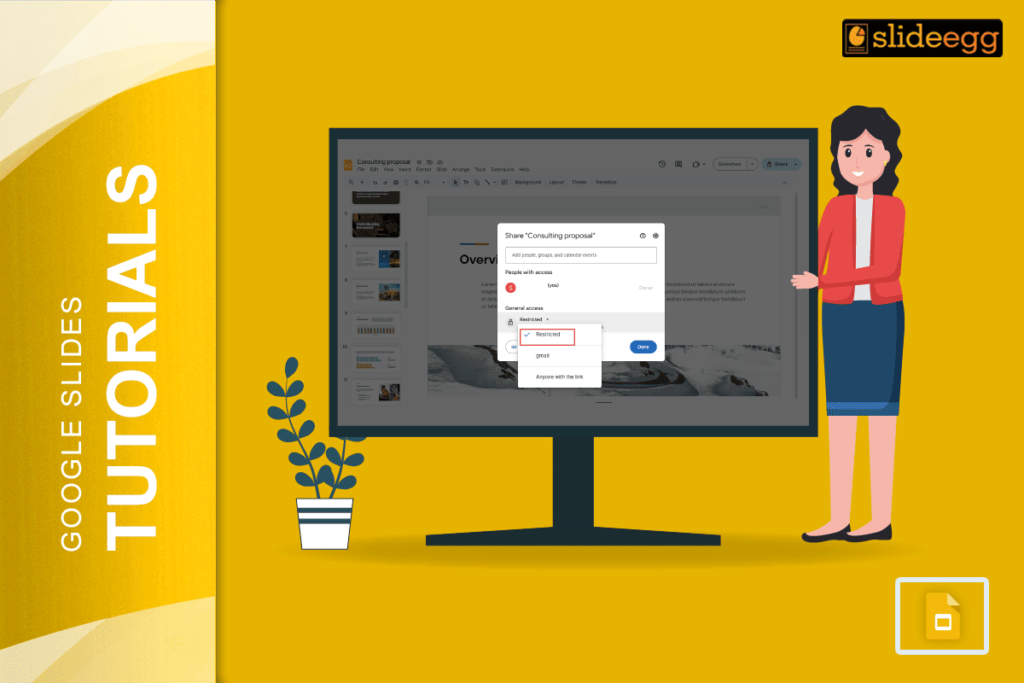
Quick Steps to Make a Google Slides View Only ✅ Open your Google Slides presentation ✅ Click the Share button (top-right corner) ✅ Under “General...
 Google Slides Tutorials
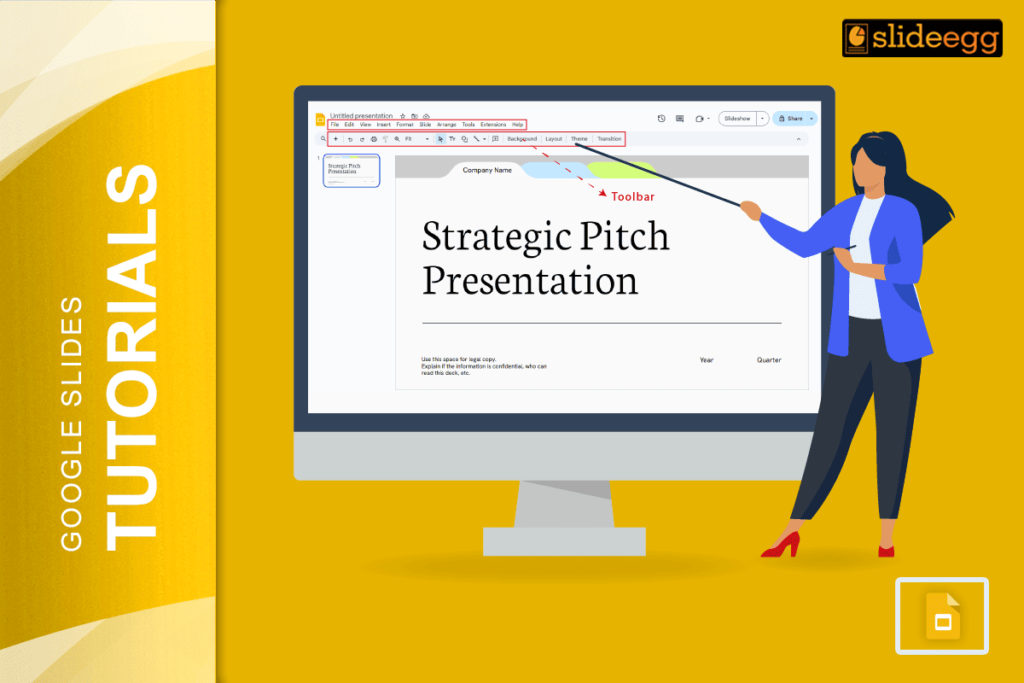
Quick Reference Steps to Get the Toolbar Back in Google Slides ✅ Press Ctrl + Shift + F (Windows/Chromebook) or Cmd + Shift + F...
 Google Slides Tutorials
Quick Tips Before We Start ⬣ You can’t directly add a Vimeo video like YouTube in Google Slides.⬣ But don’t worry! There are 2 easy...
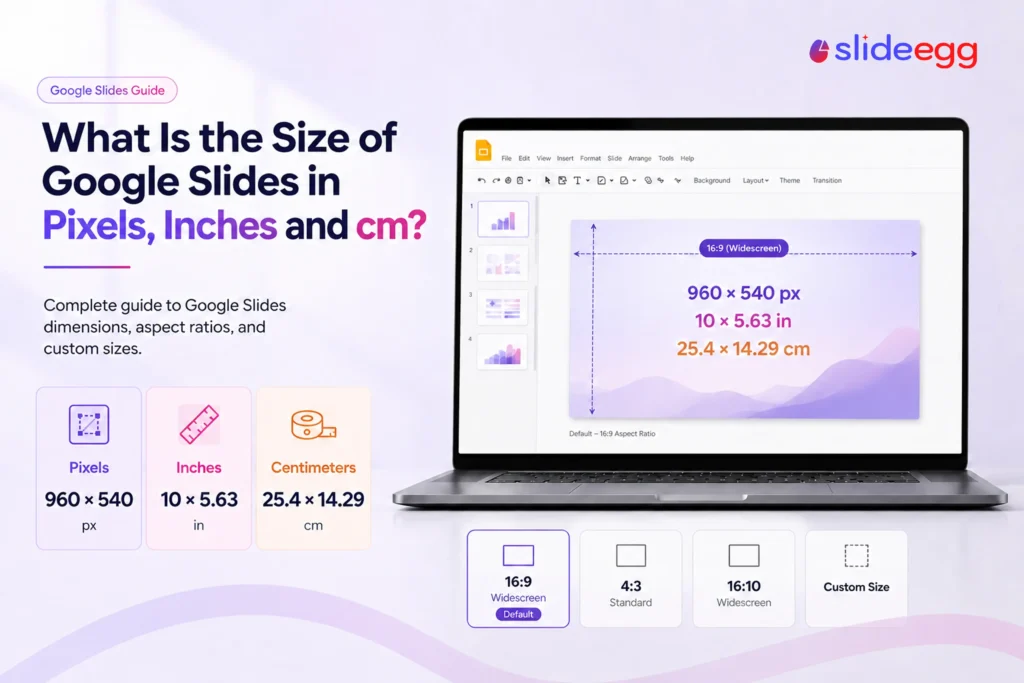 Google Slides Tutorials
Quick answer: A Google Slides presentation is 960 × 540 pixels by default — the 16:9 widescreen canvas of 10 × 5.63 inches (25.4 ×...
 Google Slides Tutorials
Quick Tips for Google Slides Zoom Control ✓ Use the Ctrl + Plus key to zoom in quickly.✓ Press Ctrl + Minus key to zoom...
Recent Blogs
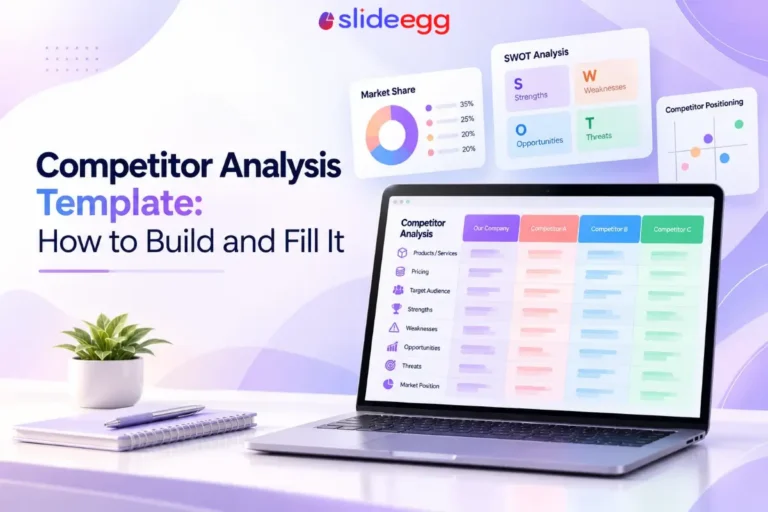
Have you ever tried to compare three competitors in a single, disorganized spreadsheet? By the time you get...

Gemini puts Google’s AI right inside the Slides editor, so you can draft, design, and polish a presentation...

Quick Take: SlideEgg’s Christmas collection holds 474+ templates across PowerPoint, Google Slides, and select Canva formats, Santa-and-nativity scenes...