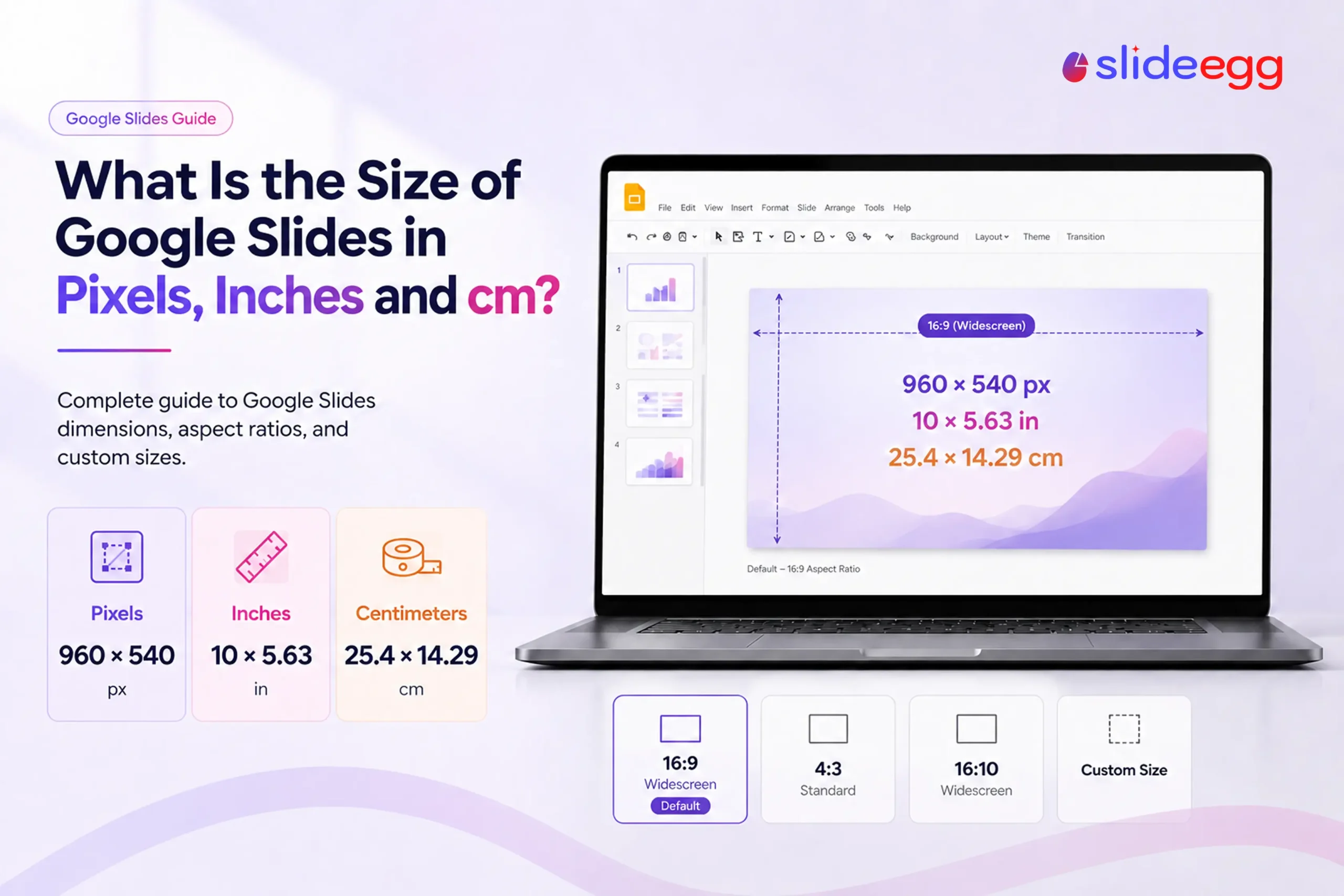
Quick answer: A Google Slides presentation is 960 × 540 pixels by default — the 16:9 widescreen canvas of 10 × 5.63 inches (25.4 × 14.29 cm), measured at the standard 96 PPI. Switch to 4:3 (960 × 720 px), 16:10 (960 × 600 px), or a custom size in File > Page setup. Because Slides is vector-based, you can export far larger — 1280 × 720 or 1920 × 1080 — without changing the slide itself.
Slide size is the quiet reason a deck looks crisp on one screen and blurry on the next. Most people never check it. They build in the default canvas, drop in images, and only notice something’s off when the presentation hits a projector or a phone. Knowing exactly how big a Google Slides canvas is — in pixels, inches, and centimetres — lets you size images correctly, design for social media or print, and avoid last-minute surprises.
Here is every common size in pixels, inches and centimeters, followed by how to check, change, and choose the right dimensions.
Google Slides Size Chart (Pixels, Inches & cm)
The Pixels (96 PPI) column is the slide’s native size, which Google shows when you set Page setup units to pixels. The Common export column is what to target when you download for HD screens or print.
| Format | Aspect ratio | Inches | Centimetres | Pixels (96 PPI) | Common export |
| Widescreen (default) | 16:9 | 10 × 5.63 in | 25.4 × 14.29 cm | 960 × 540 | 1280 × 720 · 1920 × 1080 |
| Standard | 4:3 | 10 × 7.5 in | 25.4 × 19.05 cm | 960 × 720 | 1024 × 768 · 2048 × 1536 |
| Widescreen (alt) | 16:10 | 10 × 6.25 in | 25.4 × 15.88 cm | 960 × 600 | 1280 × 800 · 1920 × 1200 |
| Instagram Story | 9:16 | custom | custom | 1080 × 1920 (set as a custom pixel size) | |
| YouTube thumbnail | 16:9 | 10 × 5.63 in | 25.4 × 14.29 cm | Export the default 16:9 at 1280 × 720 | |
| Facebook / LinkedIn post | ~1.91:1 | custom | custom | 1200 × 630 (set as a custom pixel size) | |
The Default Google Slides Size Explained
Every new presentation opens in Widescreen 16:9, which Google sets to 10 inches wide by 5.63 inches tall. That ratio matches most modern laptops, monitors, TVs and projectors, so slides fill the screen without black bars.
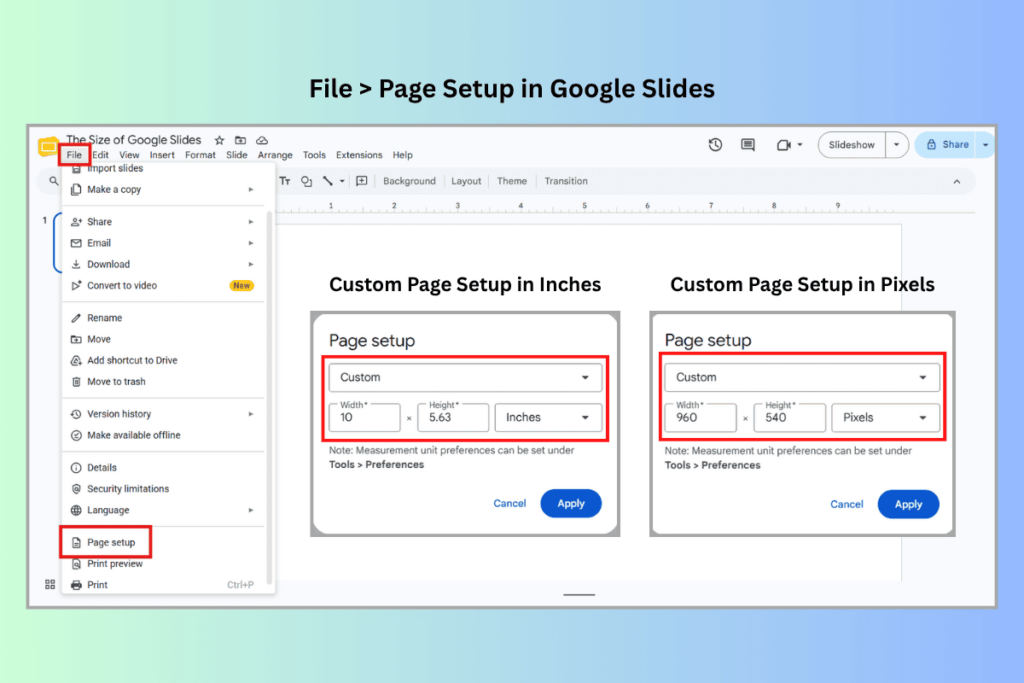
The default is measured in inches, not pixels, because Slides scales to whatever screen or export you use rather than locking to a pixel grid. At the web-standard 96 PPI, that 10 × 5.63 in canvas equals 960 × 540 px — and that’s exactly what Google displays if you open File > Page setup, choose Custom, and switch the unit to pixels. Export at a higher resolution and you get proportionally more pixels, which is where figures like 1280 × 720 and 1920 × 1080 come from.
New to the tool? Start with what Google Slides is and what it’s used for.
Is Google Slides 960 × 540 or 1280 × 720?
Both numbers describe the same slide. 960 × 540 is the native size (the canvas at 96 PPI, and what Google shows in pixel units). 1280 × 720 is a common HD export size. If a source calls Google Slides “1280 × 720,” it’s quoting an export resolution, not the slide’s actual dimensions.
Aspect ratios at a glance
- 16:9 (widescreen): the default; best for almost all modern screens.
- 4:3 (standard): squarer; useful for older projectors and some classroom equipment.
- 16:10: a slightly taller widescreen offered in Page setup.
Google Slides vs PowerPoint: Are the Sizes the Same?
Not quite — and this trips people up. PowerPoint’s widescreen default is 13.33 × 7.5 inches, while Google Slides’ widescreen default is 10 × 5.63 inches. Both are 16:9, so a deck moved between the two keeps its proportions, but the inch measurements differ. If a tutorial tells you Google Slides is “13.33 inches,” it’s quoting PowerPoint. The shared reference points are the ratio (16:9) and the on-screen pixel size (960 × 540).
How to Check Your Google Slides Size
File > Page setup shows and changes your slide dimensions.
- Open your presentation in Google Slides.
- Click File in the top menu.
- Select Page setup.
- The current format (Standard, Widescreen, or Custom) is shown; choose Custom to see or set exact dimensions. You can switch the units to inches, centimetres, points, or pixels — set it to pixels to confirm the 960 × 540 default.
How to Change Google Slides Dimensions
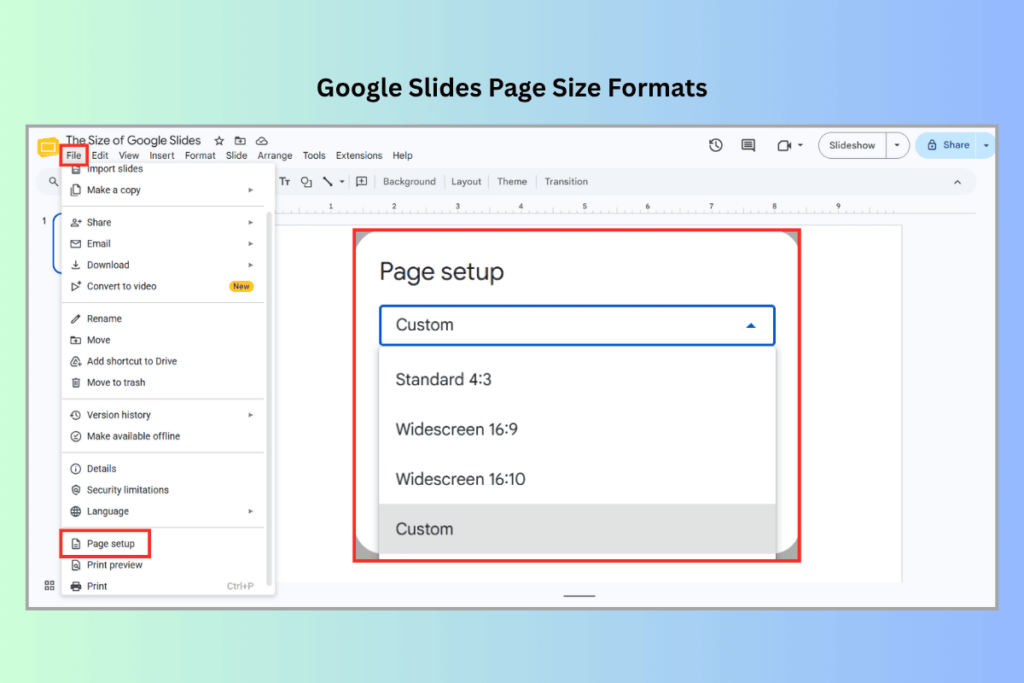
- Go to File > Page setup.
- Open the dropdown and pick Standard 4:3, Widescreen 16:9, Widescreen 16:10, or Custom.
- For Custom, enter the width and height and choose your units (inches, centimetres, points, or pixels).
- Click OK. The new size applies to every slide, so resize before you add a lot of content.
On the Google Slides mobile apps (Android and iPhone/iPad), you can change slide size too, though the menu path differs from the desktop web version. Need the full walkthrough with examples? See our guide on how to change your Google Slides size in minutes.
How to Make Google Slides Vertical (Portrait)
Google Slides is landscape by default, but you can flip it to portrait for phone-first content, posters, or handouts. In File > Page setup, choose Custom and enter a taller-than-wide size — for example 7.5 × 10 inches (a portrait 4:3) or 1080 × 1920 px for a 9:16 story — then click OK. For a step-by-step version, read how to create vertical Google Slides.
Best Google Slides Sizes for Social Media & Print
- Instagram Story / Reel cover: 1080 × 1920 px (9:16).
- YouTube thumbnail: 1280 × 720 px (export the default 16:9).
- Facebook / LinkedIn post image: ~1200 × 630 px.
- Print (A4): set a custom 8.27 × 11.69 in (21 × 29.7 cm) for portrait handouts.
Designing social or print graphics in Slides is faster from a sized template — browse free Google Slides templates built for clean exports.
Export Resolution & DPI: Why “Pixels” Vary
Because Slides stores your design as vectors, the pixel count only becomes fixed when you export. On screen the slide is 960 × 540 (96 PPI). Download a slide as an image and it renders larger; if you need sharper output for print or big screens, export the deck to PowerPoint or PDF and re-export at a higher DPI (up to ~300 DPI for print). When you place a slide as an image elsewhere, start from the largest source you can. See how to save a slide as a high-resolution image.
Design Tips for the Right Slide Size
- Match image resolution to the canvas: use images at least 1280 px wide for a 16:9 slide; 2× (2560 px) for full-slide backgrounds.
- Keep text readable: ~24 pt minimum for body text, 36 pt+ for titles.
- Respect safe margins: keep key content ~10% in from the edges — some projectors crop.
- Pick the size first: changing dimensions later reflows every slide.
Common Size Problems & Fixes
| Problem | Fix |
| Images look blurry when projected | Use a source image at least as wide as the slide (1280 px+); export at higher DPI for large screens. |
| Slides look different across screens | Stick to 16:9 and preview on the actual display before presenting. |
| Custom size won’t apply | Enter both a width and a height as positive numbers in a supported unit, then click OK. |
| Deck came from PowerPoint at a different size | Both use 16:9, but reset in Page setup if the inch values look off. |
Frequently Asked Questions
What is the size of Google Slides in pixels?
By default, a Google Slide is 960 × 540 pixels — the 16:9 widescreen canvas (10 × 5.63 in) at the standard 96 PPI. The 4:3 size is 960 × 720 px and 16:10 is 960 × 600 px. These are the values Google shows when you set Page setup units to pixels; exports can be larger.
What is the default size of Google Slides?
The default is Widescreen 16:9, which Google sets to 10 × 5.63 inches (25.4 × 14.29 cm), or 960 × 540 pixels at 96 PPI. You can switch to 4:3, 16:10, or a custom size in File > Page setup.
Is Google Slides 1920 × 1080?
No. 1920 × 1080 (Full HD) is a common export target, not the slide’s native size. The native default is 960 × 540 px. Because Slides is vector-based, you can export a 16:9 slide up to Full HD or higher without changing the slide’s dimensions.
Can I set Google Slides size in pixels?
Yes. Go to File > Page setup, choose Custom, then select “pixels” as the unit and type your width and height — for example 1080 × 1920 for an Instagram Story. Google also lets you set inches, centimetres, or points.
How do I change the size of Google Slides?
Open File > Page setup, choose Standard 4:3, Widescreen 16:9, Widescreen 16:10, or Custom, then click OK. The change applies to every slide, so set your size before you add a lot of content.
How do I make Google Slides vertical (portrait)?
In File > Page setup, choose Custom and enter a taller-than-wide size such as 7.5 × 10 inches, or 1080 × 1920 px for a 9:16 story, then click OK.
Why does my Google Slides export look blurry?
Usually the source images are too small, or you export at screen resolution for a large display. Use images at least as wide as the slide (960–1280 px+), and for print or big screens export via PowerPoint or PDF at a higher DPI.
Conclusion
Google Slides defaults to a 16:9 canvas of 10 × 5.63 inches — 960 × 540 pixels at 96 PPI — with 4:3, 16:10, and custom options in File > Page setup. Set your size before you build, match image resolution to the canvas, and export at a higher DPI when you need print-sharp results.