Guide For How To Trim Audio On PowerPoint


Guide For How To Trim Audio On PowerPoint
Trimming audio is one of the most popular ways to enhance presentations. But if you are not sure how to trim the audio, this presentation will give you a quick start.
Let's See How To Trim Audio On PowerPoint
Trimming audio will help create a powerful presentation by removing unwanted audio from your videos. The process is easy and straightforward.
Steps to follow to trim the audio
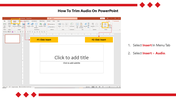
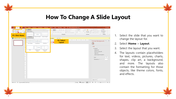
Step 1: Select Insert in the Menu Tab.
Step2: Select Insert > Audio.
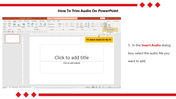
Step3:In the Insert Audio dialog box, select the audio file you want to add.
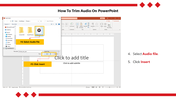
Step4:Select the Audio file and click Insert.
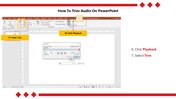
Step5:Select Playback and click Trim.
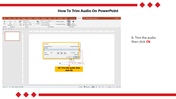
Step6:Trim the audio and then click OK.
I hope you are now ready to trim the audio for your PowerPoint presentation on your own. Stay tuned with SlideEgg for more creative PowerPoint tutorials.

You May Also Like These PowerPoint Templates
Add to Wishlist
Download
AI Customize

Free
Add to Wishlist
Download
AI Customize

Add to Wishlist
Download
AI Customize

Add to Wishlist
Download
AI Customize
Add to Wishlist
Download
AI Customize

Add to Wishlist
Download
AI Customize

Add to Wishlist
Download
AI Customize

Add to Wishlist
Download
AI Customize


Add to Wishlist
Download
AI Customize

Add to Wishlist
Download
AI Customize

Add to Wishlist
Download
AI Customize

Add to Wishlist
Download
AI Customize

Add to Wishlist
Download
AI Customize

Add to Wishlist
Download
AI Customize

Add to Wishlist
Download
AI Customize

Add to Wishlist
Download
AI Customize

Add to Wishlist
Download
AI Customize


Add to Wishlist
Download
AI Customize

Add to Wishlist
Download
AI Customize


Add to Wishlist
Download
AI Customize

Add to Wishlist
Download
AI Customize

Add to Wishlist
Download
AI Customize

Add to Wishlist
Download
AI Customize


Add to Wishlist
Download
AI Customize

Add to Wishlist
Download
AI Customize

Free
Add to Wishlist
Download
AI Customize

Add to Wishlist
Download
AI Customize

Add to Wishlist
Download
AI Customize

Add to Wishlist
Download
AI Customize

Add to Wishlist
Download
AI Customize
Add to Wishlist
Download
AI Customize

Add to Wishlist
Download
AI Customize
