How To Do A Presentation Easily In PowerPoint


How To Do A Presentation Easily In PowerPoint
Presentations will provide valuable information to the audience. It is in your hand like how well you prepare a presentation. There are so many ways to prepare a presentation. For example, you can choose colorful templates to present your information, or simply you can explain your topic to the audience. The choice is yours.
Let's check how to do a presentation in PowerPoint
You can now learn to create a presentation in PowerPoint. Below are the steps to follow. These steps will guide you through creating an eye-catchy presentation in a minute.
Steps to do a presentation in PowerPoint
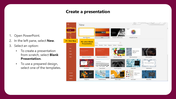
Step 1: Open PowerPoint
Step2: In the left panel, select New.
Step3: Select an option:
- To create a presentation from scratch, select Blank Presentation.
- To use a prepared design, select one of the template designs.
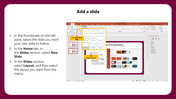
Add a slide
Step1: In the thumbnails on the left panel, select the slide you want.
Step2: In the Home Tab, in the Slide section, select New Slide.
Step3: In the Slides section, select Layout and select the Layout you want from the menu.
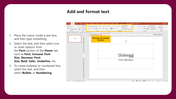
Add and format text
Step1: Place a cursor in the text box and type any text.
Step2: Select the text, and then select one or more options from the Font section of the Home tab, such as Increase Font Size, Decrease Font Size, Bold, Italic and Underline, etc
Step3: To create a bulleted or numbered list, select the text and select Bullets or Numbering.
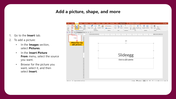
Add a Picture, shape, and more.
Step1: Go to the Insert Tab
Step2: To add a picture:
- In the image section, select Pictures.
- In the Insert Picture From the menu, select the source you want.
- Browse for the picture you want, select it, and then select Insert.
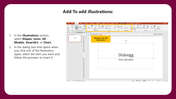
To add Illustrations
Step1: Select Shape, Icons, 3D models, SmartArt, or Chart in the illustrations section.
Step2: In the dialogue box that opens when you click one of the illustration types, select the item you want and follow the prompts to insert it.
You May Also Like These PowerPoint Templates