A business plan presentation isn’t a moodboard. It’s an argument, built around a specific ask, usually reviewed by more than one person before anyone outside the room sees it. That puts three real requirements on the tool you build it in: it needs to handle collaborative review without losing track of changes, it needs to handle financial tables and charts without them breaking on export, and it needs to hold up however it’s actually delivered, live in a room or sent ahead to be read alone.
PowerPoint, Google Slides, and Canva are all capable presentation tools. They are not equally capable at all three of these.
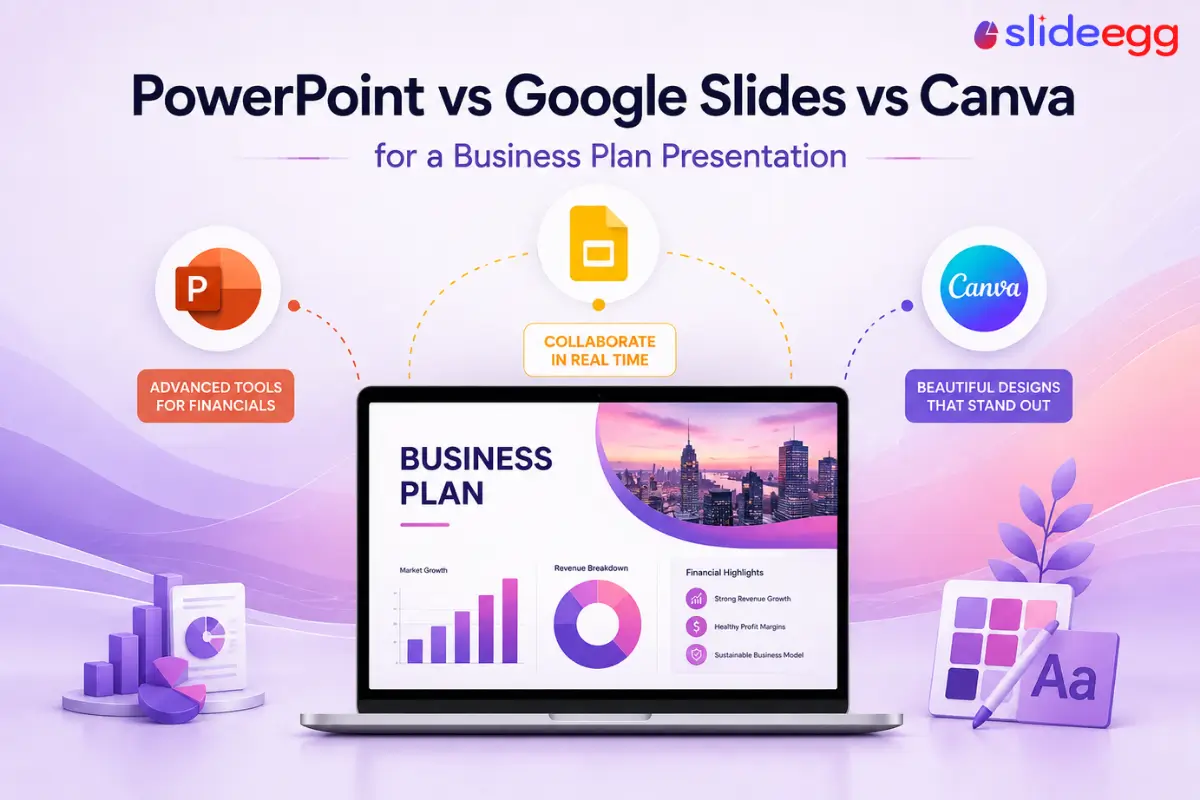
PowerPoint
Strongest for linked financial tables, offline reliability, and the format most investors expect.
Google Slides
Fastest for reviewers to comment and edit together from anywhere, no install required.
Canva
Fastest way to a good-looking deck, but weaker for embedded financial models and version control.
Quick Answer
- PowerPoint if your investors or board run on Microsoft 365 and you need offline reliability for an in-person pitch.
- Google Slides if your team and reviewers are spread across time zones and need to comment and edit in real time.
- Canva if the deck needs to look polished fast and design matters more than embedded financial detail.
Collaboration: Getting Co-Founders, Advisors, and Investors to Weigh In
Google Slides is built around this from the ground up. Anyone with the link can comment or edit in real time, nothing to install, and the version history makes it easy to see who changed what and roll back a bad edit. For a plan getting reviewed by a co-founder, a mentor, and maybe an accountant before it ever reaches an investor, that removes most of the friction from the process.
PowerPoint’s collaboration works too, through Microsoft 365 and OneDrive, but it depends on everyone reviewing having, or being willing to set up, a Microsoft account, and real-time co-editing is noticeably less smooth once more than two people are in the file at once. Canva supports comments and shared editing as well, but its version history is thinner, reverting cleanly to an earlier draft after a round of edits is harder to do than in either of the other two.
Editing: Financial Tables, Charts, and the Numbers Slide
This is where the gap between the three is widest. PowerPoint has the deepest native support for linked data: a chart built from an Excel table can update automatically when the underlying numbers change, which matters when a financial projections slide gets revised for the third time before a pitch. Google Slides can link charts to a Google Sheet, covering most of the same ground with slightly less polish in how the chart renders.
Canva is the most limited of the three here, though not as manual as it might seem. Its chart tool can import data from a CSV, XLSX, or TSV file, and it also connects directly to Canva Sheets, Google Sheets, Snowflake, BigQuery, and HubSpot through its Apps panel, so you’re not always typing numbers in by hand. What it doesn’t have is PowerPoint’s deep, formula-linked relationship to an open Excel file, where a chart updates the moment the source changes. Canva’s imports work more like a refresh you trigger than a live link you can forget about.
Side-by-Side: PowerPoint vs Google Slides vs Canva for a Business Plan
| PowerPoint | Google Slides | Canva | |
|---|---|---|---|
| Real-time collaboration | Moderate, needs Microsoft 365 | Strong, built in | Moderate, thinner version history |
| Financial charts linked to real numbers | Strong, Excel-linked | Moderate, Sheets-linked | Moderate, imports from Sheets or CSV, not a live link |
| Presenter view for live pitching | Strong | Strong | Moderate |
| Offline reliability | Strong, native desktop app | Weak unless set up ahead | Weak, browser based |
| Fits a 10-12 slide business plan structure | Strong | Strong | Moderate, more marketing oriented |
| Learning curve for non-designers | Moderate | Low | Low |
| Exports cleanly to a .pptx file | Native | Good | Fair, some fidelity loss |
| Cost to get started | Paid, Microsoft 365 | Free with a Google account | Free tier, Pro is paid |
Delivery: Presenting Live vs Sending It Ahead
If you’re presenting in person, especially somewhere you don’t control the wifi, PowerPoint’s offline reliability is a real advantage: the file runs from your laptop with nothing depending on a connection. Google Slides and Canva are both browser-based by default, and while both support offline mode, it has to be set up before you lose the connection, not during the pitch when you realize you need it.
If the plan is being sent ahead for someone to review on their own time instead of presented live, that changes the calculation. A Google Slides link is the easiest thing to send, since there’s nothing to download and the reader can leave comments directly on the slide they’re questioning. A PowerPoint or Canva file works fine here too, it’s just one more download before someone can actually open it.
Pricing: What Each Tool Actually Costs
PowerPoint doesn’t have a full free desktop tier. You get it through Microsoft 365 Personal, currently $9.99 a month for one person, or Microsoft 365 Family at $12.99 a month for up to six people. A limited PowerPoint for the web is free with a Microsoft account, but it drops some editing features you’d want for a full deck.
Google Slides is free with any Google account, full editing included, with no forced upgrade unless your organization later moves to Google Workspace for shared storage and admin controls, roughly $7 to $8.50 per user per month. Canva’s free plan covers most of what a business plan presentation needs; Canva Pro adds premium templates, brand kits, and expanded AI features for around $18 a month.
Put plainly: if this is a one-time build and you’re not already paying for Microsoft 365, Google Slides is the only one of the three that’s genuinely free for full functionality, not just a trimmed-down version of the real thing.
Which One Fits Your Business Plan Presentation
- Your investors or board run on Microsoft 365. Build in PowerPoint. It’s the format they’ll expect, and the offline reliability matters if you’re presenting in person.
- Your team is reviewing across time zones. Build in Google Slides. Real-time comments and edits beat emailing versions back and forth.
- Design polish matters more than embedded financial detail. Canva can get you there fastest, just don’t expect it to carry a numbers-heavy financials slide as cleanly as the other two.
- You genuinely don’t know yet. Start in whichever tool your reviewers already use. Removing friction from collaboration usually matters more early on than which tool technically has the deeper feature set.
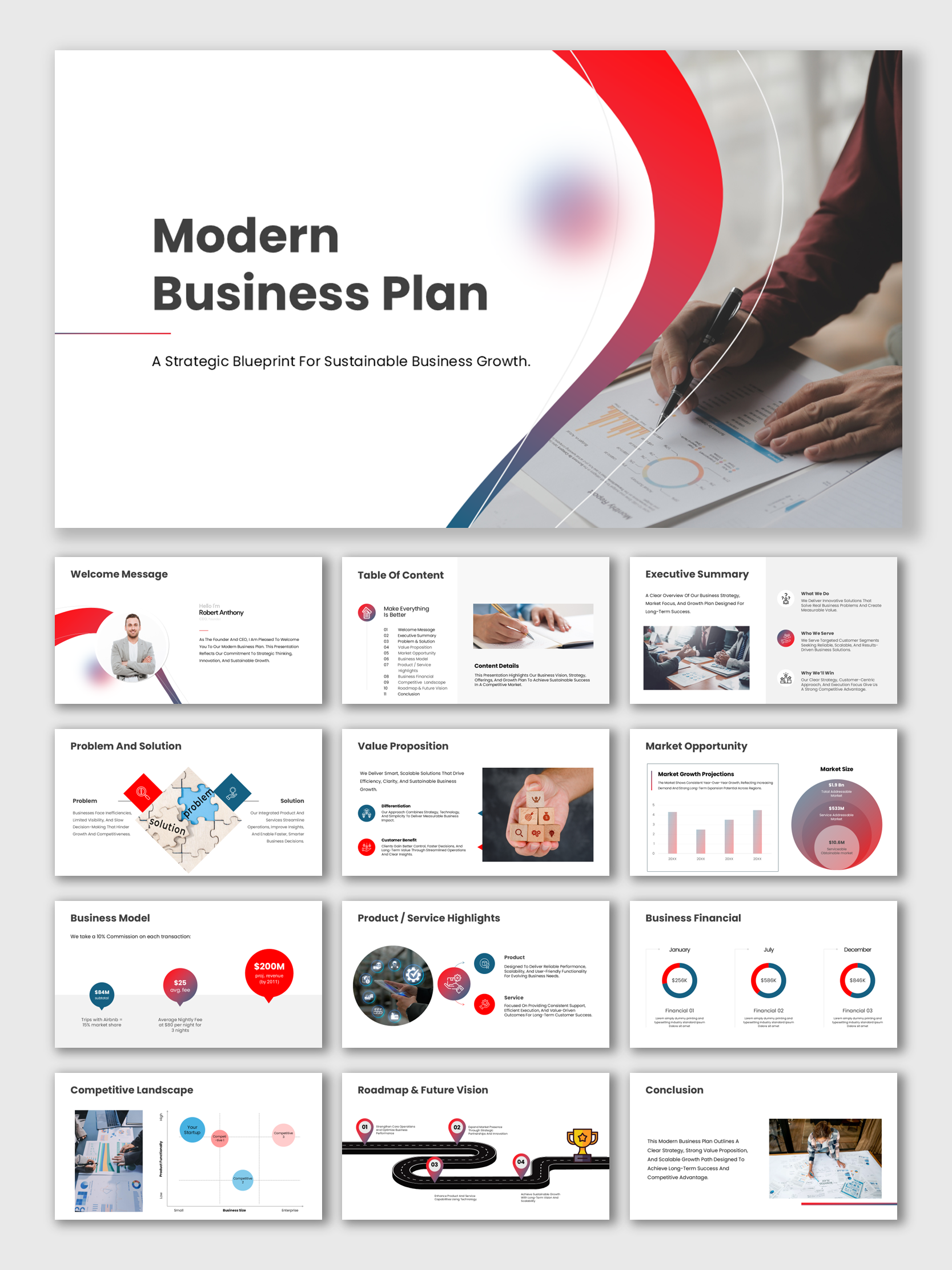
One way around choosing the tool before you’ve chosen the content: start from a business plan presentation template built to work across more than one format. SlideEgg’s business plan templates open directly as PowerPoint, Google Slides, or Canva from the same product page. And if you haven’t locked down what belongs on each slide yet, the standard slide order for a business plan presentation stays the same whichever of the three you build in.
Common Questions
FAQ
Can I build a business plan presentation in one tool and move it to another later?
You can, but expect some rework. Moving between PowerPoint, Google Slides, and Canva usually shifts fonts, spacing, and chart formatting enough that you’ll need to clean up the deck after the switch, especially charts linked to a spreadsheet. It’s faster to pick the tool your reviewers actually use before you start building than to convert a finished deck later.
Is Canva good enough for a real investor pitch, or is it too much of a design tool?
Canva is fine for visual polish and branding, and plenty of early concept decks are built in it. Its chart tool can import data from Sheets, CSV, or tools like Snowflake and HubSpot rather than requiring everything typed by hand, but it doesn’t have PowerPoint’s live, formula-linked connection to an open Excel file. Use it if design speed matters most; use PowerPoint if the financials need to update themselves as the model changes.
Which tool is best if my co-founders and advisors are in different time zones?
Google Slides. Real-time comments and edits, plus a link anyone can open without installing anything, remove most of the friction of reviewing a plan across time zones. PowerPoint’s collaboration works through Microsoft 365, but it’s noticeably less smooth once more than two people are editing at once.
Do I need internet access to present any of these live?
Not with PowerPoint, which runs as a native file from your laptop regardless of connection. Google Slides and Canva are both browser-based by default; both support offline access, but it has to be turned on before you lose the connection, not during a pitch when you realize you need it.
What if my investors specifically ask for a PowerPoint file?
Export to .pptx regardless of which tool you built the deck in. PowerPoint exports natively, Google Slides exports cleanly in most cases, and Canva’s export can lose some formatting fidelity, particularly with fonts and chart styling, so it’s worth checking the exported file before you send it.
Pick the Tool the Room Already Trusts
There’s no universal best tool for a business plan presentation, only the best fit for who’s reviewing it, how it’s built, and how it gets delivered. PowerPoint wins on financial editing and offline reliability, Google Slides wins on real-time collaboration, and Canva wins on getting something visually polished in front of people fast.
Match the tool to the room it’s walking into, and the software stops being the decision that slows you down.
Ready to start building?
Browse Business Plan & Strategy Templates →