A teacher’s day rarely leaves room for designing slides from scratch. There are lessons to plan, papers to grade, emails to answer, meetings to attend, and students who need attention before the class even starts.
That is why the best PowerPoint templates for teachers are not just “nice-looking slides.” They are ready-made teaching tools. A good template gives you a clear structure for explaining ideas, asking questions, showing steps, reviewing topics, and guiding students through a lesson without wasting time on layout and design.
This guide helps teachers, professors, tutors, trainers, and school administrators choose the right PowerPoint templates for classroom use. You will find templates for lesson planning, classroom activities, quizzes, back-to-school events, online teaching, timelines, mind maps, flowcharts, and parent meetings.
The goal is simple: help you prepare better classroom presentations faster.
Quick Summary: Best Teacher Templates at a Glance
| Teacher Need | Best Template Type | Why It Works |
|---|---|---|
| Daily lesson planning | Lesson Plan Template | Organizes objectives, activities, and lesson flow |
| First day of school | Back to School Template | Introduces rules, schedules, expectations, and class goals |
| Student engagement | Quiz PowerPoint Template | Adds quick questions and answer choices |
| Exam revision | Educational Family Feud Template | Turns review into a group activity |
| History or sequence lessons | Timeline Template | Shows events and stages in chronological order |
| Concept mapping | Mind Map Template | Connects ideas around one central topic |
| Process explanation | Flowchart Template | Breaks complex processes into clear steps |
| Online teaching | Classroom Template | Provides a structured layout for screen-based lessons |
| Teacher introduction | Meet the Teacher Template | Introduces the teacher, expectations, and contact information |
| Visual topic explanation | Education Infographic Template | Simplifies data, concepts, and comparisons visually |
Why Teachers Need Ready-Made PowerPoint Templates
Ready-made templates reduce repeated formatting work. Instead of choosing slide sizes, fonts, colors, layouts, icons, and section dividers for every lesson, teachers can focus on learning objectives, explanations, examples, activities, and checks for understanding.
A consistent presentation structure can also make lessons easier for students to follow. Repeating a familiar sequence—such as a warm-up, objective, explanation, activity, quiz, and recap—helps students recognize what is happening and what they are expected to do.
Classroom templates should still be adapted to the subject, student age, teaching method, projector, and learning environment. A template is useful only when it makes the lesson clearer rather than adding decoration or unnecessary information.
For a deeper explanation, read Why Teachers Need Pre-Built Education Presentation Templates for Better Lessons.
Benefits of Teacher PowerPoint Templates
- Saves Time
- Supports Student Engagement
- Looks Professional
- Easy to Edit
- Classroom Ready
- Google Slides and Canva Compatible
How These Templates Match Common Teaching Tasks
This guide organizes ten SlideEgg template categories according to the classroom tasks they can support. The list is not based on an independent classroom trial or a comparison of competing template providers.
Each template type is matched to a practical teaching need, including lesson planning, concept explanation, classroom participation, revision, process visualization, online instruction, and parent communication.
The templates featured in this guide were included because they can:
- Support a recognizable classroom task
- Be adapted for different subjects or grade levels
- Reduce repeated formatting work
- Provide readable layouts for classrooms or online lessons
- Help teachers explain, review, organize, or discuss lesson content
- Work in PowerPoint, Google Slides, or Canva where available
Teachers should still preview each template and confirm that its layout, readability, format, and licensing terms suit their particular classroom.
10 Best PowerPoint Templates for Teachers
1. Lesson Plan PowerPoint Template
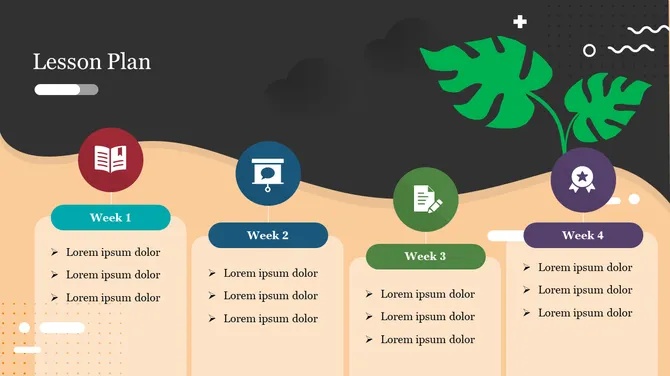
Download Lesson Plan PowerPoint Templates from SlideEgg
This Lesson Plan PPT template organizes weekly lessons, topics, objectives, and classroom activities in a clear format. Teachers can customize it for different subjects, grade levels, and schedules. For example, it can be used to map Monday through Friday lessons with learning objectives, activities, homework, and assessment checkpoints.
2. Classroom PowerPoint Template
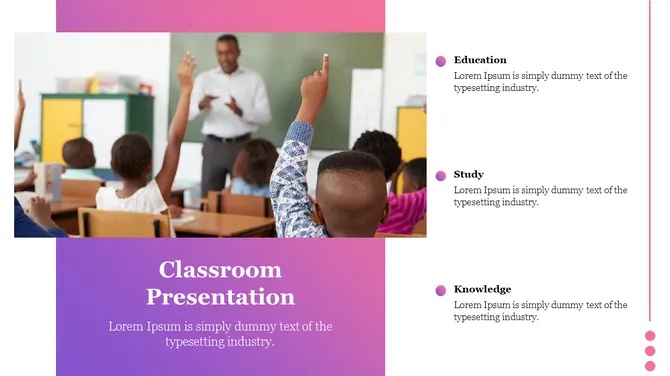
Explore Classroom Presentation Templates from SlideEgg
This Classroom Presentation PPT template provides a simple structure for lessons, academic topics, learning activities, and classroom discussions. It works across different subjects and teaching situations. For example, a science teacher can use it to move from an opening question to a key concept, visual example, classroom activity, and final recap.
3. Back to School PowerPoint Template

Browse Back to School PowerPoint Templates from SlideEgg
This Back to School PPT template gives teachers a structured way to welcome students and explain what to expect during the new academic year. It can cover classroom rules, schedules, teacher introductions, curriculum details, safety guidelines, activities, and parent communication. During the first week, teachers can use it to introduce expectations, routines, grading information, and important classroom procedures.
For more first-day presentation ideas, classroom procedures, student icebreakers, and parent-night slides, see our guide to free back-to-school PowerPoint templates for teachers.
4. Quiz PowerPoint Template
Download Quiz PowerPoint Templates from SlideEgg
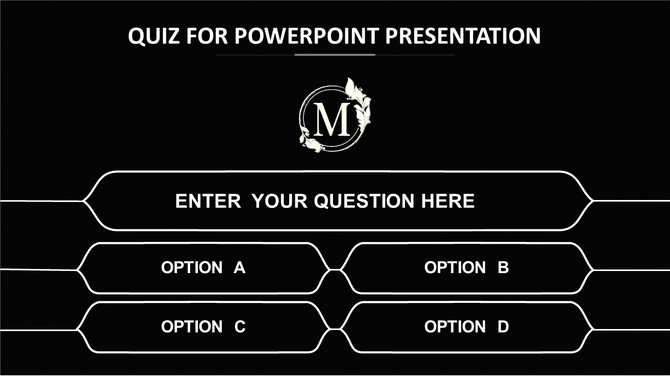
This Quiz PowerPoint template provides editable question slides with multiple answer options, making it useful for classroom reviews, training sessions, games, and quick knowledge checks. Teachers can customize the questions and choices for any subject. For example, five multiple-choice questions can be added at the end of a lesson to check what students understood before moving to the next topic.
Teachers who want students to answer in real time can also turn a knowledge check into a live multiple-choice activity that students join from their devices. Use Slidea’s interactive classroom lessons or explore ready-made interactive presentation templates designed for education and training.
5. Education Family Feud Template
Explore Education Family Feud Templates from SlideEgg
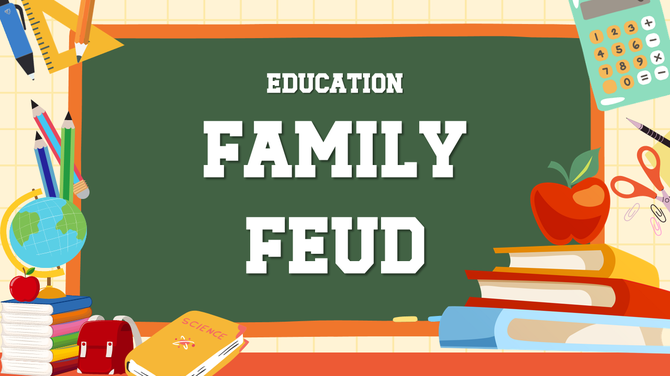
This Educational Family Feud Game PPT template turns classroom review into a team-based activity with ready-made question slides, answer sections, and multiple rounds. It can be adapted for revision sessions, vocabulary practice, subject quizzes, or classroom competitions. Teachers can divide students into teams and use the game to review key concepts before an exam or assessment.
6. Timeline PowerPoint Template
Download Timeline PowerPoint Templates from SlideEgg
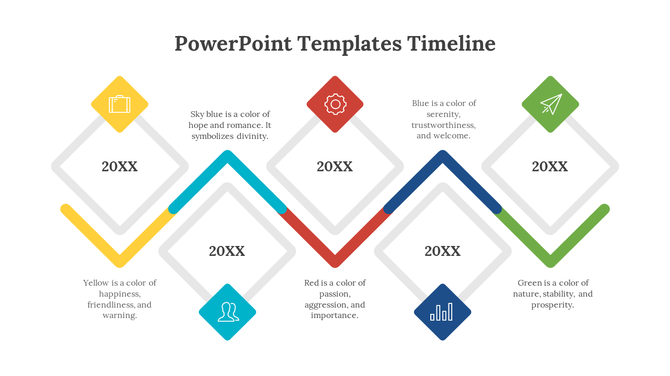
This Timeline PowerPoint template presents events, milestones, lesson stages, and project steps in a clear chronological order. It works well for history, literature, science, biographies, classroom projects, and curriculum planning. For example, a history teacher can use it to show the causes, major events, and aftermath of an important historical period in sequence.
7. Education Infographic Template

Explore Education Infographic Templates from SlideEgg
This Education Infographic PPT template turns concepts, classroom data, comparisons, and educational processes into visual explanations. Its editable layouts can include icons, percentages, numbered sections, and topic-based graphics. For example, teachers can use an infographic to compare renewable and non-renewable energy sources or summarize survey results from a class project.
8. Mind Map PowerPoint Template
Download Mind Map PowerPoint Templates from SlideEgg
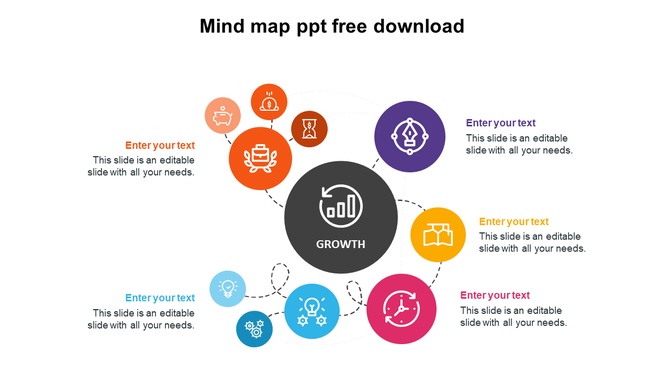
This Mind Map PowerPoint template organizes related ideas around one central topic, making connections easier to see. It can support brainstorming, chapter reviews, vocabulary building, science concepts, and literature analysis. For example, a teacher can place a novel’s main character in the center and connect themes, relationships, motivations, and conflicts around it.
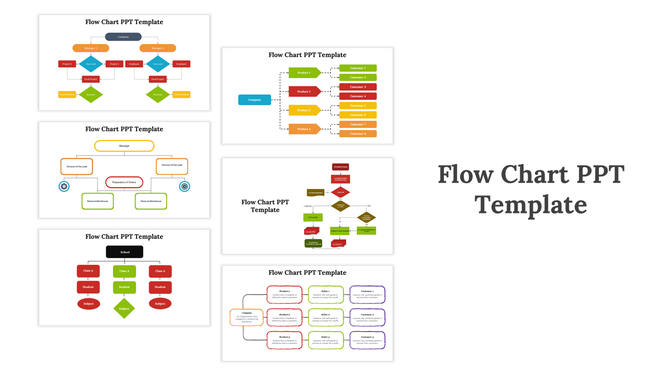
9. Flowchart PowerPoint Template
Explore Flowchart PowerPoint Templates from SlideEgg
This Flowchart PowerPoint template breaks steps, decisions, processes, and cause-and-effect relationships into an easy-to-follow visual sequence. It works well for science, math, reading activities, computer science, classroom routines, and lab procedures. Teachers can use it to explain the stages of an experiment, the steps in solving a math problem, or the logic behind a computer algorithm.
10. Meet the Teacher PowerPoint Template

Download Meet the Teacher PowerPoint Templates from SlideEgg
This Meet the Teacher PPT template gives educators a clear way to introduce their background, teaching approach, classroom expectations, qualifications, and communication methods. It works well for student orientation, back-to-school events, and parent meetings. During parent night, teachers can use it to share contact details, important dates, classroom routines, and how families can stay informed throughout the year.
Template Comparison Table
| Template Type | Best For | Grade Level | Best Subject | Engagement Level | Best Time to Use |
|---|---|---|---|---|---|
| Lesson Plan Template | Daily lesson structure | K–12 | All subjects | Medium | Before every lesson |
| Classroom Template | General teaching | K–12 | English, science, social studies | Medium | Regular classes |
| Back to School Template | First week setup | K–12 | General | High | Start of school year |
| Quiz Template | Review and assessment | K–College | All subjects | High | After teaching a topic |
| Family Feud Template | Game-based revision | Middle–College | History, science, English | Very high | Exam review |
| Timeline Template | Sequence and history | Middle–College | History, literature, science | Medium | When teaching order |
| Infographic Template | Visual explanation | Upper elementary–College | Science, geography, business | Medium | Complex topics |
| Mind Map Template | Idea connection | Elementary–High school | English, science, social studies | High | Brainstorming |
| Flowchart Template | Process explanation | Middle–College | Science, math, CS | Medium | Step-based lessons |
| Meet the Teacher Template | Teacher introduction | K–12 | General | Medium | First day or parent night |
PowerPoint vs Google Slides vs Canva: A Practical Comparison for Teachers
| Feature | PowerPoint | Google Slides | Canva |
|---|---|---|---|
| Ease of use | Easy if teachers know Microsoft Office | Very easy for Google Workspace schools | Easy drag-and-drop editor |
| Offline use | Strong | Limited | Limited |
| Animation | Strongest control | Basic | Basic to moderate |
| Templates | Strong for classroom and lecture decks | Good for shared teaching | Strong visual templates |
| Collaboration | Moderate | Very strong | Good |
| Classroom use | Strong for projector-based and offline lessons | Best for Chromebook classrooms | Best for visual lessons |
| Online teaching | Good | Very good | Good |
| Accessibility | Good if built carefully | Good with sharing options | Depends on design choices |
| Best for beginners | Good | Very good | Very good |
| Best for experienced teachers | Very strong | Good | Good |
When Teachers Should Use PowerPoint
Use PowerPoint when you teach offline, use a projector, need animations, or want full control over slide formatting. It is best for classroom teaching, lecture decks, and detailed lesson presentations.
When Teachers Should Use Google Slides
Use Google Slides when your school uses Google Classroom, Chromebooks, or shared student assignments. It is best for collaboration and online teaching.
When Teachers Should Use Canva
Use Canva when you need highly visual slides, posters, worksheets, or creative classroom materials. It is good for design, but teachers should check readability before presenting.
How to Choose the Right Teacher Presentation Template
Choose by Grade Level
Elementary students often benefit from larger text, simple layouts, clear visuals, and limited information on each slide.
Choose by Subject
Science teachers should use infographic, flowchart, and diagram templates. Math teachers should use step-by-step and quiz templates. English teachers can use mind maps, character maps, and discussion slides. History teachers should use timeline templates. Geography teachers can use maps, timelines, and infographics.
How Many Slides Should a Classroom Presentation Have?
There is no fixed ideal number of slides for a lesson. The right length depends on the topic, student age, teaching style, and amount of discussion or activity involved. The ranges below are practical starting points rather than strict rules.
| Lesson Duration | Suggested Slides | Best Use |
|---|---|---|
| 10-minute mini lesson | 5–7 slides | Hook, key idea, example, quick check |
| 45-minute class | 12–18 slides | Objective, explanation, activity, quiz, recap |
| 60-minute lecture | 18–25 slides | Sections, examples, discussion, review breaks |
A classroom presentation should not be judged by slide count alone. A better approach is to give each slide one clear purpose and pause regularly for questions, examples, discussion, or short activities.
Choose by Teaching Style
If you lecture, use clean explanation slides. If you use discussion, add question slides. If you teach with activities, use classroom task slides. If you teach with games, use quiz or Family Feud templates.
Choose between Online vs Offline Teaching
Offline classes need larger fonts and high contrast. Online classes need screen-friendly layouts, fewer words, and more interaction points.
Choose by Student Age
Younger students need visuals and simple text. Older students can handle charts, timelines, and deeper explanations. College students need clean, professional layouts.
How Teachers Can Reuse One Template All Year
A good teacher template should not be used once and forgotten. You can reuse one base template every week by changing the topic, examples, and activities.
Use this simple structure:
- Warm-up question
- Learning objective
- Key idea
- Example
- Practice activity
- Quick quiz
- Summary
- Homework or next step
This saves time because students already know the slide flow. You also build a consistent classroom routine.
Common Mistakes Teachers Make With PowerPoint Templates
- Adding Too Much Text
- Choosing Designs That Look Good but Teach Poorly
- Using Fonts That Are Too Small
- Ignoring Contrast
- Overusing Animations
- Skipping Practice Slides
- Using the Same Template for Every Situation
Design Tip: Keep layouts simple and consistent. Use clear spacing, readable text, and only the visuals that directly support the lesson. Richard Mayer’s coherence principle explains that students learn more effectively when unnecessary words, images, and sounds are removed from multimedia instruction. For more practical guidance, see these presentation design tips.
Tips for Creating Engaging Classroom Presentations
Start With a Question
Open with a question, image, short problem, or quick poll. This gives students a reason to pay attention.
Use One Idea Per Slide
Do not force several unrelated concepts onto one slide. Give each slide one clear teaching purpose, such as explaining a definition, showing an example, asking a question, or summarizing a key point. This makes the lesson easier to follow and reduces unnecessary mental processing.
Add Checkpoints
After every few slides, ask a question or give a quick task. This keeps students active.
For lessons that need more participation, teachers can use live quizzes, polls, word clouds, open-ended questions, or live Q&A activities. Students can respond from their devices while teachers display answers, results, or discussion prompts during the lesson. These interaction points turn a static presentation into a two-way classroom activity.
Use Visuals With Purpose
Use images, charts, diagrams, and icons only when they explain something. Do not add visuals just to fill space.
Keep the Same Structure
Use repeated slide types. Students should know when they are seeing a definition, example, activity, quiz, or summary.
End With a Recap
Close the lesson with three key points. This helps students remember what matters most.
Free vs Premium Teacher Templates
Free teacher PowerPoint templates are enough for many classroom needs. They work well for daily lessons, quick quizzes, simple topic explanations, and school activities.
Premium templates make sense when teachers need larger slide packs, advanced designs, unique subject layouts, or branded school presentations.
Before choosing a free or premium template, check these points:
- Can you edit the text?
- Can you change the colors?
- Does it work in your preferred tool?
- Is it readable on a projector?
- Does it match your student age group?
- Does it save real preparation time?
Do not choose a template only because it looks attractive. Choose it because it helps you teach better.
Frequently Asked Questions
1. What are the best PowerPoint templates for teachers?
The best PowerPoint templates for teachers are lesson plan templates, classroom templates, quiz templates, timeline templates, infographic templates, and back-to-school templates. The right choice depends on your subject, grade level, and lesson goal.
2. How many slides should a classroom presentation have?
There is no fixed ideal slide count. As a starting point, a 10-minute mini lesson may use around 5–7 slides, while a 45-minute class might use 12–18. The number matters less than pacing, clarity, and allowing time for questions, examples, and student activities.
3. What font size works best in classroom PowerPoint slides?
A practical starting point is around 24–28 pt for body text and 32–40 pt or larger for headings. The exact size depends on the font, projector, screen size, and classroom distance, so test important slides from the back of the room before presenting.
4. Should teachers use dark backgrounds?
Dark backgrounds can work in dim classrooms or online lessons. In bright classrooms, light backgrounds with dark text are usually easier to read.
5. What should be on the first slide?
The first slide should include the lesson title, date, class name, and a simple hook. A question or image can make the opening stronger.
6. Can one PowerPoint template be reused all year?
Yes. Teachers can reuse one base template by changing the topic, examples, activities, and quiz questions. This saves time and creates a familiar class routine.
7. How do teachers make PowerPoint presentations interactive?
Teachers can add quiz slides, discussion questions, group tasks, quick polls, reflection prompts, and exit-ticket questions. Interaction should happen throughout the lesson.
8. What templates work best for online teaching?
Classroom templates, quiz templates, and lesson plan templates work well for online teaching. Use large text, simple layouts, and fewer elements on each slide.
9. Should every lesson use PowerPoint?
No. PowerPoint is useful for visual teaching, structure, and review. Some lessons need discussion, board work, experiments, reading, or hands-on activities.
10. How do teachers avoid overcrowded slides?
Use one idea per slide. Replace long paragraphs with short points, visuals, examples, or questions.
Final Thoughts: Choose a Template That Helps You Teach
The best PowerPoint templates for teachers are not necessarily the most decorative ones. They are the ones that help you prepare faster, explain ideas clearly, and keep students involved in the lesson.
Start with your teaching goal. Choose a lesson plan template for structure, a quiz template for review, a timeline template for sequence, a mind map for brainstorming, or a back-to-school template for orientation.
A good template should save time before class and make learning easier during class.
Explore SlideEgg’s Education PowerPoint templates to find editable classroom slides for lesson planning, quizzes, school activities, topic explanations, and academic presentations.