Quick Answer
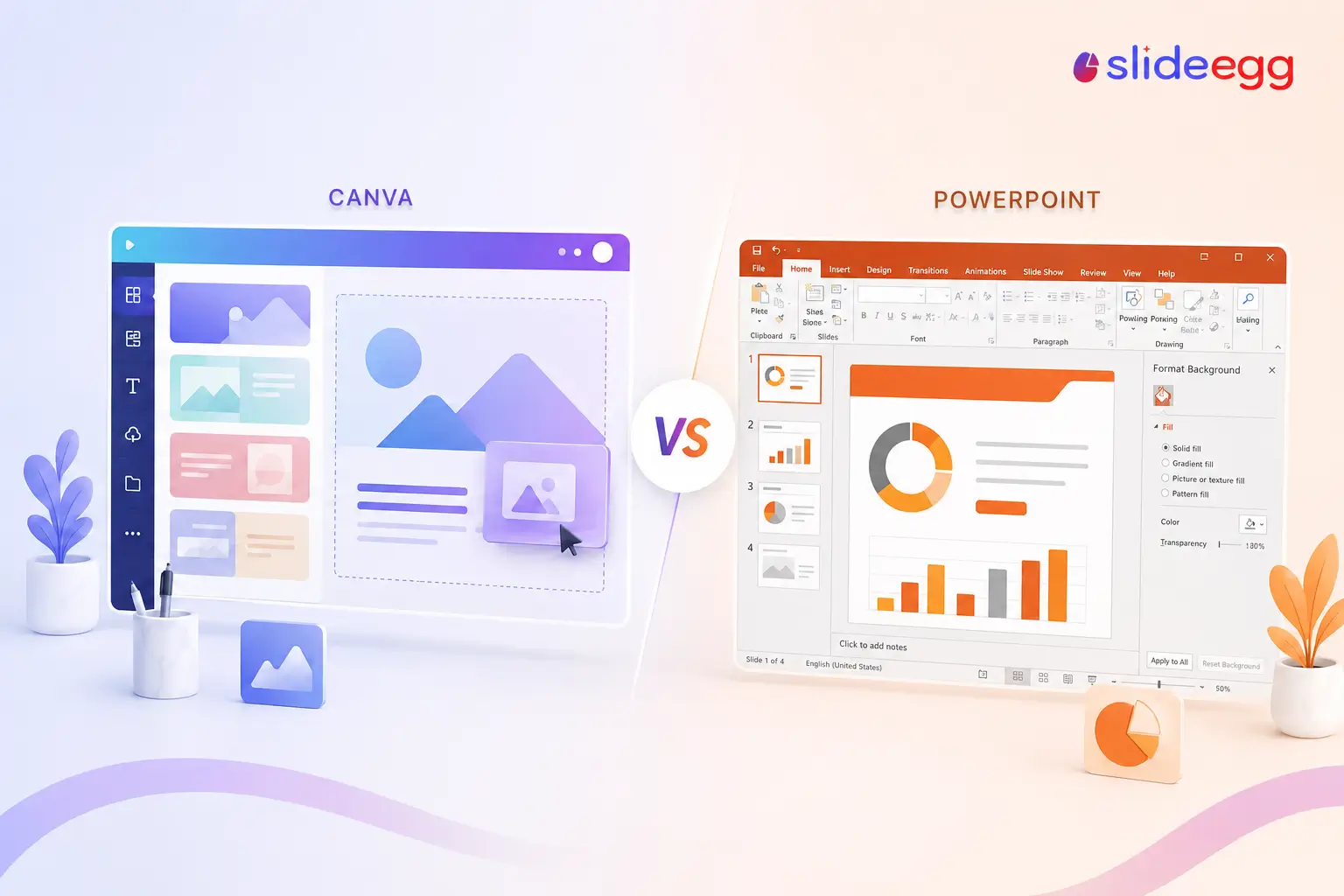
Choose Canva if you want great-looking slides fast with no design skills — its free plan is generous and the templates are polished. Choose PowerPoint if you work in a corporate setting, need offline access, handle data-heavy slides, or require complex animations. Both tools are excellent; the right pick depends on your situation, not a single winner.
You need to make a presentation. You think: should I use Canva or PowerPoint? It’s a fair question. Both tools are very popular. But they work in very different ways. The right one depends on what you need to do.
In this post, we’ll look at both tools side by side. We’ll cover pricing, features, limitations, and best use cases — all verified from official sources. By the end, you’ll know which one to choose.
Quick Verdict
Short on time? Here’s the fast answer.
| Choose Canva if… You want great slides fast Easy to use. Strong free plan. Great for marketing and visual content. | Choose PowerPoint if… You need full design control Best for corporate decks, data-heavy slides, and complex animations. | Using either tool? Try SlideEgg templates 100,000+ free templates for both PowerPoint and Canva — in one place. |
What Is Canva?
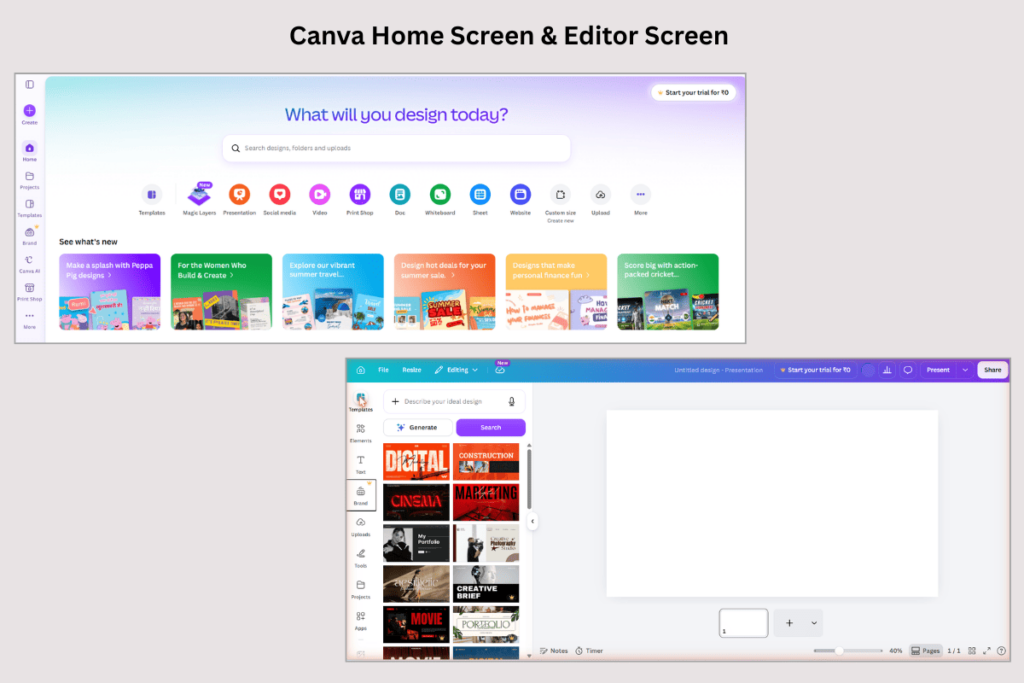
Canva is a browser-based design tool launched in 2013. Today it has over 200 million users worldwide. You don’t need design skills to use it — pick a template, swap your text and images, and you’re done.
Canva’s free plan gives you 1.6 million+ templates and real-time collaboration with no credit card needed. The Pro plan unlocks premium templates, brand kits, background removal, and AI tools. You can also use SlideEgg’s free Canva presentation templates to get a head start without signing up for Pro.
- Free · Pro $12/mo (annual) · Teams $20.83/user/mo (annual)
- Pricing sourced from canva.com/pricing (verified June 2026).
What Is PowerPoint?
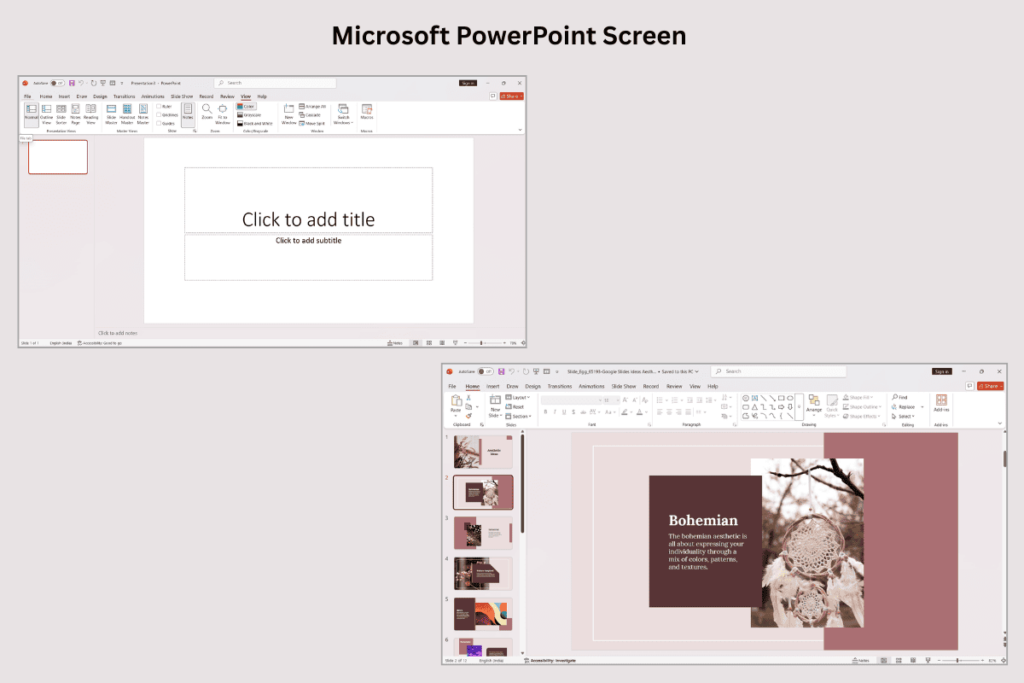
PowerPoint is Microsoft’s presentation app, first released in 1987. It’s still the most widely used presentation tool in the world. You can use a free web version at PowerPoint.com, but most professionals use the full desktop app for total control over every element.
In most companies and schools, .pptx is the expected file format — it’s the industry standard. If you need to share a deck with anyone at work, there’s a good chance they want a .pptx file. SlideEgg’s free PowerPoint templates are designed to work with both the web and desktop versions.
Free web version · Microsoft 365 Personal $9.99/mo · Family $12.99/mo · Office Home 2024 $179.99 one-time
Pricing sourced from https://www.microsoft.com/en-in/microsoft-365 (verified June 2026).
Pricing: Side by Side
Here’s what each tool costs in 2026, sourced directly from official pricing pages.
| Plan | Canva | PowerPoint |
| Free tier | ✔ Yes — 1.6M+ templates, no CC needed | ✔ Yes — web version at PowerPoint.com |
| Cheapest paid plan | $12/mo (Canva Pro, billed annually) | $9.99/mo (Microsoft 365 Personal) |
| Monthly billing option | $18/mo (Canva Pro) | $9.99/mo (Microsoft 365 Personal) |
| Team / family plan | $20.83/user/mo (annual) · $25/user/mo (monthly) — Canva Teams | $12.99/mo for up to 6 people (Microsoft 365 Family) |
| One-time purchase | ✗ No one-time option | ✔ Office Home 2024 — $179.99 |
| Free trial | ✔ 30-day Canva Pro trial | ✔ 1-month Microsoft 365 trial |
Sources: canva.com/pricing (June 2026) · https://www.microsoft.com/en-in/microsoft-365 (June 2026)
Full Feature Comparison
| Feature | Canva | PowerPoint |
| Ease of Use | ||
| Learning curve | ✔ Very easy — beginner friendly | △ Moderate — takes time to master |
| Drag-and-drop editing | ✔ Yes — core feature | △ Partial — mainly menu-driven |
| Works in a browser | ✔ Yes — no install needed | ✔ Yes — free at PowerPoint.com |
| Desktop app | △ Available but mainly browser-based | ✔ Full offline desktop app |
| Templates & Design | ||
| Built-in templates | ✔ 3.6M+ on Pro; 1.6M+ free | △ Hundreds — decent but fewer |
| Modern, stylish designs | ✔ Consistently high quality | △ Varies — some look outdated |
| Pixel-level design control | △ Limited — less precise | ✔ Full control — guides, rulers, snap |
| Custom fonts | ✔ Upload your own on Pro | ✔ Use any font on your device |
| Brand kit | ✔ Pro: up to 5 brand kits | △ Manual — set fonts and colors per file |
| Third-party template libraries | ✔ Via SlideEgg Canva templates | ✔ Via SlideEgg PowerPoint templates |
| AI Features | ||
| AI presentation builder | ✔ Magic Studio — 20+ AI tools | ✔ Copilot — needs Microsoft 365 |
| AI image generation | ✔ Built in on Pro plan | ✔ Via Microsoft Designer (M365) |
| AI writing assistant | ✔ Magic Write (Pro) | ✔ Copilot (M365 subscribers) |
| AI slide generation from prompt | ✔ Magic Design — instant deck from text | △ Limited — Designer suggests layouts only |
| Collaboration | ||
| Real-time co-editing | ✔ All plans — even free | ✔ All M365 plans via OneDrive |
| Share via link | ✔ View, comment, or edit links | ✔ Share via OneDrive or email |
| Comments on slides | ✔ All plans | ✔ All plans |
| Export & Compatibility | ||
| Export to PPTX | ✔ All plans (some formatting may shift) | ✔ Native PPTX — perfect fidelity |
| Export to PDF | ✔ All plans | ✔ All plans |
| Import PPTX files | △ Yes — some formatting loss | ✔ Perfect — it’s the native format |
| Publish as a live link | ✔ Yes — share a live Canva link | △ Via OneDrive shareable link |
| Presenter Tools | ||
| Presenter view (notes + timer) | △ Basic presenter mode | ✔ Full presenter view — best in class |
| Rehearse timings | ✗ No | ✔ Yes — built in |
| Slide animations | △ Basic — limited transitions | ✔ Advanced — motion paths, triggers, timing |
| Offline & Storage | ||
| Offline access | ✗ Needs internet (browser-based) | ✔ Full offline on desktop app |
| Cloud storage | △ 5GB free · 100GB Pro | ✔ 1TB on all M365 plans via OneDrive |
When Should You Choose Canva?
Canva is the better pick in these situations. Get started faster with SlideEgg’s free Canva presentation templates.
Pick Canva when…
- You’re not a designer. Canva’s templates are easy to edit. You can get great results with no design skills.
- You need it done fast. Pick a template, swap the text, and you’re ready in minutes.
- Your team edits together. Canva lets many people work on the same file at once — even on the free plan.
- You create marketing or social content. Canva is built for visual content. Its designs look modern and polished.
- You don’t want to pay right away. Canva’s free plan is generous — 1.6 million+ templates with no credit card needed.
- You want AI to build the deck for you. Canva’s Magic Design generates a full presentation from a text prompt. PowerPoint’s AI only suggests layouts.
When Should You Choose PowerPoint?
PowerPoint is the better pick in these situations. Browse SlideEgg’s free PowerPoint templates to get a professional starting point.
Pick PowerPoint when…
- You work in a corporate setting. Most companies run on Office. A .pptx file is the expected format at work.
- Your slides have a lot of data. PowerPoint handles charts, tables, and graphs with precision. You can link data directly from Excel.
- You need complex animations. PowerPoint’s animation engine — with motion paths, triggers, and timing controls — is far more powerful than Canva’s.
- You present without the internet. PowerPoint works fully offline. If your venue has no Wi-Fi, you’ll be glad you used it.
- You need a strong presenter view. PowerPoint shows your notes, a timer, and a preview of the next slide — all at once on a second screen.
Limitations of Each Tool
Every tool has trade-offs. Here’s what each one can’t do well — so you can make an informed choice.
Canva Limitations
- No offline access. Canva is browser-based. If you lose the internet during a presentation, you’re stuck.
- Formatting shifts on PPTX export. Fonts, spacing, and effects can look different once opened in PowerPoint. Always review the exported file.
- Limited animation control. Canva only supports basic transitions. No motion paths, triggers, or entrance/exit timing.
- No pixel-perfect precision. You can’t use rulers or snap to exact coordinates. Design freedom is guided by templates and grids.
- Watermarked elements on free plan. Many stock photos and elements require Pro to use without a watermark.
PowerPoint Limitations
- Steeper learning curve. More menus, more options, more time to master. Beginners can feel overwhelmed.
- Fewer modern templates. PowerPoint’s built-in templates can look dated. You need third-party sources for polished designs.
- No built-in stock image library. Limited asset library compared to Canva’s built-in stock photo and element collection.
- AI features need a paid plan. Copilot requires a Microsoft 365 subscription — it’s not available on the free web version.
- No quick link-based sharing. Sharing requires OneDrive or email. You can’t create a public live link as easily as Canva.
Get Free Templates for Either Tool
SlideEgg has 25,000+ free templates — download a .pptx for PowerPoint or open directly in Canva. No sign-up needed to browse.
Can You Use Both?
Yes — and many people do. Some teams design in Canva and deliver in PowerPoint. It’s a smart combo. You can also bring in Google Slides templates if your team works in a Google Workspace environment.
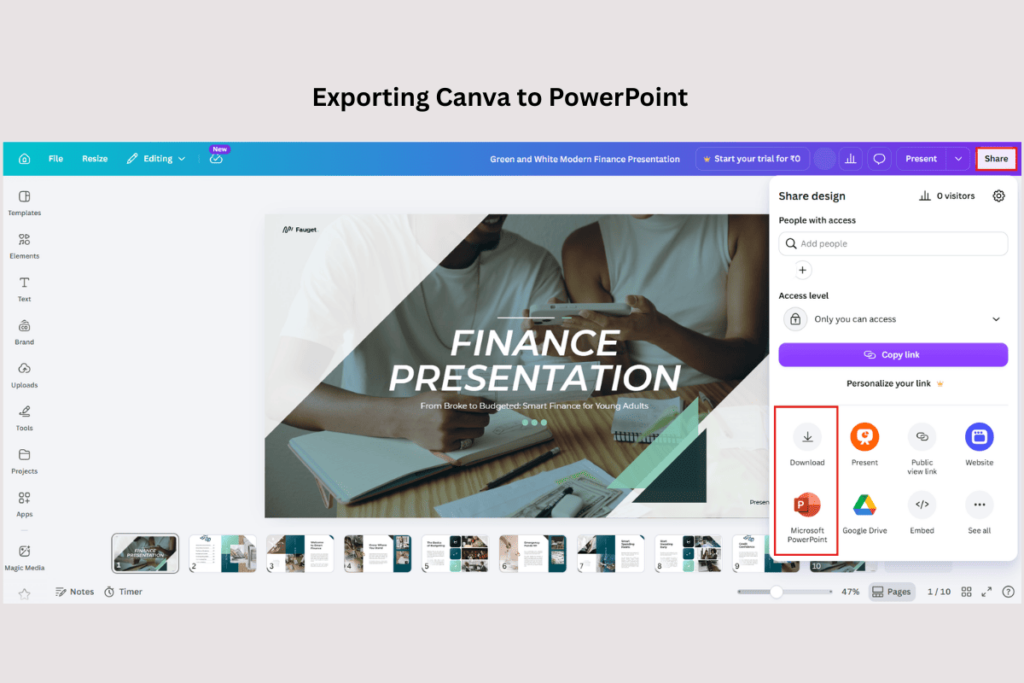
To export Canva to PowerPoint, go to Share → Download → Microsoft PowerPoint (.pptx). The file will open in PowerPoint. Keep one thing in mind: some fonts, effects, and spacing may shift in the conversion. Always check the exported file before you present.
SlideEgg Works With All Three Tools
You don’t have to choose between PowerPoint templates and Canva templates. SlideEgg gives you 100,000+ templates for PowerPoint, Canva, and Google Slides — in one place.
Download a .pptx file for PowerPoint. Open a Canva Slides template and edit it right in Canva. Or grab a Google Slides template for instant sharing. No extra software or sign-up needed to browse.
Frequently Asked Questions
Is Canva better than PowerPoint for presentations?
Neither tool is better overall. Canva is better for design speed, ease of use, and visual content. PowerPoint is better for control, offline work, data-heavy slides, and complex presentations. If you want a great-looking deck fast, go with Canva. If you work in a corporate setting or need .pptx files, go with PowerPoint.
What are the downsides of Canva?
Canva’s main downsides are: it requires an internet connection (no offline mode), formatting can shift when exporting to PowerPoint, animation options are basic, pixel-level design control is limited, and many premium elements are watermarked on the free plan. For data-heavy corporate decks or presentations that must work offline, PowerPoint is the safer choice.
Is PowerPoint free to use?
Yes — partially. You can use PowerPoint for free in your browser at PowerPoint.com with a free Microsoft account. You won’t get all features and you’ll need an internet connection. For the full desktop app, you need a Microsoft 365 subscription (from $9.99/month) or a one-time purchase of Office Home 2024 ($179.99).
Can I use Canva for free?
Yes. Canva’s free plan gives you 1.6 million+ templates, real-time collaboration, and 5GB of storage — no credit card needed. For more templates, AI tools, and brand features, Canva Pro costs $12/month on an annual plan. A 30-day free trial is available.
Is Canva Pro worth it in 2026?
Canva Pro is worth it if you regularly create presentations, marketing content, or social media graphics and need premium templates, brand kits, background removal, and AI tools. At $12/month billed annually, it’s cost-effective for frequent users.
Can you convert Canva slides to PowerPoint?
Yes. In Canva, click Share → Download → Microsoft PowerPoint (.pptx). The file will download to your device. Open it in PowerPoint to review it. Note that some fonts, spacing, and effects may look different after the conversion — always check the file before you present.
Which is easier to use — Canva or PowerPoint?
Canva is easier for most people. You pick a template and edit with drag-and-drop — very little to learn. PowerPoint has more features, which means more menus and more options. It’s not hard, but it takes more time to get comfortable with, especially for animations and data charts.
Do professionals use Canva or PowerPoint?
Both. Marketers, educators, and content creators often prefer Canva for its speed and design quality. Business professionals, consultants, and corporate teams usually stick with PowerPoint because it’s the industry standard. Many professionals use both — they design in Canva and deliver in PowerPoint.
How does Canva compare to Google Slides?
Canva has more design flexibility, a larger template library, and better-looking visuals than Google Slides. Google Slides is completely free, integrates natively with Google Workspace, and works well for simple team collaboration. For design quality, Canva wins. For zero-cost simplicity with Google Drive integration, Google Slides wins.
Which is better for students — Canva or PowerPoint?
Both work well for students. Canva’s free plan is excellent for creative, visual class projects — no install needed, real-time group editing, and polished templates. PowerPoint is better for academic or technical presentations where .pptx is required by instructors or submission systems. Many students use Canva to design and export as .pptx when a specific file format is needed.
Final Verdict
There’s no single winner. The best tool depends on what you need to do. Use this table to find your fit.
| Your Situation | Best Pick |
| You want great-looking slides fast | Canva |
| You’re a beginner with no design skills | Canva |
| You need a free plan right now | Canva |
| Your team edits slides together | Canva |
| You want AI to build the deck from a prompt | Canva |
| You work in a corporate environment | PowerPoint |
| Your slides are full of data or charts | PowerPoint |
| You present offline — no internet | PowerPoint |
| You need advanced animations | PowerPoint |
| You use Google Workspace daily | Google Slides |
| You want 100k+ free templates for any tool | SlideEgg |
Get Free Templates for Canva and PowerPoint
SlideEgg has 100,000+ free templates — download a .pptx for PowerPoint, open a Canva Slides template, or grab a Google Slides design. No sign-up needed to browse.
Disclosure: This post is published by SlideEgg. We offer free templates for both Canva and PowerPoint. We’ve compared both tools honestly — our goal is to help you pick the right one for your needs.