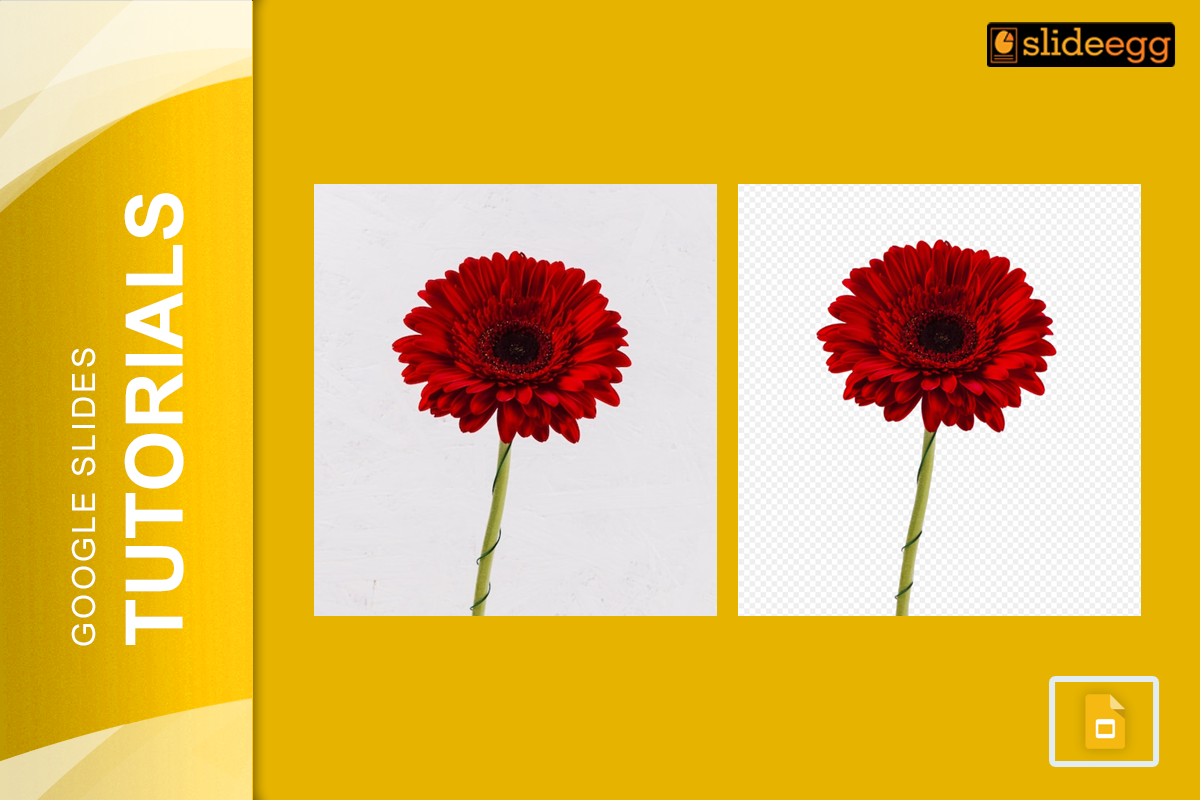
Removing backgrounds in Google Slides can make your presentations look more professional and polished. Whether you want to remove a solid background or edit an image to blend better, Google Slides offers simple options to get the job done. Let’s dive into the steps to remove a background while keeping things simple!
Steps to Remove Background in Google Slides
Insert Your Image
Start by opening your Google Slides presentation and inserting the image you want to work with. To do this, click on the “Insert” tab, select “Image,” and upload your picture.
Method 1: Use Transparency for Basic Adjustments
If you’re dealing with a simple background, try adjusting the transparency of the image. Click on the image, go to the “Format Options,” and look for the “Adjustments” menu. Adjust the transparency slider to achieve your preferred level of opacity. This won’t completely remove the background, but it can soften it enough to blend seamlessly.
Method 2: Edit Background with External Tools
Google Slides doesn’t have a built-in background removal tool. Instead, you can use free online tools like Remove.bg or Canva. Upload your image to these tools, remove the background, and save the edited version. Then, insert the edited image back into your Google Slides. For more tips on adjusting images and colors, check out our guide on how to edit background images and colors in Google Slides.
Method 3: Mask the Image
If removing the entire background isn’t necessary, consider masking the image into a specific shape. Click on the image, then the drop-down arrow next to the crop tool. Choose a shape, and your image will adjust accordingly.
Method 4: Using Shapes for a Cleaner Look
Another clever way to hide the background is by layering shapes. Place a shape over the unwanted parts of the image and fill it with a solid color that matches your slide’s theme. This trick works well if you’re working with premade slides like Free Google Slides templates, which often include customizable shapes and designs.
Tips to Enhance Your Slides
Using tools in PowerPoint can sometimes be a faster way to edit visuals. If you’re interested, here’s a quick guide on how to take the background of a picture on PowerPoint. This could help when switching between tools to perfect your slide visuals.
So, with a bit of creativity and effort, removing a background in Google Slides becomes a simple task. By experimenting with transparency, masking, or external editing tools, you can create clean and engaging slides that captivate your audience. Take advantage of these tricks to make your presentations stand out!