How To Group Images In PowerPoint and Google Slides


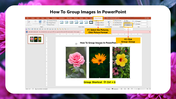


How to Add Group images in PowerPoint
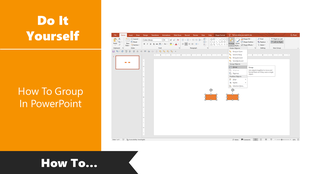
Grouping allows you to make two or more PowerPoint objects into a single grouped object. Instead of clicking every individual image, it is easy to group an image. It is easy to group images into a single will be more attractive and keep them attractive without getting bored. If you have problems grouping images, follow the steps from the slideEggs brief tutorial. Check below to get your answer on How to group images.
Steps To group images In PowerPoint Presentation
Step 1: Create your slide presentation on your topic
Step 2: Select the desired slides that you want to group
Step 3: Click on the picture option in the picture format.
Step 4: Click on the shape format from the picture format.
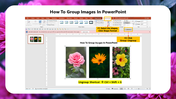
Step 5: You can now click the Grouping drop-down option. It will display all images.
Step 6: Now, select the images that are grouped and ordered.
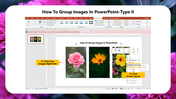
Step 7: If you want to re-group, you can click on the un grouping option.
Grouping is another delight element that is pre-built in PowerPoint. Presenters try to use these results to hold audiences visually curious from the onset till the destiny of the show. So always use these effects in all your presentation shows and accumulate more praise from the crowd.
SlideEgg is one of the best slide-producing platforms for making your job easier. It is accessible to group images when you have clean pre-designed templates for your topics. Save more time and energy in slide creations by choosing SlideEgg as your presentation companion.



You May Also Like These PowerPoint Templates






























Showing36 of69,218 templates