Affordable Growing Tree PowerPoint Template and Google Slides
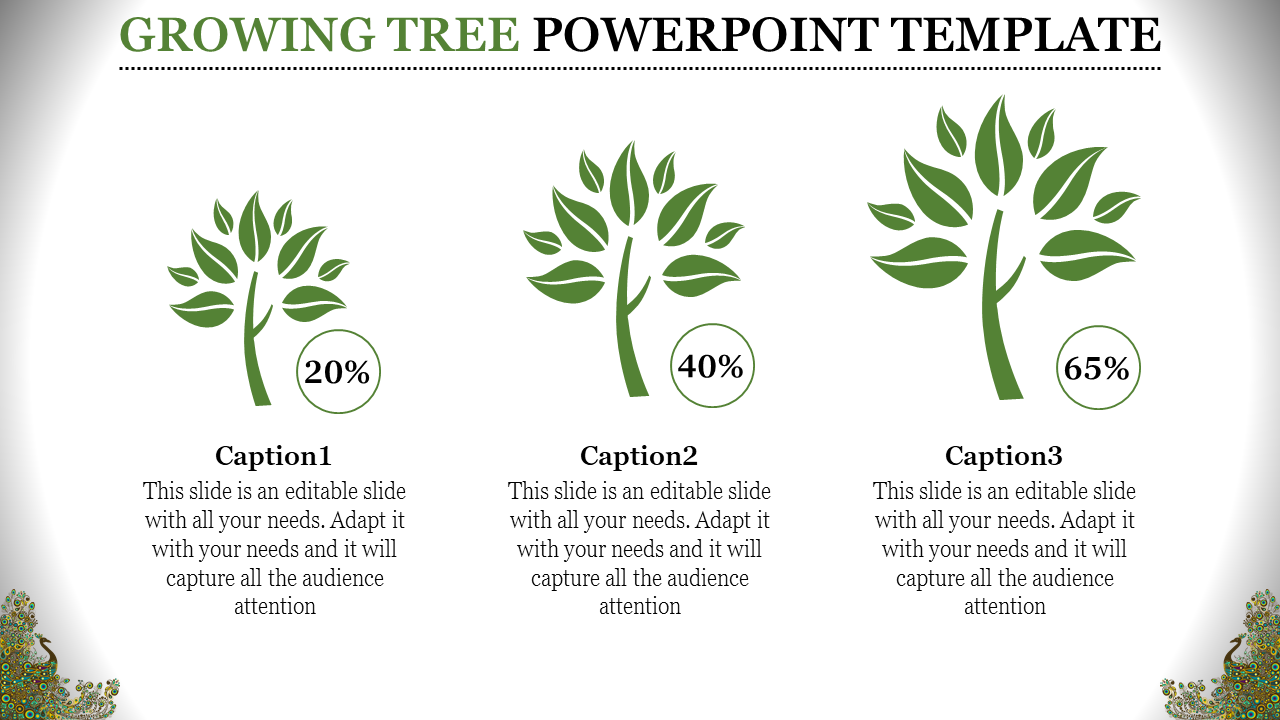
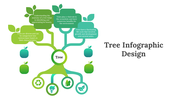
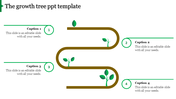
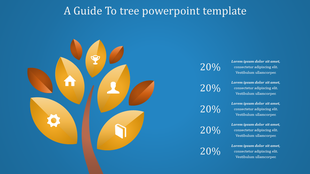
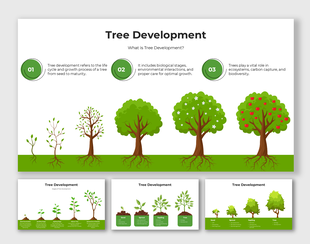
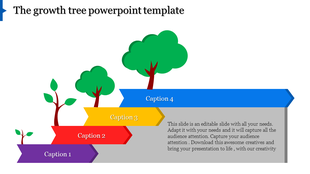
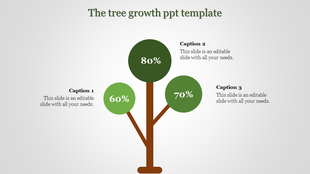
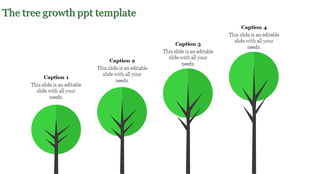
Growing tree slide with three larger tree icons, percentage labels, and space for captions describing each stage.
P.ID : 12395
    482 views
    26 Downloads
    Designer
    Kavitha
    Get Custom Slides by Experts
    Enhance Your Presentations with Add-ins
    Google Slides Add-in
    Access templates directly in Google Slides
    Microsoft PowerPoint Add-in
    Access templates directly in PowerPoint
    GPT Add-on
    AI-powered presentation assistance

    Growing Tree PowerPoint Templates Presentation 


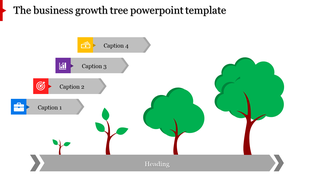
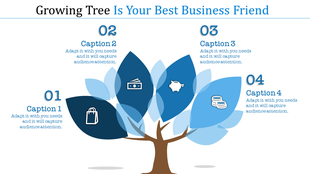
    Show your growth story with our Growing Tree PowerPoint Template for Google Slides. This template features a beautiful image of a growing tree.  Businesses, educators, and entrepreneurs can use this Fill in the info to showcase your company journey, project development, or goal achievement.  The clear design will keep your audience engaged and help you explain your growth clearly. Download this unique template today and plant the seeds for your presentation success.


    Features of the template


    • 100% customizable slides and easy to download.
    • The slides contain 16:9 and 4:3 formats.
    • Easy to change the colors quickly.
    • It is a well-crafted template with an instant download facility.
    • It is a 100% pre-designed slide.
    • The slide holds vibrant colors.
    Advertisement

    You May Also Like These PowerPoint Templates
    Free
    Add to Wishlist
    Download
    Edit
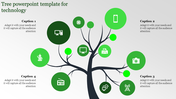
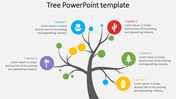
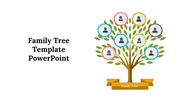
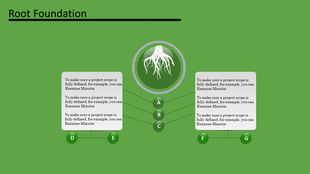
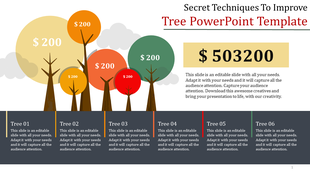
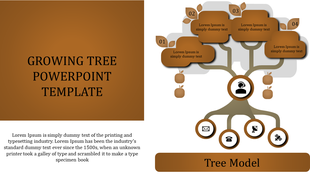
    Tree PowerPoint template with circles and notepad sections with placeholder text.
    Free
    Add to Wishlist
    Download
    Edit
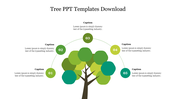
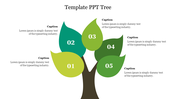
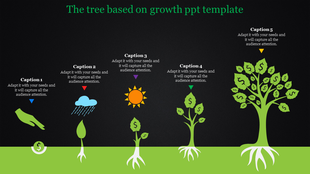
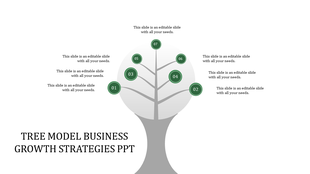
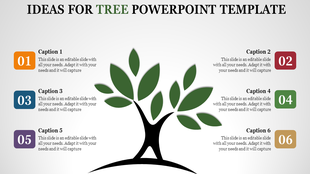
    Tree with green leaves and brown trunk in center, surrounded by five caption on a white gradient background.
    Free
    Add to Wishlist
    Download
    Edit
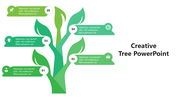
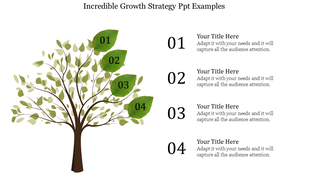
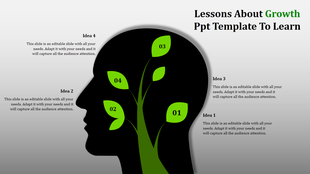
    Tree infographic with green leaves labeled as captions and headings, alongside descriptive text on the right.
    Free
    Add to Wishlist
    Download
    Edit
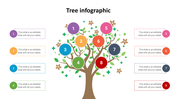
    Tree PPT slide with a branch design, featuring five colorful leaves labeled Step 01 to Step 05, each with icons and text.