Most people use a sliver of what PowerPoint can do. These eight features aren’t secret—several have existed since PowerPoint 2019—but hardly anyone turns them on. Used well, they put your camera on a slide, coach your delivery, translate your talk live, and let AI rebuild a slide for you. The one that genuinely changed in 2026 is Copilot, whose agentic tools became generally available in April.
A quick note on access: Morph and Zoom work in PowerPoint 2019 and later; most of the rest need a Microsoft 365 subscription, and Copilot needs its own license. Each feature below flags what you need, how to switch it on, and when it’s worth it.
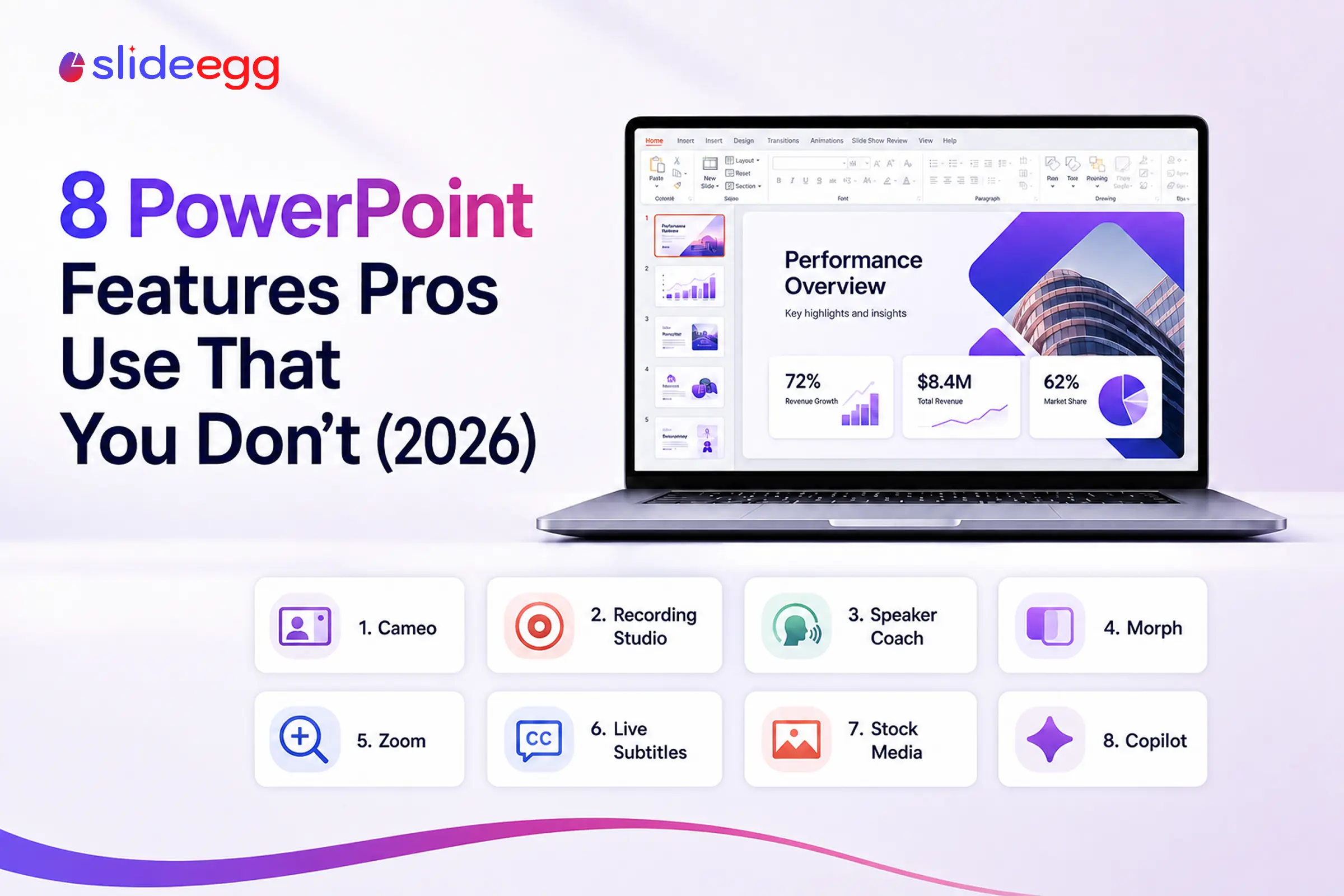
The 8 Features at a Glance
- Cameo — put your live camera feed on a slide
- Recording Studio — record narration and video per slide
- Rehearse with Coach — private AI feedback on your delivery
- Morph — smooth, cinematic movement between slides
- Zoom — click-to-jump, non-linear navigation
- Live subtitles & translation — real-time captions as you speak
- Stock media library — free images, icons, cutout people, and video
- Copilot’s 2026 upgrades — AI that builds and redesigns slides
Bonus: PowerPoint add-ins — install extra tools, and template libraries like SlideEgg, straight from Microsoft AppSource.
1. What Is Cameo in PowerPoint (and How to Use It)
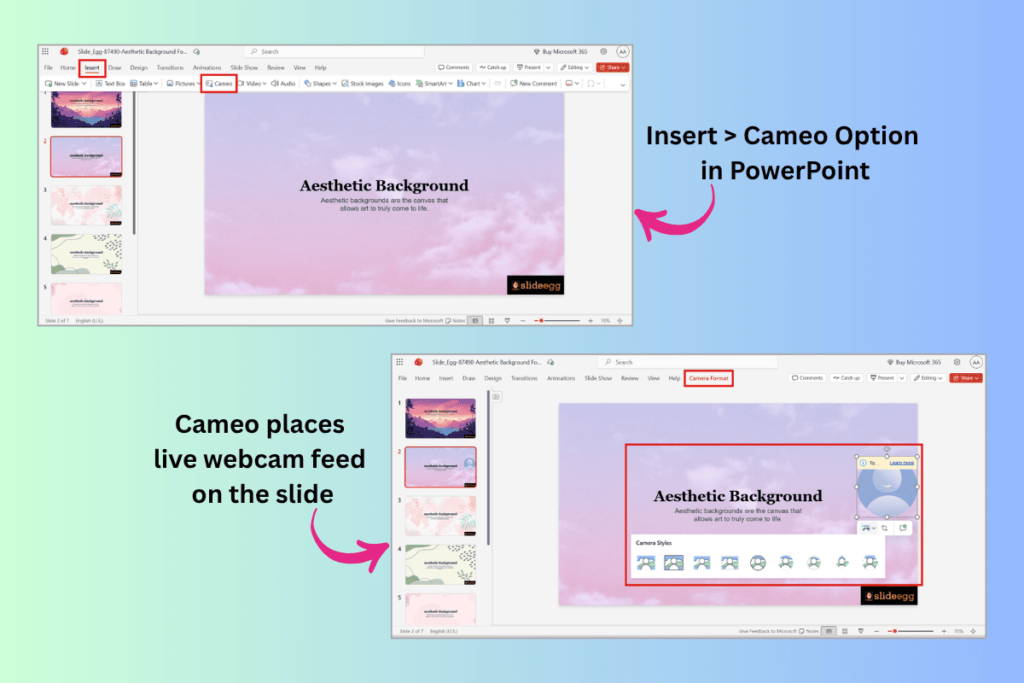
Cameo turns your webcam feed into an object you can place and style anywhere on the slide.
Where: Insert > Cameo. Needs: Microsoft 365 (Windows, Mac, or web).
Cameo places your live webcam feed on the slide itself, as an object you can move, resize, and style—round the frame, add a border, or send it to a corner.
How to use it: put your cursor where you want the camera, choose Insert > Cameo, then resize and style the frame like any shape. Because it’s an object, you can animate it with Morph so your video glides across the screen between slides.
When it’s worth it: training videos, async updates, and webinars where you want your face beside your content, not in a floating window. Presenting via PowerPoint Live in Microsoft Teams detects cameo and switches to it automatically.
2. How to Record Narration in PowerPoint with Recording Studio
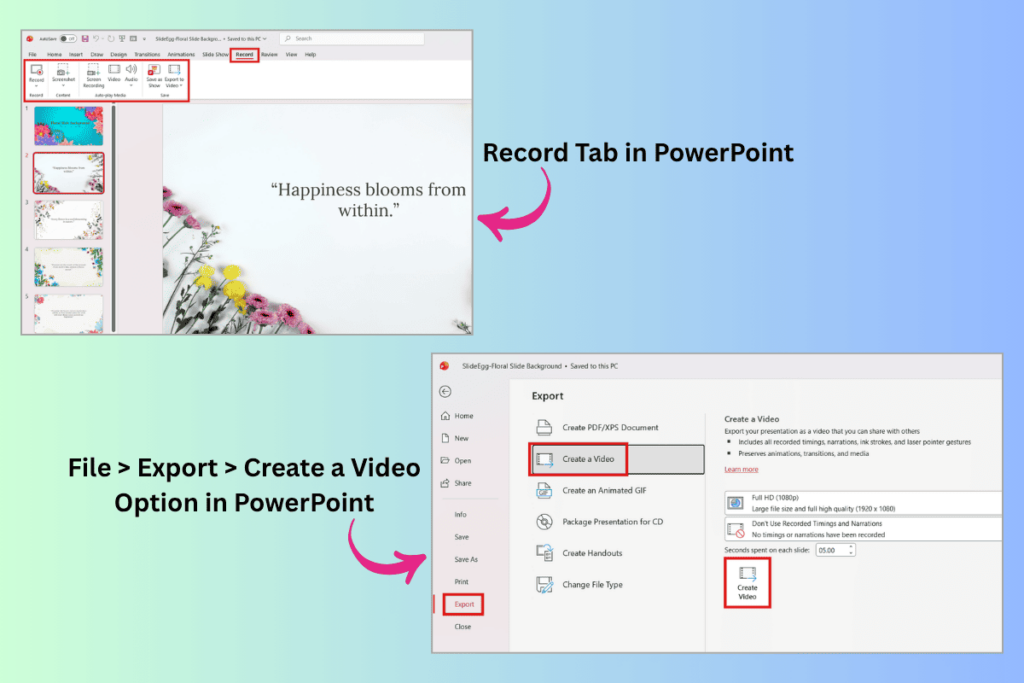
Recording Studio records narration and camera per slide, with a teleprompter and inking.
Where: the Record tab (or Slide Show > Record). Needs: Microsoft 365 for the full studio; basic recording exists in PowerPoint 2019+.
Recording Studio records narration—and your camera, thanks to cameo—one slide at a time, with a built-in teleprompter and inking tools.
How to use it: open the Record tab, pick a slide, and hit record; re-record any single slide without redoing the deck. When you’re done, export with File > Export > Create a Video.
When it’s worth it: shareable walkthroughs and self-paced training. Our guide on how to turn a PowerPoint presentation into a video covers the export settings in detail.
3. How to Use Speaker Coach (Rehearse with Coach) in PowerPoint
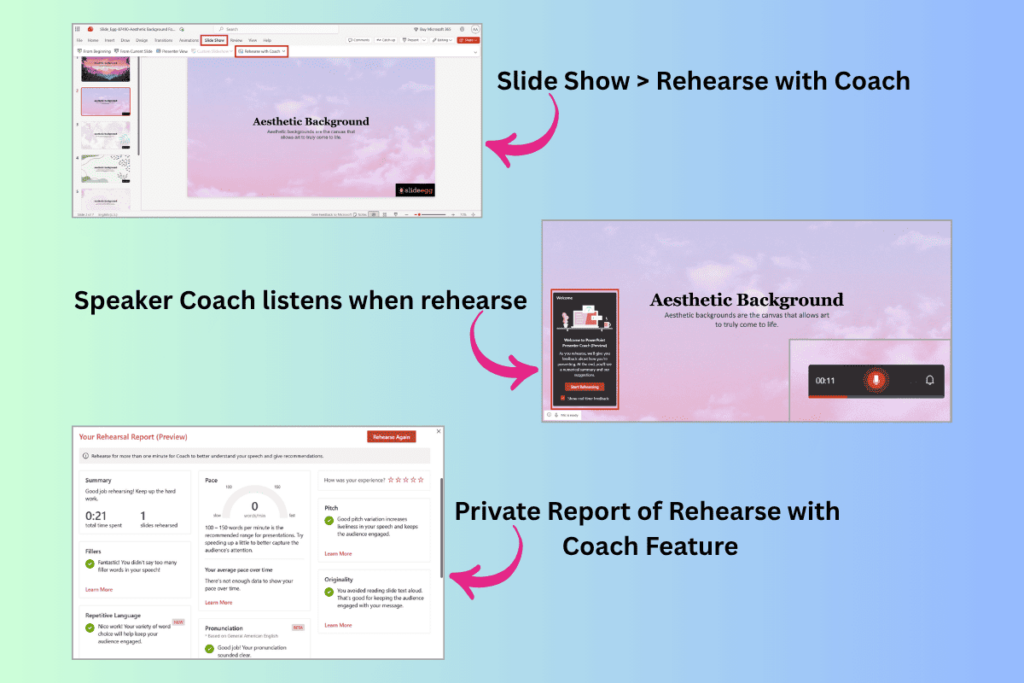
Speaker Coach’s private report flags pace, filler words, and monotone delivery.
Where: Slide Show > Rehearse with Coach. Needs: Microsoft 365 and an internet connection (available on Windows, Mac, and the web).
Speaker Coach listens as you rehearse and hands you a private report: pace, filler words (“um,” “basically”), repetitive or monotone phrasing, whether you’re just reading the slide, and more. Your audience never sees it.
How to use it: start Rehearse with Coach, present out loud as you normally would, then read the summary when you stop.
When it’s worth it: the ten minutes before a high-stakes talk. It’s one of the most useful features almost nobody switches on. Pair the metrics with our guide to becoming a great speaker for delivery tips the coach can’t give.
4. How to Use the Morph Transition in PowerPoint
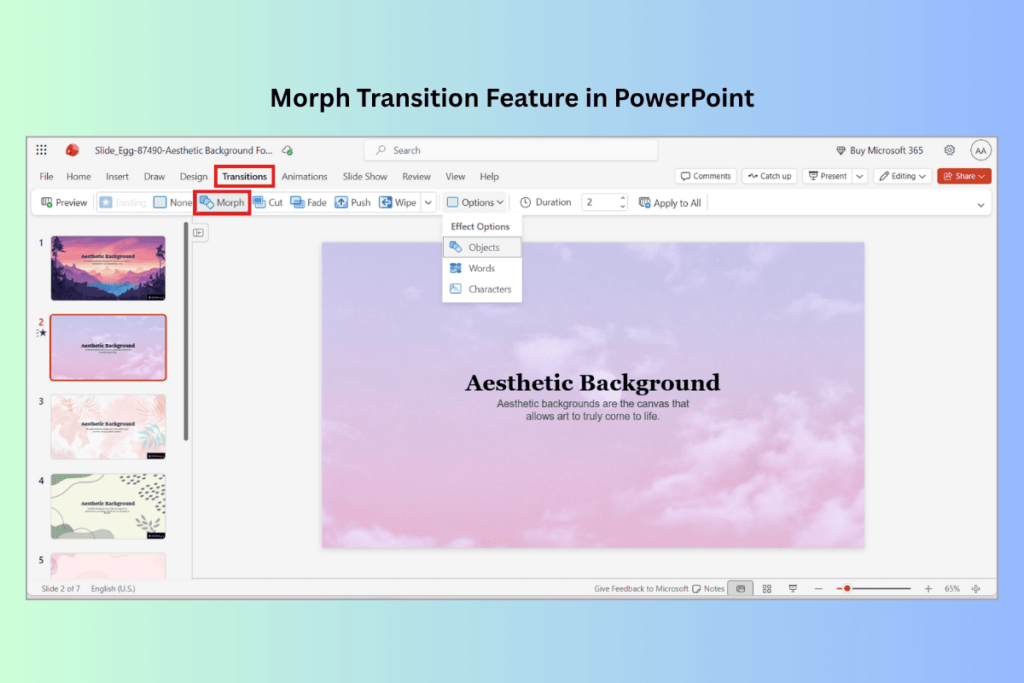
Morph fills in the motion between two slides—objects glide, grow, or recolor.
Where: Transitions > Morph. Needs: PowerPoint 2019 or later, including Microsoft 365.
Morph animates the change between two slides—an object glides, grows, rotates, or recolors smoothly instead of cutting.
How to use it: duplicate a slide, move or resize the objects on the copy, then apply Morph to the second slide. PowerPoint calculates the motion for you.
When it’s worth it: one or two signature moments per deck—reveals, zoom-ins, before/after. New to it? See our walkthrough on adding animations and transitions in PowerPoint.
5. How to Use Zoom in PowerPoint for Non-Linear Navigation
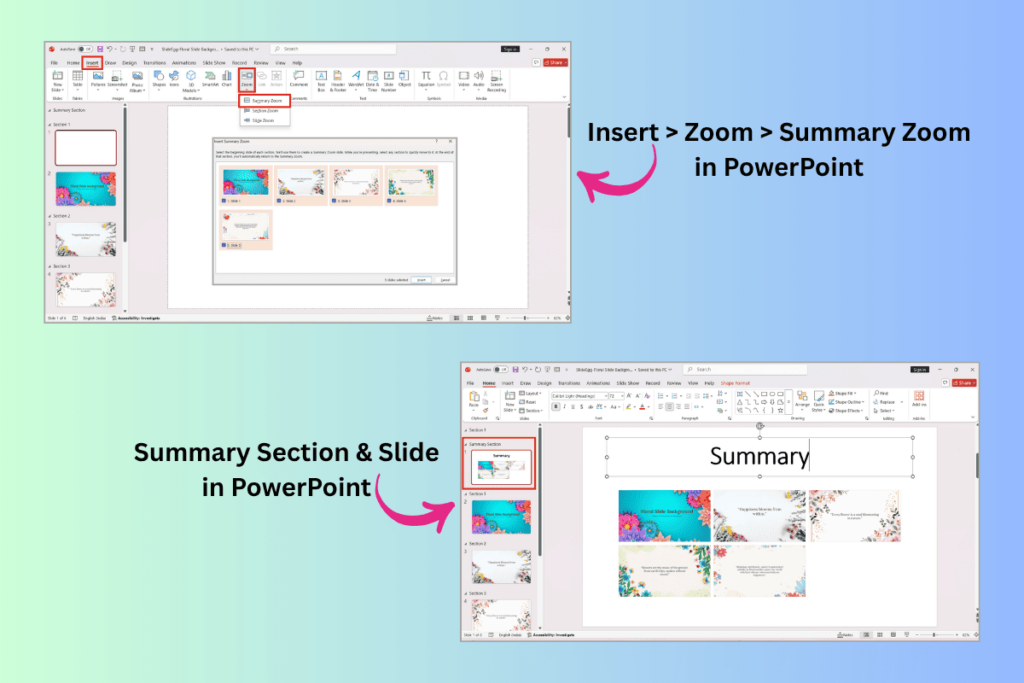
A Summary Zoom builds a clickable menu that flies to any section and back.
Where: Insert > Zoom (Summary, Section, or Slide Zoom). Needs: PowerPoint 2019 or later, including Microsoft 365.
Zoom lets you jump around a deck instead of going slide by slide. A Summary Zoom builds an interactive menu; click a thumbnail to fly to that section, then return automatically.
How to use it: choose Insert > Zoom > Summary Zoom, tick the slides that start each section, and PowerPoint builds the menu slide for you.
When it’s worth it: meetings where you don’t know which topic the room wants first—one deck adapts to a sales call, a workshop, or a Q&A without reordering a single slide. For more ways to break out of a linear flow, see how to turn your PowerPoint into interactive slides.
6. How to Turn On Live Subtitles and Translation in PowerPoint
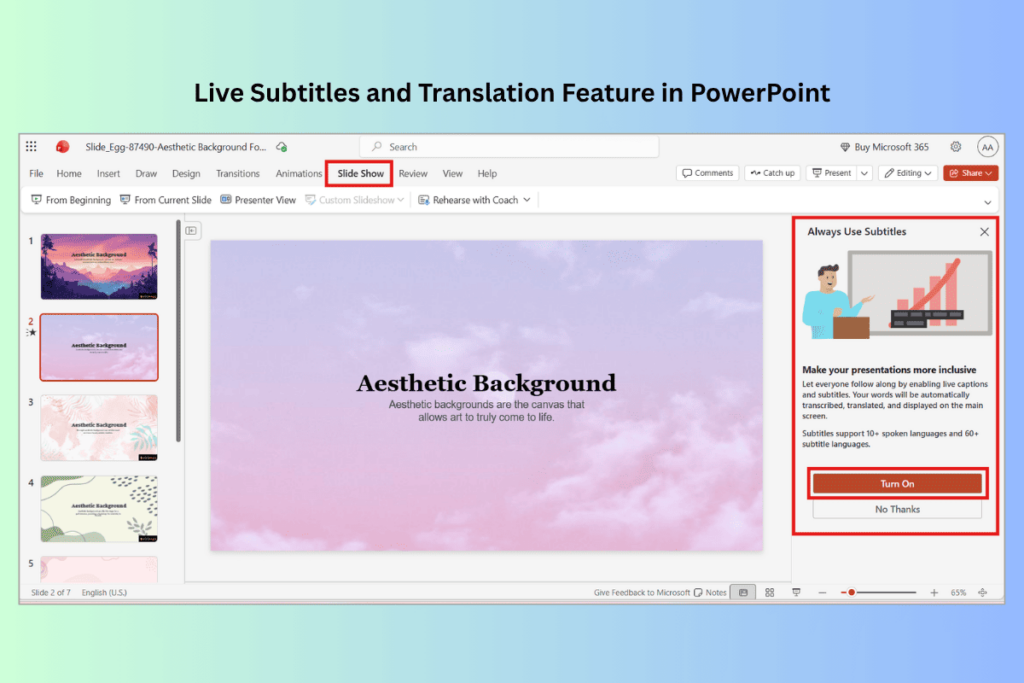
Live captions transcribe—and can translate—your speech as you present.
Where: Slide Show > Always Use Subtitles (and Subtitle Settings). Needs: Microsoft 365 and a reliable internet connection (Windows, Mac, and web; exact options vary by platform).
PowerPoint transcribes your words as you speak and shows them on screen—in your language, or translated into another. You pick the spoken language, the caption language, and where captions appear.
How to use it: on the Slide Show tab, enable Always Use Subtitles, then set languages and position in Subtitle Settings before you present.
When it’s worth it: a real accessibility win for audiences who are deaf or hard of hearing, or who speak another language. Use a headset mic and keep a steady connection—it runs on a cloud speech service. To translate the deck’s text (not just your speech), see our guide on how to translate in PowerPoint.
7. How to Use the Free Stock Media Library in PowerPoint
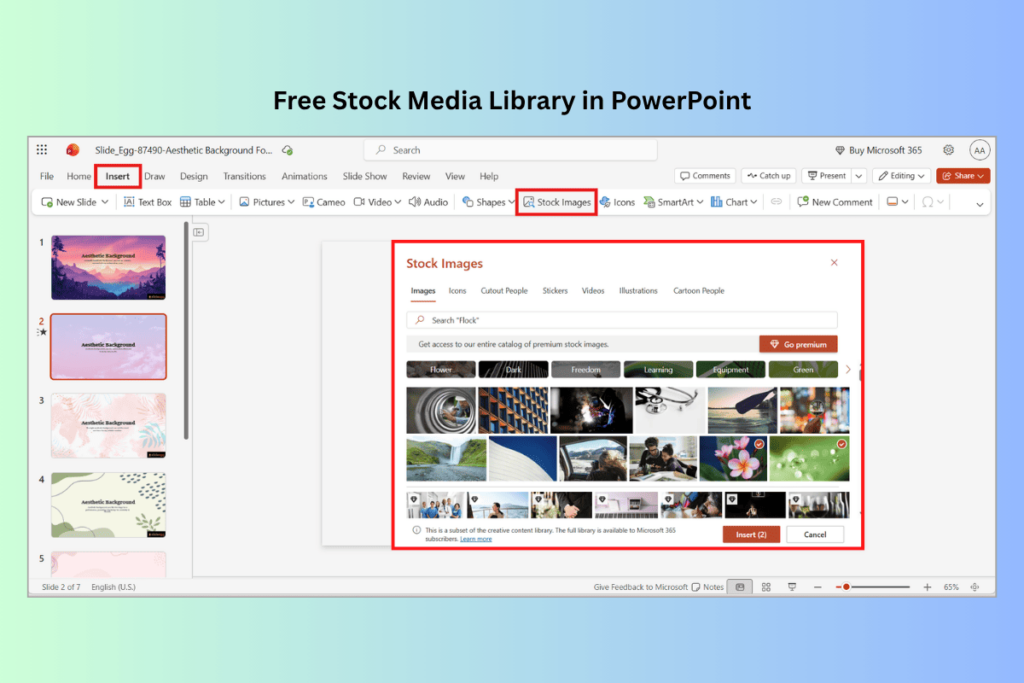
Insert > Pictures > Stock Images hides a royalty-free asset library.
Where: Insert > Pictures > Stock Images. Needs: Microsoft 365.
Inside are tabs for Images, Icons, Cutout People, Stickers, Videos, and Illustrations—all royalty-free, with new content added monthly. Cutout People and Icons have transparent backgrounds, so they drop cleanly onto any slide.
How to use it: go to Insert > Pictures > Stock Images, pick a tab, search, and insert—no attribution needed.
When it’s worth it: any slide that needs a clean visual without leaving PowerPoint. Pair it with a strong layout—our guides on adding and modifying icons and adding infographics in PowerPoint show how to combine icons and shapes.
8. Copilot in PowerPoint: 2026 Agentic and Visual Intelligence Upgrades
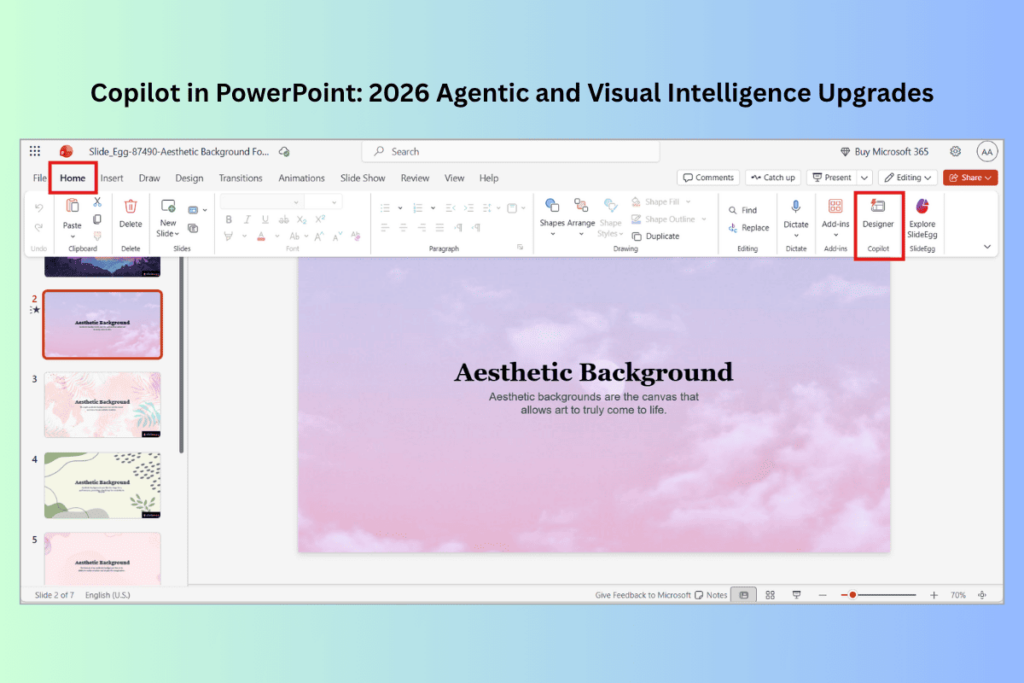
Copilot’s agentic mode takes multi-step actions on a deck, not just text suggestions.
Where: the Copilot button on the Home tab. Needs: a Microsoft 365 Copilot license (separate from a standard plan).
This is the genuine 2026 entry. Copilot’s agentic capabilities became generally available in April 2026, so it can take multi-step actions in your deck—not just suggest text. Visual Intelligence lets it read the shapes, charts, and images on a slide and edit them in context, and it can build a first-draft deck from a Word document or generate images on request.
How to use it: open Copilot from the Home tab and describe the outcome (“rework this slide into two columns and add an icon”); review the change before you accept it.
When it’s worth it: first drafts and bulk restyling. Treat the output as a starting point—review every slide, check the facts, and refine the design. The polish is still yours.
Bonus: PowerPoint Add-ins (Insert > Get Add-ins)
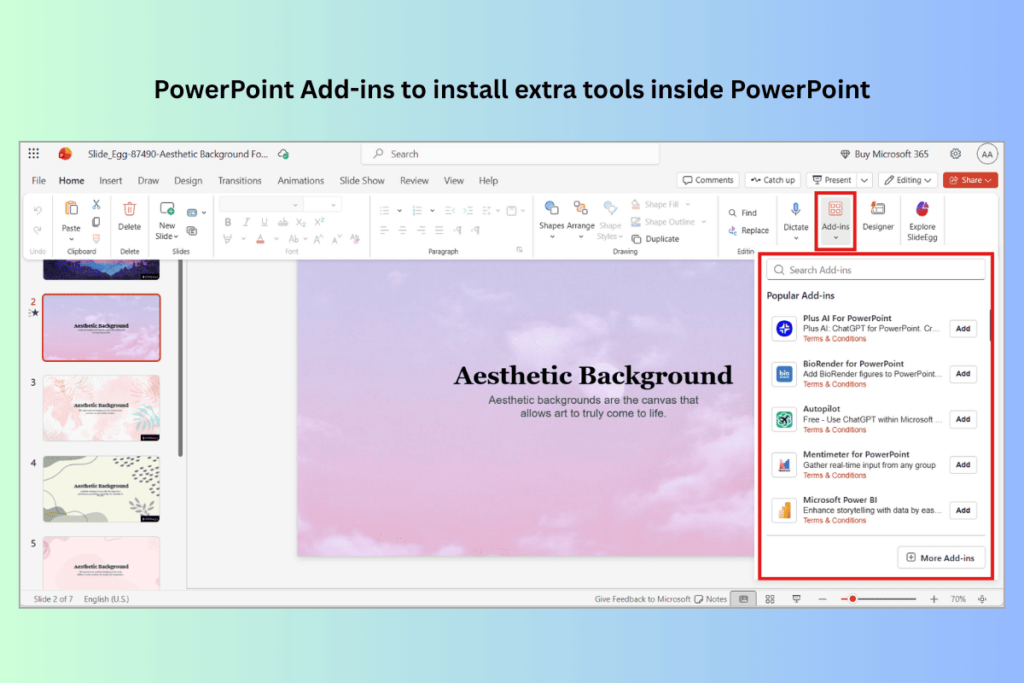
Insert > Get Add-ins opens Microsoft AppSource, where you can install extra tools inside PowerPoint.
Where: Insert > Get Add-ins (or Home > Add-ins). Needs: PowerPoint 2016 or later, signed in with a Microsoft account.
Add-ins are mini-apps that live inside PowerPoint and add tools Microsoft doesn’t ship by default—stock photos, word clouds, diagrams, timelines, and template libraries. Open Insert > Get Add-ins to browse Microsoft AppSource, then click Add; the add-in appears on your ribbon or in a side panel, ready to use without leaving your deck.
Worth trying: Pexels and Pixabay for free photos, Pro Word Cloud for word clouds, and Office Timeline for schedules. If you build decks from templates, the SlideEgg add-in lets you browse and insert ready-made slides straight onto the slide you’re working on—handy when you want a polished layout without switching to your browser.
Free Templates Built for These Features
Features are easier to use when the slide is already built for them. Start from a design made for the job:
- Morph & Cameo: animated PowerPoint templates with consistent object placement—so Morph has something to move and your camera has a clean spot to sit.
- Zoom: agenda and section templates that map neatly onto a Summary Zoom menu.
- Stock media: infographic and icon-led templates with placeholders ready for Cutout People and icons.
Prefer to start from a finished design? Browse free PowerPoint templates, or dig into more PowerPoint tutorials for step-by-step help on the slides themselves.
Common Mistakes to Avoid
| Mistake | Fix |
| Overusing Morph on every slide | Use it for one or two key moments; constant motion distracts. |
| Relying on live subtitles without testing | Rehearse with your real mic and internet first—accuracy varies. |
| Expecting features to work in older versions | Cameo, subtitles, and stock media need Microsoft 365. Update first. |
| Treating Copilot’s draft as final | Review every slide and fact-check before you present. |
| Cluttering slides with stock stickers | Keep Stickers and Cutout People for casual or education decks, not formal ones. |
Frequently Asked Questions
Are these PowerPoint features new in 2026?
Mostly no—and that’s the point. Morph and Zoom date back to PowerPoint 2019, and Cameo, Speaker Coach, and the stock media library arrived with Microsoft 365 over the past few years. They’re underused rather than brand new. The genuinely 2026 change is Copilot, whose agentic capabilities became generally available in April 2026.
Do these PowerPoint features cost extra?
Morph and Zoom work in PowerPoint 2019 and later, including Microsoft 365. Cameo, Recording Studio, Speaker Coach, live subtitles, and the stock media library need a Microsoft 365 subscription. Copilot in PowerPoint needs a separate Microsoft 365 Copilot license, so it is not included in a standard plan.
What is Cameo in PowerPoint?
Cameo puts your live camera feed directly on a slide as an object you can move, resize, and style—round it, add a border, or animate it with Morph. Insert it from Insert > Cameo. It keeps your face on screen beside your content instead of in a separate window.
How do I turn on live subtitles in PowerPoint?
Go to the Slide Show tab and turn on Always Use Subtitles, then open Subtitle Settings to pick your spoken language, the caption language (for translation), and where captions appear. The feature is cloud-based, so you need a reliable internet connection while you present.
Is Speaker Coach in PowerPoint free?
Speaker Coach (Rehearse with Coach) is available to Microsoft 365 users and needs an internet connection. After you rehearse, it gives you a private report on pace, filler words, repetitive or monotone language, and more. Your audience never sees it—it is only for practice.
Where do I find free stock images inside PowerPoint?
Go to Insert > Pictures > Stock Images. You’ll find tabs for Images, Icons, Cutout People, Stickers, Videos, and Illustrations—all royalty-free for Microsoft 365 subscribers, with new content added monthly. Cutout People and Icons have transparent backgrounds, so they drop cleanly onto any slide.
Related Reading
- 25 pro PowerPoint tips to create stunning slides
- How to make your PowerPoint presentation attractive
- Top 10 ideas to make your presentation interactive
Conclusion
PowerPoint in 2026 does far more than bullet points and transitions. Cameo and Recording Studio make you the presenter on the slide, Speaker Coach sharpens your delivery, live subtitles open your talk to everyone, and Copilot speeds up the build—while Morph, Zoom, and the stock library quietly raise your production value.
Pick one feature to try on your next deck. Start from a template built for it, and you’ll get a polished result without staring at a blank slide.