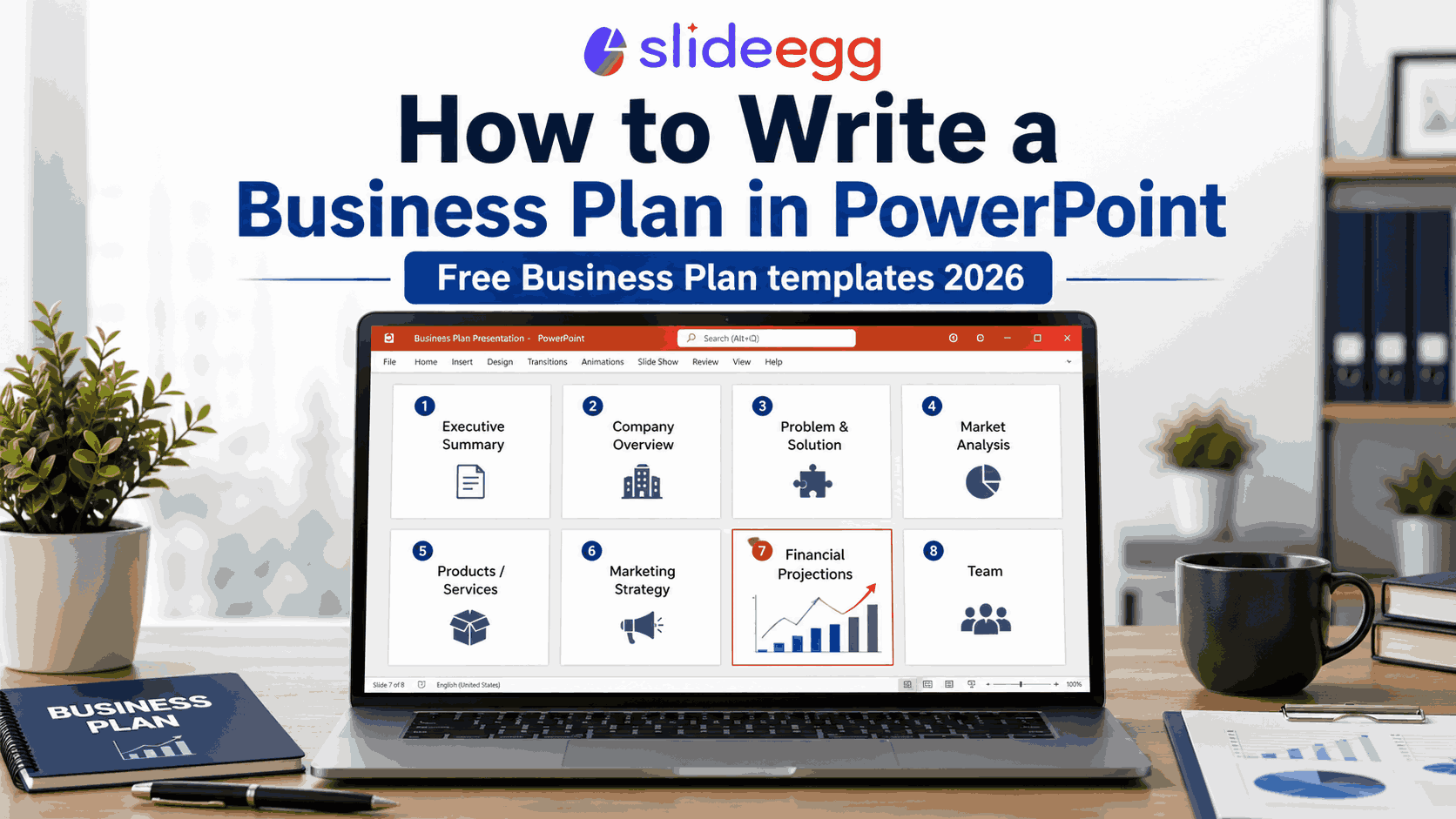
Quick answer: A business plan PowerPoint has 8 core sections: executive summary, company overview, problem & solution, market analysis, products/services, marketing strategy, financial projections, and team. Start with a free template, fill in each section with real data, and keep it under 15–20 slides.
Writing a business plan in PowerPoint is different from writing a Word document. Investors and stakeholders don’t want walls of text — they want a clear, visual story. Whether you’re pitching to investors, applying for a bank loan, or planning internal strategy, a well-structured business plan presentation makes your case faster and more persuasively than a written report.
This guide walks you through exactly what to include in a business plan PowerPoint, how to structure it slide by slide, and where to download free editable templates to save time.
What Is a Business Plan PowerPoint?
A business plan PowerPoint is a presentation that translates your written business plan into a structured, visual format. It covers your business model, market opportunity, financial plan, and team — typically in 10 to 20 slides.
It differs from a pitch deck. A pitch deck is a short, punchy sales tool (usually 10–12 slides) designed to get a follow-up meeting. A business plan presentation is more detailed — it can run 15–25 slides and is used when stakeholders want the full picture before making a decision.
What to Include in a Business Plan PowerPoint
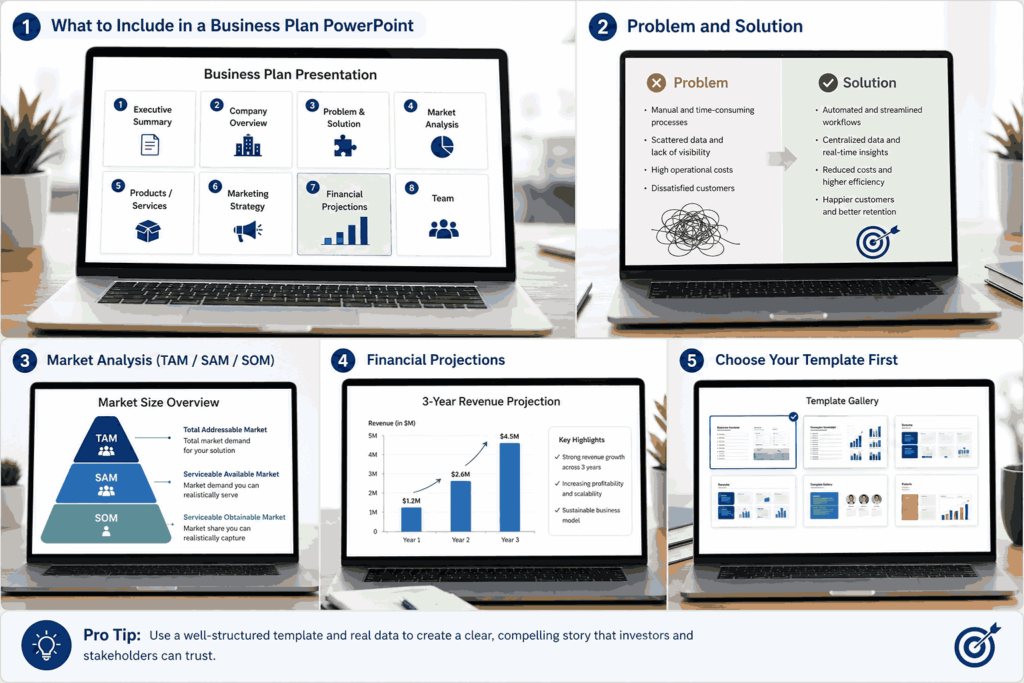
These are the 8 sections every business plan PowerPoint should have, regardless of industry or stage.
1. Executive Summary
One slide. Covers who you are, what problem you solve, your target market, and the ask (if pitching). This slide is often read first and remembered longest — make every word count. Keep it to 4–5 bullet points maximum.
2. Company Overview
Introduce your business: name, founding date, location, legal structure, and mission statement. Include a one-line description of what you do and who you serve. Investors want context before they hear the opportunity.
3. Problem and Solution
This is the most important section for startups and new ventures. Clearly state the problem your target customers face, then show how your product or service solves it. Use a two-column layout or before/after format to make the contrast visual.
4. Market Analysis
Show the size of your market using TAM (Total Addressable Market), SAM (Serviceable Available Market), and SOM (Serviceable Obtainable Market). Include a competitor comparison chart or table. Back every number with a source. A SWOT analysis slide is a standard inclusion in the market section. — Investors remember uncited stats as red flags.
5. Products or Services
Describe what you sell, how it works, and what makes it different. If you have a product, include screenshots, mockups, or photos. If it’s a service, show the process. Use this slide to prove you have a real, working offering — not just an idea.
6. Marketing and Sales Strategy
How will you acquire customers? Cover your marketing channels (paid, organic, referral, partnerships), pricing strategy, and sales process. A timeline slide showing your go-to-market milestones works well here (Browse roadmap PowerPoint templates to visualize your go-to-market timeline.). Avoid vague statements like “we’ll use social media” — be specific about platforms, budgets, and targets.
7. Financial Projections
Include 3-year revenue projections, a basic P&L summary, and your key assumptions. Use charts — bar or line graphs communicate growth trajectories faster than tables. If you’re seeking funding, state how much you need and how it will be allocated across a clear budget breakdown.
8. Team and Operations
Investors fund teams as much as ideas. Include headshots, names, titles, and 1–2 lines on relevant experience for each key team member. Add your advisors if you have them. A simple org chart showing your operational structure is useful for businesses with multiple departments.
How to Write a Business Plan in PowerPoint: Step by Step
Follow these steps to go from blank slide to complete business plan presentation.
1. Choose Your Template First
Don’t start with a blank presentation. A pre-built business plan PowerPoint template gives you a proven slide structure, consistent formatting, and placeholder text that reminds you what each section needs. Browse free business plan PowerPoint templates and pick one that fits your industry and audience.
2. Define Your Audience Before Writing
Are you presenting to investors, a bank, your internal leadership team, or a government grant committee? Each audience has different priorities. Investors want growth potential and exit strategy. Banks want repayment security and cash flow. Internal teams want clarity on roles and timelines. Your content emphasis shifts based on who’s reading it.
3. Start with the Executive Summary — Write It Last
It’s the first slide, but write it after everything else is done. The executive summary should distill the strongest points from every other section. You can’t distill what you haven’t written yet.
4. One Key Message Per Slide
Each slide should communicate exactly one idea. If you’re trying to put market size, competitor analysis, and target audience on the same slide — split it into three. Cluttered slides lose the audience. Use the slide title as a statement, not a label: “Our market is growing 24% annually” beats “Market Analysis” as a title.
5. Replace Placeholder Text with Real Data
Templates give you structure. Your actual business data, numbers, and story is what makes the presentation credible. Never present a template with placeholder text still in it — reviewers notice immediately and it signals unpreparedness.
6. Review the Flow as a Story
Read your presentation from start to finish as if you’ve never seen it. Does each slide lead naturally to the next? The narrative should follow this arc: Here’s the problem → Here’s our solution → Here’s the market → Here’s how we’ll capture it → Here’s the team that will do it → Here’s what we need. If anything breaks that flow, reorder or cut it.
Skip the Blank Slide Problem
Download a free, fully editable business plan PowerPoint template and start filling in your data today. Works with PowerPoint, Google Slides, and Canva. Browse Free Business Plan Templates →
Tips to Make Your Business Plan Presentation Stand Out
Keep it under 20 slides. Longer presentations don’t signal thoroughness — they signal poor editing. If you need more space, use an appendix section at the end for supporting data that reviewers can refer to if needed.
Use consistent fonts and colors throughout. Your presentation is a proxy for how you run your business. Inconsistent formatting signals attention to detail problems. Most pre-built templates handle this for you automatically.
Visualize numbers, don’t just list them. A bar chart showing 3-year revenue growth communicates faster than a table. Use charts for any data with more than 3 data points.
Cite your sources on market data slides. Add a small footnote with the source and year. Uncited market size claims are one of the fastest ways to lose credibility with experienced investors.
Include a “use of funds” slide if seeking investment. Investors want to know exactly how their money will be spent. Break it down: product development, marketing, hiring, operations. A pie chart works well here.
Frequently Asked Questions
1. How many slides should a business plan PowerPoint have?
A business plan presentation typically runs 15 to 20 slides. For an investor pitch (shorter pitch deck format), aim for 10 to 12. For a comprehensive internal business plan, 20 to 25 slides is acceptable as long as each slide carries a clear, single message. Avoid padding slides with repetitive information to hit a target number.
2. What is the difference between a business plan and a pitch deck in PowerPoint?
A pitch deck is a short (10–12 slide) sales tool designed to generate interest and secure a meeting. A business plan presentation is more detailed (15–25 slides) and designed for deeper review — bank applications, grant committees, or internal strategic planning. Both use PowerPoint format, but they serve different audiences and purposes.
3. Can I use a free PowerPoint template for a business plan?
Yes. Free business plan PowerPoint templates provide a professionally designed structure that you customize with your own content. Templates from SlideEgg are fully editable in PowerPoint, Google Slides, and Canva — so you’re not locked into any specific software. The template handles design; you focus on the content.
4. What should be on the first slide of a business plan presentation?
The first slide is typically a title slide with your company name, logo, tagline, and the date. Some presentations open with the executive summary instead — this works well when the reviewer is time-constrained and you want to lead with your strongest points. Either approach is acceptable; what matters is that the first slide immediately communicates what the business is.
5. How do I write financial projections for a business plan PowerPoint?
Start with your key assumptions (average revenue per customer, customer acquisition cost, churn rate, etc.), then build a bottom-up revenue model from those numbers. Present a 3-year projection with Year 1, Year 2, and Year 3 figures. Use a bar chart for revenue growth and a simple table for the P&L summary. Always show your assumptions on the slide so reviewers can evaluate the logic, not just the numbers.
Start with a Free Business Plan PowerPoint Template
The fastest way to write a business plan in PowerPoint is to start with a professionally designed template. SlideEgg has over 6,800 business plan and strategy presentation templates — all fully editable in PowerPoint, Google Slides, and Canva.
Browse the free business plan PowerPoint templates and find one that matches your industry, audience, and style. Download, customize, and present — no design skills required.