Free Swimlanes PowerPoint Templates
Who does what, and when does it pass to the next team? A swimlanes diagram answers that at a glance. Browse free and premium swimlanes templates for PowerPoint, Google Slides and Canva, from process flowcharts to timeline lanes, then edit the labels, colors and steps to map your workflow for managers, clients or classmates in minutes.

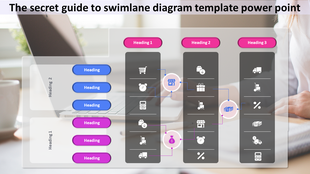
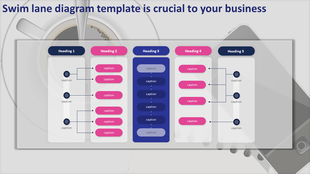
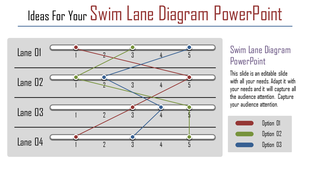
How a Swimlane Diagram Works
Four building blocks, one clear picture of who does what.
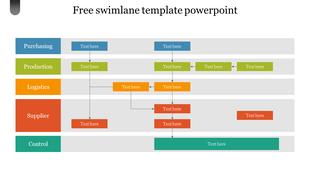
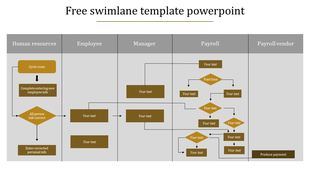
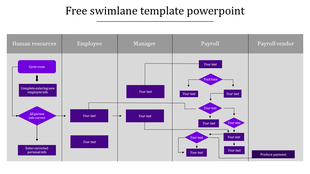
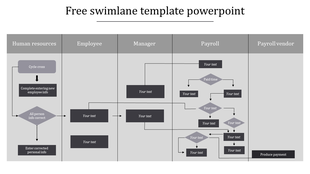
A swimlane diagram splits a process into lanes, one for each person, team or system. Here is a tiny order process: the arrows mark every handoff between lanes.
Lanes
Rows that show who owns each step, such as a team, role or system.
Steps
Boxes that describe one action, written as a short verb phrase.
Arrows
Connectors that show the order of work and each handoff.
Decisions
Diamonds that split the flow into yes and no paths.
Pick a Swimlane Layout
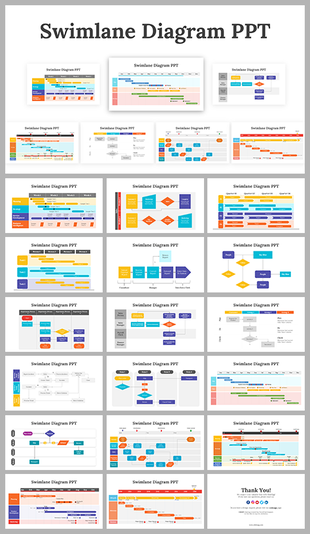
Six styles worth a look, each ready to edit.
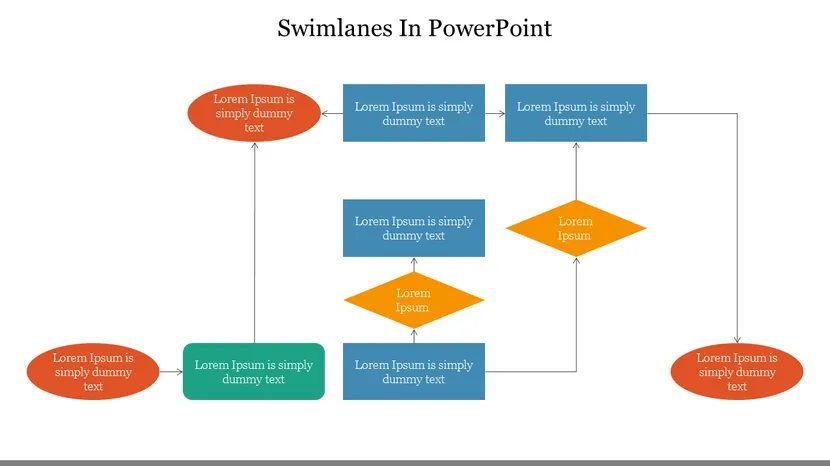
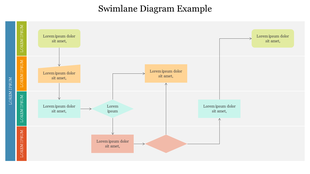
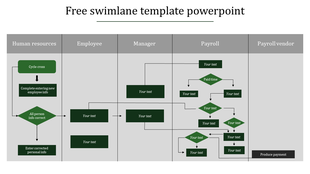
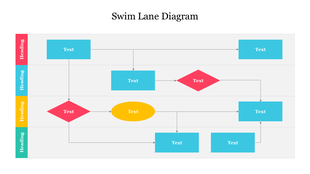
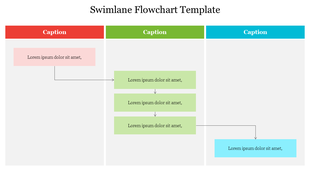
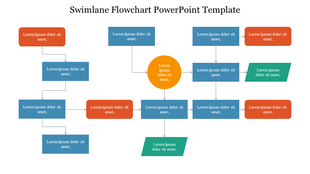
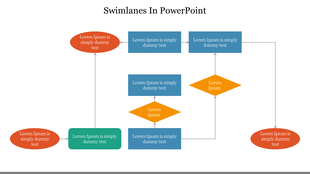
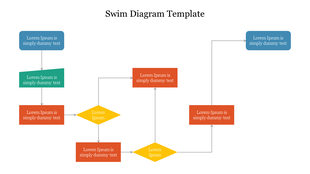
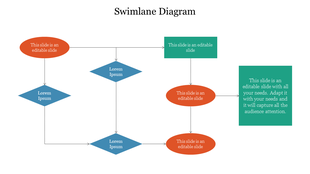
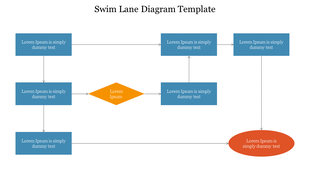
Colorful flowchart shapes joined by arrows give a quick overview of any process.
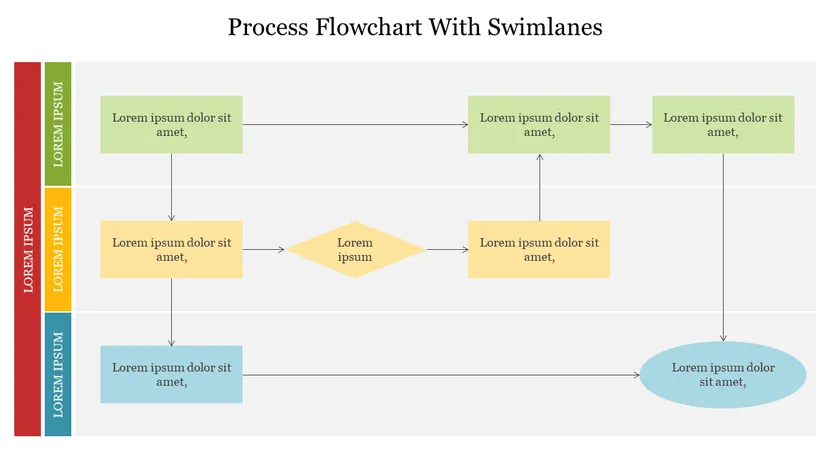
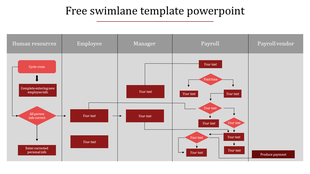
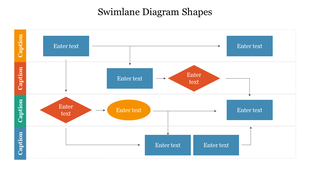
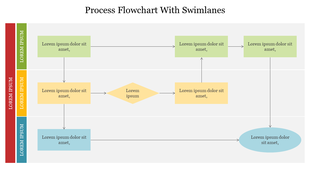
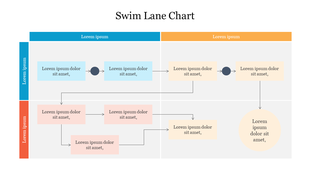
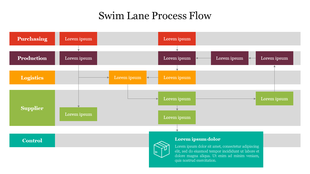
Vertical lane labels in red, yellow and blue keep each team in its own row.
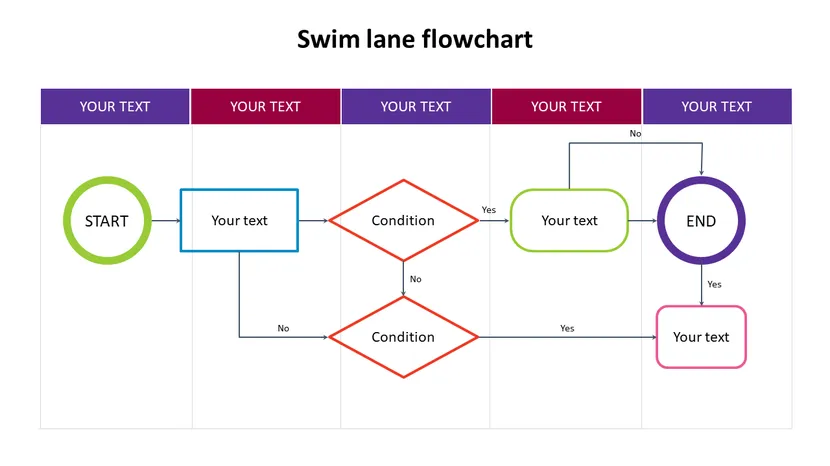
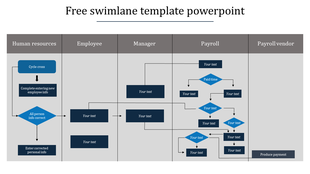
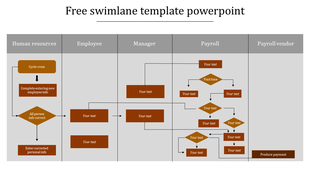
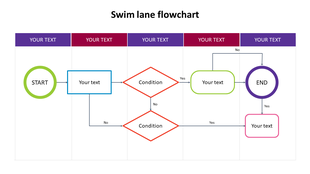
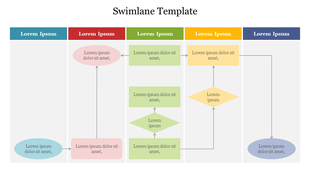
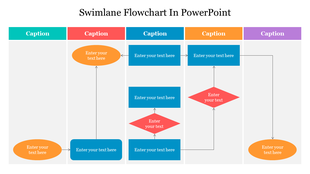
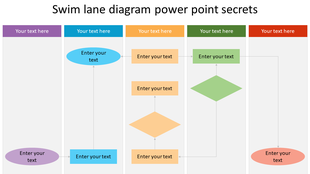
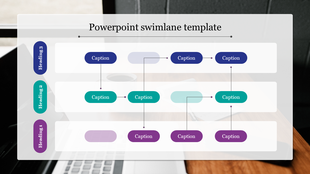
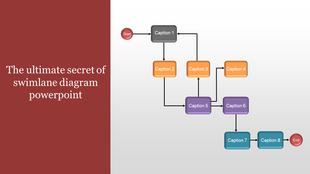
Colored column headers with start and end markers map a process from first step to finish.
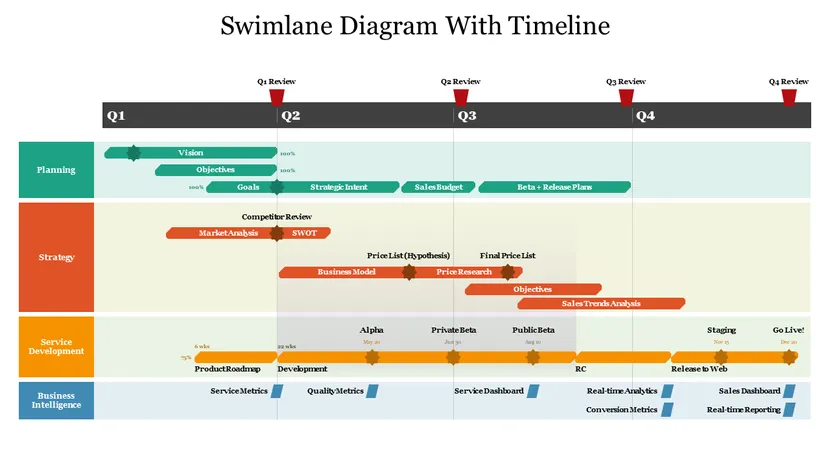
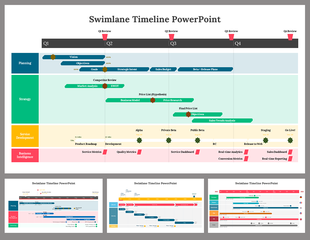
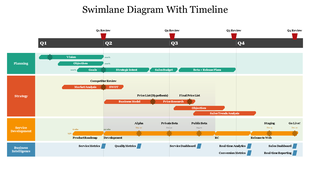
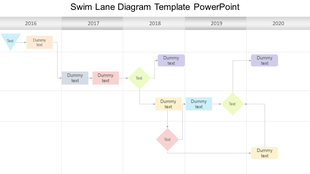
A quarterly timeline across the top turns each lane into a plan for reviews and launches.
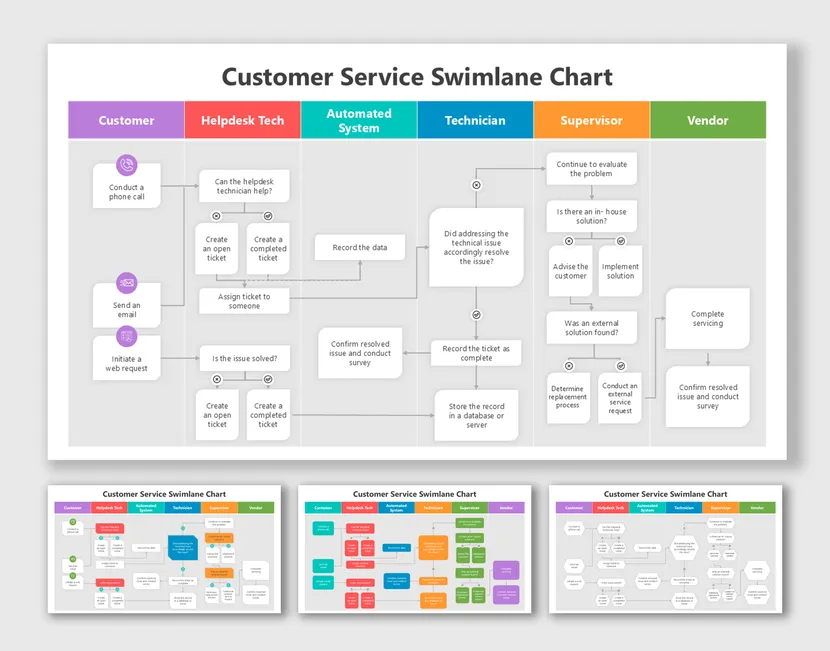
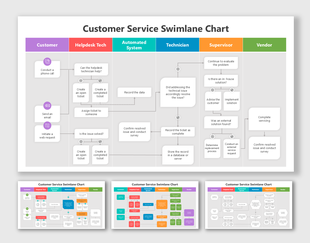
Six role-based lanes trace a support ticket from the first call to final resolution.
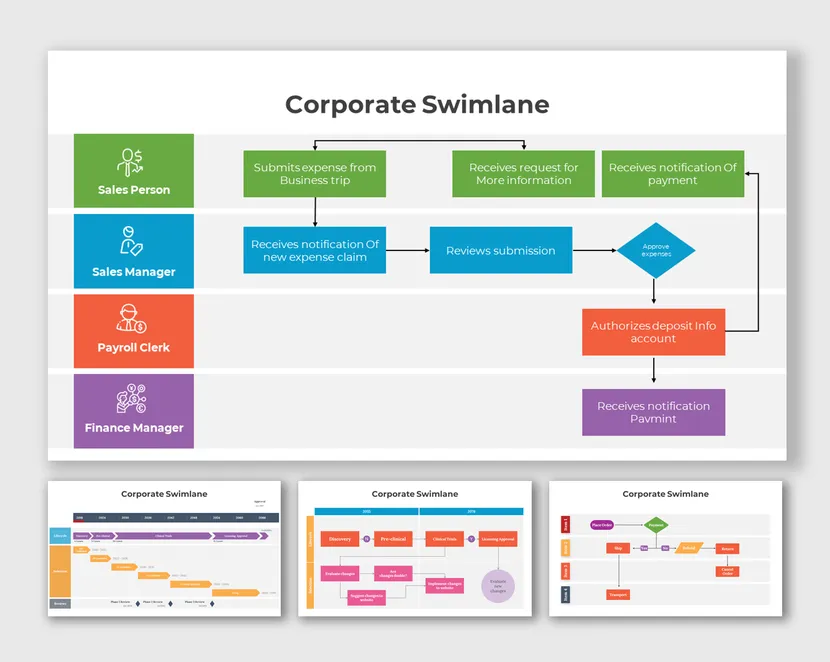
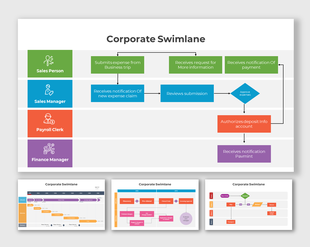
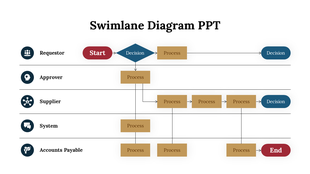
Icon labels for each job title make an expense approval flow easy to follow.
Where Teams Use Swimlanes
Six places where lanes make a process easier to follow.
Project Management
Give every task an owner so handoffs and deadlines are clear before the kickoff ends.
Customer Service
Trace a ticket from first contact to resolution and show where delays and escalations creep in.
HR and Onboarding
Show new hires, managers and IT exactly who does what during the first week on the job.
Operations and Supply Chain
Follow goods, approvals and payments across suppliers, warehouses and finance in one view.
Marketing Campaigns
Split a launch between content, design, ads and sales so nothing slips between teams.
Software and IT
Map requests, reviews and releases across developers, testers and operations teams.
Build a Swimlane Diagram in Five Steps
A simple path from a rough idea to a finished slide.
List the Process
Write every step in plain words before you open PowerPoint.
Name the Lanes
Add one lane for each team, role or system involved.
Place the Steps
Drop each step into its owner’s lane in the order it happens.
Connect and Decide
Draw arrows for handoffs and diamonds where the path splits.
Review and Polish
Check the flow with the team, then tidy colors and labels.
Tips for a Clean Swimlane Slide
Six habits that keep a busy process readable.
01 One lane per owner
Give each team or role its own lane so responsibility is never in doubt.
02 Read left to right
Let time flow one way and keep arrows from crossing.
03 Keep steps short
Use a verb and a noun, like Review invoice, in every box.
04 Limit the lanes
Five or six lanes fit a slide. Split bigger processes in two.
05 Color with purpose
Give each lane one color and save a bold shade for decisions.
06 Test the flow
Walk a colleague through it. If they stumble, your audience will.
Key Benefits of SlideEgg’s Swimlane Templates
Swimlanes Video Tutorials
Watch quick, practical walkthroughs and level up your presentation design skills in minutes.

Swimlanes Templates: FAQs
What is a swimlane diagram used for?
A swimlane diagram splits a process into lanes, with one lane for each person, team or department. It shows who owns every step and where work moves from one owner to the next, which makes it useful for onboarding flows, approvals, customer service journeys and project handoffs.
How do I create a swimlane diagram in PowerPoint?
Add horizontal or vertical rectangles as lanes, label each one with a role, then place process shapes inside the lanes and link them with connectors. A ready-made swimlane template saves this setup, so you only rename the lanes and edit the steps.
Can I edit these swimlane templates in Google Slides?
Yes. Templates marked for Google Slides open in Slides, where you can change the lane names, step text, colors and arrows. Shapes stay editable, and you can share the file with teammates for comments or live editing.
Can I use swimlane templates in Canva?
Yes. Download a template as a PowerPoint file and import it into Canva, then adjust the lanes, text and colors with Canva's editor. Check each template page for the formats it includes.
What is the difference between a swimlane diagram and a regular flowchart?
A regular flowchart shows the order of steps. A swimlane diagram adds ownership by placing each step in the lane of the person or team responsible, so readers can see handoffs, delays and overlaps.
How many lanes should a swimlane diagram have?
Most slides work best with three to six lanes. Fewer lanes can hide the handoffs, while more can crowd the slide. If a process involves many roles, split it across two slides or group related teams into one lane.
Which shapes are used in a swimlane flowchart?
Common shapes include ovals for start and end points, rectangles for tasks, diamonds for decisions and arrows for flow. Many templates also add icons, colored lane headers and phase labels to make the map easier to read.
Who should use swimlane templates?
Project managers, business analysts, operations and HR teams, customer support leads, students and consultants all use swimlanes. They suit anyone who needs to explain a process that crosses roles or departments.
How do I show handoffs and decision points between lanes?
Draw a connector from the step in one lane to the next step in another lane, and use a diamond for every yes or no decision. Label the branches so readers can follow each path, and keep arrows from crossing where you can.
Are the free swimlane templates really free to use?
Templates with a Free badge can be downloaded without a paid plan and edited in PowerPoint, Google Slides or Canva. Premium designs are also available, and the template page lists the terms for each one.