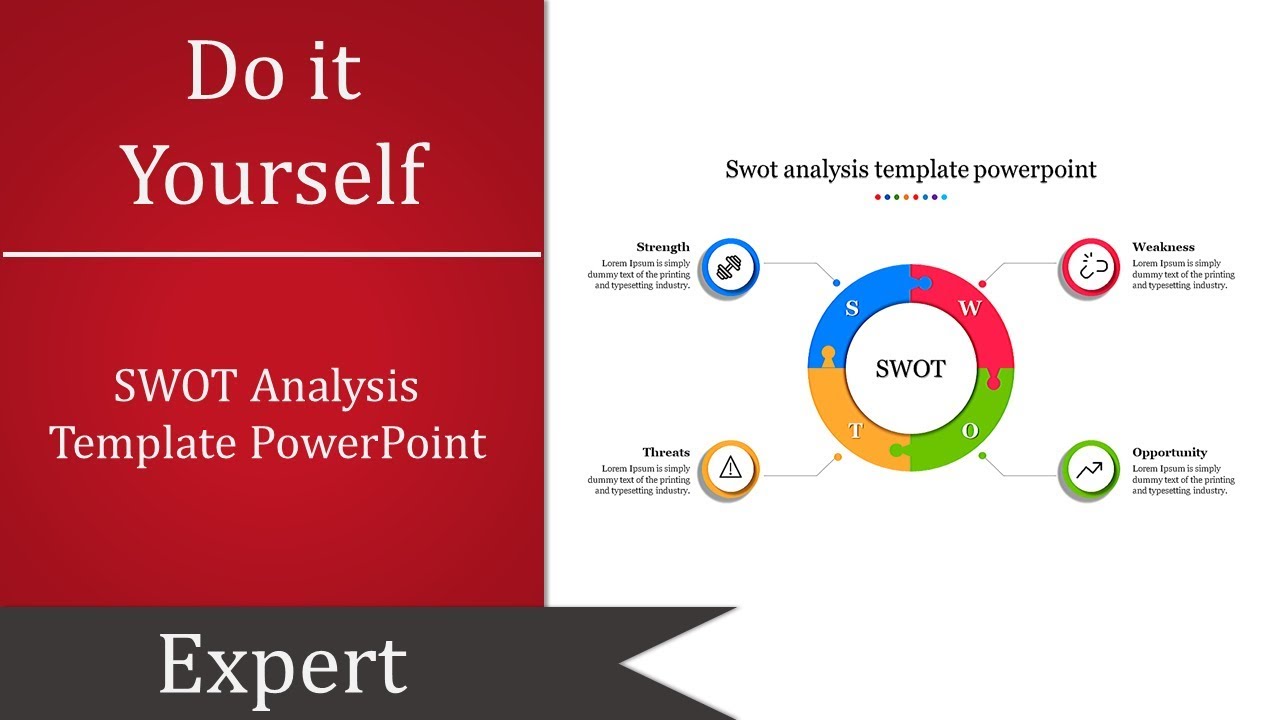
1,100+ Free SWOT Analysis Presentation Templates

Browse 1,100+ fully editable free SWOT presentation templates for PowerPoint, Google Slides, and Canva. Adjust the layouts, colors, fonts, and text to fit your project. Choose from single-slide overviews, multi-slide strategy decks, or industry-specific formats. Used by business professionals, marketing teams, students, and consultants worldwide.
Got a Unique Idea? Craft with AI
PRO
Credits left : 0
Add to Wishlist
Download
AI Customize
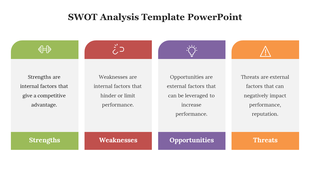
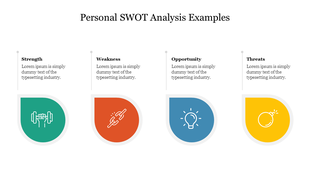
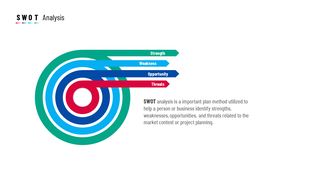
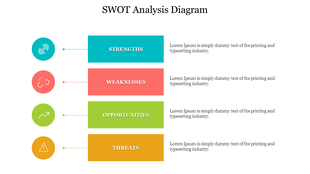
SWOT analysis slide with green tags clipped at the top and detailed descriptions below, on a white backdrop.
Add to Wishlist
Download
AI Customize
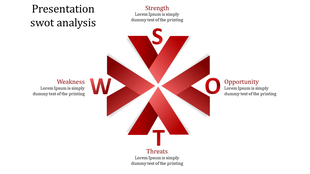
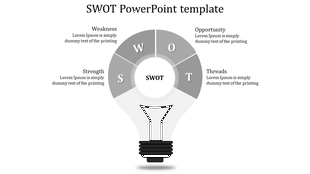
Infographic SWOT template with a bold geometric star layout, where Strength, Weakness, Opportunity, and Threats are labeled.
Add to Wishlist
Download
AI Customize
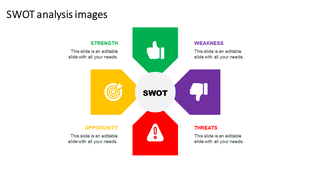
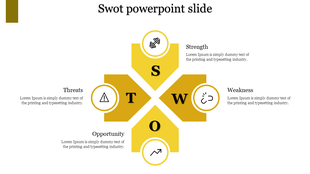
A SWOT analysis presentation slide from Strength to Threats is represented in yellow arrows around a central point.
Add to Wishlist
Download
AI Customize
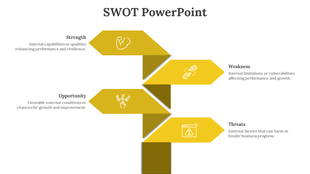
SWOT PowerPoint Slide for Detailed Strategic Analysis
Add to Wishlist
Download
AI Customize
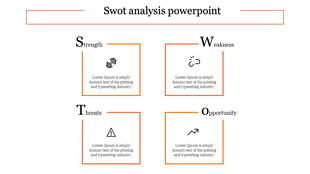
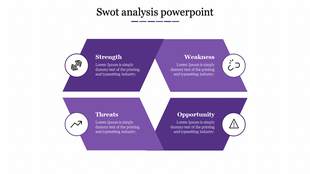
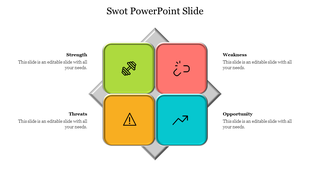
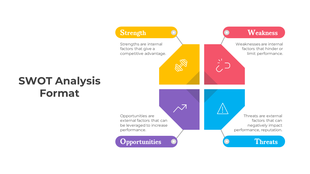
Quadrant-style SWOT analysis slide with labeled sections and icons, highlighting key business areas
Add to Wishlist
Download
AI Customize
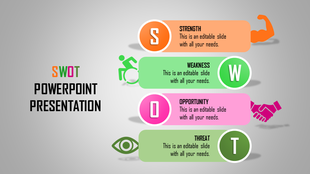
Colorful SWOT analysis slide featuring sections labeled strength to threats, with illustrative icons.
Add to Wishlist
Download
AI Customize
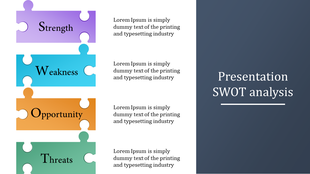
Presentation SWOT Analysis PowerPoint and Google Slides
Add to Wishlist
Download
AI Customize
Innovative Presentation SWOT Analysis PowerPoint Slides
Add to Wishlist
Download
AI Customize
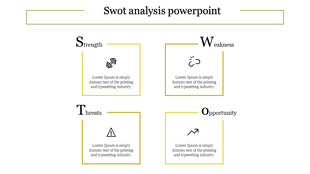
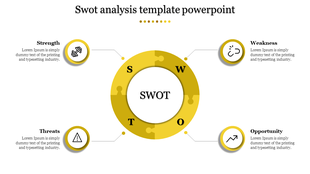
Modern SWOT diagram featuring yellow accented framed text areas, and symbols representing each quadrant.
Add to Wishlist
Download
AI Customize
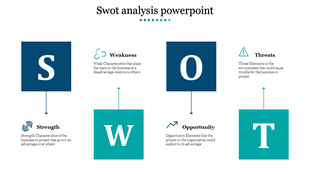
SWOT template with blue lines framing square shape, featuring text and icons for each segment.
Add to Wishlist
Download
AI Customize
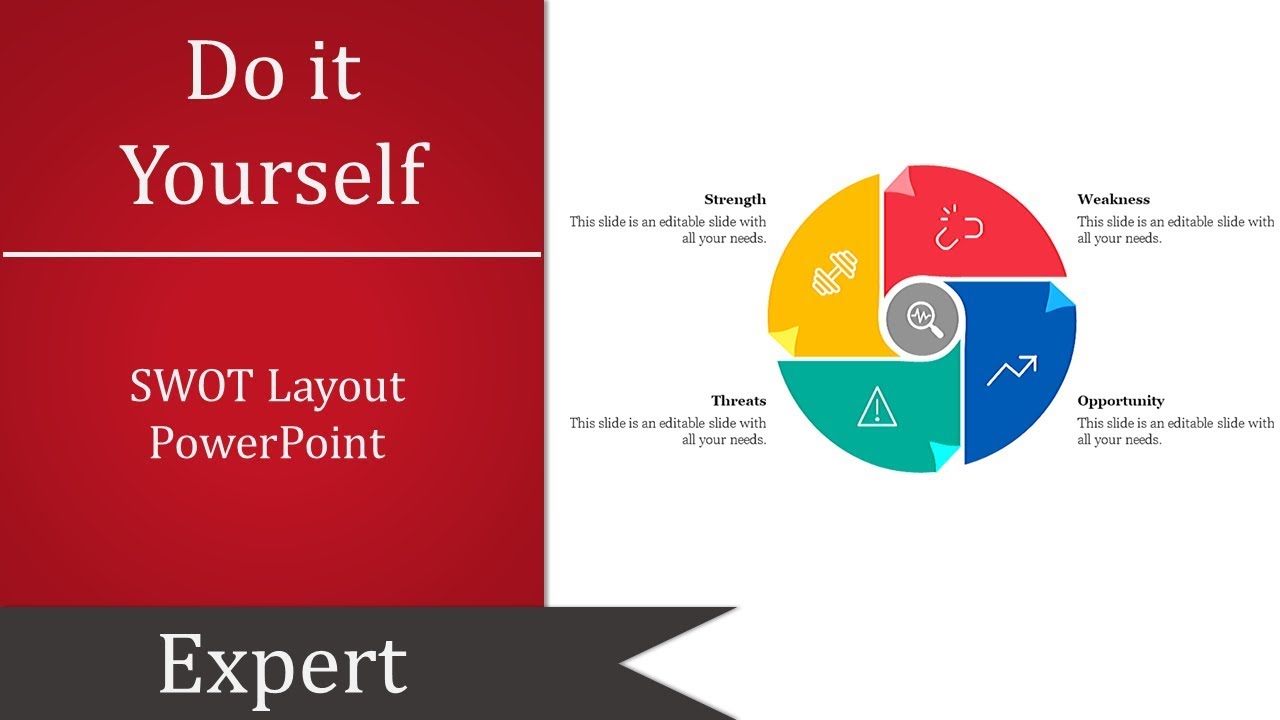
Red circular SWOT analysis design with icons in each quadrant representing strength, weakness, opportunity, and threat.
Add to Wishlist
Download
AI Customize
Green circular SWOT diagram with puzzle pieces, connected to four icons representing analysis factors.
Add to Wishlist
Download
AI Customize
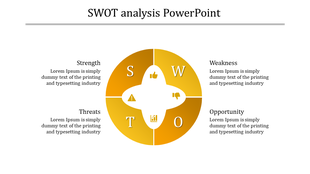
SWOT analysis diagram with orange gradient sections in a circular shape and corresponding icons for each element.
Add to Wishlist
Download
AI Customize
Creative SWOT Analysis Template Presentation-4 Node
Add to Wishlist
Download
AI Customize
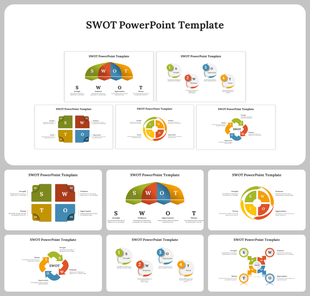
Business SWOT analysis slides featuring colorful SWOT templates in various formats, such as lists, diagrams, and flowcharts.
Add to Wishlist
Download
AI Customize
Slide with visually distinct hexagonal icons and text sections highlighting SWOT components in blue, red, orange, and pink.
Add to Wishlist
Download
AI Customize
Strength slide a with industrial imagery on the background and a red bordered text block on the right side.
Add to Wishlist
Download
AI Customize
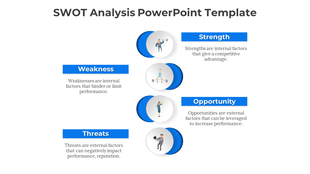
SWOT analysis chart with four labeled areas, including icons for strength to threat, with placeholder text.
Add to Wishlist
Download
AI Customize
SWOT analysis slide with four rounded elements in red, blue, light blue, and green, each linked to explanatory text.
Add to Wishlist
Download
AI Customize
Infographic featuring a four section SWOT grid with rounded corners, placed over a light world map background.
Add to Wishlist
Download
AI Customize
SWOT analysis infographic with a circular percentage chart on the left and a smartphone displaying elements on the right.
Add to Wishlist
Download
AI Customize
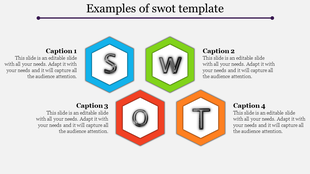
SWOT analysis layout with four hexagonal sections in pink, blue, green, and yellow, with numbered captions on the right.
Add to Wishlist
Download
AI Customize
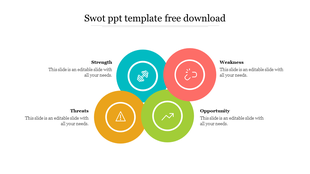
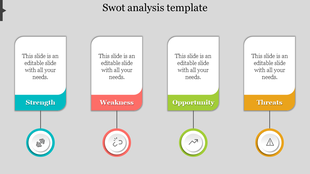
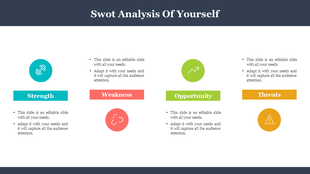
SWOT analysis slide with four labeled sections in teal, orange, red, and green, paired with descriptive text.
Free
Add to Wishlist
Download
AI Customize
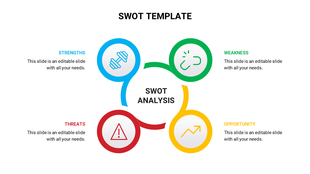
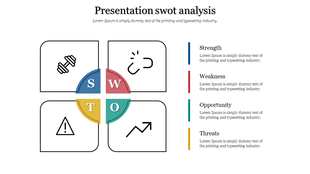
SWOT template with red, yellow, blue, and green circles, each labeled with bold letters for analysis categories.

How to Choose the Right SWOT Template for Your Presentation


A SWOT presentation works best when its structure matches the audience and the decision it supports. A board-level strategy update needs a different layout than a student assignment, and a consultant's analysis differs from a team workshop deliverable. This collection covers 1100+ SWOT templates for PowerPoint, Google Slides, and Canva — from compact single-slide summaries to multi-slide frameworks with individual quadrant slides, supporting data sections, and an action-plan slide.
Which Platform Should You Use — PowerPoint, Google Slides, or Canva?


PowerPoint is the right choice when you need precise layout control, are presenting in-person, or need to embed SWOT slides inside a larger deck such as a business plan or investor presentation. Downloaded templates open directly in PowerPoint with all formatting intact — shapes, font sizes, and color fills carry over without adjustment. Most corporate and executive presentations are still shared as .pptx files, making PowerPoint the safest default for stakeholder-facing work.

Google Slides works best when multiple people need to edit the same file simultaneously or when you are operating inside a Google Workspace environment. After downloading a template, upload it to Google Drive and open it with Google Slides — text boxes, shapes, and basic chart elements convert cleanly in most cases. It is the preferred format for group projects, cross-team reviews, and live workshop sessions.

Canva is the fastest option for visual-first SWOT slides where brand consistency matters more than data density. It suits non-standard aspect ratios, social-media-ready graphics, and users who need polished output without prior design experience. Several templates on this page are available in all three formats from a single download — useful when your workflow spans multiple tools.
SWOT Template Use Cases by Audience


Business and corporate teams:

In a corporate setting, a SWOT analysis template typically feeds a strategic planning session, competitive review, or project go/no-go decision. Templates with a two-by-two grid, clear quadrant labels, and a recommendation or initiative slide work best here — converting findings into next steps is what makes the analysis useful to decision-makers.

Students and academic submissions:

Academic SWOT assignments are assessed on analytical depth and argument clarity. A clean single-slide or two-slide layout with sufficient text space per quadrant is more practical than a visually complex template. Templates described as minimal or classic in this collection are well-suited to academic contexts.

Startups and business planning:

A SWOT analysis is a standard section of a business plan or investor deck. For startup use, choose a multi-slide framework where each quadrant has space for evidence and supporting data — a cell that holds only a few short bullet points is too shallow for investor review.

Consultants and freelancers:

Independent consultants need SWOT slides that integrate into a larger branded client deliverable. Templates with a neutral color palette and unlocked shape fills are the most practical choice — they allow full rebranding without restructuring the layout.

What to Check Before Downloading a SWOT Template


  • Slide count and structure: A single-slide SWOT is compact but limits detail per quadrant. A four- or five-slide framework gives each section room for sub-points and evidence. Check the slide count in the preview and confirm it matches your intended use before downloading.
  • Text box editability: Some templates embed text inside images — they look formatted but cannot be edited. Confirm the template uses individual text boxes for each quadrant; editable templates show cursor interaction on separate elements when the file first opens.
  • Color fill access: If you need to apply brand colors, verify that shape fills are unlocked. Templates labeled "fully editable" in this collection allow direct color changes through the Format Shape panel in PowerPoint and the equivalent fill tool in Google Slides and Canva.
  • Aspect ratio: Standard widescreen (16:9) is compatible with most projectors and screen-sharing tools. If you are presenting on a tablet or need to export to print, confirm the aspect ratio matches your output format before investing time in customization.

How to Edit a SWOT Template After Downloading


In PowerPoint, open the .pptx file and click any text box to begin editing. To change a shape color, right-click the shape, select "Format Shape," and enter a hex code under Fill options. If the layout uses a table structure rather than individual shapes, click inside a cell to edit text and right-click the table border to adjust row or column dimensions.

In Google Slides, upload the .pptx file to Google Drive, right-click it, and choose "Open with Google Slides." To apply a brand color, select a shape, click the fill color icon in the toolbar, and choose "Custom" to enter a hex value.

In Canva, access templates through the Templates library or by importing a compatible file. Click any text element to replace it directly. For first-time users, start with a single-page layout before attempting a multi-section framework. A practical approach across all platforms: draft your four quadrant entries in a separate document before opening the template — filling content and adjusting layout simultaneously slows both tasks.

How a SWOT Template Reduces Presentation Build Time


Building a SWOT presentation slide from scratch in PowerPoint typically takes 30 to 90 minutes — longer when the grid needs precise alignment, a color scheme needs to be applied, and the layout requires multiple formatting passes. A pre-built template reduces active work to under 10 minutes for text entry and minor adjustments. That difference is significant when a SWOT slide is one section of a larger deck or when a deadline falls within the same working day.

For teams running SWOT analyses regularly — quarterly planning, client assessments, or recurring pitch work — templates also maintain visual consistency across deliverables without requiring a design review each time. A shared template means everyone produces slides that look the same without coordination overhead or style drift across versions.

Browse 1100+ SWOT templates above and find the best that fits your presentation.

Frequently Asked Questions

How many slides should a SWOT presentation have?

For most business and academic presentations, three to five slides is the practical range — a single-slide layout for summaries and a four-slide framework when each quadrant needs detailed points. Templates in both formats are available in this collection; check the slide count in the preview before downloading.

What is the difference between a single-slide SWOT and a multi-slide SWOT framework?

A single-slide template fits all four quadrants on one page — compact and suited to appendices or quick-read formats. A multi-slide framework gives each quadrant its own slide, making it better for strategy sessions and investor presentations where each section will be discussed in detail.

Which SWOT template works best for a business plan or investor presentation?

Choose a multi-slide framework where each quadrant has space for three to five evidence-backed points — a compact grid with abbreviated bullets is harder to defend in a Q&A. Look for templates that include a follow-on action or initiative slide, as this shows that the analysis connects to an execution plan.

Can I edit the colors and fonts to match my brand?

Yes — all templates labeled "fully editable" allow direct color and font changes in PowerPoint, Google Slides, and Canva. In PowerPoint, right-click any shape and choose "Format Shape" to update fills and borders using your brand hex codes.

Are these templates suitable for student assignments and academic submissions?

Yes — minimal and classic layouts in this collection provide a clear quadrant structure with sufficient text space without visual complexity that distracts from content. A single-slide or two-slide format with labeled quadrants meets most academic submission requirements.

What should I include in each quadrant of a SWOT slide?

Each quadrant should contain three to five specific, evidence-backed points — Strengths and Weaknesses cover internal factors, while Opportunities and Threats cover external conditions. Avoid broad statements such as "strong brand" or "market risk" without a concrete detail to anchor them.

Do any templates include an action plan or recommendation slide?

Some multi-slide frameworks in this collection include an additional initiatives or next-steps slide — check the template preview to confirm the slide count and layout. If a template does not include one, a compatible strategy template from the related collections can be added to extend the deck.

How do I convert a downloaded SWOT template to PDF for sharing?

In PowerPoint, go to File → Save As and select PDF from the format dropdown. In Google Slides, use File → Download → PDF Document; in Canva, click Share → Download and choose PDF Standard.

Which format works best for a team workshop?

A multi-slide template in Google Slides works best for workshops — one slide per quadrant lets the facilitator display each section individually while participants contribute points simultaneously. The completed slides serve as a ready-made record of the session without requiring a separate write-up afterward.

Can I use these templates in client-facing presentations without attributing SlideEgg?

Free templates downloaded from this page can be used in professional and client-facing presentations without attribution. If you plan to redistribute or resell the template files themselves — separate from a completed presentation — review the license terms on the individual download page.