Gantt Chart Presentation Templates
Streamline your project presentations with our Free Gantt Chart PowerPoint Templates and Google Slides. Boasting exceptional design and loaded with powerful features, our templates are a project manager's best companion. Now, presenting complex timelines, tasks, and dependencies becomes an effortless task with the power of our Gantt charts infographics.

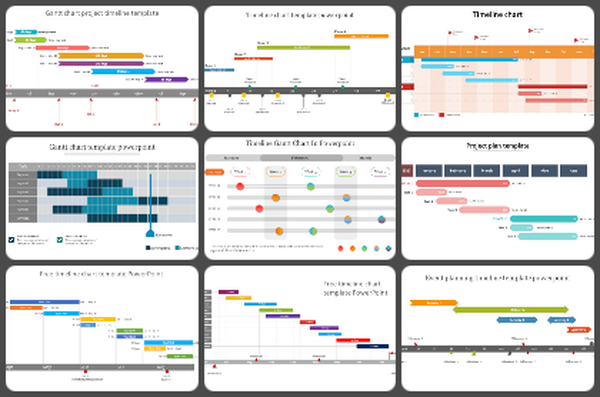

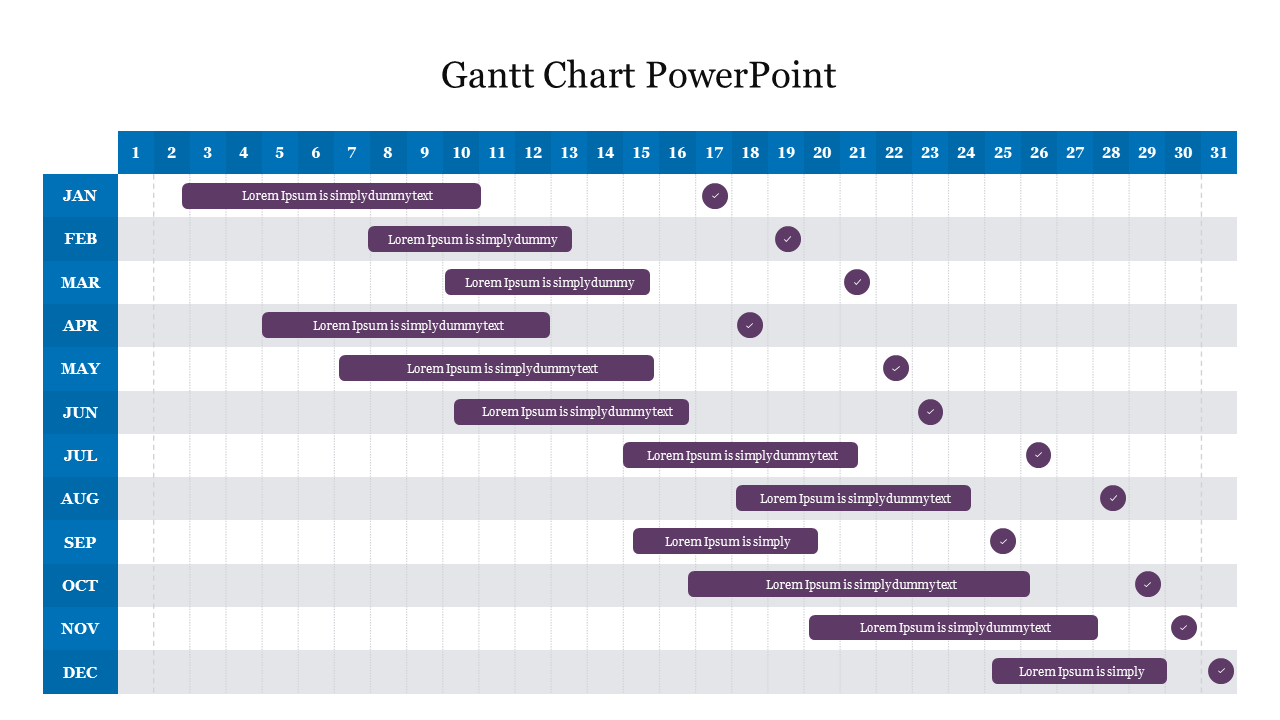
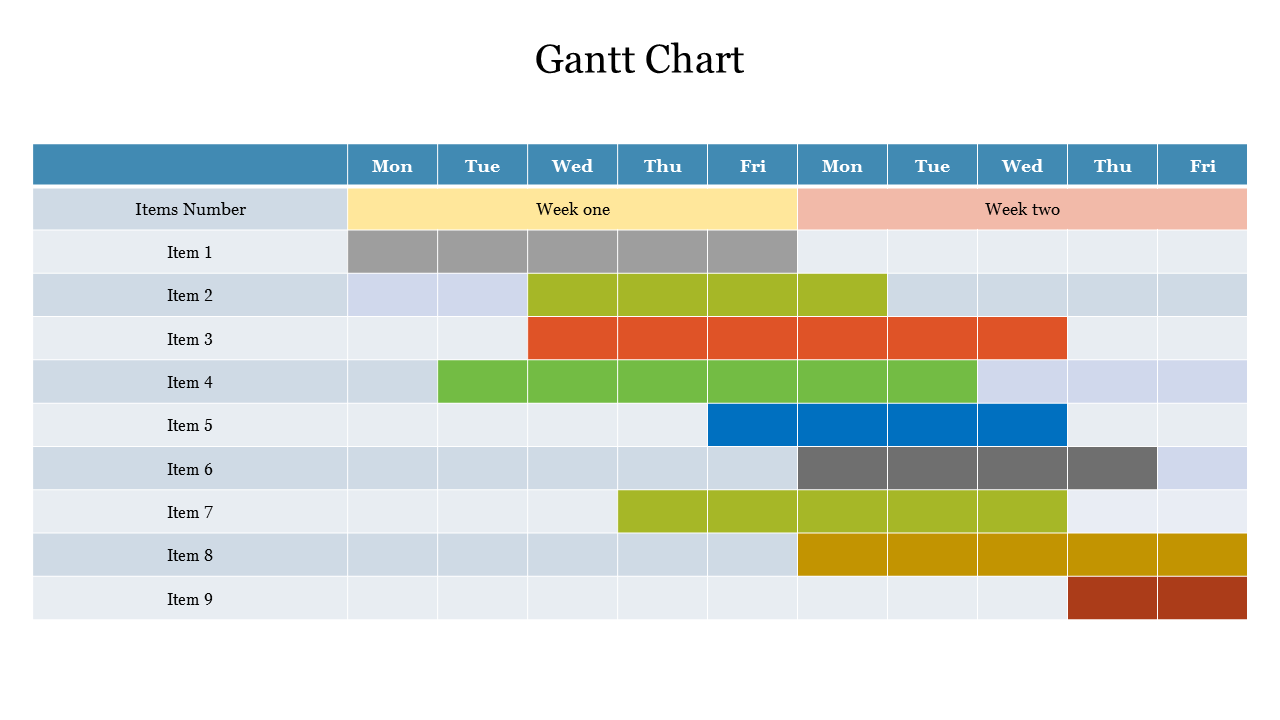
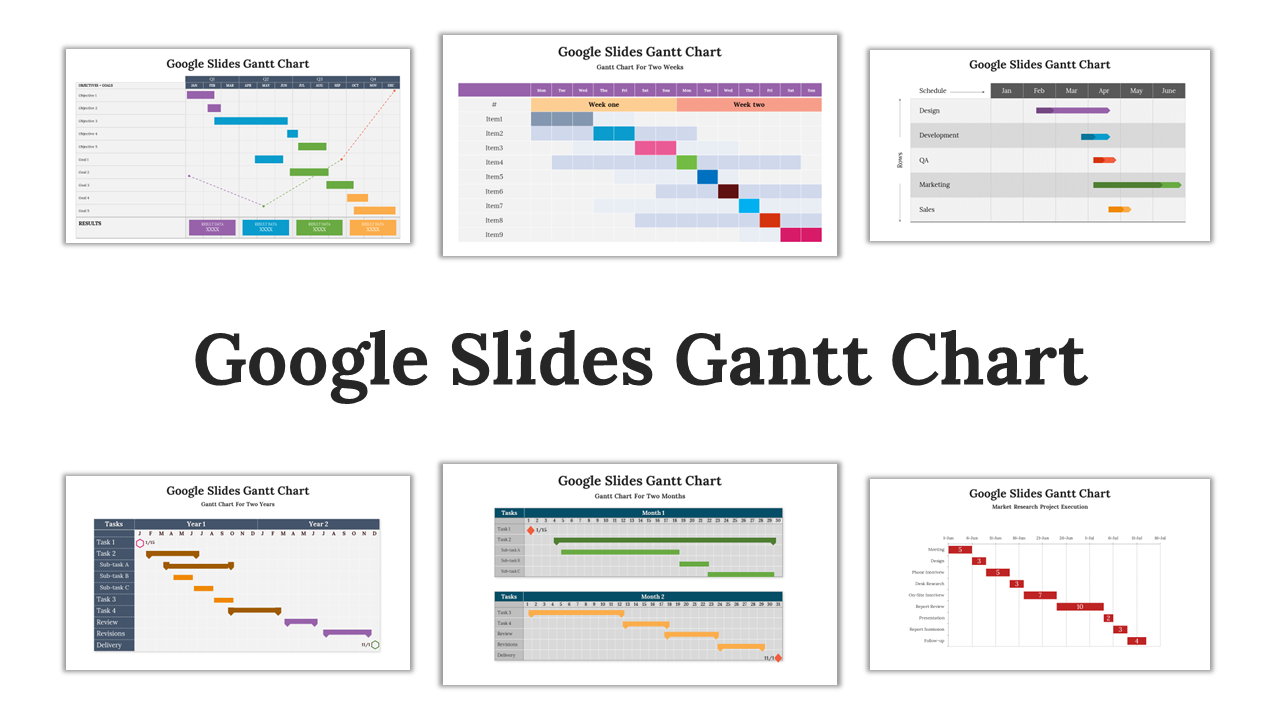
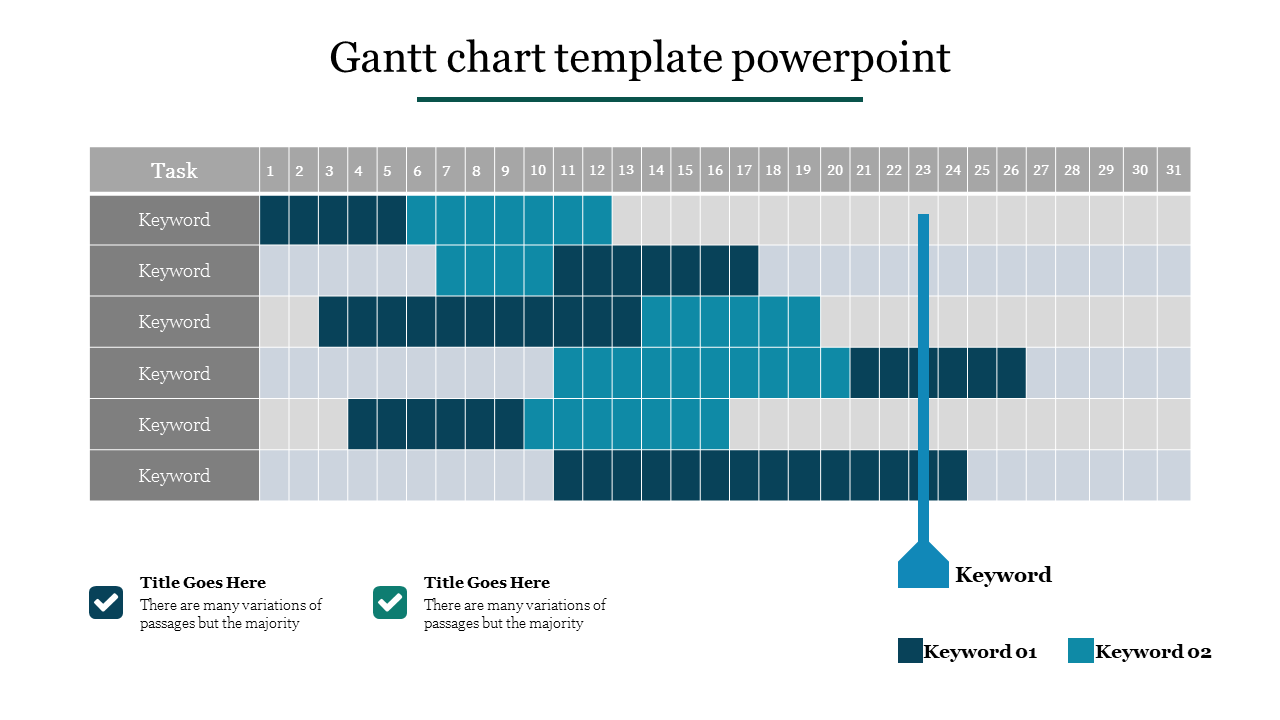
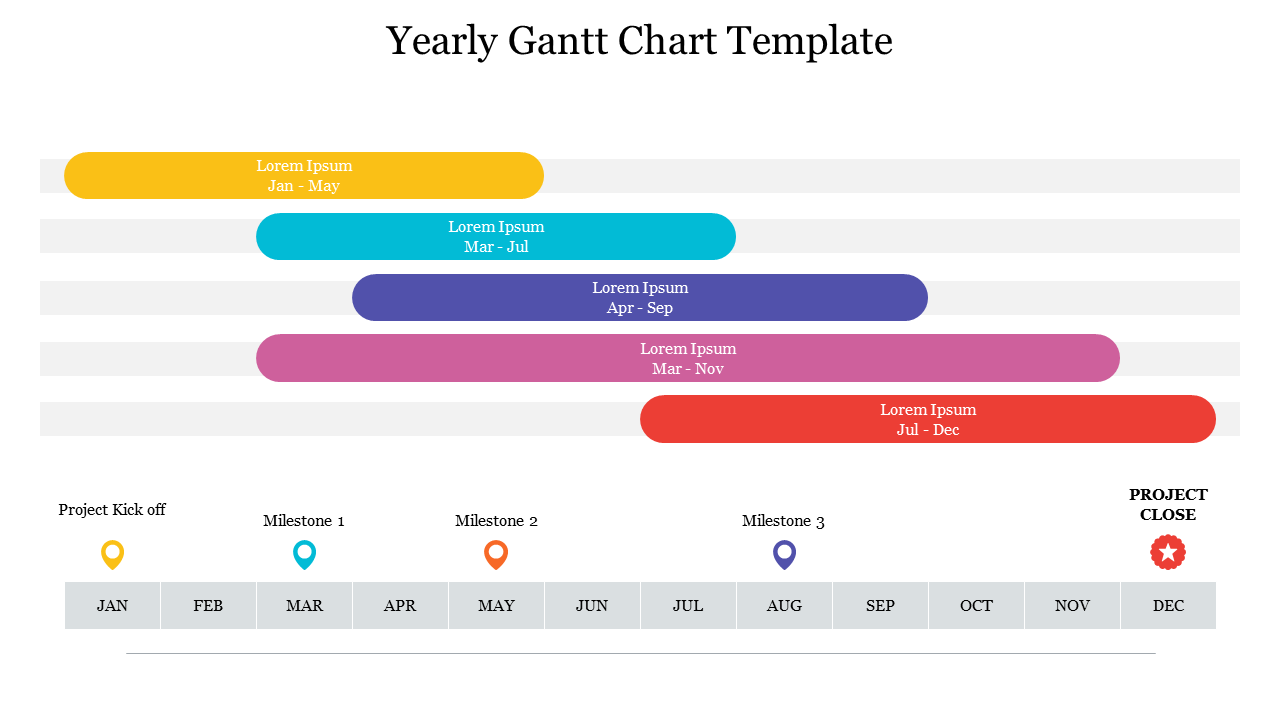
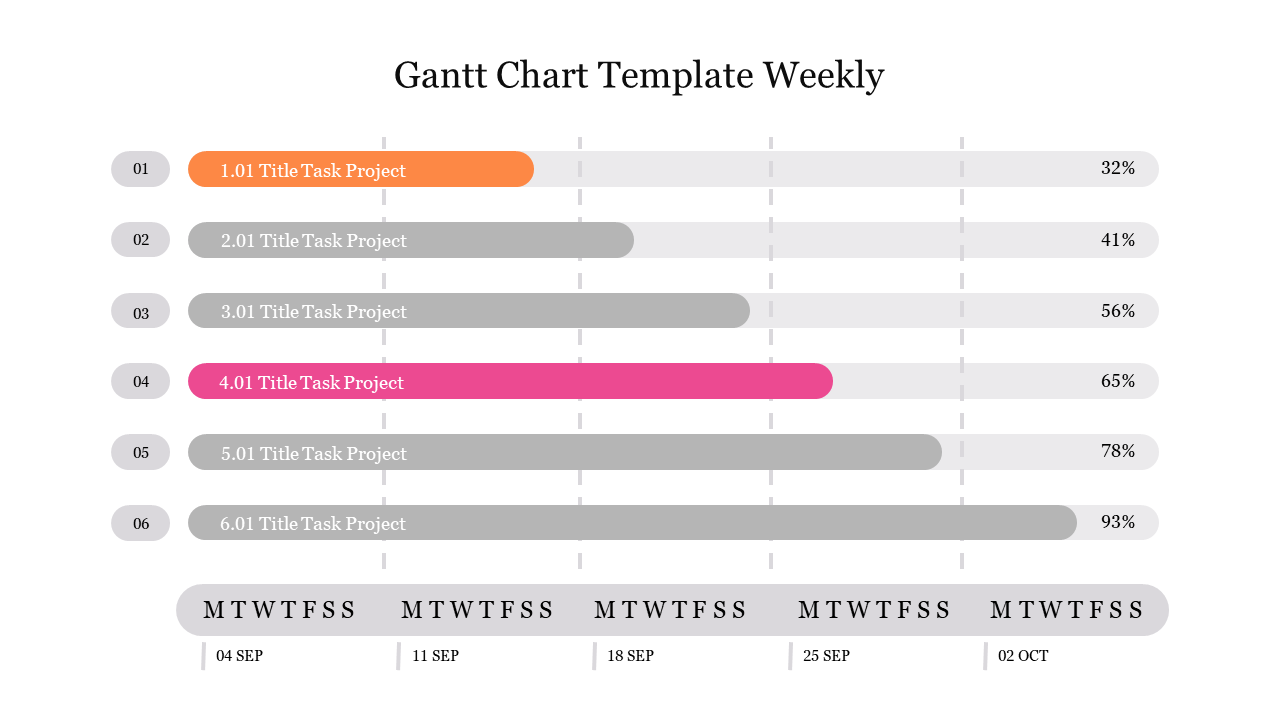

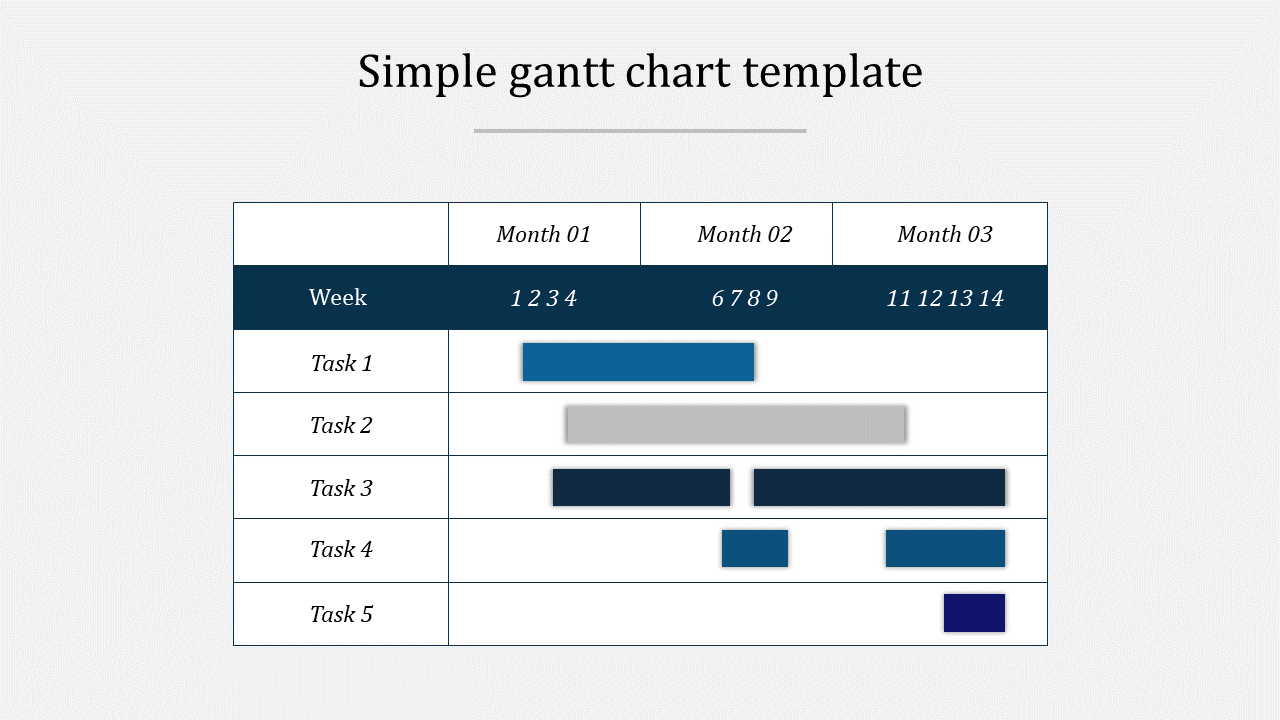
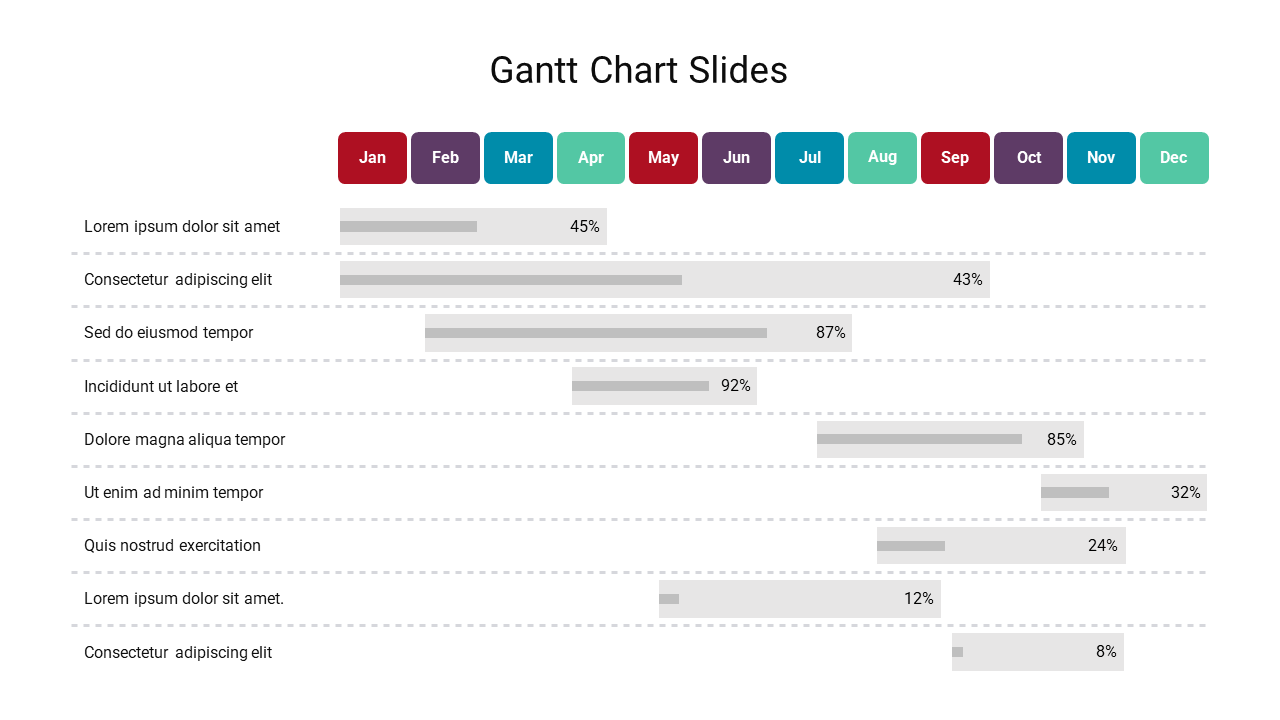
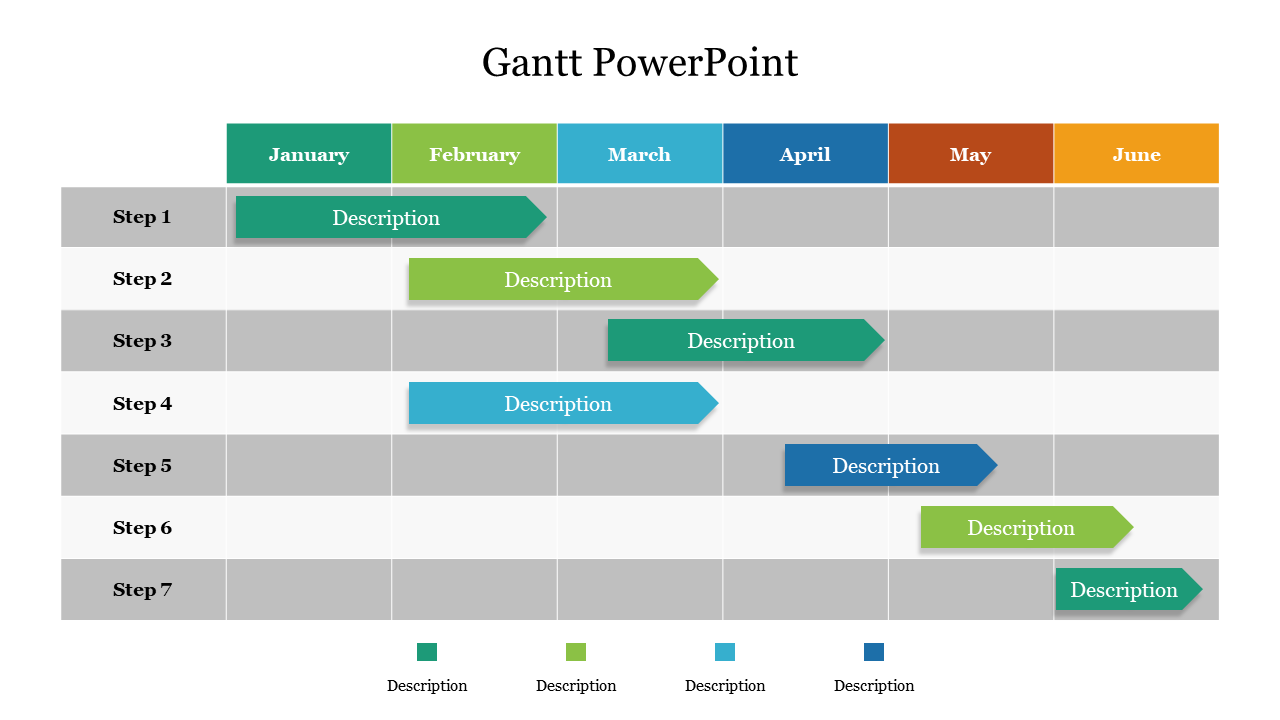
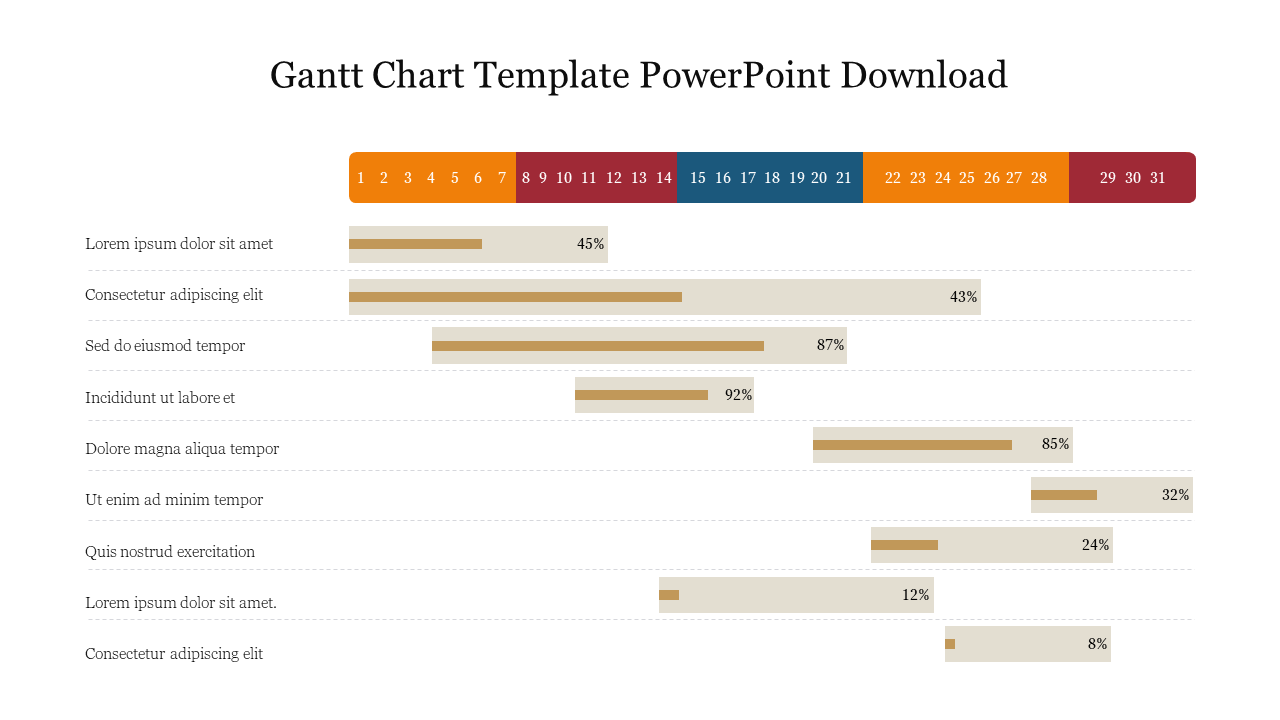
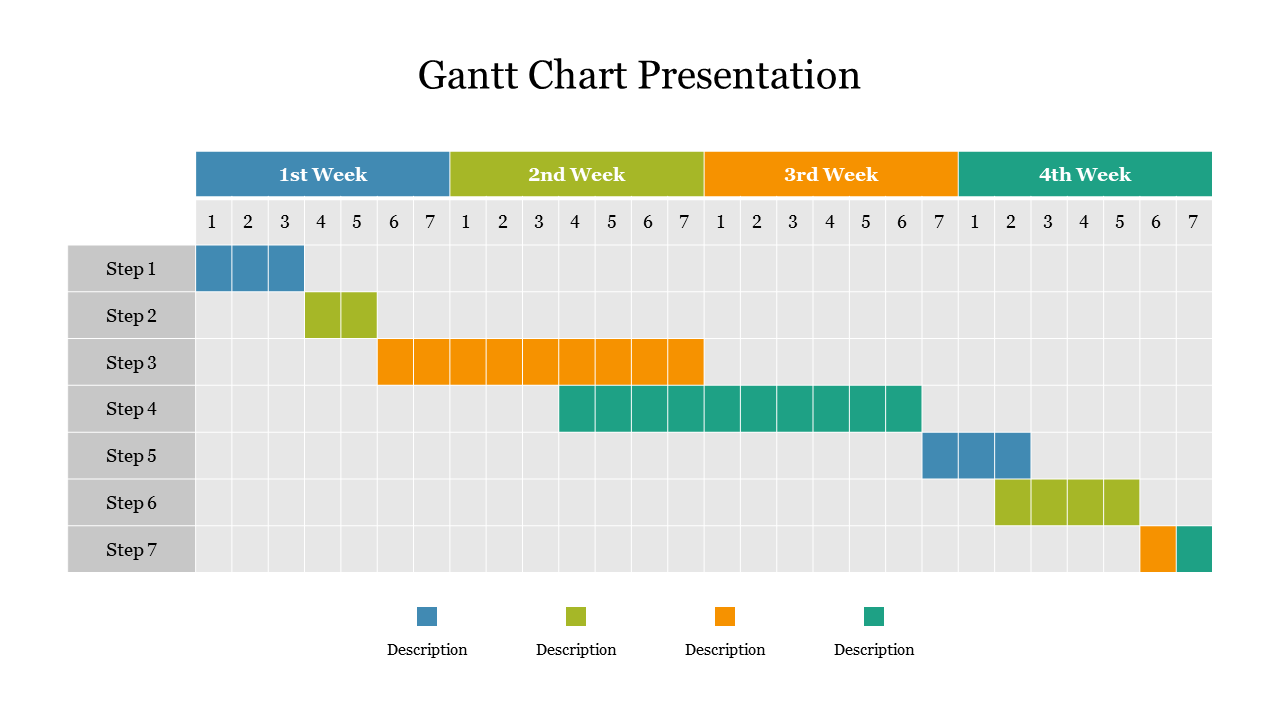
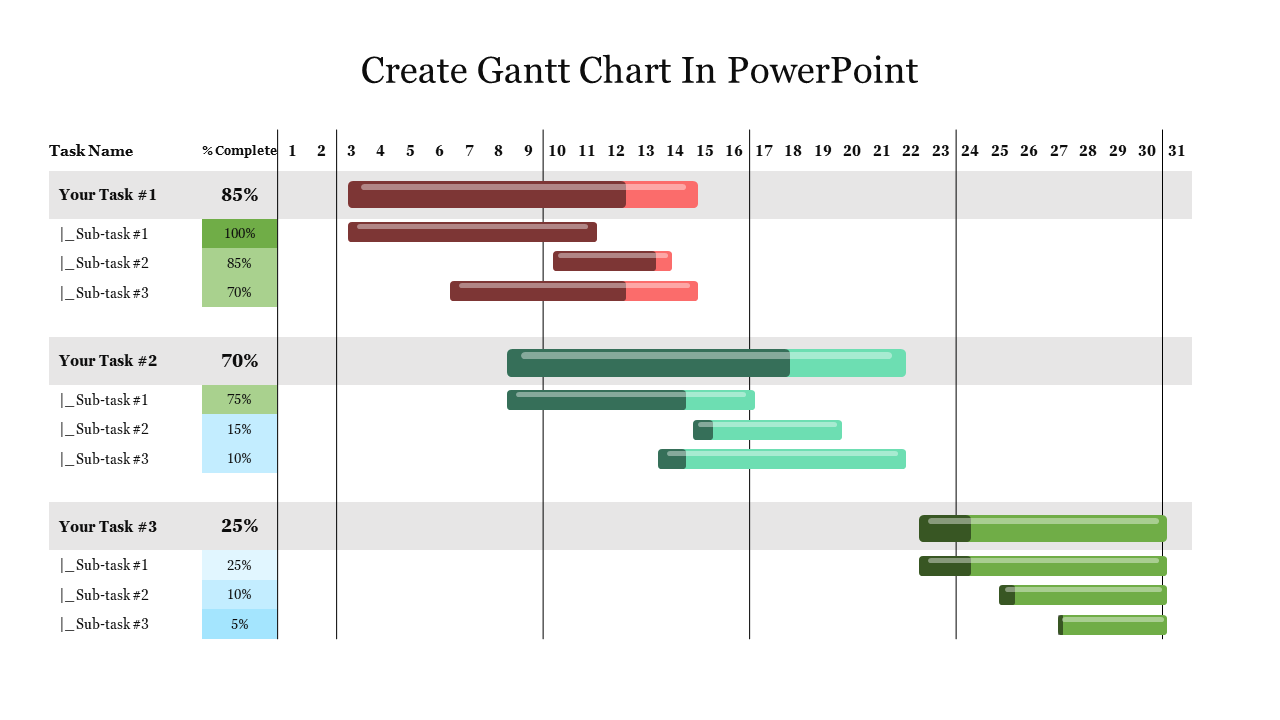
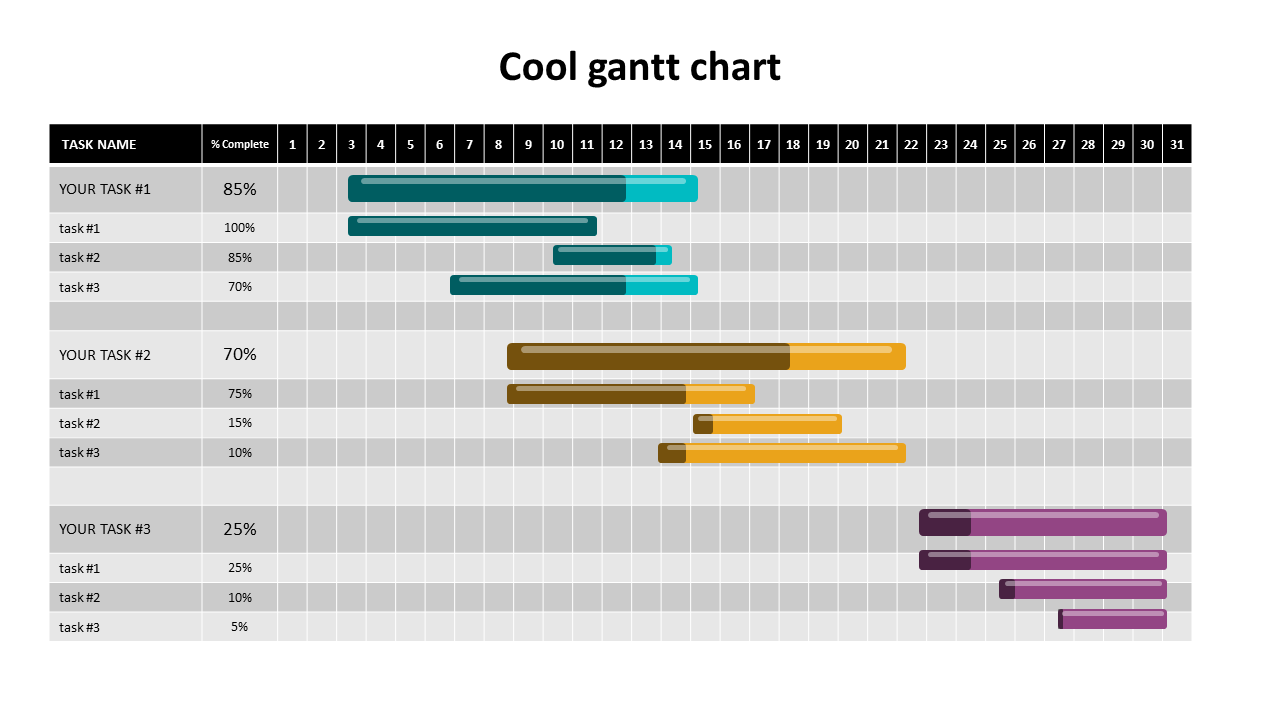
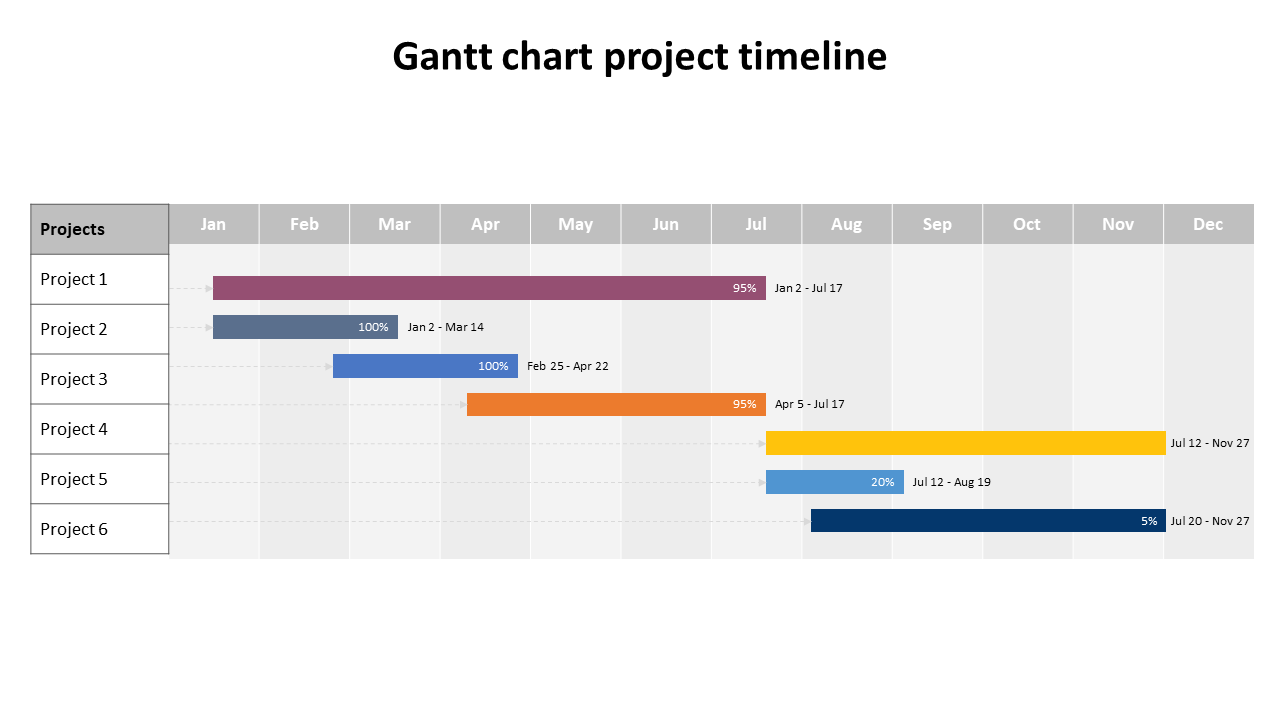
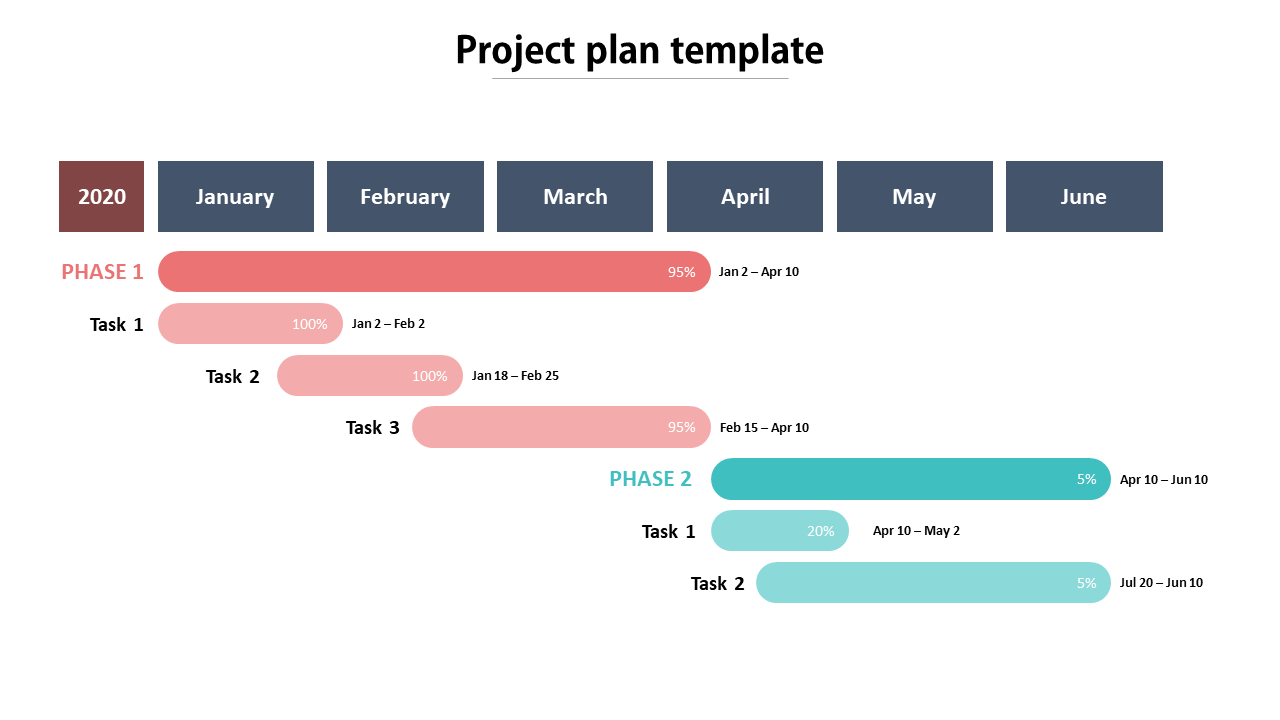
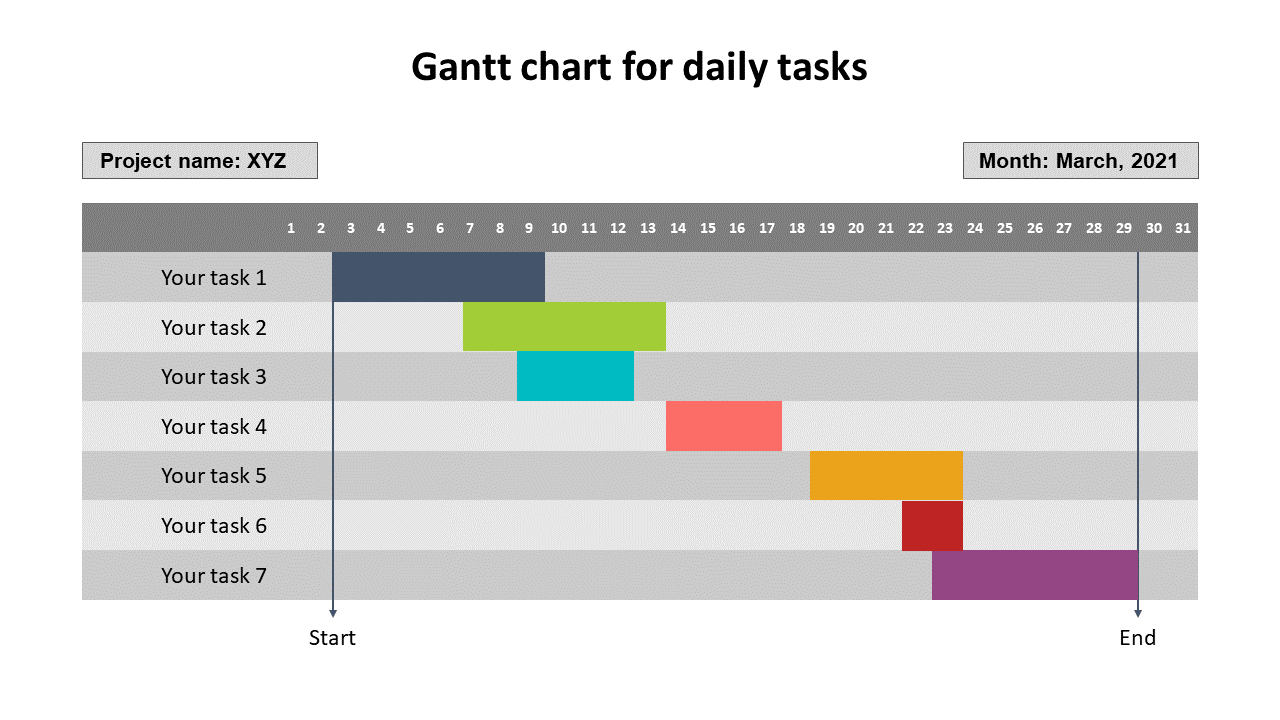
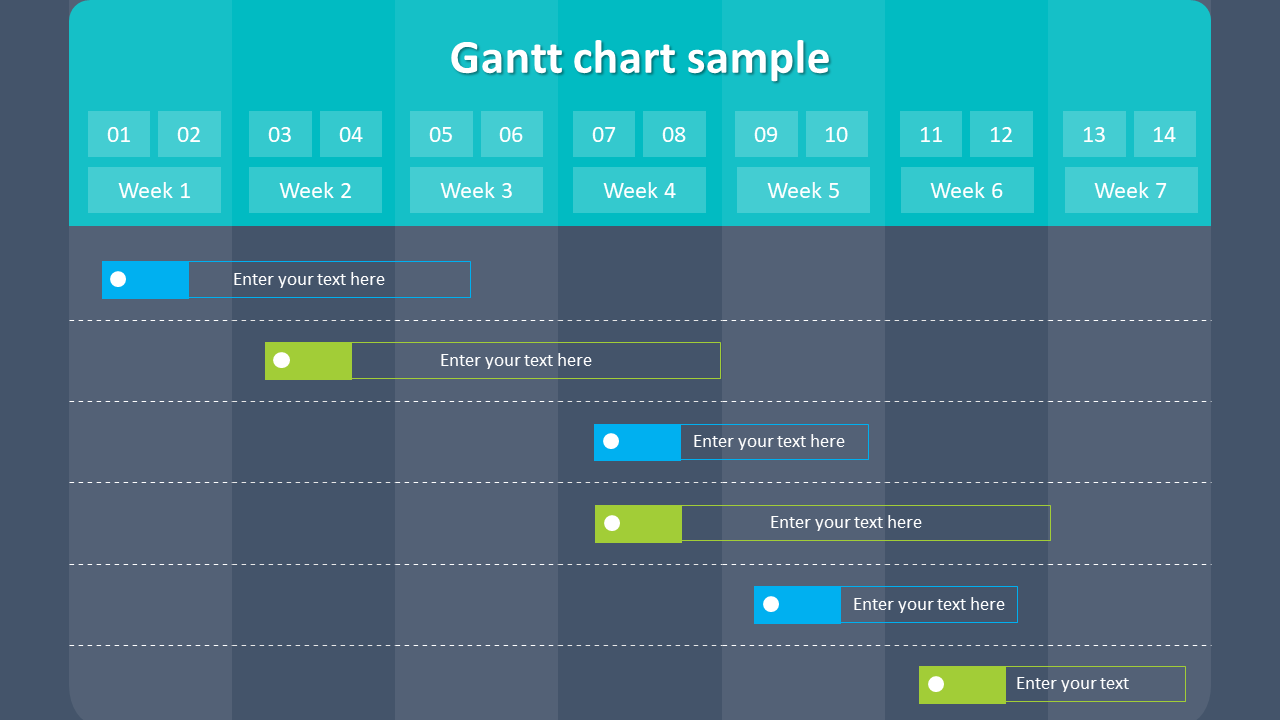
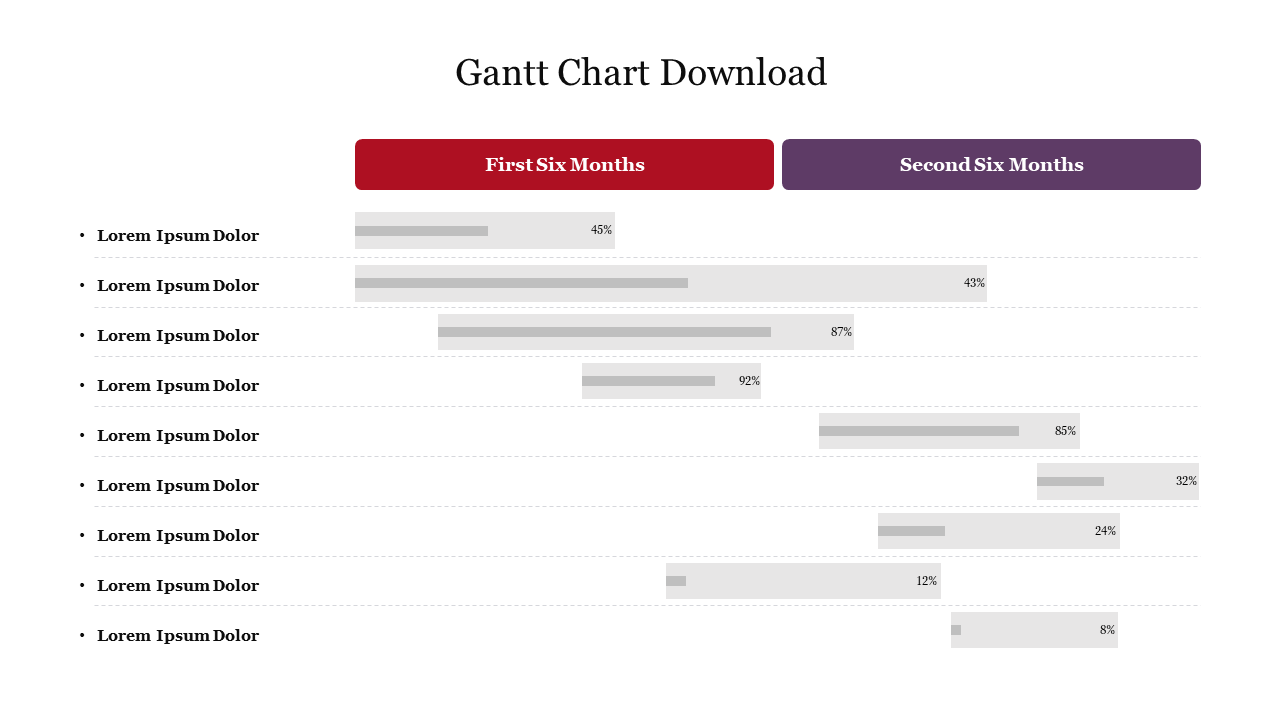
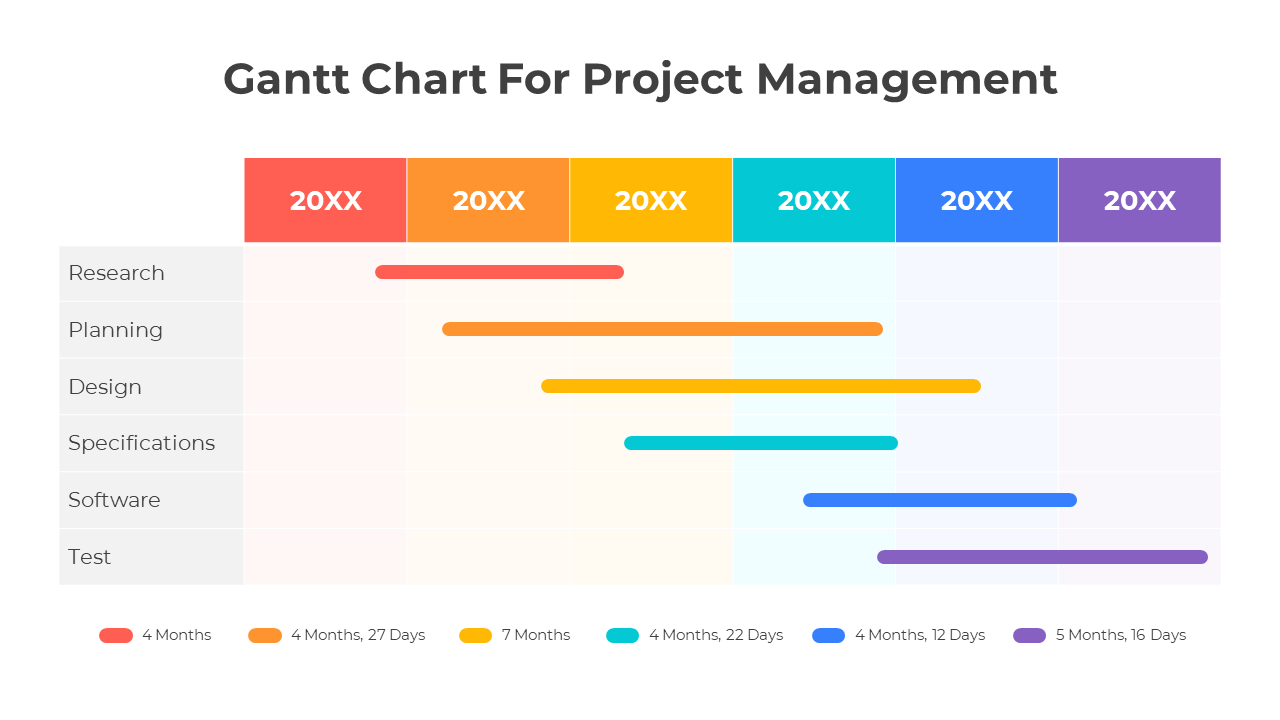
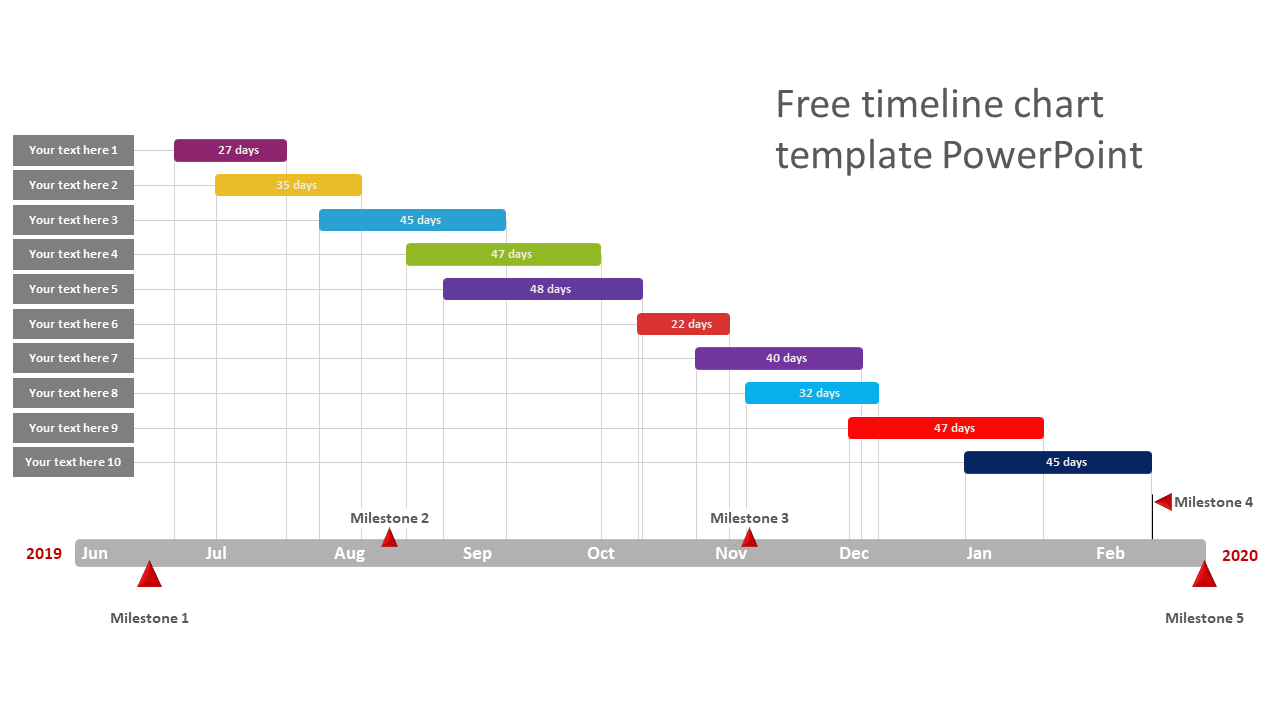
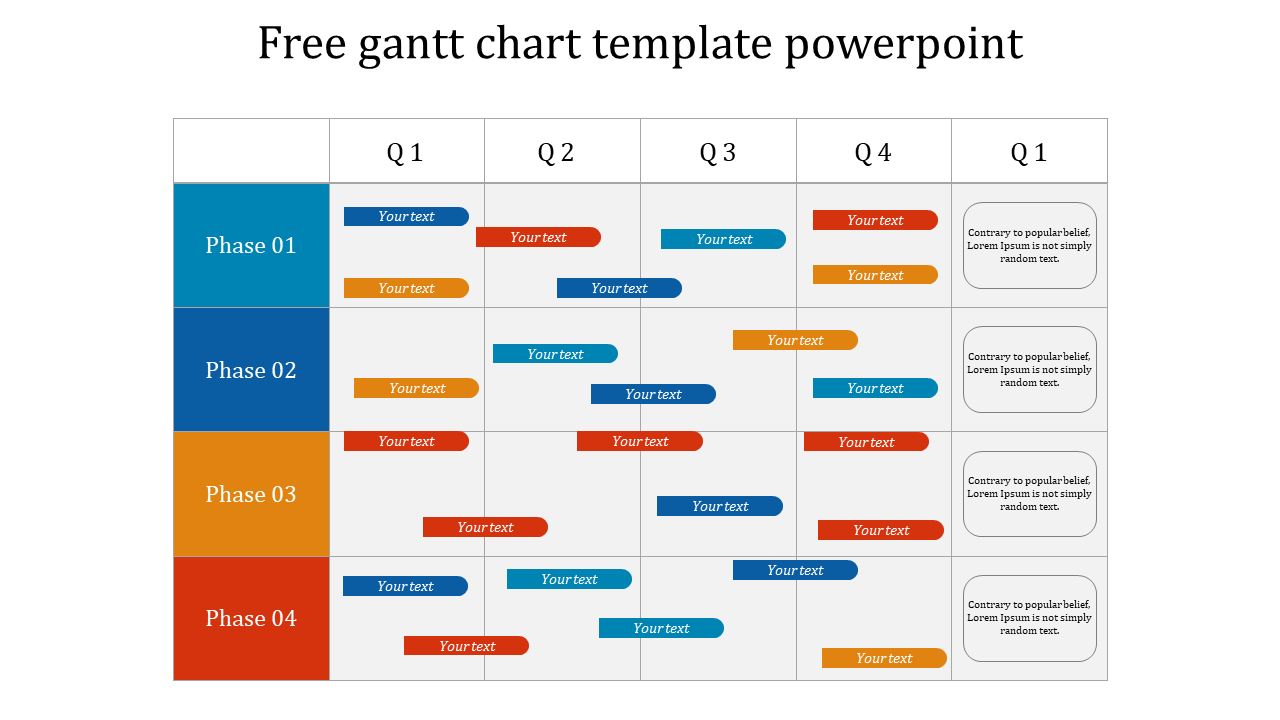
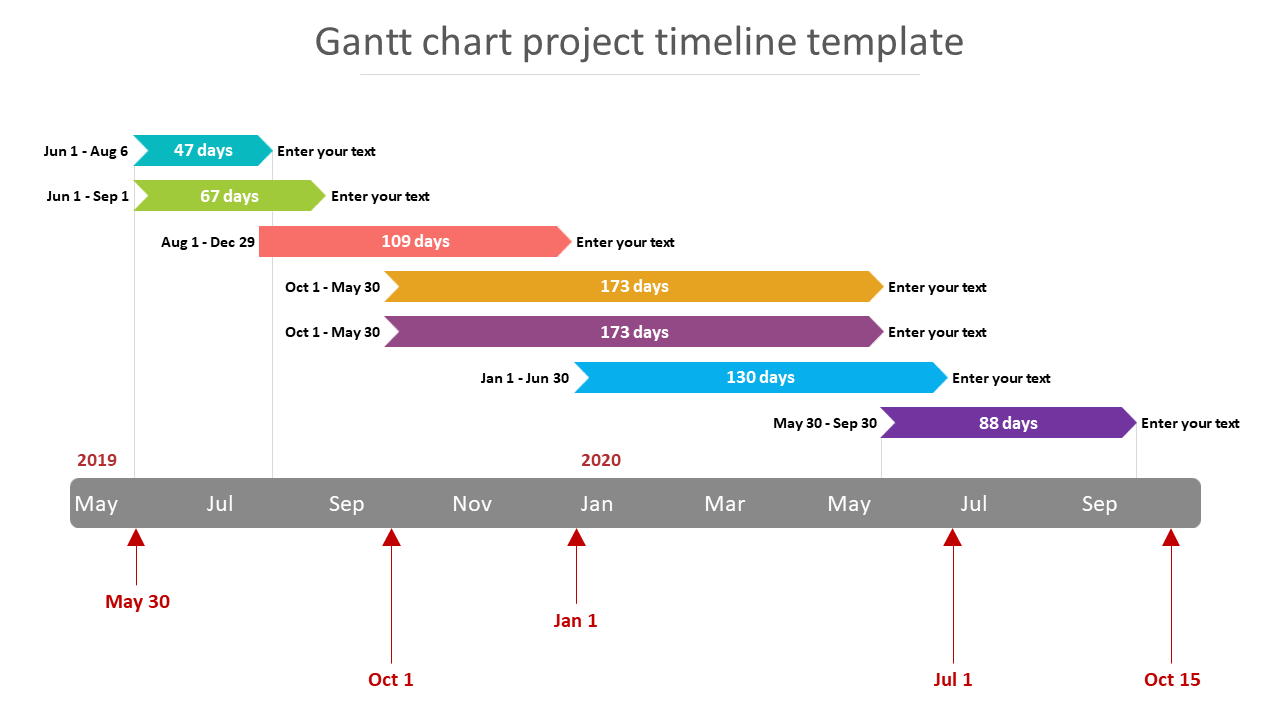
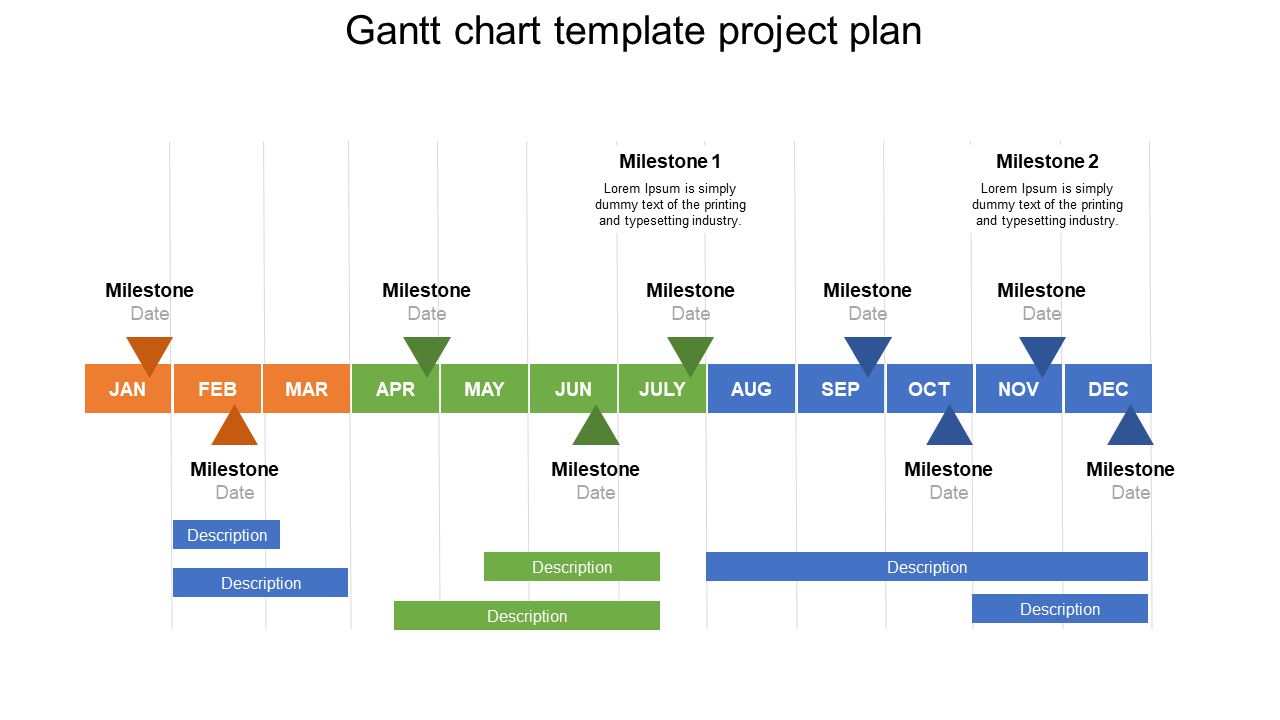
- Crystal Clear Visuals: Tasks, milestones, dependencies – everything gets laid out in an easy-to-understand format. The visual layout helps teams to grasp project flow seamlessly.
- Maximized Resource Utilization: It brings to light concurrent tasks and dependencies, ensuring resources are allocated effectively and bottlenecks are minimized.
- Real-time Progress Monitoring: It offers a dynamic overview of the project, highlighting completed tasks, upcoming deadlines, and potential delays.
- Versatility: Our slides cater to varied project needs – be it simple or complex timelines, weekly or yearly schedules, or even business-specific Gantt charts.
- Diverse Tools for Comprehensive Overviews: Our range isn’t limited to Gantt charts alone. Incorporate timeline charts for sequential tracking, dashboards for a bird's-eye view, and much more.
Become an expert with SlideEgg

We're here to help you!
What is a Gantt Chart?
A Gantt chart is a popular tool for displaying a project schedule graphically. It is a style of bar chart that shows a project's beginning and ending dates.
What are Gantt Chart Presentation templates?
Gantt chart templates provide a simple way to list your project's tasks, chart each task's time, allocate tasks to team members, and keep track of important milestones.
Where can we use these Gantt Chart Slides?
Presentations on project planning and management use these Gantt Chart templates. They assist you in estimating the length of a project, identifying the resources required, and organizing the sequence in which you will perform activities. They are also helpful in controlling task dependencies.
How can I make Gantt Chart Slides in a presentation?
The steps below can be used to create a Gantt chart in a Powerpoint presentation. Step 1: Launch PowerPoint and click the Home tab. Step 2: Select "Insert > Chart > From Sheets." Step 3: You can copy the desired Gantt chart and paste it into your PPT slide Visit our tips and tricks page to create a successful slideshow if you still need help creating your slides.
Who can use these Gantt Chart PPT Templates?
Business heads, investors, teammates, managers, and stakeholders can use these slides to project transparency.
Why do we need to use Gantt Chart slides?
These slides give managers and employees a high-level overview of the project tasks and an estimated completion date. The chart lets you keep track of the project's development by illustrating how jobs link to one another.
Where can I find Gantt Chart Templates free of cost?
Don't worry; free templates are simple to find. We are available to help you as a result! Slide Egg is among the top websites for finding free presentations. Go right now!