Creating an income financials presentation can feel overwhelming, even if you understand the numbers perfectly. The challenge isn’t the data—it’s how you present it. Too often, slides end up either cluttered with excessive detail or so minimal that they lack meaning. The goal is to strike a balance: clarity, structure, and a compelling narrative.
At its core, a financial presentation is not just about numbers—it’s about explaining what those numbers mean. It tells the story of how money flows through a business, what’s working, what isn’t, and what comes next. When you approach it this way, the process becomes far more manageable.
What Is an Income Financials Presentation?
An income financials presentation is a visual representation of an income statement, designed for easier understanding. Instead of presenting raw tables, it transforms financial data into charts, summaries, and key insights.
An income statement typically includes:
- Revenue generated
- Costs associated with that revenue
- Operating expenses
- Final profit or loss
While the statement itself is data-heavy, a presentation simplifies it into something your audience can quickly understand and act upon.
Why Presentation Matters
Imagine someone reading out rows of numbers from a spreadsheet—it’s difficult to follow and easy to forget. Now compare that to a clear chart showing revenue growth and stable expenses. Within seconds, the message becomes obvious.
Good presentation design doesn’t replace accuracy—it enhances it. It makes your data easier to understand, more memorable, and more persuasive. Visual storytelling helps your audience grasp key insights without getting lost in details.
Before You Start: Preparation Is Key
Most mistakes happen before the first slide is created. Instead of jumping straight into design, focus on these fundamentals.
1. Know Your Audience
Your audience determines how detailed or simplified your presentation should be:
- Finance professionals expect accuracy and depth
- Executives prefer high-level insights
- Investors focus on growth and profitability
- Students or educators look for conceptual clarity
2. Define Your Core Message
Every presentation should revolve around one central idea. For example:
- Revenue is growing, but costs are rising faster
- The company met its targets due to strong product performance
- Profitability is stable, but risks are increasing
Everything in your slides should support this message.
3. Organise Your Data
Collect essential figures such as:
- Revenue and its breakdown
- Cost of goods sold
- Gross profit and margins
- Operating expenses
- Net income
Avoid including every detail—focus on what matters most.
Recommended Slide Structure
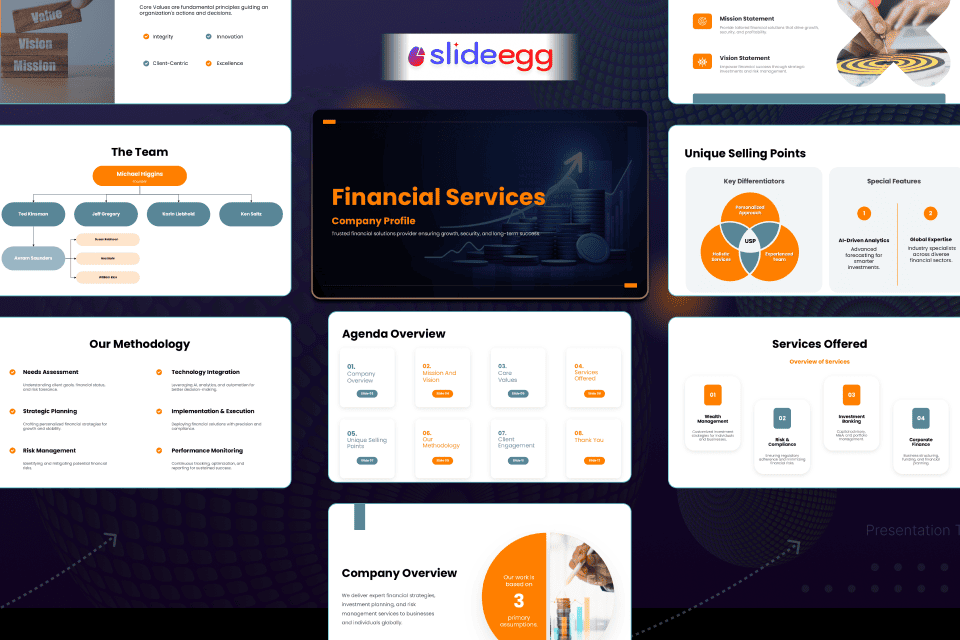
A clear structure keeps your presentation logical and easy to follow. For inspiration on how to order these effectively, see our 10 Best Professional Financial PowerPoint Templates for 2026.
Slide 1: Title Slide
Include the presentation title, company or department name, date, and reporting period. Keep it simple and clean.
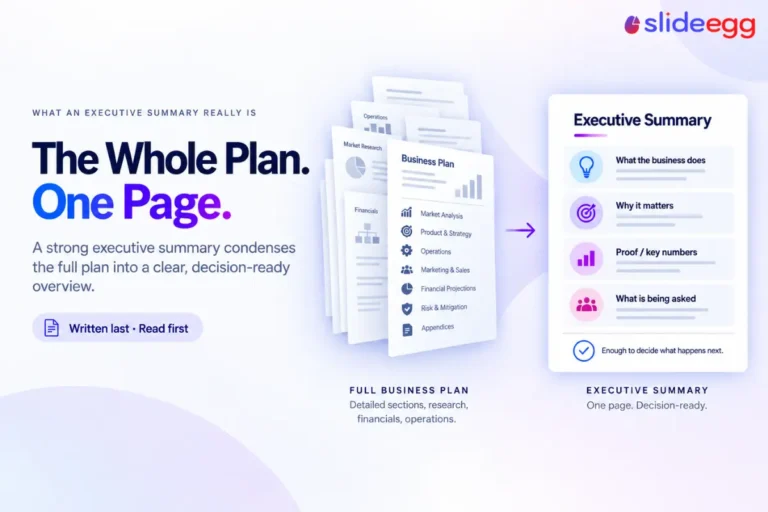
Slide 2: Executive Summary
Highlight 3–4 key takeaways:
- Revenue performance
- Profit or loss
- One major success
- One key concern
This slide is crucial—it may be the only one some people fully focus on.
Slide 3: Revenue Overview
Show total revenue and trends over time. Include comparisons such as year-over-year growth or performance against targets. Use a simple chart to make patterns clear.
Slide 4: Cost and Gross Profit
Explain how much it costs to generate revenue. Show the relationship between revenue and gross profit, helping your audience understand efficiency.
Slide 5: Operating Expenses
Break down expenses into categories like salaries, marketing, and administration. Highlight any unusual changes or areas of concern.
Slide 6: Profitability
Present key metrics such as operating profit and net income. This is where your audience sees the overall financial outcome.
Slide 7: Budget vs Actual
Compare planned figures with actual results. Clearly indicate whether targets were met and explain any major differences.
Slide 8: Trends and Forecast
Show how performance is evolving over time and what the future might look like. This helps your audience think beyond the current numbers.
Slide 9: Insights and Recommendations
Explain what the data means and what actions should be taken. Keep this section practical and straightforward.
Slide 10: Closing Slide
End with a simple summary and invite questions. Avoid ending on a dense data slide.
Choosing the Right Charts
The right visual makes your data easier to understand:
- Bar charts: Best for comparing categories
- Line charts: Ideal for trends over time
- Waterfall charts: Show how values change step by step
- Pie charts: Display proportions (keep them simple)
- Combo charts: Combine values and percentages effectively
Avoid overly complex visuals or decorative elements that distract from the message.
Design Tips for Professional Slides
You don’t need advanced design skills to create effective slides. Focus on these basics:
- Consistency: Use the same fonts, colours, and layouts. If you struggle with cohesion, learn how to Change Colours in a PowerPoint Presentation.
- Simplicity: One key idea per slide
- Purposeful colour use: Highlight meaning (e.g., green for positive, red for negative)
- White space: Leave room to avoid clutter
- Clear headlines: Use titles that communicate insights, not just labels
A clean design makes your presentation look more credible and easier to follow.
Using Templates Effectively
Templates can save significant time and effort. A good free PowerPoint template provides:
- Pre-designed layouts
- Built-in chart formats
- Consistent styling
However, don’t rely on them blindly. Customise colours, adjust layouts, and ensure the design matches your message and audience.
Making Presentations More Engaging
Modern presentations are becoming more interactive. Depending on your context, you can:
- Include live Q&A sessions
- Add clickable elements for deeper insights
- Use polls to gauge understanding
While not always necessary, interactivity can increase engagement, especially in team or educational settings.
Common Mistakes to Avoid
- Overloading slides with numbers
- Providing no context for data
- Reading directly from slides
- Hiding key insights too late
- Using overly technical language for non-experts
Always aim for clarity and relevance.
Delivering with Confidence
Even the best slides need strong delivery. Keep these tips in mind:
- Know your key numbers thoroughly
- Prepare for likely questions
- Present both good and bad results honestly
- Pause to let important points sink in
- Practice your presentation beforehand
Confidence comes from preparation and clarity.
Final Thoughts
An income financials presentation is ultimately a communication tool. The numbers are only the starting point—what matters is how you present them. A clear structure, thoughtful visuals, and a strong narrative can turn complex data into meaningful insights.
Focus on your audience, keep your message simple, and design with purpose. You don’t need perfection—you need clarity. When your audience understands your story, your presentation has done its job.
FAQ
What’s the difference between an income statement and a cash flow statement?
An income statement shows profitability on paper, including revenue and expenses, even if cash hasn’t moved yet. A cash flow statement tracks actual money coming in and going out, showing your real cash position.
Can I use a free presentation template for a board meeting?
Yes—what matters most is clarity and how well you communicate your data. A well-designed, properly customised template can look just as professional as a custom-built presentation.
How do I present negative results without it feeling like a disaster?
Be direct about the issue, explain the reasons clearly, and focus on the actions being taken to improve. Audiences value honesty and solutions more than perfection.
What software is best for creating financial presentations?
Microsoft PowerPoint is widely used in corporate settings, while Google Slides is great for collaboration, and Canva is ideal for quick, visually appealing slides.
How far in advance should I prepare a financial presentation?
Start at least 2–3 days after your data is ready so you can build, review, and rehearse. Rushing at the last minute often leads to errors and cluttered slides.