
Ready to jazz up your presentations? A great way to make your slides stand out is by changing the background image and color in PowerPoint. As Jimmy Johnson said, “The difference between ordinary and extraordinary is that little extra.” So, let’s add that extra spark to your slides!
Why Change Your Background?
Changing the background image or color in PowerPoint is like giving your slides a facelift. It keeps your audience engaged and makes your presentation visually appealing. Plus, it helps to emphasize key points and adds a personal touch. Imagine presenting with boring, plain slides – not fun, right?
Step-by-Step Guide to Changing Background Image
- Open Your Presentation: Start by opening your PowerPoint presentation. Choose the slide where you want to change the background image.
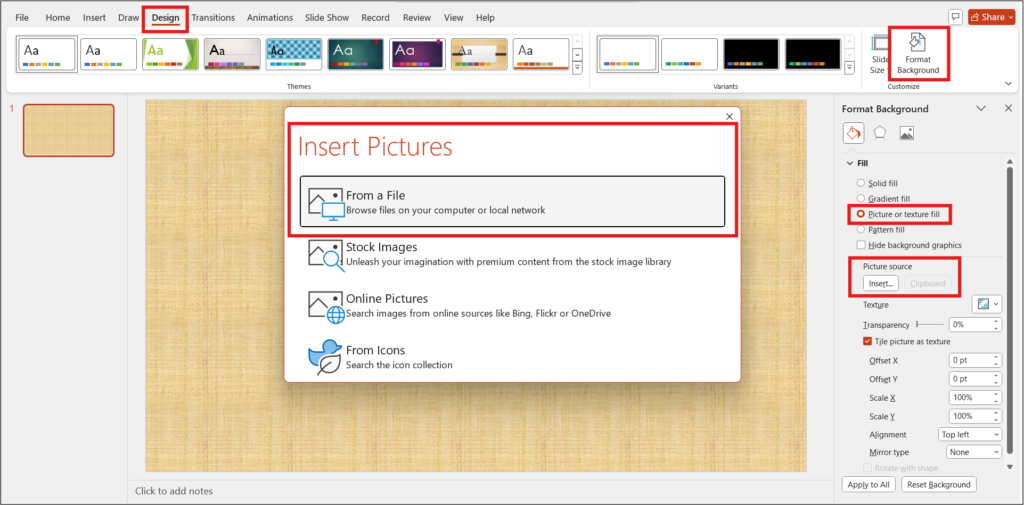
- Go to Design Tab: Click on the ‘Design’ tab located on the ribbon at the top.
- Background Styles: In the ‘Design’ tab, look for ‘Background Styles.’ Click on it and then select ‘Format Background’ from the dropdown menu.
- Picture or Texture Fill: In the ‘Format Background’ pane, select ‘Picture or texture fill.’
- Insert Picture: Click on ‘Insert Picture from.’ You can choose to insert a picture from a file, stock images, or even online sources.
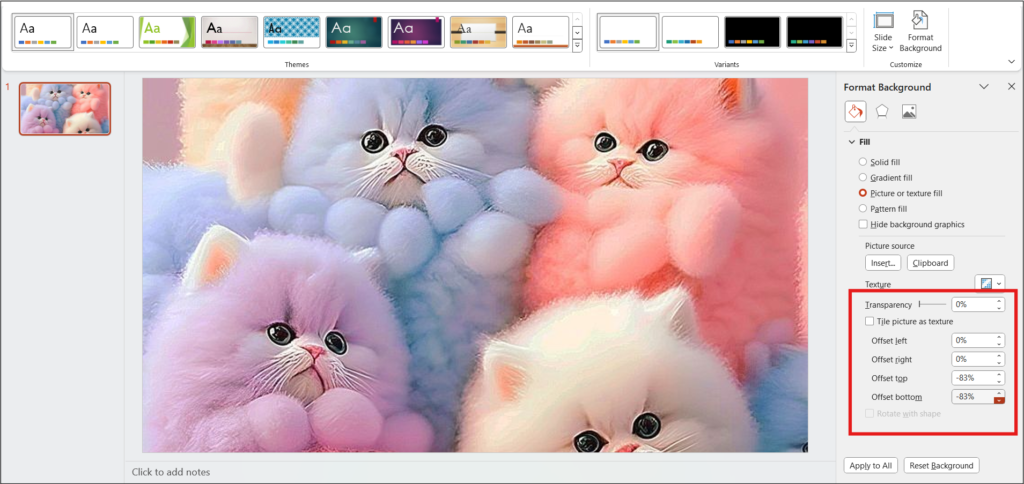
- Adjust Picture: Once you’ve inserted the picture, you can adjust the transparency and offset to fit your needs. Play around until it looks just right!
For more detailed steps and tips on removing the background, check out our other blog “How to Take the Background of a Picture on PowerPoint.”
Step-by-Step Guide to Changing Background Color
- Open Your Presentation: As before, open the PowerPoint presentation and select the slide you want to customize.
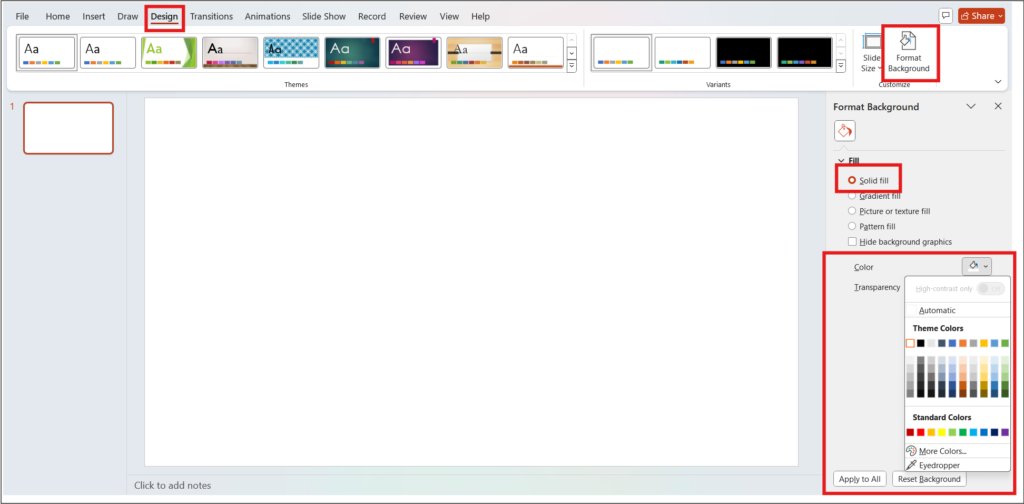
- Design Tab: Click on the ‘Design’ tab.
- Background Styles: Select ‘Background Styles’ and click on ‘Format Background.’
- Solid Fill: This time, choose ‘Solid fill’ in the ‘Format Background’ pane.
- Color Picker: Click on the color box to open the color picker. Here, you can choose any color you like, or even use the ‘More Colors’ option for a custom shade.
- Apply to All: If you want to apply the same background color to all your slides, click on ‘Apply to All.’ Otherwise, just click ‘Close’ to apply it to the current slide.
For those on the hunt for more visual variety, consider exploring our blog on “Where to get attractive Background PowerPoint Templates for Free!“
Conclusion
Changing the background image and color in PowerPoint is an easy way to make your presentations more engaging and visually appealing. With just a few clicks, you can transform a dull slide into something vibrant and interesting. So, go ahead and experiment with different backgrounds!