Free Team Structure Presentation Templates
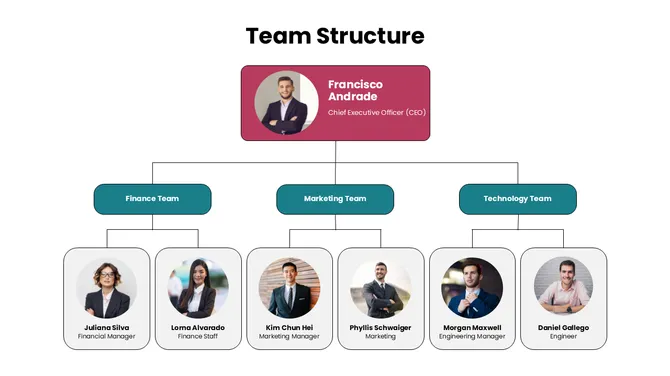
Clarify roles and responsibilities with our Team Organizational Structure PowerPoint Templates. Unlike broad corporate charts, these slides focus on specific departments and project groups. Whether defining a Marketing team or a Product Squad, our editable layouts map reporting lines instantly. Works with PowerPoint, Google Slides, and Canva.
Editor's Choice (1 of5)
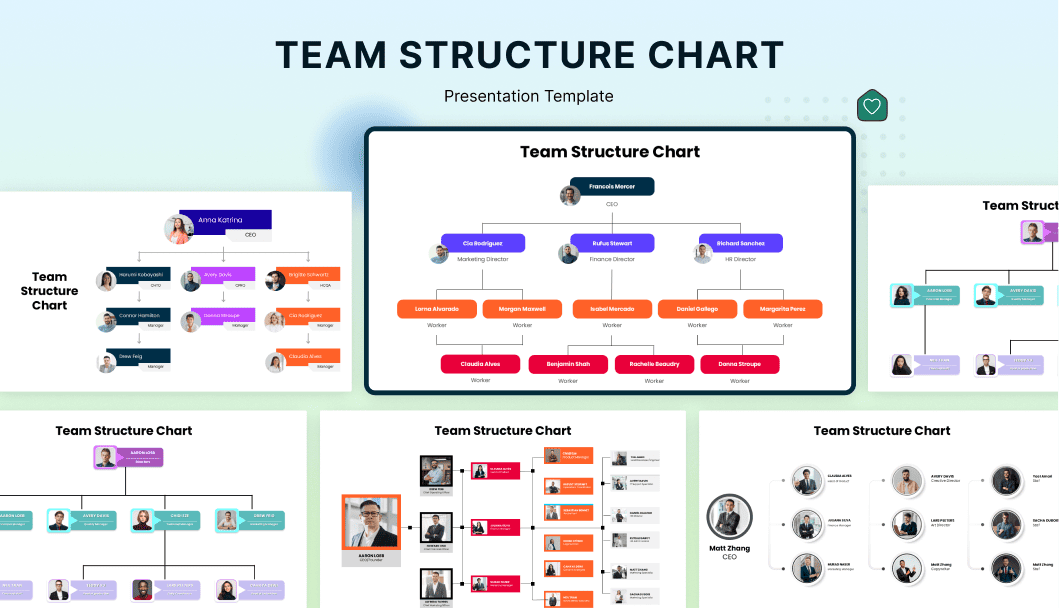
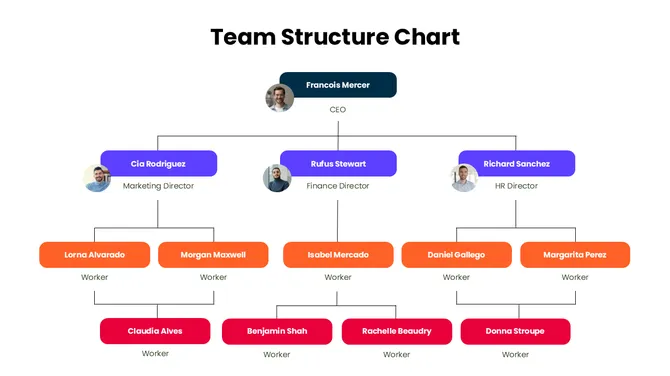
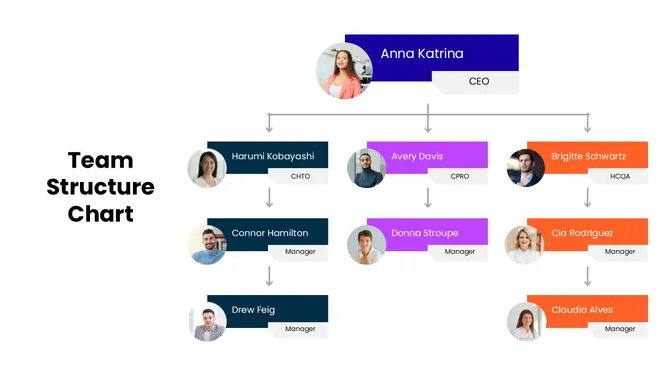
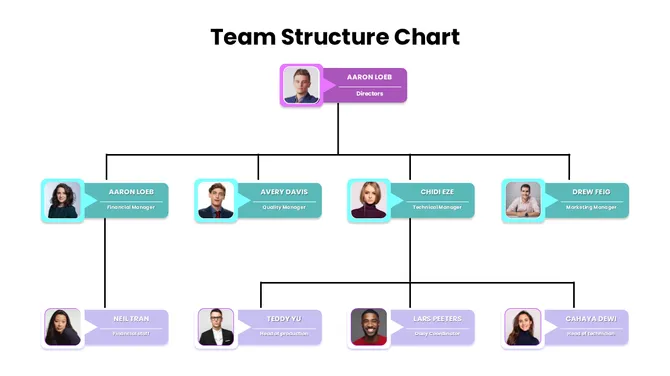
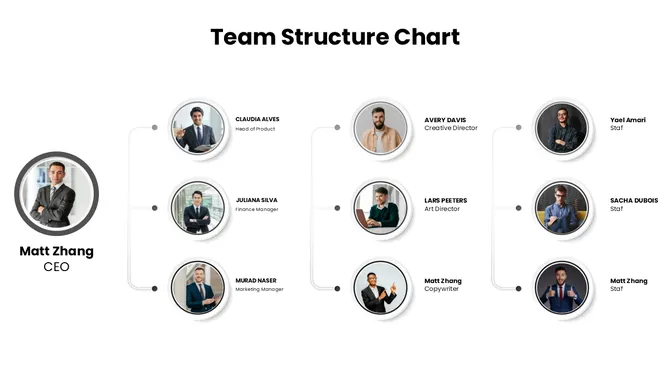
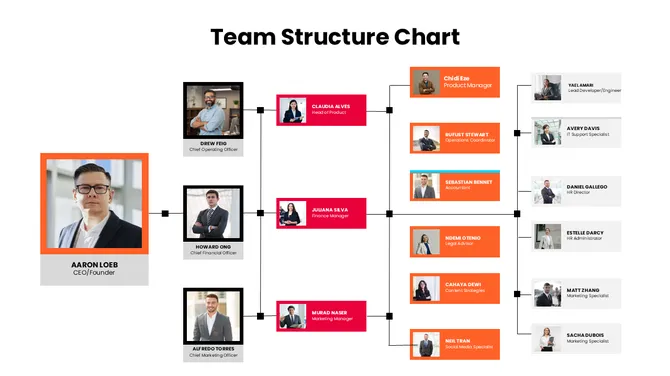

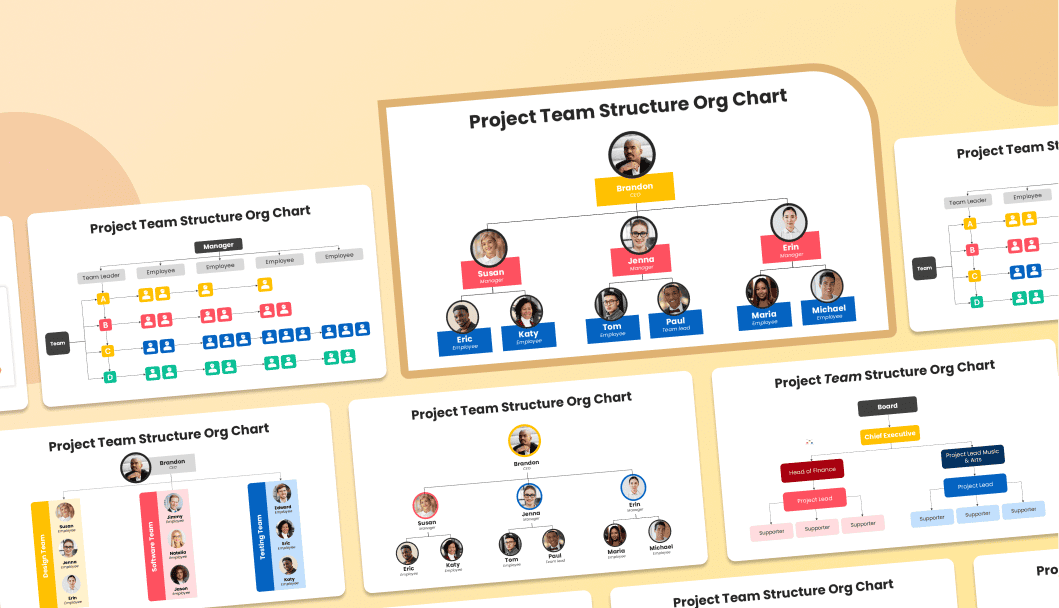
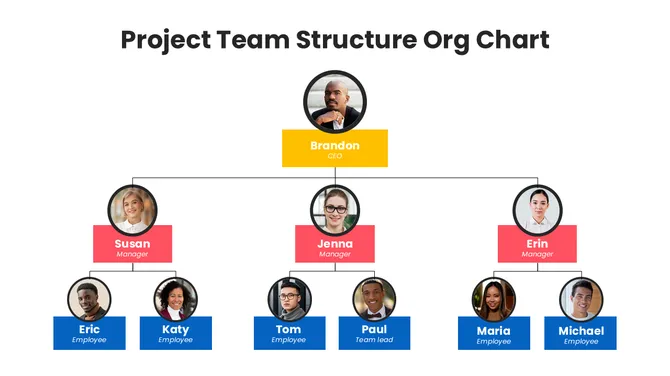
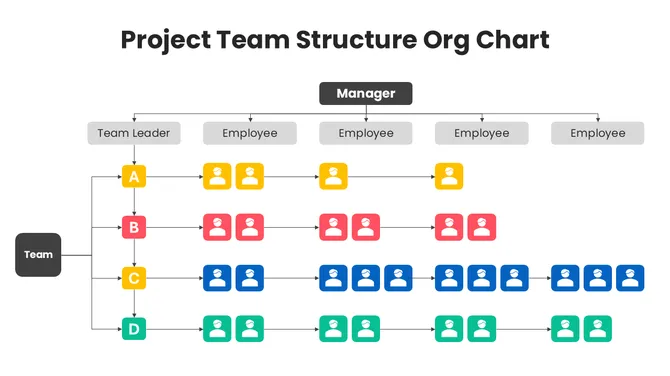
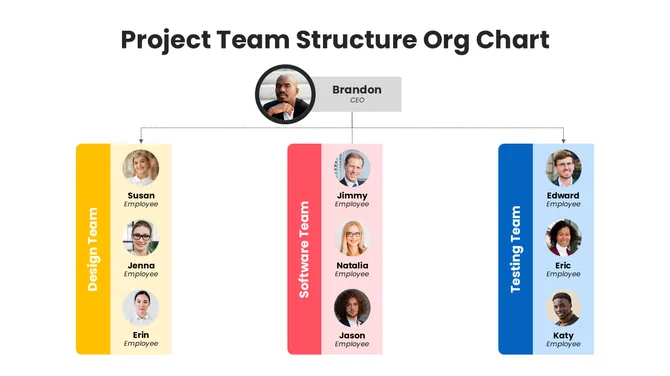
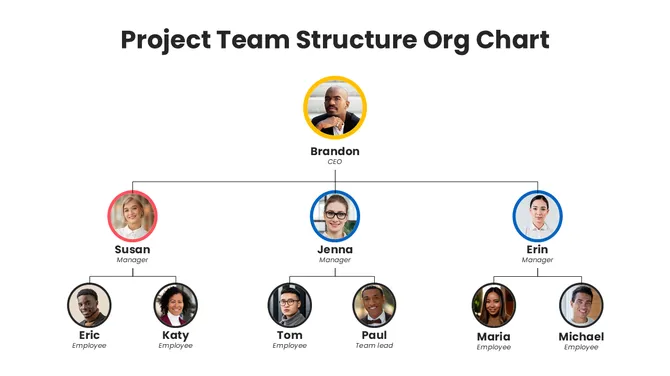
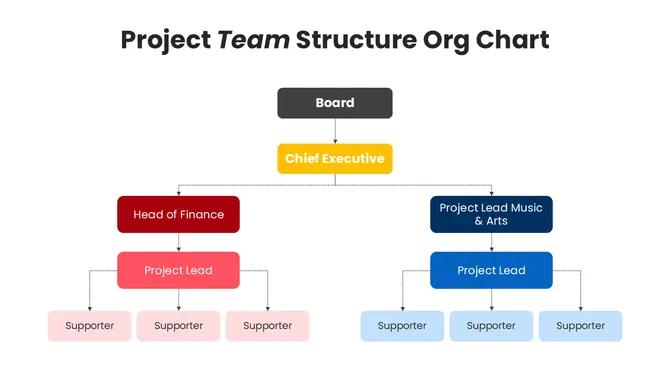

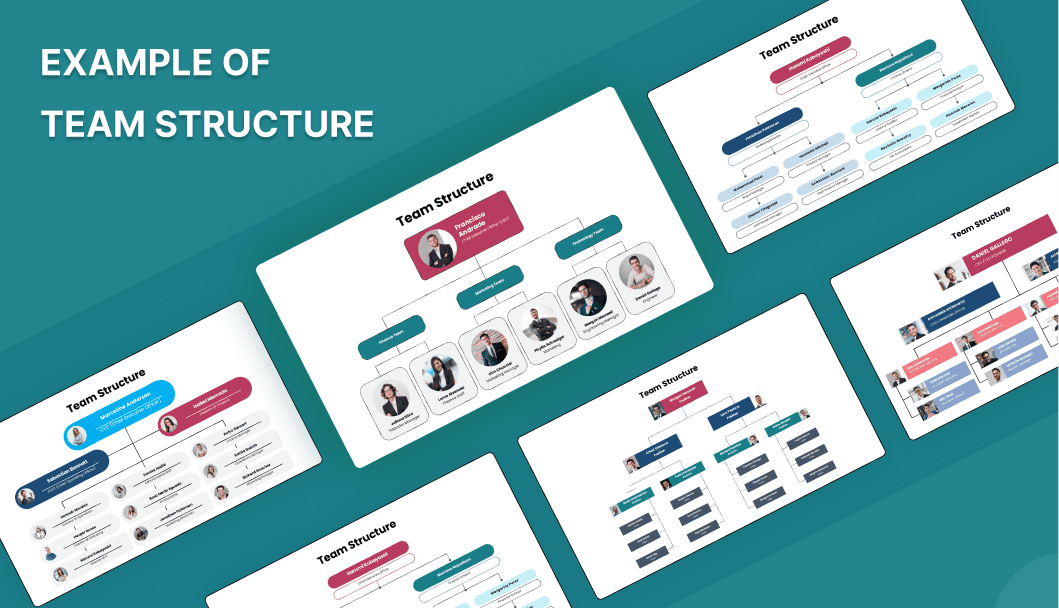
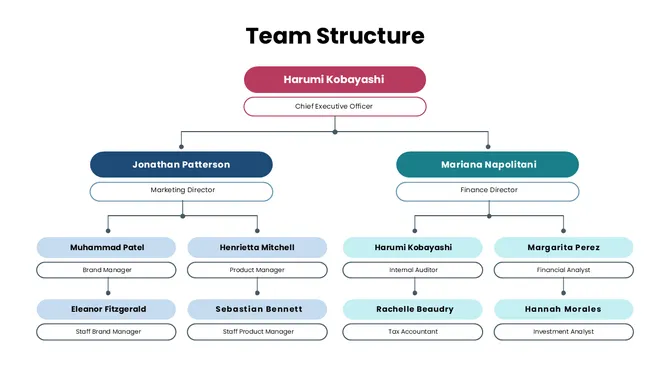
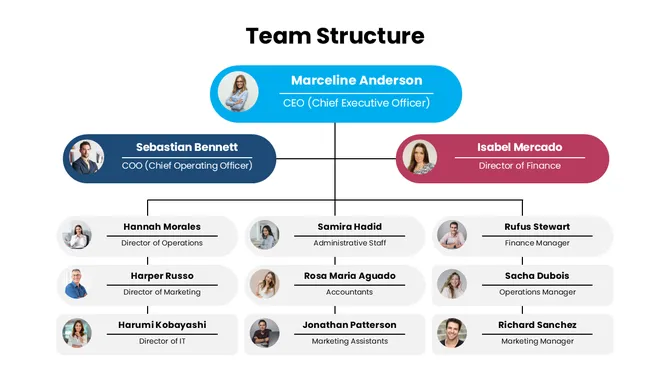
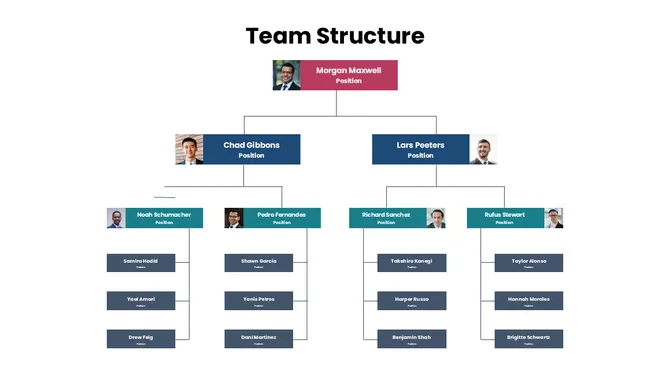
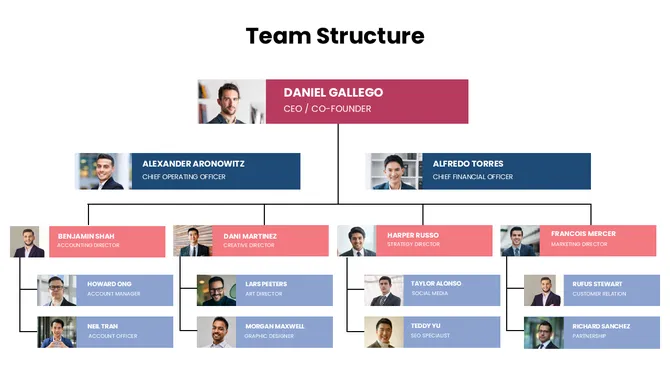
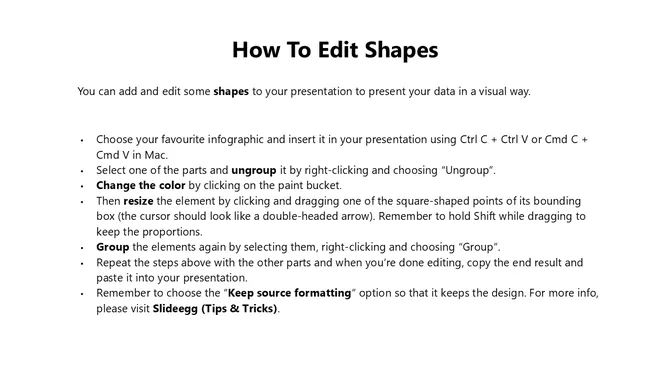
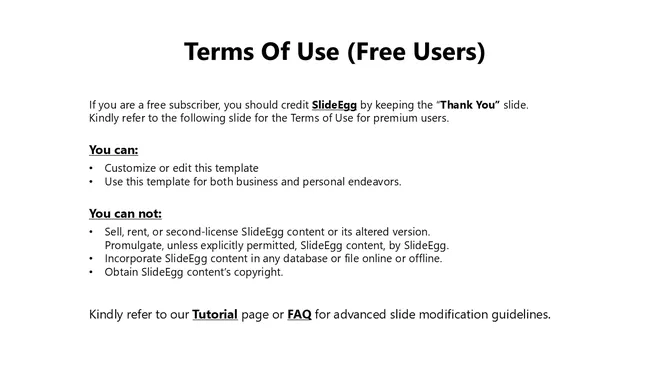
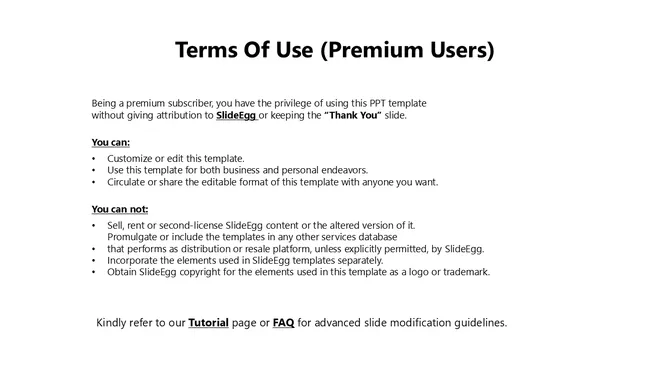

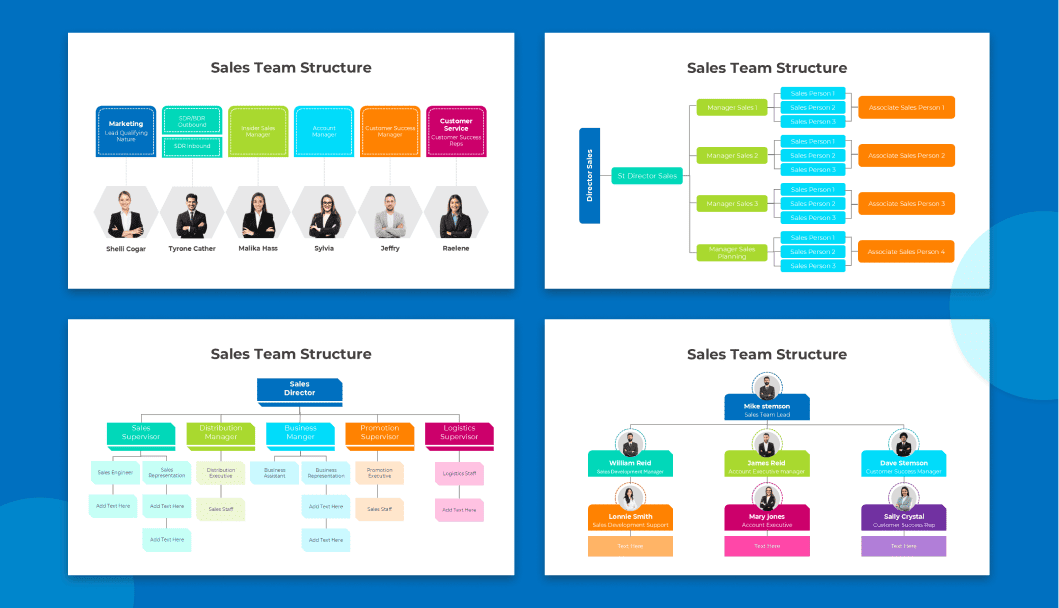
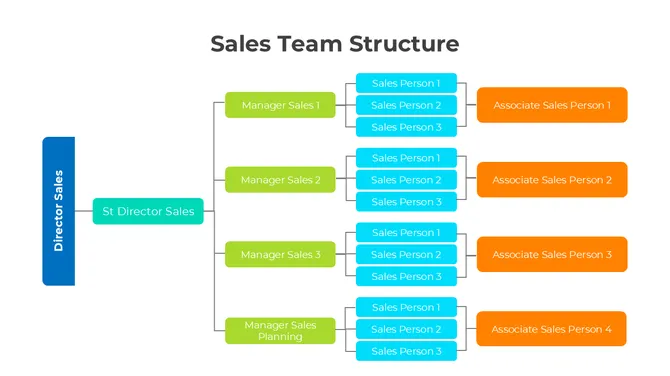
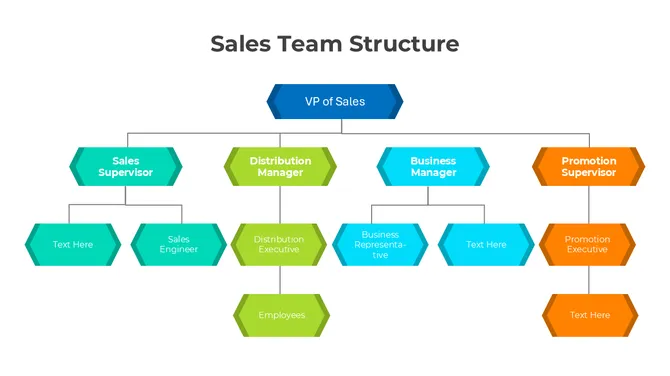
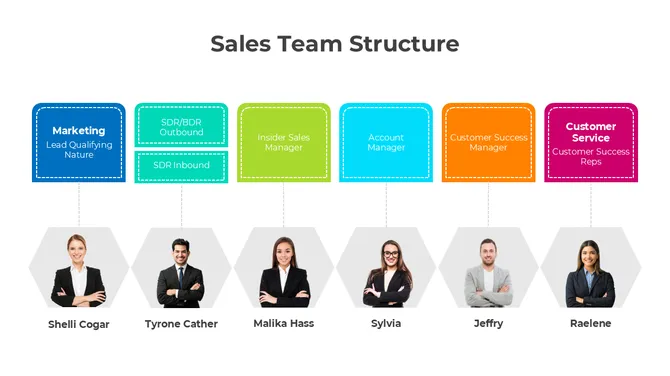
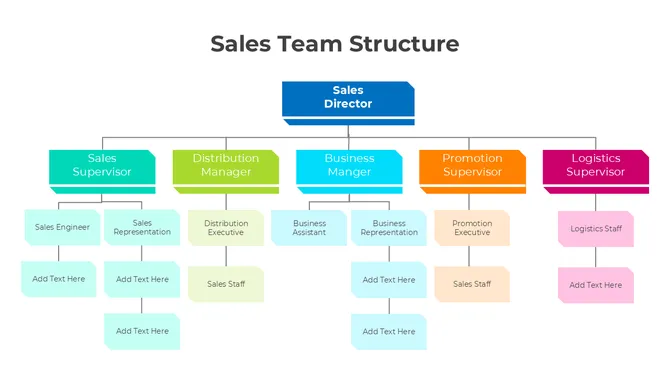
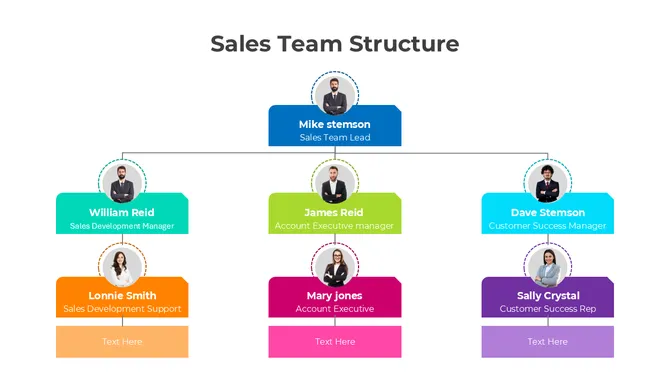

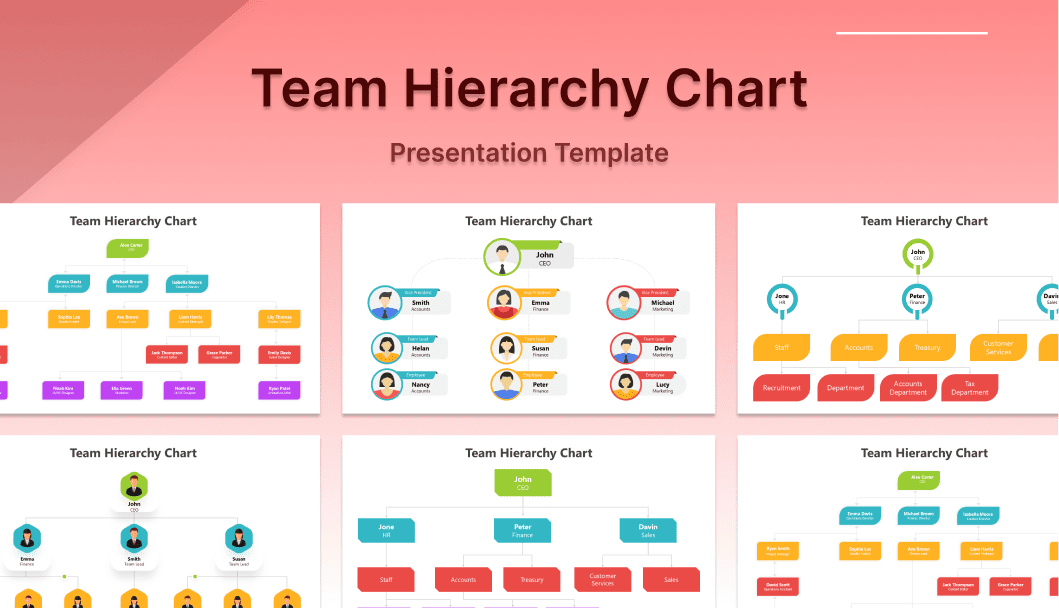
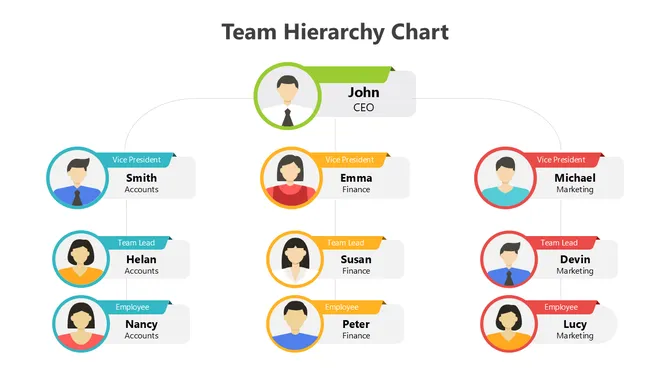
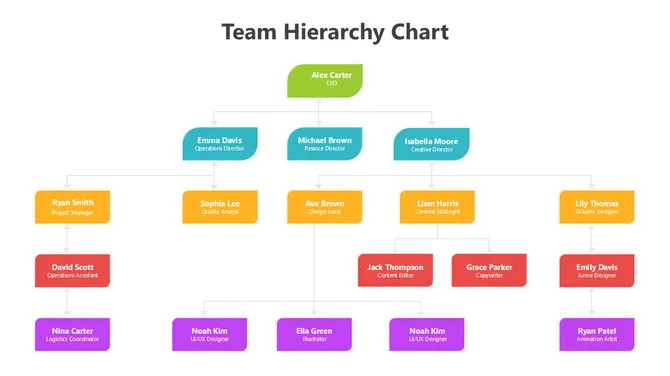
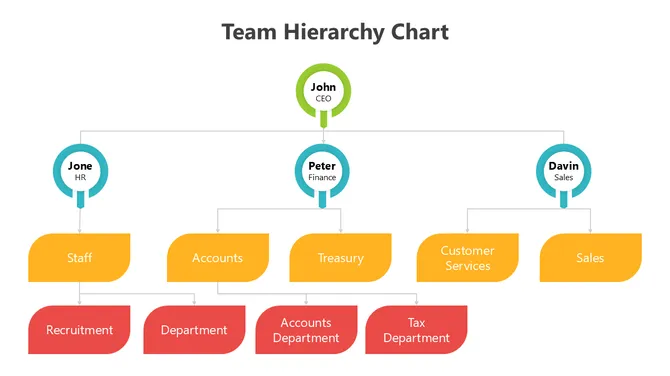
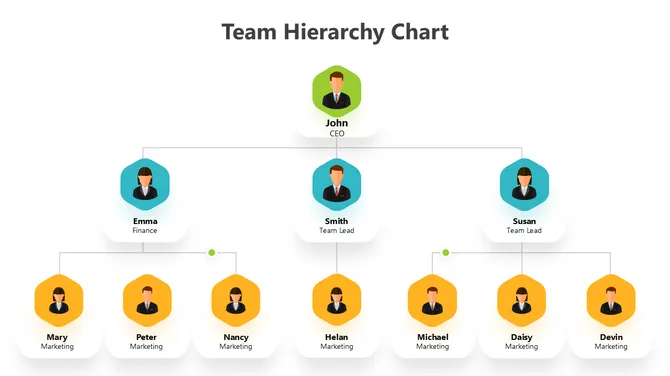
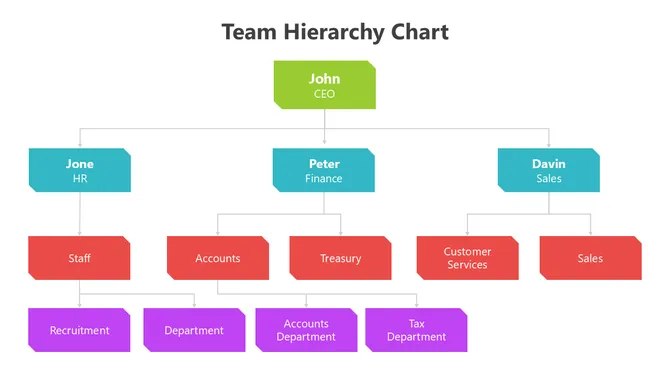

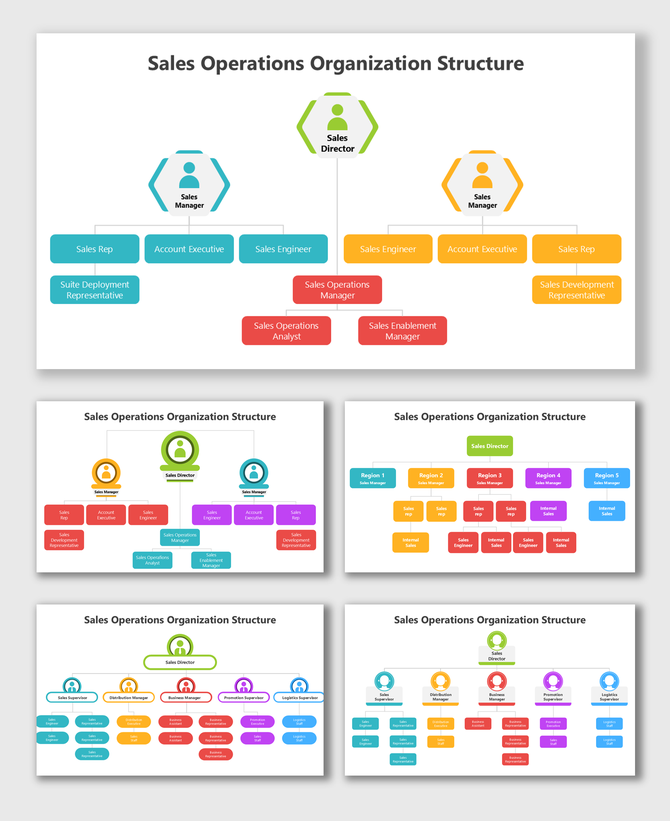
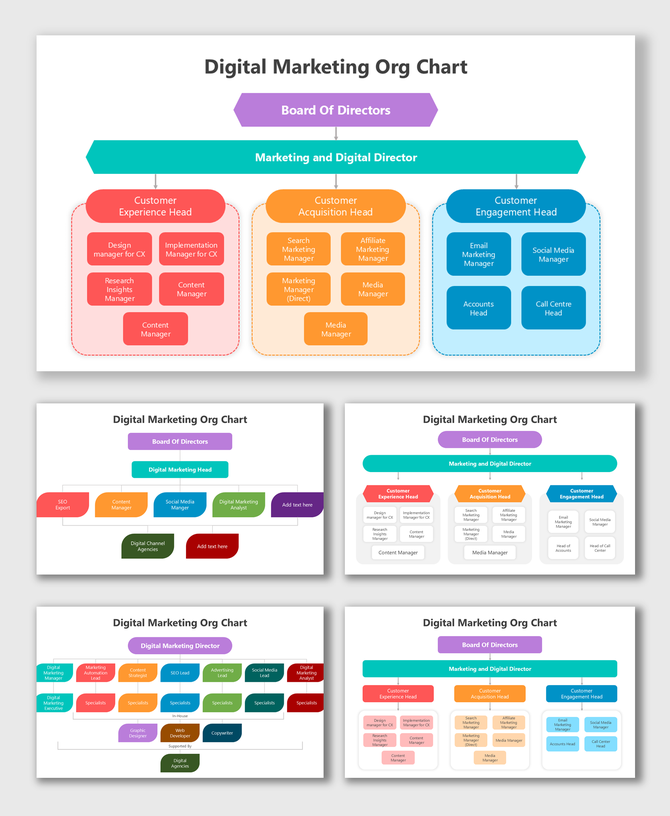
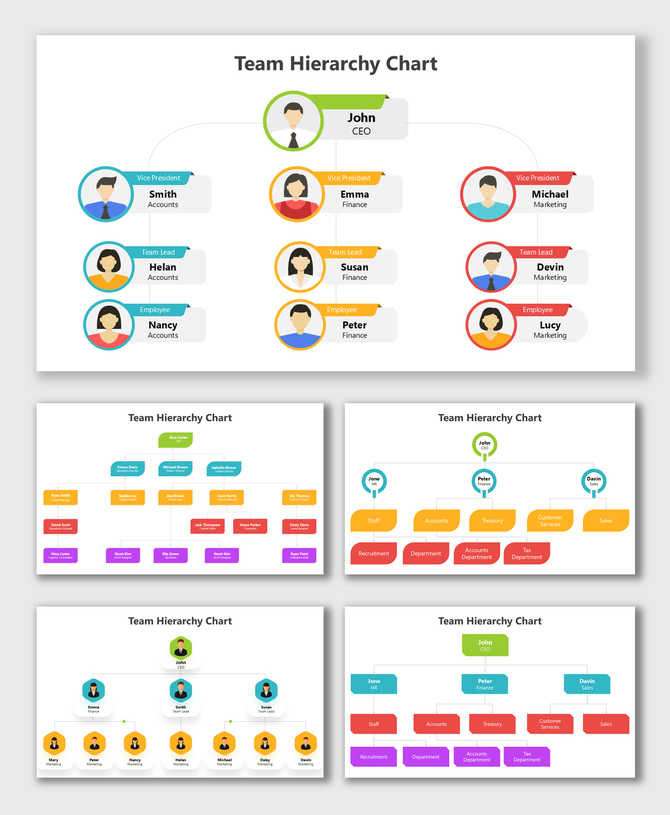
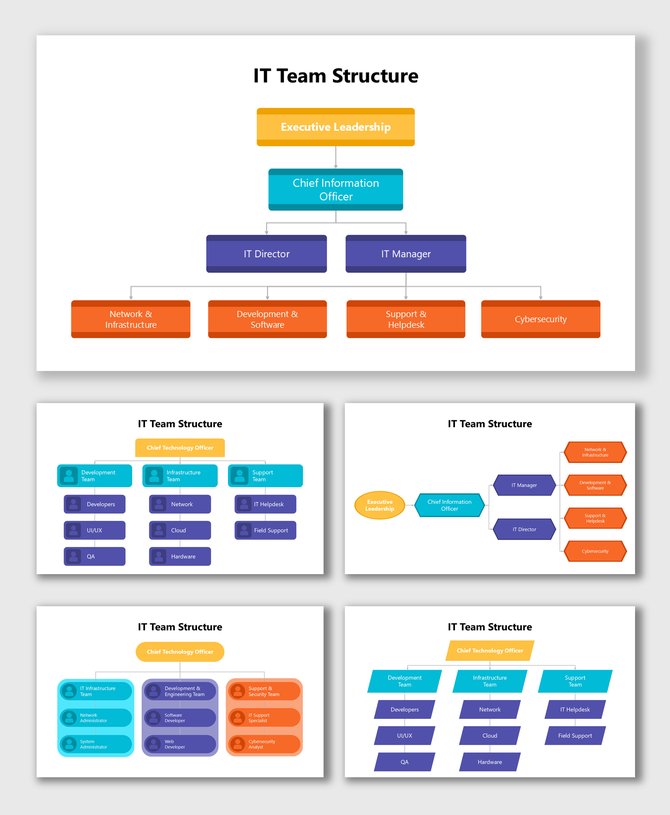

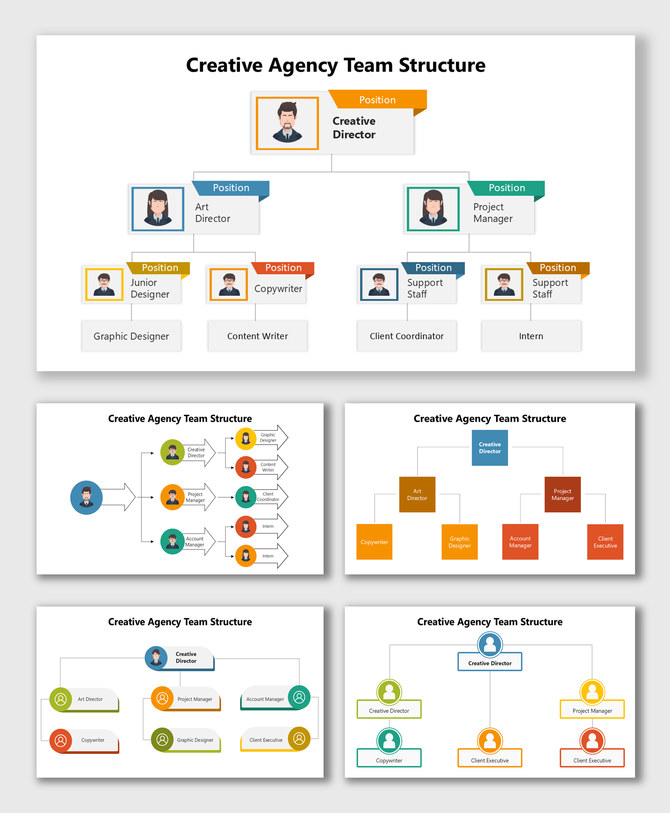
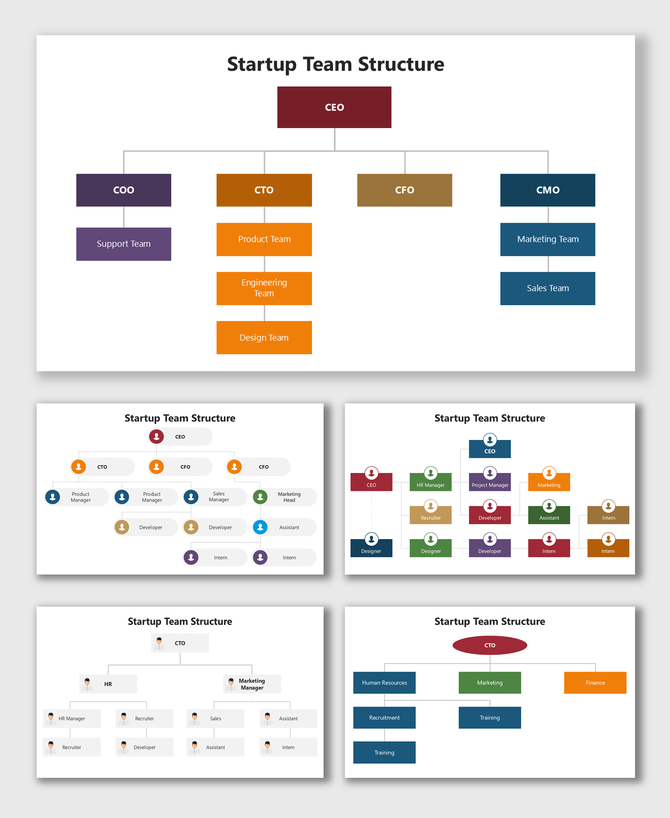
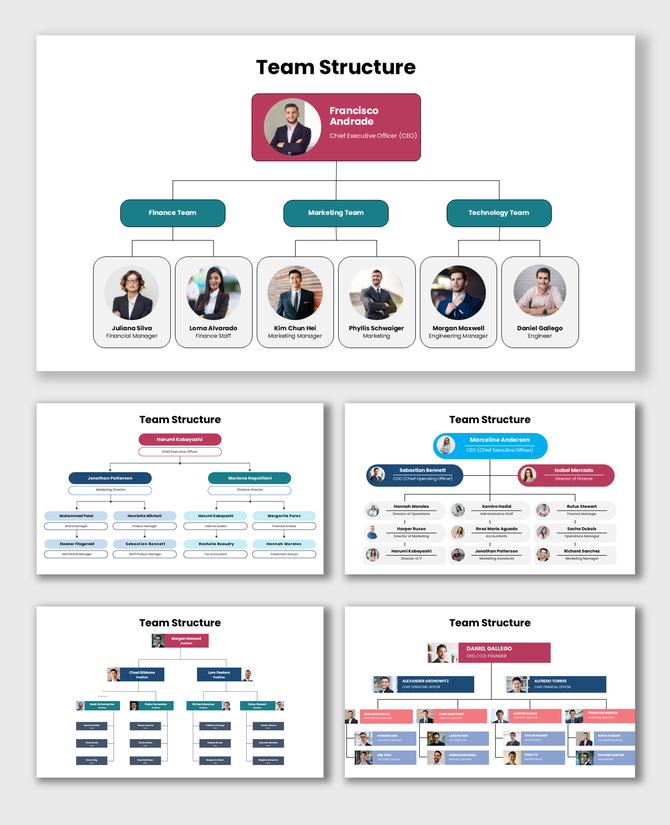
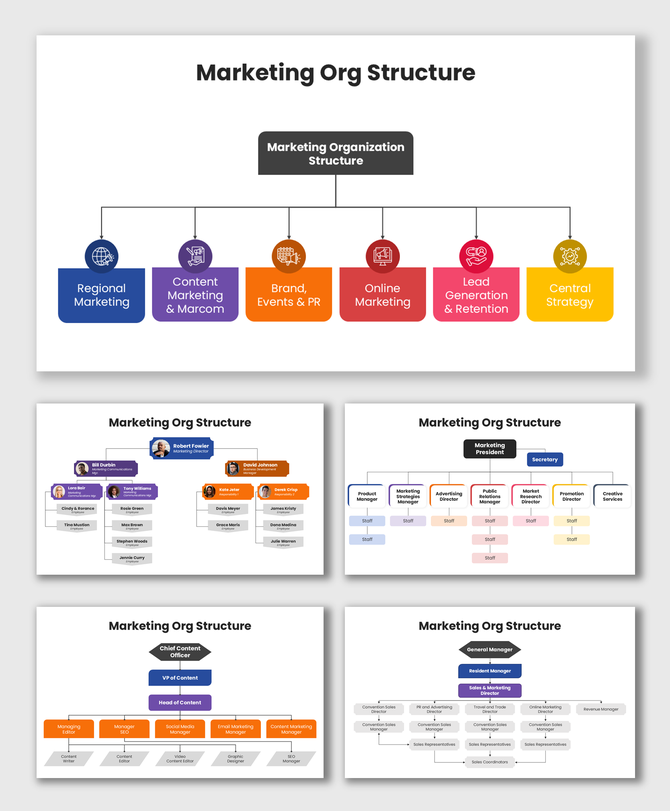
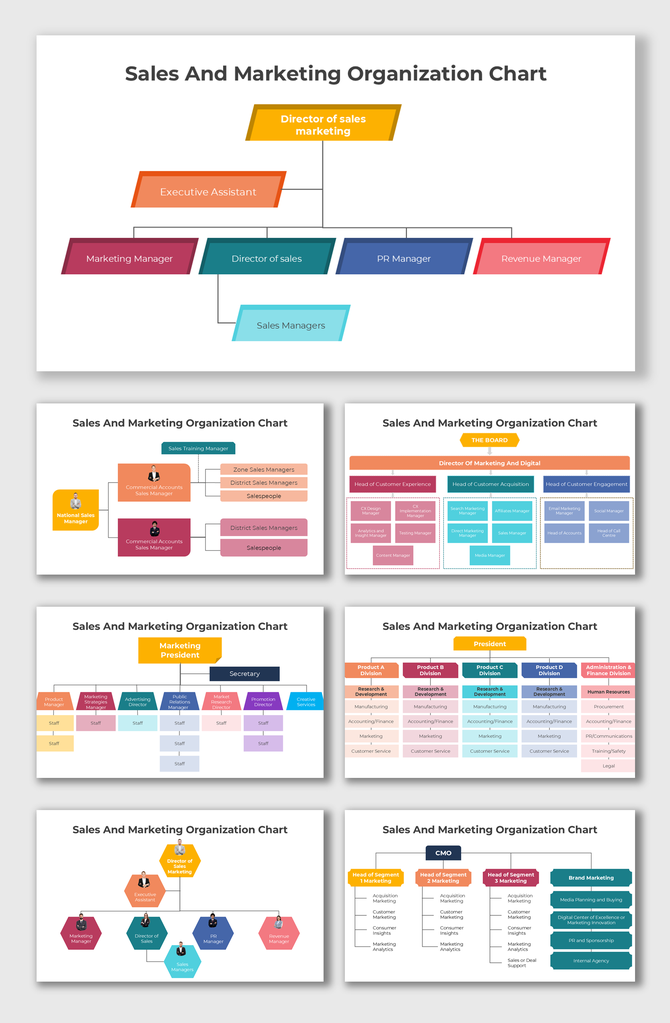
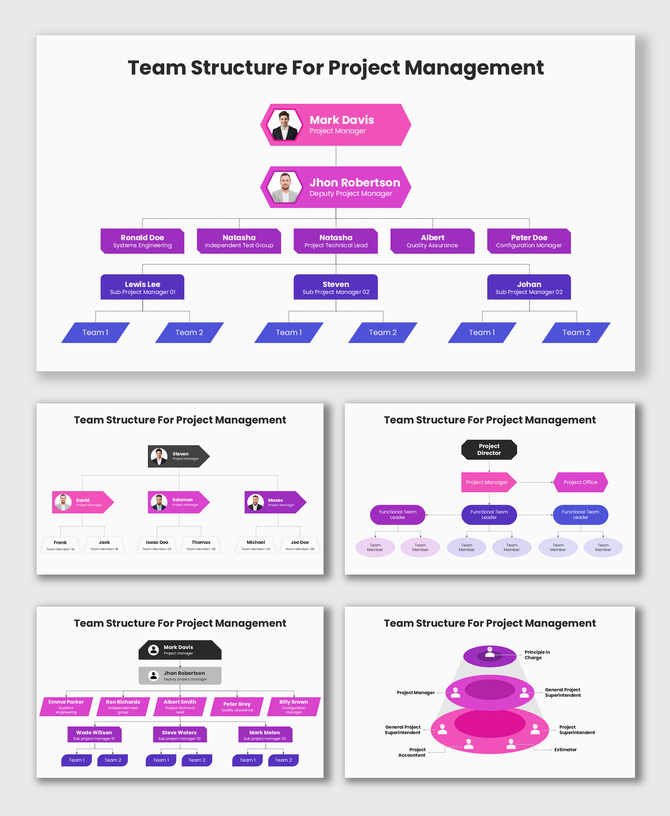
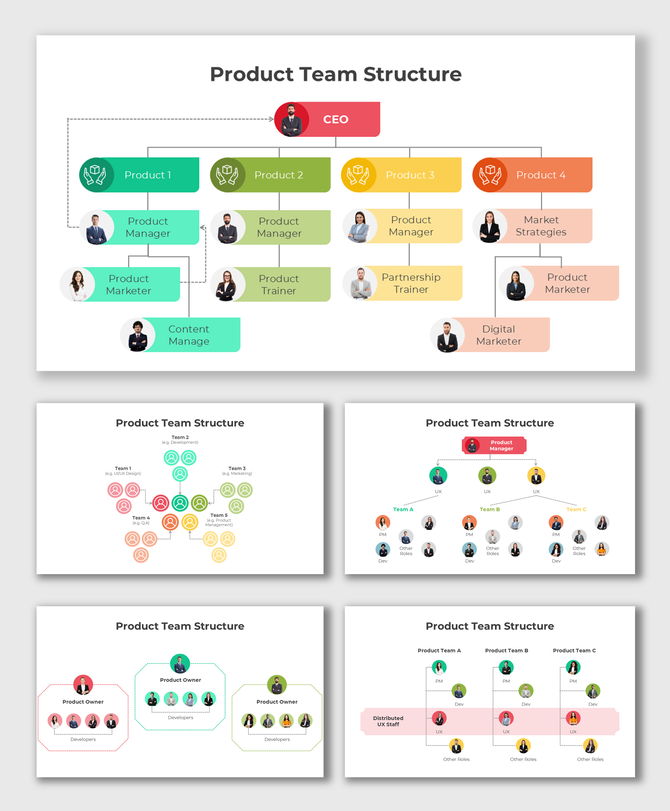
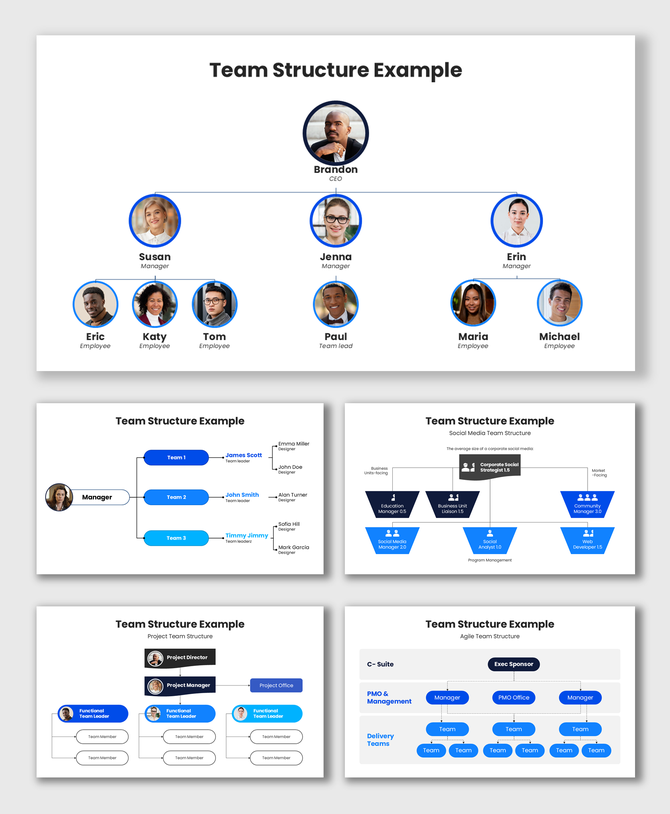
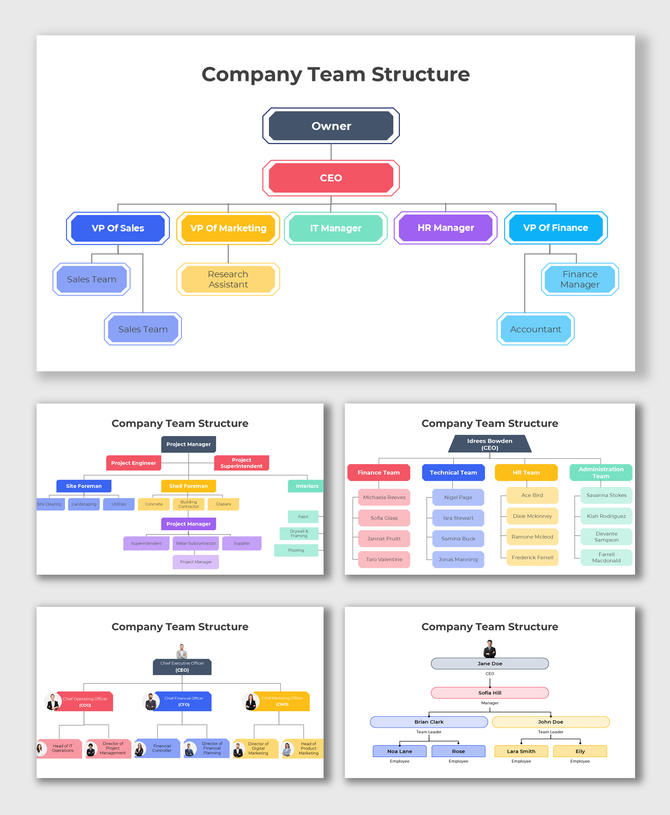
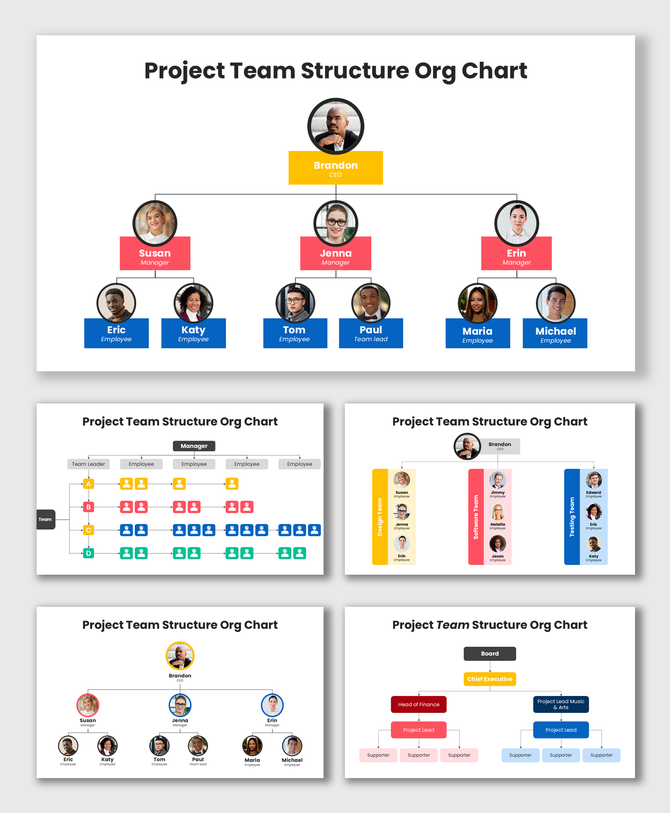
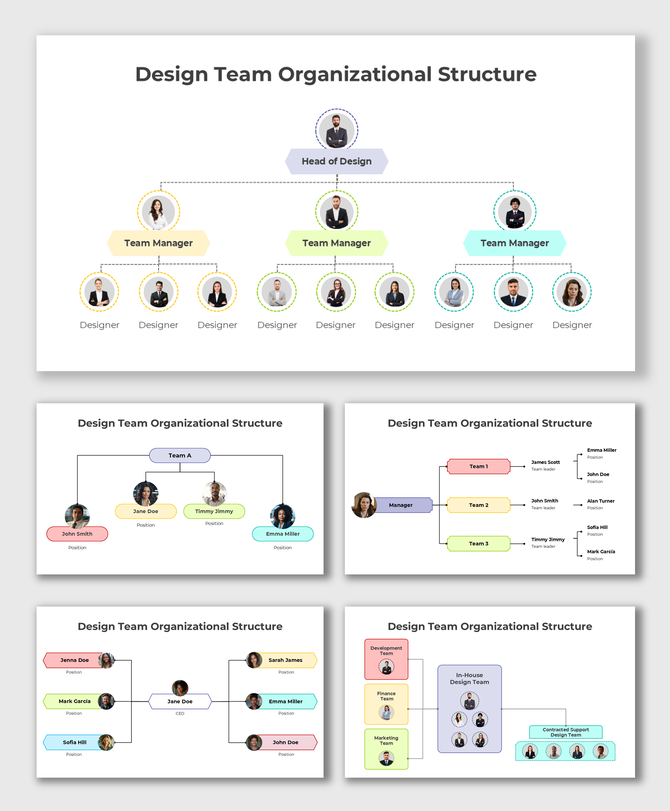
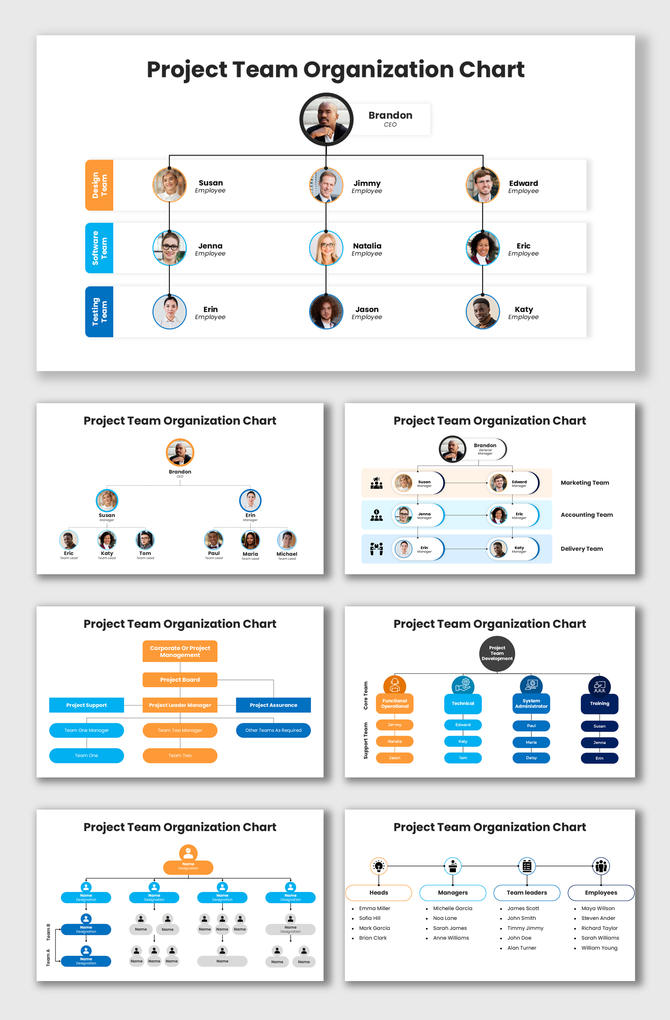
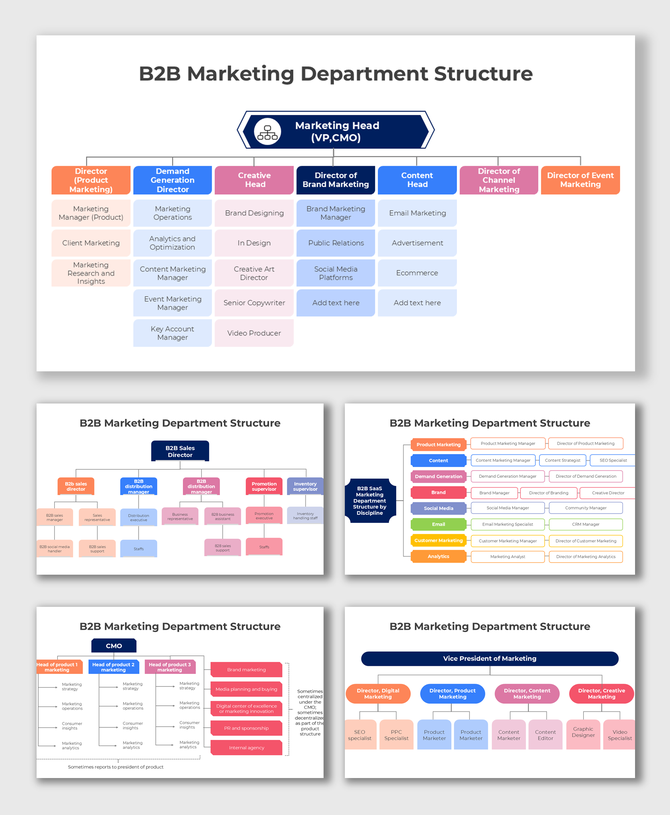
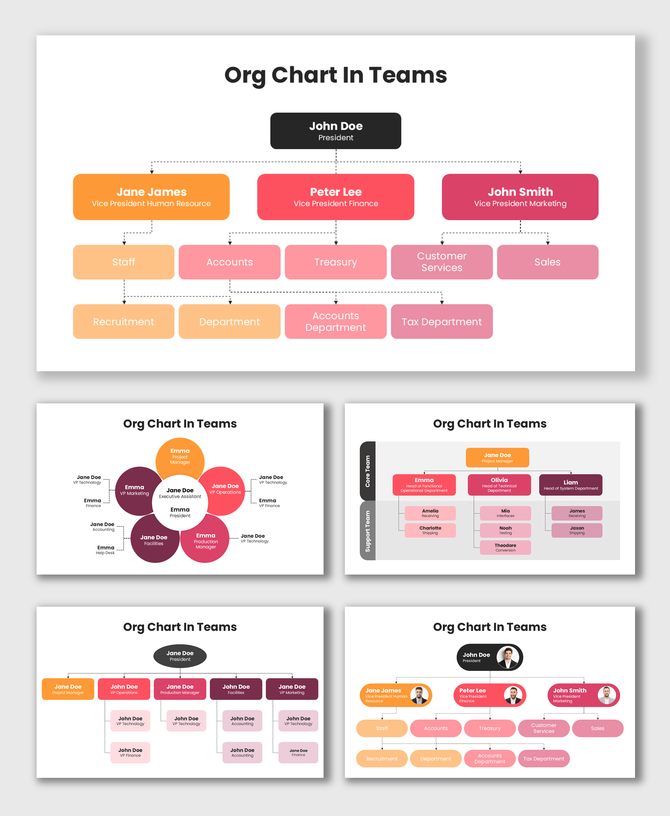
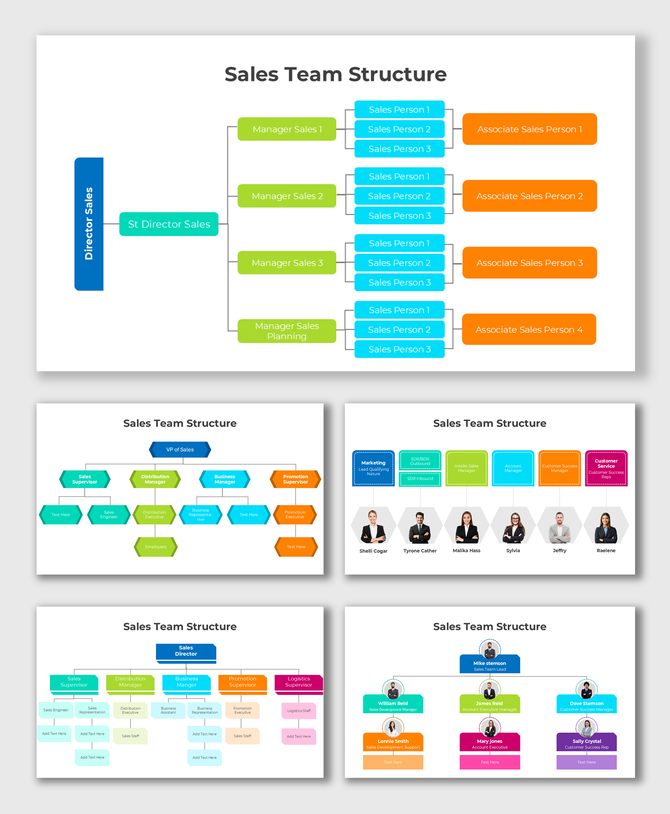
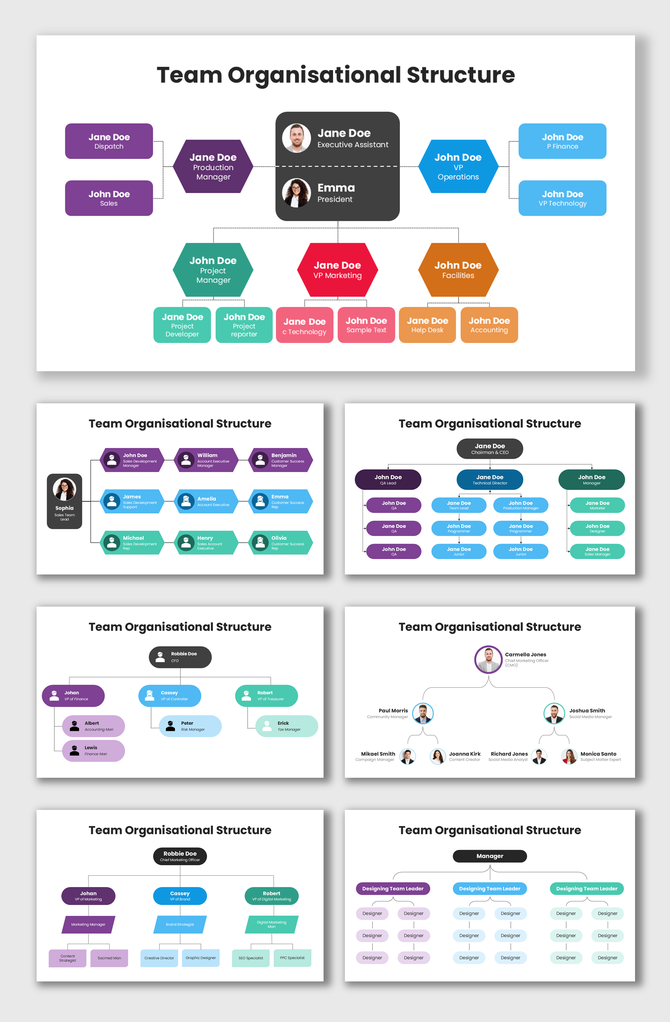
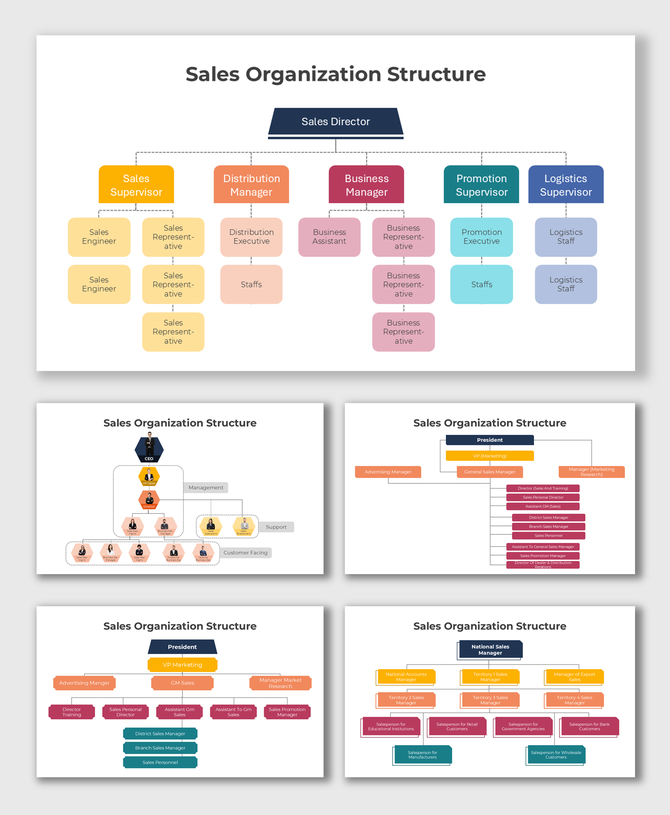
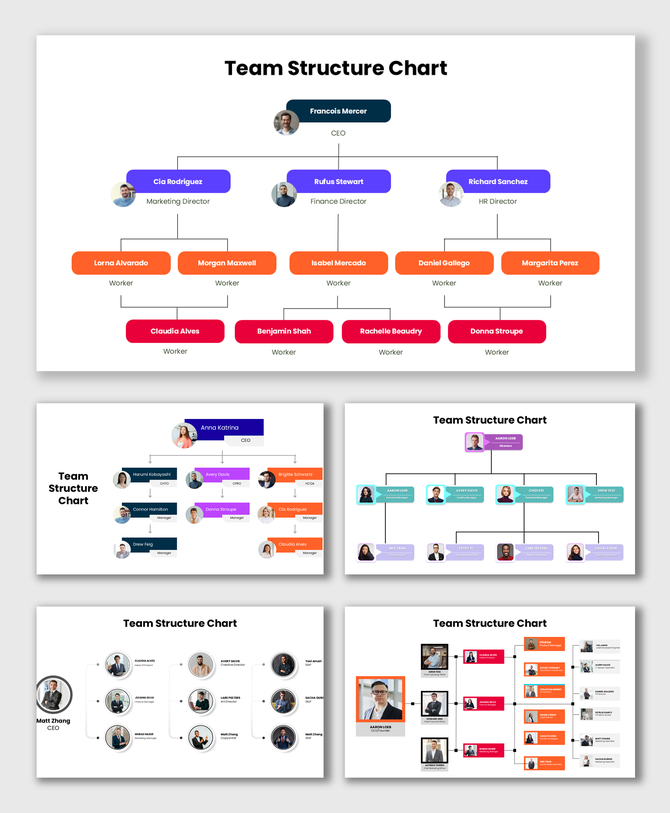
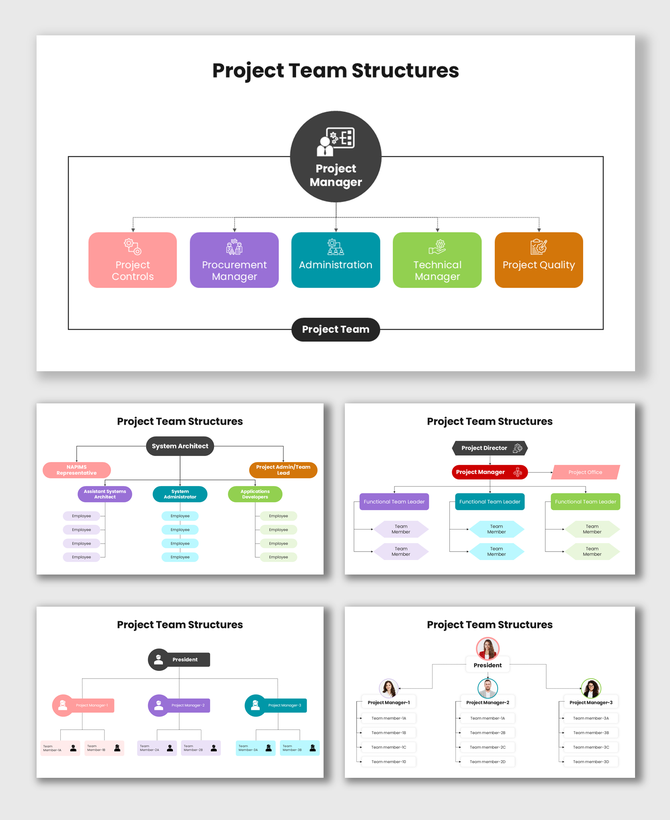
Define Your Team’s Success with Our Team Organizational Structure Templates
Why You Need a Department-Level Chart
- Onboarding: Show new hires exactly where they fit. They can see their peers and their manager instantly.
- Project Kickoffs: Define the "Squad" structure for a new initiative. Who is the decision maker? Who is the executor?
- Resource Planning: Spot gaps in your team. If you see five developers but only one tester, you know you need to hire.
- Remote Work Culture: In remote teams, people rarely meet. A chart with photos helps put a face to the name.
Explore Different Types of Team Structures Templates
- Best for: Operations, Finance, and HR departments.
- The Look: Clear vertical columns for each function.
- Best for: Agile tech companies and startups.
- The Look: Small clusters or "pods" rather than a big tree.
- Best for: Creative agencies and small consultancies.
- The Look: Horizontal layouts where everyone is on the same level.
Key Features of Our Team Layouts
- Photo Placeholders: Large spots for headshots so people can learn names and faces.
- Skill Tags: Space to list specific skills (e.g., "Python Expert" or "SEO Lead") under the name.
- "Hiring" Badges: Mark an open spot clearly so HR knows to recruit.
- "Interim" Roles: Show who is temporarily filling a leadership gap.
Best Practices for Visualizing Your Team
- Start with the Lead: Place the Manager or Project Lead at the top or center. This anchors the eye.
- Group by Function: Don't just list names. Group them by what they do (e.g., "Content Team" vs. "Ads Team").
- Use Visual Cues: Use colors to show sub-teams. Make the "North Region" Sales team Blue. Make the "South Region" Red.
- Keep it Alive: A team chart is never finished. Our slides are easy to update when people join or leave.
Technical Specifications
- PowerPoint: Best for secure, private editing on your desktop.
- Google Slides: Perfect for sharing with the team for real-time feedback.
- Canva: Import to add fun team photos and cultural elements.
- Royalty-Free: Use in internal kickoffs, client proposals, and company wikis without extra fees.
- Aspect Ratios: Available in 16:10 (Widescreen) for modern monitors and 4:3 (Standard) for handouts.
Build a Better Team Today
Frequently Asked Questions
What is the difference between a Team Chart and an Org Chart?
An org chart shows the whole company. A Team Chart zooms in on one specific department or project group.
Can I use these for Agile/Scrum teams?
Yes. We have "Flat" and "Pod" layouts that are perfect for modern Agile structures.
Can I add photos of my team?
Yes. These templates are designed with image placeholders. Using photos helps build team culture.
Do these work in Canva?
Yes. You can upload the PowerPoint file to Canva and edit it there easily.
How do I show an "Open Role"?
Simply duplicate a box, leave the photo blank, and type "To Be Hired" or "Vacant."
Are these templates royalty-free?
Yes. You can use them for commercial presentations and internal docs forever.
Can I change the colors to match my department?
Yes. All shapes are editable. You can color-code the "Sales" team Blue and the "Marketing" team Red.