4900+ Timeline Presentation Templates

Timeline information is everywhere but unorganized. Dates float. Milestones lack context. Dependencies are invisible. Without structure showing sequence and relationships, understanding is impossible.

Got a Unique Idea? Craft with AI
PRO
Credits left : 0
Add to Wishlist
Download
AI Customize
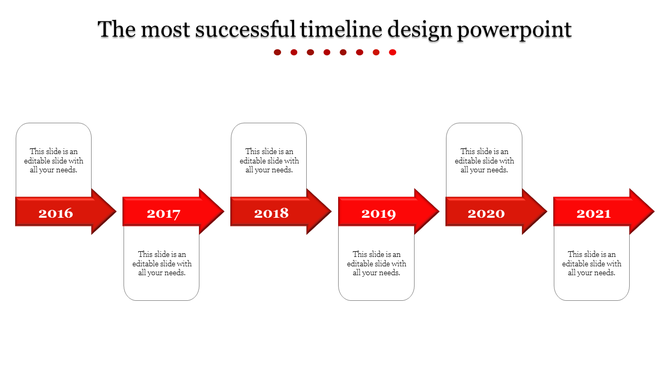
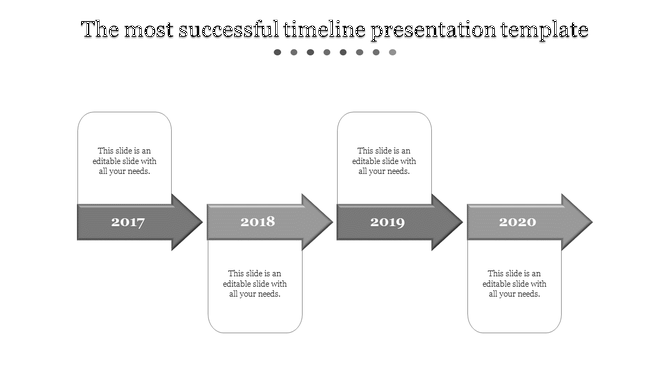
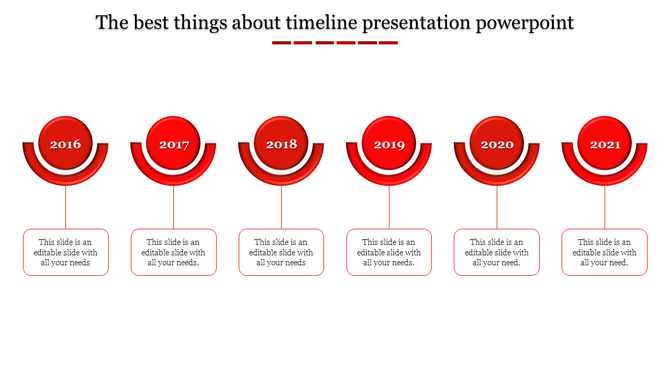
Timeline with six right facing red arrows and text boxes, representing years 2016 to 20201 in a sequential flow.
Add to Wishlist
Download
AI Customize
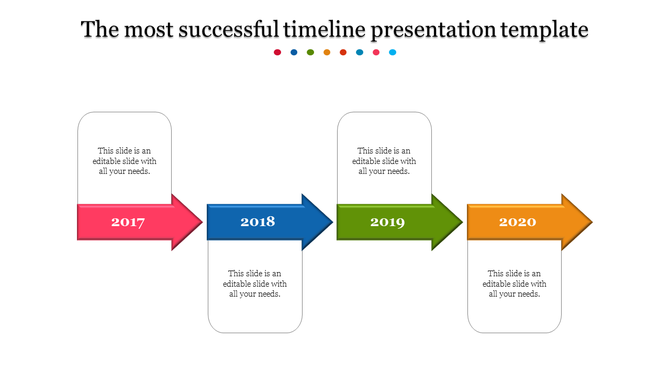
Colorful timeline with right facing arrows in red, blue, green, and orange, each linked to text boxes for 2017 to 2020.
Add to Wishlist
Download
AI Customize
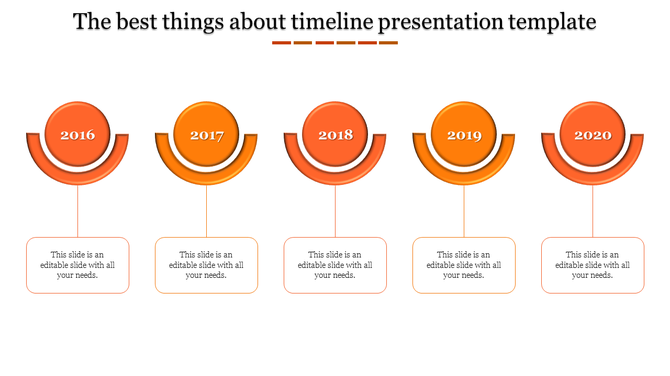
Timeline template with five circular orange markers and curved elements, representing years 2016 to 2020.
Add to Wishlist
Download
AI Customize
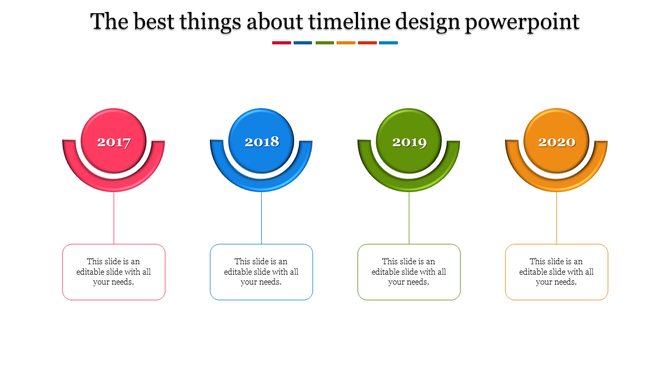
Colorful timeline slide with circular markers for 2017 to 2020 in red, blue, green, and orange, each linked to a text box.
Add to Wishlist
Download
AI Customize
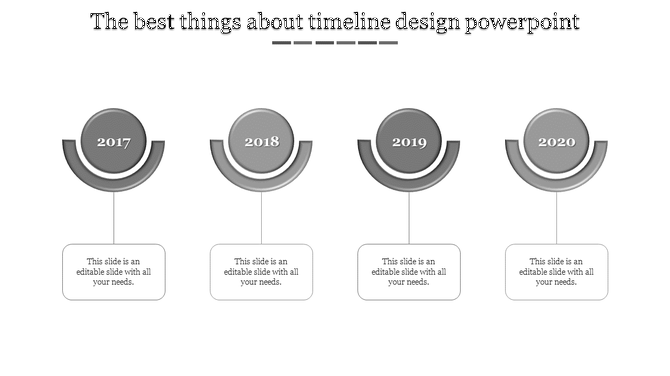
Grayscale timeline slide with circular milestone markers for 2017 to 2020, each connected to a text box below.
Add to Wishlist
Download
AI Customize
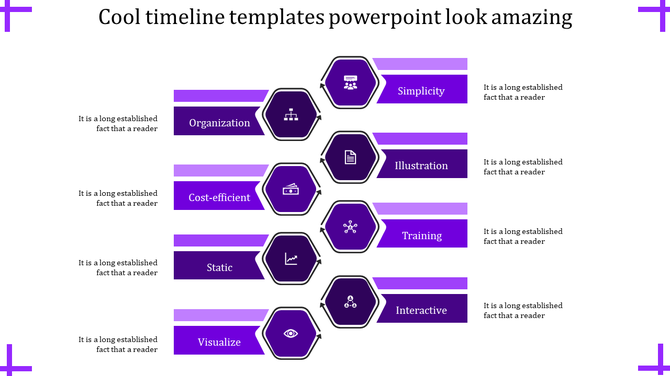
Timeline infographic with hexagonal icons and purple gradient bars, showing different stages of organization and training.
Add to Wishlist
Download
AI Customize
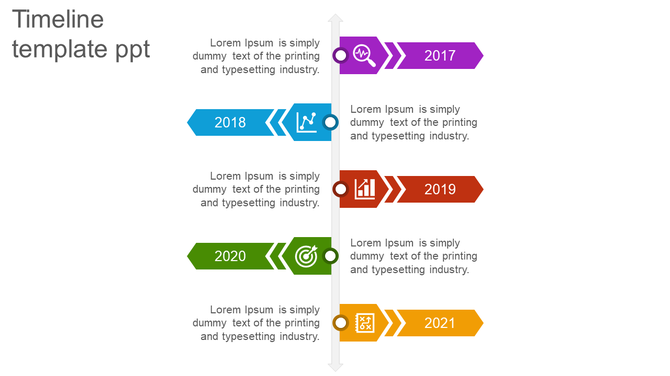
Vertical timeline with arrow-shaped segments, colored markers, and icons representing milestones from 2017 to 2021.
Add to Wishlist
Download
AI Customize
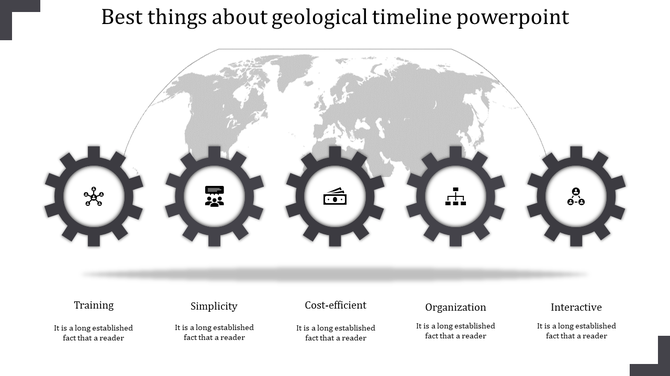
Geological timeline PPT slide with grey gear icons representing different stages from training to interactive with text area.
Add to Wishlist
Download
AI Customize
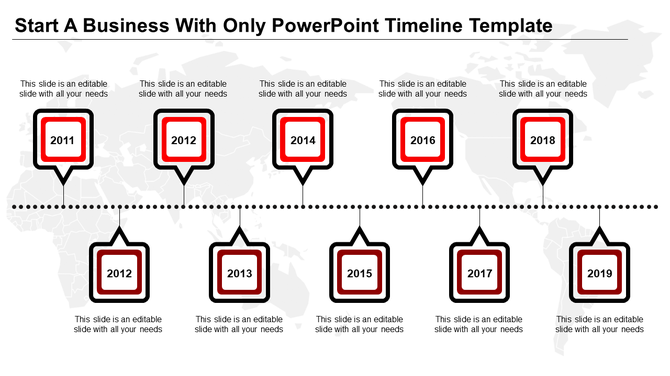
Horizontal timeline with black and red outlined square markers displaying years 2011 to 2019 on a world map background.
Add to Wishlist
Download
AI Customize
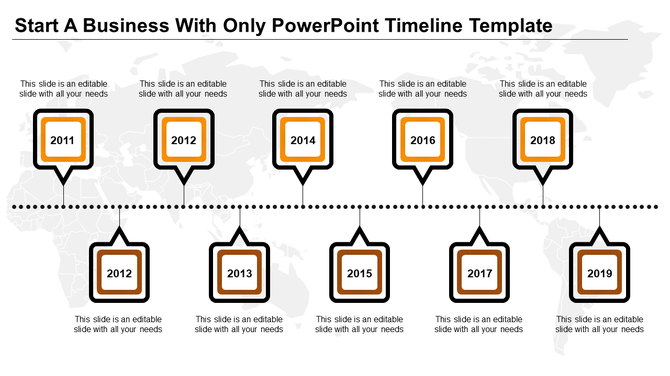
Timeline PPT slide showing years from 2011 to 2019, with orange boxes connected by a dotted line, with a global map behind.
Add to Wishlist
Download
AI Customize
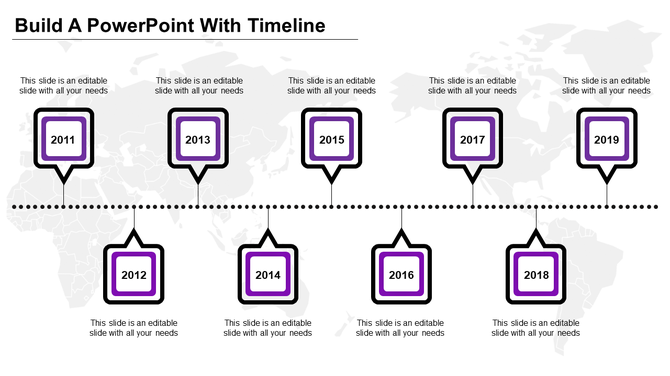
Timeline with nine square shaped purple milestone markers, placed along a dotted horizontal path over a world map.
Add to Wishlist
Download
AI Customize
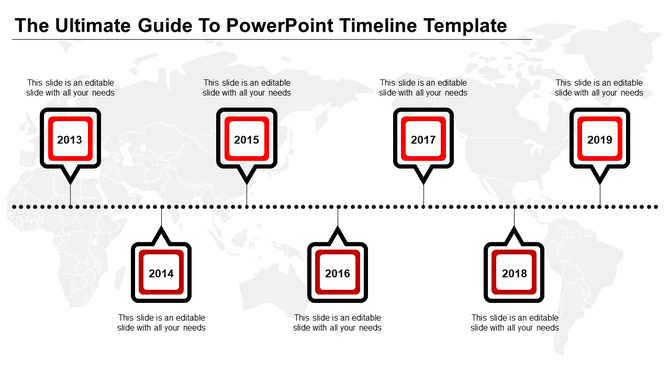
Structured timeline diagram displaying square year markers from 2013-2019, with black and red borders.
Add to Wishlist
Download
AI Customize
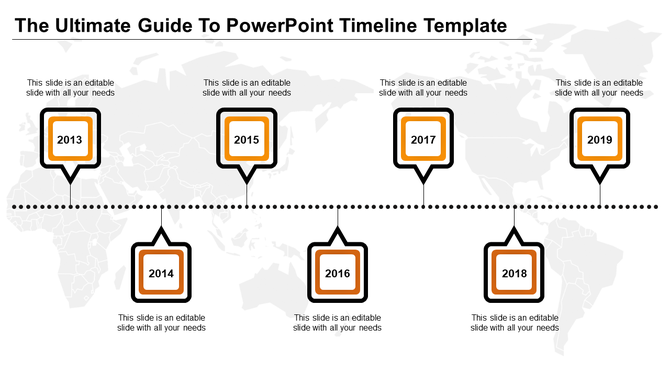
Timeline design showing years 2013-2019, rectangular year boxes with downward arrows and caption areas.
Add to Wishlist
Download
AI Customize
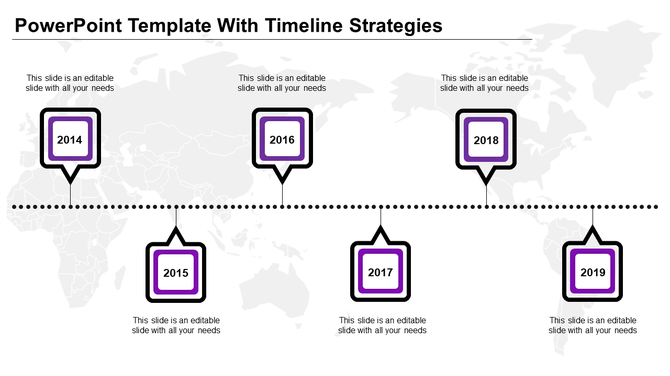
Slide with six purple bordered square markers for years 2014 to 2019, connected by a dotted horizontal line on a world map.
Add to Wishlist
Download
AI Customize
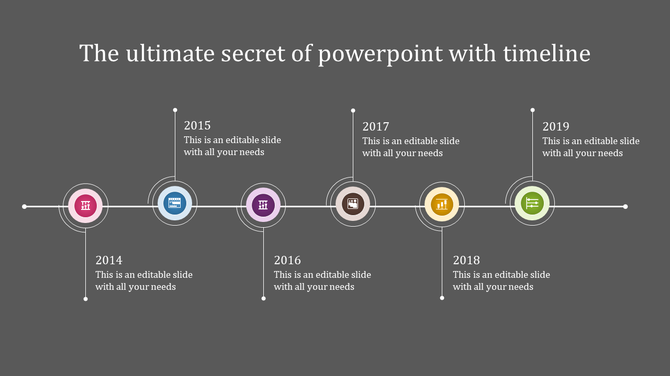
Timeline template with colorful icons for each year from 2014 to 2019, arranged sequentially along a horizontal grey line.
Add to Wishlist
Download
AI Customize
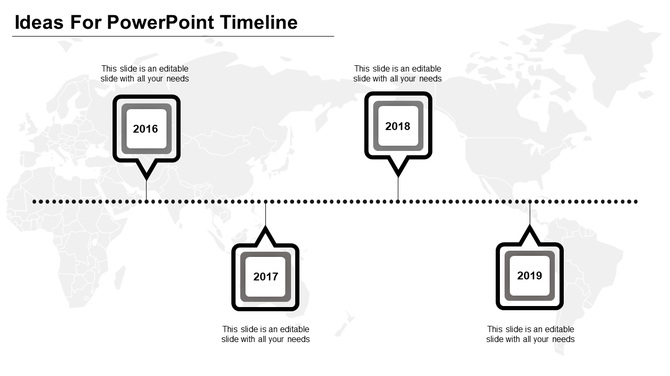
Timeline PPT slide from 2016 to 2019 with grey square icons for each year, connected by a dotted line over a map background.
Add to Wishlist
Download
AI Customize
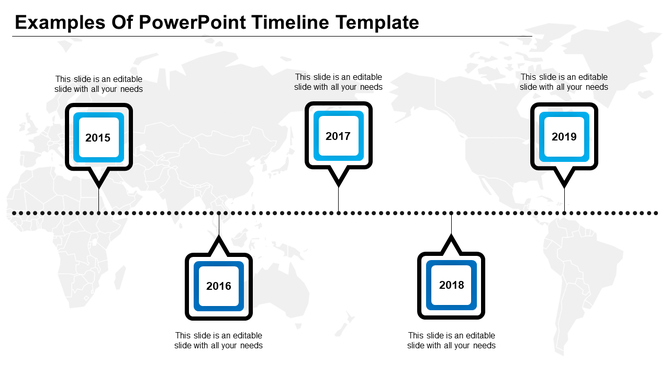
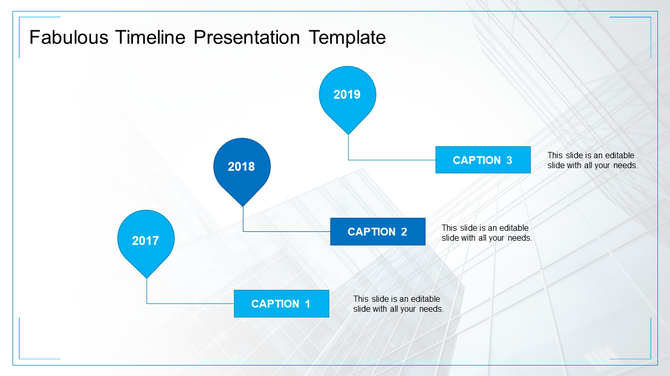
Timeline with three blue markers for years 2017 to 2019, and captions in rectangular boxes, on a modern background.
Add to Wishlist
Download
AI Customize
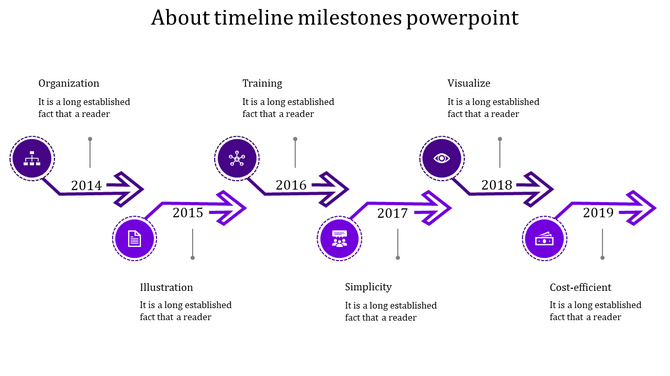
PowerPoint template with milestone markers on a timeline, featuring arrows, purple icons, and years from 2014 to 2019.
Add to Wishlist
Download
AI Customize
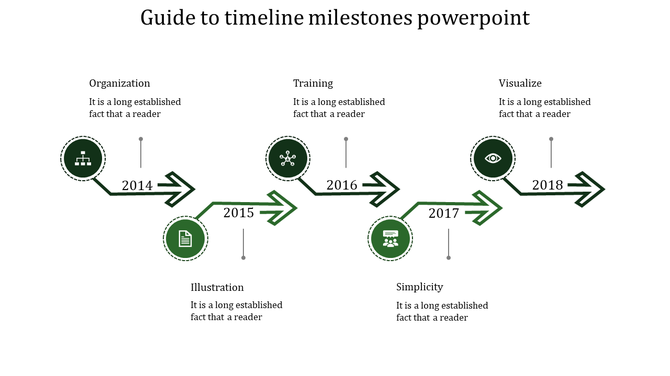
Timeline slide with five green arrows and icons, marking key events from 2014 to 2018, in a clean layout.
What are the strengths of the timeline PowerPoint template?

For project managers and leaders, a timeline template is a critical asset. It provides a unified view of the project’s phases, completed tasks, and remaining work. The beauty of a timeline is that it presents complex data in a concise, visually appealing format. It helps you track progress, manage deadlines, and provide a clear picture to stakeholders.

Our timeline PowerPoint templates are designed to meet a variety of needs and preferences. If you’re creating a specific presentation, you’ll find templates that can be customized to fit your branding. Whether you’re aiming for a creative and engaging presentation, we offer innovative designs that will captivate your audience. Plus, for general use, we’ve created versatile templates that include annual, monthly, weekly, and hourly plans.

Reasons why our timeline templates stand out: Unique features that elevate your presentations!

Every professional, whether they are an entrepreneur, an educator, or a creative artist, needs tools to enhance their presentations. Our timeline templates are crafted with unique designs. They boast unique features that make your presentations not just informative but also visually pleasing and deeply engaging.

1. Innovative Design Elements:

The timeline templates we offer are not just dates and lines. Each template is a carefully crafted visual treasure. Every shape and every icon has been thoughtfully selected to add depth and clarity to your information. Sleek lines, clever designs, and carefully selected elements can captivate your audience from the first moment, making your information more engaging and memorable.

2. High-quality infographics:

Infographics play a key role in transforming complex data into easy-to-understand visual images. Our templates are packed with high-quality infographics that help you visualize your milestones and events accurately, clearly, and stylishly.

3. Fully editable features:

Our templates come with fully editable features. From colors to fonts, from shapes to layouts, every detail can be customized to your needs. Designed to fit your branding.

4. Stunning Color Themes:

Colors are powerful tools that evoke emotions and enhance communication. Our templates offer a wide selection of stunning color themes that help you set the perfect tone for your presentation. Whether you want a professional and reliable look or a creative and energetic feel, our templates are there to perfectly complement your message.

How to use timeline templates to provide visibility to a project?

Timeline templates provide complete visibility into a project by clearly displaying the various stages, tasks, and deadlines of the project. This helps you understand all the important aspects of the project from start to finish at a glance.

How can you provide visibility?

  • Highlight key milestones: By clearly indicating the important stages of the project, you can provide a clear view of the overall progress and upcoming goals.
  • Show task relationships: By clearly displaying when a task starts and ends, and how tasks depend on each other, everyone can understand the flow of the project.
  • Visualize deadlines: By clearly displaying the deadlines set for each task and the overall project, everyone can feel the time constraint and avoid delays.
  • Specify responsible persons: By clearly indicating who is responsible for each task, you can ensure accountability and know who to direct questions to.
  • Use visuals to track progress: By marking completed tasks, ongoing tasks, and delayed tasks with different colors or icons, you can easily understand the current status of the project.
  • Continuous updates: By continuously updating the timeline as the project progresses, you can ensure that everyone has accurate and current information.

How to use timeline templates for project management?

Timeline templates serve as an important tool at every stage of the project management process. They help you plan, organize, track, and communicate your project effectively.

Key uses of timeline templates in project management:

  • Planning and defining: Helps you define the project’s objectives, identify the required tasks and their sequence, and set realistic deadlines.
  • Allocation and resource management: Helps you allocate the resources (people, equipment, etc.) required for each task and optimize resource utilization.
  • Execution and monitoring: Helps you track the progress of the project against the planned deadlines, and immediately identify and correct any deviations.
  • Communication and collaboration: Provides clear and concise information about the status and progress of the project to everyone, including team members, stakeholders, and customers. This helps in better collaboration and timely decision-making.
  • Risk management: Helps you identify potential disruptions and delays in advance and plan to mitigate them.
  • Documentation and Reporting: Document the project's history and progress, and create reports.

Related Collections

Frequently Asked Questions

1. How do I show multiple teams' work on the same timeline?

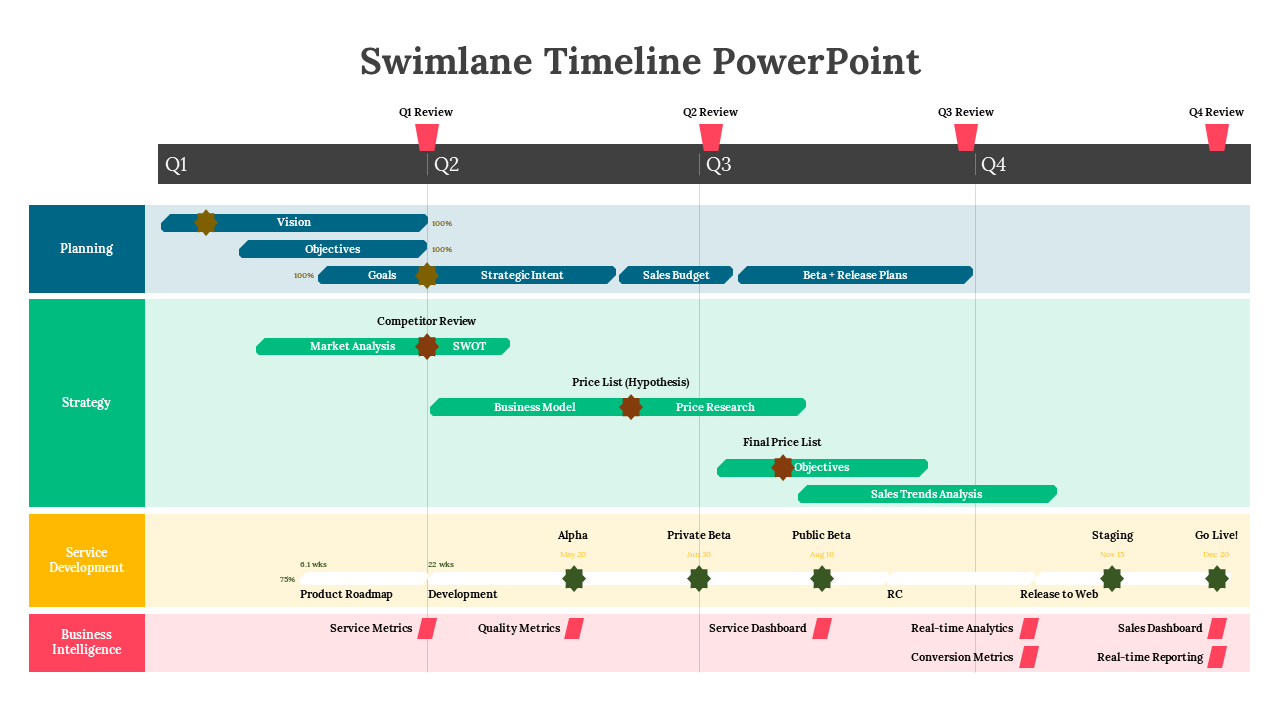
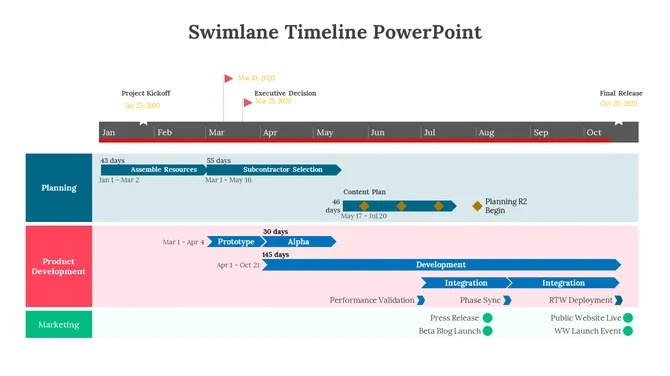
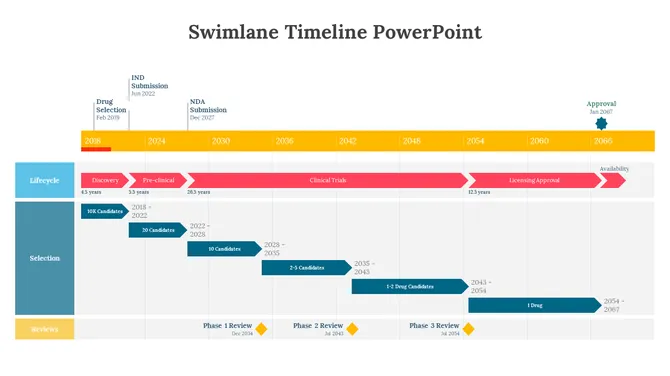
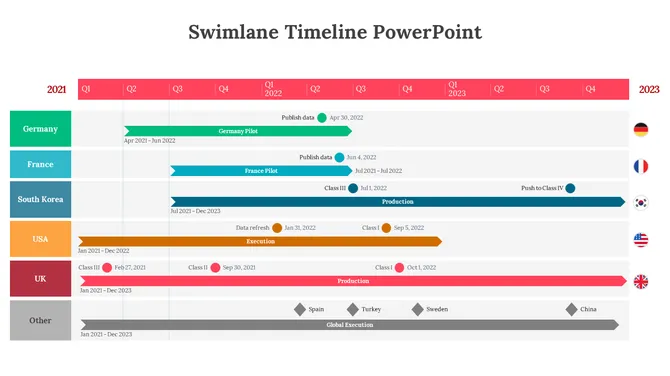
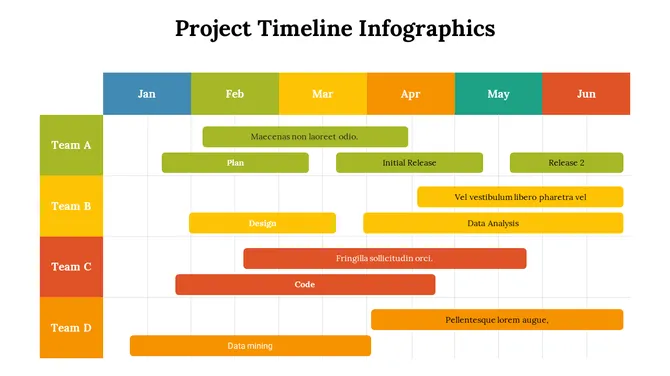
Swimlane timelines create separate lanes for each team/department, showing what each does and when. This prevents the "I didn't know your work blocked mine" problem. Each lane shows tasks sequentially, and connections between lanes show dependencies.

2. How do I identify where my timeline actually gets stuck?

Bottlenecks appear visually when one lane's work piles up or delays all other lanes. If Task A in Team 1 takes longer than expected, everything downstream backs up. Swimlane timelines make these chokepoints obvious instead of hidden in email threads.

3. How much detail should I include in my timeline?

Include only work that affects other teams. Skip micro-tasks. If it doesn't impact sequencing or dependencies, it distracts from the real story. Focus on milestones, handoffs, and decision points — not daily activity.

4. How do I handle timeline uncertainty (dates we're not sure about)?

Don't fake certainty. Use ranges (e.g., "Week 3-4") instead of exact dates you might miss. Mark assumptions. Highlight tasks with unknown duration differently. Better to be honest now than miss deadlines later.
5. How often should I update my timeline?

Weekly minimum if projects are active. When dates shift, update immediately and communicate why. Stale timelines lose credibility faster than timely ones with change notifications attached.

6. How do I explain delays to stakeholders without blame?

Focus on impact, not fault. "Task X took longer than expected, which delays Y for downstream teams" is objective. Show the new timeline immediately. Blame games destroy trust. Solutions maintain it.

7. How do I handle when someone's not on their timeline?

Timelines surface reality. If Team A misses their dates, the timeline shows it visually — no hiding. Use that visibility to problem-solve together, not to punish. "We need to reallocate resources here" is more useful than "You're late."