A word cloud is one of the fastest ways to make a slide more visually engaging — and one of the easiest to create. Whether you’re summarizing survey results, highlighting key themes, or opening with a brainstorm, adding a word cloud to your PowerPoint presentation takes less than 10 minutes.
PowerPoint doesn’t have a built-in word cloud tool, but you don’t need one. This guide covers three practical methods: using a free online generator, starting from a pre-built template, or creating a live word cloud that your audience builds in real time.
⚡ Quick Answer: Go to WordArt.com → paste your text → customize colors and shape → download as PNG → in PowerPoint click Insert → Pictures → select the image. Done in under 5 minutes.
Choose your method at a glance:
| Method | Time | Best For | Result Quality |
| Free Online Tool + Insert | 5–10 min | Any presentation | Good — fully customizable |
| Pre-built Template | Under 2 min | Professional results fast | Excellent — design-ready |
| Live Word Cloud (Slidea) | Real-time | Live audiences & events | Best — audience-driven |
What’s in This Guide
- What a word cloud is and when to use one
- Why word clouds work in presentations
- Method 1: Free online generator → insert into PowerPoint
- Method 2: Start from a pre-built PowerPoint template
- Method 3: Live word cloud with real-time audience input + Prompt Library
- Pro tips for better word clouds
- Common mistakes to avoid
- FAQs
What Is a Word Cloud?
A word cloud — sometimes called a tag cloud — is a visual representation of text data where the size of each word reflects how often or importantly it appears. Words that appear more frequently are displayed larger; less common words appear smaller. The result is an instant visual summary that shows what matters most at a glance.
Common uses in presentations:
- Summarizing open-ended survey or audience feedback responses
- Highlighting key themes from a research paper or strategy document
- Opening a brainstorming session with a visual prompt
- Making keyword-heavy topics — brand values, SEO strategy, product features — easier to absorb
Why Word Clouds Work in Presentations
Audiences process visuals significantly faster than plain text. A word cloud delivers a complete topic summary before you’ve said a single word. Specifically, they:
- Reduce cognitive load. Complex text becomes a clear, scannable visual pattern.
- Invite curiosity. Audiences naturally scan for the biggest words — which pulls attention in immediately.
- Spark discussion. A live word cloud built from audience responses creates instant, visible engagement.
- Require zero design skill. Anyone can create and read one effectively.
Method 1: Free Online Generator → Insert into PowerPoint (Fastest)
This is the most common approach and works for any static word cloud slide. Free tools like WordArt.com, WordClouds.com, and TagCrowd are browser-based and require no account to get started.
Step 1: Gather Your Text
Collect the words or text you want to visualize — key points from a report, survey responses, a brainstorming list, or any block of text. The more times a word appears in your input, the larger it will display. To emphasize a specific word, paste it multiple times.
Step 2: Generate the Word Cloud
Open your generator and paste your text into the input field. Customize the following before generating:
- Shape: Rectangle, circle, or a custom shape that fits your presentation context
- Font: Match your slide’s typeface for visual consistency
- Color palette: Use brand colors or your slide’s theme colors
- Layout: Horizontal-only text is the most readable from a distance
Click Generate or Visualize. Tweak until satisfied.
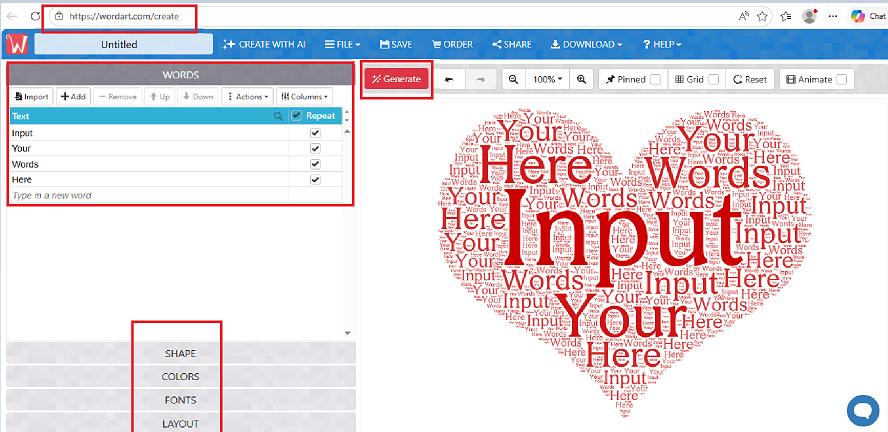
Paste your text into the generator, then customize shape, font, and colors to match your slide.
Step 3: Download as PNG
Download your word cloud as a PNG file — PNG is preferred over JPG because it supports transparent backgrounds, which blends cleanly into any slide color without a white box around the image.
Step 4: Insert into PowerPoint
Open PowerPoint and go to the slide where you want the word cloud:
- Click the Insert tab in the top Ribbon
- Click Pictures → This Device (or Online Pictures if stored in the cloud)
- Select your downloaded PNG and click Insert
- Drag to reposition and resize using the corner handles
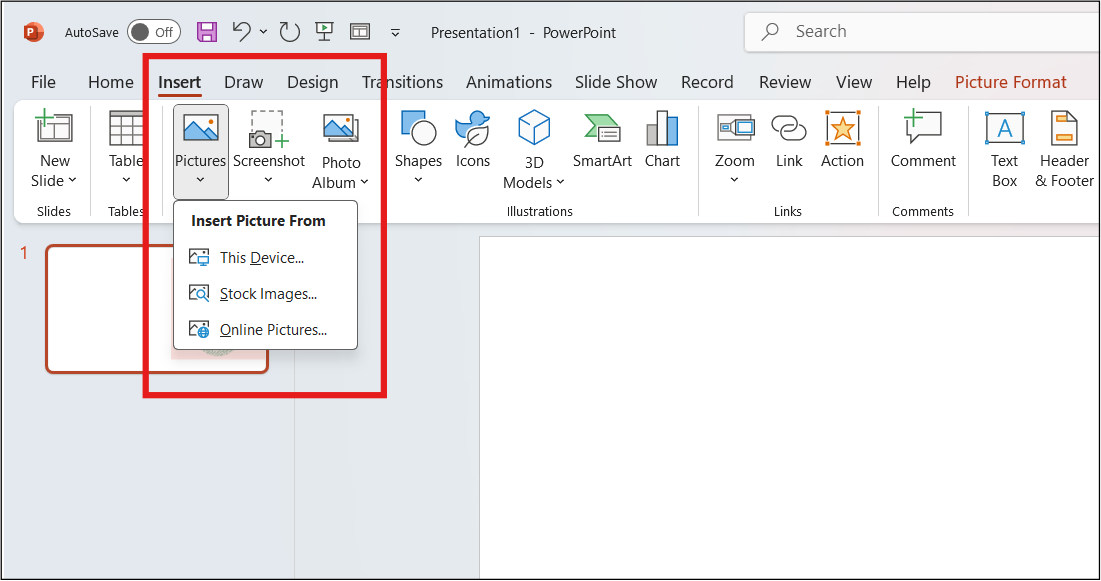
Go to Insert → Pictures to bring your word cloud image into PowerPoint.
Step 5: Final Alignment
Check the word cloud aligns with your overall deck design. Use Format Picture (right-click the image) to add a subtle drop shadow for a polished lift off the slide background. For consistent deck design, browse SlideEgg’s free PowerPoint templates — many layouts pair cleanly with inserted visuals like word clouds.
Method 2: Start from a Pre-Built PowerPoint Template (Best Results)
Most people make a simple mistake: they generate a word cloud and drop it onto a blank white slide. It looks unfinished. The fix is to place it inside a professional presentation layout that gives your word cloud the right context, framing, and visual balance.
SlideEgg’s free marketing and business PowerPoint templates give you clean, professionally designed slide layouts you can drop your word cloud image straight into. No design skills required.
Why use a professional layout?
- Better context: Place your word cloud next to bullet points or a “Key Takeaways” box so the audience immediately understands what it represents
- Brand consistency: Ensure your colors, fonts, and spacing match the rest of your deck — not just the one word cloud slide
- Visual balance: Use a split-screen layout — word cloud on one side, explanation or data on the other. This is far more engaging than a full-slide image with no context
Steps:
- Download a clean marketing or business template from SlideEgg — look for layouts with image placeholders or split-screen designs
- Open the template in PowerPoint and go to the slide with your chosen layout
- Insert your PNG word cloud from Method 1 into the image placeholder (Insert → Pictures)
- Add a short title or “Key Takeaways” label alongside the word cloud for context
- Your simple PNG image now looks like a custom-designed, professional slide
💡 Pro Tip: Method 1 creates the word cloud image. Method 2 gives it a home. Using them together takes your slide from “I made a graphic” to “I designed a presentation.” This combination is what separates polished decks from amateur ones.
Method 3: Live Word Cloud — Let Your Audience Build It in Real Time
This is the most engaging version of a word cloud. Instead of preparing one in advance, you collect words live from your audience during the presentation, and the cloud builds itself on screen as responses come in.
Slidea’s live word cloud generator is designed exactly for this. Participants join via a link or QR code on any device — no app download needed — type their word, and the cloud updates instantly. Words submitted more often grow larger in real time.
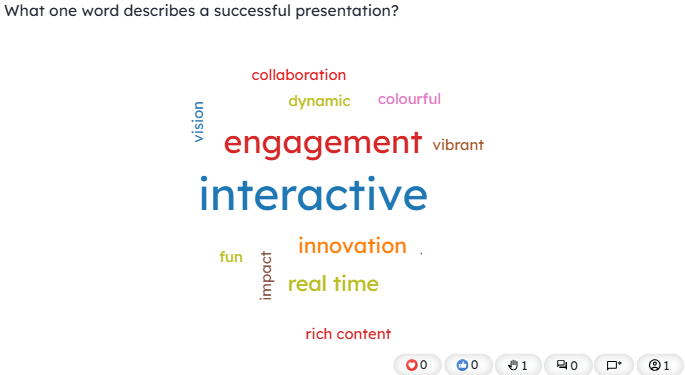
Slidea’s live word cloud grows in real time as your audience submits words from their phones. Notice how the most popular answers like “Interactive” naturally become the focal point.
When to Use a Live Word Cloud
- Opening icebreaker: Ask your first question before the deck even starts — the cloud fills up as people settle in
- Brainstorming: Collect team ideas live, then use the cloud as your discussion starting point
- Pitch or marketing session: Ask what words your audience associates with your product or brand
- Training or onboarding: Test recall after covering a concept — ask participants to share the word that stuck
- End-of-session feedback: Close with a reflection prompt and leave the word cloud visible as people exit
📋 Prompt Library: 5 Ready-to-Use Word Cloud Questions
The hardest part of a live word cloud is knowing what to ask. Use these prompts as-is or adapt them to your session:
| Context | Ready-to-Use Prompt |
| Team meeting opener | “What one word describes how you’re feeling about this project?” |
| Workshop kickoff | “What is your #1 goal for today’s session?” |
| Brand or marketing session | “What’s one word that describes our brand’s personality?” |
| Training / onboarding | “What word best describes a great customer experience?” |
| End-of-session feedback | “Share one word about what you’ll take away from today.” |
💡 Pro Tip: Keep the prompt simple and open-ended. One-word answers work best for word clouds. If your prompt invites short phrases, tell participants: “Try to answer in just one or two words.”
Slidea works alongside your existing PowerPoint slides — no redesign needed. For more inspiration, see Slidea’s guide on 10 creative ways to use word clouds in presentations.
Static vs. Live — which to choose? Use a static word cloud (Methods 1 or 2) when presenting pre-prepared data or summarizing research. Use a live word cloud (Method 3) when you want real-time audience input — meetings, workshops, training sessions, or any event where engagement matters.
Pro Tips for Better Word Clouds
- Remove filler words first. Words like “the”, “and”, and “is” will appear large and add no value. Most generators have a stopword filter — enable it.
- Limit to 30–50 words. More than that and the cloud becomes visually noisy. Quality beats quantity every time.
- Use 2–3 brand colors maximum. A simple palette reads more professionally than a rainbow. Monochromatic word clouds — shades of a single color — are often the most polished.
- Stick to horizontal text. Diagonal and vertical words are hard to read at a distance. Set your generator to horizontal-only layout for any presentation use.
- Always preview in Slide Show mode. Text that looks clear at 100% zoom can be unreadable on a projected screen. Test before you present.
Using Google Slides Instead of PowerPoint?
The process is nearly identical. Generate your word cloud, download as PNG, then in Google Slides go to Insert → Image → Upload from computer. SlideEgg has a full step-by-step guide on how to create a word cloud in Google Slides if you want the platform-specific walkthrough.
Common Mistakes to Avoid
Overcrowding the Cloud
Pasting an entire essay produces a cluttered result. Pre-edit your text to include only the most meaningful words before generating.
Poor Color Contrast
A word cloud where text and background are similar in color is unreadable from a distance. Always verify strong contrast between word colors and your slide background.
Low-Resolution Downloads
Most free tools offer standard and high-quality export options. Always choose the highest resolution available. A blurry word cloud on a large projector screen damages credibility instantly.
Mismatched Style
A colorful, playful word cloud dropped into a clean corporate deck creates visual friction. Match the word cloud’s colors, font weight, and shape to the overall slide design.
Final Thoughts
Creating a word cloud in PowerPoint is one of the quickest ways to add a visual punch to any slide. For a fast static result, generate one at WordArt.com and insert it in minutes. For a polished deck, grab a free word cloud PowerPoint template from SlideEgg. And if you’re presenting live, try Slidea’s live word cloud to turn a static visual into a real-time audience experience.
Whichever method you choose, keep it focused, readable, and matched to your audience. A well-placed word cloud doesn’t just decorate a slide — it communicates.
Frequently Asked Questions
Does PowerPoint have a built-in word cloud feature?
No — PowerPoint does not have a native word cloud tool. Generate one using a free tool like WordArt.com, download it as a PNG, then insert it via Insert → Pictures.
What is the best free tool to make a word cloud?
WordArt.com is the most flexible free option — it supports custom shapes, fonts, and color palettes with high-quality PNG downloads. WordClouds.com is simpler and faster for a quick result.
How do I make specific words appear larger?
Repeat the word multiple times in your input text. Most generators size words by frequency. Some tools also let you set custom word weights directly in the interface.
What file format should I download my word cloud in?
PNG is the best format — it supports transparent backgrounds so the word cloud blends into any slide color without a visible box around it. Avoid JPG as it adds compression artifacts around text.
Can my audience contribute to a word cloud live during my presentation?
Yes — this is called a live word cloud. Slidea lets your audience join via a link or QR code and submit words in real time. The cloud updates on screen instantly — no app download required for participants.
How do I add a word cloud to Google Slides?
Generate your word cloud, download as PNG, then in Google Slides: Insert → Image → Upload from computer. See SlideEgg’s full guide on how to create a word cloud in Google Slides for the step-by-step walkthrough.