| Quick Tips for Scribbling on Google Slides ✏️ Use the scribble tool from the toolbar. ✏️ Pick bright colors for better visibility. ✏️ Keep your drawings simple and clear. ✏️ Save your work often while drawing. ✏️ Use a stylus pen for smoother lines. ✏️ Make thick lines for important points. |
Introduction
Writing by hand feels more personal than typing. Even in our digital world, many people still love to scribble notes and draw arrows on their presentations. Google Slides lets you do exactly that! You can draw and write directly on your slides just like using a pen on paper.
What is Scribbling in Google Slides?
Scribbling means drawing freehand on your slides. You can write words, draw shapes, make arrows, or add any drawing. Think of it as having a digital pen that works on your computer screen.
The scribble feature helps you add personal touches to presentations, highlight important information, and make your slides more interactive.
✅ Why Use Scribble in Google Slides?
Scribbling is great when:
- You want to explain ideas visually.
- You don’t want boring slides.
- You need to mark up something on the slide.
- You’re making slides for kids or school projects.
- You just want to be creative.
🖱️ How to Scribble on Google Slides – Step-by-Step (Very Easy)
Let’s walk through it slowly, so it’s super clear.
Step 1: Open Google Slides
- Go to slides.google.com
- Open a new or saved presentation
Step 2: Choose a Slide
- Click on the slide where you want to draw.
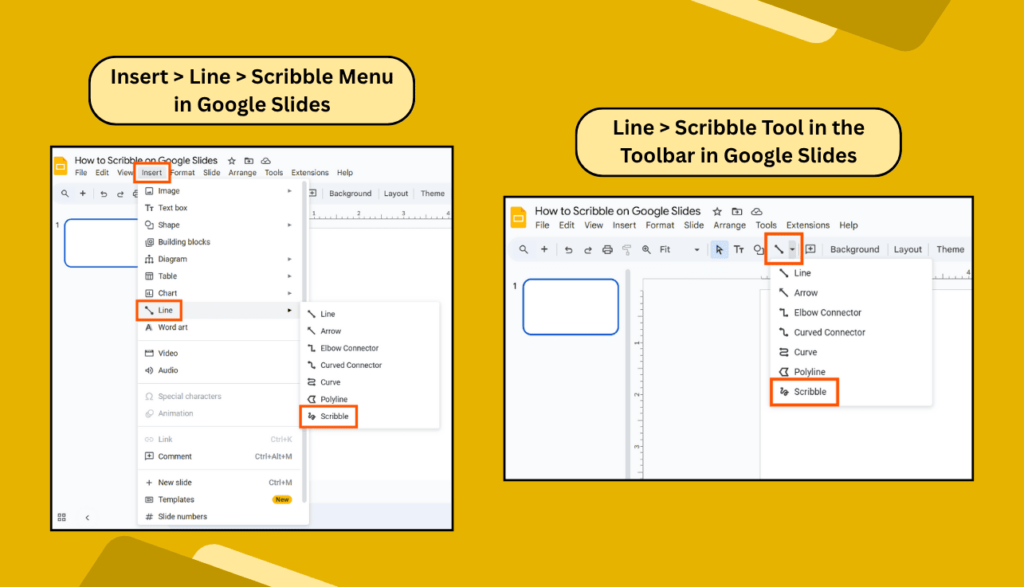
Step 3: Use the Scribble Tool
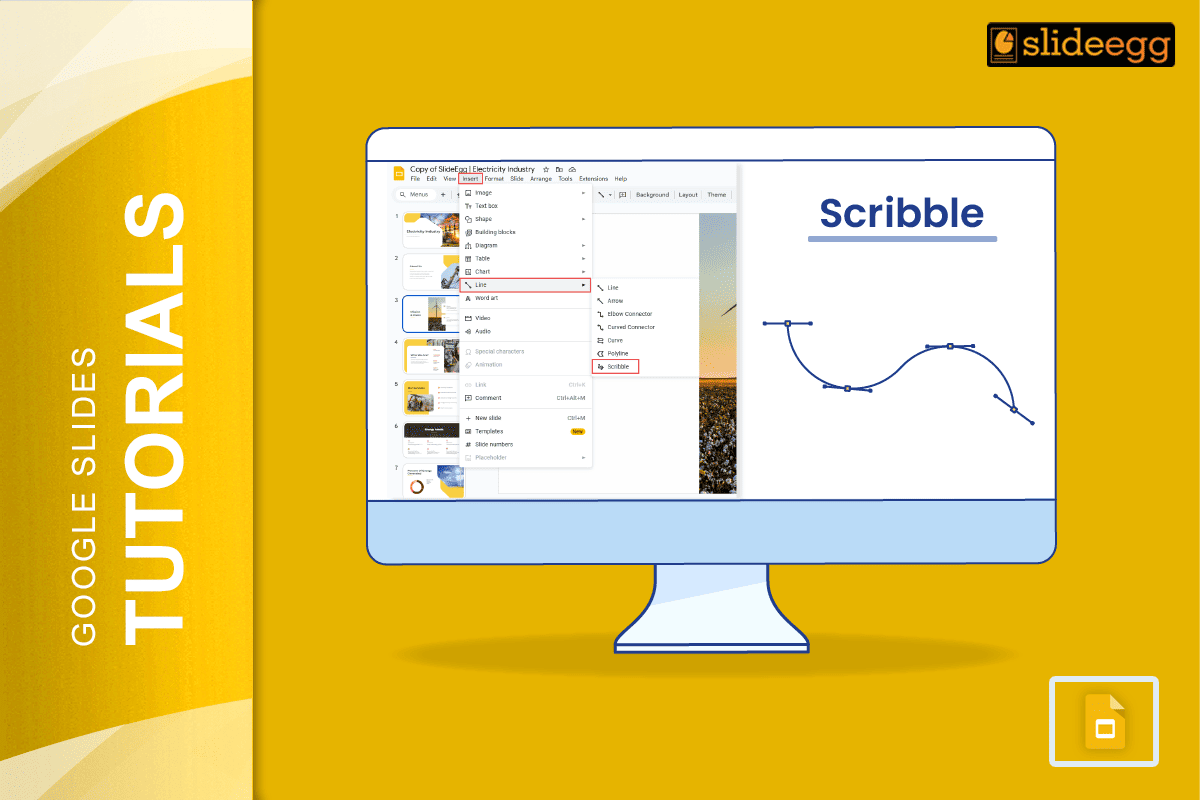
- At the top, click on “Insert”.
- Then click “Line”.
- A menu will open. Choose “Scribble” (it’s at the bottom).
- You can also get this Line tool from the toolbar.
Step 4: Start Drawing
- Now, your mouse pointer becomes a pencil.
- Click and hold your mouse.
- Start drawing or writing anything.
- Let go of the mouse to finish.
Step 5: Move or Resize Your Drawing
- Click on your scribble to select it.
- You’ll see blue boxes (resize handles).
- Drag to resize or move it around the slide.
That’s it! You just scribbled on your Google Slides.
✏️ Can You Change the Color of the Scribble?
Yes! After drawing:
- Click on the scribble to select it.
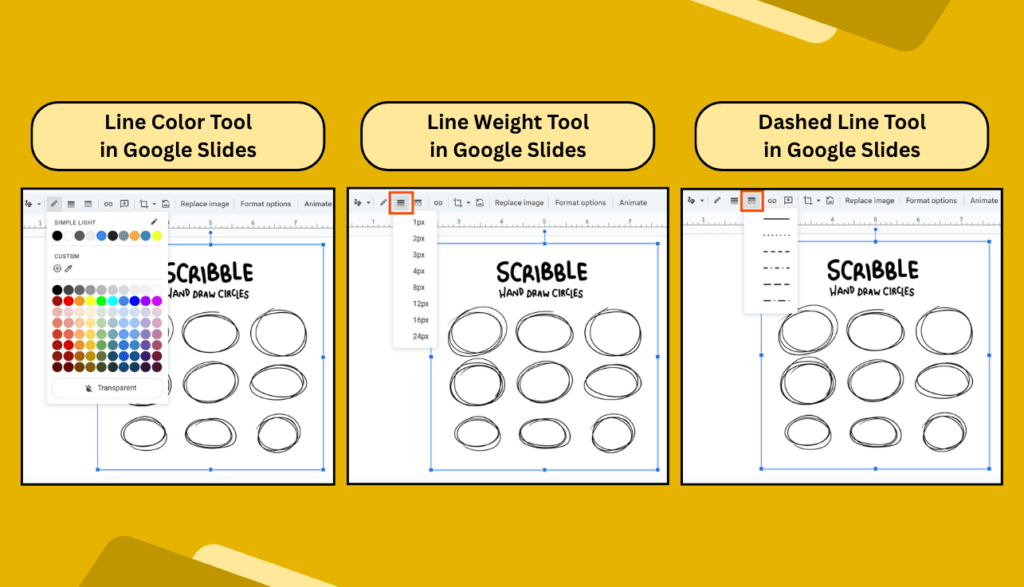
- On the top toolbar, click the pencil icon (line color).
- Choose any color you like.
- You can also change the line weight (thickness).
🧽 How to Erase a Scribble in Google Slides
You can’t use an eraser tool like in paint apps, but here’s a trick:
- Click on your scribble.
- Press Delete or Backspace.
- Or right-click and choose “Delete”.
It’s gone!
🧠 Extra Tips for Scribbling on Google Slides
- Use a stylus or touchscreen if you want better control.
- You can copy and paste scribbles to other slides.
- Use different line weights and colors to make it look cool.
- Scribble over shapes, text, or pictures to make them pop.
🤔 Can You Scribble While Presenting?
Sadly, no. Scribble only works in edit mode.
If you want to draw during a live presentation, use tools like:
- Google Jamboard
- Zoom annotation tools
- Microsoft PowerPoint’s Ink feature
📱 Can You Scribble on Google Slides from a Phone?
Not yet. The mobile app doesn’t support scribble, but you can:
- Open Google Slides in a browser.
- Switch to desktop mode.
- It’s tricky, though. Best to use a laptop or tablet.
🌟 FAQs on Scribbling in Google Slides
Q1. Is scribble available on all devices?
A: It works best on a computer. Mobile apps don’t have it yet.
Q2. Can I save my scribble as a picture?
A: Yes! Right-click the scribble → “Download as PNG” (if it’s grouped in a drawing tool).
Q3. Can I animate a scribble?
A: You can add entrance or exit animations to it, just like shapes.
Q4. Why is my scribble not smooth?
A: Drawing with a mouse can be tricky. Try a stylus or touchpad for smoother lines.
Q5. Can I undo my scribble?
A: Yes, just press Ctrl + Z (or Cmd + Z on Mac) to undo.
🧾 Final Thoughts
Scribbling on Google Slides is a fun, simple way to make your presentations more lively and unique. Whether you’re teaching a class, making a creative project, or just adding a playful touch, it only takes a few clicks to get started. And the best part? You don’t need to be an artist. Just click, draw, and let your ideas flow!