Creating a presentation that stands out can be a challenge, especially when you want to keep your audience engaged. One way to make your slides pop is by adding images within shapes. This simple yet effective technique can transform your Google Slides presentation from drab to fab. Let’s dive into how you can easily insert an image into a shape in Google Slides.
Step-by-Step Guide:
1. Open Google Slides:
First, open your Google Slides presentation or create a new one. If you don’t have one yet, go to Google Slides and start a new project.
2. Choose Your Slide:
Select the slide where you want to insert the image. You can choose a blank slide or use any existing slide.
3. Insert a Shape:
Click on the “Insert” menu at the top of the screen, then hover over “Shape.” A drop-down menu will appear with various shape options. Choose the shape you like and draw it on your slide.
4. Customize the Shape:
Resize and position the shape as needed. You can also change the color and border style by using the toolbar at the top.
5. Insert an Image:
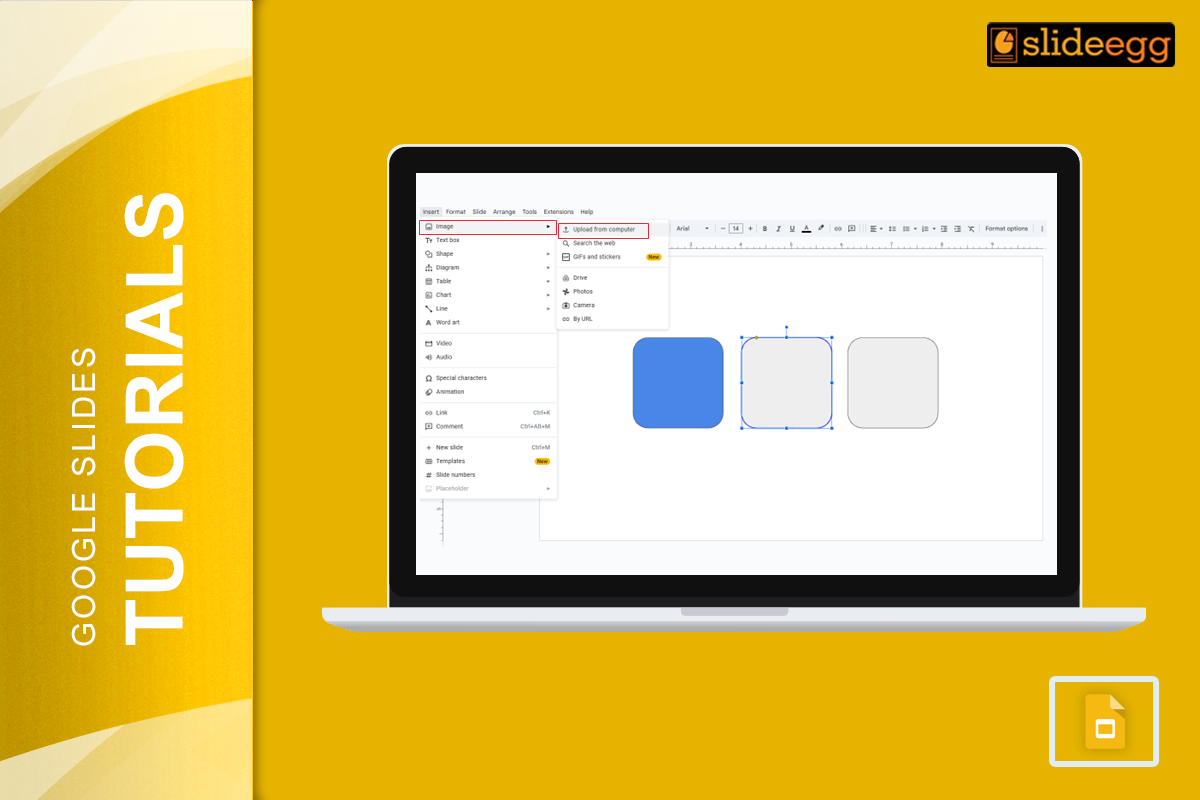
Now, it’s time to add your image. Click on the “Insert” menu again, but this time select “Image.” You can upload an image from your computer, search the web, use your Google Drive, or add an image by URL.
6. Adjust the Image:
Once the image is inserted, resize and move it to fit inside the shape. Make sure the image is slightly larger than the shape to cover it completely.
7. Merge the Image and Shape:
To insert the image into the shape, you need to use the “mask” feature. Select the image, then click on the drop-down arrow next to the crop icon in the toolbar. Hover over “Mask image” and select the shape you used earlier. Voila! Your image is now inside the shape.
8. Final Touches:
Adjust the image and shape as needed. You can also add text, animations, or other elements to enhance your slide.
Tips and Tricks:
- Use High-Quality Images: Ensure your images are high-resolution to keep your presentation looking professional.
- Experiment with Different Shapes: Don’t just stick to basic shapes. Try arrows, callouts, or even custom shapes for more creativity.
- Layering: Combine multiple shapes and images to create complex designs.
- Alignment: Use the alignment tools in Google Slides to keep everything neat and centered.
Conclusion:
Inserting images into shapes in Google Slides is an easy way to add a creative touch to your presentations. By following these simple steps, you can make your slides more visually appealing and engaging. Remember, the key to a great presentation is not just the information you present but also how you present it. So go ahead and experiment with different shapes and images to find what works best for your style!