| Step-by-Step Snapshot: Build A Resume In Google Slides ✅ Open Google Slides from your Google Drive. ✅ Change slide size to A4 or letter (File > Page setup). ✅ Choose a simple layout or use a blank slide. ✅ Insert text boxes for name, job title, and contact info. ✅ Add sections like Experience, Education, Skills, and Achievements. ✅ Use bold titles and icons to highlight each part. ✅ Align properly for a clean look. ✅ Add colors that match your personality, but keep it simple. ✅ Download as a PDF and share your resume anywhere. |
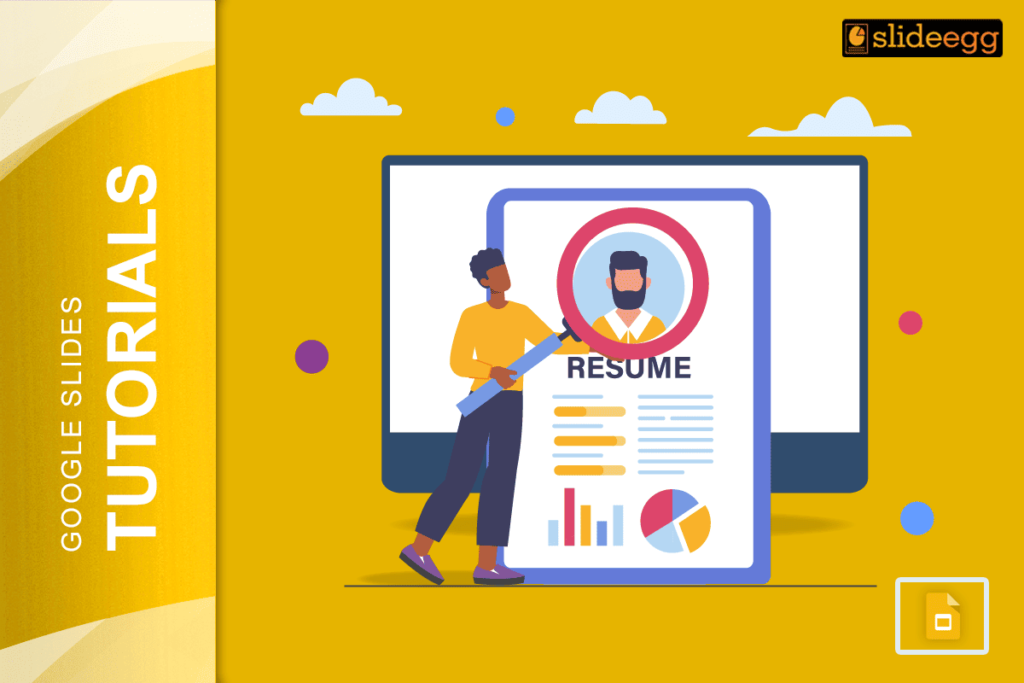
Many people think resumes need to be made in Word or fancy software. But, Google Slides is actually a super-easy and flexible option. It’s free, it’s cloud-based, and you can design a neat, modern-looking resume in minutes, even if you’re not a designer.
Why Use Google Slides To Make A Resume?
Because it gives you total control. You can move things around freely, add shapes, change colors, and even add icons. And most importantly—it’s all drag and drop. That means no headache.
You can even change slide size to match resume paper size. So your resume will look great both on screen and printed.
Let’s Make One Together — The Simple Way
1. Start With A Blank Slide
- Open a new presentation in Google Slides.
- Remove any default text boxes.
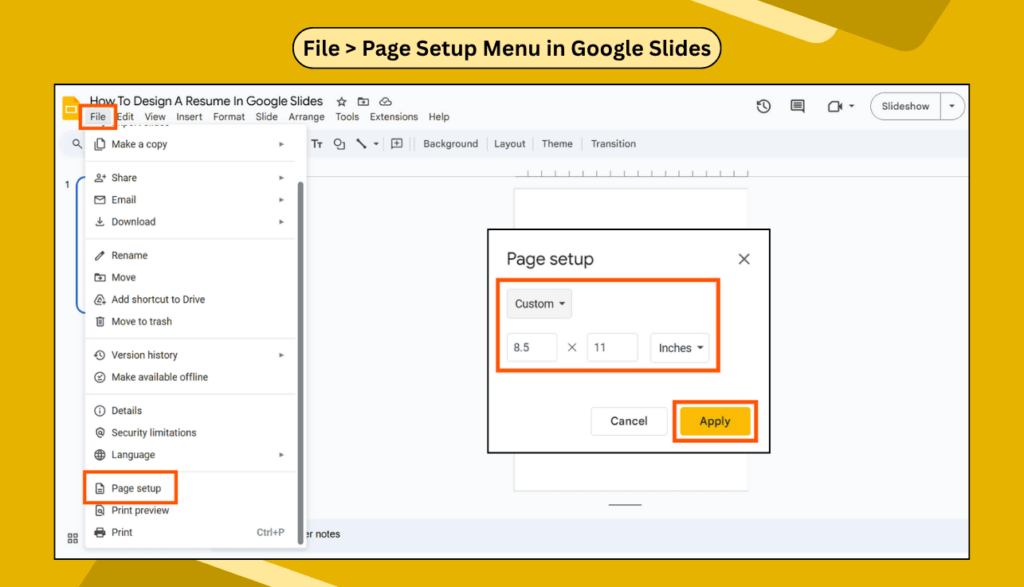
- Go to File > Page Setup and set it to Custom: 8.5 x 11 inches (or A4).
2. Add Your Name and Job Title
Insert a text box. Type your name big and bold at the top. Below that, add your job title or what you do. Keep fonts readable like Arial, Open Sans, or Roboto. Want to spice it up? You can add custom fonts too!
3. Add Contact Info
Insert another text box. Type your email, phone number, LinkedIn, or website. Keep it small and to the point. You can align this right or left; just make sure it looks neat.
4. Create Sections
Use bold titles like:
- Experience
- Education
- Skills
- Certifications
Add text boxes for each. Use bullet points, short phrases, and action words.
5. Add Some Visuals
Want to make it stand out? Add icons or shapes to guide the eye. You can even insert images or use subtle color blocks to divide sections.
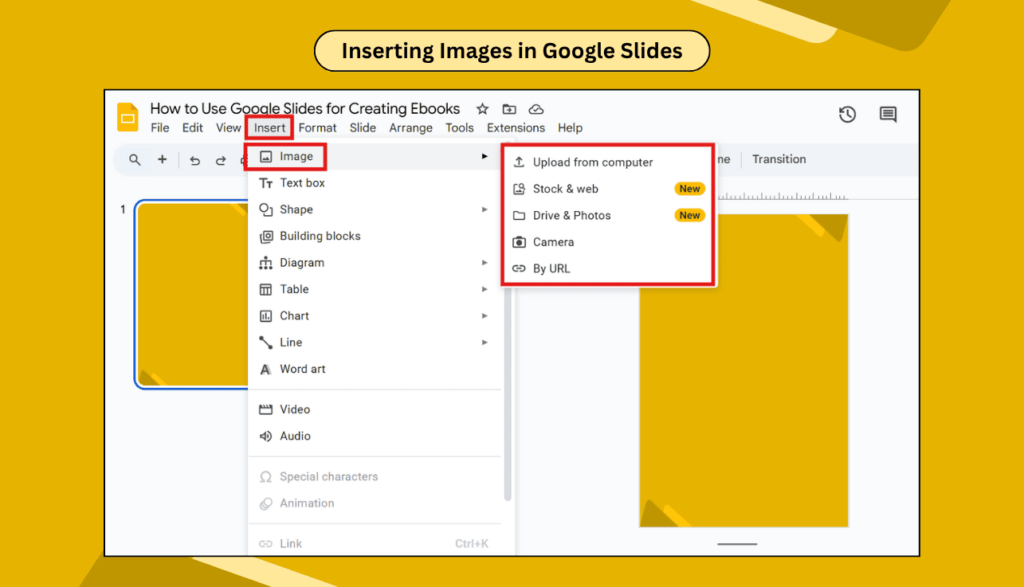
And if you’re going for a modern feel, make your resume background look clean using soft colors or simple gradients.
6. Save and Share
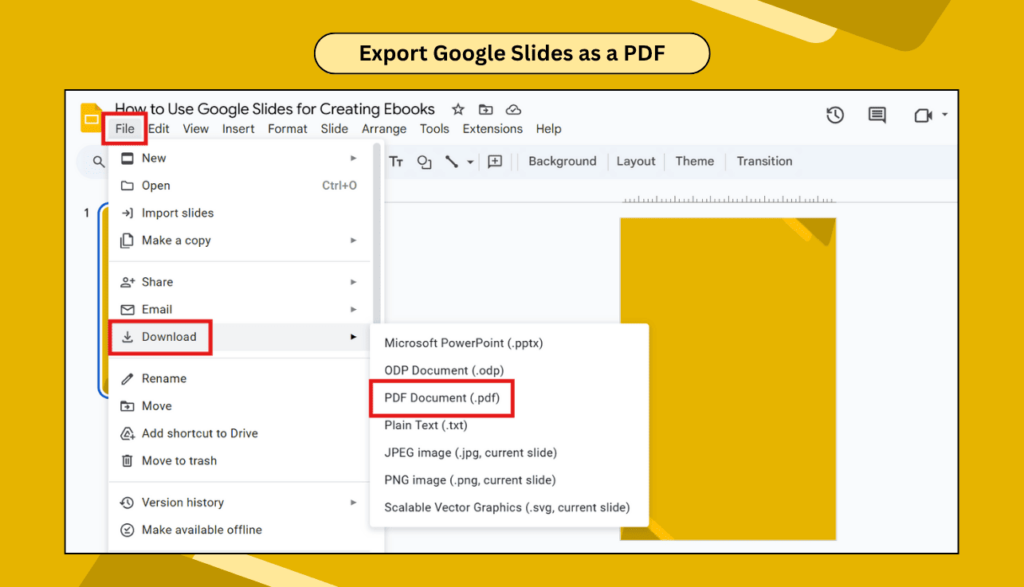
Once done, go to File > Download > PDF Document. You now have a clean, professional resume ready to email or print.
Frequently Asked Questions
Q: Is Google Slides good for making resumes?
Yes! It gives you creative freedom, and it’s perfect if you want to break away from boring Word docs.
Q: Can I use resume templates in Google Slides?
Absolutely. You can create your own or explore free Google Slides templates.
Q: Can I add links in my resume?
Yes, you can create hyperlinks to your LinkedIn or portfolio.
Q: How do I make my resume more unique?
Use custom shapes, icons, and colors that reflect your personality.
Final Thoughts
Designing your resume in Google Slides is super easy and fun. It’s flexible, creative, and lets you stand out. Try it out—you might even enjoy making your resume!