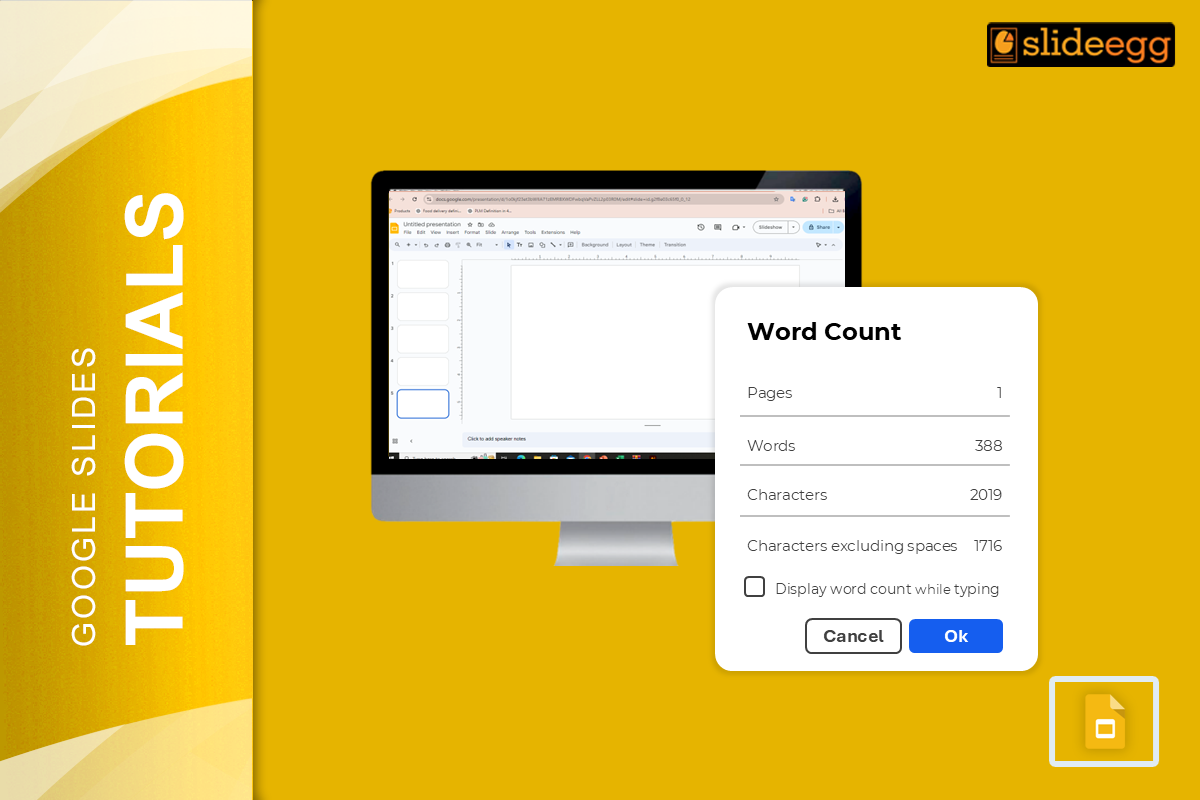
Google Slides has no built-in word count tool and in 2026, that is still the case. If you have been hunting through the menus expecting to find one, you are not missing it. It simply does not exist.
That said, getting a word count takes under a minute once you know the workaround. Here are four ways to do it, starting with the fastest.
Fastest method 30 seconds, no installation
- Click inside a text box →
Ctrl+Ato select all text Ctrl+Cto copy- Open docs.google.com/document/create in a new tab
Ctrl+Vto paste →Ctrl+Shift+Cfor instant word count
Method 1 Copy into Google Docs best for most people
Google Docs has a full word count tool built in. Copying your slide text there takes about 60 seconds per slide and requires nothing to install.
- Click inside the text box you want to count.
- Press
Ctrl+A(Windows) /Cmd+A(Mac) to select all text in that box. - Copy with
Ctrl+C/Cmd+C. - Open a new Google Doc at docs.google.com/document/create.
- Paste with
Ctrl+V/Cmd+V. - Press
Ctrl+Shift+Cor go to Tools → Word count. Done.
For a full presentation count, paste text from each slide into the same document one by one. The running total updates as you add more.
Limitation: This only captures text from boxes you manually select. Text inside shapes or tables needs to be copied individually. If your slides are complex, Method 2 is more thorough.
Method 2 Word Counter add-on best for regular use
Teachers preparing assignment submissions, teams managing multilingual decks, and anyone who checks word counts frequently will find this more efficient. Install once and count anytime directly inside Slides.
- In Google Slides, click Extensions → Get add-ons.
- Search for Word Counter or Doc Tools.
- Install your chosen add-on and grant the permissions prompt.
- After installation, go to Extensions → [add-on name] → Count Words.
Doc Tools is the most widely used option it includes word count alongside other slide utilities and scans all text elements on every slide, including shapes and tables. Word Count Tool is a simpler dedicated alternative. Both are free.
Before installing: Check what permissions the add-on requests. A word counter only needs access to read your presentation if it asks for Gmail or Drive access, pick a different one.
Method 3 Google Keep useful per slide
Less known but genuinely handy when you need a quick count on one specific slide without opening a new tab.
- Click inside a text box and select all text (
Ctrl+A). - Right-click the selected text → choose Save to Keep.
- A Keep panel opens on the right. Copy the text from there.
- Paste it into Google Docs or any word counter for the count.
Slower than Method 1 for a full presentation, but useful when you want to archive a slide’s text alongside the count for reference.
Method 4 Online word counter works on mobile too
No installation, no tabs to manage just copy, paste, done. Works on any device including iPhone and Android where add-ons are not available.
- Select and copy text from your slide.
- Go to wordcounter.net in a new tab.
- Paste. The count appears instantly.
As a bonus, wordcounter.net also shows reading time and speaking time useful for checking whether a slide runs long in a timed presentation.
Which method should you use?
| Method | Speed | Works on mobile | Counts shapes/tables | Best for |
|---|---|---|---|---|
| Google Docs | ~1 min/slide | Yes (Docs app) | Manual only | Most users, one-off counts |
| Word Counter add-on | Instant | No | Yes | Regular counts, complex slides |
| Google Keep | ~2 min/slide | Partial | Manual only | Per-slide with archived reference |
| Online counter | 30 seconds | Yes | Manual only | Mobile users, quick one-off |
How many words should a slide have?
Since Slides has no word count, it is easy to over-write slides without realising. A rough guide:
- Conference / keynote: 10–20 words per slide
- Business meeting deck: 20–40 words per slide
- Educational / classroom: 30–60 words per slide
- Report or proposal: 50–80 words per slide
If slides are regularly running over 75 words, that detail usually belongs in speaker notes keeping the slide itself clean enough for an audience to absorb at a glance.
Starting from a well-structured template naturally limits over-writing. SlideEgg’s free Google Slides templates are sized for headlines and bullet points, not paragraphs which keeps slides presentation-ready by design. For more formatting techniques, see our Google Slides presentation tips and design tricks.
Frequently asked questions
Does Google Slides have a built-in word count feature?
No as of 2026, there is no native word count in Google Slides. Use the Google Docs method (paste + Ctrl+Shift+C), a Word Counter add-on, or an online counter like wordcounter.net.
What is the fastest way to count words in Google Slides?
For a one-off count: select text (Ctrl+A), copy (Ctrl+C), paste into wordcounter.net under 30 seconds, no installation. For regular counts across full presentations, a Word Counter add-on is faster long-term since it runs directly inside Slides.
How do I count words across all slides at once?
A Word Counter add-on is the most efficient option it scans all slides simultaneously. Alternatively, copy-paste text from every slide into one Google Doc and use Ctrl+Shift+C for the running total. Teachers and students handling long decks usually find the add-on setup worth it.
Which word count add-on works best for Google Slides?
Doc Tools is the most widely used as of 2026 it includes word count plus other utilities and has strong reviews. Word Count Tool is a simpler dedicated alternative. Both are free. Only install add-ons that request access to read your presentation, not your Gmail or Drive files.
Can I check word count in Google Slides on iPhone or Android?
Add-ons are not available on the mobile app. On mobile: copy text from a slide, open the Google Docs app, paste, then tap three-dot menu → Word count. Or paste into wordcounter.net in your browser both take under a minute.
How many words should each Google Slides slide have?
Most presentation coaches recommend 20–50 words per slide for live presentations. Keynote slides often aim for 10–20. Anything consistently over 75 words per slide usually means the detail should move to speaker notes the slide should be scannable, not readable.
Does word count include text inside shapes and tables?
Manual copy-paste misses text inside shapes and tables unless you click into each individually. Word Counter add-ons scan all text elements including shapes and tables — more accurate for complex layouts.