160+ Free Back To School PowerPoint Templates
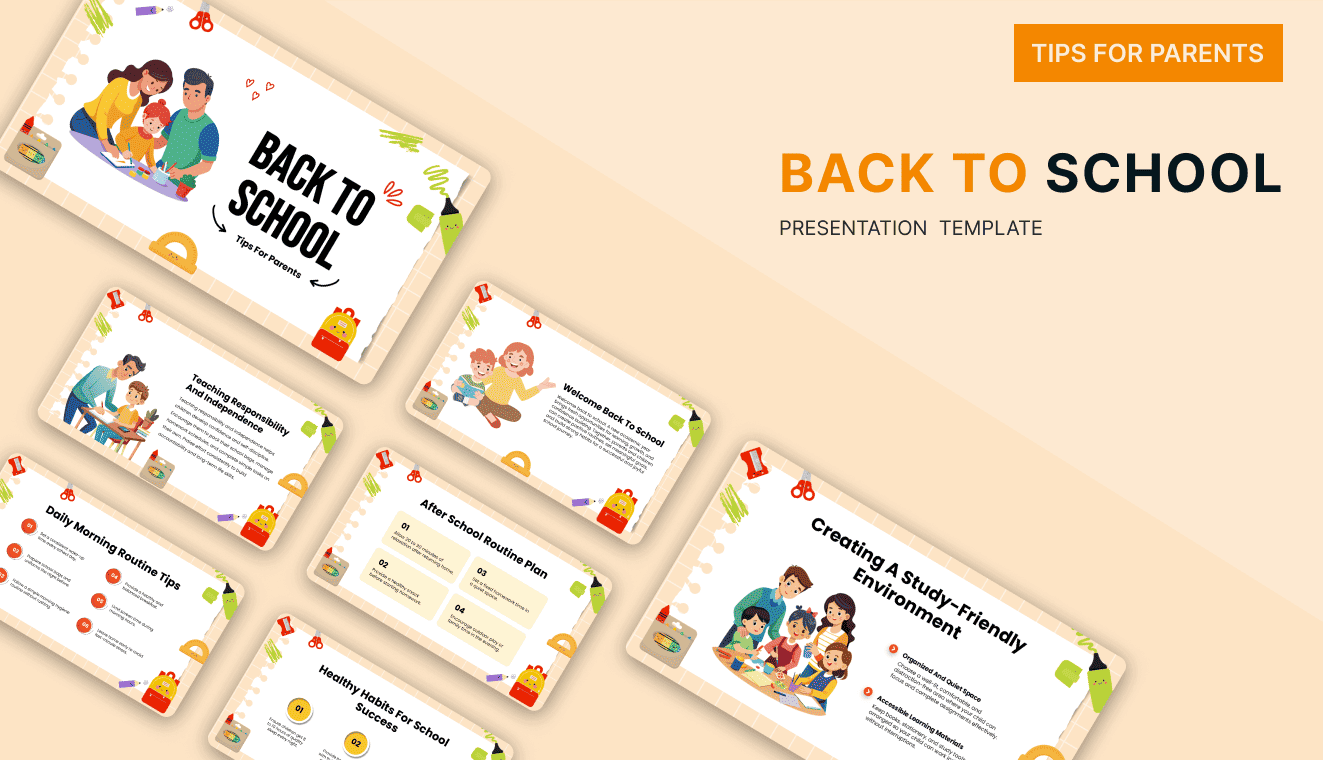
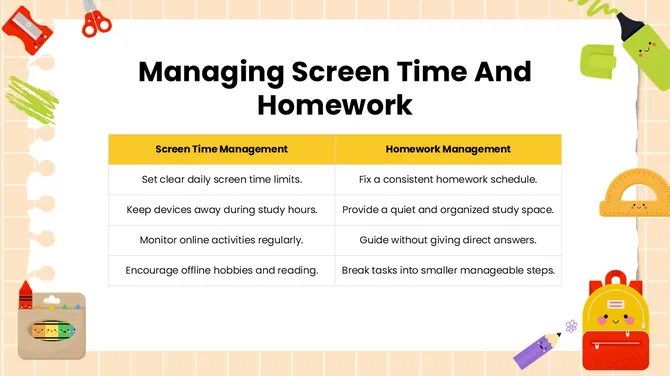
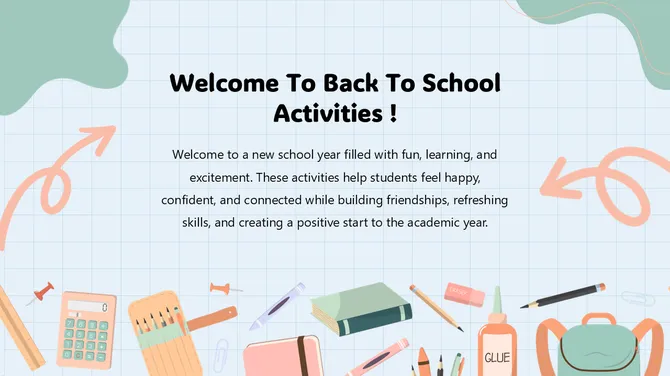
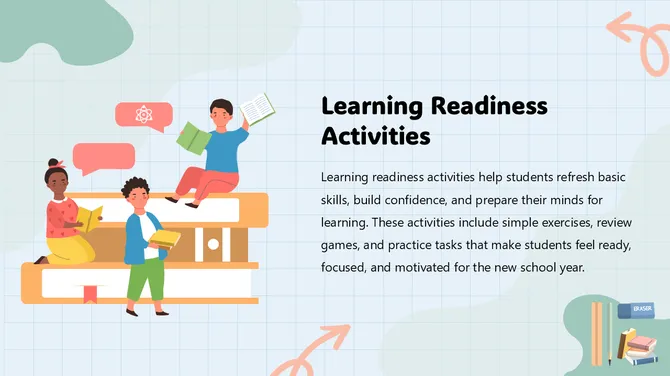
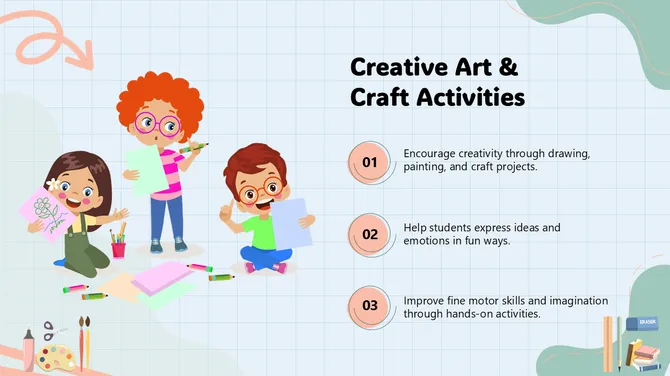
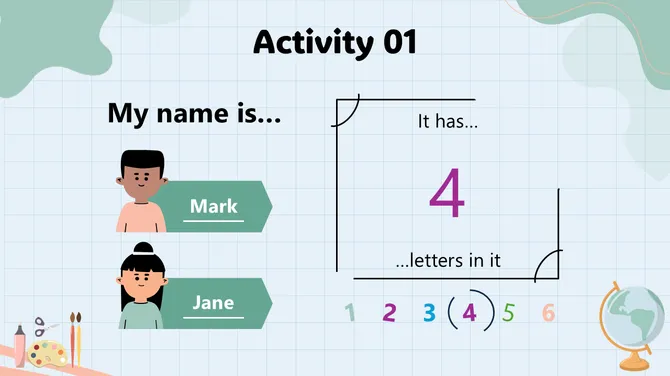
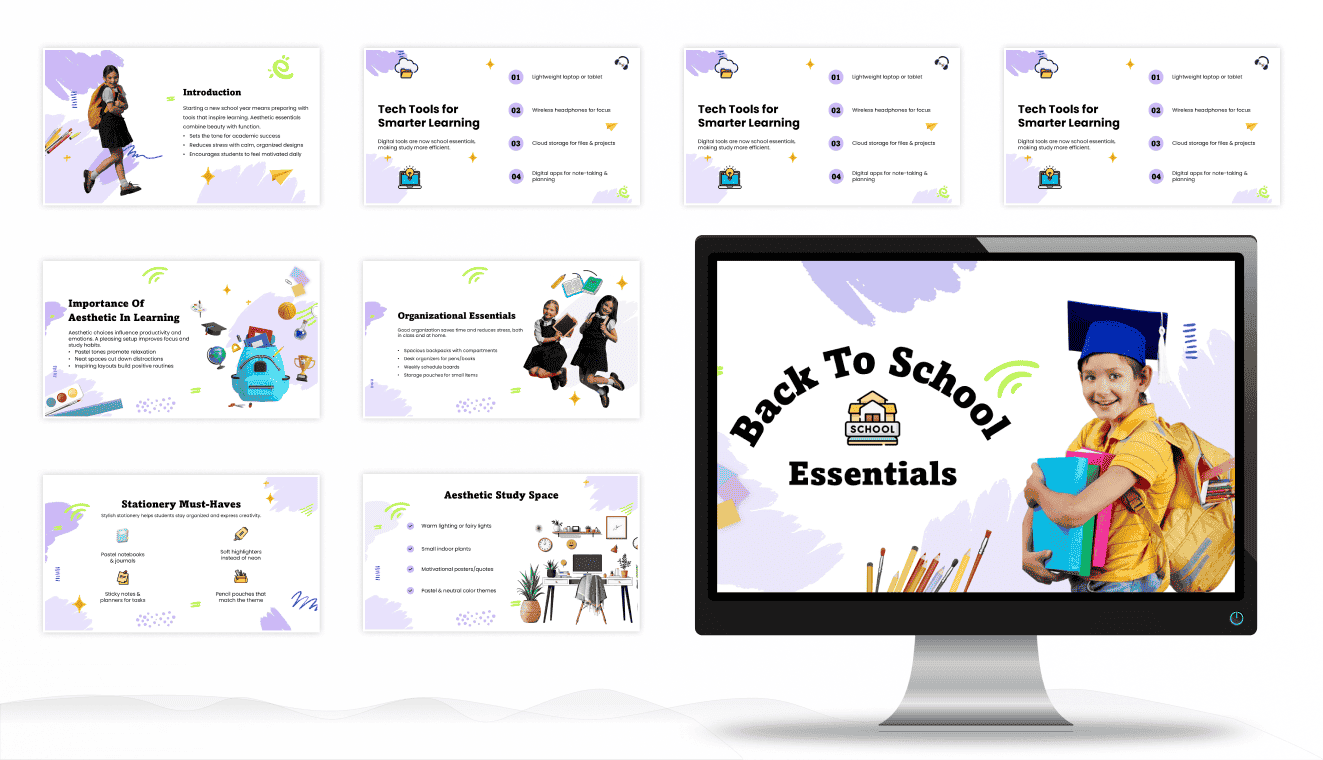
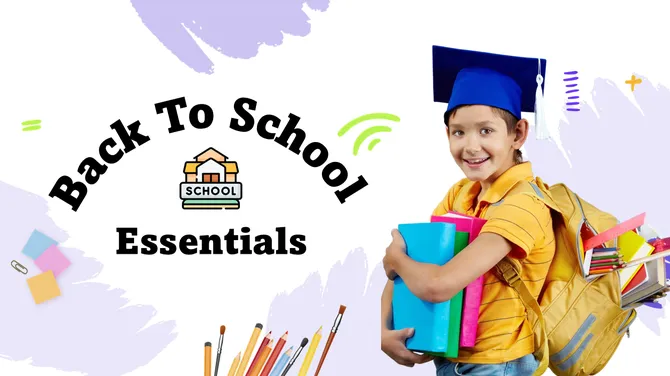
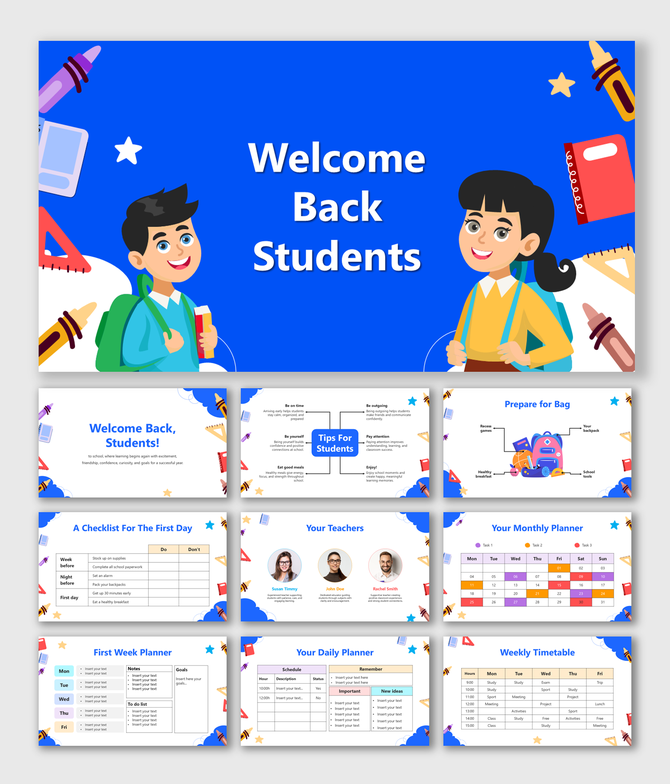
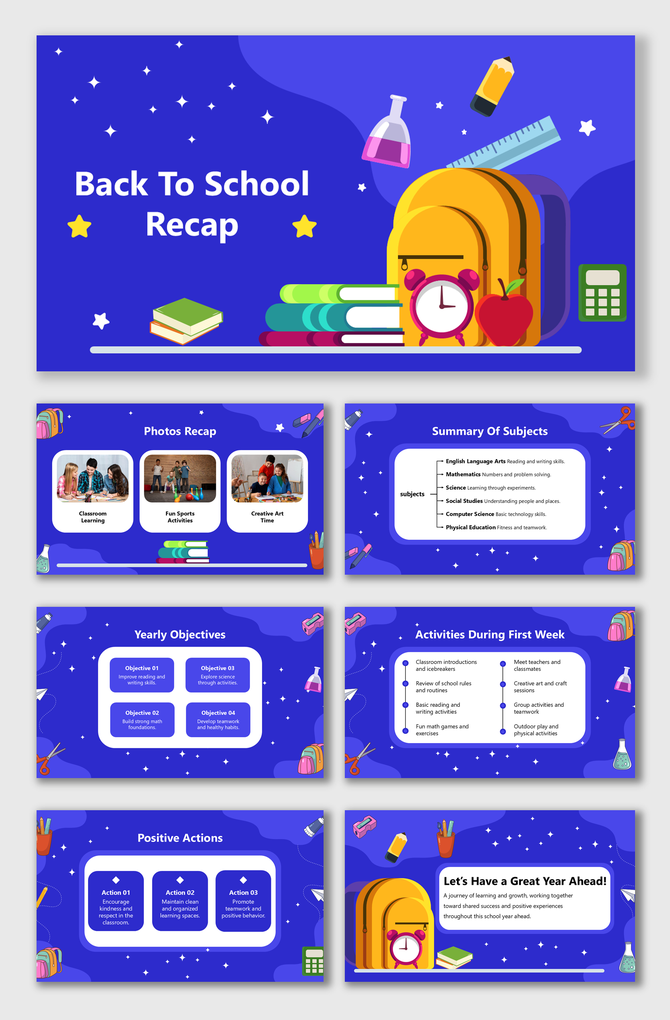
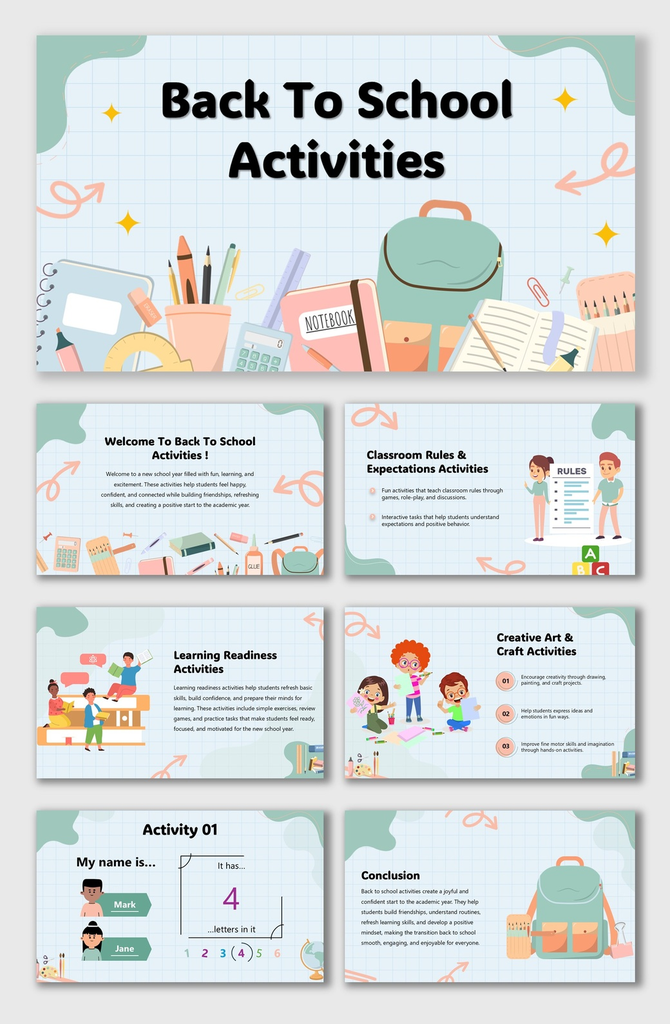
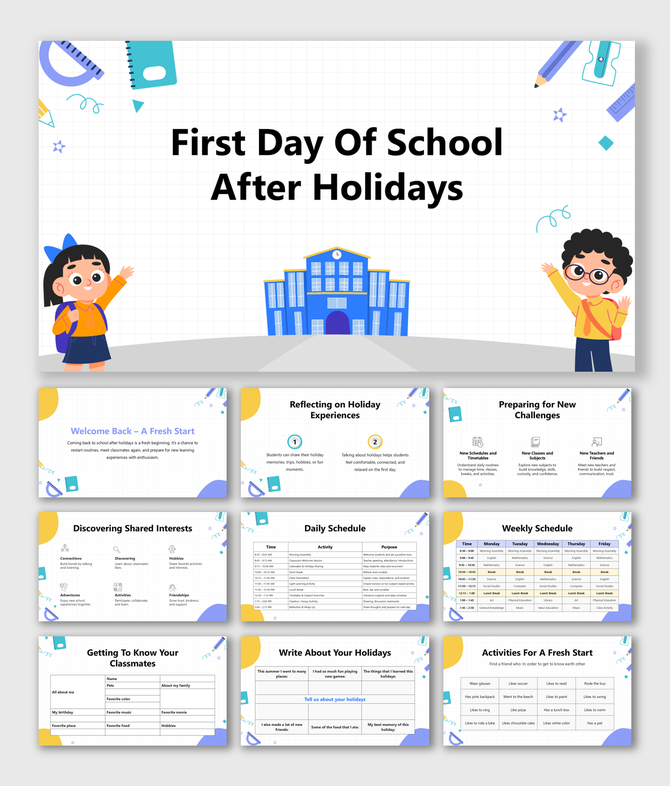
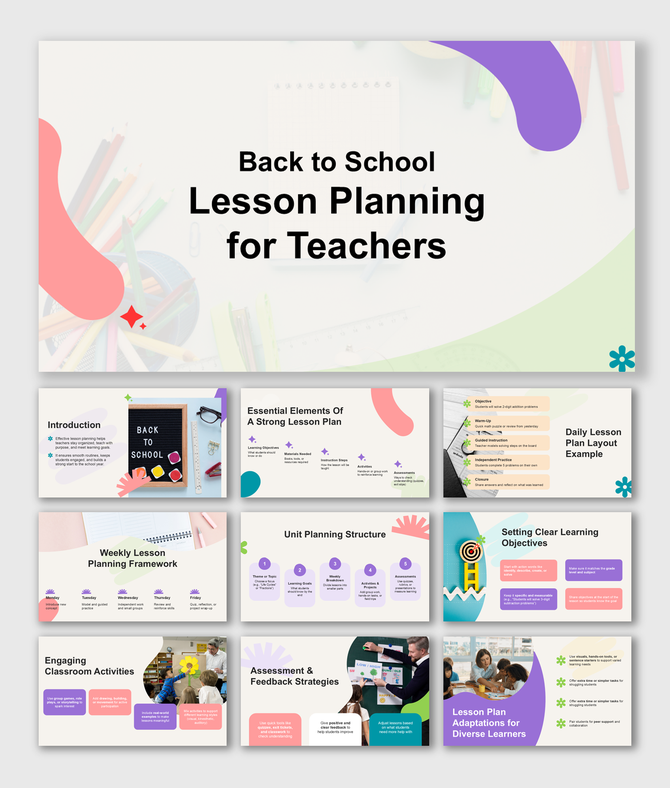
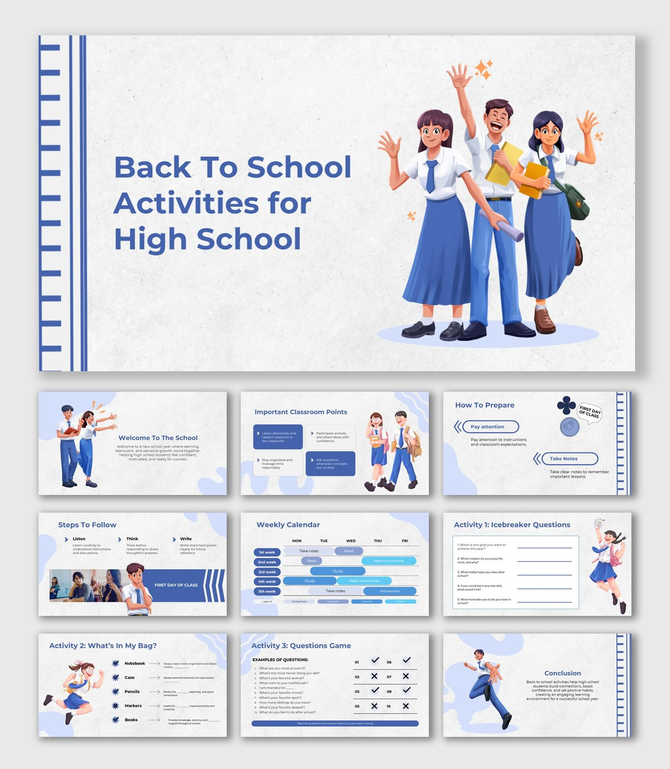
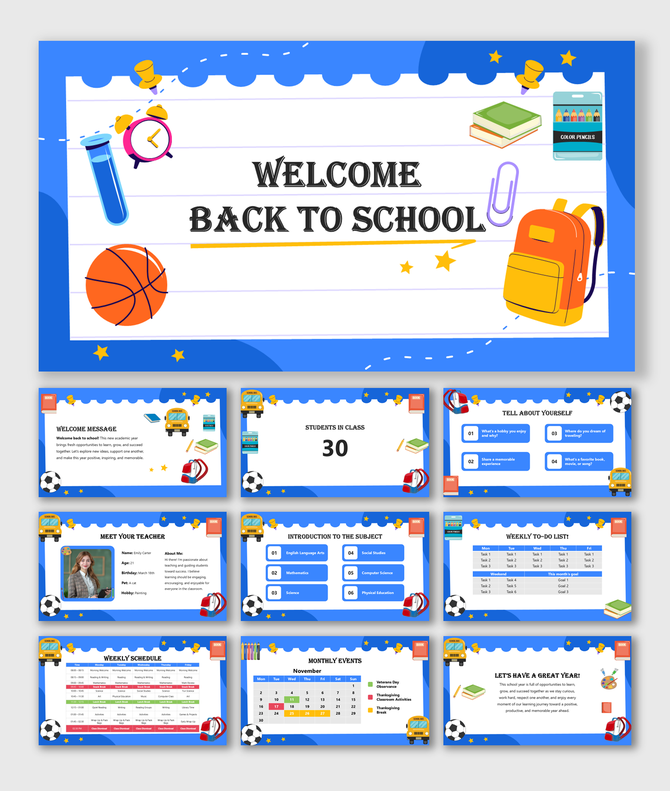
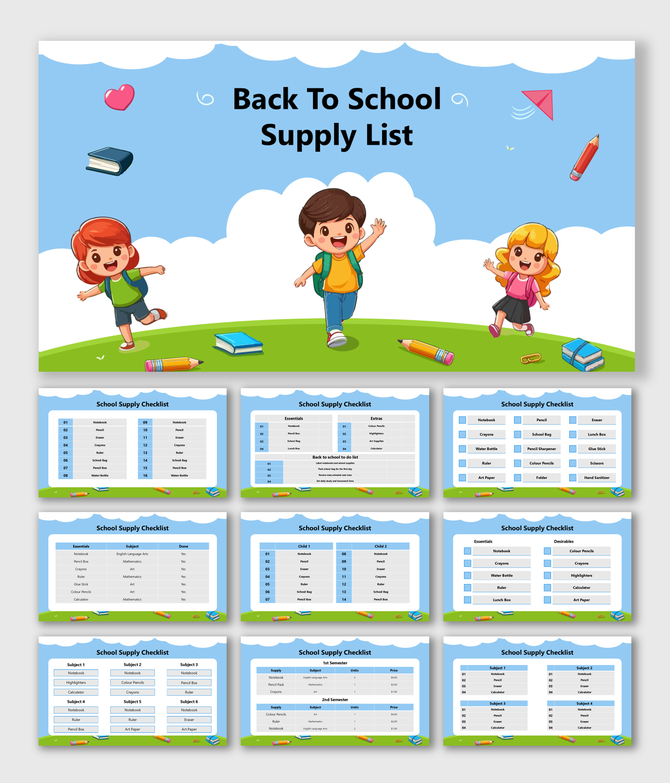
Whether you're a teacher building your first-day-of-school presentation, a student working on a class project, or a parent putting together a school night slideshow — these back to school PowerPoint templates are free to download and fully editable. Choose from classroom themes, lesson plan layouts, welcome-back slides, and more.
Editor's Choice (1 of5)
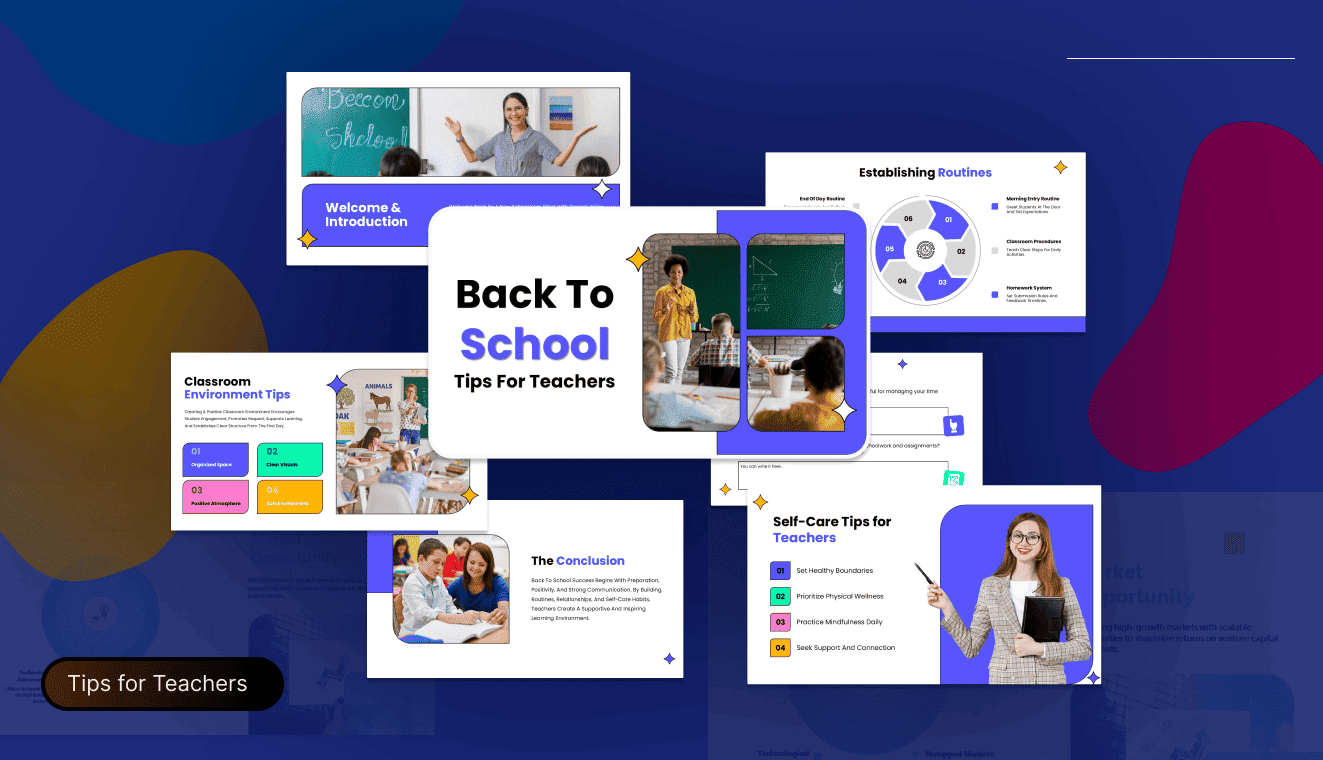
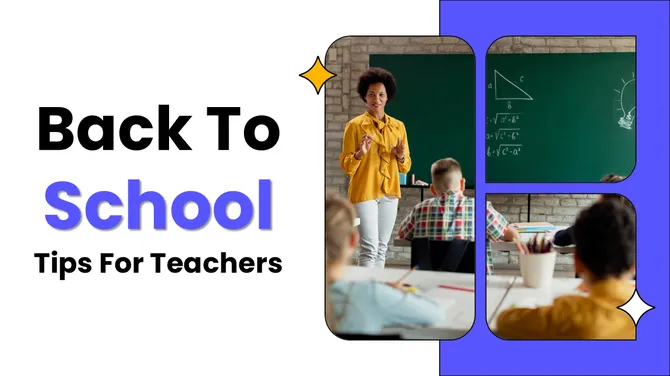
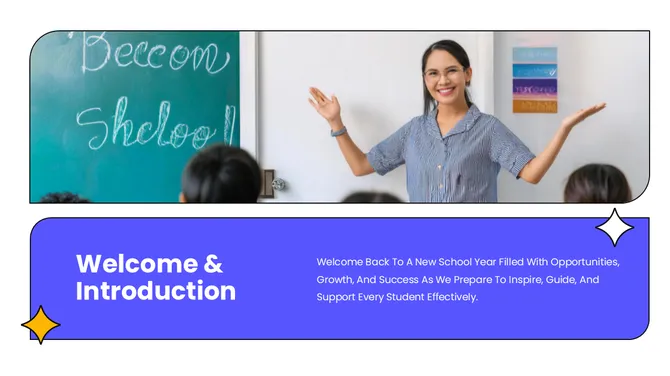
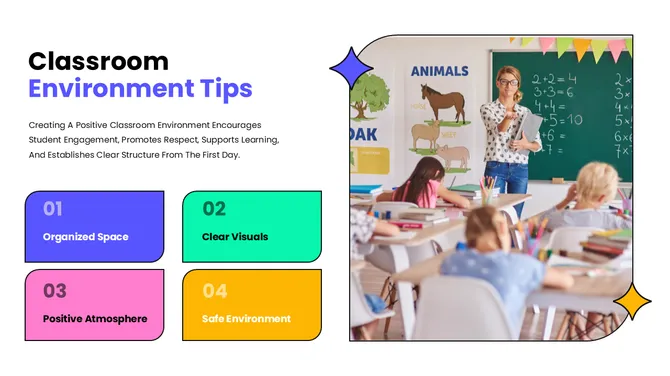
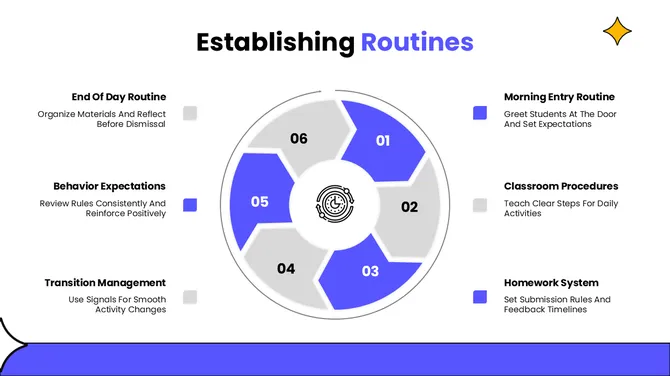
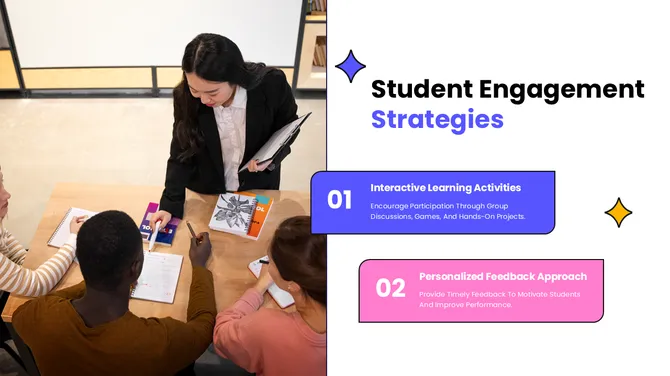
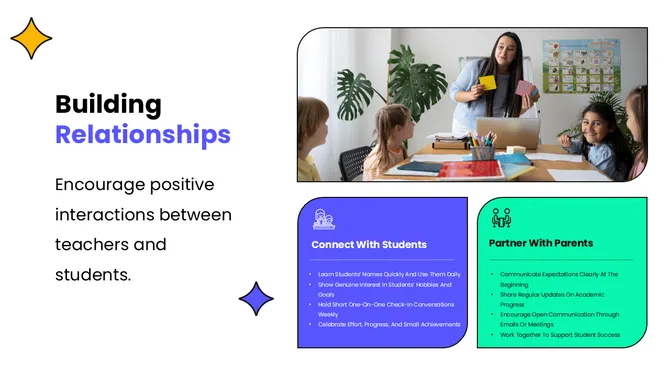
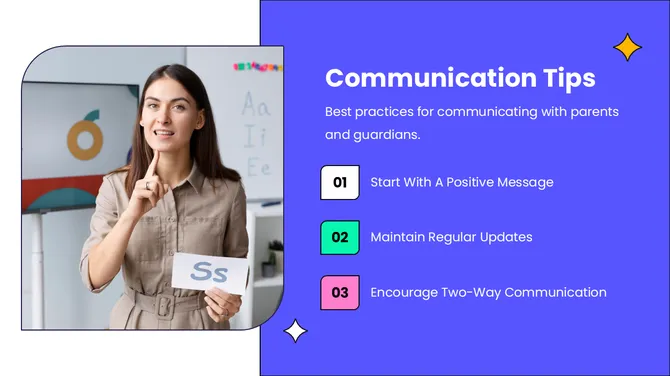
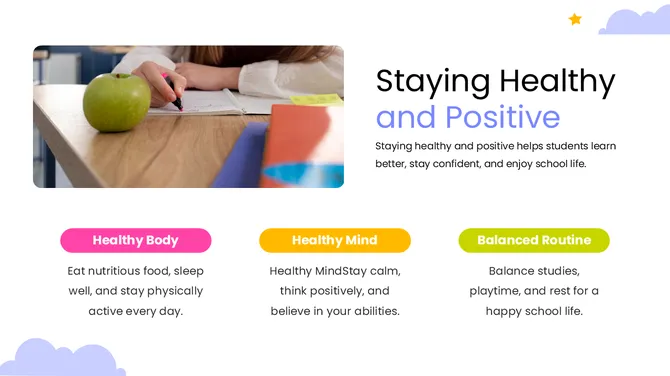
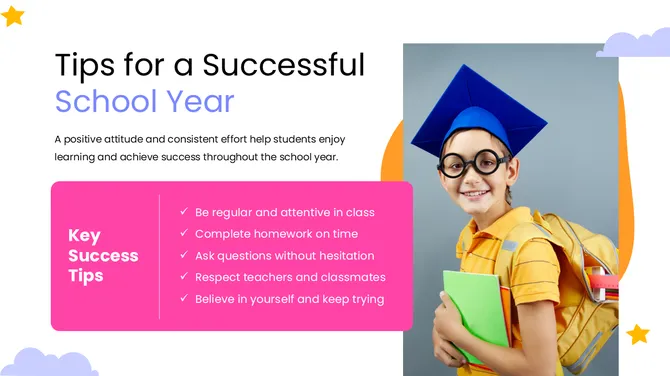
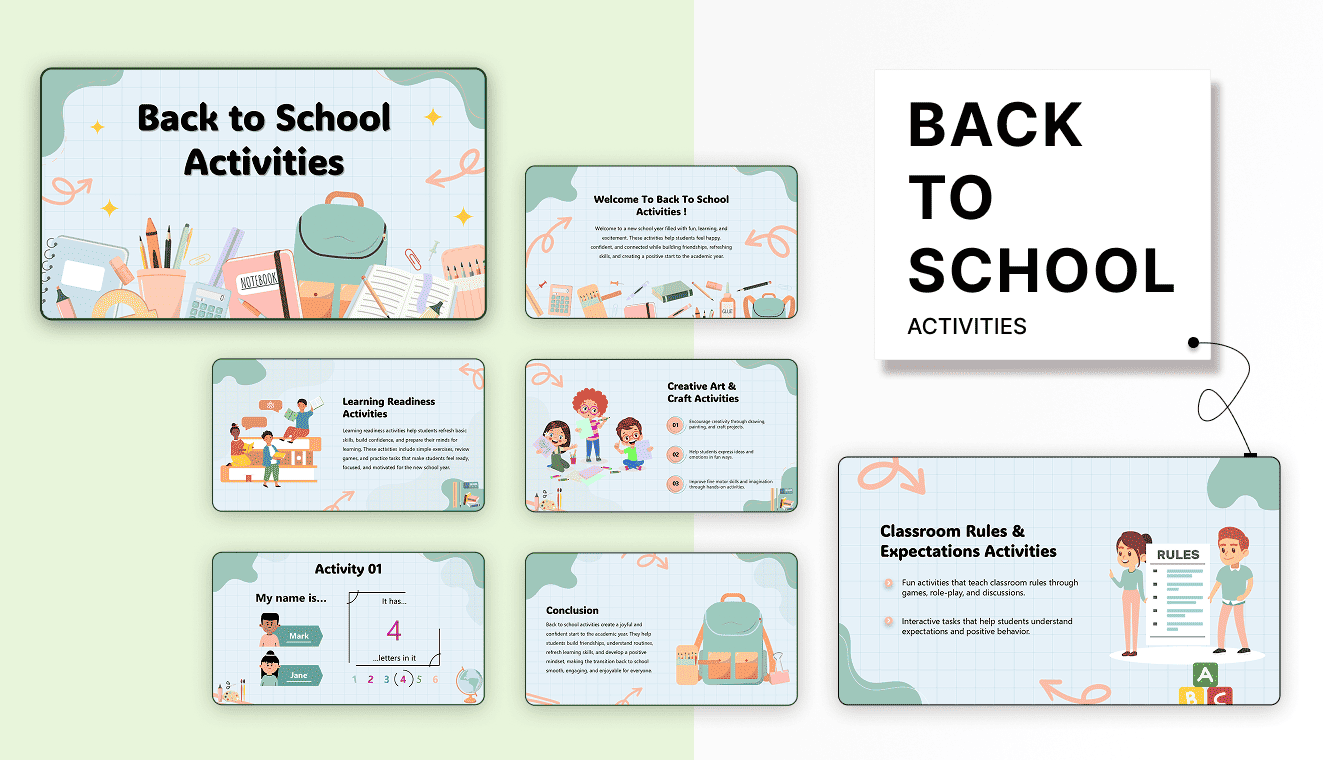
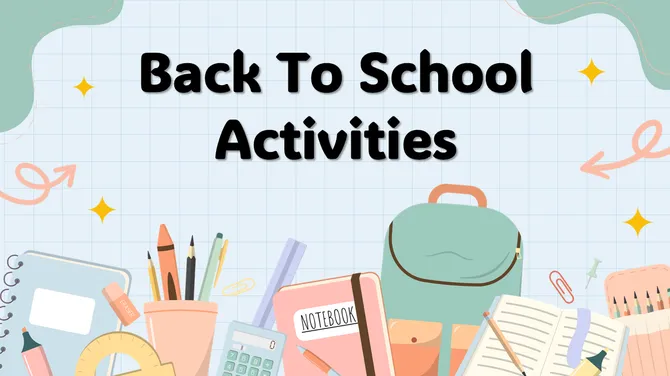
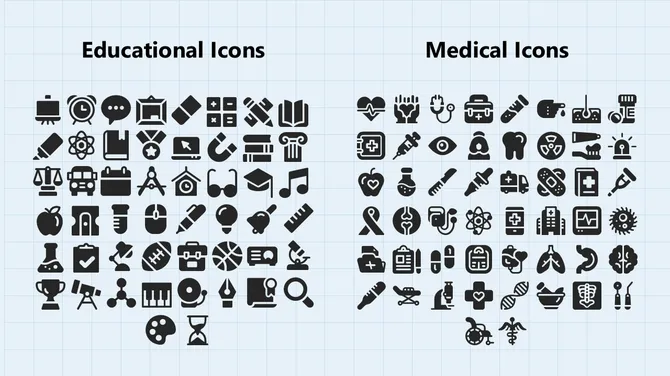
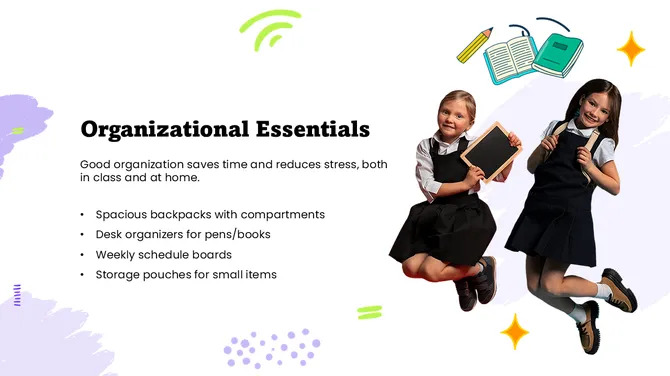
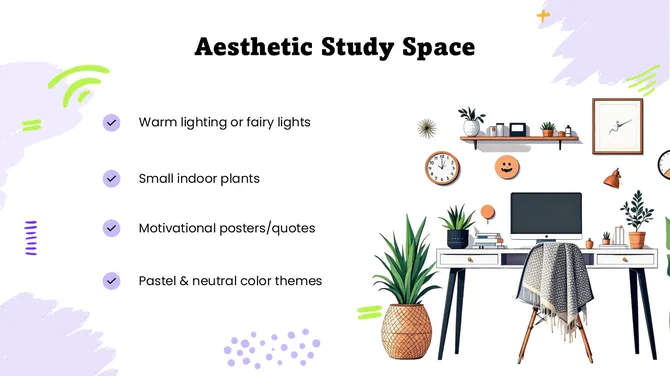
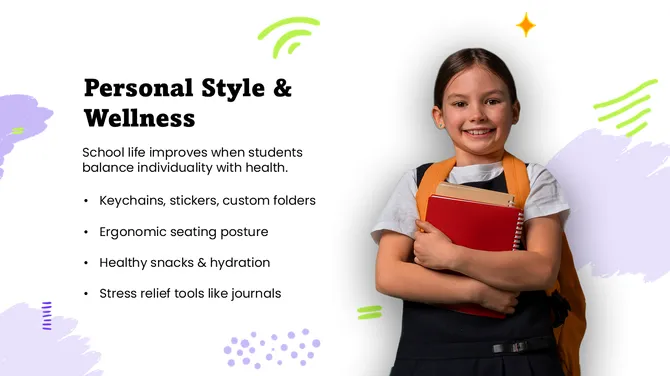
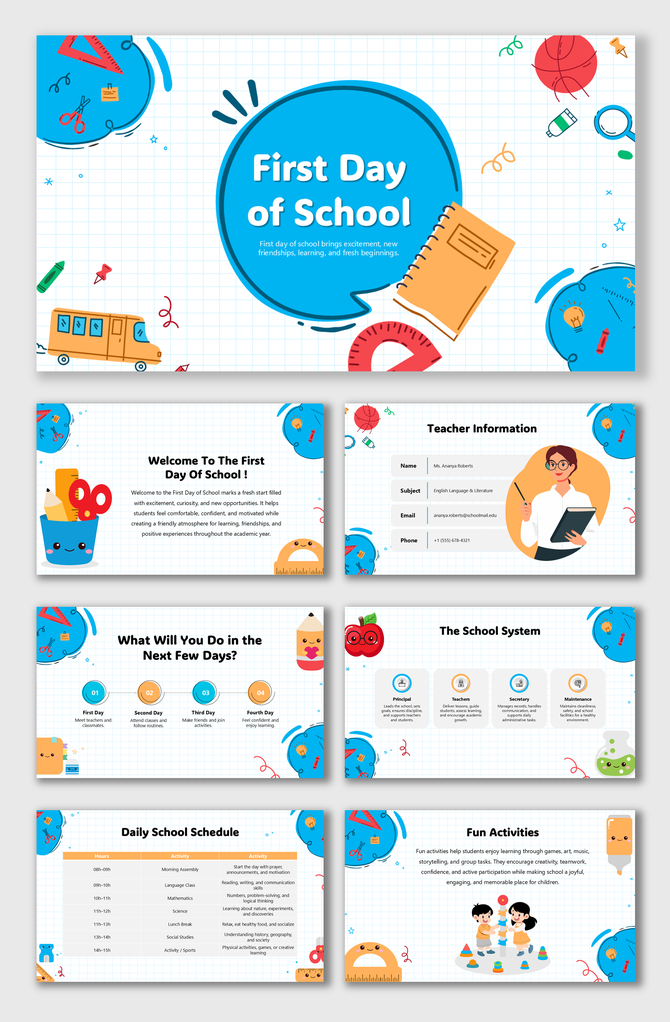
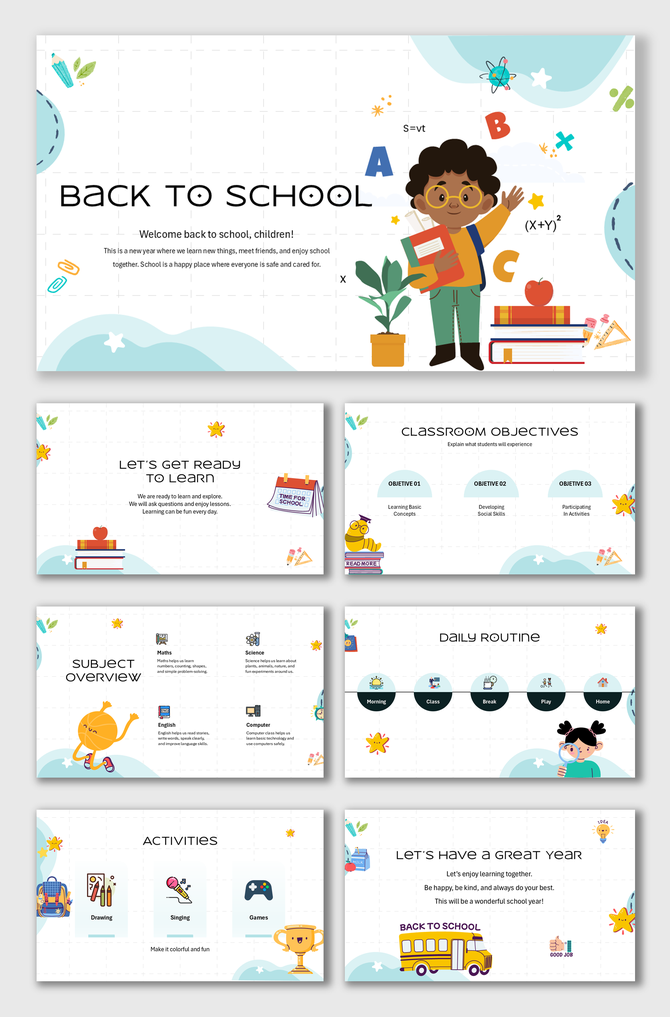
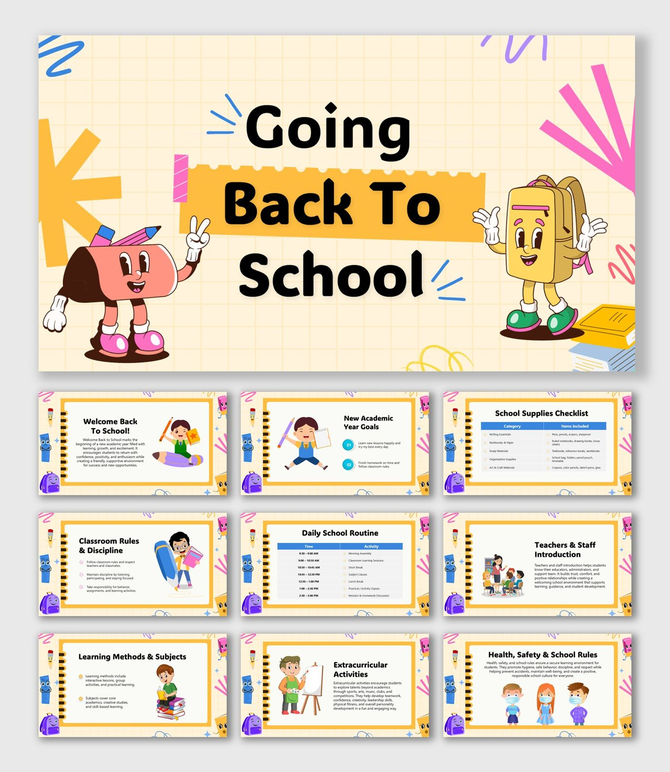
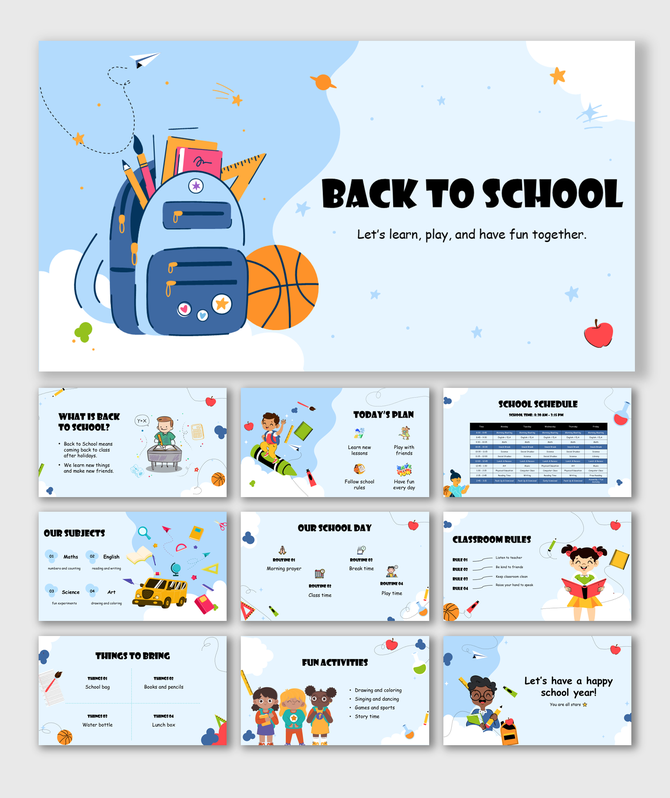

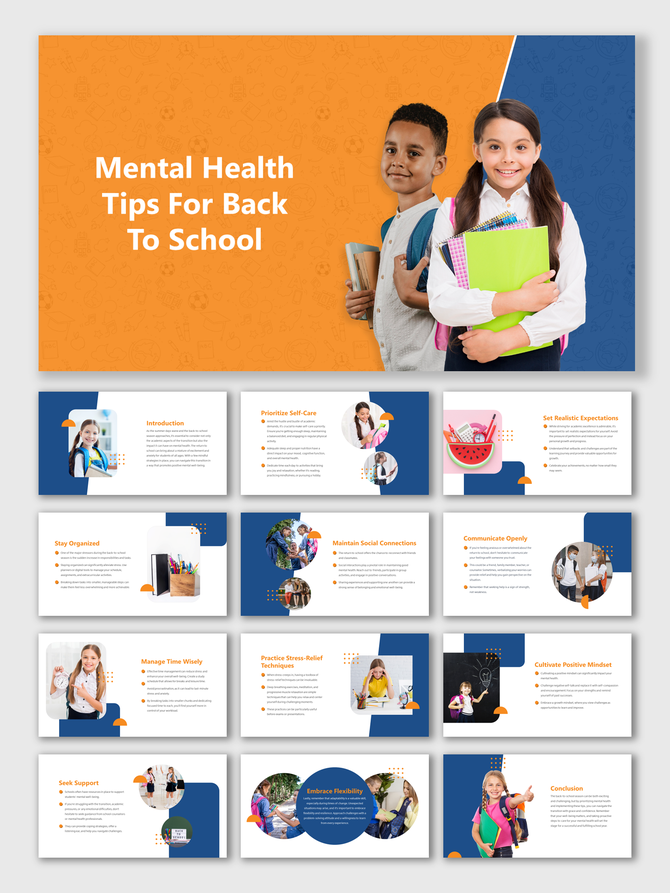
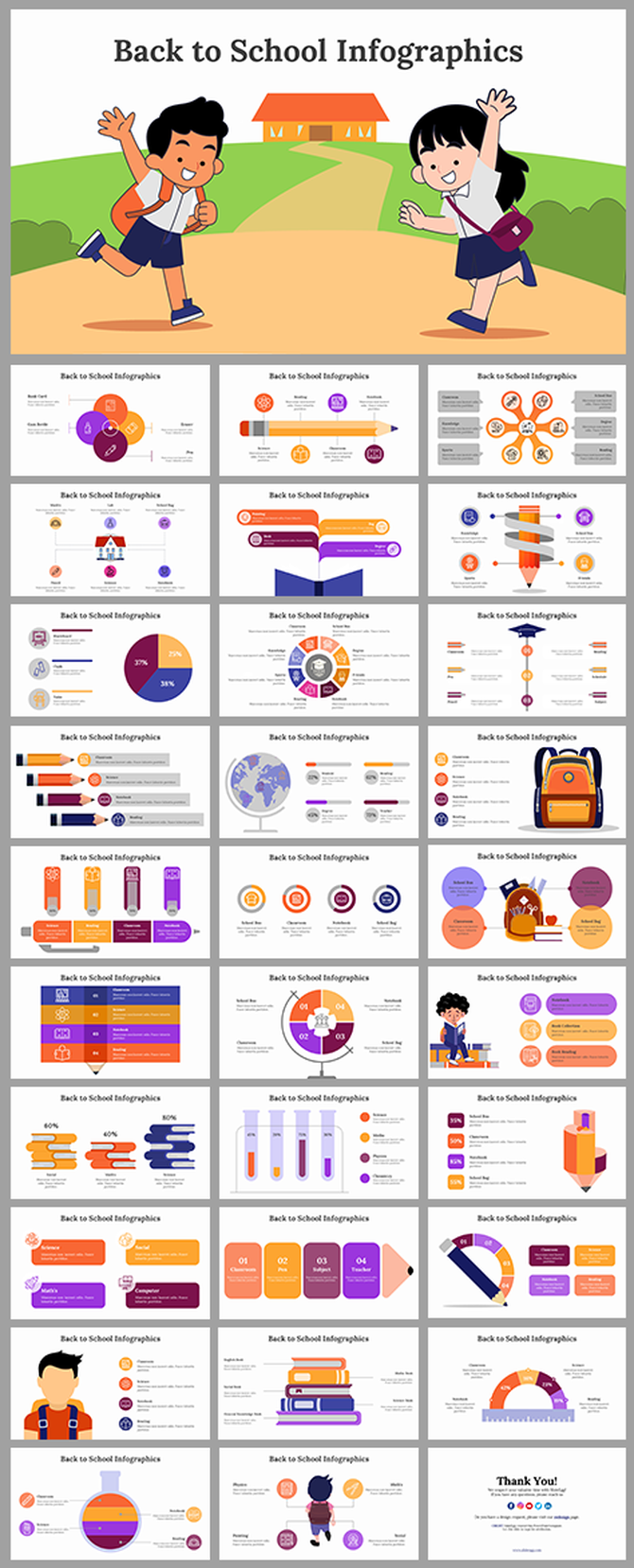
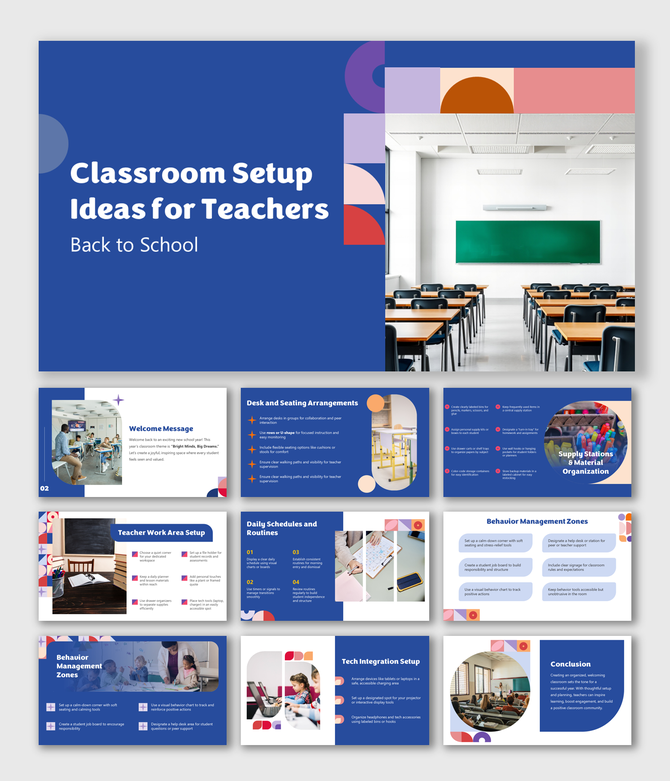
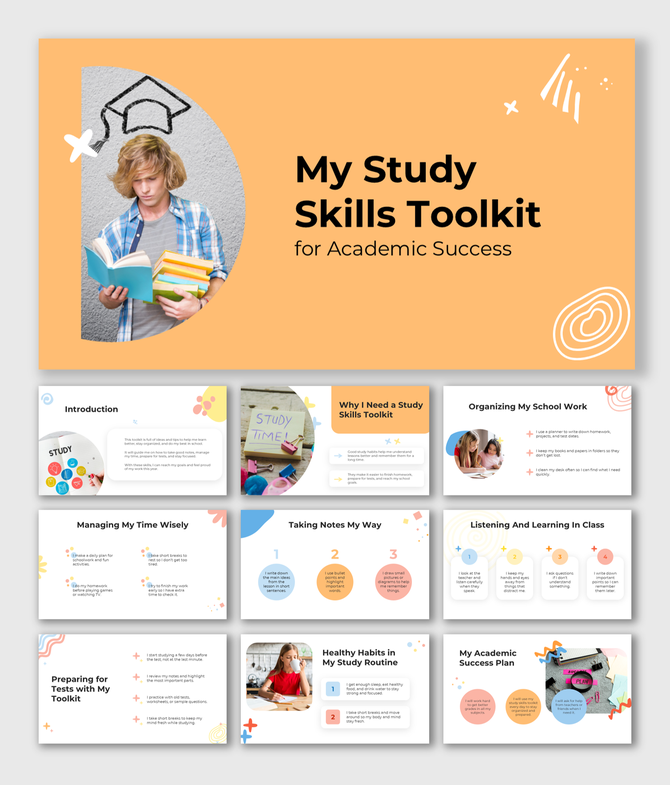
What's Included in This Collection
Formats and Compatibility
Back to School Google Slides Templates
Free and Premium Options
Related Collections
School PowerPoint Template
200+ Templates
Alphabets PowerPoint Template
40+ Templates
Math PowerPoint Template
50+ Templates
Blackboard PowerPoint Template
30+ Templates
Teaching PowerPoint Template
50+ Templates
Animals and Birds PowerPoint Template
270+ Templates
Pencil PowerPoint Template
400+ Templates
Note Books PowerPoint Template
170+ Templates
Frequently Asked Questions
Are SlideEgg's back-to-school PowerPoint templates really free?
Yes, free templates on SlideEgg are clearly marked with a FREE badge so you can identify them instantly when browsing the collection. Every template carrying that badge is completely free to download, with no hidden fees and no watermarks. SlideEgg's back-to-school collection includes a strong range of free options, covering everything from Meet-the-Teacher slides to Back-to-School Night decks and first-day classroom presentations. You can download, edit, and reuse them as many times as you like — there are no single-use restrictions. For premium templates in the collection (those without the FREE badge), a one-time download is required, but the free selection is extensive enough to cover most classroom needs.
What types of back-to-school presentations do these templates cover?
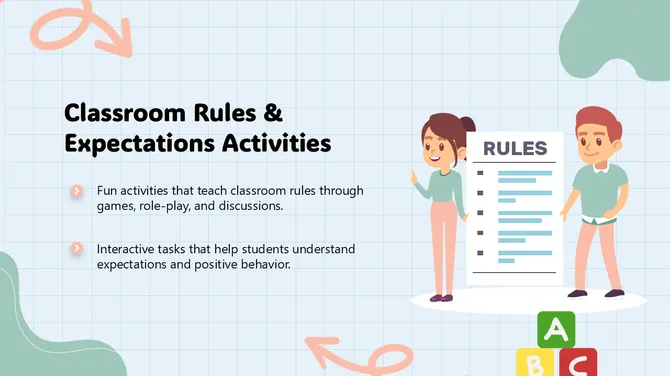
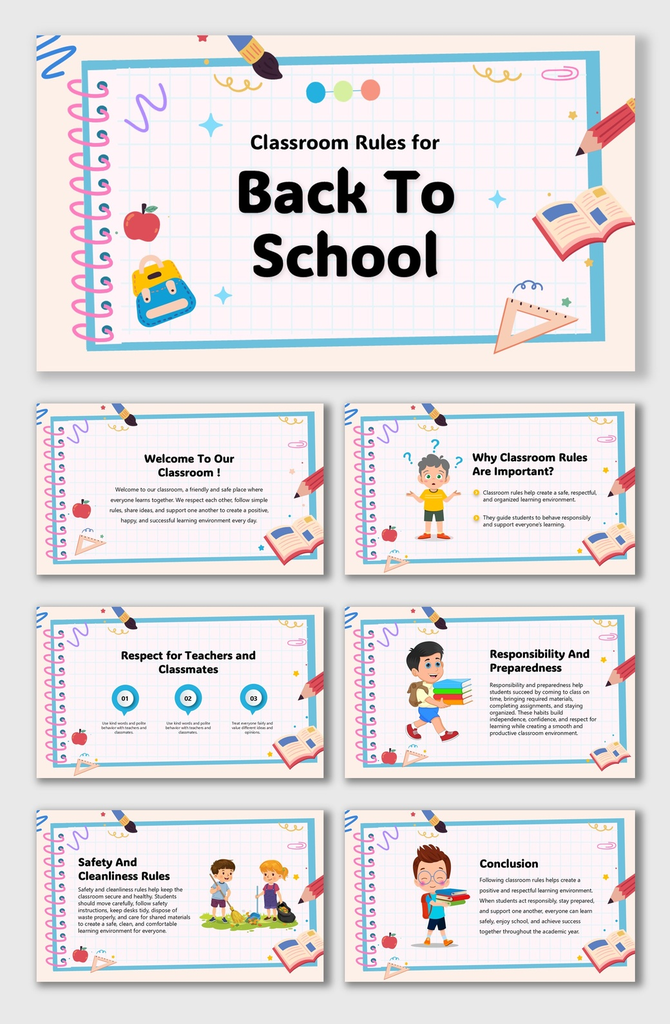
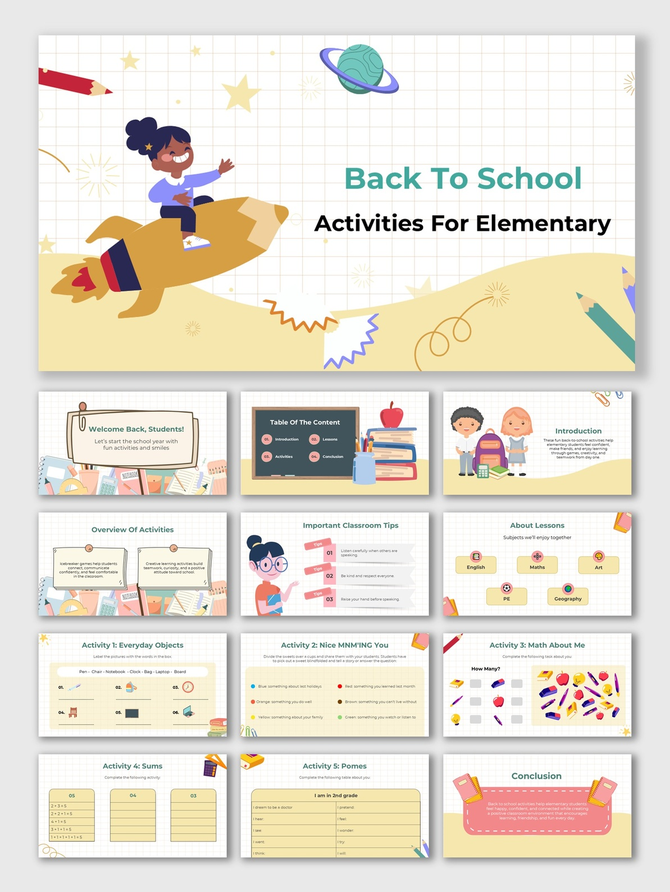
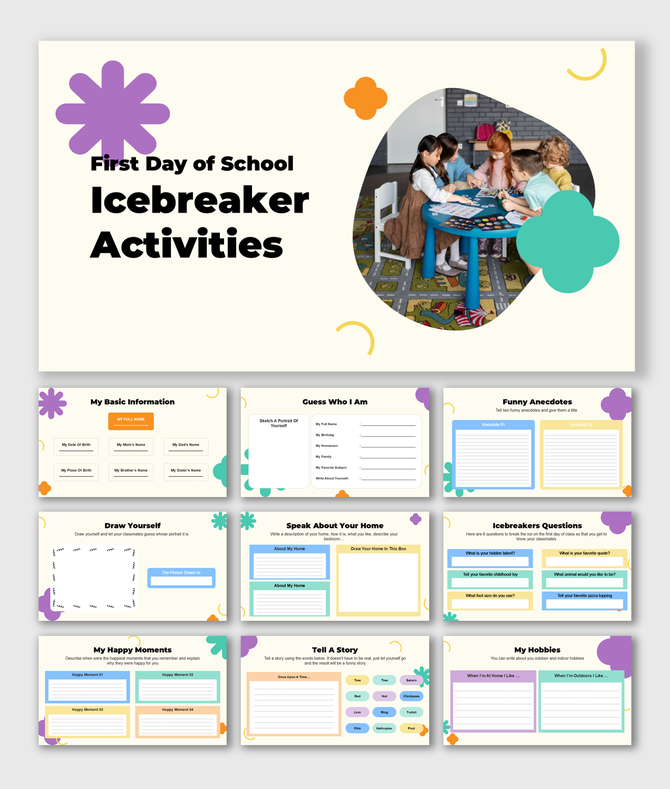
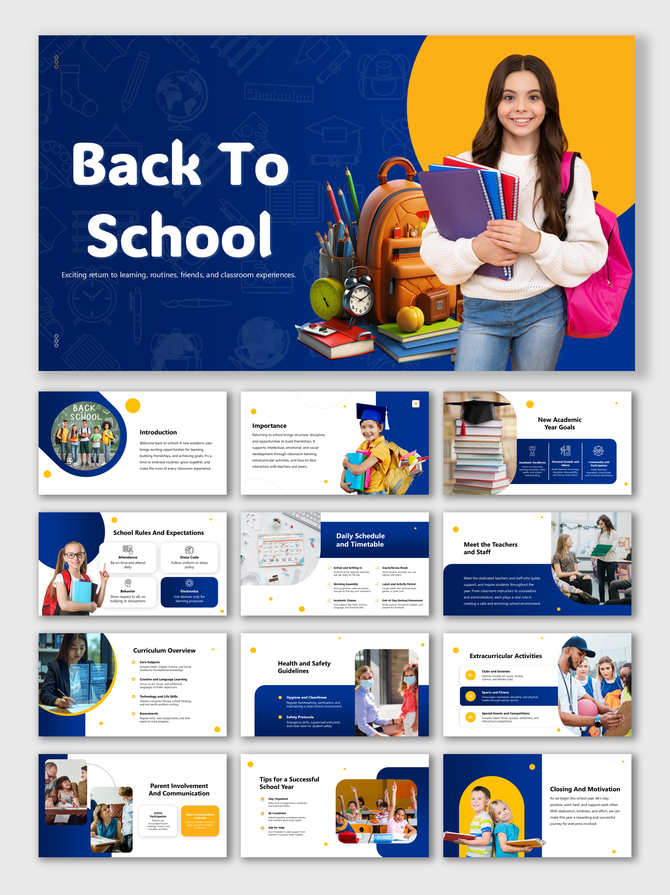
SlideEgg's back-to-school template collection covers five main presentation types that teachers need most at the start of the school year: Meet-the-Teacher slides (introduce yourself, your teaching style, and contact info); Back-to-School Night decks (parent-facing presentations covering curriculum, expectations, and routines); First-Day classroom presentations (welcome slides with icebreakers, class rules, and schedules for students), Classroom rules displays (visual one-page or multi-slide decks for posting rules) and Course overview presentations (semester-level syllabus decks for secondary and higher education). Each template type has its own slide structure pre-built — you fill in your details rather than starting from a blank slide.
How do I customize a SlideEgg back-to-school template in PowerPoint?
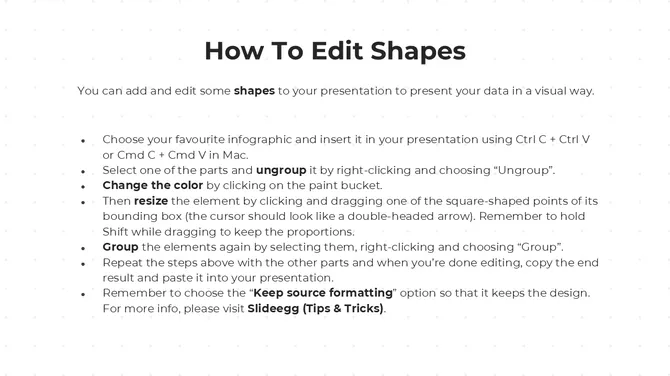
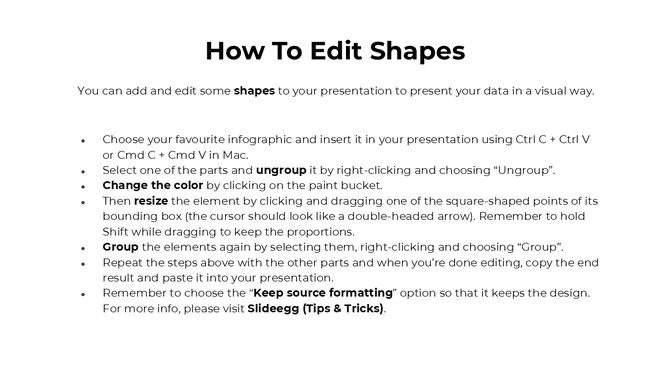
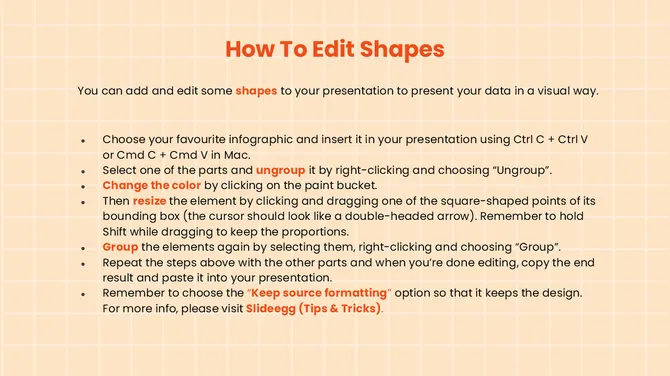
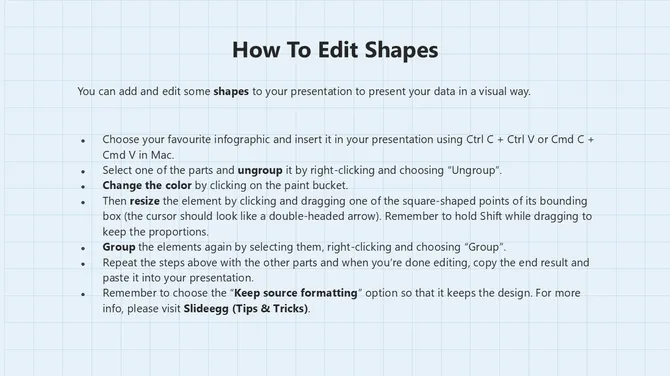
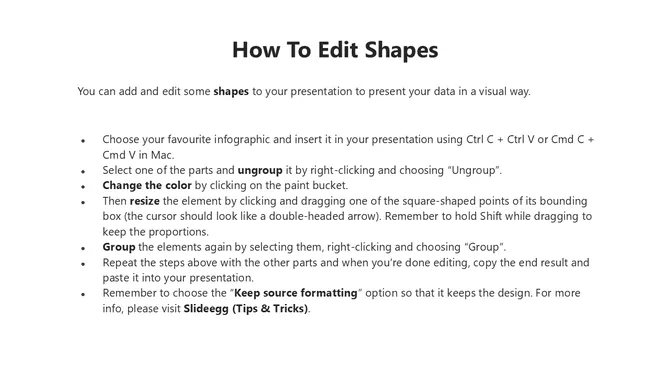
Download the .pptx file and open it directly in Microsoft PowerPoint — all text, images, and colors are fully editable from the moment it opens. To customize: click any text box and type your own content (your name, class name, school year). To swap images, right-click the placeholder and choose "Change Picture". To update colors, go to Design → Variants → Colors and either select a preset or click "Customize Colors" to enter your school's hex codes. Fonts can be changed via the font dropdown in the Home tab. Most templates use grouped layouts — click once to select a group, then click again to select individual items within it. The entire process from download to a personalized presentation typically takes 5 to 15 minutes. If you're using an AI template (marked with an AI label in the collection), you also get an AI editing option that lets you rewrite text, adjust tone, and generate new content directly within the template — no manual typing required. Regular templates use the standard PowerPoint editing workflow above.
Can I use these back-to-school templates in Google Slides or Canva?
Yes — and there's no downloading or importing required for either. On each template page on SlideEgg, you'll find dedicated Google Slides and Canva buttons alongside the PowerPoint download option. Clicking the Google Slides button opens the template directly in Google Slides in your browser — ready to edit immediately, without touching Google Drive or uploading any file. Clicking the Canva button opens the template directly in Canva Slides — again, no conversion or export needed. For PowerPoint, you download the .pptx file and open it locally as normal. All three access routes give you the same professional back-to-school design — you choose the platform you're most comfortable with. This makes SlideEgg particularly useful for teachers on Chromebooks or those who prefer cloud-based editing, since Google Slides access is instant and requires no software installation.
Can I use these templates for school or university projects?
Yes. SlideEgg templates are suitable for academic use, including student presentations, school projects, university assignments, and classroom activities. Free account holders can download up to 10 free templates daily for personal and educational use.
How many slides should a back-to-school presentation have?
The right slide count depends on your audience and context. For a first-day student presentation (welcoming students to the classroom): 6 to 8 slides is ideal — enough to cover the essentials without overwhelming students on day one. For a Back-to-School Night parent presentation: 8 to 12 slides, designed to be presented in 10 to 15 minutes. For a meet-the-teacher display shown on a screen or projector as parents arrive: 3 to 5 slides in a looping format works best. For a course overview or syllabus deck in secondary or higher education: 10 to 15 slides is appropriate, since the audience is older and expects more detail. A useful rule of thumb: one slide per major topic you plan to speak about, and no more than three bullet points per slide. Slide count should follow your speaking plan, not the other way around.
Do I need design experience to use these templates — and can AI build my presentation for me?
No design experience is needed at any level. SlideEgg's back-to-school templates are built around a replace-the-content model — the layout, colors, font pairings, and visual hierarchy are already done for you. Your only job is to substitute the placeholder text with your own. If you want to go further, every element is editable: drag and resize text boxes, swap background colors, upload your school logo, or duplicate slides. But even if you only replace the text, the result looks professionally designed. For teachers who want to skip even that step, SlideEgg also offers AI-powered presentation creation specifically finetuned for the Back-to-School category. Instead of starting from a template, you describe what you need — your grade level, class type, presentation purpose — and the AI generates a complete, ready-to-use back-to-school presentation tailored to your input. This is a purpose-built AI model for the back-to-school context, not a generic tool. For AI templates in the collection, there's also an AI editing option that lets you refine content after generation. Either way — template-based or AI-generated — no design skills are required.
Can I reuse these templates every year, or is it a one-time download?
Once you download a SlideEgg template, it's yours to keep and reuse indefinitely — there are no annual license fees, no expiry dates, and no restrictions on how many times you use it. Most teachers save the original downloaded .pptx file and create a new copy each school year to fill in fresh details, keeping the base template clean for future use. If you want to update the design (new school colors, updated photo, different layout), simply download the same template again from SlideEgg for free — the site keeps all templates available year-round, not just during back-to-school season. Some teachers also adapt the same base template for different presentations throughout the year by restyling slides or swapping content sections, which extends the value of a single download even further.
What is the difference between a Back-to-School Night presentation and a first-day classroom presentation?
These are two distinct presentation types with different audiences, goals, and content — and mixing them up is a common mistake. A Back-to-School Night presentation is addressed to parents and guardians. It's typically shown in the evening during an open-house event, and its purpose is to build parent confidence in your teaching approach. It covers curriculum, grading policies, communication channels, and what parents can do at home to support learning. A first-day classroom presentation is addressed to students. It's shown during the actual school day and is designed to make students feel welcome, set expectations, and give them a mental map of the class ahead. It typically includes an icebreaker activity, classroom rules, a daily schedule, and a "get to know your teacher" section. SlideEgg's collection includes separate templates for each — download the right one for your context rather than adapting a parent-facing deck for students or vice versa.
Which PowerPoint versions are these back-to-school templates compatible with?
SlideEgg's back-to-school templates are saved in the standard .pptx format, which is compatible with PowerPoint 2013, 2016, 2019, 2021, and Microsoft 365 on both Windows and Mac. Older versions (PowerPoint 2010 and earlier) can open .pptx files but may not render modern design elements — such as gradient fills, morph transitions, or vector icons — correctly. If you're using an older version and notice missing elements, the workaround is to flatten or simplify those elements in a newer version before saving a backward-compatible copy. For PowerPoint 365 users (the subscription version), all features including Designer suggestions and real-time co-authoring work fully with these templates. If you're on a Chromebook or Linux machine with no PowerPoint installed, Google Slides is your best alternative — see the FAQ above on Google Slides compatibility for step-by-step import instructions.