Why Teachers Need AI Tools in 2025
Teachers today handle lesson prep, grading, emails, reports, and large classes. It’s easy to feel overwhelmed. AI tools can help with:
- Faster lesson prep → create slides and outlines in minutes
- Smarter grading → auto-check quizzes and suggest essay feedback
- Stronger engagement → run polls, quizzes, and interactive slides
- Accessibility → adjust reading levels, translate text, or support special needs
Instead of replacing teachers, AI cuts busywork so you can focus on students. In this blog, we’ll explore the best free AI tools for teachers to simplify planning, grading, and classroom engagement.
Who Benefits Most from AI
Classroom Teachers
- Save time preparing daily lessons
- Automate quiz creation
- Use interactive slides to keep students active
Professors and B.Ed Students
- Summarize long research papers
- Generate practice lesson plans
- Try teaching scenarios before stepping into real classrooms
Teacher Trainers
- Create role-play classroom problems
- Use AI to guide training discussions
- Give trainees quick feedback
How We Picked These Tools
We applied five simple checks:
- Must have a real free plan (not just a trial).
- Must be easy to start (no coding needed).
- Must fit real classroom use cases.
- Must have clear privacy rules (FERPA/GDPR).
- Must be updated and supported today.
The Best Free AI Tools for Teachers (Deep Reviews)
1. Canva for Education
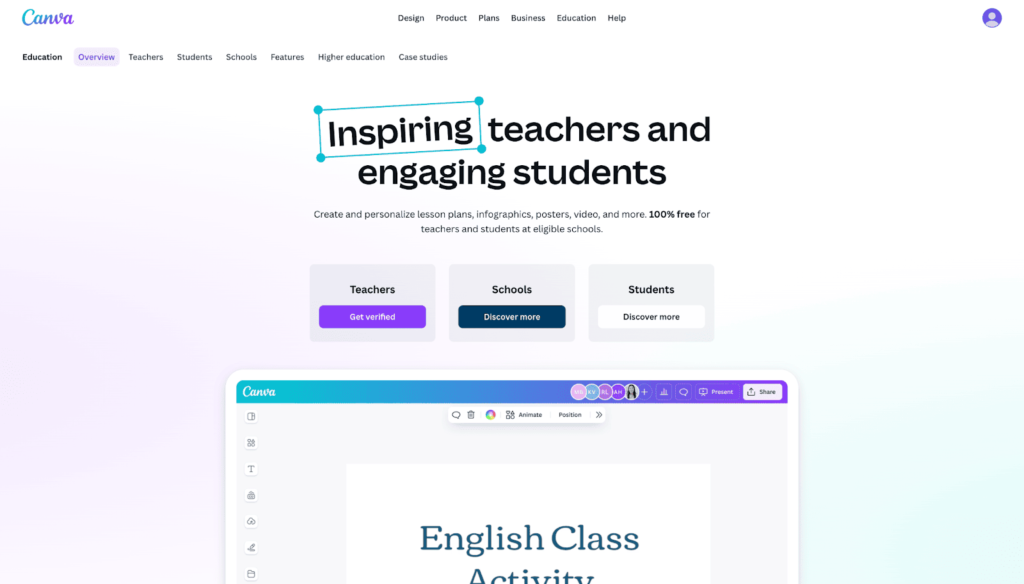
- Free tier: Verified K–12 teachers get Pro-like access.
- Best for: Slides, worksheets, posters.
- Pros: Huge template library; collaboration tools.
- Cons: Verification required; varies by region.
- Workflow Example: Type topic → choose “Magic Design” → get ready-to-use slide deck in 3 minutes.
Further reading: 25 Pro PowerPoint Tips to Create Stunning Slides in 2025
2. MagicSlides
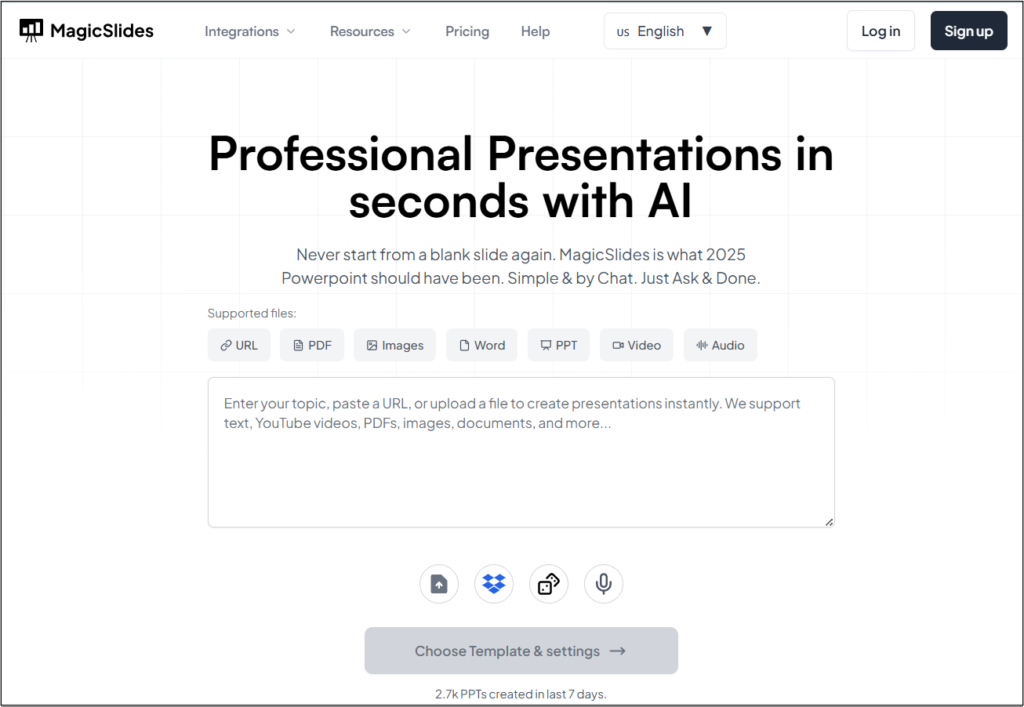
- Free tier: Yes, with limited slides per project.
- Best for: Instantly creating AI-generated presentations from text, PDFs, videos, or URLs.
- Pros: Fast, multilingual, and easy to use inside Google Slides.
- Cons: Limited slides on free plan; minor edits needed for polish.
- Workflow Example: Type topic → choose slide count → generate full deck in minutes → export to Google Slides or PPT.
3. MagicSchool AI
- Free tier: “Free forever” plan for teachers.
- Best for: Lesson plans, rubrics, parent emails.
- Pros: Teacher-focused prompts; simple outputs.
- Cons: Usage caps on free version.
- Workflow Example: Paste standard → generate full lesson outline + exit ticket + rubric.
4. Khanmigo for Teachers (Khan Academy)
- Free tier: Free in the US; pilot access abroad.
- Best for: Lesson hooks, writing support, quick assessments.
- Pros: Standards-aligned; tied to Khan Academy content.
- Cons: Limited global rollout.
- Workflow Example: Ask “Generate 3 warm-up questions for 7th grade math” → assign directly via Google Classroom.
5. Diffit
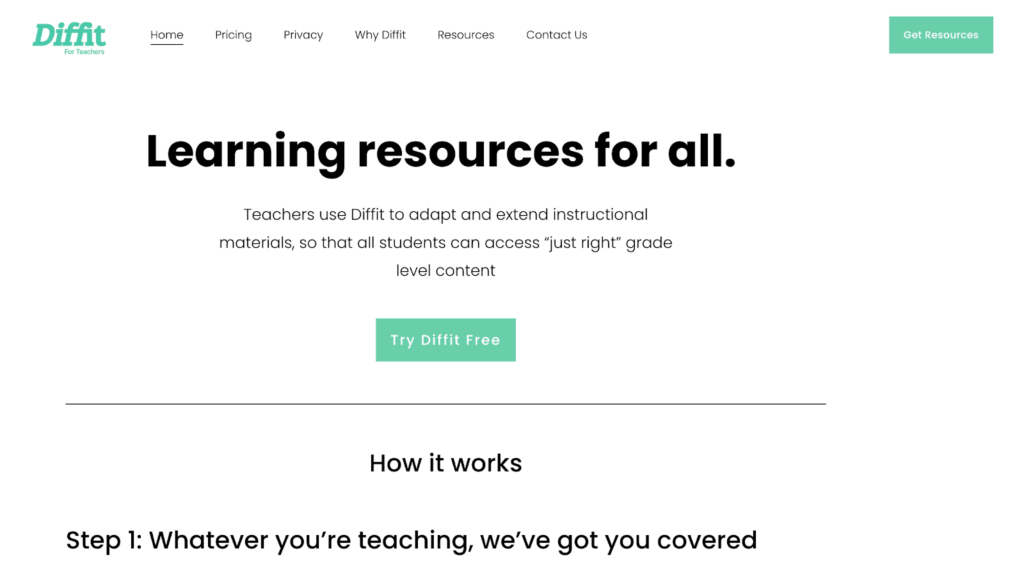
- Free tier: Yes, with content caps.
- Best for: Differentiated reading practice.
- Pros: Adjusts text for grade level; adds vocab lists.
- Cons: Advanced exports are behind a paywall.
- Workflow Example: Paste an article → choose grade band → export leveled version with 5 comprehension questions.
6. Curipod
- Free tier: Yes, with limits.
- Best for: Interactive lessons, polls, and discussions.
- Pros: Fun and quick for student engagement.
- Cons: Insights are locked to premium.
- Workflow Example: Enter “Photosynthesis” → AI builds slides → run live word cloud and poll.
7. Brisk Teaching (Browser Extension)
- Free tier: Free forever plan.
- Best for: Google Docs and Slides.
- Pros: Works inside tools you already use.
- Cons: Browser-only; district policies may block installs.
- Workflow Example: Highlight student text → click “Simplify” → Brisk gives easier version + quiz questions.
8. Quizizz (Changed to WayGround)
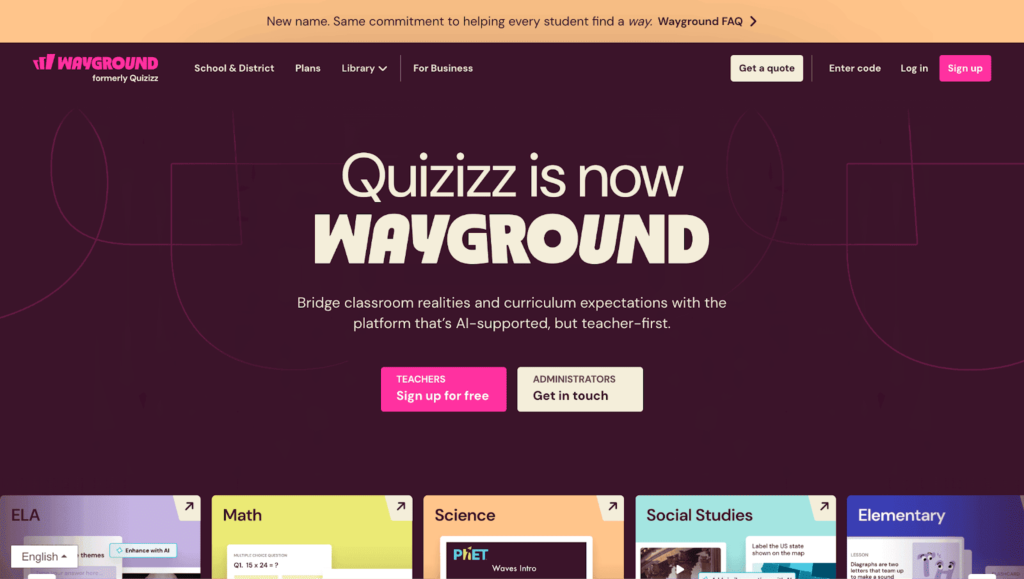
- Free tier: Yes; paid unlocks reports.
- Best for: Gamified quizzes and homework.
- Pros: Huge question bank; live or async mode.
- Cons: Limited analytics on free plan.
- Workflow Example: Search “Fractions” quiz → edit → run live in class.
9. Slidea
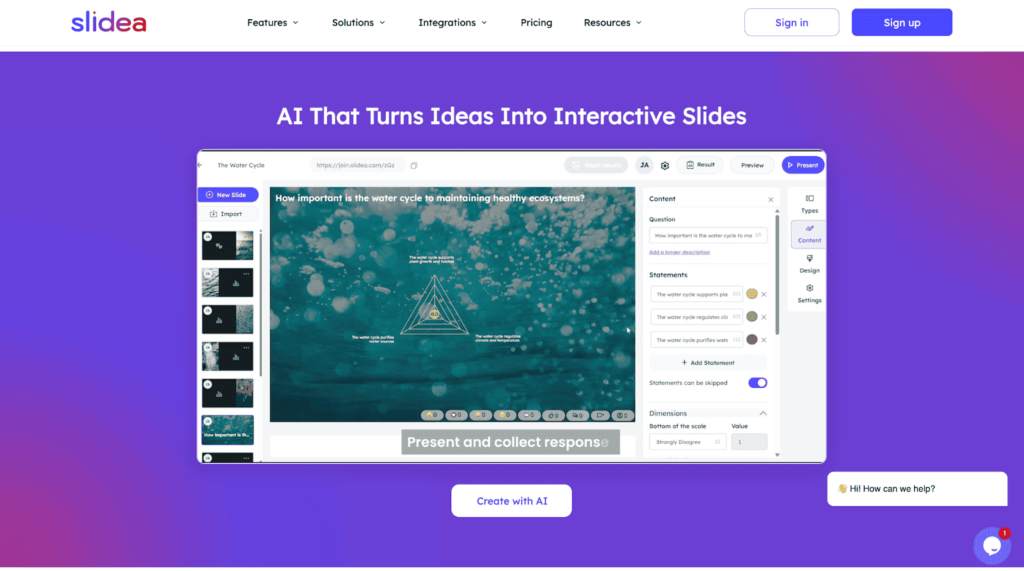
- Free tier: Basic plan is free.
- Best for: Live games and reviews.
- Pros: Loved by students; boosts energy.
- Cons: Player limits on free.
- Workflow Example: Build a quick quiz on environmental science
10. Edcafe AI
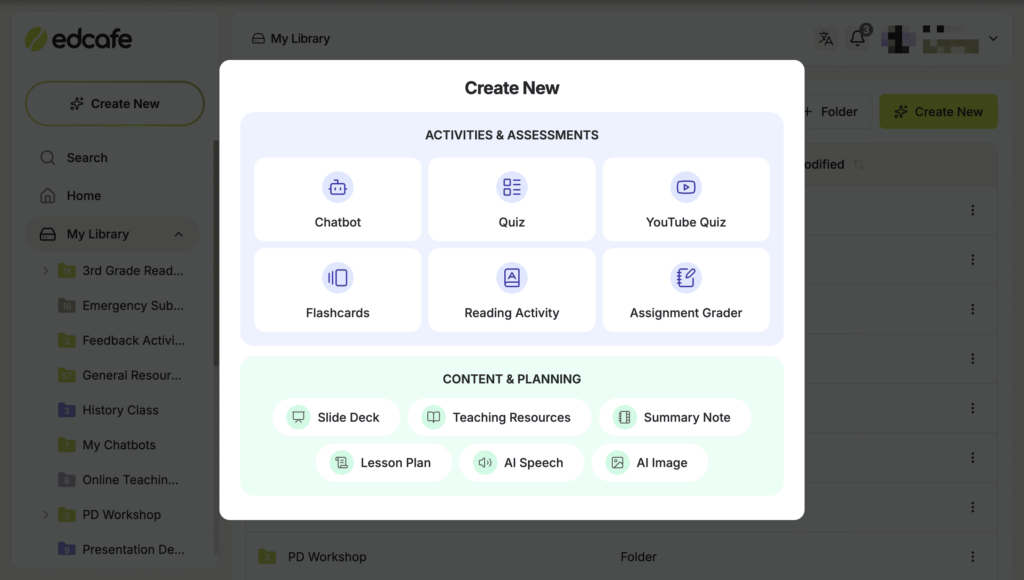
- Free tier: Forever free, with usage limits.
- Best for: Interactive activities, student-facing chatbots, lesson content.
- Pros: Direct student assignment, auto-grading & feedback, built-in library, data analytics.
- Cons: Advanced features are behind a paywall.
- Workflow Example: Generate a quiz → Assign to students → Students get grading & feedback → You get a real-time dashboard of submissions + analytics
11. Edpuzzle
- Free tier: Store ~20 video lessons.
- Best for: Flipped classrooms and homework.
- Pros: Track if students watch videos.
- Cons: Limited library size on free.
- Workflow Example: Add 3 questions to a 6-minute YouTube video → assign as homework → review responses in dashboard.
Comparison Table of Free AI Tools
| Tool | Free Plan | Best For | Limitations |
| Canva for Education | Yes (K–12 verified) | Slides, worksheets | Usage caps |
| MagicSlides | Yes | Auto-generate slides from text, PDFs, or videos | Limited slides on free plan |
| MagicSchool AI | Free forever | Plans, rubrics | |
| Khanmigo | US free, pilots abroad | Lesson hooks | Region-limited |
| Diffit | Yes | Leveled texts | Caps on free |
| Curipod | Yes | Interactive lessons | Insights paid |
| Brisk Teaching | Yes | Docs/Slides | Browser-only |
| Quizizz | Yes | Gamified quizzes | Reports paid |
| Slidea | Basic free | Live games | No Limitations |
| Edcafe AI | Free forever | Usage limits | Usage limits |
| Edpuzzle | Yes | Video lessons | 20 video cap |
Step-by-Step Guide: How Teachers Can Start Using AI
- Pick one tool → start with Canva or Slidea.
- Use it in one lesson → see how students react.
- Review results → did it save time? improve learning?
- Add a second tool once you’re confident.
- Keep human touch → AI supports, teachers inspire.
Practical Workflows
Quick Reading Lesson
- Diffit → leveled article
- Curipod → prior knowledge poll
- Brisk → simplify tough text
- Edcafe AI → interactive comprehension activity
Exit Ticket in 10 Minutes
- MagicSchool → create exit ticket
- Quizizz → assign homework
- Next day → reteach missed items
Flipped Video Lesson
- Edpuzzle → add 3 Qs to video
- Assign → review responses → group students
Common Mistakes Teachers Make
- Relying too much on AI content without adding context
- Skipping fact checks
- Ignoring accessibility needs
- Using tools without checking data privacy
- Trying too many new tools at once
Checklist for Choosing the Right AI Tool
| Factor | Why It Matters | Quick Check |
| Free Access | Saves money | Free plan available |
| Ease of Use | Low stress | No coding |
| Classroom Fit | Relevant | Matches grade/subject |
| Privacy | Protects students | FERPA/GDPR safe |
| Accessibility | Inclusion | Works for all learners |
| Support | Reliability | Active updates |
FAQs
1. Is Khanmigo free for teachers?
Yes, in the US; pilot abroad.
2. Is Canva free for teachers?
Yes, with K–12 verification.
3. Which tool helps with grading?
MagicSchool, Brisk, and Gradescope (district use).
4. Are AI tools hard to learn?
No, most have simple menus.
5. Best first tool to try?
Canva (for visuals) or Quizizz (for quizzes).
Conclusion
AI is no longer optional—it’s a real helper. Free tools like Canva, MagicSchool, Diffit, and Quizizz, even slideegg’s AI tools, let teachers save hours, reduce stress, and engage students. Start small, experiment, and keep your personal teaching style at the centre.
Need quick classroom visuals? Free PowerPoint Templates for editable slides you can adapt.