Introduction
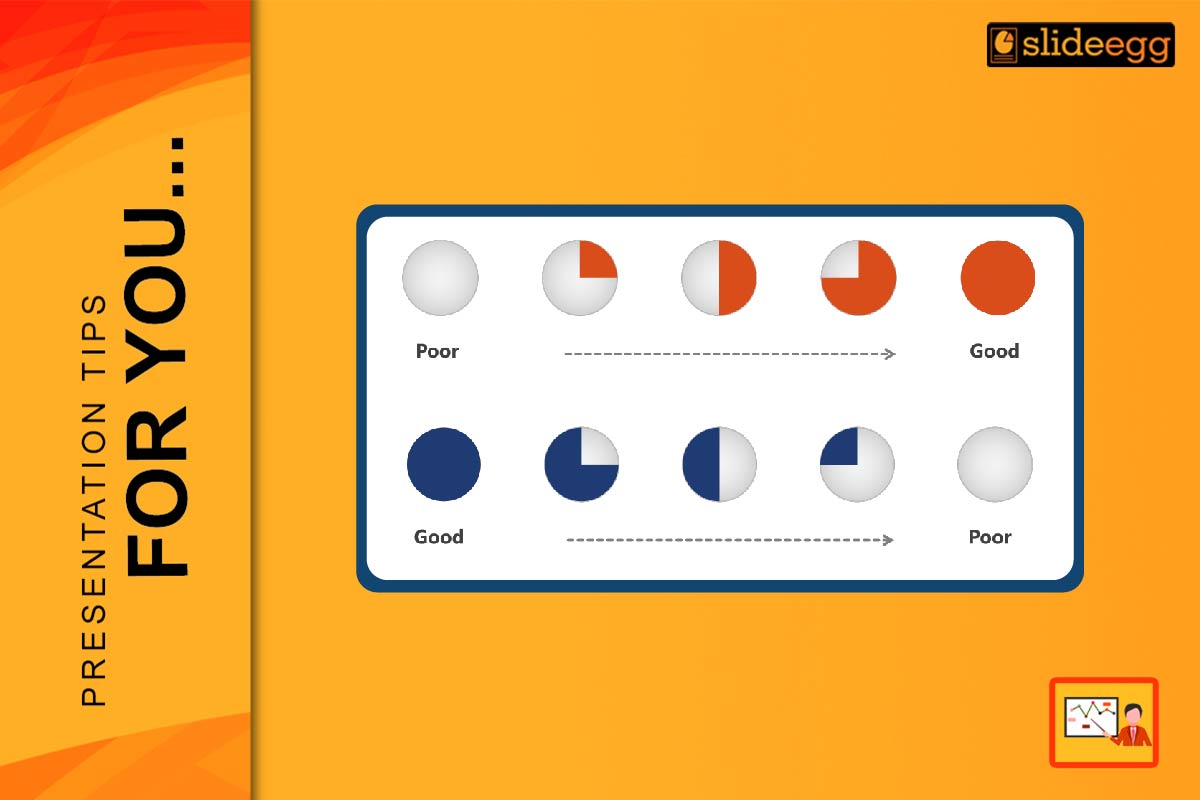
Surveys help us collect opinions from people. But just collecting answers is not enough. We must show the results in a way that everyone can understand. That’s where Harvey Balls help. Harvey Balls are little circle icons that show how much something is done, liked, or completed. They are simple, visual, and easy to read—even for kids!
In this blog, we’ll learn how to use Harvey Balls in PowerPoint to show your survey results clearly and nicely.
What Are Harvey Balls?
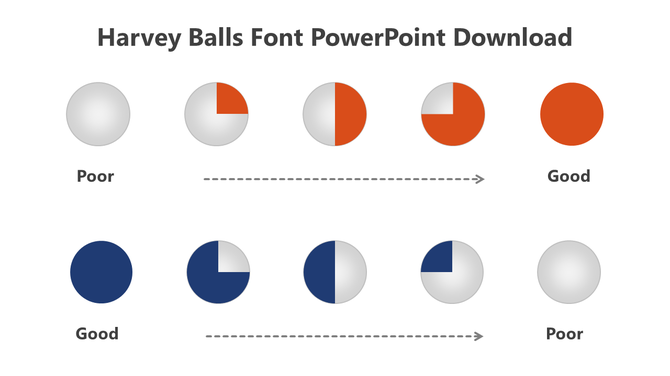
Harvey Balls are round symbols that show ratings or progress. A full circle means 100%, half circle means 50%, and an empty circle means 0%.
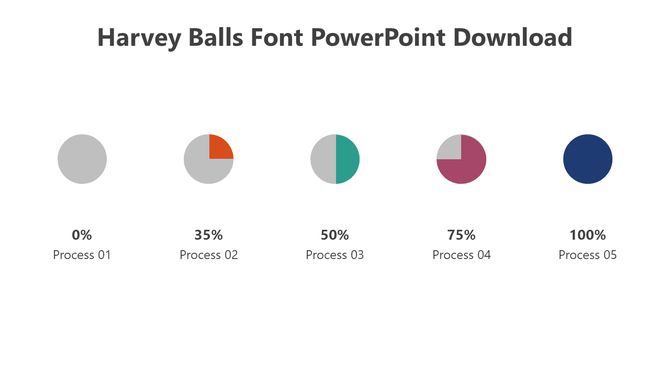
Example:
- Full Circle: Very Satisfied
- Half Circle: Neutral
- Empty Circle: Not Satisfied
Why use them?
- Easy to read
- Looks neat on slides
- Good for showing survey results without using long texts
Why Use Harvey Balls in Survey Presentations?
Survey answers are often numbers or percentages. But numbers can be boring or hard to read for some people. Harvey Balls turn boring data into fun, visual info.
Benefits of using Harvey Balls:
- Makes survey results look friendly
- Helps your audience understand results quickly
- Saves space on slides
- Works well in comparison tables
Step-by-Step: How to Add Harvey Balls in PowerPoint
Step 1: Open PowerPoint and Insert Table
- Create a new slide
- Go to Insert > Table
- Add a row for each question or topic from your survey
Step 2: Add Harvey Balls
- You can add Harvey Balls using Icons or by copying from the web
- Go to Insert > Icons > Search “Harvey Balls” (or You can open SlideEgg directly from PowerPoint Add-ins option and start designing.)
- Place the correct Harvey Ball next to each answer
Step 3: Label Clearly
- Write the question or topic name
- Add a short explanation beside each Harvey Ball
- Example: “How happy are our customers?”
- Full ball: Very Happy (70%)
- Half ball: Okay (20%)
- Empty ball: Not Happy (10%)
Where Can You Use Harvey Balls in Presentations?
Harvey Balls are helpful when you want to show how people feel or rate something in a very simple and visual way. These little circle icons are great because they show levels of satisfaction, agreement, or completion at a glance. Here are some clear ways you can use them in your presentations:
1. Satisfaction Scores
Use Harvey Balls to show how happy or satisfied people are with a product, service, or experience. Instead of using long sentences or boring numbers, a half-full or three-quarters-full Harvey Ball shows the level of happiness quickly and clearly.
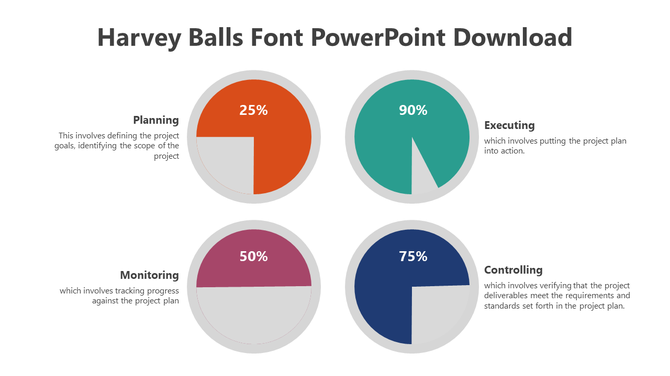
Why it works: Most people find it easier to understand pictures than text. So, when you use Harvey Balls, you help your audience see the meaning quickly.
For example:
- 🟢 100% full ball: Very happy
- 🟡 75% full ball: Mostly happy
- 🟠 50% full ball: Okay
- 🔴 25% full ball: Not very happy
Use Cases:
- Customer satisfaction surveys after a product launch
- Feedback from event participants
- Product demo reviews
2. Feature Ratings
When you want to show how users feel about different features of a product, Harvey Balls makes it easy to compare multiple things on one slide. They help your audience understand which features are liked most without needing lots of words or graphs.
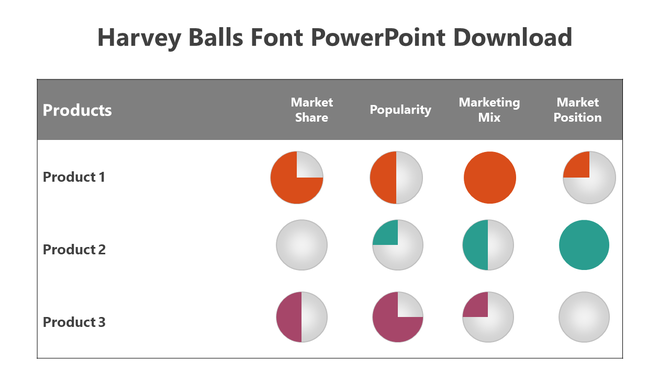
Example Scenario: Let’s say you’re showing feedback about a new mobile app. You asked users to rate features like:
- Easy to use
- Fast performance
- Good design
You can place Harvey Balls beside each feature so your audience can instantly see which one performed best.
Use Cases:
- Product review presentations
- App or website testing results
- Customer journey slides
3. Employee Feedback
Sometimes, you need to present internal feedback from employees. This could be about team meetings, work culture, training, or company tools. Harvey Balls help make this feedback more visual and digestible.
Why it matters: Using visuals instead of plain text makes internal reports more engaging. Managers and teams can spot patterns and plan better.
Example Scenario: You collect feedback about a recent training program:
- Content Quality: 75% full ball
- Trainer Support: 100% full ball
- Session Duration: 50% full ball
Use Cases:
- HR presentations
- Team meetings
- Company culture improvement plans
4. School or Class Reports
Teachers can also use Harvey Balls in their reports or slides. These visual tools help young students understand how they or their classmates feel about lessons, books, or activities.
Why it’s great for schools: Children understand pictures better than words. Harvey Balls are fun and friendly while still being informative.
Example Scenario: A teacher asks students to share what they think about subjects:
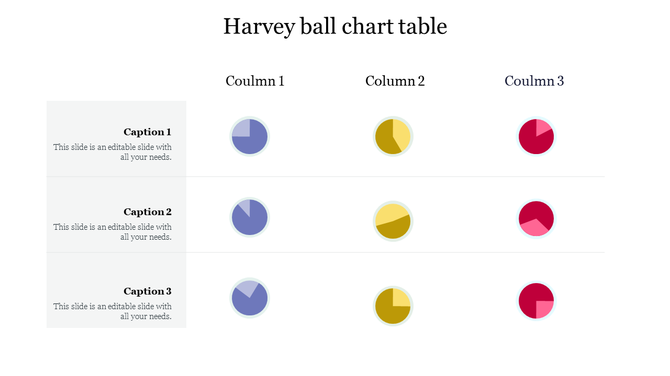
- Math: 75% full ball
- Science: 100% full ball
- History: 50% full ball
These slides can then be shown during parent-teacher meetings or class discussions.
Use Cases:
- Classroom feedback
- Student surveys
- Education presentations
Tips for Better Design
Keep your slides clean and clear. Here are tips to make your Harvey Ball slides look nice:
- Use same size and color for all Harvey Balls
- Keep text short and simple
- Add a small legend to explain what each Harvey Ball means
- Use 2-3 colors only
Example:
| Feature | Rating |
| Speed | ● (Full) |
| Design | ◔ (Three-Quarter) |
| Support | ○ (Empty) |
Templates You Can Use
If you are in a hurry, use ready-made Harvey Ball PowerPoint templates. These save time and look professional.
Benefits of using templates:
- Quick to edit
- Pre-designed icons and layout
- Easy for kids, teachers, or office users
Conclusion
Harvey Balls make survey results simple, visual, and fun. They help everyone—from young students to busy managers—understand the data in seconds. By using PowerPoint and a few smart tricks, your next presentation can look great and be easy to follow. Start using Harvey Balls today!
FAQs
1. What are Harvey Balls used for in presentations?
They show ratings or levels in a visual way, like full or empty circles.
2. Can I make my own Harvey Balls in PowerPoint?
Yes! You can draw circles or use icon sets.
3. Are Harvey Balls good for kids’ presentations?
Yes! They are very easy for kids to understand.
4. Where can I find Harvey Ball templates?
You can search online or use ready-made templates from SlideEgg.
5. Can I use Harvey Balls in Excel too?
Yes, but PowerPoint gives more design options.