Creating an engaging presentation is no longer just about slides and bullet points. Whether you’re a teacher trying to energize your classroom, an HR professional planning a training session, or a team leader looking to break the monotony of meetings, turning your content into a family feud presentation can completely transform the experience.
In 2026, audiences expect interaction. The good news? You don’t need advanced design skills or expensive software to build a fun, effective game. With the right approach, you can create a fully functional game using a free PowerPoint template or even a free Google Slides template.
Let’s walk through everything you need to know.
What Makes a Family Feud-Style Presentation So Effective?
A Family Feud-style game works because it’s simple, competitive, and highly engaging. Instead of passively listening, participants actively think, discuss, and respond.
This format is especially useful for:
- Reinforcing learning in classrooms
- Making corporate training sessions more interactive
- Encouraging team collaboration
- Hosting fun events or workshops
At its core, it’s an interactive presentation tool that blends learning with entertainment.
Your Pre-Start Checklist: What You’ll Need
Before building your game, prepare a few essentials:
| Element | Description | Example |
| Questions | Survey-style questions with multiple answers | “Name a common morning habit.” |
| Answers | Top responses ranked by popularity | Coffee, Exercise, News |
| Slides | A structured presentation layout | Question slide + answer board |
| Scoring System | Points based on answer ranking | Top answer = 50 points |
| Teams | Divide participants into groups | Team A vs Team B |
Having these ready will make the creation process much smoother.
Step-by-Step Guide to Creating the Game
1. Choose Your Platform
Start with either Microsoft PowerPoint or free Google Slides. Both work well, but PowerPoint offers more animation control, while Google Slides is great for collaboration.
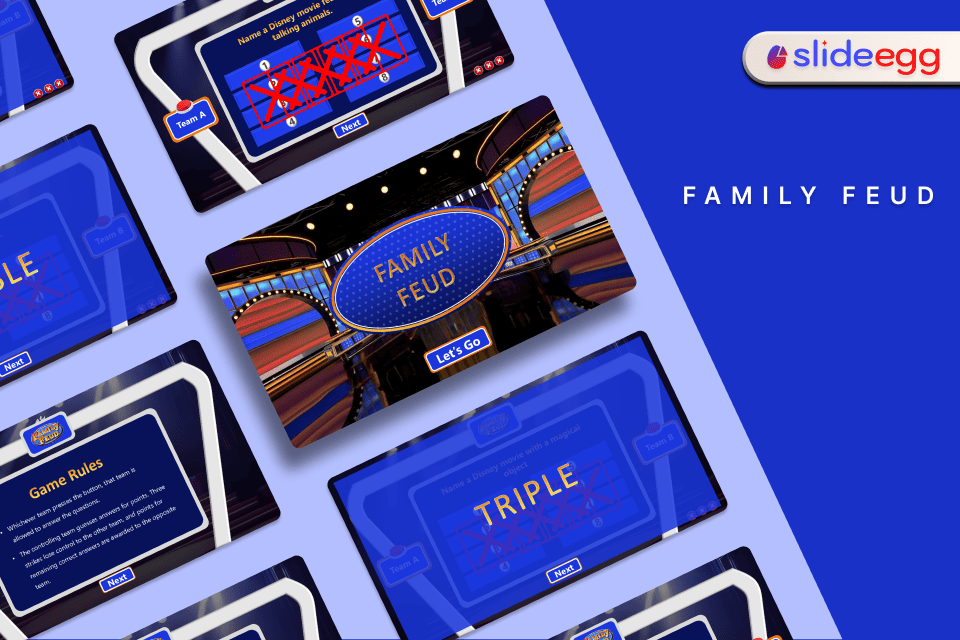
2. Design the Game Board Slide
Create a slide that displays:
- The question at the top
- Numbered answer slots (usually 5–8)
- A clean, easy-to-read layout
Use shapes (rectangles) to represent answer boxes. Keep them consistent in size and alignment.
3. Add Hidden Answers
Each answer should be hidden initially. You can do this by:
- Covering answers with shapes
- Using animations like “Disappear” or “Fade.”
- Or linking shapes to reveal answers on click
This step is what makes your family feud presentation interactive.
4. Use Animations for Reveal Effects
Animations are key to making the game feel real. Apply:
- “Appear” or “Fade In” for answers
- “Trigger” animations (in PowerPoint) to reveal answers when clicked
- Optional sound effects for excitement
Keep animations smooth and not overly complex.
5. Create Navigation Between Slides
Build a simple flow:
- Start slide (game intro)
- Question slides
- Scoreboard slide
Use hyperlinks or action buttons so you can move seamlessly during the game.
6. Add a Scoreboard
Create a separate slide or section to track scores. You can:
- Manually update scores during the game
- Use text boxes for each team
- Keep it visible and simple
7. Test Your Game
Before presenting, run through the slides:
- Check animations
- Test navigation links
- Ensure answers are revealed correctly
A quick test avoids awkward pauses during the session.
Tips to Make Your Game More Engaging
Creating the structure is one thing—making it fun is another. Here are practical tips:
- Keep questions relatable: The more familiar the topic, the better the participation
- Limit text: Avoid cluttered slides; clarity matters
- Use consistent design: Colors and fonts should be uniform
- Encourage discussion: Let teams talk before answering
- Add a timer: This increases excitement and urgency
Most importantly, focus on the experience, not just the slides.
Common Mistakes to Avoid
Even a simple game can go wrong if not planned properly. Watch out for:
- Overloading slides with too many animations
- Using unclear or overly complex questions
- Not testing the presentation beforehand
- Making navigation confusing
- Ignoring audience engagement
Remember, the goal is interaction—not perfection.
When to Use a Family Feud Presentation
This format works in many situations:
- Classrooms: Review lessons or conduct quizzes
- Corporate training: Reinforce key concepts
- Team meetings: Break the ice or energize sessions
- Workshops: Make learning more dynamic
- Events: Add fun and participation
Because it’s flexible, you can adapt it to almost any topic.
PowerPoint vs Google Slides: Quick Comparison
| Feature | PowerPoint | Google Slides |
| Animation Control | Advanced | Basic |
| Collaboration | Limited | Real-time |
| Accessibility | Desktop-based | Cloud-based |
| Ease of Use | Moderate | Beginner-friendly |
| Best For | Detailed design | Quick sharing |
Both tools support a free PowerPoint template approach, so choose based on your needs.
Final Thoughts
In 2026, presentations are no longer just about delivering information—they’re about creating experiences. A well-designed family feud presentation turns passive listeners into active participants.
The best part? You don’t need expensive tools or advanced skills. With a clear structure, simple design, and a bit of creativity, you can create a powerful presentation using tools you already have, and make learning more engaging and effective.
Whether you’re a teacher, trainer, or team leader, this approach can help you connect with your audience in a meaningful way.
Get a ready-to-use Family Feud presentation download and customize it today.
FAQs
1. Do I need design skills to create a Family Feud PowerPoint game?
No. Basic knowledge of PowerPoint or free Google Slides is enough. You can start with a simple layout and improve over time.
2. Can I use a free PowerPoint template?
Yes, using a free PowerPoint template can save time and give you a ready-made structure to work with.
3. How many questions should I include?
Typically, 5–10 questions work well for a session, depending on your time limit.
4. Is this suitable for professional environments?
Absolutely. Many corporate trainers and HR professionals use this format to make sessions more engaging.
5. Can I run this game online?
Yes. You can present it via screen sharing using tools like Zoom or Teams, especially if you’re using free Google Slides.