Digital classrooms have undergone rapid evolution, and teachers today are dependent on presentation tools to deliver the lessons, clarify the topics, and maintain the interest of the students. In the context of so many methods of teaching, both online and offline, one tool is more important than many tools. In the year 2026, Google Slides and PowerPoint continue to be the two most favoured alternatives, but the way teachers use them and the prioritisation have greatly changed.
This guide is a clear and logical breakup of all the demonstration styles, classroom settings, and workflow of lessons, if you are curious to know which one is suitable for you.
Reasons For A More Important Change In Choice
Teaching in 2026 is not limited to a physical classroom anymore. A lot of schools are already established:
Hybrid learning
- Online interactive sessions
- Smart-class teaching
- Content sharing via LMS platforms
- Real-time student collaboration
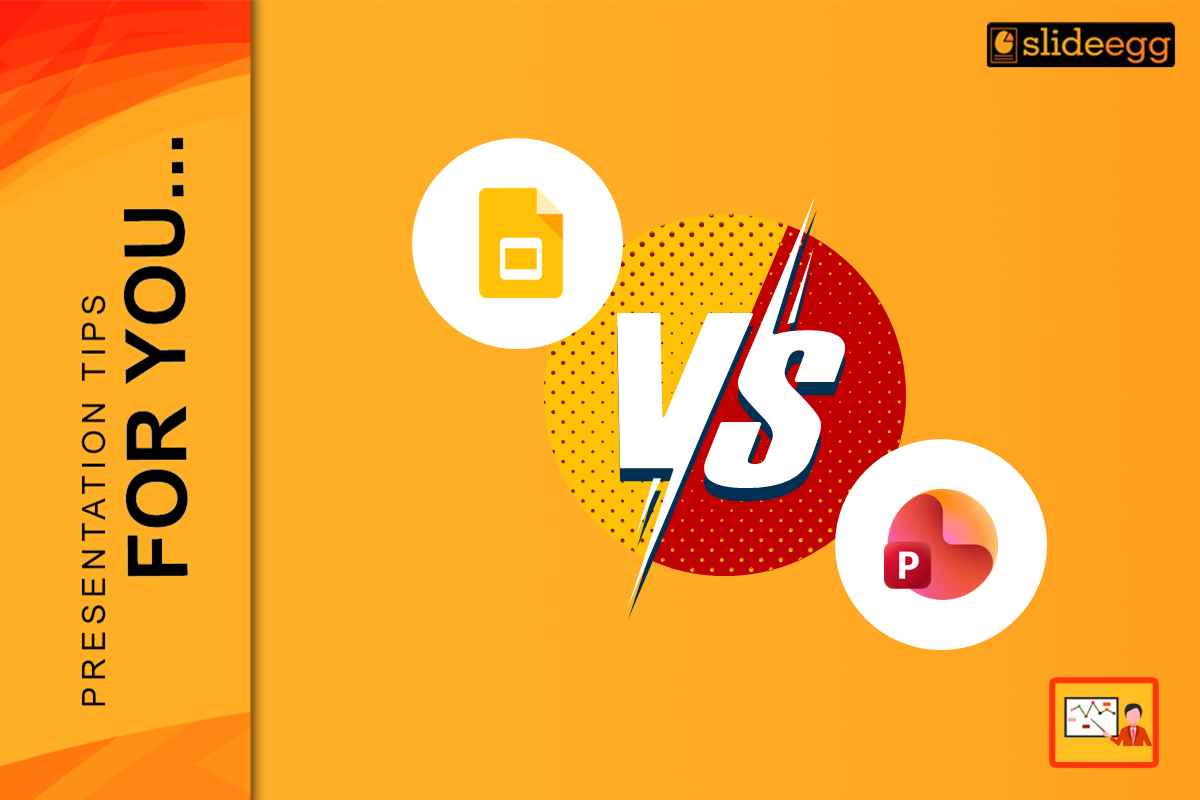
Your presentation tool has to blend with these modes perfectly. That’s why the Google Slides vs PowerPoint decision is not merely a matter of convenience; it is about flexibility, accessibility, design quality, and classroom engagement.
1. Accessibility & Convenience Google Slides: Instant Access Anywhere
Google Slides is a product of cloud technology, which implies no requirement for installations, software updates, or storage of powerful systems. It is a favourite among teachers because:
- It is compatible with any device—laptop, phone, tablet, or smartboard.
- All your teaching materials are automatically updated in real-time.
- You can open your presentation at once in any place, classroom, or home, or even during emergencies.
- And of course, the huge pool of Free Google Slides themes available is a plus to many teachers who find them online, and also very easy to work with.
PowerPoint: Works Best Offline
PowerPoint is best when it works in accordance with your school’s perfectly stable offline systems. It is very intuitive as it does not require internet access to edit, present, or customise. This is a great advantage for teachers who work in areas with poor Wi-Fi.
If your school is subscribed to Office 365, then you are also entitled to cloud sync. But in general, the main advantage of PowerPoint is the same—the ability to access the full feature set offline without internet interruptions.
2. Collaboration & Team Teaching
Google Slides: The King of Real-Time Collaboration
Google Slides is a heaven for teachers who work alongside, co-teach, or share their resources with their department, making collaboration so effortless.
- Many teachers can work on the same document at the same time.
- All students can take part in brainstorming for group activities.
- Sharing controls make classroom assignments very easy.
- There’s nothing like version confusion, since everyone sees the same updated file.
- This certainly makes it a professional choice for planning teams and for dynamic classroom activities.
PowerPoint: Good but Not as Smooth
The tool PowerPoint facilitates teamwork through OneDrive and SharePoint, although it is not as fast or smooth.
It supports file sharing, but live editing is not very efficient. If your team is Microsoft tools savvy, you will find collaboration manageable, albeit a bit slower.
3. Design & Customisation Options
PowerPoint: Best for Design-Rich Lessons
PowerPoint is the undisputed champion when it comes to high-level and eye-catching visuals, animations, professional-looking presentations, etc., PowerPoint is the undisputed champion. The visually rich content will definitely be appreciated by the educators who will want to use:
PowerPoint is a pro who turns content into a feast for the eyes.
- Professional SmartArt diagrams.
- Morph transitions.
- Very customizable layouts.
- Professional PowerPoint Templates access that gives lessons that polished look.
- PowerPoint offers teachers in charge of seminars or workshops the highest degree of creative control, as well as the presenters providing the audience with insight into the topic throughout the whole meeting.
Google Slides: Simple and Clean
Google Slides does not exaggerate the basic option but rather takes it as the best path. You get:
- Basic animations
- Simple transitions
- Clean layouts
- Easy-to-use formatting
Its simplicity is actually an advantage for many teachers who want to create lessons quickly without overwhelming design tools.
If your teaching depends more on clarity than visual effects, Google Slides is more than enough.
| Feature | Google Slides | PowerPoint |
|---|---|---|
| Access | Works online, cloud-based | Works offline, desktop-based |
| Ease of Use | Simple and easy | More features, slightly complex |
| Collaboration | Excellent real-time teamwork | Good but slower |
| Design Quality | Basic designs | Advanced, professional designs |
| Storage | Auto-saved in cloud | Saves on your device |
| Cost | Free | Paid (Office 365) |
| Best For | Online & hybrid classes | Offline teaching & rich visuals |
4. Compatibility with Classroom Technology
Google Slides: The Best Choice for Chromebooks & Online Classes
In 2026, the majority of the schools opted for Chromebooks or Google Workspace. In these kinds of classrooms:
- Slides open in a flash
- Students keep up without difficulty
- Homework sharing as slide decks is hassle-free
- Interactive activities work together smoothly (Forms, Docs, Jamboard alternatives)
- Google Slides is the obvious choice for Google-based schools.
PowerPoint: The Best Option for Windows-Based Schools & Smartboards
Schools that depend on desktop PC, projectors, and interactive whiteboards generally consider PowerPoint more compatible.
- More suitable for Windows systems
- Seamless on Microsoft Teams
- High-resolution displays respond excellently
- Heavy animations are not an issue at all
- If the school has Windows labs or uses MS Teams daily, PowerPoint smoothly falls into place.
5. Interactive Teaching & Student Engagement
Google Slides: A Perfect Tool for Quick Interaction
Teachers can create interactive activities such as quizzes, polls, links, and simple interactive sections. It pairs excellently with:
- Google Forms
- Classroom quizzes
- YouTube videos
- Hyperlink-based learning paths
- Slides make the fast and interactive lesson delivery very smooth and easy.
PowerPoint: A Tool for Highly Interactive & Multimedia-
PowerPoint offers advanced features for:
- Interactive buttons
- Gamified lessons
- Drag-and-drop activities
- Embedded videos and audio
- Animated quizzes
Teachers who prefer creative teaching styles or want to try gaming in learning often go for PowerPoint.
6. File Management & Storage
Google Slides: No More Need for USB Drives
Your everything remains in the cloud:
- Automatically saved
- Accessed from any device with ease
- Shared easily
- No file corruption issue
- It minimises the anxiety of losing your files right before the class.
PowerPoint: A Better Choice for Sizeable or Complex Files
If your file consists of:
- High-quality images
- 3D animations
- Detailed lesson text
- HD videos
Then, PowerPoint is the better option as it will utilise your system resources instead of relying on your internet speed.
7. Cost & Availability
Google Slides: Fully Free
- This is one of the most remarkable benefits.
- Teachers can use this tool at no cost, thus it becomes a good solution for classrooms with limited budgets.
- Currently, a lot of people also take advantage of the Free Google Slides themes, which can be downloaded from the internet.
PowerPoint: Part of a Paid Suite
- PowerPoint is usually included in the Office 365 or Microsoft packages.
- It is already present in most schools, but teachers might still choose free alternatives.
- On the other hand, access to Professional PowerPoint Templates may be a good reason for investing in polished visuals.
Which Tool Will Be Selected by Teachers in 2026?
If you pick Google Slides:
- Your classes are online or hybrid
- Working together and student involvement are important
- You desire less hassle with sharing and saving
- You like a neat, uncomplicated design
- Your institution uses Chromebooks or Google Workspace
If you select PowerPoint:
- You need good-quality images
- You make very influential presentations
- You develop animated lessons step by step
- You oftentimes work without an internet connection
- Your organisation chooses Microsoft tools
A Practical Suggestion
In 2026, a lot of educators make use of the two tools depending on:
- Google Slides → Regular classroom teaching, distribution of worksheets, students’ projects
- PowerPoint → Yearly day presentations, academic events, highly visual chapters
- Both are strong but in different ways. The most clever strategy is to pick the one that corresponds to your teaching setting and lesson objectives.
Final Thoughts
Google Slides and PowerPoint still hold the ground as the best tools for teachers in 2026. There is no such thing as a single “best” tool—there is only the one that perfectly suits your teaching style, your classroom settings, and your daily routine.
In case you need a quick, simple, and collaborative tool, Google Slides will be your best friend.
On the other hand, if you want to be in control of the creativity and designs, PowerPoint will make you look great.
Teachers of today are not merely presenters; they are narrators.
Select the instrument that supports you in narrating your story the way the kids will never forget.