
Is it almost time to bring changes to your presentation? Yes, PowerPoint tips and tricks will help take your slide design to the next level. Get ready to become a pro at designing slide presentations.
Keep your audience focused, balanced, and away from unwanted distractions. Get ready to use these quick PowerPoint tips to create stunning slides and see the changes. Boost your PowerPoint skills and make your content shine. Still have a question? These top tips will answer all your questions. Explore now!
What are PowerPoint Tips?
PowerPoint Tips helps us in creating a perfect presentation that is clear, concise, and easy to follow. They mainly focus on content structure, font style, information, clear visuals, design, color themes, and so on.
Here are some examples:
Content structure – Helps structure the content in a perfect format from beginning to end.
Font style – Guides you in choosing the perfect font style to enhance the content.
Color contrast – Helps choose an appropriate color theme that suits the background and information.
Template selection – Helps you select the best presentation template which enhances the look and feel of the presentation.
Why Do You Need to Focus on PowerPoint Tips?
PowerPoint Tips not only guide you in enhancing the look and feel of the presentation, but they also focus on improving presentation skills that are currently trending. So, knowing PowerPoint tips will help you become a better presenter in the future. Also, it will upskill your knowledge with creative design ideas.
Pros and Cons of PowerPoint Tips
Pros of PowerPoint Tips
Helps You Make Better Slides Good tips teach you how to create clean, neat, and good-looking slides.
Saves You Time Instead of guessing, you can follow easy tips and finish faster.
Keeps Audience Interested When your slides look nice, people will pay more attention to your presentation talk.
Makes Your Message Clear Simple tips help you say your points clearly without confusion.
Easy to Learn Most tips are easy to follow, even if you are new to PowerPoint.
Cons of PowerPoint Tips
Too Many Tips Can Be Confusing If you try to follow all the tips at once, it might feel confusing.
Some Tips Don’t Work for Everyone A tip that works for one person may not work well for your style or topic.
Takes Time to Practice You still need to practice using the tips to make great slides.
Can Limit Your Creativity Sometimes following too many rules can stop you from trying new ideas.
Not All Tips Are Good Some tips online may be outdated or not helpful, so choose wisely.
Top 25 Killer PowerPoint Tips to Create Stunning Slides in 2025
Let’s explore the top tips to enhance the presentation look and style with the best tips, tricks, and ideas. Power up your presentation skills to create interesting presentation slides in no time.
1. How to Create a Memorable Presentation
Creating a memorable PPT presentation lies in adding the main point to your presentation. If you’re learning PowerPoint tips, you might have a question in your mind like “How can I make my presentation memorable?” Yes, it’s the right question. Well, the answer lies in your way of presenting ideas in a format with an intro, main body, and conclusion. Content structure is very important in slide presentations. So, focus on structuring your content, and then your audience will never forget your presentation.
2. Practice Makes Perfect
Practice makes perfect! If you think this quote is true, then it’s time for you to practice your prepared slides before your presentation. Even if you have completed the first slide, for example, if you have completed an introduction slide, start practicing aloud. Check the flow of your presentation, sentence structure, headings, subheadings, titles, and so on. Also, be willing to change the information or ideas if you feel it is not flowing well. Practice can reduce fear and anxiety.
3. Create a Presentation That Suits Your Audience
Knowing your audience is an important point before preparing for a presentation. Different audiences will have different thoughts, ideas, challenges, and needs. Let’s say if you are an expert in creating and presenting PPT presentations online, you will have complete knowledge about presenting online presentations through Zoom. But what happens when you are asked to present a presentation in front of a live audience? So, you should know about these points.
How do you adapt to your audience? Here are some tips:
Knowing all these points will help you shine as a presenter. You have to think like a recipient, not as a presenter.
Ask about them – You can ask them or contact them for feedback through emails like “What do they want to learn?” Asking the audience will help us prepare better with a clear content structure.
Learn about the audience – Suppose if you got a chance to talk with the curator of the presentation, get to know about the audience and their background. It will help in learning more about the audience and their needs.
Look after the environment – Environment matters in presentations. The presentation style for Zoom audiences will be different when compared with live audiences. So, considering the environment will prove you as a better presenter.
4. Usage of Font
One of the important points in PowerPoint tips is the selection of fonts. The font that you select keeps your content informative, audiences engaged, and away from distractions. Choosing a premium font will set a tone for your presentation as well as enhance your presentation. Explore the do’s and don’ts of using font in presentation.
Make sure to select a perfect font that keeps your text readable and clear for the audience.
5. Contrast Selection
Another important PowerPoint trick is contrast selection in presentations. Do you know contrast keeps the presentation lively and makes the text stand out? If you are putting the text on a dark background theme, choose a white box with black font color in it – this will make the text clear and easier to read. Additionally, you can choose different contrasts based on your needs. But the font that you type should be clear and easy to follow.
6. Audio Insertion
Adding audio is another plus in PowerPoint presentations which increases audience interest. The audio can be anything with a funny tone, your own voice, or music in between. It will boost your presentation style and keep the audience entertained throughout the session. Learn how to add audio to PowerPoint.
7. Follow the Rule of Three
“Rule of three” in presentations represents information presented in a group of three that is more memorable, engaging, and effective for the audience. This rule helps to grasp the information quickly and helps the audience recall the information automatically. For example, use three bullet points, three arrow points, three icons. Everything should fall in three.
8. Make Use of Charts and Graphs
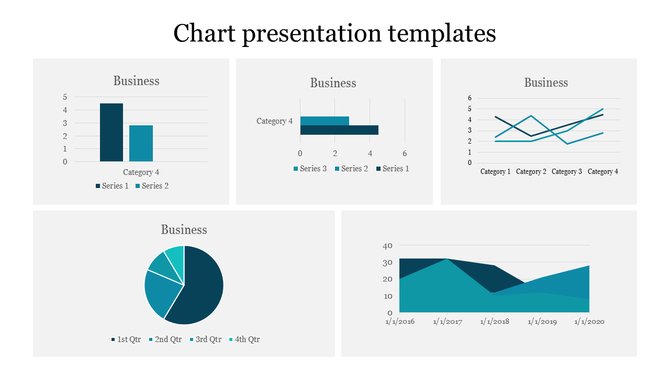
Present your information using charts and graphs. It will not only help in presenting information visually but help the audience remember the concept better. Many ready-to-use chart PowerPoint templates are available. Easy to customize, and it will showcase the data and stats clearly to the audience in an understandable way. Everything shown in text format will distract the audience from listening. Adding charts and graphs boosts your slides.
9. Avoid Too Much Animation

The biggest thing to avoid in PowerPoint presentations is too many animations. It’s not only distracting but unprofessional.
Use animation wisely – like one or two throughout the presentation. Also, if you’re planning to add any animations, they should be checked twice before adding. Testing before your presentation can help avoid uncertain errors. Check how to add animation to PowerPoint.
10. Use Custom PPT Design Themes

Above all, using a custom PPT design theme enhances your presentation. Many websites are loaded with a variety of slide themes to suit your presentation content. But choosing the best slide theme that is premium will enrich your presentation. Using a good PowerPoint theme with full customization features will help you learn PowerPoint easily and quickly. Explore more PowerPoint tips and tricks to enhance your slide design. One reason that you can use custom themes is because they contain ideas. They are more than just a set of colors and font selection. Instead, they come with editable placeholders, themes, designs, and shades. All you need to do is drop your content and skip the work of designing from scratch.
11. Align Text Correctly
Align your text on the slide consistently – it will give a perfect look. Also, aligning the text in the same orientation will really make the slide look neat and clean.
Use this align format:
- Title
- Paragraph
- Bullet List
When the text is aligned in the above format, the information that you present will reach the audience without any confusion.
12. Choose Different Color Themes
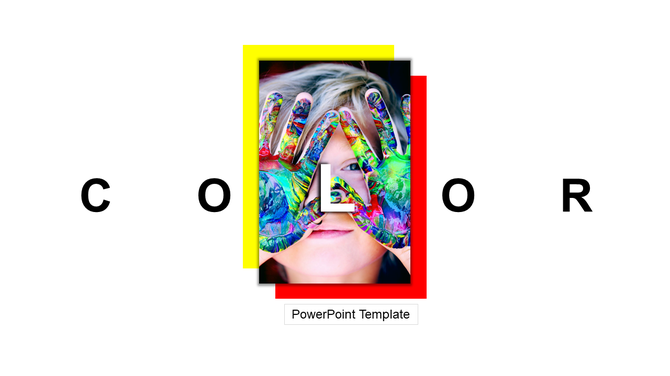
Various types of color themes are available in PowerPoint that you can apply for your presentation. On the Design tab, click on the drop-down next to Themes to try out a different color scheme. Choose lighter background colors with dark text or dark text with lighter background colors. Also, you can follow the 60-30-10 rule: 60% dominant color (light background), 30% secondary color (dark text), and 10% accent color (vibrant highlight).
Tips:
- Use the 60-30-10 rule to create a visually appealing and balanced background.
- Avoid gradients in text, especially for smaller text. It might cause difficulty in reading.
- Consider using off-white background themes for better readability and clarity.
- Stick to a maximum of four to five colors for the same pattern.
13. Limit Your Content
Instead of increasing the content, prioritize the key messages. Over-information on slides can make the audience feel less interested and makes them turn away faster. As a presenter, we try to focus on more information, but it might feel overloaded from the audience’s side. Less is always more informative.
Cut the weaker sections in your PowerPoint presentation, then see how the audience listens to your key message. One of the best steps that you can take is to reduce the number of items in the slide.
14. Use Supporting Video Clips
Creating an impactful presentation is all about adding additional perspectives to the content. One of the favorite ways to enhance your presentation is adding video clips. Video clips might be your own production or anything that could be from YouTube related to your topic.
15. Use Infographic Templates

Choose the right infographic template that effectively communicates your information. Keep your infographic simple for the audience to read and understand your data. Whether it is a comparison, data visualization, or process infographic, it can clearly showcase your information. For this, you can also choose predesigned infographic templates for your presentation.
16. Alternate Between Solid Color and White Slides
Using solid colors on white slides will enhance your brand or products in an effective way. It will create an attractive atmosphere and engage your audience. At the same time, you can use solid colors to highlight specific items in your presentation.
17. Present Information with Maps

Maps are the best way to show location-based information. Whether you’re sharing your branch report or sales details in different countries, maps help people see the data clearly. They turn numbers into visuals that are easy to understand. Using a map PowerPoint slides in your presentation makes your message more real and relatable.
18. Follow Simple Design Rules
Design is as important as content in your presentation. That’s why it is crucial to pay attention to the design part. When design is best, the rest of your content will be on point. Spend time designing your presentation and see the magic. Get familiar with designing tips and tricks and showcase them in your presentation through customization.
19. Keep Track of Time

Watch the clock while presenting your information – it’s important to stick to time. Plan how many slides can be used. The slide count will be based on your time limit that you set for your presentation. Believe it or not, sticking to a time frame is one of the most important things in a presentation. If you want to learn how to present an informative presentation, then you should stick to the time frame.
20. Make a Strong Finish to Your Presentation
Only a handful of the presentations I’ve seen have really stuck in my memory. The ones that come to mind employed clever strategies to draw attention to the most crucial details. You must end your presentation strongly and clearly if you want your audience to remember your point.
Putting your slides in the correct order is a simple method to accomplish this. Just drag the small slide previews (thumbnails) into the order you like. When you go back to the normal view, your slides will show up in that new order you picked.
21. Use Colorful Slides with Good Images

Your presentation will be easier to understand and more enjoyable if you use clear images and vibrant colors. To make each slide unique, you can use cool graphics, icons, or stock photos. Look for new, high-quality images that relate to your subject instead of using the same old clip art. These images aid in the better explanation of your ideas and maintain the attention of your audience throughout. Your presentation can look polished and memorable with colorful, well-designed slides and quality images.
22. Use Built-In Slide Layouts
When you make a PowerPoint, you don’t have to start from scratch. PowerPoint gives you built-in slide layouts. These are ready-made designs with spaces for your text, pictures, or charts. They save time and help your slides look neat and clear.
To use them, just go to Home > Layout and pick the one you like. It’s much easier than adding every text box or picture by yourself.
But if you don’t want to use the built-in layouts, you can also click “Add-in” and search for SlideEgg PowerPoint presentation templates. You can find stunning designs, creative themes, icons, and smart placeholders. Their templates come with 100% customization, so you can easily change colors, text, images, and layout to fit your topic. It’s a great way to make your slides look professional without much effort.
23. Use Consistent Spacing
Maintain consistent spacing between elements on your slides. This creates a professional look and makes your content easier to read. Use PowerPoint’s alignment tools to ensure everything is properly spaced.
24. Choose the Right Slide Transition
Select appropriate slide transitions that match your presentation’s tone. Avoid overusing flashy transitions that might distract from your content. Simple transitions like “Fade” or “Push” work well for most presentations.
25. Test Your Presentation
Always test your presentation before the actual event. Check that all animations work properly, videos play correctly, and fonts display as expected. This helps you avoid technical issues during your presentation.
Conclusion
Creating stunning PowerPoint presentations in 2025 requires a combination of good design principles, audience awareness, and technical know-how. By following these 25 pro tips, you’ll be able to create presentations that not only look professional but also engage your audience effectively.
Remember, the key to a great presentation lies in balancing visual appeal with clear communication. Don’t overload your slides with information, choose appropriate fonts and colors, and always keep your audience in mind. Practice your presentation beforehand, test all technical elements, and end with a strong conclusion that leaves a lasting impression.
With these tips in your toolkit, you’re well-equipped to create presentations that stand out and deliver your message powerfully. Start implementing these techniques today, and watch your presentation skills transform.
Frequently Asked Questions (FAQs)
Q: How many slides should I include in my presentation?
A: The number of slides depends on your presentation length and content. A general rule is about 1-2 slides per minute of presentation time. Focus on quality over quantity.
Q: What’s the best font size for PowerPoint presentations?
A: Use at least 24-point font for body text and 32-point or larger for headings. This ensures readability even from the back of the room.
Q: Should I use animations in my presentation?
A: Use animations sparingly and purposefully. Simple animations like “Appear” or “Fade In” can be effective, but avoid overusing them as they can be distracting.
Q: How do I choose the right color scheme for my presentation?
A: Follow the 60-30-10 rule: 60% dominant color (usually light background), 30% secondary color (dark text), and 10% accent color (highlights). Ensure good contrast between text and background.
Q: What’s the ideal presentation length?
A: Most presentations should be 15-20 minutes long to maintain audience attention. If you have more time, include interactive elements or Q&A sessions.
Q: How can I make my presentation more engaging?
A: Use storytelling, include relevant images and videos, ask questions, use the rule of three, and interact with your audience. Keep slides visually appealing but not cluttered.
Q: How do I handle technical issues during my presentation?
A: Always test your presentation beforehand, have a backup plan (like PDF version), arrive early to test equipment, and stay calm if issues arise. Keep your presentation files on multiple devices or cloud storage.