Comments are one of the most powerful collaboration features in Google Slides — and one of the most underused. Whether you are reviewing a colleague’s deck, collecting feedback from a client, or leaving notes for yourself before a final edit, knowing exactly how to add, manage, and resolve comments in Google Slides saves hours of back-and-forth over email or chat.
In this guide you will learn every way to add comments in Google Slides in 2026: the standard desktop method, the keyboard shortcut, the mobile app on iPhone and Android, how to tag people, how to use action items, and how to manage your comment history so nothing gets missed.
Quick start — 30-second version
- Open your Google Slides presentation
- Click the element you want to comment on
- Press Ctrl+Alt+M (Windows) or Cmd+Option+M (Mac)
- Type your comment — use @ to tag someone
- Click Comment to post
What are comments in Google Slides and when should you use them?
A comment in Google Slides is a note attached to a specific slide element — a text box, image, shape, chart, or the slide itself — that is visible only in editing view, not during a presentation or in printed output. Comments let collaborators communicate about specific parts of a presentation without modifying the slide content itself.
Use comments in Google Slides when:
- You are reviewing a colleague’s presentation and want to suggest changes without editing directly
- You are a client or stakeholder approving a presentation and need to flag specific slides
- You are working across time zones and need to leave asynchronous feedback that teammates can read and respond to later
- You want to assign a specific change to a team member as an action item with a deadline
- You are editing your own presentation and want to leave yourself reminder notes before the final version
Comments are different from the Speaker Notes feature — Speaker Notes appear during a presentation as a private reference for the presenter, while comments are for collaboration during editing and never appear in the live presentation.
What you need before you start
- A Google account — free Gmail accounts work fine
- Commenter or Editor access to the presentation — view-only access does not allow adding comments
- An internet connection — Google Slides comments require a live connection to sync across collaborators
If you are the presentation owner, you already have full access. If someone shared the file with you, check that the sharing permission says “Commenter” or “Editor” — not just “Viewer.” You can check this by clicking the Share button in the top right corner of the presentation.
Method 1 Add a comment on desktop (browser)
This is the standard method for adding comments in Google Slides when working on a computer. It works in any browser — Chrome, Firefox, Safari, or Edge.
Click Comment to post. Click the blue Comment button. A small speech bubble icon appears on the slide element, indicating there is an active comment attached.
Open your presentation. Go to slides.google.com and open the file you want to comment on.
Navigate to the slide. Click the slide thumbnail in the left panel to go to the slide where you want to add a comment.
Select the element. Click on the text box, image, shape, or chart you want to attach your comment to. A blue selection border appears around the element. If you want to leave a general comment about the whole slide rather than one specific element, click anywhere on the slide background.
Open the comment box. Go to Insert → Comment in the top menu. A comment text box appears attached to the selected element.
Type your comment. Write your message clearly and specifically. Instead of “fix this”, write “Can we increase the font size on this heading to 32pt for readability?” — specific comments get acted on faster than vague ones.
Tag a collaborator if needed. Type @ followed by their name or email. Google Slides suggests matching contacts. Click their name to tag them — they will receive an email notification with a direct link to the comment.
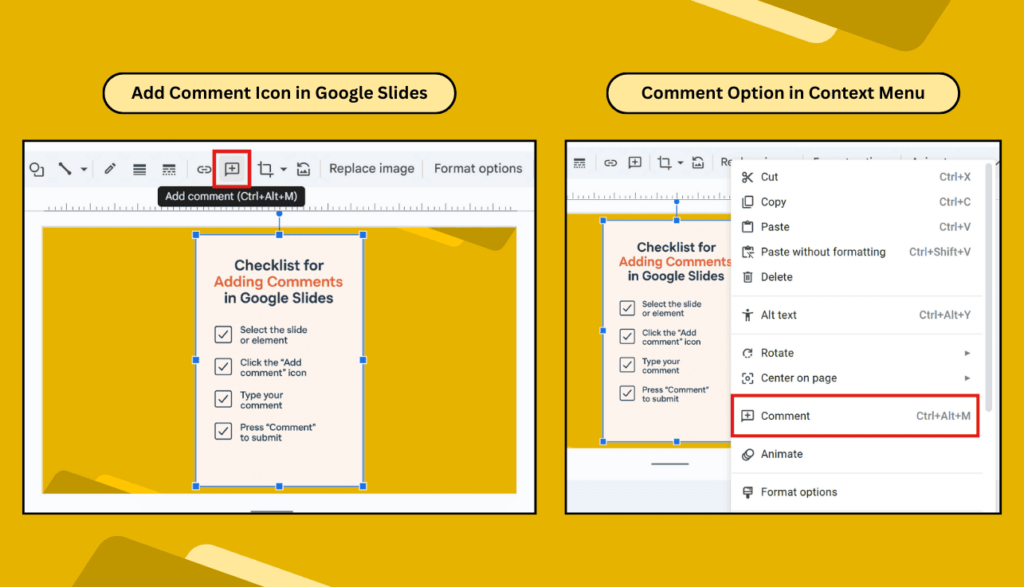
Right-click shortcut: You can also right-click any element on the slide and choose Comment from the context menu. This is often faster than going through the Insert menu, especially when you want to comment on a specific image or shape.
Method 2 Add a comment using keyboard shortcuts
If you regularly review presentations, keyboard shortcuts are the fastest way to add comments — no menu navigation needed.
Ctrl + Alt + MAdd comment — Windows & Chromebook
Cmd + Option + MAdd comment — Mac
Ctrl + Alt + Shift + AOpen comments panel — all platforms
To use the add comment shortcut: click the element you want to comment on first to select it, then press the shortcut. The comment box opens instantly. Type your comment and press Tab then Enter to post without touching the mouse.
Full keyboard workflow for fast reviewers: Click an element → Ctrl+Alt+M → type comment → Tab → Enter → click next element → repeat. This workflow lets you review an entire 20-slide deck without touching your mouse for the comment process.
Method 3 Add a comment on mobile (iPhone & Android)
The Google Slides mobile app for iOS and Android supports adding, replying to, and resolving comments — though the workflow is slightly different from desktop.
- Download the Google Slides app. It is free on both the Apple App Store and Google Play Store.
- Open your presentation. Tap the file in the app to open it.
- Tap the slide element. Tap on the text box, image, or shape you want to comment on. A selection border appears.
- Open the comment option. Tap the three-dot menu (⋮) in the top right corner of the screen. Tap Add comment from the menu.
- Type and post. Type your comment in the text field. Use @ to tag a collaborator. Tap Post to save the comment.
- View existing comments. Tap any speech bubble icon on a slide to open and read an existing comment. Tap Reply to respond or Resolve to close it.
On mobile, comment icons can be small. If you are having trouble tapping a comment icon on a crowded slide, pinch to zoom in on the slide first, then tap the icon. The comment will open normally at any zoom level.
How to reply to, resolve, and manage comments
Replying to a comment
Click any speech bubble icon on a slide to open the comment thread. Type your reply in the Reply field at the bottom of the thread and click Reply to post. All collaborators who are tagged in or have previously replied to the thread will receive a notification. Replies are threaded, so the full conversation stays attached to the specific slide element.
Resolving a comment
When feedback has been addressed, click the comment to open it, then click the Resolve button (the tick/checkmark icon in the top right of the comment). The comment disappears from the slide view but is saved in the comment history. To see resolved comments, click the Comments button in the top right of the screen and switch to the Resolved tab.
Deleting a comment
To permanently delete a comment, open it and click the three-dot menu (⋮) inside the comment, then choose Delete. Deleted comments cannot be recovered — unlike resolved comments which stay in history. Only delete comments that were added by mistake or are genuine duplicates.
Using the Comments panel
Click the Comments button (speech bubble icon) in the top-right corner of the Google Slides editor to open the full Comments panel. This shows every open comment across all slides in the presentation — you can scroll through them, reply directly from the panel, and click any comment to jump to the relevant slide. This is invaluable in long presentations with multiple collaborators leaving feedback simultaneously.
Assigning action items
When you tag someone with @, Google Slides gives you the option to assign the comment as an action item — a task explicitly assigned to that person. Check the Assign to [name] checkbox before posting. The tagged person sees the comment marked as their responsibility, and it appears in their Google Tasks if they use that app. This turns a comment into a trackable to-do without leaving Google Slides.
Comment permissions — who can do what
| Permission level | Add comments | Reply to comments | Resolve comments | Delete comments |
|---|---|---|---|---|
| Owner / Editor | ✓ Yes | ✓ Yes | ✓ Yes (any) | ✓ Yes (any) |
| Commenter | ✓ Yes | ✓ Yes | ✓ Own only | ✓ Own only |
| Viewer | ✗ No | ✗ No | ✗ No | ✗ No |
To change someone’s access level, click the Share button, find their name in the list, and change their permission from the dropdown next to their name. For full details on Google Slides sharing permissions, see Google’s official sharing documentation.
Best practices for using comments in Google Slides in 2026
- Be specific in every comment. “Change font size to 28pt” gets actioned; “make this bigger” gets ignored or misinterpreted. Include the exact change you want whenever possible.
- Always tag the responsible person. A comment without a tag is easy to miss. If someone specific needs to act on the feedback, @ mention them so they receive a notification.
- Use action items for tasks, comments for discussion. If feedback requires someone to do something, assign it as an action item. If it is a question or suggestion, leave it as a regular comment. Keeping these distinct makes review sessions much cleaner.
- Resolve comments promptly after actioning them. Leaving dozens of resolved but unresolved comments clutters the slide view and makes it hard to see what still needs attention. Build a habit of resolving as you go.
- Add a comment date context for async teams. If your team works across time zones, start comments with context: “Review session 10 May — can we revisit the chart on slide 7 before the client call?” This helps teammates understand the urgency and context without a live meeting.
- Use Suggest Edits for text changes, Comments for everything else. If your feedback is specifically about changing slide text, use Edit → Suggesting mode (available in Google Docs — in Slides, use comments to suggest text changes and the editor can accept or reject them manually).
Starting from a well-designed base makes reviewing easier
Comments and feedback workflows work best when the presentation structure is already solid. If your team is spending most of their comments on layout and design issues rather than content, it may be time to start from a stronger foundation. SlideEgg’s library of free Google Slides templates includes hundreds of professionally designed decks — fully editable and ready to open directly in Google Slides without downloading anything.
Starting from a clean, well-structured template means your comment threads focus on what matters — content, messaging, and data — rather than font choices and alignment fixes.
Frequently asked questions
Can I add comments in Google Slides without a Google account?
No — you need a Google account to add comments. If the file is shared with “Anyone with the link can comment” permissions, any Google account (including free Gmail) can comment. Viewers with view-only access cannot add comments — they need at least Commenter permission from the file owner.
How do I tag someone in a Google Slides comment?
Type @ inside the comment box, then start typing the person’s name or email. Google Slides suggests matching contacts — click their name to tag them. They receive an email notification with a direct link to the comment. If the tagged person does not have access to the file, Google Slides will ask if you want to share it with them at the same time.
What is the difference between resolving and deleting a comment in Google Slides?
Resolving hides the comment from the slide view but keeps it in history — you can find it in the Comments panel under the Resolved tab. Deleting removes it permanently with no recovery. Use Resolve when feedback has been acted on; use Delete only for accidental or duplicate comments.
Can I add comments in Google Slides on iPhone or Android?
Yes. Open the free Google Slides app, tap the element you want to comment on, tap the three-dot menu (⋮) in the top right, then tap Add comment. Type your message and tap Post. You can also reply to and resolve existing comments from the mobile app by tapping any comment indicator on a slide.
Do comments appear when I present or print Google Slides?
No — comments are completely hidden during Slideshow mode and do not appear on printed slides or exported PDFs. They are only visible in the editing view. This means you can leave as many feedback notes as needed without worrying about them appearing in the final presentation.
How do I see all comments in one place in Google Slides?
Click the Comments button (speech bubble icon) in the top-right corner of the editor. The Comments panel shows all open comments across every slide. You can filter by Open or Resolved, reply directly from the panel, and click any comment to jump to the relevant slide. This is especially useful in long presentations with many collaborators.
What is the keyboard shortcut to add a comment in Google Slides?
Press Ctrl+Alt+M on Windows and Chromebook, or Cmd+Option+M on Mac. First click the element you want to attach the comment to, then press the shortcut — the comment box opens immediately without needing to go through any menu.