2700+ Process Presentation Templates

Explaining processes with words is hard. People hear the steps but don't see how they fit together. Process diagrams organize your workflow visually. Arrows show flow. Stages are clear. Everyone understands the same thing.

Got a Unique Idea? Craft with AI
PRO
Credits left : 0
Add to Wishlist
Download
AI Customize
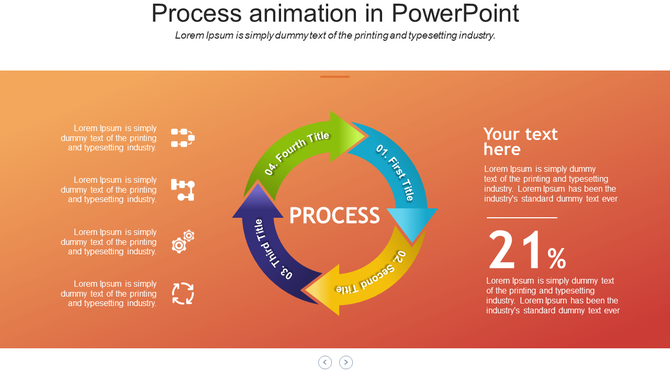
Slide displaying a colorful process animation template with four titles with a central process section and placeholder text.
Add to Wishlist
Download
AI Customize
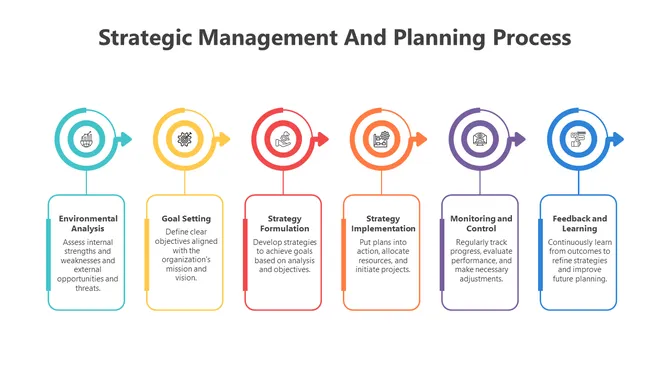
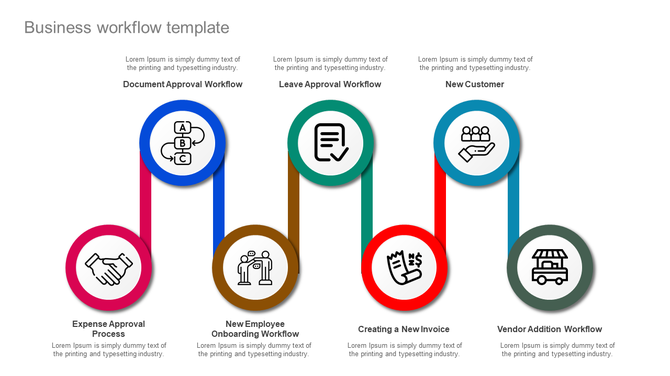
Business workflow infographic with six circular icons connected by curved lines, each representing a different process.
Add to Wishlist
Download
AI Customize
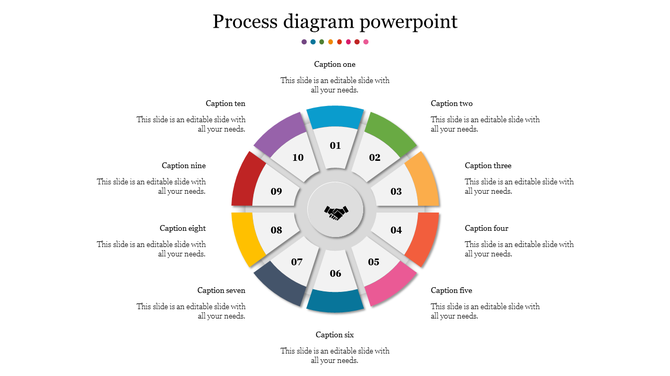
Circular process diagram with ten numbered segments in various colors, linked to surrounding captions, and a handshake icon.
Add to Wishlist
Download
AI Customize
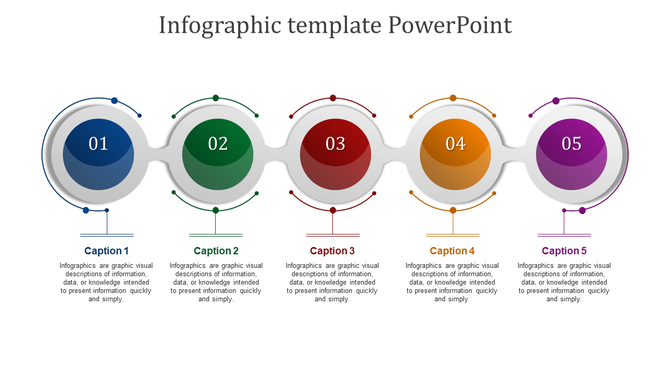
Infographic PowerPoint slide with five colorful circles, each with captions explaining the concept of infographics.
Free
Add to Wishlist
Download
AI Customize
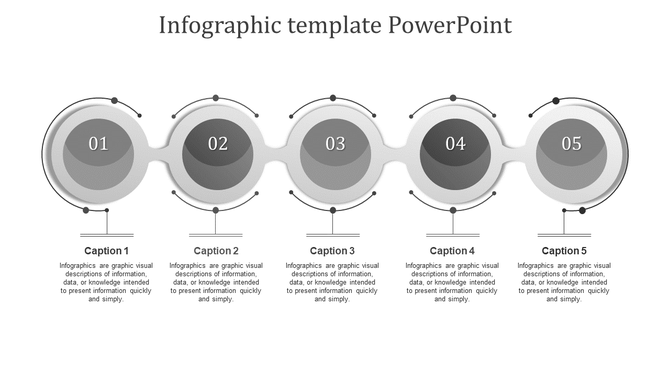
Infographic PowerPoint slide featuring five grey circles with numbered sections, each with a caption and placeholder text.
Free
Add to Wishlist
Download
AI Customize
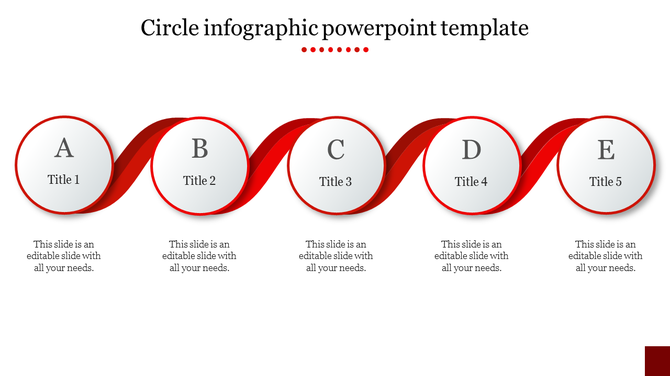
Circle infographic PowerPoint template with five sections A, B, C, D, and E, connected by a red ribbon with titles.
Free
Add to Wishlist
Download
AI Customize
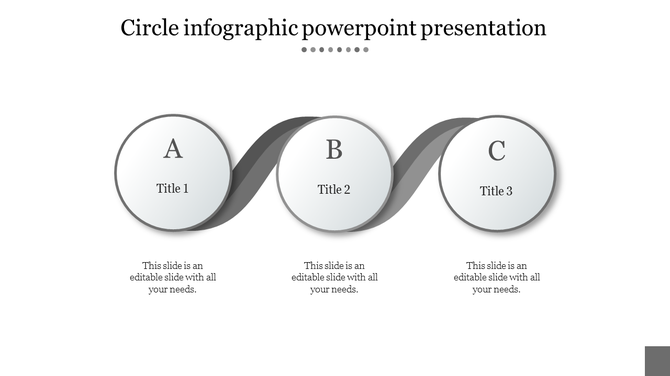
Timeline diagram featuring three circular elements with black borders, linked by a curved gray ribbon.
Free
Add to Wishlist
Download
AI Customize
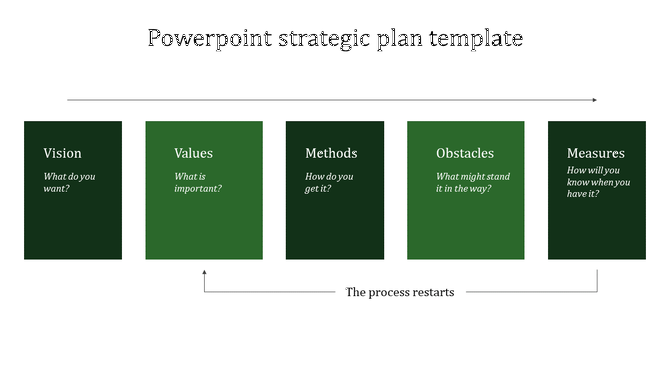
Strategic planning framework with five blocks, each posing a guiding question, with an arrow indicating the process restarts.
Free
Add to Wishlist
Download
AI Customize
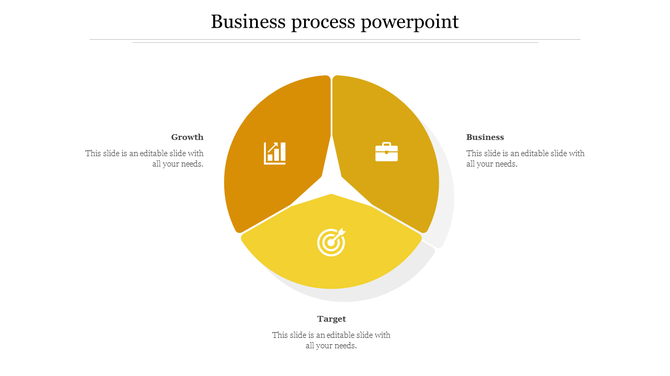
Business process infographic featuring a pie chart with sections for growth, business, and target, each marked with an icon.
Free
Add to Wishlist
Download
AI Customize
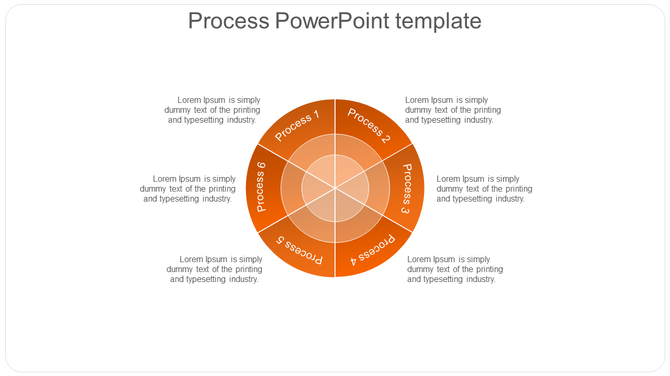
Process PowerPoint template showing an orange circular flow with six process steps and captions.
Free
Add to Wishlist
Download
AI Customize
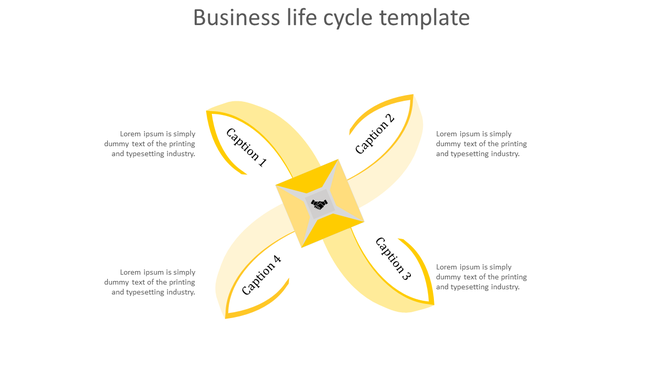
Business life cycle diagram featuring a yellow cross-shaped design with four labeled segments and a handshake symbol.
Free
Add to Wishlist
Download
AI Customize
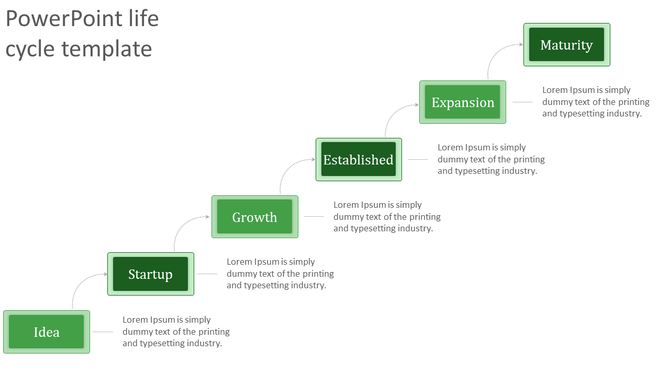
Life cycle PPT template shows green stages connected with arrows from Idea to Maturity with descriptions.
Free
Add to Wishlist
Download
AI Customize
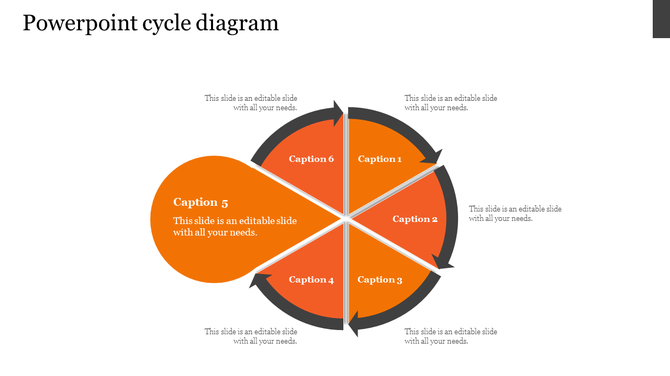
Orange circular cycle diagram with six labeled segments and arrows indicating flow, arranged in a radial pattern.
Free
Add to Wishlist
Download
AI Customize
Gray themed business workflow infographic with nine circular steps connected by directional arrows.
Add to Wishlist
Download
AI Customize
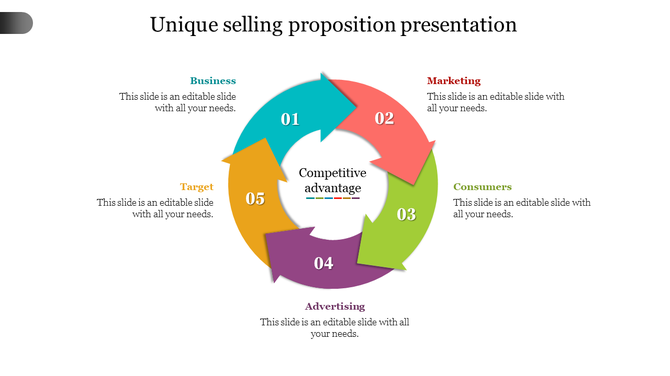
Unique selling proposition slide with arrow infographic with five numbered segments in blue, red, green, purple, and yellow.
Add to Wishlist
Download
AI Customize
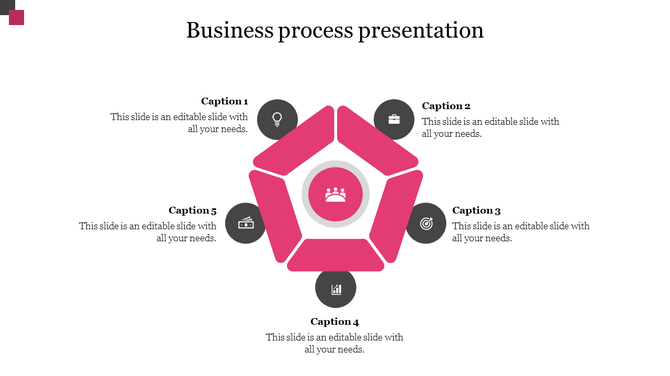
Business process slide with a pink pentagonal diagram in the center, surrounded by five black circular icons.
Add to Wishlist
Download
AI Customize
Business development slide with four green and black arrow segments, each containing a white icon and caption below.
Add to Wishlist
Download
AI Customize
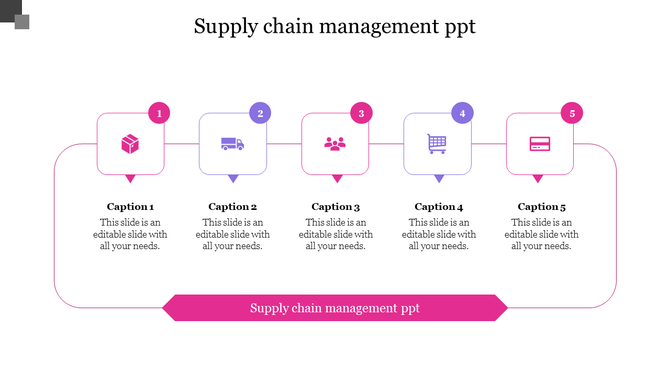
Five step process flow with numbered icons in squares for supply chain stages, connected by a pink line.
Add to Wishlist
Download
AI Customize
Supply chain flow diagram with five icons for product, manufacture, distributor, retailer, and customer, linked by arrows.
Add to Wishlist
Download
AI Customize
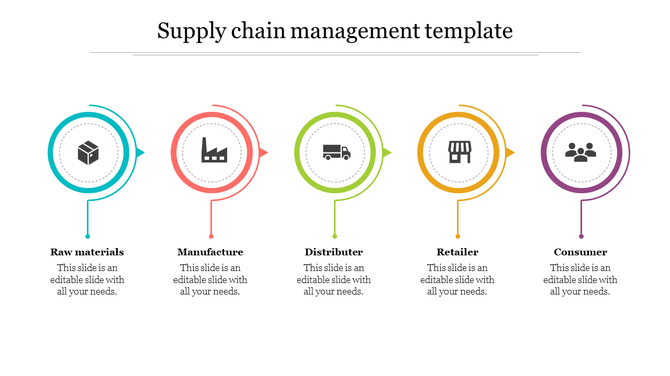
Supply chain management PPT template showing stages from Raw materials to Consumer with color coded icons and text.
Free
Add to Wishlist
Download
AI Customize
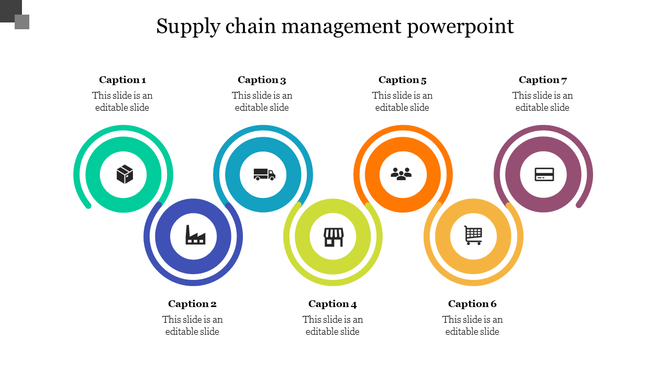
Supply chain management slide with seven colorful circular icons representing different stages with captions.
Free
Add to Wishlist
Download
AI Customize
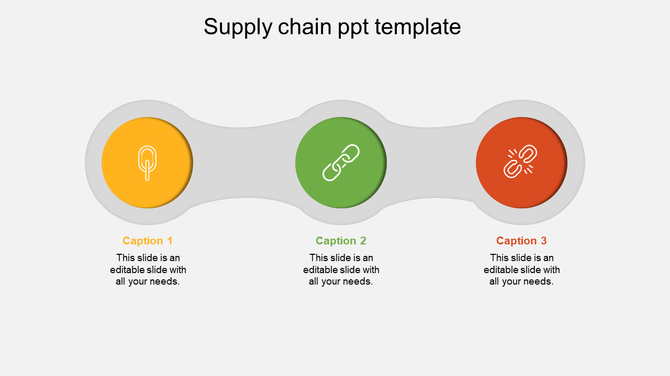
Diagram showcasing three connected supply chain stages with icons and caption areas below each circle.
Add to Wishlist
Download
AI Customize
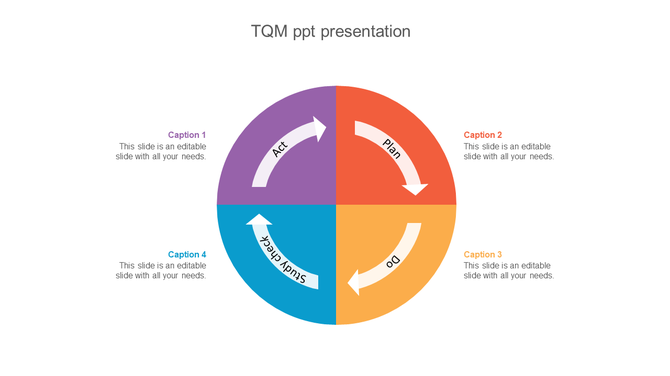
TQM PowerPoint slide displaying the Plan Do Check Act cycle with four colorful segments for effective quality management.

Free Process PowerPoint Templates And Google Slides Themes: Simplifying Communication


Why Presentations Matter for Processes

Presentations are like magic wands for explaining complex ideas. Imagine you’re baking a cake. Instead of handing someone a recipe book, you show them step-by-step pictures of mixing flour, eggs, and sugar. That’s what presentations do—they turn boring instructions into visual stories.

How Our Slides Can Help You

Our process presentation templates are like superhero capes for your ideas. They make your messages fly! Here’s why they’re awesome:

  • Multicolor Infographic Slides: Think of these as your canvas. They’re not just slides; they’re vibrant artworks. Use colors to highlight key points and keep your audience awake.
  • Editable Graphics and Text: Imagine a coloring book where you can change the colors, add your text, and even draw extra doodles. Our slides are like that—100% customizable.
  • Multiple Node Selections: Present processes, steps, and concepts effortlessly with required nodes.
  • Royalty-Free Goodness: No copyright issues! Our slides are yours to use without fear. 
  • Formats for All Occasions: Whether you’re presenting on a big screen or a tiny phone, we’ve got you covered. Choose 4:3 for classic vibes or 16:9 for widescreen. Portrait or landscape? Both orientations are available.
  • Free Slides: Some slides are freebies. Try them before purchasing.

Who Can Use Our Process Slide Templates?

Our slides can be used by different types of people. If you're a business wizard like a CEO or manager, these slides are for you. Students can use them to impress their classmates and teachers during project presentations. Teachers can make their lessons more exciting by using these slides. Event planners can add a touch of excitement to their event introductions and summaries. And if you're a creative person, whether you're a designer, marketer, or someone full of ideas, these slides can help you showcase your work effectively.

Themes You’ll Find Here

In our collection of process slides, you'll discover many different themes. We've got slides about pricing strategies, business strategy planning, supply chain management, sales and marketing strategies, etc. We also offer slides on generic themes, like photosynthesis, butterfly life cycles, etc. Need to illustrate ideas with flow diagrams? We've got arrows, boxes, and flowcharts—like GPS for your thoughts. 

Ready to Transform Your Presentations? Try our versatile, handy, editable process PowerPoint slides to tackle any presentation challenge.

Related Collections

Frequently Asked Questions

1. How do I choose which process to visualize first?

Start with the process that causes the most confusion or problems. Hiring? Customer onboarding? Manufacturing? Pick the one where miscommunication costs you time or errors. Visualize that first. Success there builds momentum for other processes.

2. What should every process diagram include?

Start point and end point. All major steps in order. Decision points (yes/no branches). Who does what at each step. How long each step takes. Where handoffs happen between people or departments. A clear visual makes these elements obvious.

3. How do I explain my process to new team members clearly?

Walk them through the visual diagram step by step. Point to each stage. Explain what happens and why. Have them trace the flow themselves. Ask questions to check understanding. Visuals speed up training because people see the whole picture before diving into details.

4. What's the best way to show process bottlenecks or problems?

Use color coding: green for smooth steps, yellow for slow steps, red for bottlenecks. Or add timing to each step — if it takes too long, flag it. Visual bottlenecks are obvious. Then you can discuss solutions with data, not opinions.

5. Should I include every tiny detail in my process diagram?

No. Include decision points and major steps. Skip minor tasks that happen within a step. Too much detail creates confusion, not clarity. Your diagram should be readable in 2-3 minutes, not require a manual to understand.

6: How do I update a process diagram when the workflow changes?

Document what changed and why. Update the diagram. Share it with everyone affected. Make it a habit to review processes quarterly. When processes change but diagrams don't, confusion returns. Keep visuals current.

7. How do I get buy-in for a new process from my team?

Show them the current process visually. Show them the new process visually. Point out differences. Explain why each change improves things. Let them ask questions. Visuals make the "before and after" obvious, so people understand the reasoning.