1280+ Maps Presentation Templates

You're sharing something about places – teaching geography, showing sales territories, explaining a project location, planning an event. Your audience needs to visualize WHERE it is. Without a map, they're left imagining.

Got a Unique Idea? Craft with AI
PRO
Credits left : 0
Add to Wishlist
Download
AI Customize
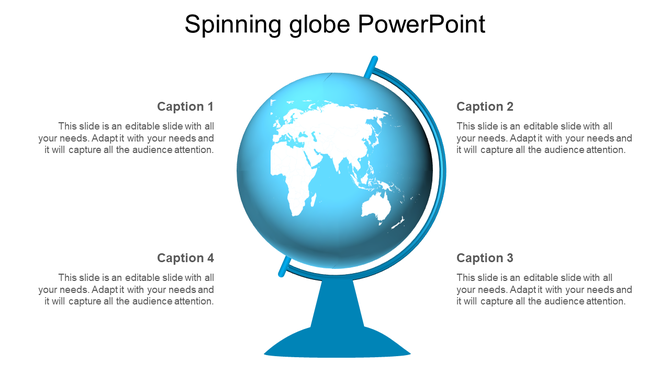
3D spinning globe with a focus on continents, surrounded by four numbered captions in a white backdrop.
Add to Wishlist
Download
AI Customize
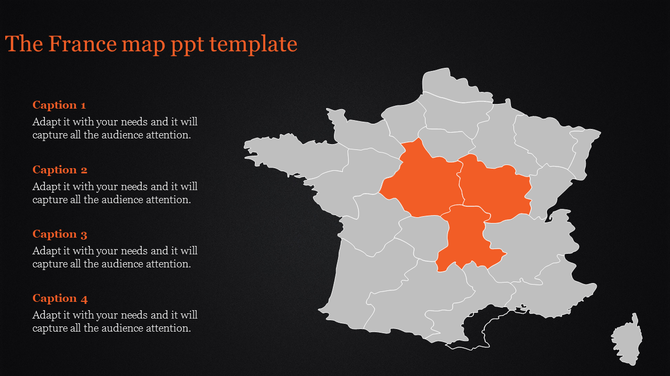
Map of France featuring orange highlighted regions and gray areas, with four captions listed, on a dark background.
Add to Wishlist
Download
AI Customize
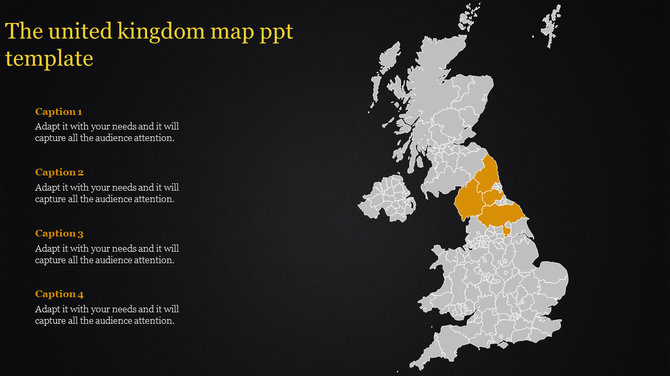
PowerPoint template showing a map of the United Kingdom with a highlighted area in orange on a dark backdrop.
Add to Wishlist
Download
AI Customize
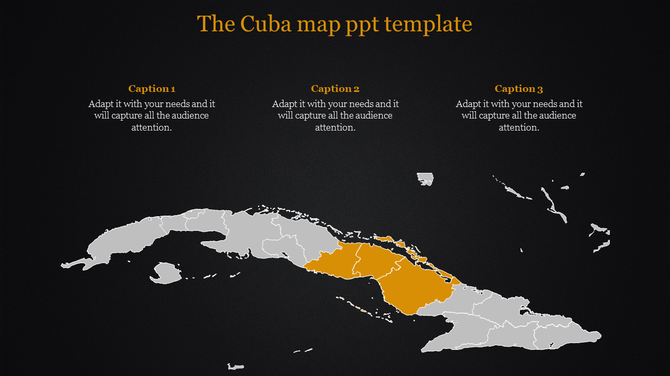
Dark-themed map of Cuba with highlighted central area and captions on top for additional details.
Add to Wishlist
Download
AI Customize
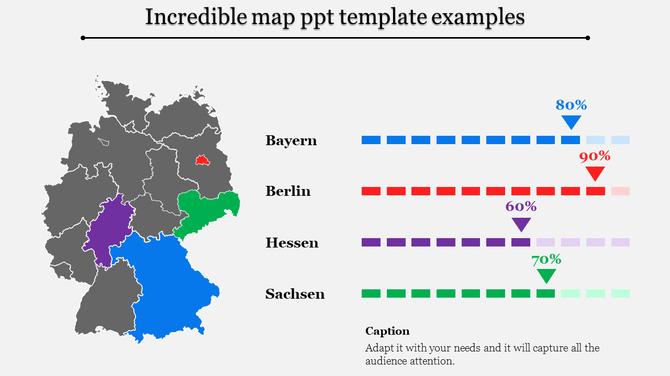
Map PPT slide featuring a color coded map of Germany with percentage indicators for Bayern, Berlin, Hessen, and Sachsen.
Add to Wishlist
Download
AI Customize
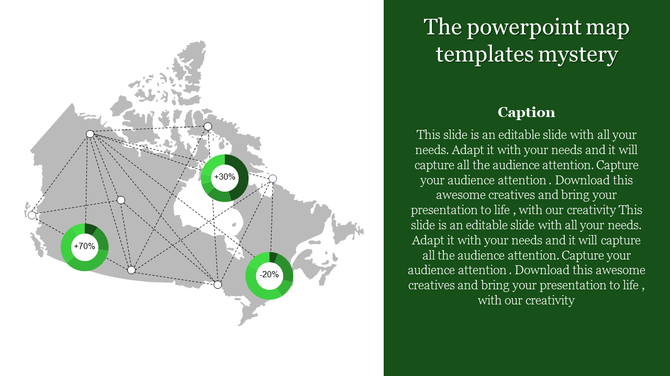
Canada map with interconnected dotted lines and three green pie charts indicating data percentages.
Add to Wishlist
Download
AI Customize
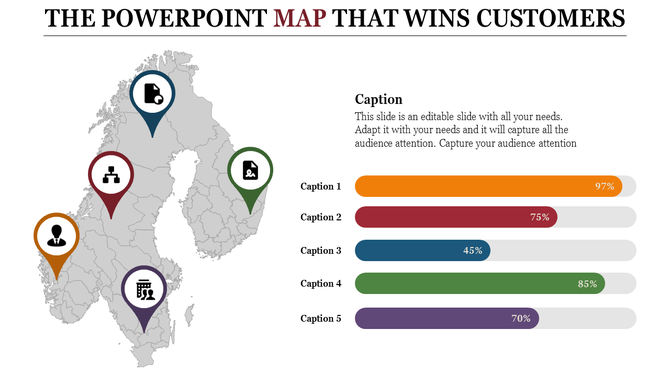
Map PPT template showing five regions marked with icons and percentage data for each area.
Add to Wishlist
Download
AI Customize
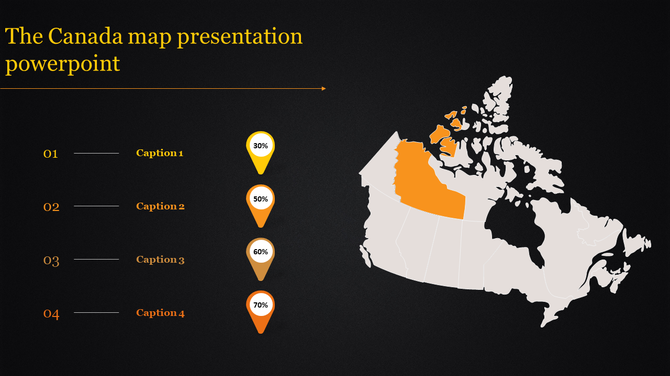
Canada map highlighting one region in orange, paired with four numbered captions and percentage markers on a dark background.
Add to Wishlist
Download
AI Customize
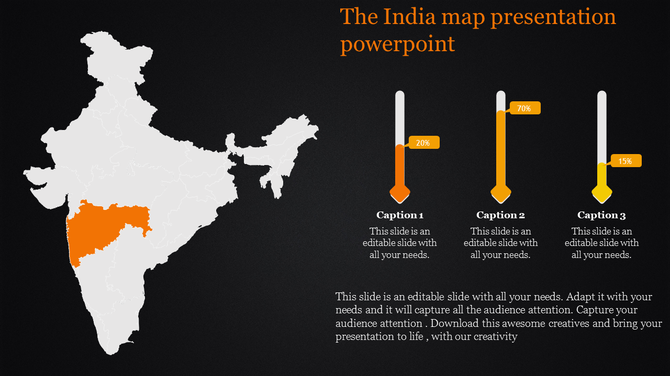
India map with highlighted state in orange paired with three vertical progress bars with captions, on a dark background.
Add to Wishlist
Download
AI Customize
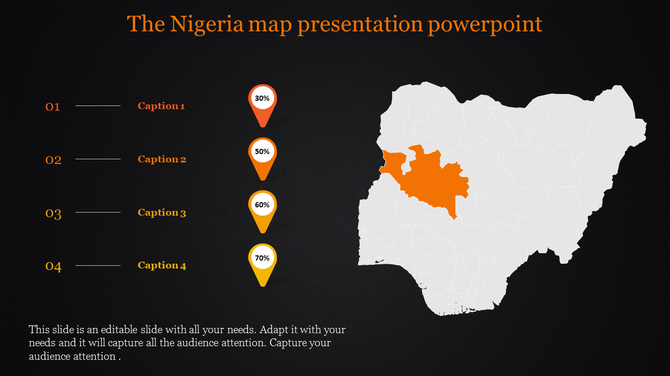
Nigeria map presentation with a highlighted region and four captions with percentage indicators.
Add to Wishlist
Download
AI Customize
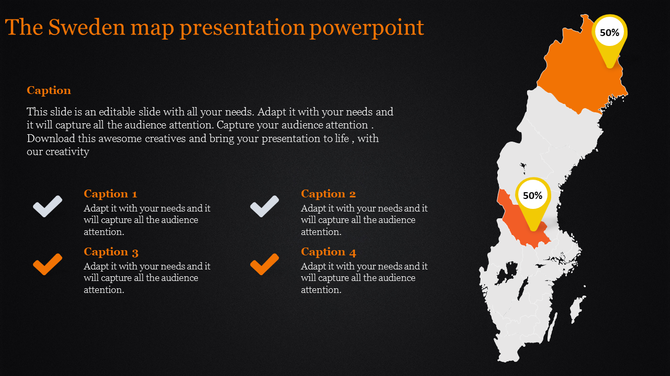
Sweden map PowerPoint slide with highlighted regions and progress percentages on a dark backdrop.
Add to Wishlist
Download
AI Customize
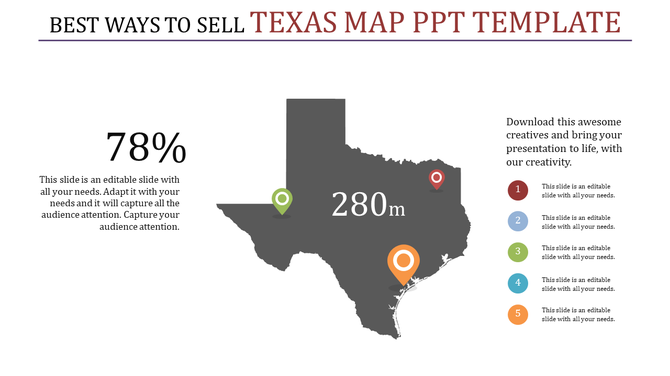
Map of Texas in dark grey with three colorful location markers with a percentage area and five numbered text on the right.
Add to Wishlist
Download
AI Customize
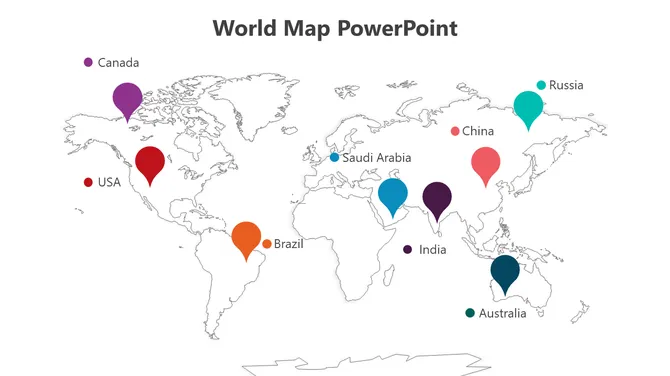
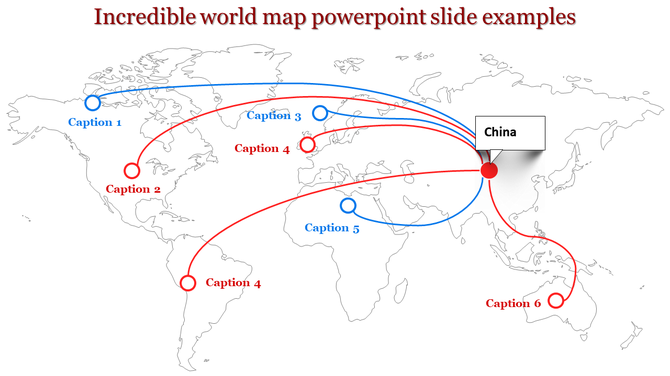
World map PowerPoint slide showing global connections with curved arrows, highlighting China as a central hub.
Add to Wishlist
Download
AI Customize
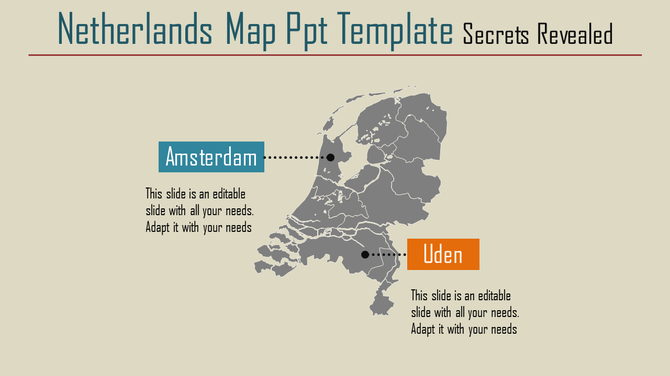
Netherlands map in gray with two marked locations in blue and orange on a beige background.
Add to Wishlist
Download
AI Customize
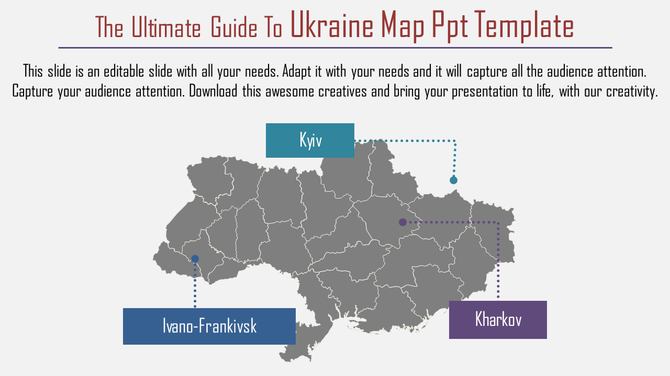
Slide featuring a map of ukraine, highlighting key cities such as kyiv, ivano frankivsk, and kharkov, with text areas.
Add to Wishlist
Download
AI Customize
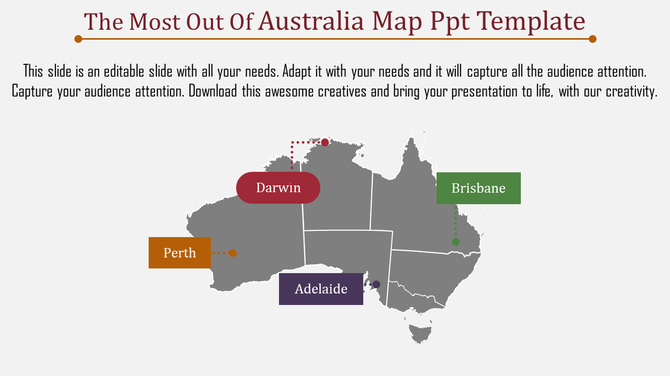
Australia map highlighting Darwin from Adelaide with labeled markers and caption areas placed in a white backdrop.
Free
Add to Wishlist
Download
AI Customize
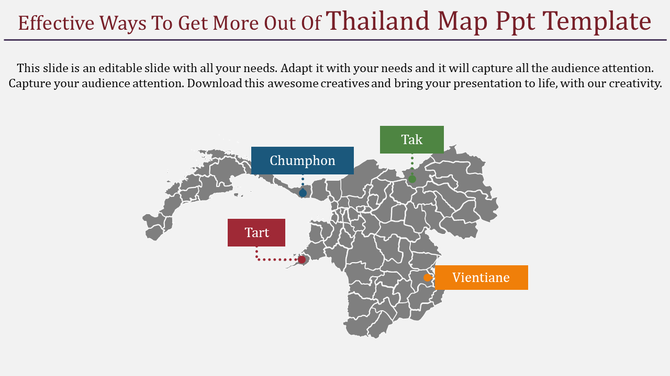
Thailand map slide highlighting regions with labels such as Chumphon, Tak, Tart, and Vientiane, along with dotted lines.
Add to Wishlist
Download
AI Customize
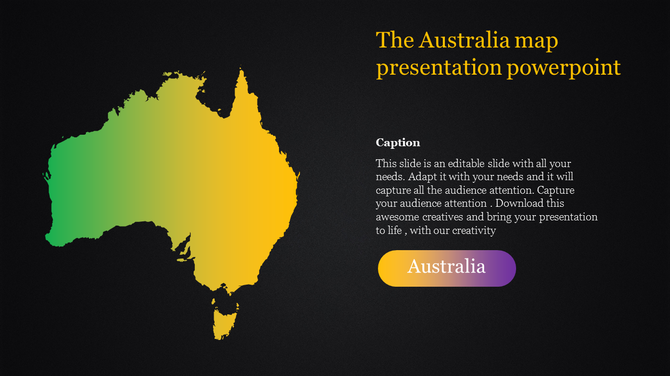
Australia map in gradient green to yellow on a black background with descriptive text and a labeled button.

Find Your Way with Powerful Free Maps PowerPoint Templates and Google Slides Themes!


Ever need to show places or regions in your presentation? Maps are a fantastic way to grab attention and make your information clear. However, creating a great map presentation can be tricky. That's where our maps presentation templates come in!

Why are map presentations important?

Map presentations are vital because they help convey information about places and data visually. With maps, you can show locations, trends, and patterns in a way that everyone can understand. Our slides will help you create awesome presentations. They make it easy for you to share information about different places and data points in a clear and engaging way. They stand out because of their design elements, colors, and ease of use. With features like multicolor editable graphics, you can create presentations that wow your audience every time.

What do we offer?

Our category boasts an impressive collection of map PowerPoint templates. You'll find a wide range of themes here, from world maps to country maps and even city maps. We offer maps of many countries, including Egypt, Iran, Portugal, Great Britain, India, Brazil, Ukraine, Pakistan, Kenya, Israel, Singapore, Vietnam, Hong Kong, etc. Plus, our slides come with customizable features like multicolor infographic slides, editable graphics, and text placeholders.

Who can use our map slides?

Anyone who needs to present geographic information can benefit from our slides. Whether you're a teacher, geographer, travel agent, business owner, or travel enthusiast, our templates are perfect for you. You can use them in classrooms, boardrooms, or even during your next adventure.

Features and benefits:

  • Royalty-free: No need to worry about copyright issues.
  • 100% editable: Customize the slides to suit your needs.
  • Available in multiple formats (4:3 & 16:9): Choose the format that works best for your presentation.
  • Available in multiple orientations (portrait & landscape): Flexibility to fit any screen or layout.
  • Free slides available: Try before you buy!

Ready to elevate your presentations? Don't miss out on the opportunity to make your presentations unforgettable. Download our map presentation templates today and start impressing your audience with captivating visuals and engaging content.

Related Collections

Frequently Asked Questions

1. How do I know when my customized map template is ready to present?

When someone unfamiliar with your topic looks at it and immediately understands: What geography is this? What's being shown? Why does it matter? If they need you to explain the map, it's not clear enough yet. Refine until the map speaks for itself. Your job is to support the map with your words, not explain what the map should already show clearly.

2. I have a map template but don't know where to start — how do I customize it for my specific locations?

Open the template and identify what you need to change. If it's a US map and you need to highlight specific states, color those states. If it's a world map and you need to mark specific countries, add markers there. Start with what matters to YOUR message. Edit only what's necessary. Remove what doesn't apply. The template gives you the structure — you add your specific information.

3. How do I add my information to a map template so it's clear what I'm showing?

Use the template's built-in features — colors, labels, markers, shapes. If highlighting regions, use color-coding. If marking locations, use the marker tool. Add labels so people know what they're looking at. Keep it simple. Every element should answer a question: "What am I showing here?" If it doesn't serve that purpose, remove it.

4. My map template has too much detail for what I need — how do I simplify it?

Delete what doesn't matter to your message. If you only need three regions highlighted, hide or remove the others. If you don't need every city labeled, remove those labels. Templates give you options — use only what you need. A cleaner map is easier to understand. Don't feel obligated to use every element in the template.

5. How do I make sure my customized map template communicates clearly to my audience?

Add a title that explains what the map shows. Use a legend if you're using colors or symbols. Label important locations. Keep colors consistent — one color should mean the same thing throughout. Test it: Can someone understand your map in 5 seconds without explanation? If not, simplify further. Clarity comes from removing confusion, not adding information.

6. I'm using multiple maps in my presentation — how do I keep them consistent?

Use the same color scheme across all maps. If red means "high" in one map, red should mean "high" in all maps. Use the same font for labels. Consistent formatting helps your audience follow the story. They see the first map, understand the pattern, and understand subsequent maps faster. Consistency reduces cognitive load.

7. How do I edit the map template if I don't have design experience?

Templates are designed to be user-friendly. Most editing is drag-and-drop or click-to-change-color. You don't need design skills — just common sense. Click on what you want to change. Experiment. If you make a mistake, undo it. The template is there to support you, not confuse you. Start simple and add complexity only if needed.