| Getting ready to make your interactive quiz in Google Slides ✅Plan your quiz: how many questions, answers, and feedback slides. ✅Make all slides first – question and answer pages. ✅Add links to every answer button that leads to the right or wrong slide. ✅Add a “Next” or “Try again” button to move between slides. ✅Test your quiz in Present mode to check all the links. ✅Keep slides clean, clear, and easy to follow. |
How to make an interactive quiz in Google Slides using hyperlinks
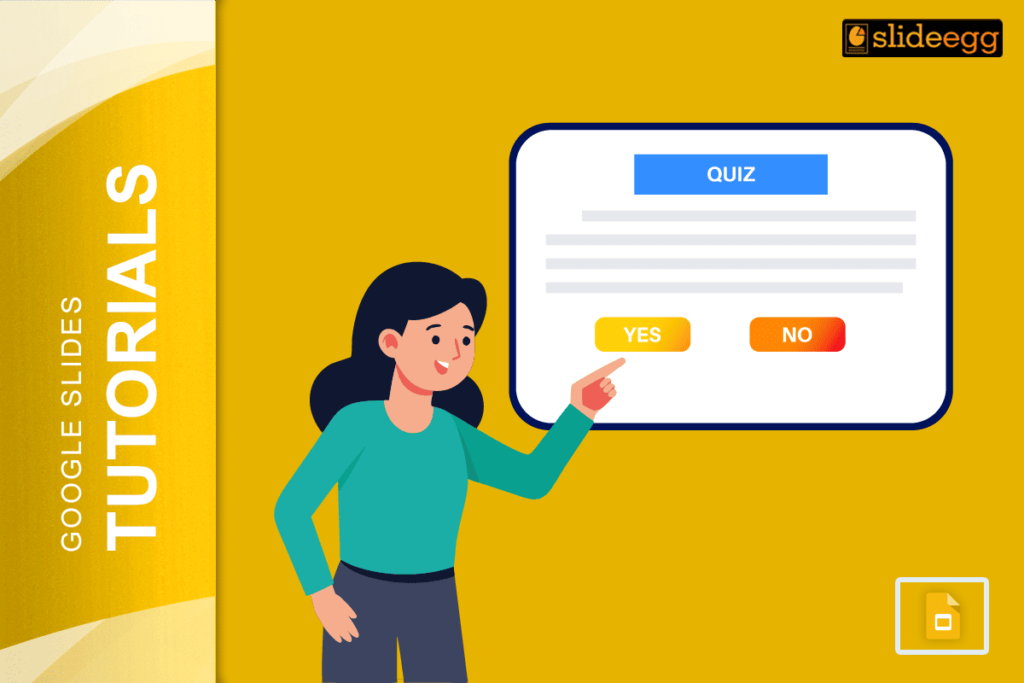
Making a quiz in Google Slides is simple and fun. You can build slides that react when people click answers. Each button takes them to the next slide, showing if they are right or wrong. No coding, no extra tools — just links between slides.
Let’s go step by step and create your own clickable quiz.
Why use Google Slides for a quiz?
- It’s free and easy to use.
- Works online and offline.
- You can design it your way.
- Great for teaching, training, or team fun.
- It helps learners stay active instead of just reading.
💡 Smart Tip: You can also explore interactive presentation makers that help you design quiz slides with real-time responses and smart features.
What you’ll need
- A Google account.
- Your quiz questions and correct answers ready.
- A simple slide design or template.
- Some shapes or buttons for answer choices.
- Basic comfort using Google Slides.
Step-by-step guide
Step 1: Set up your slide deck
- Open Google Slides → click Blank presentation.
- Rename it “Interactive Quiz – Topic Name”.
- Make a title slide with your quiz name and short instructions like “Click the correct answer”.
- Add a question slide next.
Step 2: Build your question slides
- Type your first question.
- Add two to four answer buttons or shapes.
- Label them clearly: A, B, C, or Option 1, 2, 3.
- Style the buttons with bright colors and readable text.
- Duplicate the slide for other questions to save time.
Step 3: Add feedback slides
- Make one slide for “Correct!” and one for “Try Again”.
- On each feedback slide, write short text like “Good job!” or “Oops! That’s not right.”
- Add a button that says “Next Question” or “Back to Quiz”.
Step 4: Link everything with hyperlinks
- Go to a question slide.
- Click an answer button → Insert → Link → Slides in this presentation.
- Choose the slide that says “Correct!” or “Try Again”.
- On the “Next Question” button, link to the next question slide.
- Repeat this for all questions.
You can check our guide on how to use hyperlinks in Google Slides if you’re new to linking.
Step 5: Test your quiz
- Click Present mode.
- Try every button.
- Make sure each answer leads to the right slide.
- Fix broken or wrong links.
- Add a final slide that says “You Finished!” or shows scores.
Step 6: Share or present it
- Add simple designs or images if you want.
- Use the same font and color style on all slides.
- Share your quiz link with others.
- You can also use it in Google Classroom or show it live.
Bonus tips for making it fun
- Use bright colors and large text.
- Keep questions short and clear.
- Add pictures or icons as answer buttons.
- Use simple “fade in” animations.
- Create a scoreboard or final thank-you slide.
- Always test before sharing.
FAQs
Q1. Can I use the quiz without the internet?
Yes. Turn on offline mode in Google Drive. All slide links still work.
Q2. Can I record scores or see who clicked what?
Not directly. For tracking, use Google Forms or a quiz add-on.
Q3. Can I add a timer?
Slides don’t have a built-in timer, but you can add a short video countdown.
Q4. Can I reuse this quiz for other topics?
Yes! Just make a copy and change the text and images.
Q5. Can young students use it?
Of course. Keep big buttons, fewer words, and bright visuals.
Now you know how to make an interactive quiz in Google Slides using hyperlinks. It is a simple, creative way to make learning more fun. Try it for your next class, workshop, or training session and watch how engaged your audience becomes!