| 💡 Easy Tricks to Make a Shape Transparent in Google Slides 1️⃣ Click on the shape you want to edit. 2️⃣ Open the Fill color tool (paint bucket icon). 3️⃣ Select “Custom” from the color menu. 4️⃣ Adjust the Transparency slider to make the shape semi-transparent. 5️⃣ Click OK, and you’re done! Now, let’s dive into the details and make your slides look amazing! |
Introduction
Ever Struggled to Make Your Slides Look Clean and Professional? Or maybe you’ve wanted to highlight an image but found solid colors too harsh?
The secret to better, cleaner, and more modern slides is semi-transparent shapes!
Google Slides doesn’t have a direct “make transparent” button for shapes, but don’t worry—there’s an easy way to do it using the fill color settings. Let me show you step by step how to make your shapes semi-transparent in just a few clicks.
📖 Step-by-Step Guide
⭐ Step 1: Select the Shape
- Open Google Slides and go to the slide you’re working on.
- Click on the shape you want to make transparent.
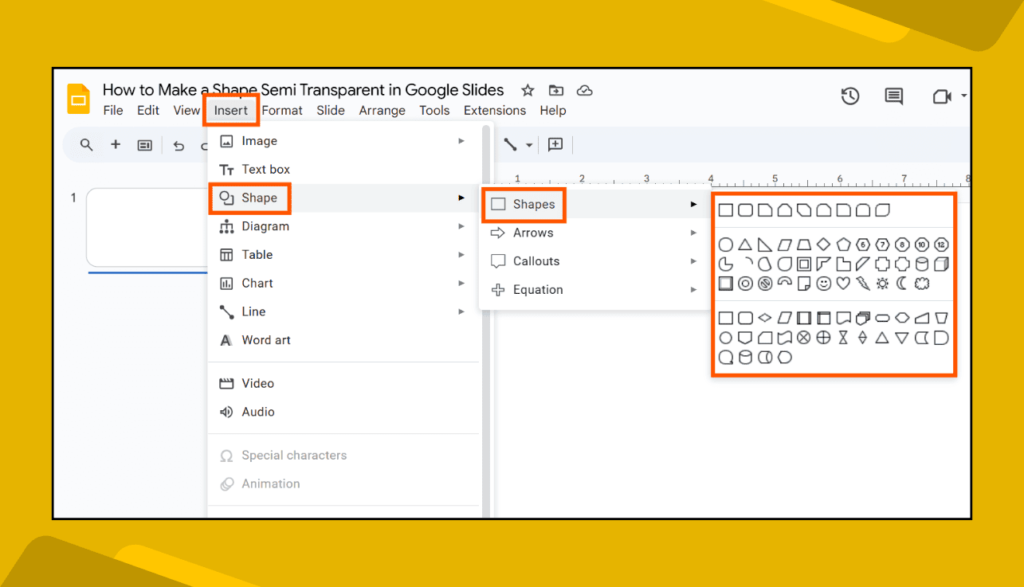
- If you don’t have a shape yet, go to Insert → Shape and choose one.
🎨 Step 2: Open the Fill Color Menu
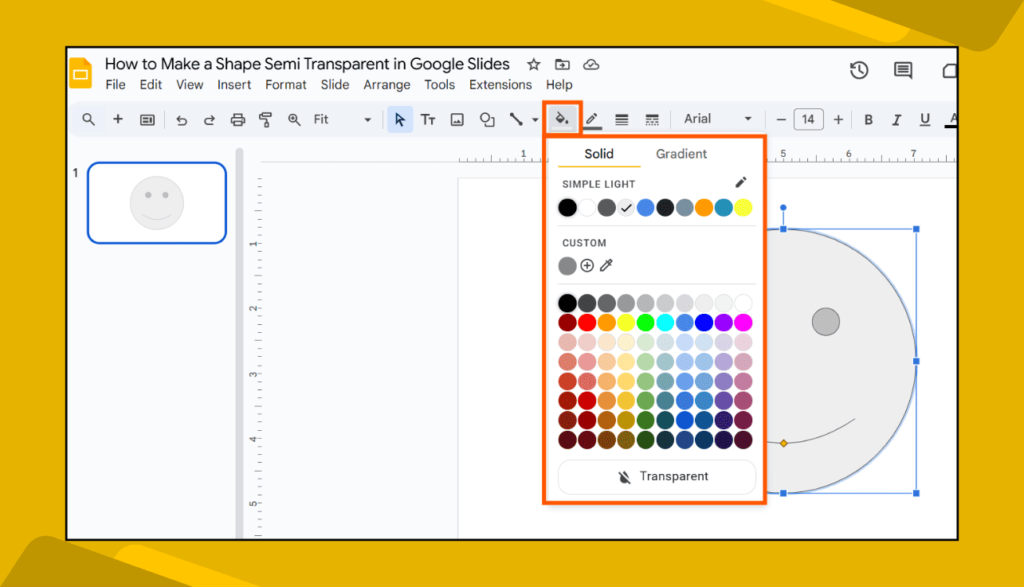
- At the top, find the paint bucket icon (Fill color).
- Click on it to open the color options.
📊 Step 3: Adjust Transparency
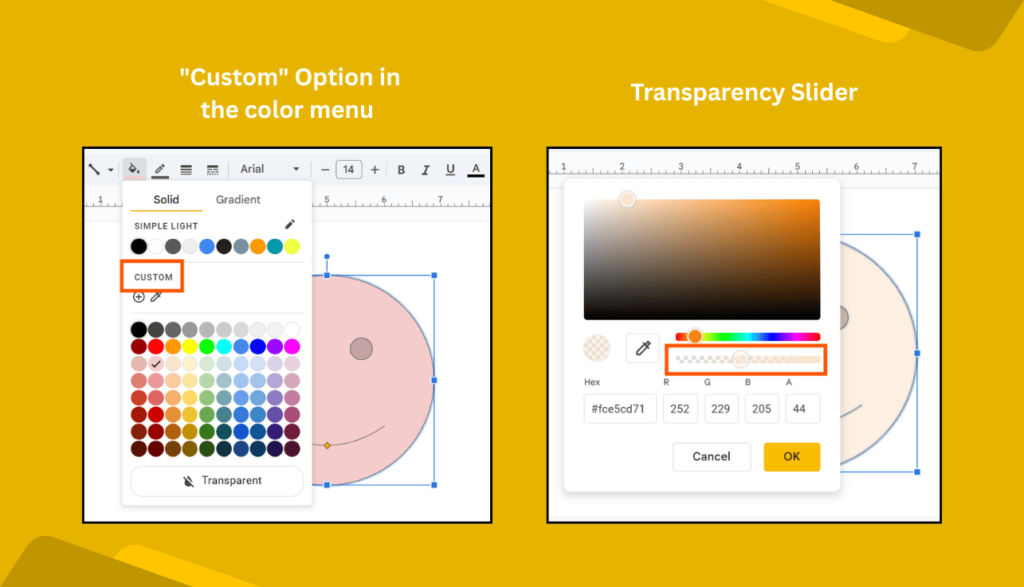
- Click on “Custom” at the bottom of the color menu.
- A new window will pop up with a color picker.
- You’ll see a Transparency slider—move it left or right to adjust how see-through the shape should be.
- Click OK once you’re happy with the transparency level.
✏️ Step 4: Adjust Border Transparency (Optional)
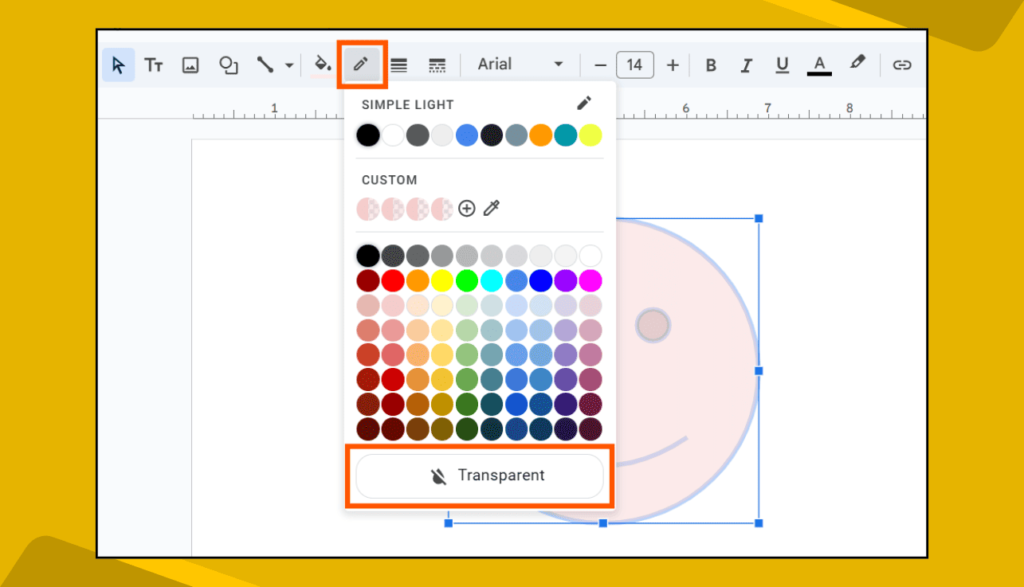
- If your shape has a border, you might want to make it transparent too!
- Click on the Border color tool (pencil icon) and select Transparent.
🎯Step 5: Done! Your Shape is Now Semi-Transparent
That’s it! Now your shape looks sleek and professional, allowing text, images, or other elements behind it to show through.
💡 Why Use Transparent Shapes in Google Slides?
✔ Make text stand out without blocking backgrounds.
✔ Create stylish overlays for a modern look.
✔ Improve readability while keeping your design clean.
✔ Enhance slide design by layering transparent shapes.
🎯 Pro Tips for Better Slide Design
✔ Use 30%-50% transparency for a subtle effect.
✔ Match transparency with theme colors for a professional look.
✔ Layer multiple transparent shapes for cool effects.
✔ Use transparent text boxes for better readability.
🤔 FAQs on Making Shapes Transparent in Google Slides
❓ Can I make an image transparent in Google Slides?
Yes! Click on the image → Format options → Adjustments → Adjust Transparency slider.
❓ Why don’t I see the transparency option?
You need to click “Custom” in the Fill color menu to access the Transparency slider.
❓ Can I animate a transparent shape?
Absolutely! Go to Insert → Animation and add effects to your transparent shape.
❓ Does transparency work in Google Slides on mobile?
No, the Transparency slider is only available on the desktop version.
Final Thoughts
A simple trick like making a shape transparent can instantly upgrade your slide design! It helps create clean, modern, and eye-catching presentations without extra effort. Try it now and see how much better your slides look!